Can You Bypass ChatGPT Image Limits? Safe Routes That Actually Work
ChatGPT image limits should not be bypassed. Match the blocker to a safe route before trying another account, extension, VPN, or unofficial workaround.
On this page
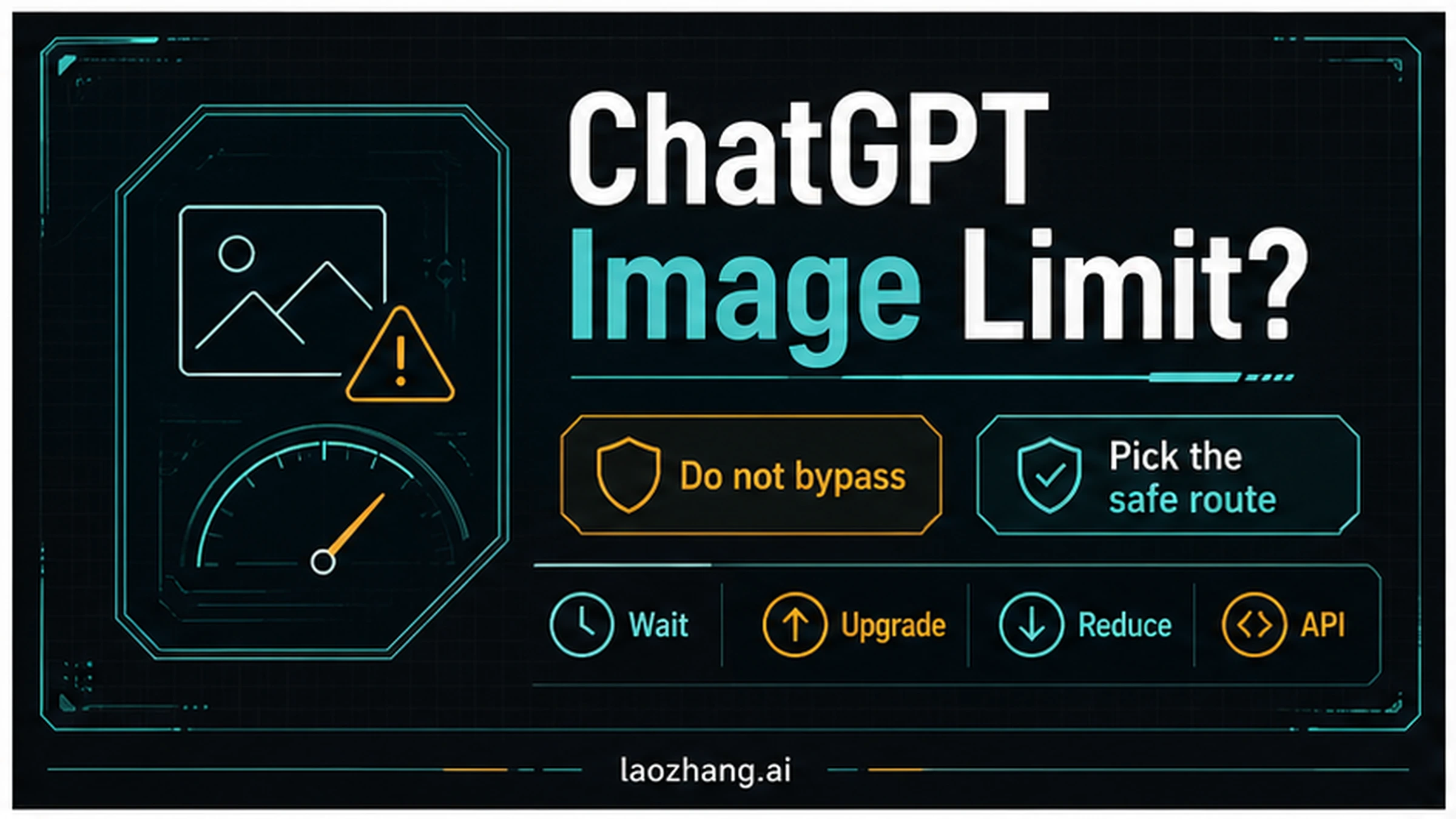
If ChatGPT has stopped your image work, do not try to bypass it. The safer move is to identify what actually blocked you: image creation capacity, image upload size or count, Library storage, API rate limits, or a safety refusal. As of May 13, 2026, OpenAI's Help, Terms, and API docs point to legitimate routes instead of workarounds: wait for the reset notice, upgrade only when the app offers that route, reduce or clean up uploads, use a separate image tool when the job does not require ChatGPT, or use the OpenAI API as a paid developer surface with its own limits.
| What stopped you | Safe next move |
|---|---|
| ChatGPT says you reached image creation or tool capacity | Wait for the reset notice or use the upgrade path shown in your account. |
| Image upload fails | Reduce image count or size; OpenAI Help lists a 20 MB per-image input boundary. |
| Library or storage looks full | Clean up stored files or images before retrying in the same account. |
| You need production volume | Use the OpenAI API with project/model rate limits, backoff, batching, and dashboard monitoring. |
| The request is refused for safety | Change the request to fit policy; do not reword it to evade safeguards. |
The Short Answer: No, Do Not Bypass It
OpenAI's current Terms of Use prohibit circumventing rate limits, restrictions, and protective measures. They also prohibit sharing account credentials or making an account available to someone else. That boundary matters because most shortcut advice around ChatGPT image limits is not just unreliable; it can put the account, workspace, or API project at risk.
The useful question is not how to defeat the limit. The useful question is which contract stopped the work. ChatGPT image creation, ChatGPT image uploads, stored files, and the OpenAI API are separate surfaces. Treating them as one quota leads to bad decisions: a smaller upload will not fix a safety refusal, an API key will not increase the ChatGPT app quota, and a subscription upgrade will not remove API project limits.
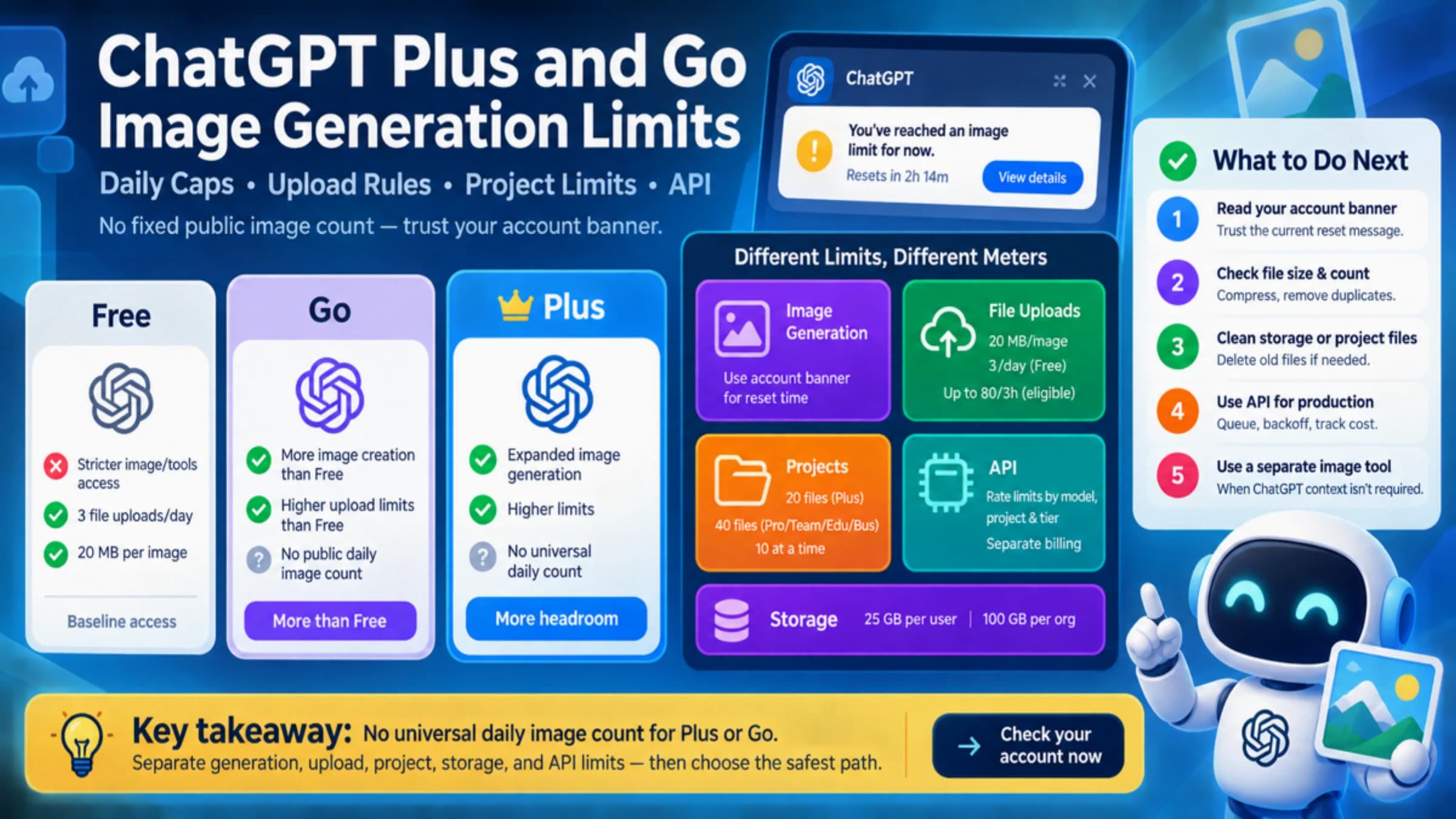
OpenAI's ChatGPT Free Tier FAQ says free users can use tools such as file uploads and image creation, but those tools have separate limits from text conversations. When a tool limit is reached, the official route is to wait until later or upgrade if a paid-plan option is appropriate. The page does not provide a durable public daily image count, so any fixed number should be treated as volatile unless your current account notice or an official page states it.
First Diagnose the Limit You Hit
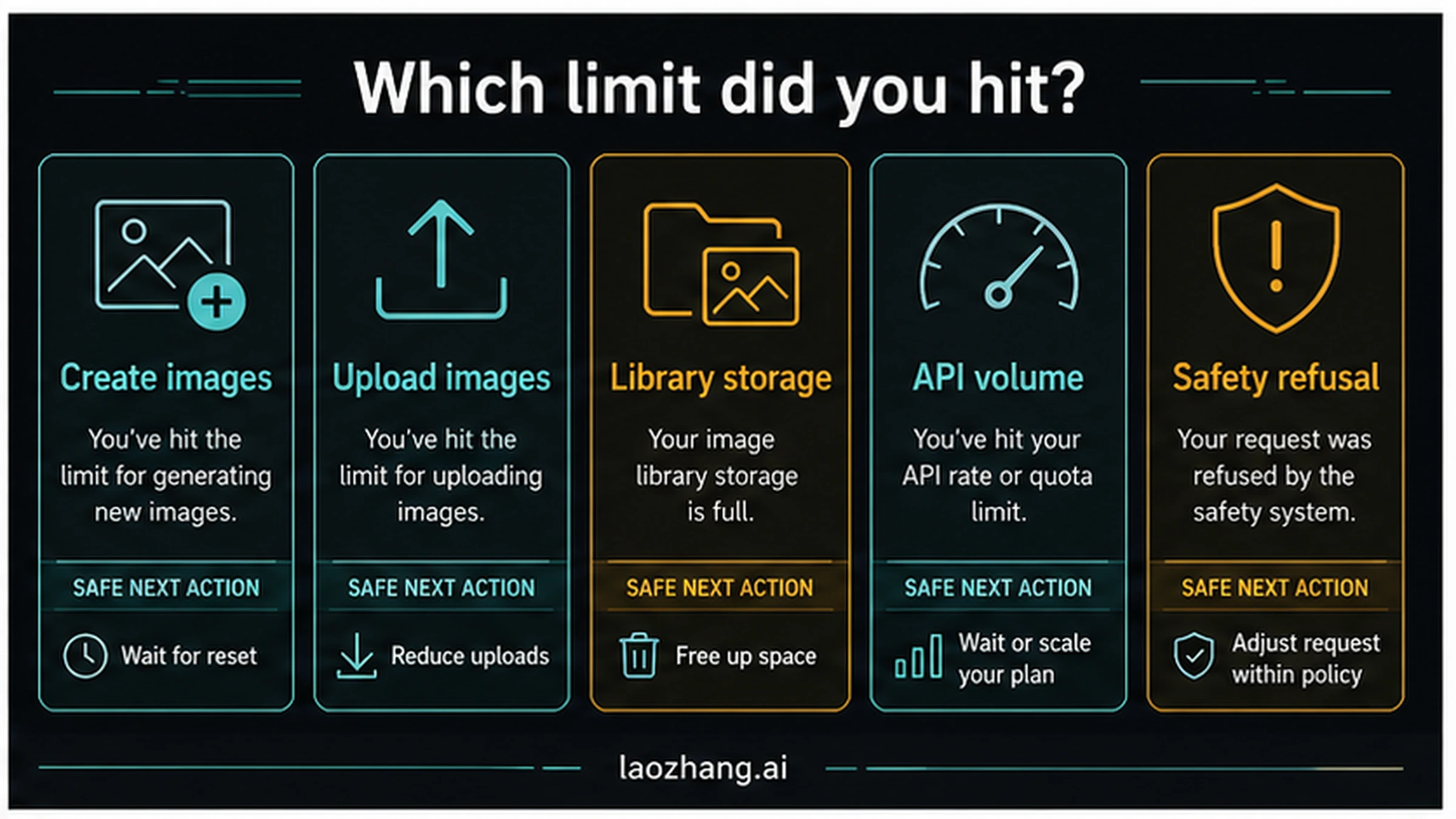
Use the message or behavior you see as the diagnostic signal. A creation limit usually appears when ChatGPT can no longer make or edit images in the conversation. An upload limit usually appears before ChatGPT analyzes the image, often when the file is too large, too many images were attached, or the upload control refuses the file. A storage issue is different again: the conversation may work, but your Library or file storage needs cleanup. An API limit belongs to the developer dashboard, not the ChatGPT app.
| Signal | What it usually means | What to verify | Safe action |
|---|---|---|---|
| "You've reached a limit" during image creation | ChatGPT app image/tool quota | The account notice and reset timing | Wait, upgrade if shown, or switch to a non-ChatGPT tool for that job. |
| Upload button fails or the image is rejected before analysis | Input/file boundary | File size, image count, format, network state | Compress, resize, reduce image count, or retry later. |
| Library or file storage looks full | Stored files/images are consuming quota | ChatGPT Library and storage indicators | Delete unneeded files or images, then retry. |
| API returns rate-limit errors | Developer project/model capacity | OpenAI dashboard, model limits, response headers | Backoff, queue, batch, request a higher tier, or reduce volume. |
| Refusal references policy or safety | The requested content is not allowed as written | The prompt and content category | Change the request to a compliant task; do not evade safeguards. |
The distinction between creation and upload is especially important. The Images in ChatGPT help page describes image creation and editing in ChatGPT. The Image Inputs FAQ covers images you upload for ChatGPT to inspect. The latter lists a 20 MB per-image boundary and recommends reducing image quantity or size when uploads fail. Those are not the same limit.
Stop These Workarounds Before They Cost You More
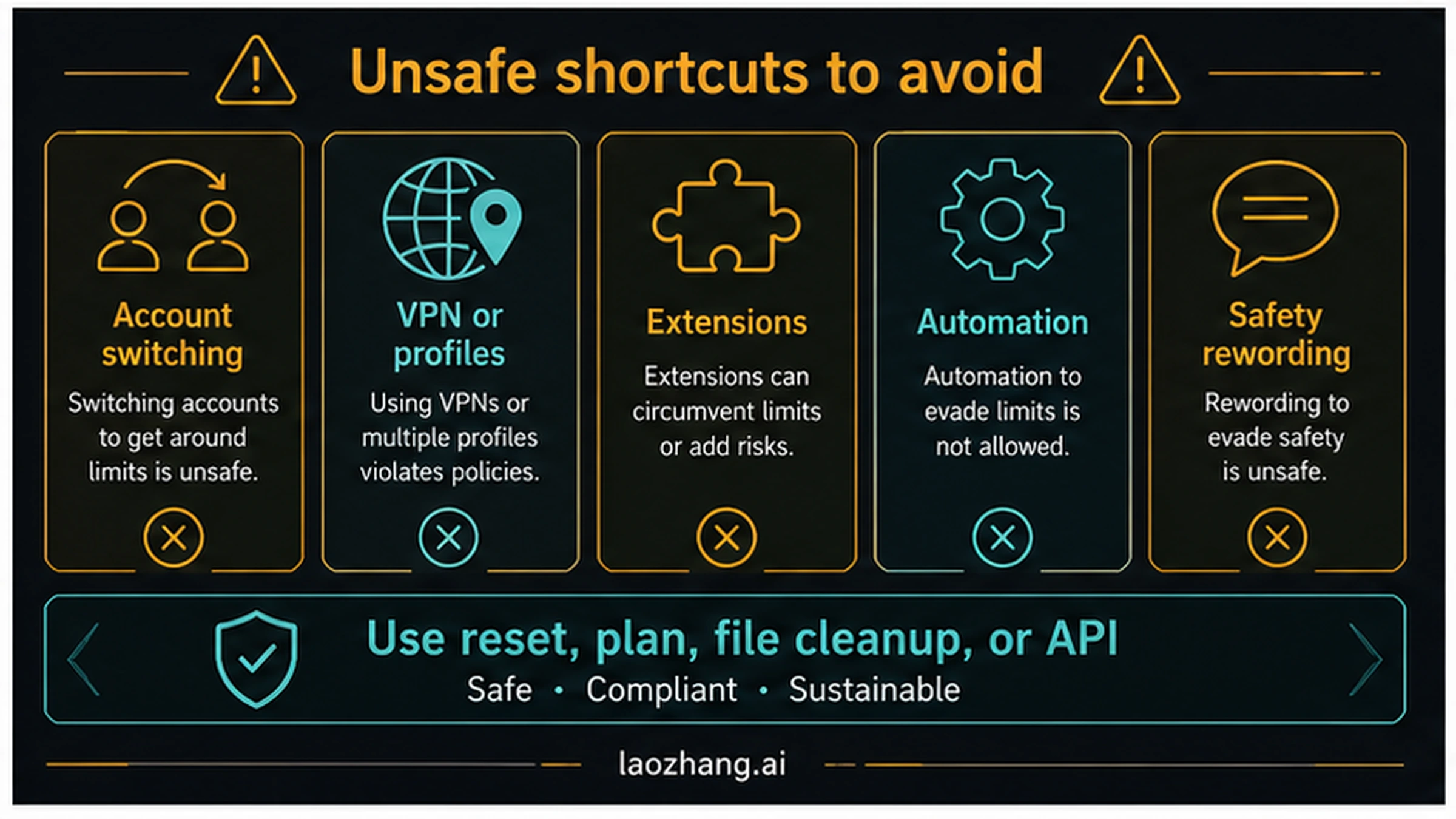
The fastest-looking workaround is often the least reliable path. If a tactic changes your identity, hides automation, shares credentials, or tries to sidestep safety systems, it does not belong in a stable workflow.
| Do not use | Why it is the wrong move | Use instead |
|---|---|---|
| Multiple accounts or borrowed accounts | It can violate account rules and breaks ownership of the work. | Use your account's reset, paid-plan route, or a legitimate separate tool. |
| VPN, proxy, profile, or incognito rotation | It treats a quota as something to evade and may trigger trust or security checks. | Stay in the same account and diagnose the actual blocker. |
| Browser extensions that promise unlimited images | They can expose credentials or automate behavior outside the product contract. | Use official ChatGPT, an image tool, or the OpenAI API. |
| Scripts that automate retry loops | They can amplify rate-limit pressure and still fail. | Queue work, reduce volume, or move production jobs to API architecture. |
| Prompt rewording meant to dodge a safety refusal | It targets protective measures rather than the reader's legitimate task. | Rewrite the request so it is allowed and useful. |
There is a big difference between optimizing your workflow and evading a limit. Compressing a 25 MB image to fit a documented 20 MB upload boundary is normal. Combining related screenshots into one clearly labeled collage can be normal if the content remains readable. Cycling accounts to keep generating after a quota stops you is not the same kind of action.
Safe ChatGPT App Recovery
If the blocked work belongs inside ChatGPT, keep the recovery path simple. First, read the account notice instead of relying on old quota screenshots. OpenAI changes tool access and plan behavior over time, and current Help pages describe limits by plan and tool without promising a single universal image count. Second, decide whether the image really needs ChatGPT. If the task is one-off creative exploration, a dedicated image tool may be faster. If the task depends on a ChatGPT conversation, wait for reset or use the upgrade path shown in the product.
For image creation, reduce failed attempts by clarifying the job before you submit. Put the required subject, style, constraints, and edit target in one concise request. Avoid repeated near-identical generations just to explore small variations. If you need many variations, decide which variations matter first, then spend the available attempts on the highest-value set.
For image editing, reuse the same conversation context when the edit chain is connected. Do not start a new thread for every minor correction unless the prior thread is making the task worse. If the edit request keeps failing, stop and diagnose the prompt or source image rather than retrying until the limit ends the session.
For uploads, treat file preparation as part of the workflow. The 20 MB per-image boundary from OpenAI Help is the first hard check. Resize oversized screenshots, crop irrelevant borders, remove duplicate frames, and upload only the images that ChatGPT actually needs to inspect. For detailed upload numbers and historical plan comparisons, the sibling article on the ChatGPT Plus image upload limit is useful background, but current decisions should still follow the notice and official source you see now.
When a Separate Image Tool Is the Right Route
Not every image job needs ChatGPT. If the task is to make a fresh visual, test a style, generate a product concept, or iterate on a prompt without needing ChatGPT's surrounding conversation, use a legitimate image-creation surface instead of trying to stretch the ChatGPT app quota. For this site, the current image testing and creation entry point is yingtu.ai. Treat it as a separate tool choice, not as a way to defeat ChatGPT limits.
This route is strongest when the output does not need ChatGPT memory, uploaded documents, or a long text conversation. It is weaker when the image task depends on previous ChatGPT analysis, a specific conversation state, or private files that should remain inside one account. The practical decision rule is simple: if ChatGPT is only being used as an image generator, a dedicated image tool can be a cleaner route; if ChatGPT is being used as the reasoning workspace, wait, prepare better inputs, or upgrade inside that product.
When the OpenAI API Is the Right Route
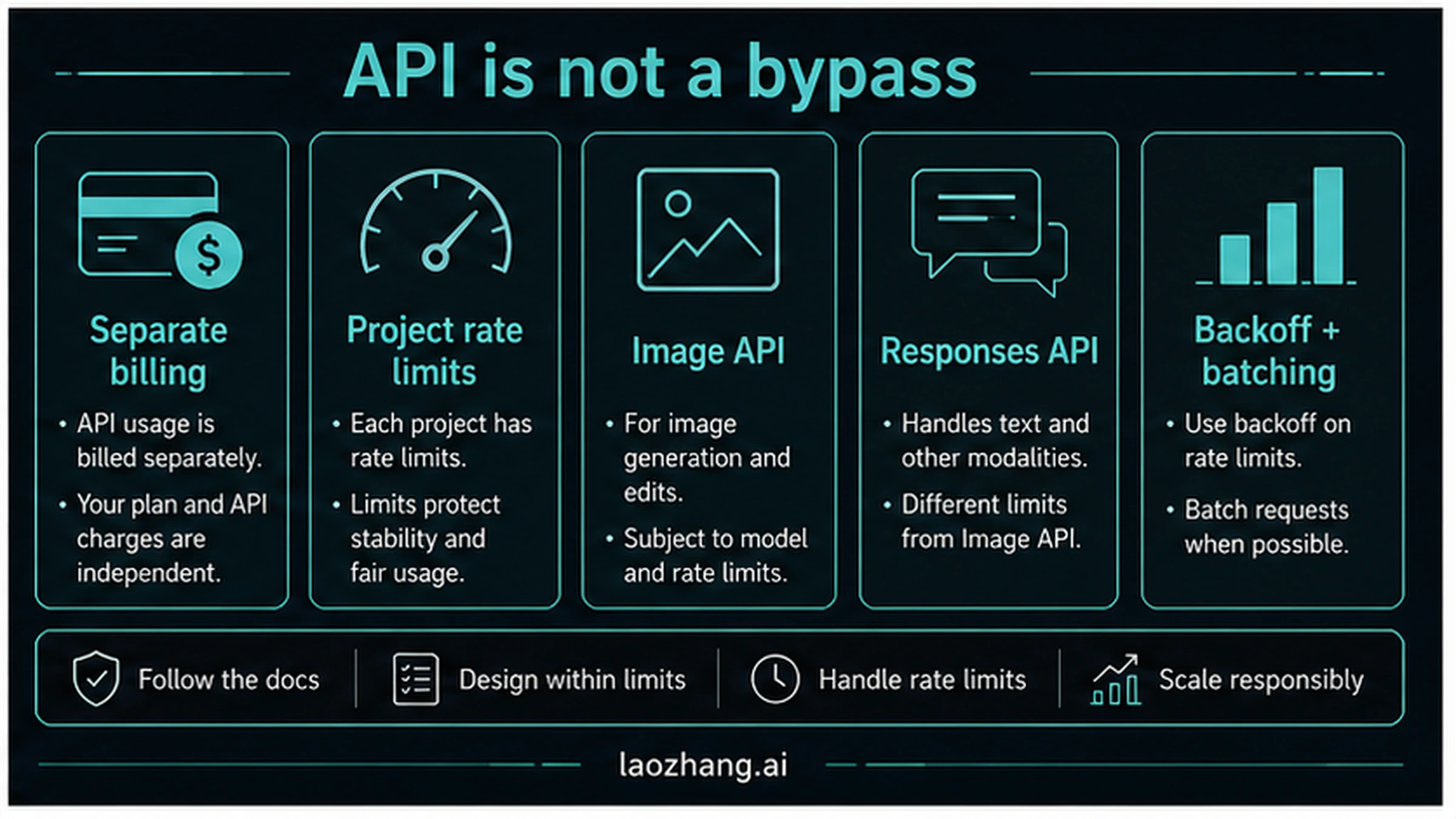
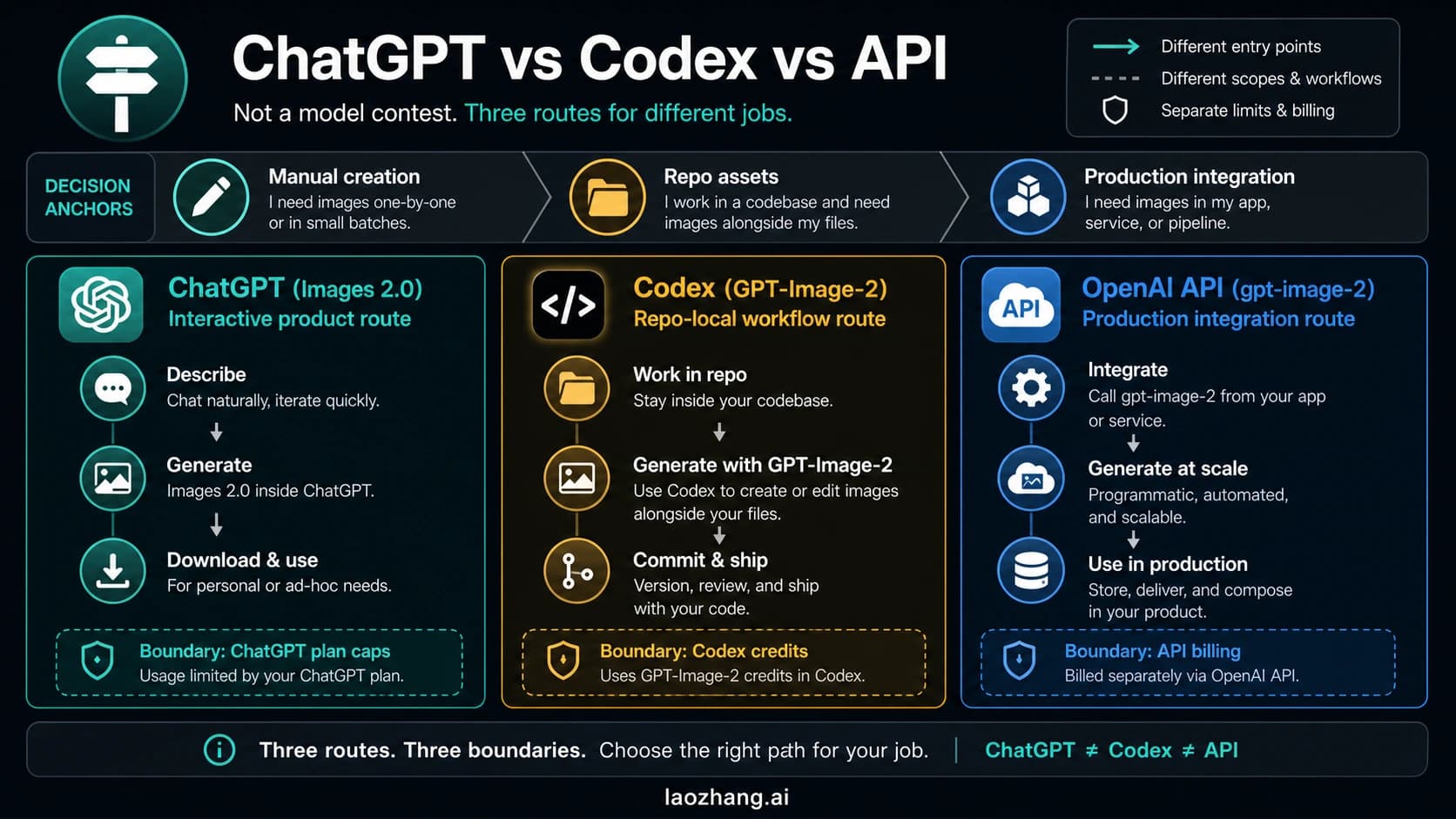
The OpenAI API is the right answer for production volume, backend jobs, repeatable workflows, queueing, and product integration. It is not a ChatGPT account workaround. The OpenAI image generation guide documents image generation and editing through the Image API and Responses API. The choice depends on the workflow: the Image API is usually better for a direct image or image-edit request, while the Responses API fits conversational or multi-turn image editing experiences.
API capacity has its own boundaries. The OpenAI rate-limits guide explains that limits can be based on requests, tokens, images per minute, and other model/project metrics. They exist to protect the service, preserve fair access, and manage infrastructure load. Your API organization and project tier decide the limits that matter, and the developer dashboard is the place to verify them.
For a production image workflow, the safe architecture looks like this:
| Need | API pattern |
|---|---|
| Bursty user traffic | Queue requests and process them at the allowed rate. |
| Temporary rate-limit errors | Use exponential backoff with jitter instead of instant retries. |
| Many independent jobs | Batch or schedule work when latency is not urgent. |
| Cost control | Track model, size, number of images, and failed jobs per user or project. |
| Higher sustained volume | Use the dashboard and official tier paths rather than evasion. |
If you use an OpenAI-compatible provider or gateway, keep the same mental model. Provider routing, model availability, billing, and rate limits are separate from ChatGPT's consumer app quota. Do not label a provider route as official OpenAI pricing unless the price comes from OpenAI. Do not assume a gateway removes safety or rate-limit rules.
How to Choose the Next Move in 60 Seconds
Start with the visible symptom, then choose the route.
- If ChatGPT shows a creation/tool limit, wait for the reset notice or use the upgrade path shown in the product.
- If the problem is an upload, compress or resize the image, reduce count, and check the 20 MB per-image boundary.
- If the Library or storage surface is full, clean up files/images first.
- If the task is high-volume and repeatable, move it to the OpenAI API as a billed developer workflow with rate-limit handling.
- If the task is just image creation and does not need ChatGPT context, use a legitimate image tool.
- If the request is refused for safety, change the task itself rather than trying to hide the same request.
This sequence avoids the common trap of trying the same failed action under a different wrapper. It also keeps the account and project in a cleaner state for support or billing review if the limit behavior looks wrong.
FAQ
Can you get unlimited ChatGPT images?
No reliable official route gives every ChatGPT user unlimited image creation in the app. OpenAI exposes tool access through account, plan, and system-capacity limits. If you need volume that the app is not designed for, use the API or a dedicated image tool instead of trying to force unlimited app use.
Is the OpenAI API a way around ChatGPT image limits?
No. The API is a separate developer product with its own billing, dashboard, model availability, and rate limits. It can be the right route for production image generation, but it should be planned as API infrastructure, not as a hidden extension of a ChatGPT account.
What if ChatGPT Free says I reached an image limit?
Follow the account notice. OpenAI's Free Tier FAQ says free users can access image creation and other tools, but those tools have stricter limits. The official next move after a tool limit is to wait until later or upgrade if that route fits your use.
What if my image upload fails before ChatGPT reads it?
Treat that as an input problem first. Check file size, image count, format, and connection. OpenAI Help lists 20 MB per image for image inputs. Resize, compress, crop unnecessary borders, or split the task into fewer, clearer uploads.
Are browser extensions safe for getting more image generations?
Be skeptical. Extensions that promise extra generations can introduce credential, automation, and compliance risk. Use official product surfaces, legitimate image tools, or the API route instead.
Can I reword a blocked prompt until it works?
You can rewrite a prompt to make the task compliant, clearer, or less ambiguous. You should not rewrite it to hide the same disallowed request or bypass protective measures. If the refusal is about safety, change the task, subject, or requested transformation so it fits the policy boundary.
Bottom Line
The safe route after a ChatGPT image limit is diagnosis, not evasion. Creation quota, upload size, storage, API rate limits, and safety refusals each have a different next action. Wait or upgrade when the ChatGPT app says so, prepare smaller and cleaner inputs for uploads, use a legitimate image tool when ChatGPT context is unnecessary, and use the OpenAI API only when you are ready for a billed developer workflow with its own limits.