ChatGPT Images 2.5: How to Use It in ChatGPT and the API
Use ChatGPT's image tools, select Sunburst or Flare in the correct API field, and check what a provider's model name actually tells you.
On this page
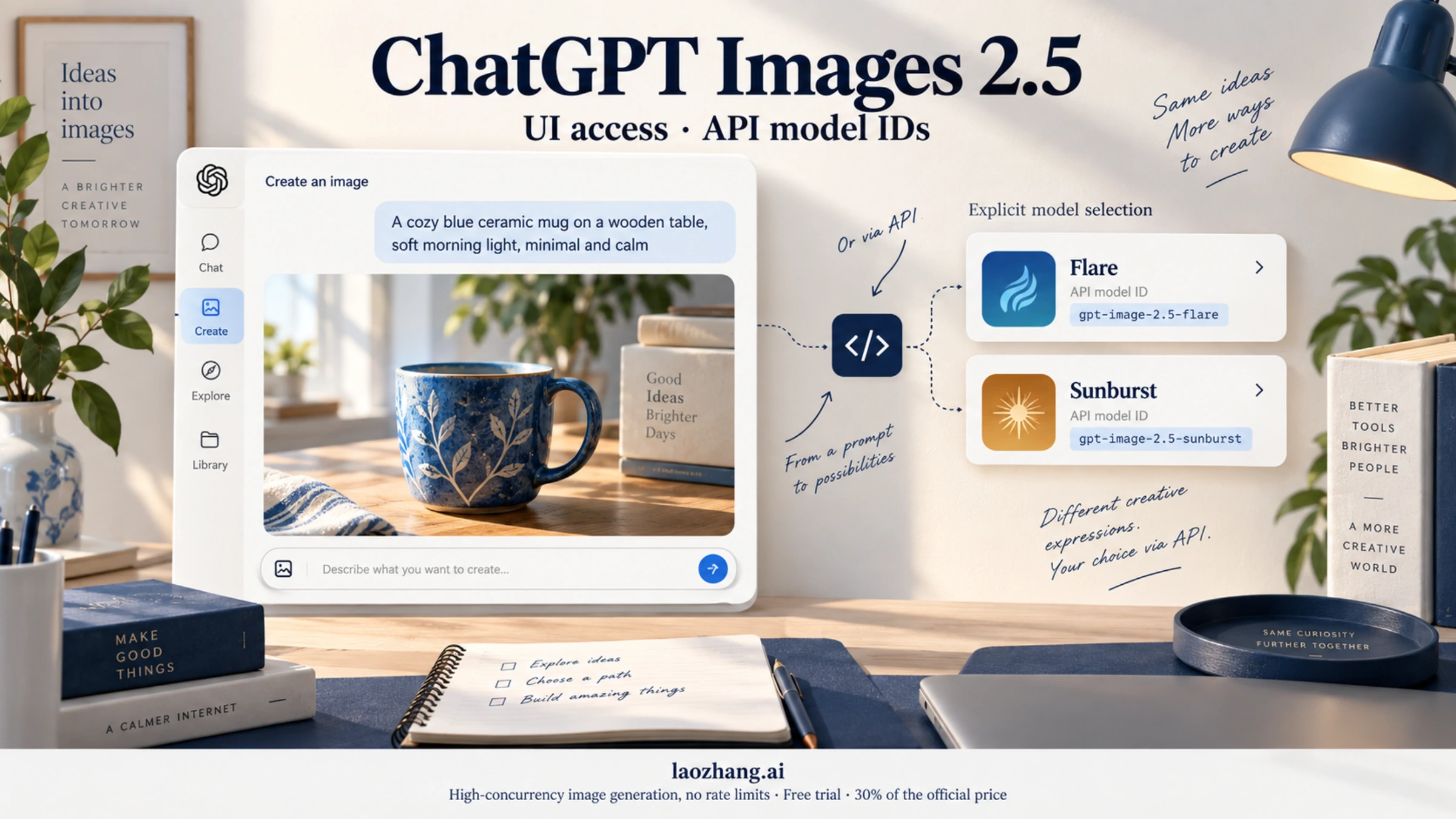
To create an image in ChatGPT, ask for one in a conversation or open More → Images. To explicitly select Sunburst or Flare, use the documented API model field. As of September 12, 2026, OpenAI's published documentation does not identify which of these two image models handles a given ChatGPT request. Your plan, Thinking setting, or a prompt asking for “Sunburst” cannot confirm which model was used. ChatGPT image instructions · Official API guide
The names describe different things. ChatGPT Images 2.5 is the image experience announced for ChatGPT; GPT Image 2.5 Flare and GPT Image 2.5 Sunburst are separately named API models. OpenAI announced the rollout to ChatGPT, ChatGPT Work, and Codex across tiers on September 8. That broad availability statement does not make every image feature available in every mode. OpenAI's launch announcement
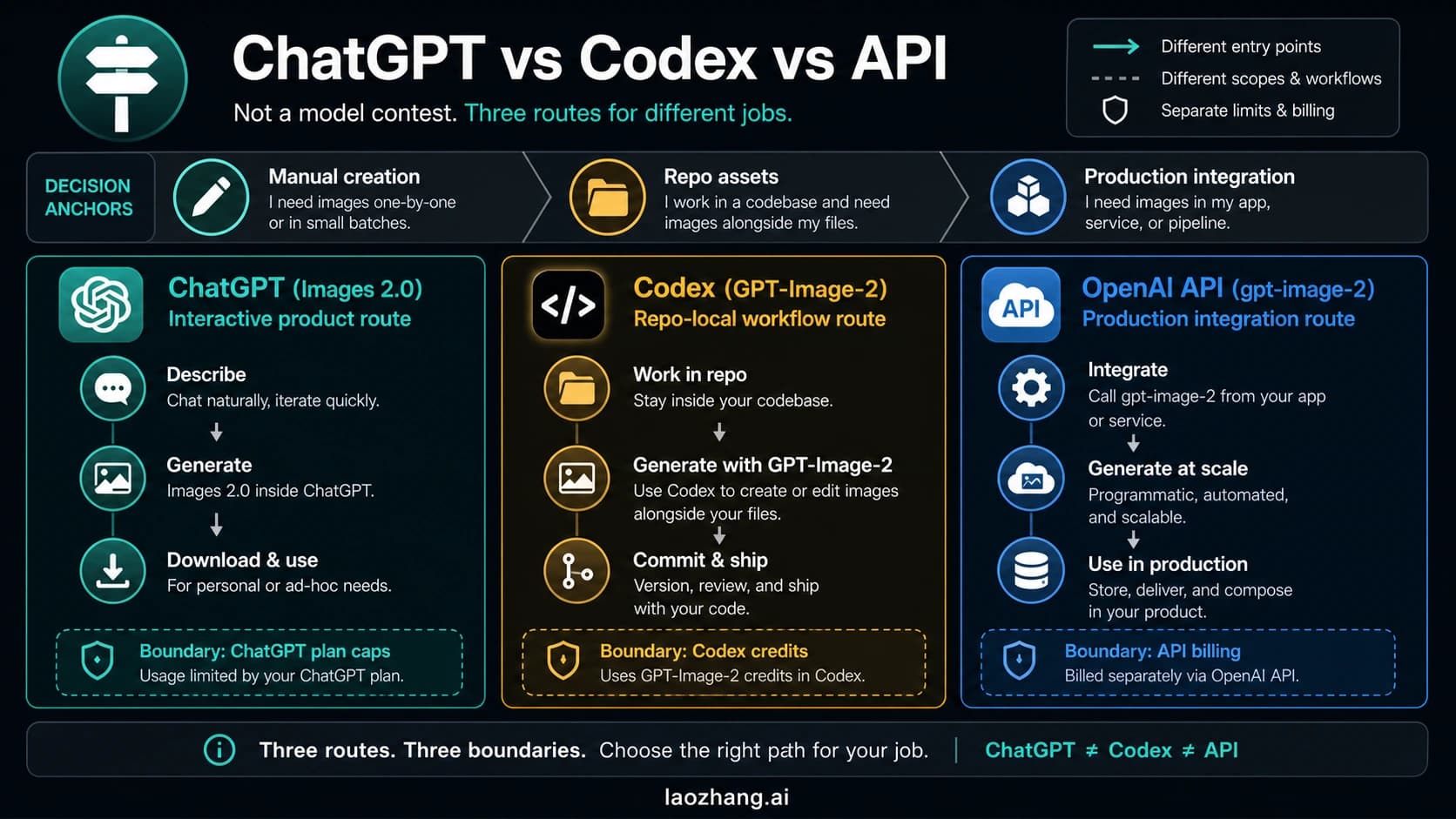
Choose where to create your images
| Your task | Entry point | What you can explicitly select |
|---|---|---|
| Create or revise a picture interactively | ChatGPT conversation or Images | Your instructions and the available image tools; OpenAI does not document a Sunburst/Flare selector |
| Generate an image from an application | POST /v1/images/generations | The image model in the request's model field |
| Edit an existing image from an application | POST /v1/images/edits | The image model in the request's model field |
| Build a conversation that can generate and revise images | POST /v1/responses | A conversation model at the top level, plus an image model inside the image_generation tool |
| Use another provider's service | That provider's documented base URL and endpoint | A model name supported by that provider; check what it maps to and whether the provider can substitute another model |
OpenAI documents both APIs in its image generation guide. A third-party service may accept the same request format. Check its documentation to see which model names and features it supports.
If you simply want a finished picture, begin in ChatGPT. If your application must request a named image model and record its settings, begin with the API. Moving from one to the other also changes billing: a ChatGPT subscription does not cover OpenAI API usage. The two products have separate billing systems. OpenAI billing help
Create and edit in ChatGPT
You can start by describing the image directly in a conversation. For example: “Create a landscape product photo of a blue ceramic mug on a pale wooden desk, with soft morning light and space for a headline on the right.” You can also open More → Images before entering the instruction.
For an edit, upload a reference image or open an image you already created, then describe the change. Say what should stay the same as well as what should change: “Replace the background with a pale gray studio backdrop. Keep the mug's shape, color, handle, and camera angle.” When you use an area selection, inspect the surrounding picture afterward; OpenAI notes that edits can extend beyond the selected area. Use Save to download a result. Creating images in ChatGPT
You can also start from a template or a sketch, with these availability limits:
- Templates: open Images → Templates, select a template, customize it, and send it. Templates are not yet available in Work mode.
- Sketch on mobile: type
@, choose Sketch, draw, confirm with the checkmark, add your instruction, and send. These steps apply to mobile; other clients may have different controls.
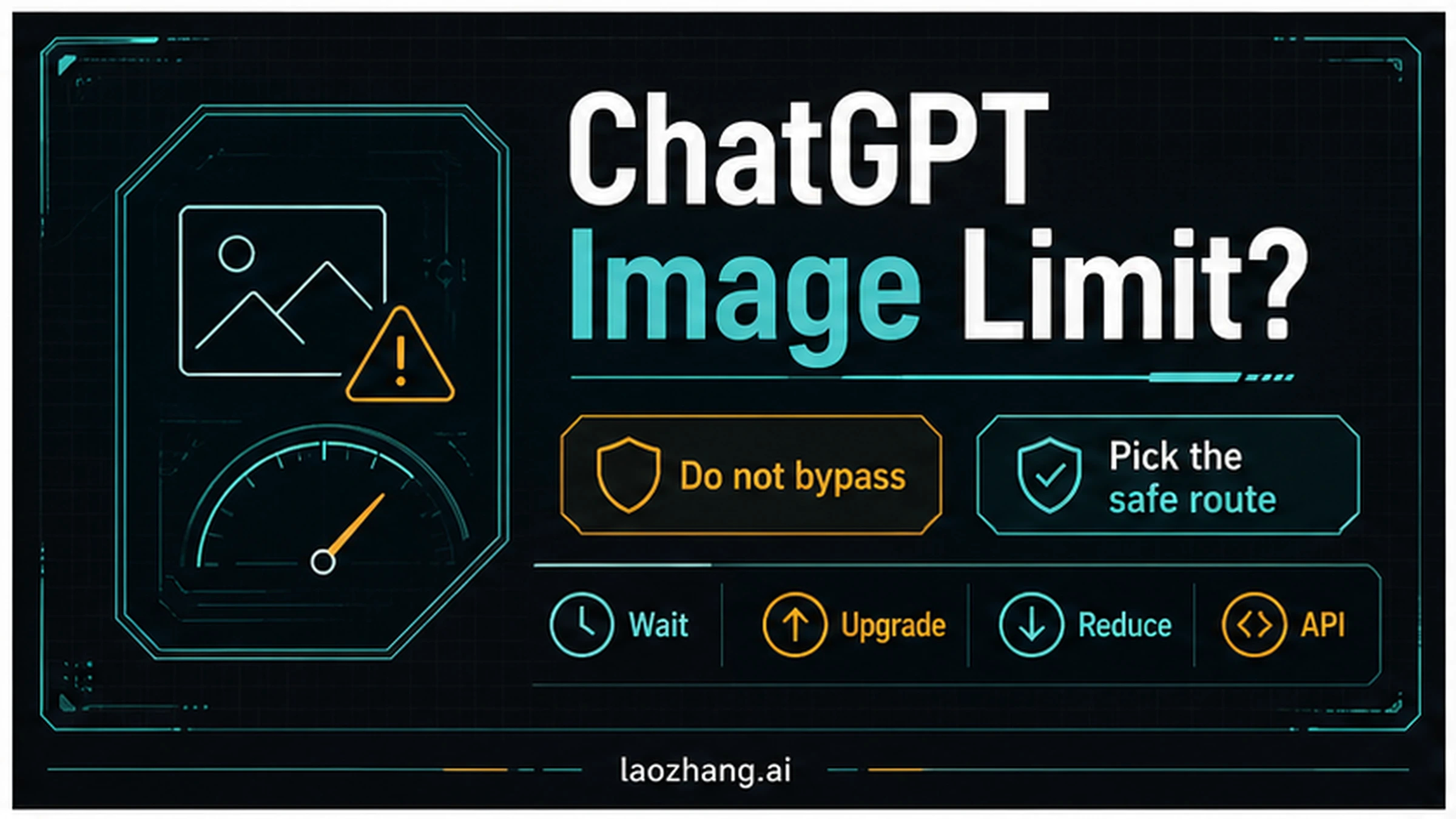
Image creation is available across tiers, but whether you can use it with thinking depends on your plan. Check the current help page for the feature you intend to use.
Can you make ChatGPT use Sunburst?
As of September 12, 2026, OpenAI does not document a ChatGPT setting that forces the use of Sunburst. In particular, OpenAI does not confirm that Pro or Thinking selects it. Launch announcement · ChatGPT image help
Asking ChatGPT which model it used does not independently verify the answer. Neither does a longer wait or a particularly polished image. Those observations describe the experience; they do not identify the backend. If selecting Sunburst is a requirement, select it in the API request instead of trying to infer it from a ChatGPT result.
Use the exact API model ID
OpenAI lists these model names and dated snapshots as of September 12, 2026:
| Model | Alias | Dated snapshot |
|---|---|---|
| Flare | gpt-image-2.5-flare | gpt-image-2.5-flare-2026-09-08 |
| Sunburst | gpt-image-2.5-sunburst | gpt-image-2.5-sunburst-2026-09-08 |
Both accept text and images, produce images, and support inpainting. Both list low, medium, high, xhigh, max, and auto quality settings. A snapshot names a version; it does not make image generation deterministic. Flare model page · Sunburst model page
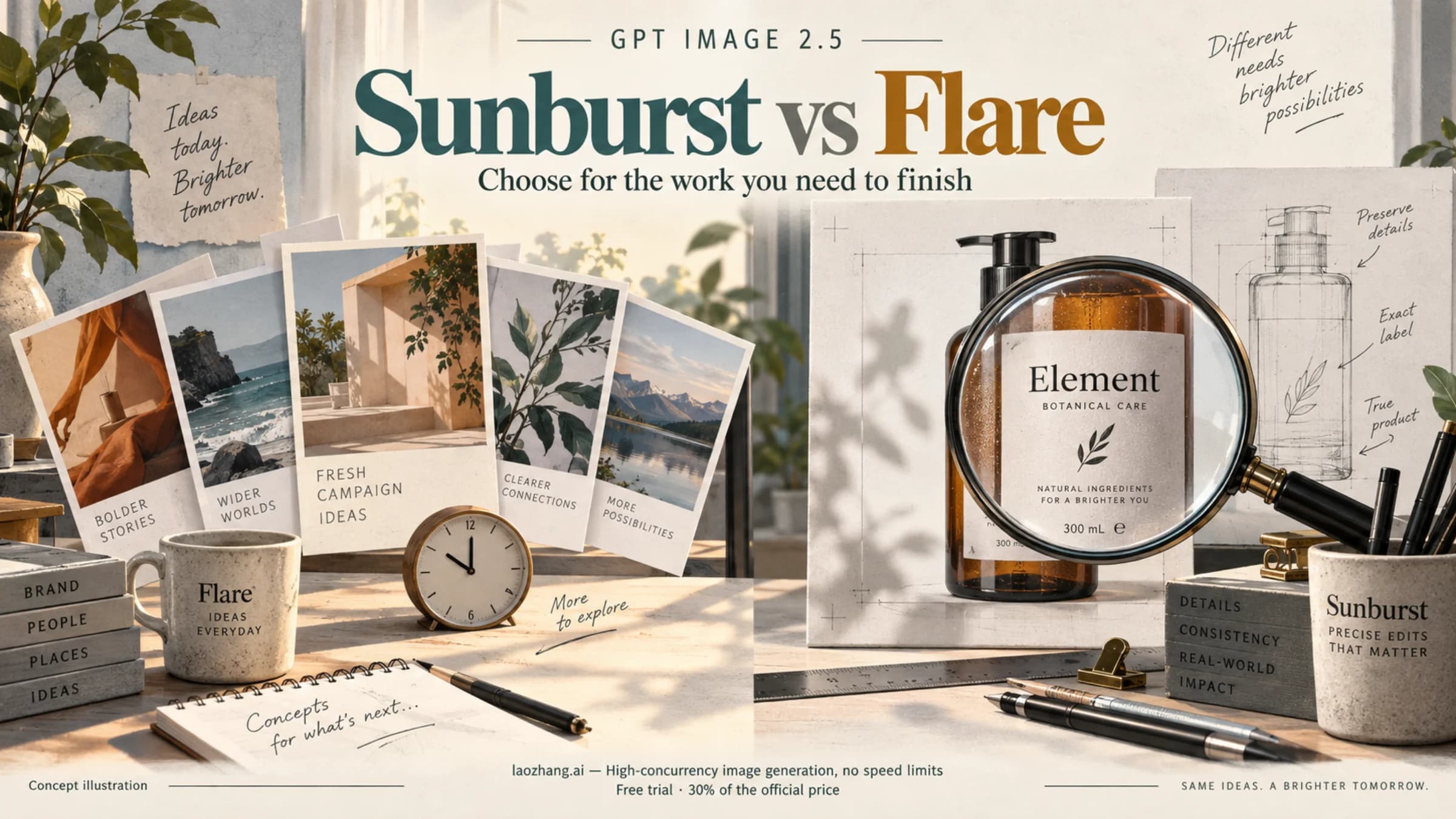
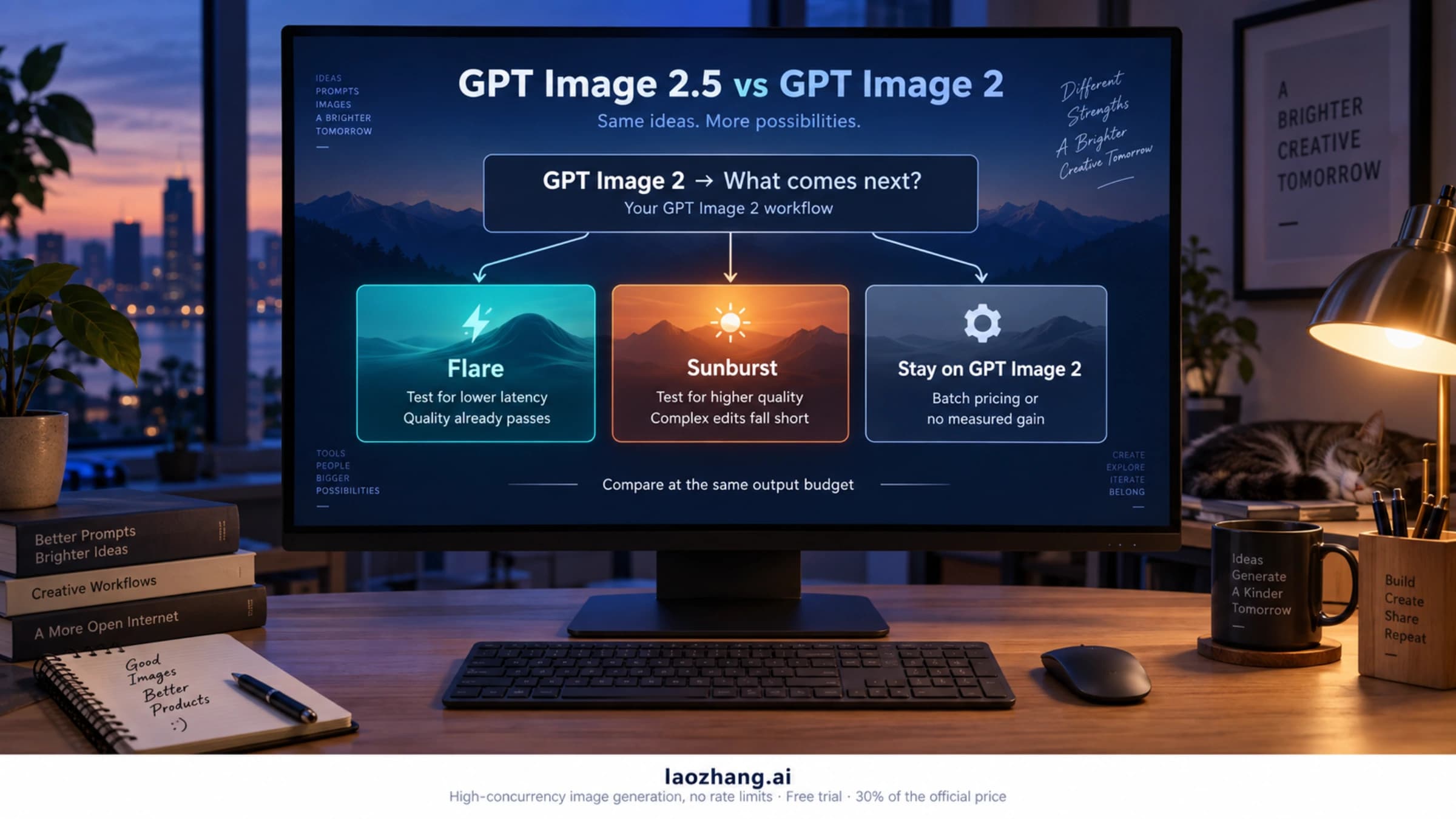
OpenAI positions Flare as the starting choice for most API applications and Sunburst for work that benefits from more precise editing, with longer generation times. Its advertised 50% lower Flare latency compares Flare with GPT Image 2, not with Sunburst. These are vendor descriptions, not measurements from this article. For help comparing the models on your own tasks, see our Sunburst vs Flare comparison. Official positioning
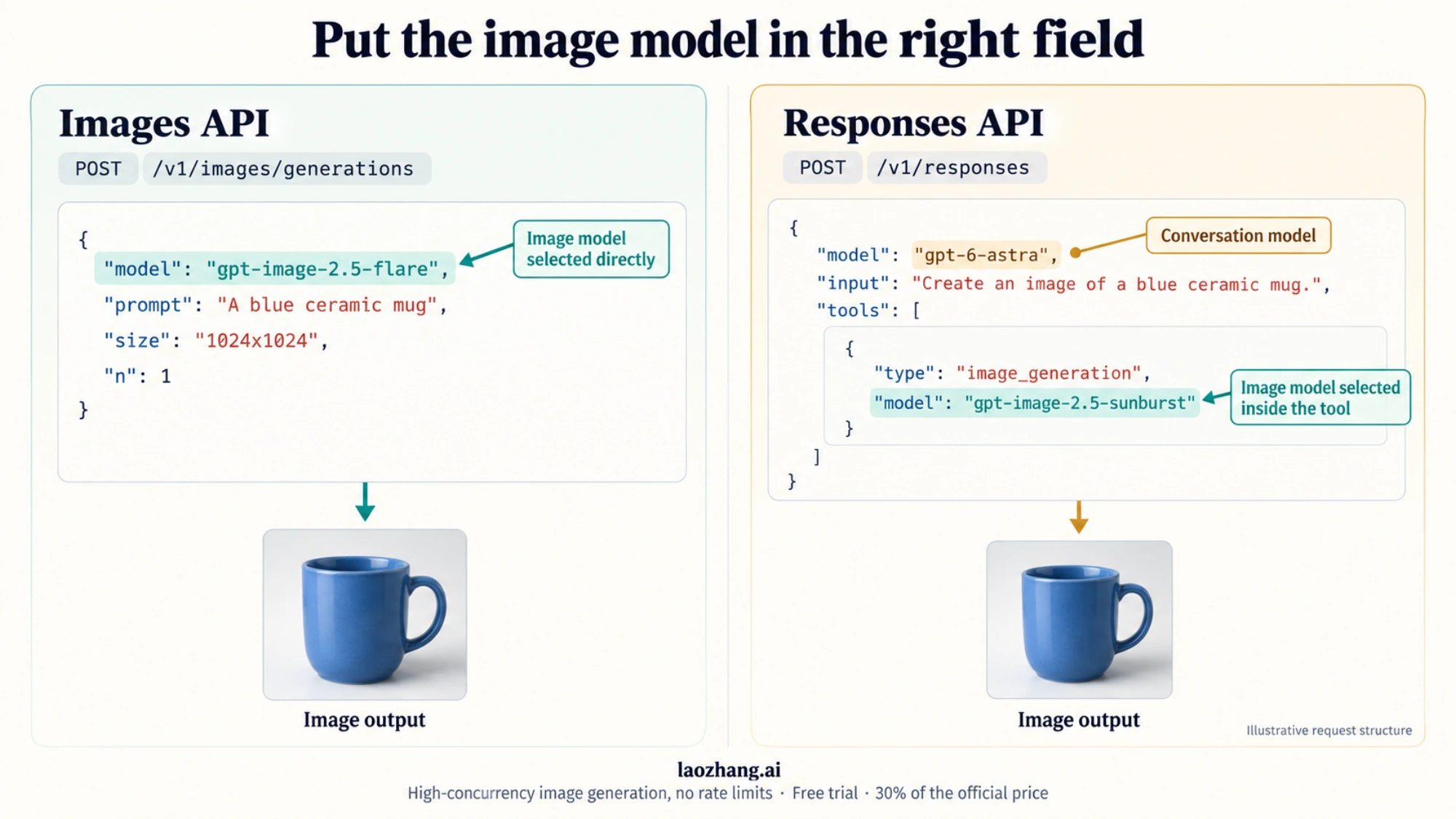
The illustrations in this guide explain the workflow. They are not screenshots or measured outputs from Flare or Sunburst.
Images API: select the image model directly
To generate an image with the Images API, set the top-level model to the image model you want. The following Python example uses the OpenAI SDK and an OPENAI_API_KEY environment variable. Both Python examples below follow the documented API structure; we did not run them.
import base64
from pathlib import Path
from openai import OpenAI

client = OpenAI()
result = client.images.generate(
    model="gpt-image-2.5-flare",
    prompt="Create a landscape studio photograph of a blue ceramic mug.",
    quality="high",
)

if not result.data or not result.data[0].b64_json:
    raise RuntimeError("The response did not include image data.")

Path("mug.png").write_bytes(
    base64.b64decode(result.data[0].b64_json)
)
To request Sunburst, change the model string to gpt-image-2.5-sunburst. For an existing image, use the Images edits endpoint and supply the reference image along with the model and editing instruction. Images API instructions
Responses API: select the image model inside the tool
Responses has two model choices. The top-level model manages the conversation; the image generation tool names the image model. The current official Python examples use gpt-6-astra as the conversation model. Do not move gpt-image-2.5-sunburst into that top-level field.
import base64
from pathlib import Path
from openai import OpenAI

client = OpenAI()
response = client.responses.create(
    model="gpt-6-astra",
    input="Generate an image of a blue ceramic mug on a wooden desk.",
    tools=[{
        "type": "image_generation",
        "model": "gpt-image-2.5-sunburst",
    }],
)

images = [
    item.result for item in response.output
    if item.type == "image_generation_call" and item.result
]
if not images:
    raise RuntimeError("The response did not include a generated image.")

Path("mug.png").write_bytes(base64.b64decode(images[0]))
When adapting this example, check that your conversation model supports the image generation tool. For later edits, pass previous_response_id or include an earlier image output to retain context. A text answer alone is not an image result: the example checks for an image_generation_call and saves its contents. Responses image generation
Check what a third-party model name means
A third-party API can accept an official OpenAI model ID without independently confirming that it used that model. Check how the provider maps the requested name to a model and whether it allows substitutions.
Before treating a provider's alias as equivalent to an official model, check these points together:
- Destination: record the base URL and endpoint. Using an OpenAI-compatible SDK does not change which provider receives your request.
- Mapping: find the provider's explicit mapping from its alias to the upstream model. A label such as “Images 2.5” is less specific than a named Flare or Sunburst mapping.
- Fallbacks: check whether the service returns an error, waits, or uses another model when the requested one is unavailable. Ask what the service returns when a fallback occurs.
- Parameters: confirm that the endpoint accepts and applies the requested quality, reference images, and output options. Accepting a field is not the same as honoring it.
- Delivery and billing: check that the returned image can be decoded and opened, then reconcile any usage or charge against the provider's documented billing rules.
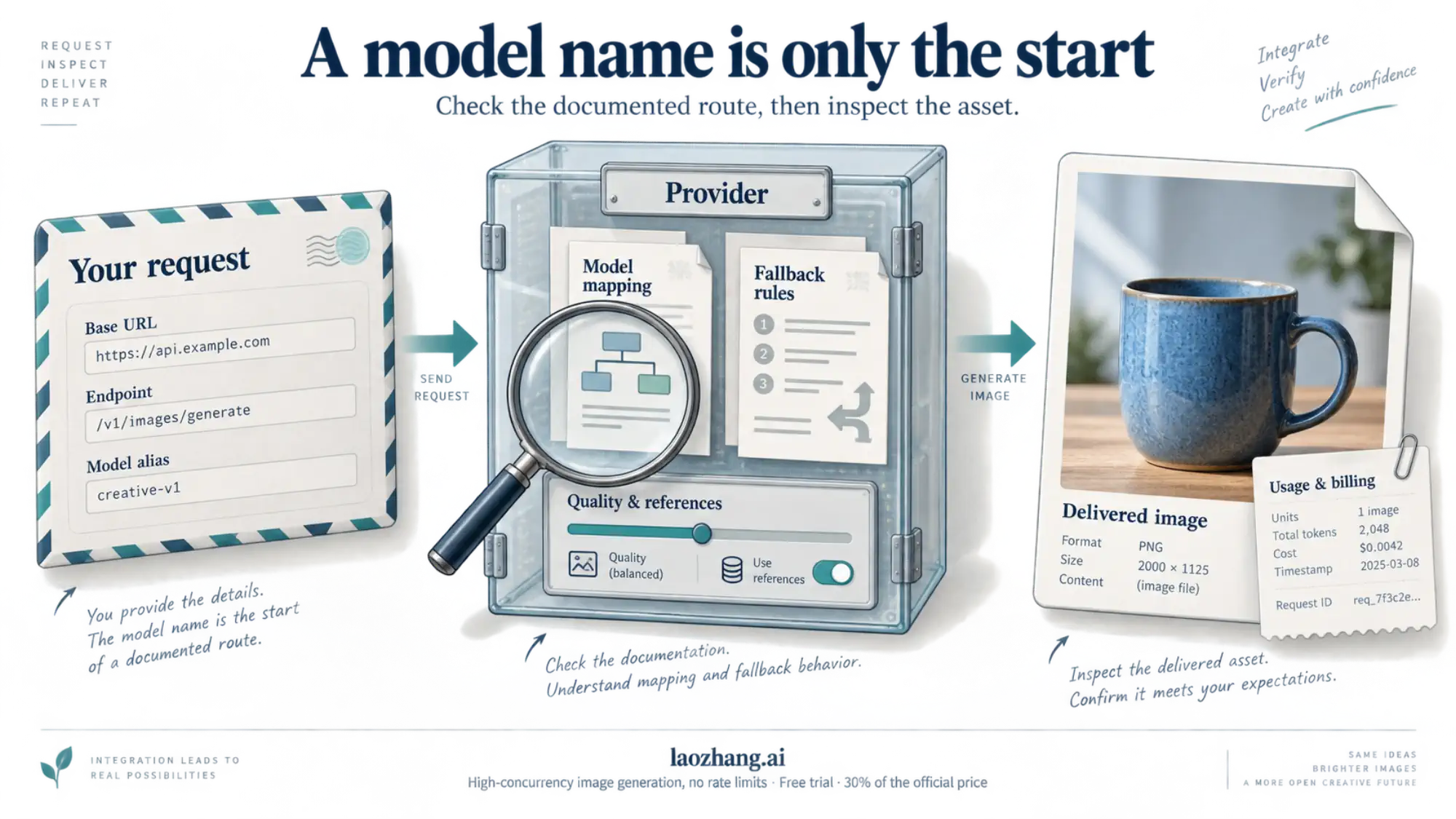
The image and receipt in this diagram are illustrative, not records of a real request.
A model label in the response tells you what the provider reports using. If the provider does not document its model mapping or fallback behavior, you cannot use that label to verify the underlying model. Describe the result using the provider's model name and leave the underlying model unconfirmed. We did not test a gateway or run a paid API benchmark for this guide.
Keep access, quality, and cost separate
If a correctly structured OpenAI request fails, first check the account's model access, API billing, and any required organization verification. A public model page establishes that the model exists; it does not establish access for your organization. The image guide notes that organization verification may be required.
Once a request succeeds, open the saved image and inspect it. Check that it preserves the required reference details, makes the requested edits, and renders any text correctly before approving it.
Keep the selected model and quality setting in your records. Raising Flare to max does not turn it into Sunburst, and lowering Sunburst to low does not turn it into Flare. Equal token rates also do not guarantee equal per-image costs; Responses adds conversation model usage to image generation costs. Our GPT Image 2.5 API pricing guide explains the cost calculation and its limits. Official cost guidance
For a one-off picture, use ChatGPT's available image tools and judge the result. For an integration that needs a specified image model, set the model in the correct API field, keep a record of the request settings, and check that the returned image meets your requirements.
Sources6
External pages this guide links to, in the order they appear. Last updated Sep 12, 2026.
Sources6
External pages this guide links to, in the order they appear. Last updated Sep 12, 2026.
- 1.ChatGPT image instructionshelp.openai.com/en/articles/11084440-im
- 2.Official API guidedevelopers.openai.com/api/docs/guides/image-generation
- 3.OpenAI's launch announcementopenai.com/index/introducing-chatgpt-images-2-5
- 4.OpenAI billing helphelp.openai.com/en/articles/9039756-managing-billing-settings-on-the-chatgpt-web-and-api-platform
- 5.Flare model pagedevelopers.openai.com/api/docs/models/gpt-image-2.5-flare
- 6.Sunburst model pagedevelopers.openai.com/api/docs/models/gpt-image-2.5-sunburst