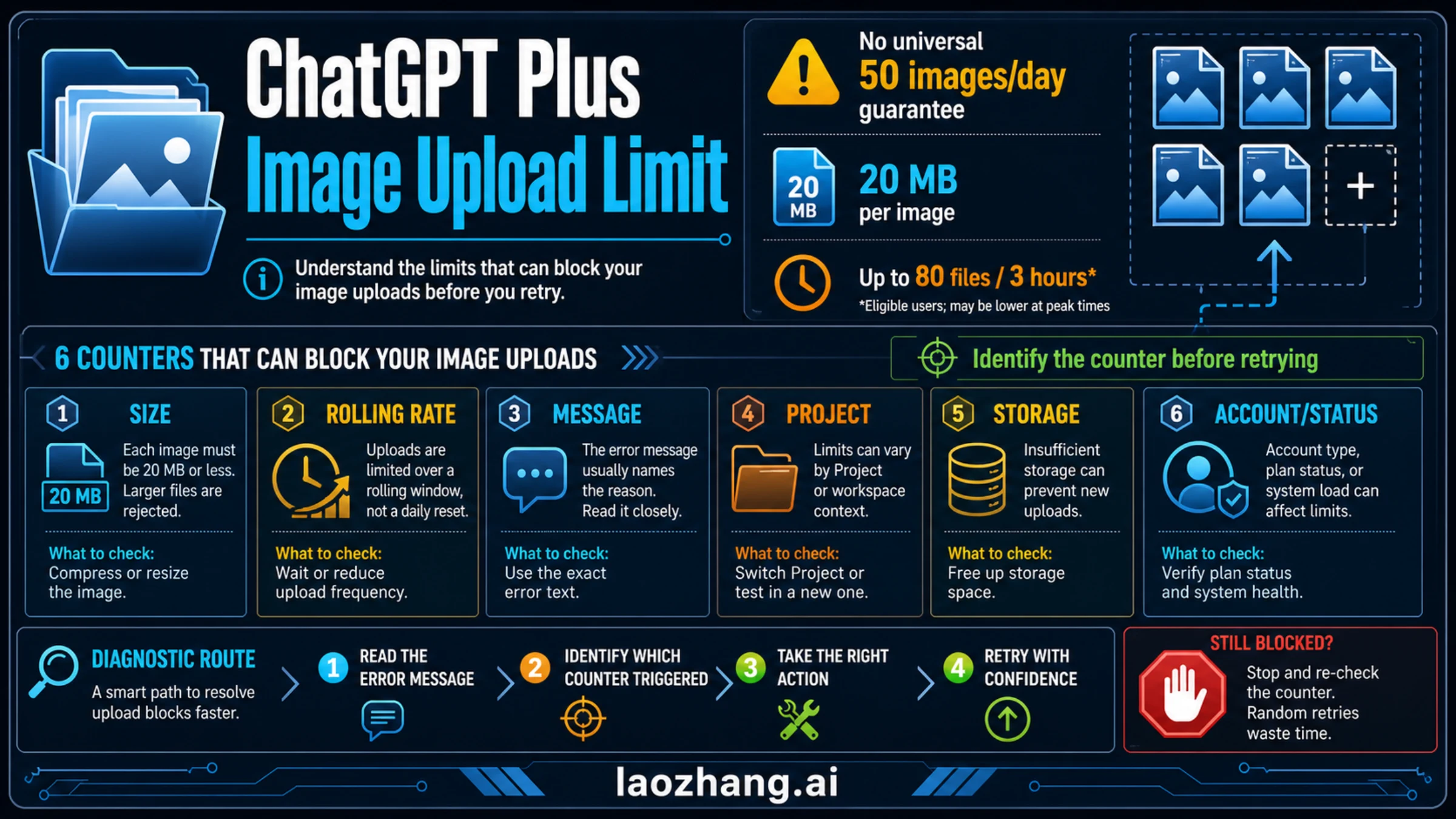
Checked July 14, 2026: OpenAI does not publish a universal 50-images-per-day upload guarantee for ChatGPT Plus. Its File Uploads FAQ documents 20 MB per image and, for eligible users, up to 80 files every three hours—a rolling all-file ceiling that OpenAI may lower during peak hours.
A blocked image can instead be owned by file size or format, the rolling upload rate, the images and text in the current message, Project capacity, Library or combined storage, or account and service state. Identify that counter before waiting for an assumed reset, deleting files, changing plans, or retrying.
| What you see | Likely counter | First action |
|---|---|---|
| One image is over 20 MB or has an unsupported format | Size or format | Crop or resize a copy below 20 MB; use PNG, JPEG/JPG, or non-animated GIF. |
| ChatGPT shows an upload-limit or wait message after recent file activity | Rolling file rate | Stop, note the time and timezone, and follow the account-specific message. |
| A large multi-image prompt fails | Message composition | Send fewer images or less accompanying text once. |
| Uploads fail only inside one Project | Project capacity | Check the current Project interface before removing anything. |
| You have uploaded little recently but files still fail | Storage, account, or service state | Check Library usage, the account and workspace, and OpenAI Status. |
Stop rule: failed upload attempts can count against the rolling rate, and ChatGPT does not show a remaining rolling-upload meter. Make one evidence-based change; if the same route fails again, stop and preserve the exact message, timestamp, timezone, platform, account type, and file details for verification or support.
The ChatGPT Plus image upload limits that actually matter
There is no single number that answers every “How many images can I upload?” question. The useful answer is a set of counters, each with a different unit, scope, and place to verify it.
| Counter | Current documented boundary | What it counts | Where to verify | What to do when it blocks you |
|---|---|---|---|---|
| Image size | 20 MB per image | Each image file | Image Inputs FAQ | Prepare a smaller copy while preserving the detail ChatGPT must read. |
| Rolling file rate | Up to 80 files per three hours for eligible users; lower limits may apply during peak hours | File uploads, not a guaranteed image entitlement | File Uploads FAQ and the message shown in your account | Stop repeated attempts and follow the account-specific wait or recovery cue. |
| Images in one conversation or message | No universal fixed image count | Image size plus accompanying text and the current interaction | Image Inputs FAQ and the current composer | Reduce the number or size of images, or shorten the accompanying text. |
| Project capacity | Official pages currently disagree: 20 versus 25 Plus files per Project | Files attached to one Project | Current Project interface | Follow the capacity shown in that Project; do not guess from a global upload number. |
| Library storage | 20 GB for Plus | Files retained in Library | Library's Storage view | Delete unneeded saved files from Library itself. |
| End-user file cap | The File Uploads FAQ separately names a 25 GB end-user cap | A broader file-storage surface | File Uploads FAQ and account storage UI | Keep this meter separate from the 20 GB Library figure. |
| API input | Separate API payload and rate-limit rules | Programmatic requests, not ChatGPT Plus allowance | OpenAI vision documentation | Use API billing and rate-limit controls only when the job is automation. |
The units are the clue. 20 MB is a per-file size rule. 80 files per three hours is a rolling upload-rate ceiling. 20 or 25 files concerns one Project. 20 GB and 25 GB are storage figures from different official surfaces. None of those values creates a documented 50-images-per-day Plus entitlement.
Is the limit really 50 images per day?
No current OpenAI Help Center or Plus plan page checked on July 14, 2026 establishes 50 image uploads per day as a universal ChatGPT Plus benefit. The Plus help page describes file uploads and analysis as included features, while also warning that usage limits can vary with system conditions.
A “50 per day” figure may still appear in search summaries, old posts, community reports, or personal observations. Those can describe an experience without defining the contract for every account. They do not tell you whether the observed block came from the file-rate window, message composition, a Project, storage, an account condition, or a temporary service issue.
For planning, use this hierarchy:
- The current message in your account owns an account-specific timer, reduced allowance, or fallback.
- The relevant Project or Library interface owns surface-specific capacity and storage state.
- Current OpenAI Help pages own published consumer boundaries.
- OpenAI Status owns reported incidents.
- Community counts are diagnostic clues only.
This also explains why a fixed UTC reset is unsafe advice. OpenAI documents a three-hour file rate and variable limits, not a universal Plus image quota that refills for everyone at midnight UTC.
Diagnose the blocked upload in one minute
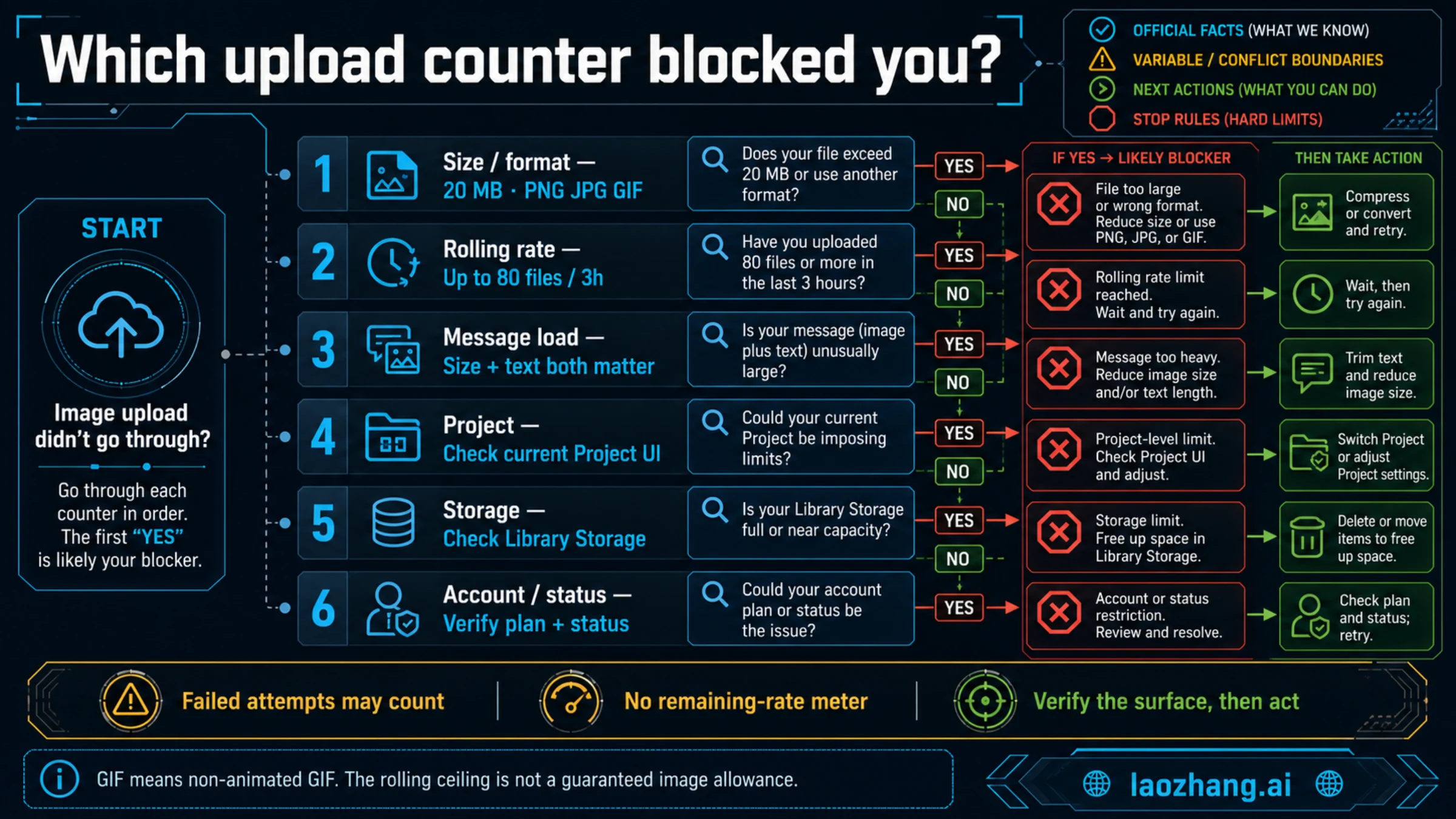
Start with the most local counter and widen the investigation only when the evidence rules it out.
1. Size or format blocks one specific image
If one image fails while a smaller known-good image works, inspect the file before thinking about quota.
- Confirm that the file is under 20 MB, not exactly at a tool's rounded display of 20 MB.
- Use a documented static format: PNG, JPEG/JPG, or non-animated GIF.
- Video is not an image input. HEIC, SVG, animated GIF, and other unlisted formats should be exported to PNG or JPEG for a clean test.
- Keep the original untouched. Crop, resize, or convert a copy so the evidence remains recoverable.
A PDF or other document-format error belongs to a different workflow; use the unsupported file-type and PDF diagnostic instead of treating it as an image quota problem.
2. A rolling-rate message appears after recent uploads
The File Uploads FAQ says eligible users can upload up to 80 files every three hours, and that OpenAI may lower the rate during peak hours. “Up to” matters: it is a ceiling, not reserved capacity. Documents and other files can also contribute to the same file-upload activity, so counting only images can understate recent use.
Do not convert the three-hour phrase into an exact promise that a slot will return at a particular minute. Save the time of the last successful upload and the first failed attempt, then follow the timer or instruction shown in the account. If no timer appears, wait before one deliberate retry rather than probing the limit repeatedly.
3. The current message is too heavy
OpenAI's Image Inputs FAQ does not publish one fixed number of images that always fits in a conversation. It says practical capacity depends on image size and accompanying text, and recommends reducing image quantity or size when problems occur.
That means ten small screenshots with a short instruction and ten full-resolution diagrams with a long specification are not equivalent workloads. Reduce one dimension at a time:
- fewer images with the same prompt;
- smaller copies with the same image count; or
- shorter instructions with the same images.
The first change that works identifies pressure in the message composition. It does not prove that number is a permanent per-message limit.
4. Only one Project is blocked
Treat a Project-only failure as a Project problem before treating it as a global ChatGPT Plus limit. As observed on July 14, 2026, OpenAI's File Uploads FAQ says up to 20 files per Project for Plus, while the dedicated Projects page says 25 files per Project for Go and Plus and allows 10 files at a time.
The pages conflict, so the practical owner is the current Project interface. Record what it displays. Remove a file only if the Project is actually at capacity and the file is no longer needed; deleting unrelated Library files will not necessarily change a Project counter.
5. Storage blocks uploads after little recent activity
OpenAI's Library and file-storage page lists 20 GB of Library storage for Plus. The File Uploads FAQ separately names a 25 GB end-user file cap. These are not interchangeable labels, and neither should be rewritten as a daily attachment allowance.
Open Library's Storage view and inspect the meter that the interface actually shows. If a saved file is no longer needed, delete it from Library. Deleting the conversation alone does not delete a file that was saved to Library; temporary-chat uploads, by contrast, are not saved there.
6. Account, workspace, or service state owns the failure
When a small supported image fails in a new ordinary chat, the account or service path deserves attention.
- Confirm that you are signed into the intended account and workspace.
- Read the full error for plan, workspace, administrator, or policy wording.
- Check OpenAI Status for a matching incident.
- Try one clean official client or private browser session only to isolate a client problem—not to evade an allowance.
- If the same controlled upload fails across two official clients, stop and prepare support evidence.
Switching browsers cannot refill an account-level file rate. A new chat can test whether one conversation or composer state is involved, but it cannot replenish Project capacity, Library storage, or an account allowance.
A control upload succeeding in one client proves only that file and path worked at that moment; it does not reveal remaining quota or rule out a Project, Library, storage, or account constraint elsewhere.
Fix once, then stop the retry loop
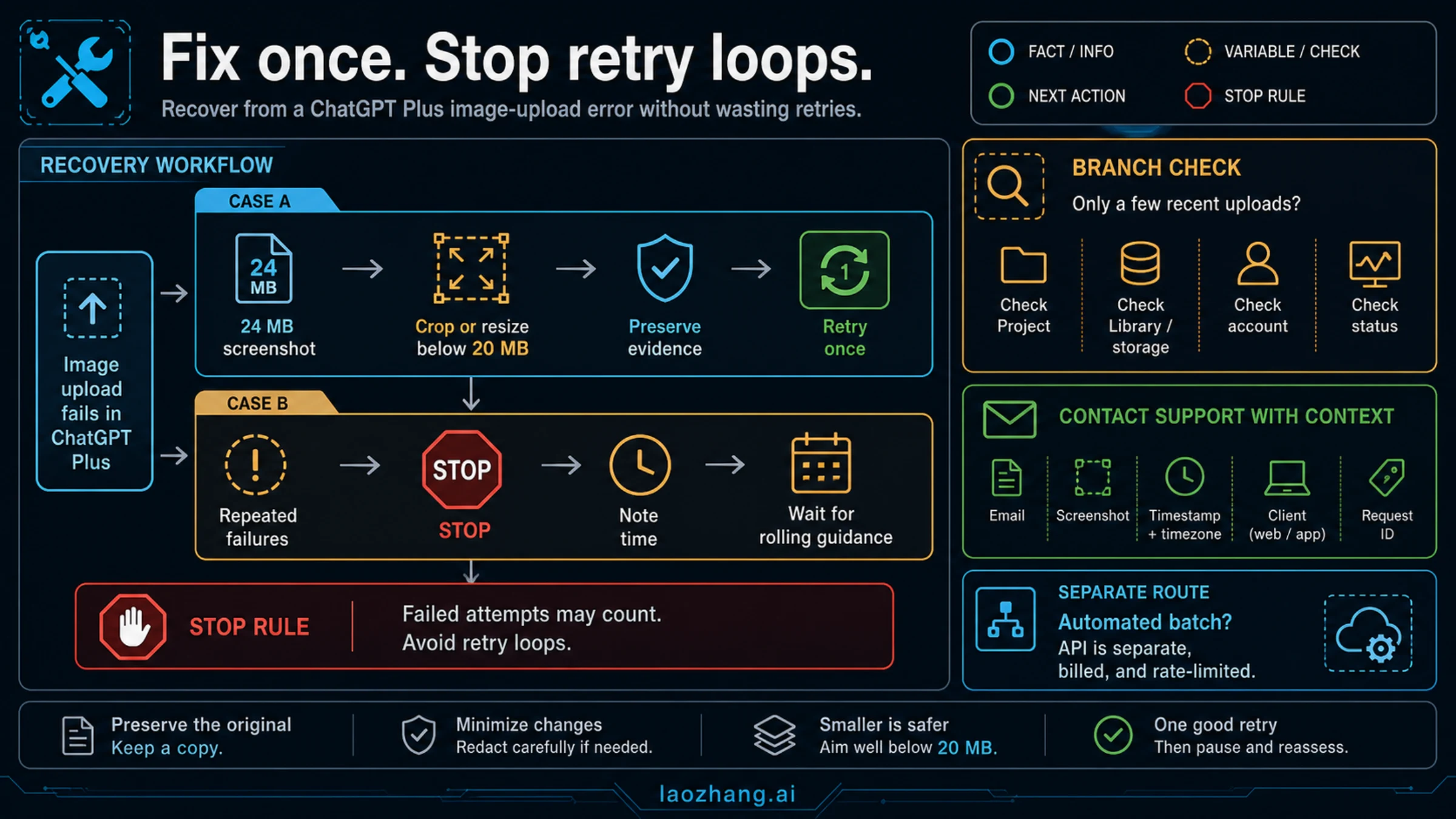
Repeated attempts are not neutral because OpenAI says failed uploads can sometimes count against the upload-rate cap. A useful retry changes one evidence-backed variable. Everything else is noise.
Worked example: a 24 MB screenshot
Suppose a design screenshot is 24 MB and contains small labels that ChatGPT must read.
- Duplicate the original.
- Crop empty browser chrome or unrelated panels from the copy.
- If it is still over 20 MB, reduce dimensions modestly or export an efficient JPEG when photographic content allows it.
- Open the result at 100% and confirm that the labels remain legible.
- Upload that one corrected copy once.
If the smaller supported file still fails, stop treating size as the only cause. Move to rolling rate, message composition, account, or service checks.
Worked example: five failed uploads, then a rate error
Suppose no image completed, so your manual count is still zero, but the fifth failed attempt is followed by an upload-rate message. A low success count does not rule out the rolling counter: OpenAI says failed attempts can sometimes count. Non-image files may also be part of recent activity, and a Project or storage meter may own the original failure.
Use this sequence:
- Stop clicking upload.
- Note the last success, first failure, timezone, and exact message.
- Confirm the account and workspace.
- Test one small supported image in a new ordinary chat.
- If ordinary chat works, inspect the affected Project or conversation.
- If it fails too, inspect Library storage and OpenAI Status.
- Retry only after the identified condition changes.
Worked example: a large comparison prompt
If twelve high-resolution screenshots plus a long audit prompt fail, do not assume twelve is forbidden. Try four representative images with the same task. If that works, add the remaining material in small logical groups, while keeping labels that preserve order and context.
Combining many screenshots into one collage can reduce file count, but it also shrinks text and weakens image-to-instruction mapping. Use a contact sheet only when comparison is the job and every important label remains readable. It is not a universal quota fix.
Prepare images without destroying useful evidence
The goal is not simply to make a file smaller. The goal is to preserve the pixels that support the question.
| Image job | Keep | Safe reduction | Avoid |
|---|---|---|---|
| UI error screenshot | Exact message, timestamp, selected account or model when relevant | Crop unrelated desktop area; use lossless PNG when text is small | Blurring the error or cropping away the context that identifies the surface |
| Photograph | Subject detail and relevant background | Resize long edge; use a sensible JPEG quality | Repeated recompression that invents artifacts |
| Diagram or chart | Labels, legend, axes, units, footnotes | Crop margins; use PNG; split into a full view plus one detail if needed | A tiny collage that makes text unreadable |
| Sensitive screenshot | Only the minimum evidence | Redact locally before upload and verify the redaction is irreversible | Uploading secrets and asking ChatGPT to ignore them |
Before sending a client or personal image, use the ChatGPT image-sharing safety checklist. Redaction is a privacy decision, not a file-size trick.
A reliable preflight takes less time than a retry loop:
- supported static format;
- below 20 MB per image;
- readable at the uploaded resolution;
- only relevant frames included;
- prompt names the task and the image order;
- secrets, private identifiers, and unnecessary metadata removed;
- original retained outside ChatGPT.
Renaming a file can improve organization, but it does not reset a rolling rate or turn an unsupported payload into a supported one. Likewise, opening more chats, rotating accounts, or repeatedly resending a file is not a safe recovery method. For the policy boundary around workaround claims, see why “bypass” advice is the wrong model.
Projects, Library, and file storage are different surfaces
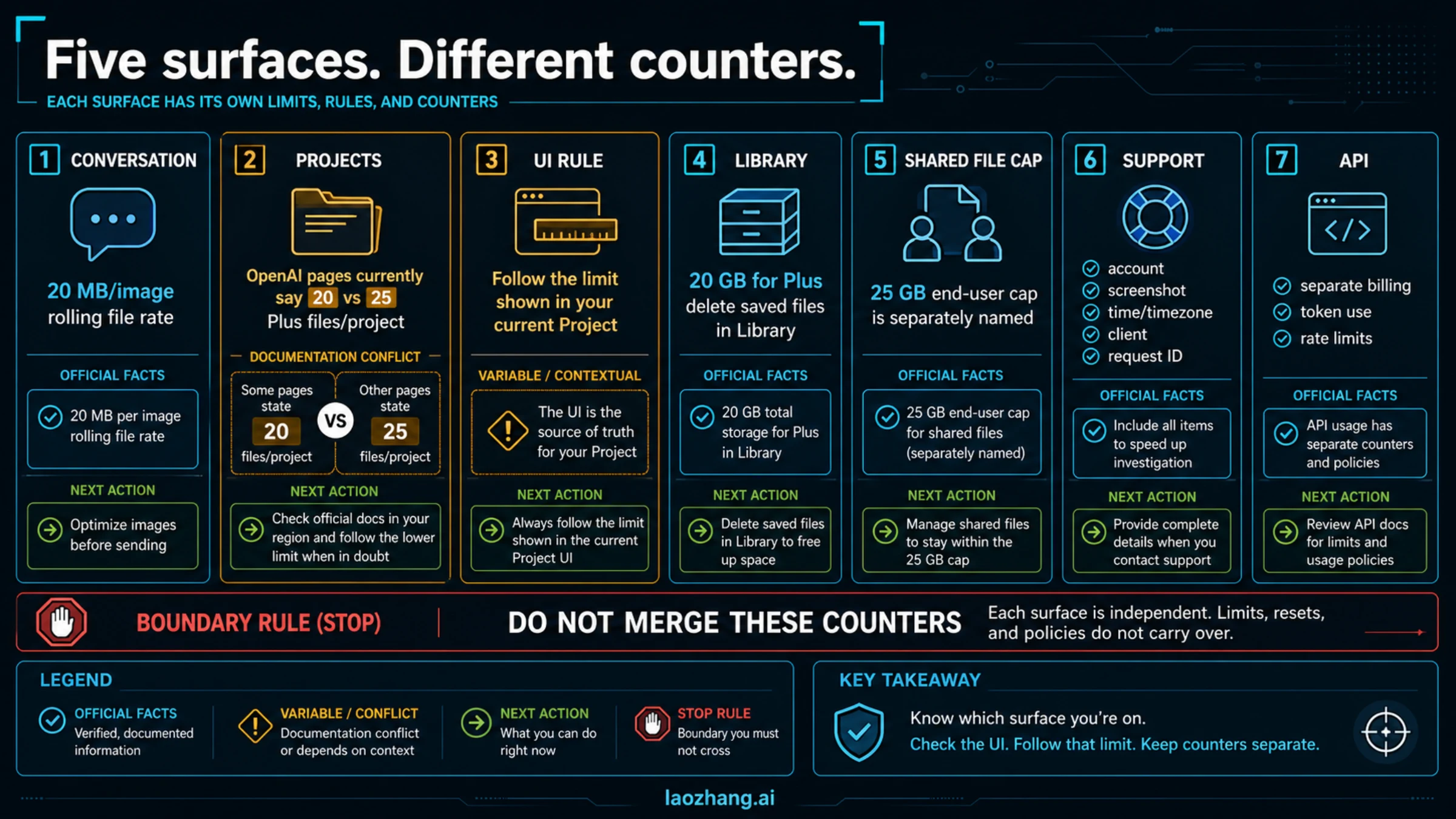
The official numbers look contradictory only when their surface labels are removed.
| Official surface checked July 14, 2026 | Published figure | Correct interpretation | Practical owner |
|---|---|---|---|
| File Uploads FAQ: image file | 20 MB per image | Hard per-image size boundary | The file plus the upload error |
| File Uploads FAQ: rolling uploads | Up to 80 files per three hours for eligible users | Variable rolling file ceiling; peak reductions possible | Current account message |
| File Uploads FAQ: Plus Project | Up to 20 files per Project | One published Project figure | Current Project UI because another official page conflicts |
| Projects in ChatGPT | 25 files per Project for Go and Plus; 10 uploaded at once | A different current Project figure and a batch boundary | Current Project UI |
| Library storage | 20 GB for Plus | Files retained in Library | Library Storage view |
| File Uploads FAQ: end user | 25 GB cap | Separately named broader file cap | Account storage state and support |
Do not add 20 GB and 25 GB together, and do not assume one replaces the other. Name the meter shown in the interface when asking for help. “Library says 19.8 GB of 20 GB” is actionable; “I should still have five gigabytes” is ambiguous because it merges two different official labels.
Cleanup should also happen on the owning surface. Delete a saved Library file in Library, manage Project files in that Project, and remove ordinary chat attachments only when that is actually the relevant retention path. A broad delete-first approach can destroy useful work without changing the counter that blocked the upload.
When to retry, check status, or contact support
Use a deliberate escalation ladder:
- Correct one local fact. Fix size or format, or reduce one heavy message.
- Obey the owned wait. If ChatGPT shows an account-specific wait or reset, follow it.
- Check the owning surface. Inspect the current Project or Library meter.
- Check service status. Look for an incident that matches the time and feature.
- Run one controlled retry. Change one variable and record the result.
- Stop and escalate. Repeated identical failures no longer add diagnostic value.
The File Uploads FAQ asks for the details support needs. Prepare them before opening a support conversation:
- account email and plan or workspace type;
- screenshot of the complete message;
- exact timestamp and timezone;
- platform, app, browser, and version when known;
- file type and approximate size;
- whether ordinary chat, a Project, or Library was involved;
- request ID when the interface provides one;
- a short reproduction sequence that excludes secrets and private content.
Do not send the private image merely to prove an upload problem unless support explicitly needs it and you are authorized to share it. A filename, size, format, sanitized screenshot, and minimal known-good test often establish the failure boundary first.
ChatGPT Plus and the OpenAI API have separate limits
ChatGPT Plus is a consumer subscription. OpenAI API usage is billed separately and controlled by API project budgets and rate limits. A Plus subscription does not include API credits, and an API key does not refill a ChatGPT upload counter.
| Job | Better starting surface | Why |
|---|---|---|
| Discuss a handful of images interactively | ChatGPT Plus | Conversation, visual inspection, and follow-up questions are the job. |
| Process a repeatable image queue | OpenAI API | Code can validate inputs, apply consistent prompts, log request IDs, and handle failures. |
| Recover one urgent blocked ChatGPT upload | Diagnose the ChatGPT counter first | Moving to API introduces a separate bill and workflow; it does not explain the consumer error. |
| Build a production image-analysis feature | OpenAI API | Project-level spend, rate-limit, retry, observability, and data controls are required. |
As checked July 14, 2026, OpenAI's vision documentation supports image input by URL, base64 data URL, or file ID, including multiple images in one request. It lists up to 512 MB total payload and 1,500 image inputs per request. Those are API request boundaries, not a recommendation to send giant batches. Images consume tokens, and requests remain subject to API rate limits.
For programmatic workloads, pair the official vision guide with the OpenAI API rate-limit guide. Use bounded concurrency, request IDs, backoff, and spend controls rather than treating the API as a quota workaround.
For example, a catalog team with 500 repeated product images needs input validation, a stable prompt, item IDs, resumable batches, logged failures, and cost controls. That is an API engineering job. Sending the same queue manually through ChatGPT would hide which item failed and encourage repeated uploads without reliable accounting.
If the actual problem is image generation rather than uploading user-supplied images for analysis, use the broader ChatGPT image generation and upload limits map. Generation, upload, Projects, storage, and API should remain separate branches.
Frequently asked questions
How many images can I upload to ChatGPT Plus per day?
OpenAI does not currently publish one universal daily image-upload entitlement for Plus. The documented anchors are 20 MB per image and, for eligible users, up to 80 files every three hours, with possible reductions during peak hours. Message composition, Projects, storage, failed attempts, and account conditions can block uploads sooner.
Is the ChatGPT Plus image upload limit 50 per day?
Not as a current official universal guarantee. Treat 50 per day as an estimate or historical observation unless your own ChatGPT interface explicitly assigns that allowance. Do not build a production schedule around it.
When does the image upload limit reset?
There is no official universal midnight-UTC reset for a fixed Plus image allowance in the current sources. The file-upload rate is expressed as up to 80 files per three hours, while the current account message owns any specific wait or reset time shown to you.
Why am I blocked after uploading only a few images?
Your image count may not be the active counter. The file may exceed 20 MB, the format may be unsupported, the current prompt may contain too many or too-large images plus text, previous failed attempts may have counted, a Project or storage meter may be full, the wrong account may be active, or a service incident may be involved.
Do failed image uploads count?
They can. OpenAI's File Uploads FAQ says failed upload attempts can sometimes count against the upload-rate cap. Stop repeated attempts, record the first failure time, make one evidence-based correction, and try once.
Can I see how many rolling uploads I have left?
Not currently through a published remaining-quota meter. OpenAI says ChatGPT does not show how much rolling upload-rate quota has been used or remains. Use the exact account message and your recent upload timeline instead of pretending a manual count is authoritative.
What image formats does ChatGPT accept?
The Image Inputs FAQ lists PNG, JPEG/JPG, and non-animated GIF. It treats image input as static images, not video. Export HEIC, SVG, animated GIF, and other unlisted formats to a supported static format for a controlled test.
Is there a fixed number of images per message?
No universal number is documented. OpenAI says the practical number depends on image size and accompanying text. If a multi-image prompt fails, reduce image count, image size, or text one variable at a time.
Does the iPhone or Android app have a separate Plus allowance?
OpenAI does not document a separate universal mobile image quota in the sources used here. The same account state matters across clients. Mobile-specific problems can still come from an unsupported local format, permissions, app version, network path, or composer state, so use a small supported image as a control.
How many files can I add to a Plus Project?
OpenAI's current pages conflict: the File Uploads FAQ says 20, while the dedicated Projects page says 25 for Go and Plus and 10 files uploaded at one time. Follow the capacity displayed in the Project you are using and preserve a screenshot if that conflicts with Help Center text.
Will deleting a chat free Library storage?
Not when the file was saved to Library. OpenAI's Library page says deleting a chat does not delete Library-saved files; remove those files from Library itself. Temporary-chat uploads are not saved to Library.
Is OpenAI API usage included with ChatGPT Plus?
No. API usage is separately billed and separately rate-limited. Use it for programmatic image analysis when automation justifies the engineering and spend controls, not as an emergency bypass for a consumer upload message.
Your safest next move
Check the file first: supported static format, below 20 MB, and still readable. Then identify whether the message, rolling rate, Project, Library, account, or service owns the failure. Make one controlled change and one deliberate retry. If the same route fails again, stop, keep the evidence, and follow the current interface or support path instead of waiting for a mythical universal reset.