Convert Image to Realistic AI Free: Image-to-Image Workflow, Prompts, and Safety Checks
A practical workflow for making an existing image look realistic with AI: choose the right route, preserve the source with prompts, inspect the result, and verify free limits before upload.
On this page
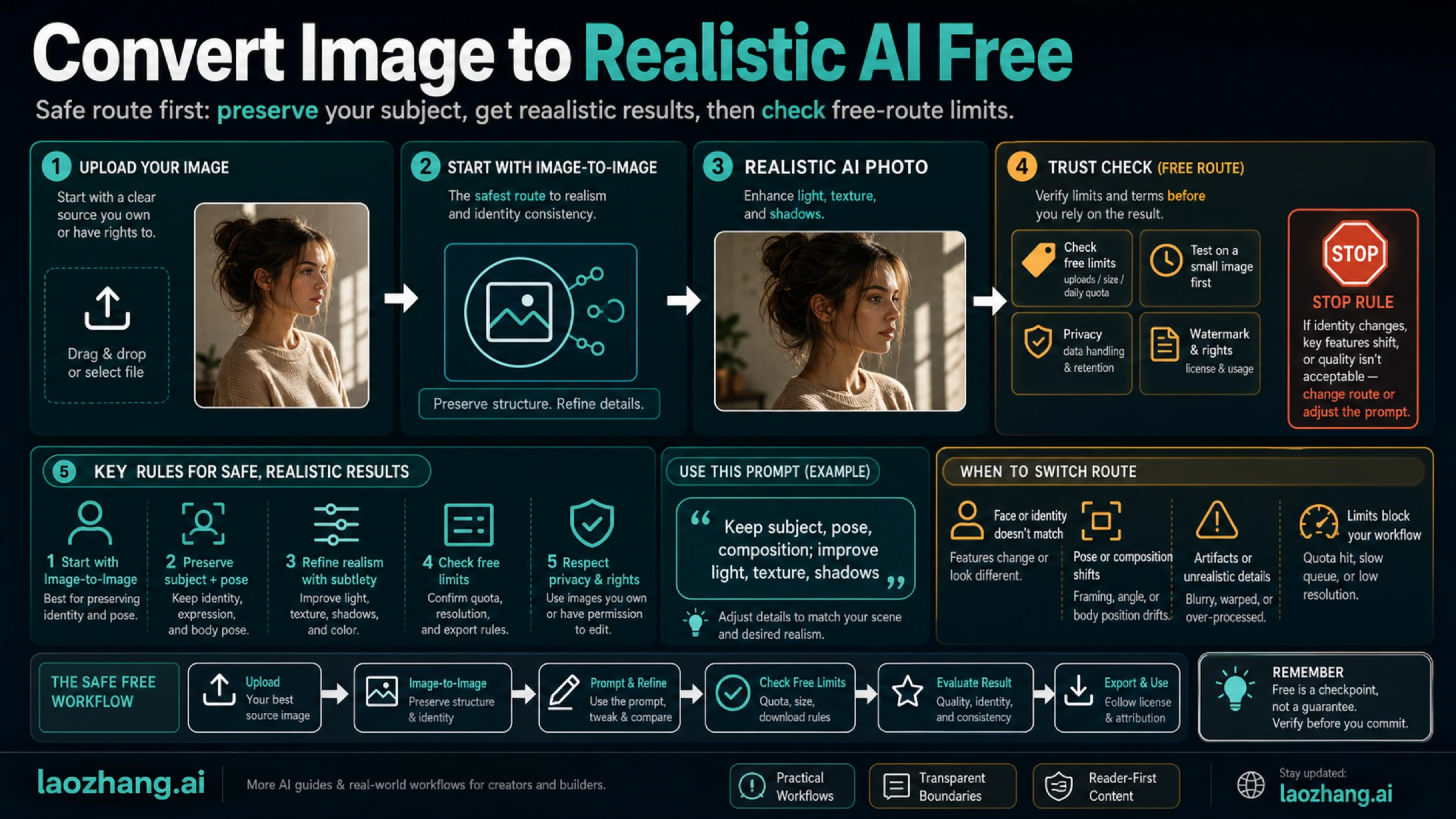
To convert an image to realistic AI free, start with a source-preserving image-to-image editor or realism enhancer, not a blank text-to-image generator. Upload a non-sensitive test image first, keep the same subject and composition, then ask the tool to improve natural lighting, texture, shadows, lens realism, and background coherence.
| If your source is... | Open this route first | Prompt focus | Free-route check | Stop rule |
|---|---|---|---|---|
| A casual object, room, outfit, or landscape | Image-to-image editor | Keep layout and main colors; improve light, texture, and camera realism | Credits, watermark, output size | Stop if the subject shape changes |
| A flat, blurry, or artificial-looking photo | Realism enhancer | Make skin, fabric, reflections, and shadows look natural without changing identity | Login, queue, export quality | Stop if details become invented |
| A portrait or avatar | Portrait-safe editor | Preserve face, age, expression, hair, and pose before changing style | Consent, privacy, public gallery, rights | Stop if terms are unclear |
| A product or client asset | AI photo editor or private workflow | Preserve geometry, logo, label, and proportions | Commercial rights, retention, file privacy | Stop before upload if the file is sensitive |
| A sensitive, commercial, or proprietary file | Private, paid, local, or API workflow | Preserve exact source details under a clearer contract | Terms, deletion, rights, repeatability | Stop if the route cannot explain storage or rights |
Reusable prompt:
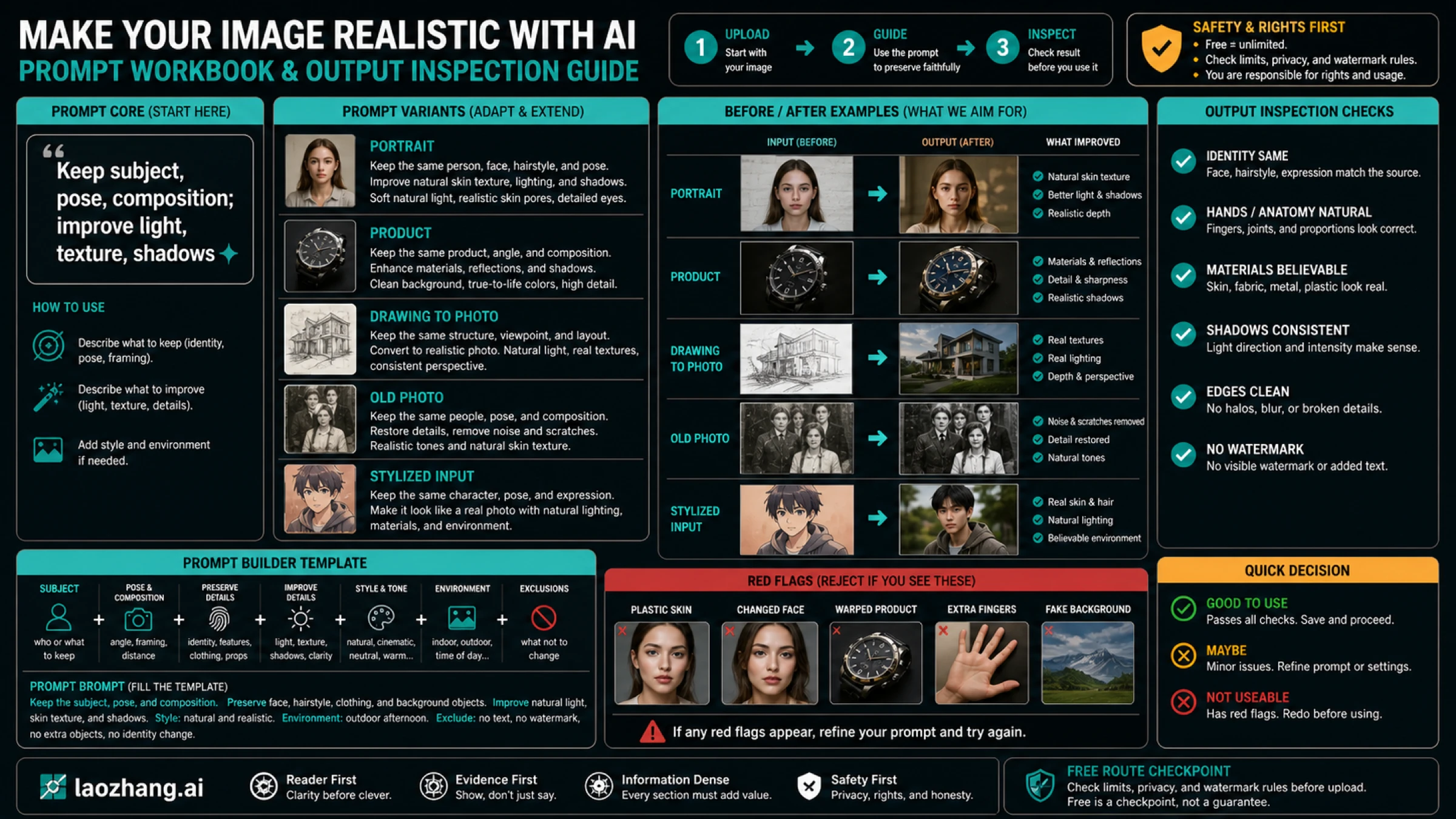
Keep the same subject, pose, composition, main colors, and important details. Make the image look like a realistic photo with natural lighting, believable shadows, accurate material texture, realistic depth of field, and no extra objects. Do not change identity, product shape, text, logos, or the background structure unless I ask.
Treat any free option as a test route. Before you upload a face, ID, client file, product image, or commercial asset, check credits, watermark, login requirements, public gallery defaults, upload retention, output size, and usage rights. If a tool claims unlimited, no restrictions, or no sign-up without clear terms, use only a low-risk image or switch to a private workflow.
The Safe Workflow
Most bad results come from opening the wrong route. A text-to-image generator is built to invent a new image from a prompt. Your job is different: you already have an image and need a more believable version of that same image. That means preservation comes before creativity.
Use this order:
- Pick a low-risk test image.
- Decide what must not change.
- Choose the route that matches the source.
- Prompt for preservation first and realism second.
- Generate two to four candidates.
- Inspect identity, geometry, light, texture, edges, and rights before using the output.
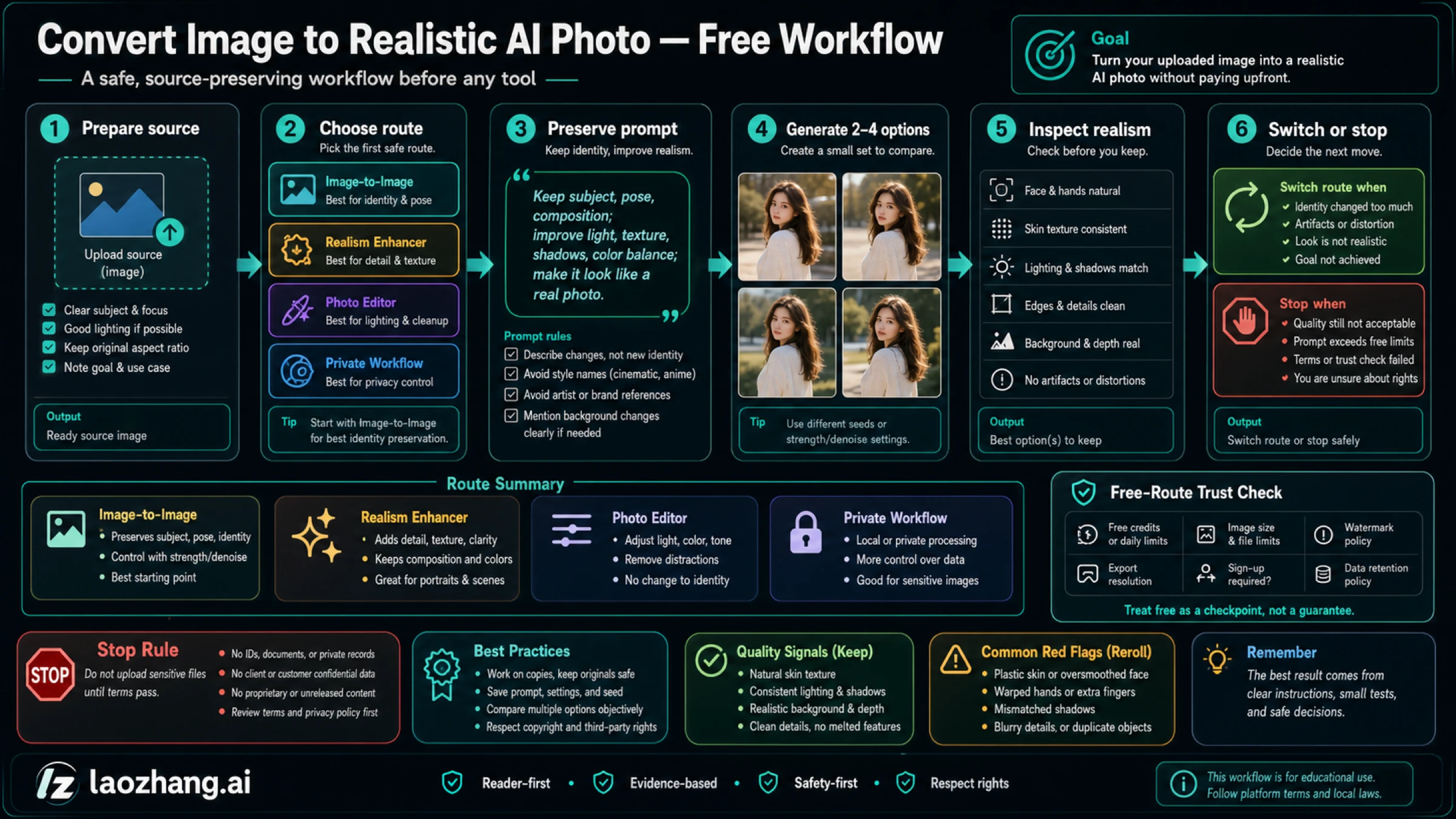
The useful split is simple. An image-to-image editor is the default when you need the same object, scene, or layout. A realism enhancer fits when the image already has the right content but looks flat, synthetic, or over-smoothed. A portrait or avatar route needs stricter consent and identity checks. A product or client file should move to a private or contractually clear workflow if upload terms are not obvious.
If you only remember one rule, make it this: do not ask for "more realistic" until you have told the model what to preserve. Without that anchor, the tool may improve the surface while quietly changing the person, product, room, logo, or object you needed to keep.
Prepare the Source Image
The source image decides how much work the model has to invent. A clear source gives the tool fewer excuses to hallucinate. A noisy, cropped, low-resolution, or heavily stylized source makes the model guess missing edges, skin texture, fingers, reflections, text, and background structure.
Before upload, check four things.
| Source check | What to do | Why it matters |
|---|---|---|
| Sensitivity | Use a harmless test image first | Free routes may store uploads, show galleries, or require account review |
| Composition | Crop out distractions but keep the main object complete | Missing edges invite shape changes |
| Resolution | Use the cleanest version you have | Tiny sources often become waxy or over-sharpened |
| Identity markers | Note faces, logos, labels, tattoos, product geometry, and background structure | These become explicit prompt constraints |
For people, avoid uploading private, intimate, medical, minor, or identity-document images into a casual free tool. For products, avoid unreleased client assets unless the tool's retention, training, and commercial terms are clear enough for that use. For creative references, make sure you have the right to edit and publish the source.
The source does not have to be perfect. It only needs to be honest about what the tool must preserve. If the original has a weak background, say "keep the room layout but make the lighting natural." If the product label is important, say "preserve the label and logo exactly." If the subject is a drawing, say "convert the illustration into a realistic photo while keeping the pose, silhouette, and color palette."
Choose the Route Before the Tool
A free tool list looks helpful, but it can send you to the wrong place. The better decision is route-first.
| Your real job | Best first route | Why it fits | When to switch |
|---|---|---|---|
| Make a phone photo look less artificial | Realism enhancer | Small changes to light, texture, and shadows | Switch if the subject or face changes |
| Turn a drawing into a realistic scene | Image-to-image editor | Keeps the source as a reference while changing style | Switch if the composition drifts |
| Improve a room, outfit, object, or landscape | Image-to-image editor | Preserves layout while improving material realism | Switch if important objects disappear |
| Create a professional product visual | AI photo editor or private workflow | Better for background, lighting, and asset control | Switch if terms do not allow commercial use |
| Make a portrait, avatar, or character more realistic | Portrait-safe route | Requires identity, consent, and likeness checks | Stop if consent or privacy is unclear |
This route-first decision also protects your time. If the output keeps changing the subject, more adjectives will not fix the route. If the output looks realistic but breaks the product shape, the tool is failing the job. If the free export is low-resolution or watermarked, the route may still be useful for testing but not for final use.
For broader editing choices, the separate image-to-image AI generator guide compares larger editing contracts. The narrower job here is taking an existing image and getting a realistic result without trusting vague free claims.
Prompt Workbook
The best prompt is not long. It is specific about preservation.
Use this structure:
Keep [the source elements that must stay the same].
Make it look like [realistic photo context].
Improve [lighting, texture, material, shadows, camera realism].
Do not change [identity, geometry, text, logo, background structure].
Avoid [extra objects, distorted hands, plastic skin, over-sharpening].
Then adapt it to the source.
Portrait or Avatar
Keep the same person, face shape, age, expression, hairstyle, pose, and clothing. Make it look like a realistic portrait photo with natural skin texture, soft daylight, believable shadows, and a real camera lens. Do not change identity, facial proportions, jewelry, background layout, or add beauty filters.Use this only when you have consent and the upload terms are acceptable. If the tool changes age, face shape, ethnicity, eye shape, or distinctive marks, reject the output even if it looks polished.
Product Image
Keep the same product shape, logo, label, proportions, color, and angle. Make it look like a realistic product photo with natural studio lighting, accurate material texture, clean contact shadows, and a believable surface. Do not alter the logo, label text, package geometry, or key product details.Product prompts need stricter stop rules because an attractive but inaccurate output can mislead customers. Reject results that bend edges, invent ports, change labels, smooth away texture, or alter scale.
Drawing or Illustration
Use this illustration as the composition reference. Keep the same character, pose, clothing silhouette, color palette, and scene layout. Convert it into a realistic photo style with natural materials, real-world lighting, depth, and shadows. Do not add new characters or change the main composition.This is one of the easiest jobs to overdo. If the model turns the illustration into a different scene, shorten the prompt and repeat the preservation constraints.
Old, Blurry, or Flat Photo
Keep the original person, object, camera angle, background structure, and time period. Improve realism with clearer texture, natural contrast, realistic light falloff, and believable detail. Do not modernize clothing, change facial identity, invent missing objects, or make the image look airbrushed.With restoration-like work, realism should not mean modernization. A believable old photo can still keep grain, age, and period details.
Inspect the Output Before You Use It
A realistic-looking output is not automatically a good output. It has to preserve the source and survive close inspection.
Use this acceptance checklist:
| Check | Pass signal | Fail signal |
|---|---|---|
| Subject identity | Same person, object, product, room, or scene | New face, altered product, missing object, changed layout |
| Geometry | Edges, hands, labels, furniture, and product proportions make sense | Bent fingers, warped packaging, impossible reflections |
| Light logic | Shadows match the light source and surface | Floating objects, mixed light directions, glowing edges |
| Material texture | Skin, fabric, glass, metal, food, or wood looks specific | Plastic smoothing, noisy sharpening, generic texture |
| Text and logos | Important text is preserved or intentionally removed | Garbled words, fake logos, label drift |
| Output contract | Resolution, watermark, rights, and storage fit the use | Good preview but unusable export |
Reject before you upscale. Upscaling can make a flawed output look sharper while keeping the same broken identity, geometry, or rights problem. If the image fails preservation, go back to the prompt or switch routes. If it fails export quality, free limits, or privacy, switch the tool rather than spending more time on prompt wording.
The most common mistake is accepting a result because it looks "more AI realistic" at thumbnail size. Zoom in. Check face shape, fingers, product edges, readable labels, object count, background continuity, and whether the output added anything that would create a rights or accuracy issue.
Free-Route Trust Checklist
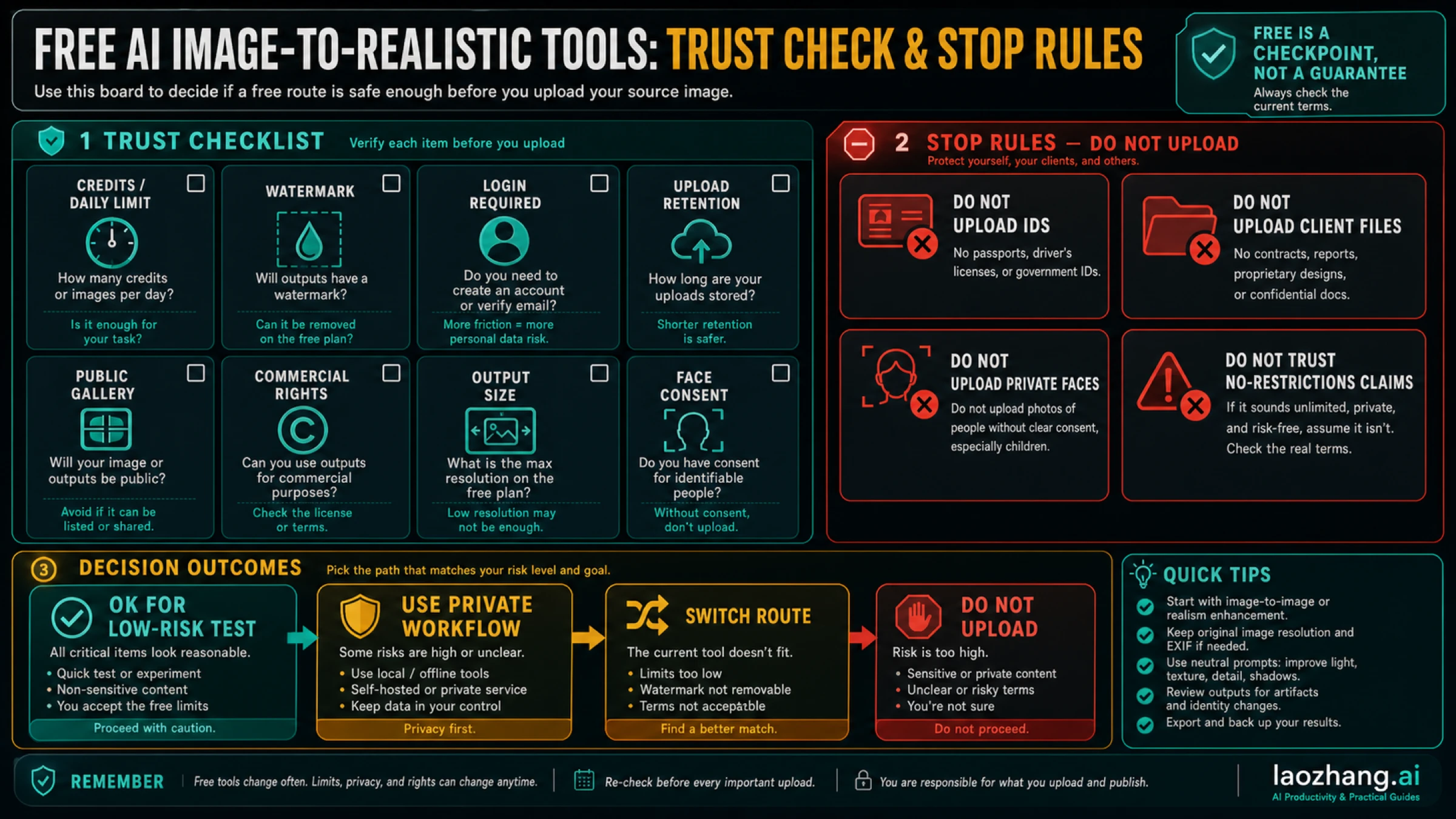
"Free" can mean no account, a few credits, a watermarked preview, a low-resolution export, a public gallery, a trial that expires, or a paid download after generation. None of those meanings is wrong, but each one changes whether the route is safe enough for your source image.
Check these before upload:
| Trust check | What to look for | Decision |
|---|---|---|
| Credits or daily limit | How many generations you can run and whether failed attempts count | Use a test image first |
| Watermark | Whether the final download is marked | Fine for testing, risky for final work |
| Login or payment trigger | Whether the tool asks for account, card, or subscription before export | Stop if the payment path is unclear |
| Upload retention | Whether files are stored, deleted, or used for service improvement | Avoid sensitive uploads when unclear |
| Public gallery default | Whether outputs may appear publicly | Stop for faces, client assets, or private scenes |
| Output size | Whether free export is large enough for the use | Do not judge final quality from a tiny preview |
| Commercial rights | Whether you can use the output for marketing, products, or client work | Use a clearer route for commercial assets |
| Consent and likeness | Whether the person in the image has agreed to the edit | Stop without consent |
A no-sign-up route is not automatically safer. It may reduce account friction, but it does not prove retention, deletion, gallery, training, or rights terms. An unlimited claim is also not a workflow guarantee. Treat it as something to verify with a harmless image, not a promise to upload valuable files.
Move to a private, paid, local, or contractually clear route when the source is a client asset, private portrait, unreleased product, identity document, commercial campaign, or anything that would create a problem if stored or displayed by the wrong service.
Troubleshooting: Fix the Failure Mode
If the result is close but not usable, diagnose the failure before regenerating.
| Symptom | Likely cause | Prompt fix | Route fix |
|---|---|---|---|
| The person looks different | The model optimized beauty or realism over identity | Repeat face, age, expression, hair, and pose preservation | Use a portrait-safe editor or stop |
| The product shape changed | The route is restyling, not preserving geometry | Name the logo, label, angle, proportions, and forbidden changes | Use a product editor or private workflow |
| The image still looks synthetic | Prompt is too vague about light and material | Add camera, light source, texture, shadow, and lens details | Try a realism enhancer |
| Background changed too much | The tool treated the source as inspiration | Say "keep background layout and object positions" | Use image-to-image with stronger reference control |
| Text or labels are broken | The model is weak at text preservation | Ask to keep text unchanged or remove text cleanly | Use a design editor or manual retouching |
| Free output is unusable | Export contract is the blocker | Do not keep prompting | Switch route or pay only after terms are clear |
Do not solve every problem with "make it more realistic." That phrase often increases invention. Stronger prompts usually name what must stay stable and what realism means: daylight from the left, rough fabric texture, accurate skin pores, natural contact shadow, shallow depth of field, no new props.
Also know when to stop. If the route repeatedly changes the person, product, or rights boundary, it is not a prompt problem. The tool is not fit for that source.
When a Free Route Is Enough
A free route is enough when the image is low-risk, the output is for learning or ideation, the watermark does not matter, and the export quality is good enough for the immediate use. Examples include testing a room mood, improving a non-private travel photo, exploring style for a personal project, or learning how prompts affect realism.
A free route is not enough when the image contains a private face, a client file, an unreleased product, sensitive location details, a document, a child, a medical context, or anything that needs commercial rights and predictable deletion. In those cases, the cheapest route is not the safest route. The right move is a private workflow, a paid route with clearer terms, a local setup, or no upload.
For pure text-to-image creation, use a broader AI image generator comparison. For this workflow, keep the uploaded source at the center. The winning output is not the prettiest image in isolation. It is the most realistic version that still behaves like the same image.
Quick Decision
| If you care most about... | Do this first | Avoid this mistake |
|---|---|---|
| Fastest free test | Use a low-risk image in an image-to-image editor | Uploading a sensitive original first |
| Same subject and layout | Write preservation constraints before realism words | Asking for "more realistic" alone |
| Portrait or avatar realism | Verify consent, privacy, and identity stability | Accepting a changed face because it looks polished |
| Product accuracy | Preserve geometry, labels, logos, and proportions | Using a pretty but inaccurate product image |
| Commercial use | Check output rights and retention before upload | Treating a free preview as permission |
| Bad output recovery | Diagnose identity, geometry, light, material, text, or export failure | Regenerating blindly |
FAQ
Can I convert an image to realistic AI for free online?
Yes, for low-risk testing. Use an image-to-image editor or realism enhancer, upload a harmless source, preserve the subject in the prompt, and check credits, watermark, login, privacy, output size, and usage rights before relying on the result.
Is an image-to-image editor better than a text-to-image generator?
For an uploaded source, yes. A text-to-image generator invents from a prompt. An image-to-image route starts with your source, which makes it better for preserving the same subject, layout, pose, product, room, or scene.
What prompt should I use to make an image look realistic?
Start with preservation: "Keep the same subject, pose, composition, main colors, and important details." Then add realism: natural lighting, believable shadows, accurate material texture, realistic depth of field, and no extra objects.
Can I use a no-sign-up AI image tool safely?
No-sign-up only describes account friction. It does not prove privacy, deletion, rights, gallery defaults, output size, or watermark rules. Use no-sign-up routes only with low-risk images unless the terms are clear enough for the source.
Can I do this on mobile and download the result?
Usually, but treat mobile apps and browser downloads as separate contracts. Check whether the app or site watermarks the file, lowers export resolution, requires credits before download, stores uploads, or reserves commercial rights for paid plans.
What if the AI changes the face or product?
Reject the output. Add stricter preservation language and try again once. If the route still changes identity, geometry, labels, or product shape, switch to a preserve-first editor or private workflow.
Can I use the result commercially?
Only if the source rights, tool terms, output rights, watermark rules, and privacy terms support that use. A free generation is not automatically a commercial license.
Why does the result look fake even with a realism prompt?
The prompt may be asking for realism without enough physical detail. Add specific light direction, material texture, camera realism, contact shadows, and what must not change. Also check whether the source image is too small, blurry, cropped, or stylized for the route you chose.
Should I upload a client file, ID, or private portrait to a free tool?
Not unless the upload, retention, privacy, deletion, and rights terms are clear enough for that file. When in doubt, use a private workflow, a contractually clear paid route, a local setup, or do not upload.