Claude Code Desktop vs Terminal: Same Engine, Different Features
Claude Desktop's Code tab and the claude CLI share one engine and config, but scripting and API-key logins stay terminal-only; Desktop adds panes and Dispatch.
On this page
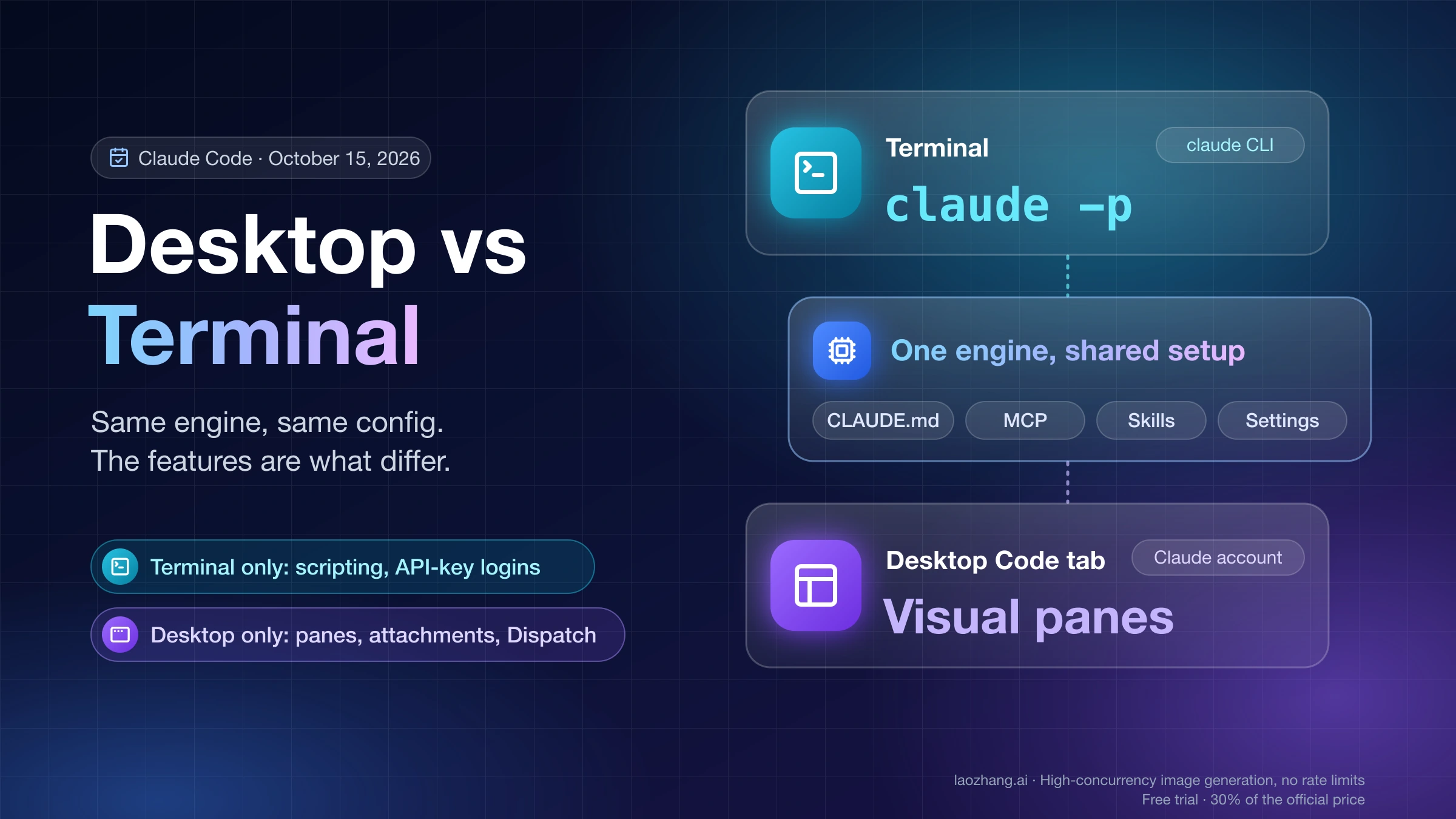
The Code tab in the Claude Desktop app and claude in a terminal run the same Claude Code engine. Both read your CLAUDE.md files, MCP servers, skills, hooks, and settings, and you can run them side by side on the same project. They do not have the same features, though, and the gaps decide which one fits your work.
As of October 15, 2026, the short answer looks like this:
- Use the terminal when you script Claude Code (
claude -p,--output-format, the Agent SDK), log in with a Console API key or through Amazon Bedrock, Microsoft Foundry, or Google Cloud's Agent Platform, need agent teams or Channels, or want thedontAskpermission mode. - Use Desktop when you want many sessions in one window with a visual diff, file, terminal, and browser preview pane, attach images or PDFs to a prompt, send tasks from your phone with Dispatch, or use computer use on Windows.
- Use both when you work in the terminal but want to review a long session visually.
/desktophands the session over, andclaude --resumepicks it up again later.
Two gates apply before any of that. The Code tab needs a Claude account on Pro, Max, Team, or Enterprise; on Free, clicking Code prompts you to upgrade. And switching surfaces never adds usage: when you sign in with a Claude plan, chat, the Code tab, and the CLI draw from the same allowance.
Is the Claude desktop app the same as Claude Code?
Partly. The Claude Desktop app has three tabs, and only one of them is Claude Code. Chat is a general conversation with no file access, much like claude.ai. Cowork is an autonomous agent that works on tasks in the background, such as research, documents, and spreadsheets. Code is Claude Code with direct access to a folder on your computer.
The Code tab ships with its own copy of Claude Code, so you do not need Node.js or the CLI installed to use it. The reverse is also true: installing the claude command does not install the desktop app. See the Claude Code Desktop quickstart for the app, or How to Install Claude Code in 2026 for the terminal version.
The desktop app installs on macOS (one universal build for Intel and Apple Silicon), Windows x64 and ARM64, and Linux as a beta (apt or .deb for Ubuntu and Debian). In the Code tab, each session runs in one of four environments: Local on your machine, Cloud on Anthropic-managed infrastructure, SSH on a remote machine where Desktop installs Claude Code for you, or WSL inside a WSL 2 distribution on Windows.
Claude Code Desktop vs CLI features (as of October 15, 2026)
The table below follows Anthropic's Claude Code Desktop feature comparison and "not available in Desktop" list, plus the plan table in the feature availability docs. Desktop ships changes often, so treat any row as a snapshot of that date.
| Capability | Terminal (claude CLI) | Desktop Code tab | Condition that changes it |
|---|---|---|---|
| Engine and models | Same engine, same models | Same engine, same models | Each runs its own copy; versions can differ (see below) |
| Sign-in | Claude account, Console API key, or Bedrock / Foundry / Agent Platform | Claude account | Desktop on Bedrock, Foundry, or Agent Platform only through an org deployment of Claude Desktop on 3P; Desktop also supports gateway routing |
| Plan needed | Pro, Max, Team, Enterprise, or a pay-as-you-go API key | Pro, Max, Team, or Enterprise | Free claude.ai accounts are prompted to upgrade |
| Scripting and automation | -p / --print, --output-format, Agent SDK | Not available | Desktop is interactive only |
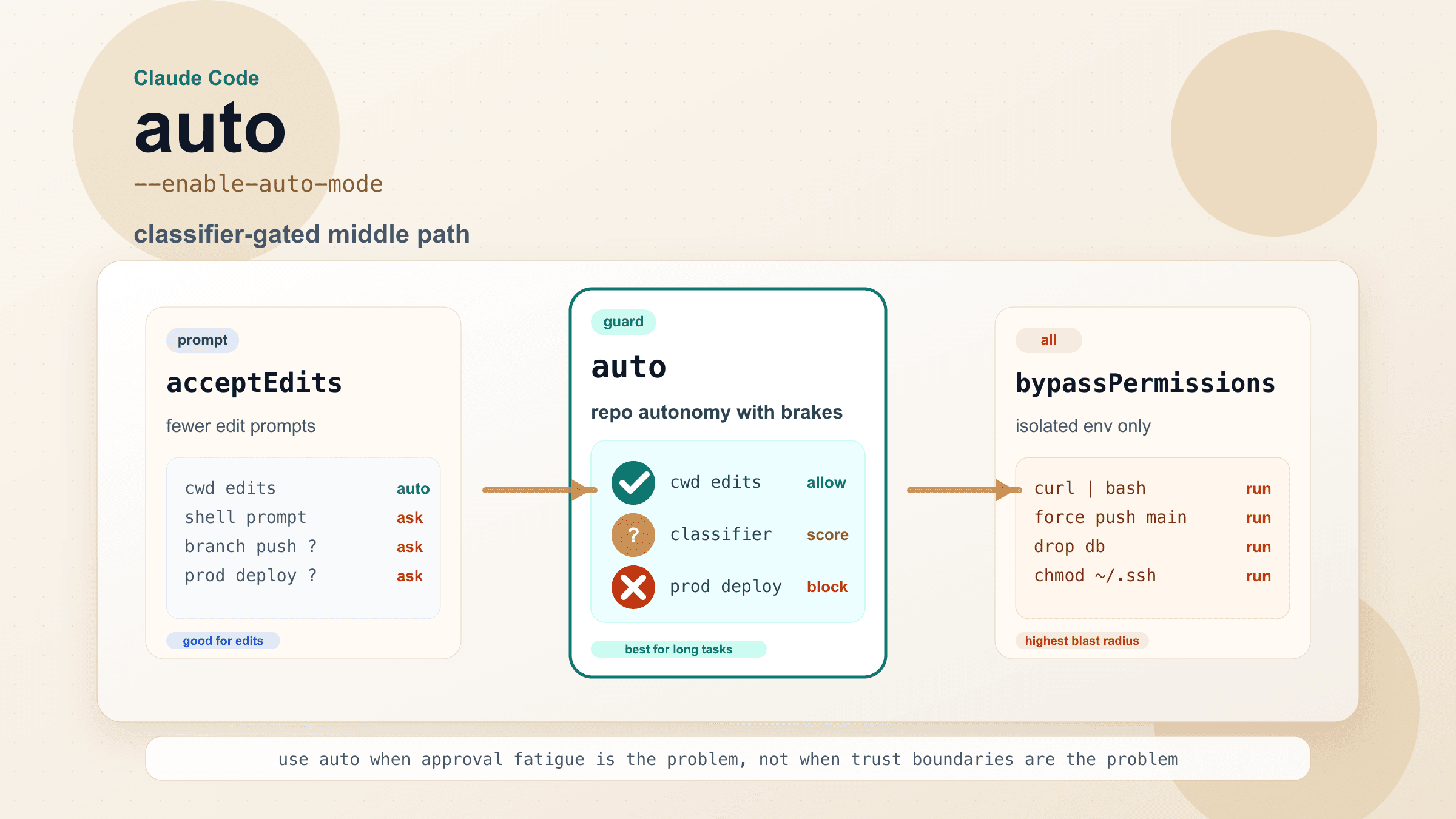
| Permission modes | All, including dontAsk | Manual, Accept edits, Plan, Auto; Bypass permissions once enabled | Bypass: Settings toggle on Pro/Max, org policy on Team/Enterprise |
| Several sessions at once | Separate terminals, or claude agents for background sessions | Sidebar, split view of two sessions, OS notification when one finishes | None |
| Isolated Git worktree per session | --worktree flag | Worktree option when you start a session | Needs Git; .worktreeinclude copies .env and other ignored files |
| Visual review | In the terminal | Diff, file, terminal, browser, plan, tasks, and subagent panes | Pane layout needs Claude Desktop v1.2581.0 or later |
| File attachments | Not available | Images and PDFs | None |
| @mention files | Text-based | Autocomplete | Desktop autocomplete in Local and SSH sessions only |
| MCP servers and plugins | Settings files, /plugin | Connectors UI and plugin manager, or the same files | Connectors UI in Local and SSH sessions |
| Agent teams | Available | Not available | Desktop offers dynamic workflows and cross-session messaging instead |
| Computer use | Via /mcp, macOS only | macOS and Windows | Pro and Max only; not in the Linux beta |
| iOS Simulator | Through computer use | Dedicated pane | macOS |
| Dispatch from your phone | Not available | Dispatch sessions appear in the sidebar | Pro and Max only, not Team or Enterprise |
| Channels (Telegram, Discord, your server) | Available | Not available | Team/Enterprise: admin must enable |
| Remote Control | Available | Available | Team/Enterprise: admin must enable |
| Recurring tasks | Scheduled tasks, cron, CI | Desktop scheduled tasks | Cloud routines are a third option |
Terminal-dialog commands such as /permissions | Available | Reply "isn't available in this environment" | /config opens Settings instead |
To recheck a row later, open the same Anthropic page and compare it with the Claude Code platforms overview. Anthropic describes the CLI there as "the most complete surface for terminal-native work". That does not make Desktop a cut-down version: the attachments, panes, Dispatch, and Windows computer use rows run the other way.
Which to use: decision rules by account, OS, and task
Work through these in order. The first rule that matches settles the question for that kind of work.
- You log in with a Console API key, or through Bedrock, Foundry, or Agent Platform. Use the terminal or an IDE extension. The Code tab signs in with a Claude account, and
/desktopis unavailable with API-key auth. The exception is an organization that deploys Claude Desktop on 3P. If you are unsure which credential your terminal uses,/statusshows it; Claude Code API Billing vs Subscription explains the order Claude Code checks them in. - The work has to run without you typing into it. CI jobs, shell scripts, and pipelines need
claude -por the Agent SDK, which only the CLI has. - You are on a Free plan. The Code tab will not open. The CLI works only with a pay-as-you-go API key. Claude Pro vs Max covers which plan to buy if you want the subscription route.
- You need computer use on Windows, Dispatch, or image and PDF attachments. Use Desktop, and check the plan: computer use and Dispatch are Pro and Max only.
- You run several tasks in parallel and review every diff before merging. Desktop's sidebar, worktree option, and diff pane are built for this. Terminal users can get parallel background sessions with Claude Code Agent View, but the review still happens in the terminal.
- You would rather not use a terminal at all. Desktop gives you the same engine and needs nothing else installed. You lose scripting, agent teams, Channels, and the dialog-style commands.
- None of the above. Keep the surface you already use, and switch per session when a task suits the other one.
On Linux the desktop app is still a beta and lacks computer use. /desktop is documented only for macOS and x64 Windows. A Linux developer who lives in the terminal loses little by staying there.
What carries over: CLAUDE.md, MCP servers, skills, settings
Most of your setup works in both places without copying anything:
- CLAUDE.md and CLAUDE.local.md in your project.
- MCP servers in
~/.claude.jsonor.mcp.json. - Hooks and skills defined in settings. Custom skills you built for the terminal show up in the Code tab's
/menu. - Settings in
~/.claude.jsonand~/.claude/settings.json, including permission rules and allowed tools. Those rules still apply in Desktop even though--allowedToolshas no per-session equivalent there.
Three things do not line up exactly.
MCP servers from the chat app. The Code tab also loads servers from claude_desktop_config.json, the file the Desktop chat app uses. The standalone CLI ignores that file. To copy those servers into ~/.claude.json on macOS or WSL, run claude mcp add-from-claude-desktop. If the same server name appears in both files, the Code tab uses the claude_desktop_config.json definition.
Your shell environment. Desktop does not always see what your terminal sees. On macOS, the app reads your shell profile, such as ~/.zshrc, for PATH and a fixed set of Claude Code variables, but not other variables you export there. On Windows, it inherits user and system environment variables but not PowerShell profiles. If a Desktop session cannot find npm, node, or another tool that works in your terminal, check that your profile sets PATH, then restart the app. For other variables, use the local environment editor (the gear icon next to Local in the environment dropdown).
Files Git ignores in worktree sessions. A new worktree does not contain .env or other gitignored files by default. List them in a .worktreeinclude file at the project root and Desktop copies them into each new worktree. Worktrees live in <project-root>/.claude/worktrees/ unless you change the location in Settings → Claude Code. Archiving a session removes its worktree.
Usage does not care which surface you pick. On Pro and Max, chat and Claude Code draw from one shared allowance; Claude Usage Limits by Plan explains the five-hour and weekly windows. Running a task in Desktop instead of the terminal neither saves nor adds usage.
Move a session between the terminal and Desktop
Anthropic's guide to moving a CLI session into Claude Code Desktop gives three ways in. All of them continue the same session, not a copy.
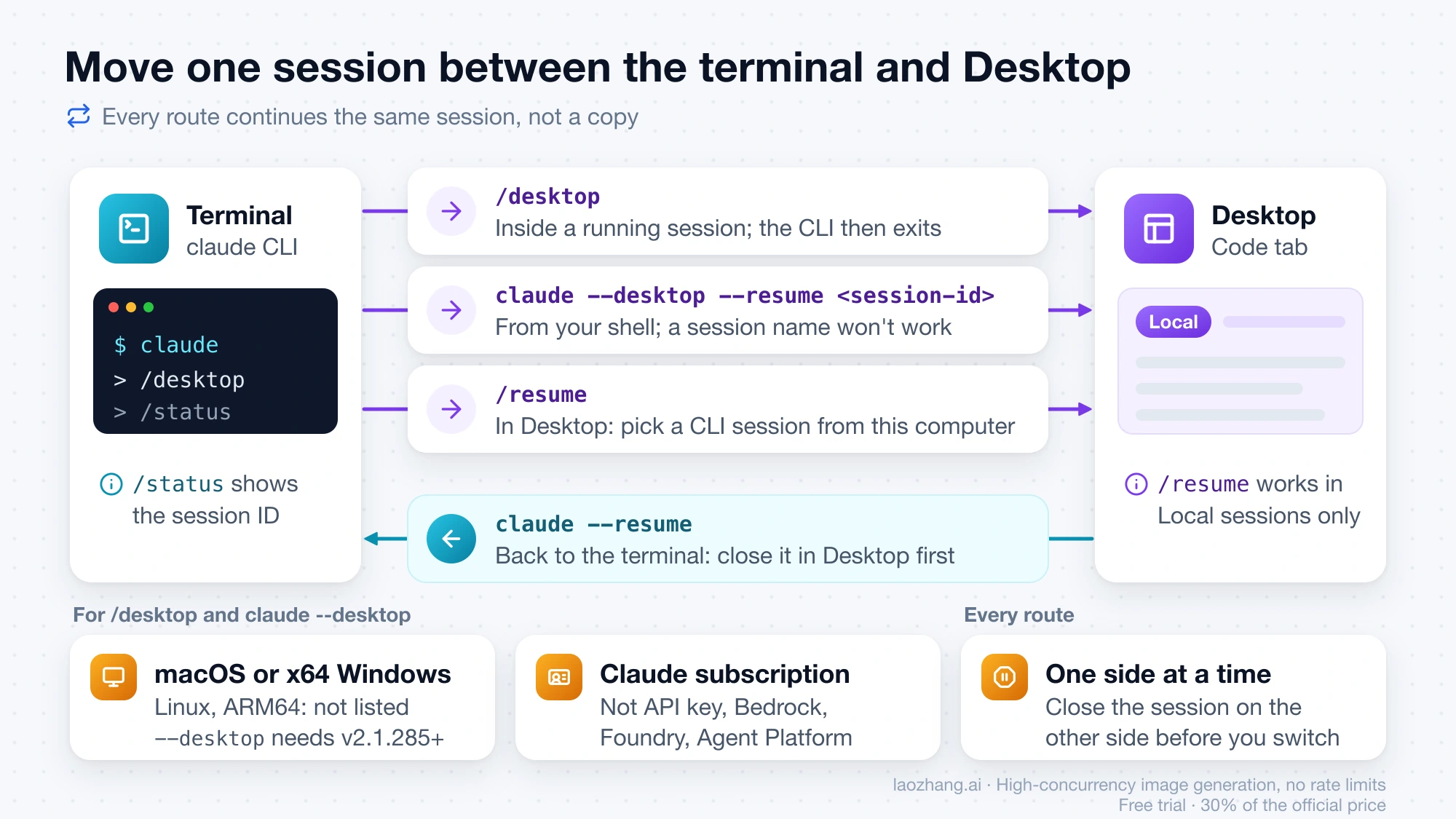
From inside a running terminal session: type /desktop. Claude Code saves the session, opens it in the app, and exits the CLI.
From your shell, without starting a terminal session:
claude --desktop                          # open Desktop on the current directory
claude --desktop --continue               # open the most recent session in this directory
claude --desktop --resume <session-id>    # open a specific session
Take the session ID from /status; a session name does not work here. claude --desktop needs Claude Code v2.1.285 or later. It will not move a session that is still open in another terminal or running in the background. If the app is not installed, it prints a download link and exits.
Both /desktop and claude --desktop work only on macOS and x64 Windows, and only when you are signed in with a Claude subscription. They do not work with API-key auth or on Bedrock, Agent Platform, or Foundry.
From inside Desktop: close the session in the terminal first. In a Local session's prompt box, type /resume. Desktop lists the CLI sessions started on this computer, searchable by title, folder, or branch. Pick one and it continues with its full conversation. /resume is not available in SSH, WSL, or Cloud sessions.
Going back to the terminal: because Desktop continues the original session, claude --resume in the terminal still finds it. Close it in Desktop before you continue in the terminal, so two windows are not writing the same conversation.
For a session that started in Desktop, the documented exits are different. The session menu's Open in offers Cloud, which carries the conversation over as a summary (not for SSH or WSL sessions), or an installed editor or file manager, which only opens the folder. The terminal pane inside Desktop opens a shell in the session's folder, not a terminal copy of the session.
Check which Claude Code version each surface runs
The Code tab runs its own bundled copy of Claude Code, which the desktop app downloads and updates. Updating the claude command in your terminal does not update the Code tab, and updating the app does not touch your terminal.
One Mac on a Max plan showed the gap on October 15, 2026. claude --version in the terminal reported 2.1.300. The Code tab's Local sessions were running 2.1.295 from ~/Library/Application Support/Claude/claude-code/, with an older 2.1.293 still in the same folder. A single machine says nothing about the usual size of the gap, only that it exists.
To check your own pair:
- In a terminal, run
claude --version. - In a Local session in the Code tab, type
/statusand read the Claude Code row. - To update the Code tab, choose Claude → Check for Updates on macOS or Help → Check for Updates on Windows, then start a new session. Sessions already open keep the old version.
This matters when a release note mentions a fix or a new command. It may already work in your terminal and not yet in Desktop, or the other way around. Include both version numbers when you report a bug.
Before you leave a long task running
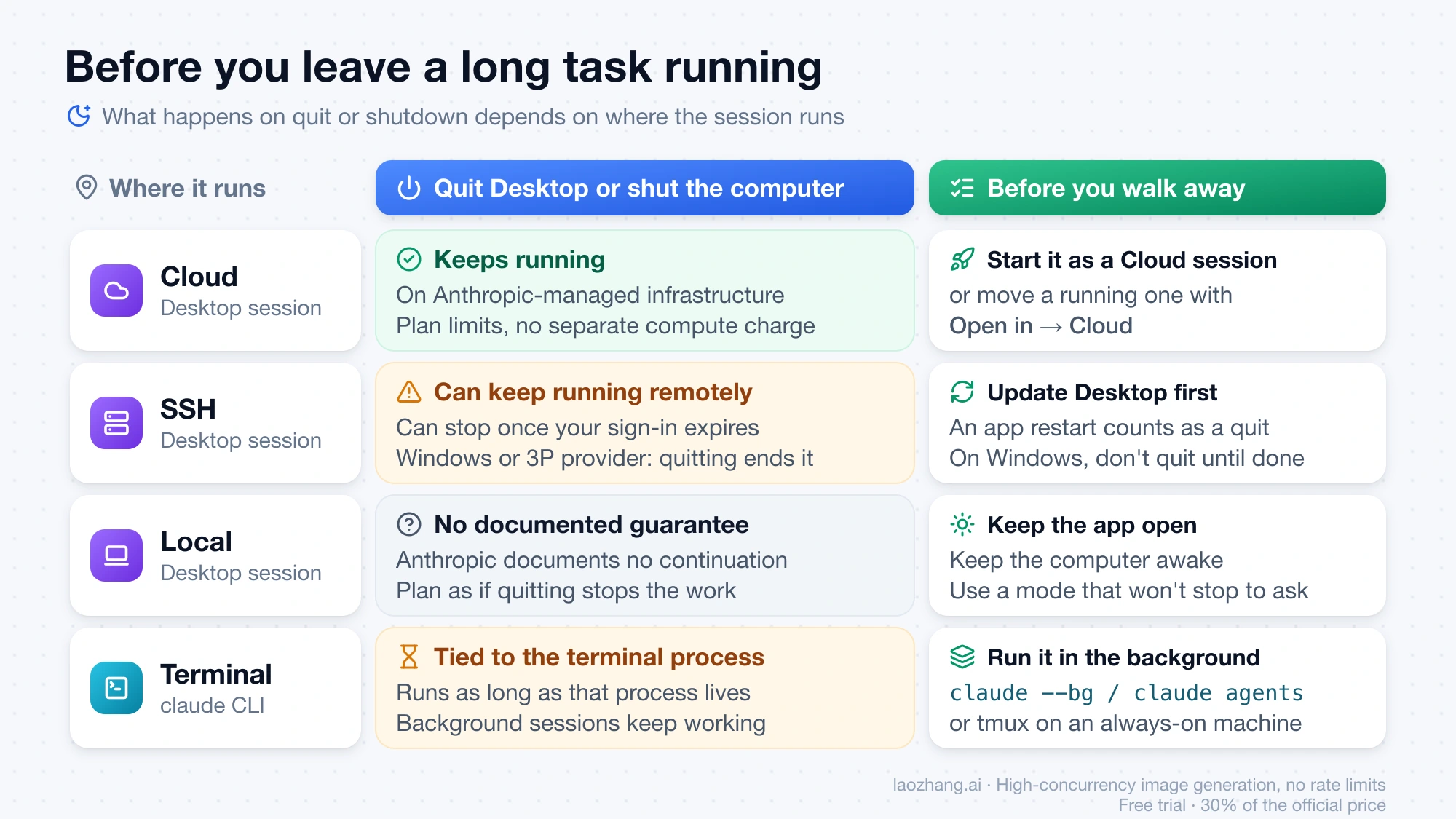
What happens when you close the lid or quit the app depends on where the session runs, not on which window you started it from.
| Where the session runs | If you quit Desktop or shut the computer |
|---|---|
| Desktop Cloud session | Keeps running on Anthropic-managed infrastructure. Usage counts toward plan limits, with no separate compute charge. |
| Desktop SSH session | The task can keep going on the remote machine. With a Claude account, it can stop when the sign-in expires, which can be minutes after you disconnect. On Windows, or with a third-party provider, quitting Desktop ends the running task when the session reopens. |
| Desktop Local session | Anthropic documents no continuation after a quit. Plan as if quitting stops the work. |
| Terminal session | Runs as long as that terminal process lives. A background session started with claude --bg or from claude agents keeps working after you leave the dashboard. |
Practical steps before you walk away:
- For anything that must finish while your computer is asleep or off, start it as a Cloud session. You can also move a running Desktop session with Open in → Cloud.
- For a Local Desktop session, keep the app open and the computer awake, and pick a permission mode that will not stop to ask you every few minutes.
- For an SSH session, update Desktop first, because an app restart counts as a quit. On Windows, do not quit Desktop until the task is done.
- In the terminal, run the task as a background session with Claude Code Agent View, or inside tmux on a machine that stays on.
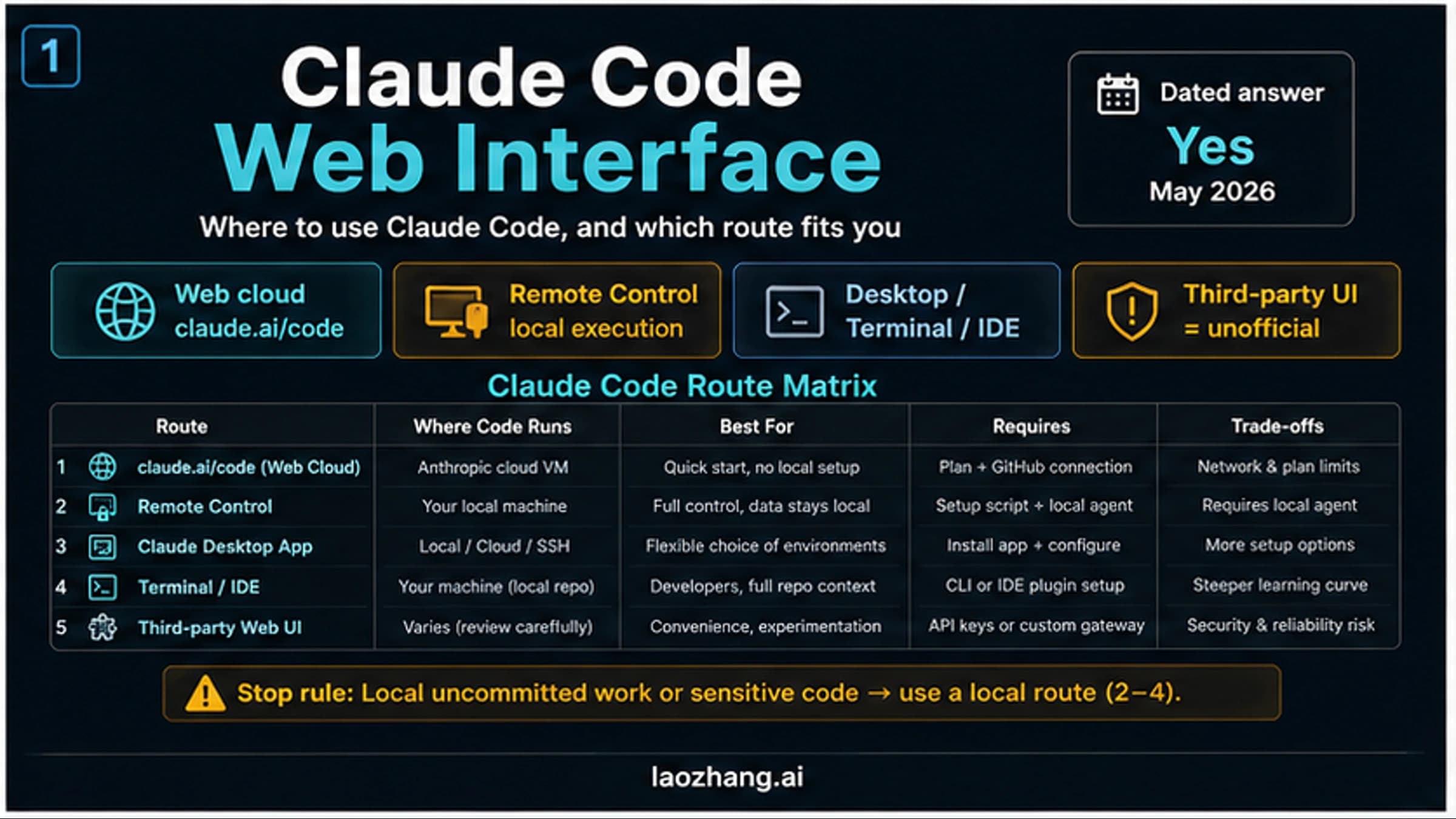
If you only want to check on a session from your phone, you have two routes. Remote Control lets you steer a local CLI, Desktop, or VS Code session from another device; Claude Code Remote Control covers the setup. Dispatch sends a new task from the Claude mobile app to Desktop on Pro and Max. For when the browser-based cloud version fits better, see Claude Code Web Interface: What Exists Now and Which Route to Use.
Commands and flags that behave differently in the Code tab
Terminal users run into these first:
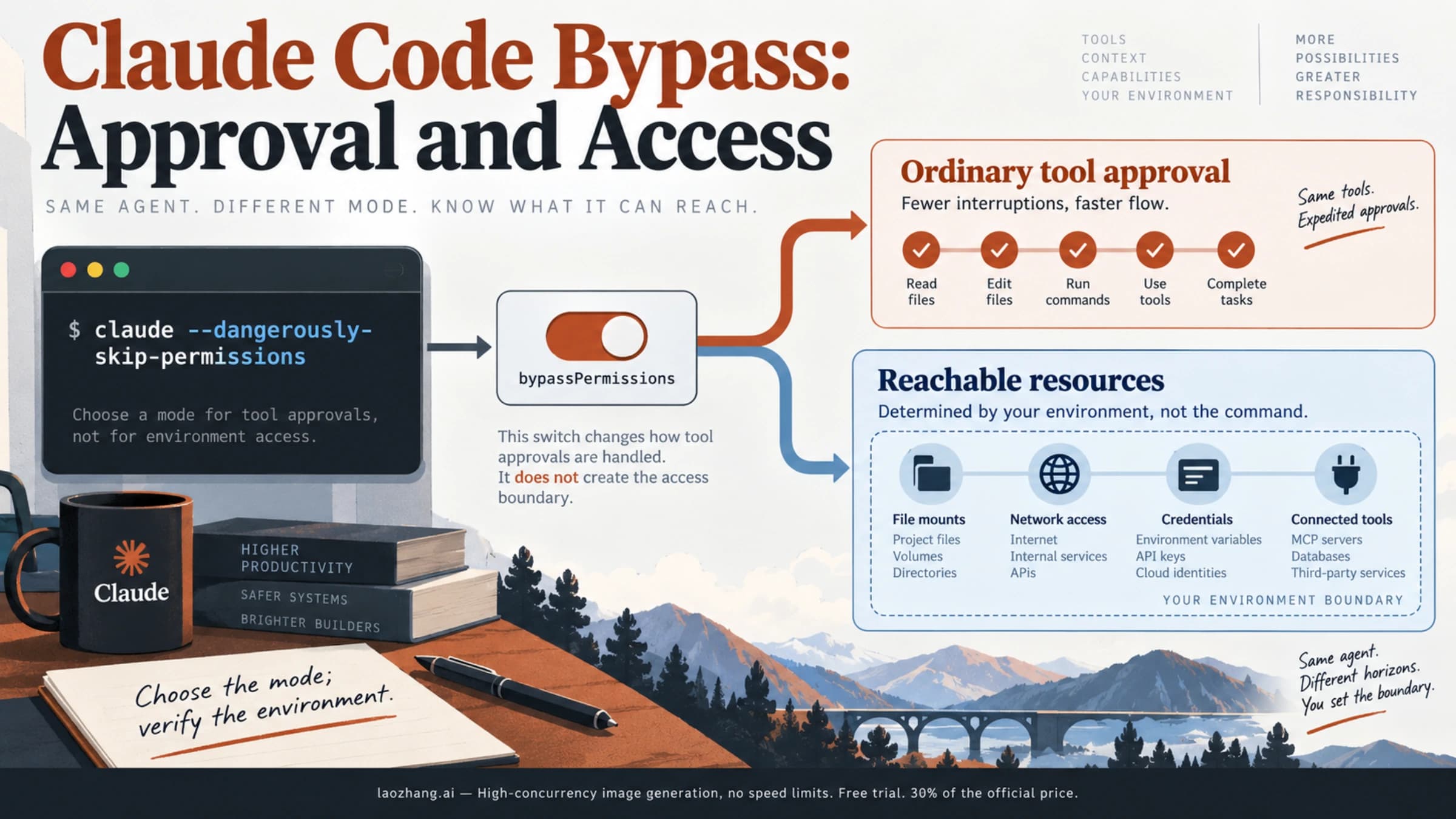
/permissionsand other commands that open a terminal dialog reply that they aren't available in this environment. Edit the settings files directly, or run the command in the standalone CLI./configopens Settings → Claude Code and ignores anything typed after it, so/config theme=darkdoes nothing.--dangerously-skip-permissionsbecomes Bypass permissions mode. On Pro and Max you turn it on under Settings → Claude Code → "Allow bypass permissions mode"; on Team and Enterprise your organization decides. Cloud sessions never offer it. Claude Code --dangerously-skip-permissions: Commands and Safer Modes covers when Auto mode is the safer choice.--model,--permission-mode,--resume, and--verbosemap to the model dropdown, the mode selector, the sidebar or/resume, and Verbose view mode.--add-dironly has an equivalent in Cloud sessions, where the + button adds more repositories.- Agent teams do not exist in Desktop. For multi-agent work inside one session, Desktop offers dynamic workflows, and Claude can message your other Desktop sessions. It cannot see sessions you started in the terminal through that sidebar view.
- Worktree sessions need Git. If Desktop reports "Git is required," install Git (Git for Windows on Windows) and try again.
Claude Code on Windows: Desktop, WSL, or native terminal
All three work, and the choice follows where your project lives. The desktop app has x64 and ARM64 installers. Inside it, a WSL environment runs Claude Code, your tools, and git on the Linux side with native paths, while a Local session works on Windows directly. Desktop on Windows also has computer use (Pro and Max), which the CLI only offers on macOS.
The terminal version installs from PowerShell or CMD without admin rights. Git for Windows is optional but gives Claude Code the Bash tool; without it, Claude Code runs commands through PowerShell. Inside WSL 2 you install and launch claude from the WSL terminal, and sandboxed command execution is supported there, which native Windows does not support.
Two Windows-specific limits are worth knowing. /desktop and claude --desktop are documented for x64 Windows only; ARM64 is not listed. And if you run a long SSH task from Desktop on Windows, quitting the app ends it.
FAQ
Are Claude Code and the terminal the same thing?
No. The terminal is just where the claude command runs. Claude Code is the agent itself, and it also runs in the Desktop Code tab, in the VS Code and JetBrains extensions, and in the cloud. The terminal version is the one with the full set of flags and scripting.
Is it better to use Claude Code in the terminal or in VS Code?
That is a third option rather than either side of this comparison. The VS Code extension gives you inline diffs and file context inside your editor, and it supports third-party providers like the CLI does. If you already work in VS Code and do not need scripting, the extension is a reasonable middle ground. Desktop can also open any file in VS Code, Cursor, or Zed from its right-click menu.
Can I run Claude Code Desktop and the CLI on the same project at the same time?
Yes. Anthropic's docs say you can run both at once on the same machine, even on the same project. Each keeps its own session list. Give parallel sessions separate worktrees so they do not edit the same files, and do not open one session in both places at once.
Can I use Claude Code Desktop with an API key?
Not on a standard install. The Code tab signs in with a Claude account on a paid plan. API-key users, and teams on Bedrock or Foundry, use the terminal or an IDE extension unless their organization deploys Claude Desktop on 3P.
Does Claude Code Desktop use more of my usage limit than the terminal?
No. Both draw from the same subscription allowance, and so does Claude chat. What uses more is the work itself: more parallel sessions, longer tasks, and larger models.
Sources3
External pages this guide links to, in the order they appear. Last updated Oct 15, 2026.
Sources3
External pages this guide links to, in the order they appear. Last updated Oct 15, 2026.