GPT Image Transparent Background: Fix a Baked-In Checkerboard
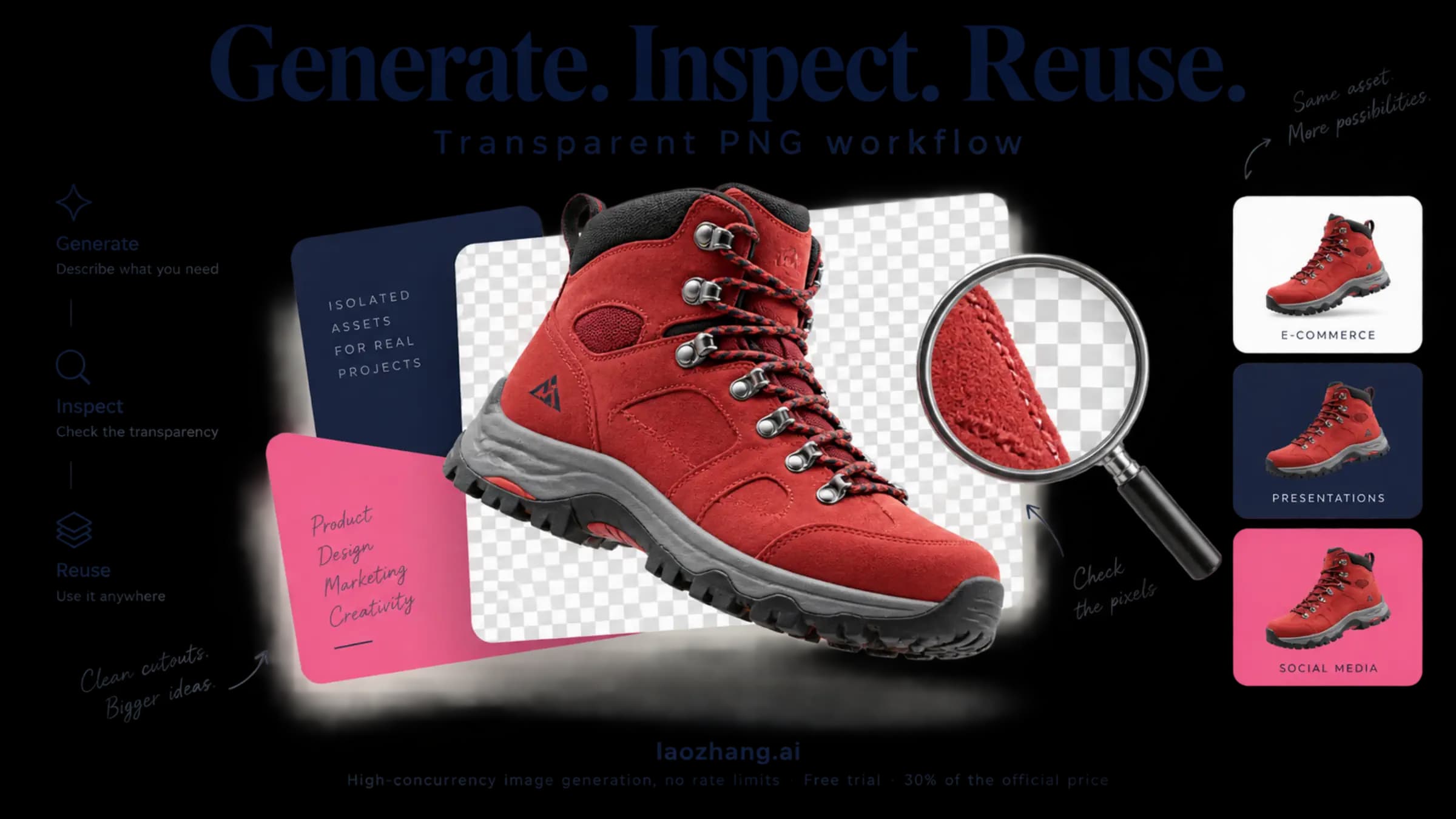
If the gray-and-white squares stay when the image sits on a colored background, they are painted pixels. Check the saved file, then fix it where it was made.
On this page
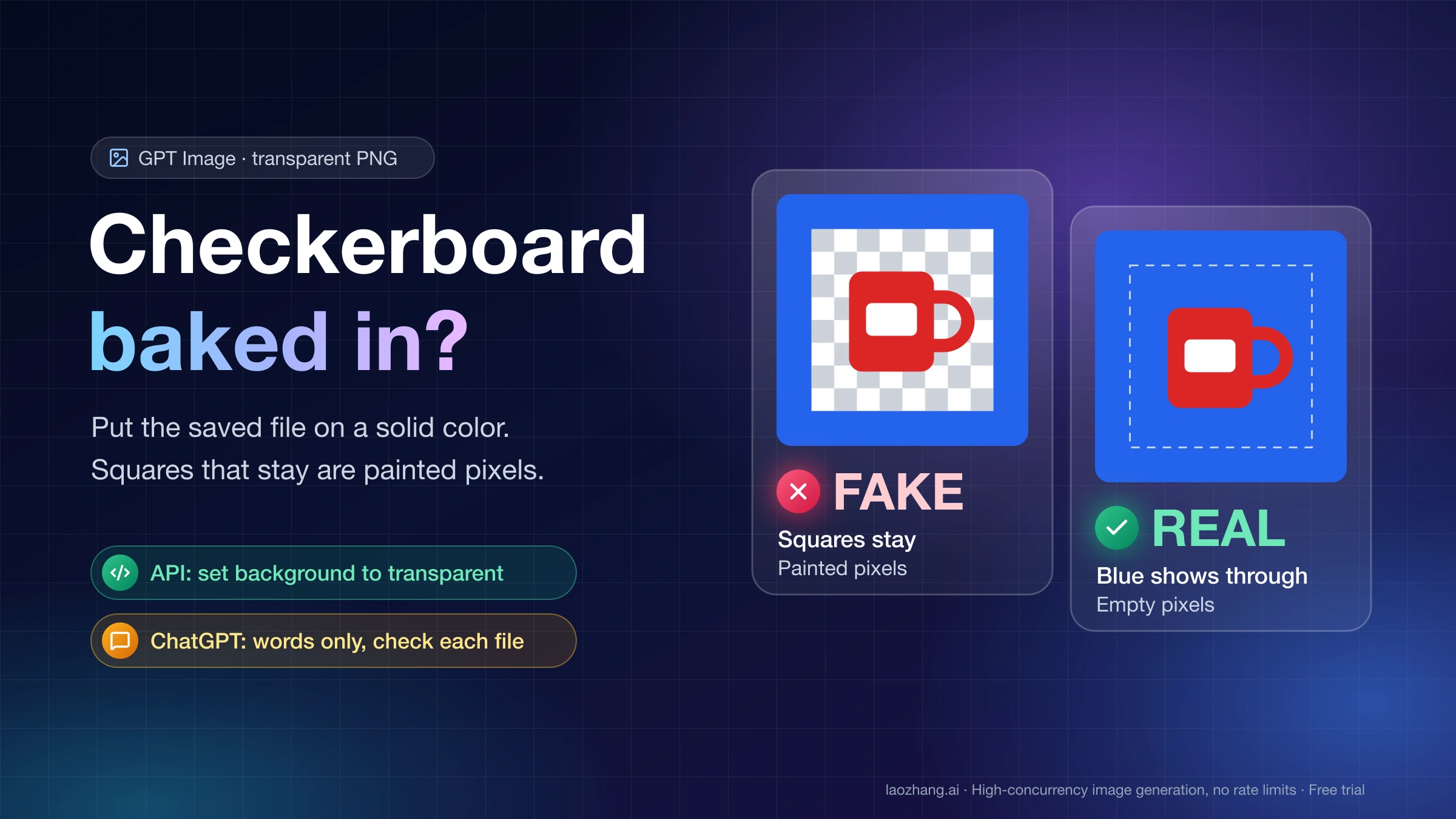
A checkerboard that is still there after you drop the image onto a colored background is part of the picture: the model drew gray and white squares instead of leaving those pixels empty. A checkerboard that disappears and lets the color show through was only your viewer's way of displaying empty pixels, and that file is fine. The saved file decides which one you have. The preview, the file name and the .png extension do not.
The fix depends on where the image was made. In the OpenAI Images API, transparency is a request setting: background set to transparent with output_format set to png or webp. Writing "transparent" in the prompt does not turn it on. In ChatGPT there is no setting, only your words, so every download has to be checked. An image that already has the squares painted in can sometimes be rescued with the short script further down, but only when the subject is not white or light gray.
How the material below was produced: the two Python scripts were run locally on 11 synthetic test images drawn with Pillow (Python 3.12.1, Pillow 12.0.0, macOS). No image was generated in ChatGPT and no API request was sent. Every statement about what ChatGPT or the API returns comes from OpenAI's documentation as of October 2, 2026, or from user reports, and is labeled as such.
Real transparency vs a painted checkerboard: the colored-background test
Put the saved file on top of a solid red or blue rectangle. Any tool with layers or a slide works: Photoshop, Canva, Figma, Keynote, PowerPoint, Google Slides. Use the downloaded file, not a screenshot, because a screenshot records whatever was on screen as a new image with no empty pixels at all.
| What you see around the subject | What the file contains | What it means |
|---|---|---|
| The red or blue shows through | Empty pixels | Real transparency. The squares you saw earlier were drawn by the viewer. |
| Gray and white squares stay | Pixels colored gray and white | Fake. The checkerboard was painted into the image. |
| A solid white or black box | Opaque pixels of one color | The background was never removed, or it was lost when the file was saved or converted. |
| The whole image looks washed out and the color tints everything | Every pixel equally see-through | Opacity was lowered. Nothing was cut out. |
The term you will meet in every tool is the alpha channel. It is a fourth value stored with each pixel, next to red, green and blue, that says how see-through that pixel is. Real transparency means some pixels have an alpha of zero. A painted checkerboard has alpha at full strength everywhere, and that is why it survives in Photoshop, in Canva and at the print shop.
One related symptom has a different cause. Fine grain, speckles or a faint grid on an image that was never meant to be transparent is covered in GPT Image 2.5 Grainy Noise: Fixes for ChatGPT and the API.
Where the fake came from: ChatGPT, the API, a gateway, or saving
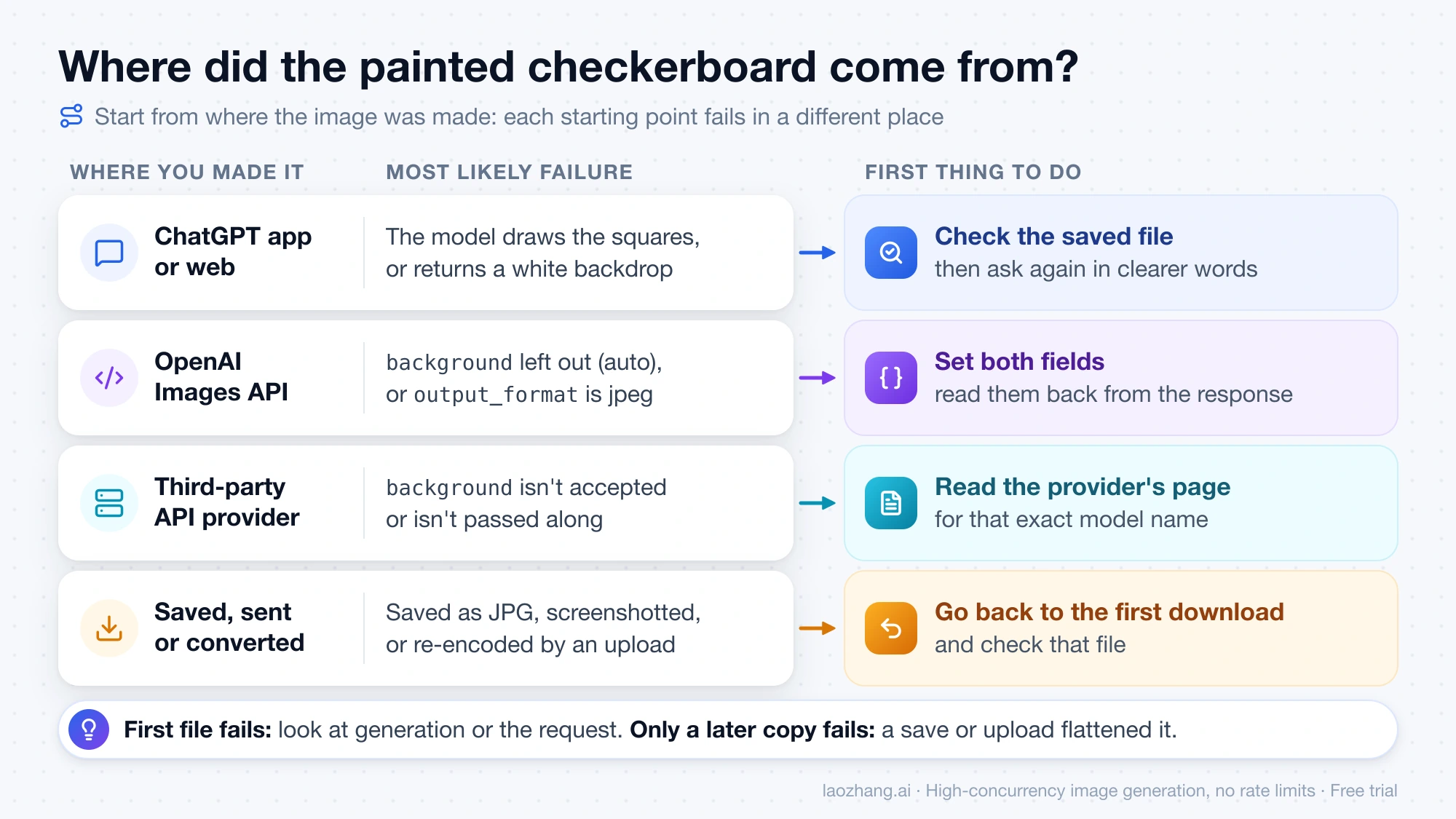
Start from where the image was made, because each starting point fails in a different place.
| Where you made it | What controls transparency there | Most likely failure | First thing to do |
|---|---|---|---|
| ChatGPT app or web | Your wording only. The help center documents no transparency switch and no download format. | The model draws the squares, or returns a white backdrop | Check the saved file, then ask again with the wording in the ChatGPT section |
| OpenAI Images API | background and output_format in the request | background left out, so it defaults to auto and the model decides; or output_format set to jpeg | Set both fields and read them back from the response |
| A third-party API provider | Whatever that provider forwards to the model | The provider's version of the model does not accept or pass along background | Read the provider's page for that exact model name |
| Any of the above, then saved, converted or sent | The file format and every app it passed through | Saved as JPG, screenshotted, or re-encoded by an upload | Go back to the first downloaded file and check that one |
If the first file that came out of the generator already fails the test, the problem is in generation or in the request. If the first file passes and a later copy fails, nothing is wrong with the image model. Something between the download and the destination flattened it.
Check the alpha channel with Python: real, fake, or wrong format
The script below reads the real file type from the bytes, counts transparent, partly transparent and opaque pixels, and, when nothing is transparent, looks at a thin frame around the image for two alternating light gray tones. It needs Python and Pillow (pip install pillow).
"""Tell real transparency from a painted checkerboard.

Usage: python check_transparency.py image.png [more files...]
Requires Pillow (pip install pillow).
"""
import sys
from collections import Counter
from pathlib import Path

from PIL import Image


def border_pixels(rgb, ring=0.04):
    """Pixels in a thin frame around the image, where the background usually is."""
    w, h = rgb.size
    t = max(2, int(min(w, h) * ring))
    px = rgb.load()
    for y in range(h):
        for x in range(w):
            if x < t or x >= w - t or y < t or y >= h - t:
                yield px[x, y]


def painted_checkerboard(rgb):
    """True when the frame is made of two light, neutral tones that alternate."""
    w, h = rgb.size
    small = rgb.resize((min(w, 256), min(h, 256)), Image.NEAREST)
    tones = Counter()
    total = 0
    for r, g, b in border_pixels(small):
        total += 1
        if max(r, g, b) - min(r, g, b) <= 12 and min(r, g, b) >= 150:
            tones[round((r + g + b) / 3 / 8)] += 1  # 8-level buckets of gray
    if total == 0 or sum(tones.values()) / total < 0.85:
        return False  # the frame isn't mostly light gray/white
    buckets = sorted(tones)
    light = [b for b in buckets if tones[b] / total >= 0.15]
    if len(light) < 2 or (max(light) - min(light)) * 8 < 10:
        return False  # one flat tone: a plain white or gray background
    # Two tones must alternate along the top row, not sit in two big blocks.
    mid = (max(light) + min(light)) * 8 / 2
    row = [sum(small.getpixel((x, 1))) / 3 > mid for x in range(small.width)]
    flips = sum(1 for a, b in zip(row, row[1:]) if a != b)
    return flips >= 4


def check(path):
    with Image.open(path) as im:
        real_format, mode = im.format, im.mode
        rgba = im.convert("RGBA")  # palette transparency becomes a real alpha channel
    print(f"{path.name}: {real_format}, mode {mode}, {rgba.width}x{rgba.height}")
    if real_format not in ("PNG", "WEBP"):
        print(f"  NOT TRANSPARENT: the bytes are {real_format}, which can't store the alpha you need.")
        return "wrong-format"

    hist = rgba.getchannel("A").histogram()
    total = rgba.width * rgba.height
    clear, solid = hist[0], hist[255]
    partial = total - clear - solid
    print(f"  alpha: {clear / total:.1%} transparent, {partial / total:.1%} partial, {solid / total:.1%} opaque")

    if clear == total:
        print("  EMPTY: every pixel is transparent.")
        return "empty"
    if clear + partial == 0:
        if painted_checkerboard(rgba.convert("RGB")):
            print("  FAKE: no transparent pixels, and the frame is a two-tone gray grid. The checkerboard is painted in.")
            return "painted-checkerboard"
        print("  OPAQUE: no transparent pixels. The background is a solid part of the picture.")
        return "opaque"
    if clear == 0 and len([v for v in hist if v]) == 1:
        print("  FADED: one alpha value everywhere. Opacity was lowered; nothing was cut out.")
        return "faded"
    print("  REAL: transparent pixels are present. Check the edges on a dark and a colored background next.")
    return "real"


if __name__ == "__main__":
    if len(sys.argv) < 2:
        sys.exit(__doc__)
    for name in sys.argv[1:]:
        check(Path(name))
This is the output for three of the test images: a real cutout, a painted checkerboard, and a JPEG that was renamed to .png.
real-alpha.png: PNG, mode RGBA, 512x512
  alpha: 75.6% transparent, 1.1% partial, 23.3% opaque
  REAL: transparent pixels are present. Check the edges on a dark and a colored background next.
painted-checkerboard.png: PNG, mode RGB, 512x512
  alpha: 0.0% transparent, 0.0% partial, 100.0% opaque
  FAKE: no transparent pixels, and the frame is a two-tone gray grid. The checkerboard is painted in.
jpeg-renamed.png: JPEG, mode RGB, 512x512
  NOT TRANSPARENT: the bytes are JPEG, which can't store the alpha you need.
All 10 test images for the checker were classified as expected:
| Test image | What it is | Result |
|---|---|---|
real-alpha.png, real-alpha.webp | A red shape with a white label on empty pixels | real |
palette-transparent.png | The same shape as an indexed-color PNG with one transparent color | real |
painted-checkerboard.png | The shape on drawn 16-pixel white and light gray squares, saved without alpha | painted-checkerboard |
painted-checkerboard-rgba.png | The same picture saved with an alpha channel that is fully opaque | painted-checkerboard |
painted-checkerboard-noisy.png | The same picture after a slight blur, random noise and one JPEG save at quality 85 | painted-checkerboard |
white-background.png | The shape on plain white | opaque |
jpeg-renamed.png | JPEG bytes with a .png name | wrong-format |
faded.png | The white-background picture at half opacity | faded |
empty.png | Nothing but empty pixels | empty |
Two limits matter when you run it on your own files. These test images were drawn with Pillow and are not ChatGPT or GPT Image output. A grid painted by a model can have uneven squares, a tilt, darker grays or shading, and in that case the script may print OPAQUE instead of FAKE. The verdict that counts is still correct: 0.0% transparent means the file has no transparency, whatever the background looks like. And REAL only says that empty pixels exist. It does not say the edges are clean, so look at hair, glass and shadows on a dark background before you ship the file.
API fix: background transparent plus output_format png or webp
In the OpenAI Images API, transparency is switched on by the request, not by the prompt. The API reference lists three values for background: transparent, opaque and auto. auto is the default, and with it "the model will automatically determine the best background for the image." So a request that says "transparent PNG" in the prompt and leaves background out has asked the model to choose. The reference also requires the output format to be png or webp when background is transparent.
Model support as of October 2, 2026, from the same page:
| Model | Transparent background |
|---|---|
gpt-image-2.5-sunburst, gpt-image-2.5-flare and their 2026-09-08 snapshots | Supported |
gpt-image-2, gpt-image-2-2026-04-21 | In preview |
Before August 2026, OpenAI's documentation said gpt-image-2 could not produce transparent backgrounds. Guides from that period that tell you GPT Image cannot do transparency were correct when written and are out of date now. The reference ties transparency to no particular size or quality setting. If you are deciding between the two 2.5 models, that comparison is in GPT Image 2.5 Sunburst vs Flare: Which to Use, by the Numbers.
A request written from the reference looks like this. It was not executed for this guide, so treat it as the documented shape of the call and not as a recorded result.
curl -s https://api.openai.com/v1/images/generations \
  -H "Authorization: Bearer $OPENAI_API_KEY" \
  -H "Content-Type: application/json" \
  -d '{
    "model": "gpt-image-2.5-flare",
    "prompt": "One red ceramic mug, isolated and centered with padding around it. Transparent background. No backdrop, no scenery, no checkerboard, no cast shadow.",
    "background": "transparent",
    "output_format": "png",
    "size": "1024x1024"
  }' > response.json

jq -r '.background, .output_format' response.json
jq -r '.data[0].b64_json' response.json | base64 --decode > mug.png
python check_transparency.py mug.png
Three details in that request come from OpenAI's documentation:
- The prompt and the parameter work as a pair. OpenAI's prompting guide says to "request both an isolated subject in the prompt and background="transparent" in the API", and its own examples rule out a solid backdrop, scenery, a checkerboard and shadows in words. The same guide states it plainly: "A drawn checkerboard is not transparency."
- The response says what was used. The response object carries a
backgroundfield, "transparent" or "opaque", and anoutput_formatfield. If it reportsopaqueorjpeg, the file cannot be transparent and there is no need to decode it. This check takes one line and catches a dropped parameter before the image reaches anyone. - The image arrives as Base64 text. GPT Image models always return the image in
data[0].b64_json. Decode it straight to a.pngor.webpfile. Do not pass it through a step that saves JPEG.
Edits follow the same rule. The edit endpoint accepts the same background values, and the prompting guide adds that for follow-up edits you should "repeat the requirement to preserve the transparent background." A second request that omits the field is back on auto.
Tools that build the request for you can leave the field out. The built-in OpenAI node in n8n is one example, covered in GPT Image 2.5 in n8n: When the OpenAI Node Isn't Enough. When a failed attempt means running the request again, the cost per image is worked out in GPT Image 2.5 Sunburst Pricing: Official Costs vs $0.03 per Call.
In ChatGPT the request is words only, so check every download
ChatGPT can return a transparent image, but nothing in the app lets you force it. OpenAI's help page for images in ChatGPT says ChatGPT Images "can follow instructions to add text, add details within the image, or make the background transparent." As of October 2, 2026, the same page describes no transparency switch, does not say which file format Save produces, and does not say what the preview draws behind empty pixels. What the chat window shows is therefore not proof either way.
Failures here are user reports, not a measured rate. In an OpenAI Developer Community thread from May and June 2026, one user wrote that "the checkerboard was baked into the image. So it was not a real alpha-channel transparent background." Other people in the same thread got real or partial transparency. Those posts mostly predate ChatGPT Images 2.5, and OpenAI has not published how often it happens now.
What you can do in the app:
- Describe the result, not the look of transparency. Ask for one isolated subject on a transparent background, and say what must not appear: no checkerboard, no solid backdrop, no scenery, no shadow under the subject. Avoid phrases like "show the transparency grid", which describe squares.
- Repeat it on every edit. If you ask for a color change two messages later, add that the background must stay transparent.
- Download with Save. Copying from the screen or taking a screenshot gives you a new opaque image.
- Check the downloaded file with the colored-background test or the script above before you place it, send it or upload it.
If repeated attempts keep returning squares, stop asking in the same conversation. Start a new one from your original description or original upload instead of feeding the failed image back in. Where the image tools sit in the app is described in ChatGPT Images 2.5: How to Use It in ChatGPT and the API.
A third-party API gateway can drop the background parameter
A gateway is a third-party API provider that takes your request and forwards it to the model, usually under the same model name. Whether background survives that trip depends on how the provider connects to the model, and the model name alone does not tell you.
LaoZhang API, the platform behind this blog, shows the difference inside one provider. According to its GPT Image 2.5 documentation, with pricing as of September 24, 2026:
| Model name | Billing | Transparent output |
|---|---|---|
gpt-image-2.5-flare-vip, gpt-image-2.5-sunburst-vip | $0.03 per call | Documented: send "background": "transparent" and "output_format": "png" to generate a transparent image or remove the background from an upload |
gpt-image-2.5-flare, gpt-image-2.5-sunburst | Tokens, at OpenAI's rates (20% more in the Enterprise group) | These requests "use OpenAI's parameters" |
gpt-image-2.5-web | $0.03 per call | Not promised. Supported parameters "depend on the console configuration and actual results", and the documentation says not to assume the VIP options work there |
So a call to the third model with background set can come back with a white or painted background even though the request asked for transparency. If you want a flat price per image with the transparent setting, the two -vip models are the documented option on that platform. No paid call was made to confirm it here, and the same documentation notes those two models were unavailable from September 16 to September 22, 2026, so run the checker on your first result.
For any other provider the rule is the same: find the page for the exact model name you are calling, look for background in its parameter list, and check whether the response still includes the background and output_format fields. A provider may or may not pass those fields through.
Remove a painted checkerboard with a flood fill, and know when it fails
A painted checkerboard can be turned into real transparency when the subject is clearly darker or more colorful than the squares. The script below starts at the four edges of the image and spreads inward through every pixel that is light and neutral, erasing as it goes. It stops at the first pixel that has real color. White areas fully surrounded by the subject, such as eyes, teeth or a label, are never reached and stay intact.
"""Turn a painted light-gray/white checkerboard into real transparency.

Usage: python remove_painted_checkerboard.py fake.png fixed.png
Requires Pillow (pip install pillow).

Works by flood-filling from the image border through light, neutral pixels.
It only reaches background that touches the border, so white areas enclosed by
the subject (eyes, teeth, a label) are kept. It can't separate a white or
light-gray subject edge from the grid, and it leaves a thin light rim on soft
edges.
"""
import sys
from collections import deque

from PIL import Image

src, dst = sys.argv[1], sys.argv[2]
im = Image.open(src).convert("RGBA")
w, h = im.size
px = im.load()


def is_grid(p):
    r, g, b, _ = p
    return max(r, g, b) - min(r, g, b) <= 14 and min(r, g, b) >= 170


seen = bytearray(w * h)
queue = deque()
for x in range(w):
    queue.append((x, 0))
    queue.append((x, h - 1))
for y in range(h):
    queue.append((0, y))
    queue.append((w - 1, y))

removed = 0
while queue:
    x, y = queue.popleft()
    i = y * w + x
    if seen[i]:
        continue
    seen[i] = 1
    if not is_grid(px[x, y]):
        continue
    px[x, y] = (0, 0, 0, 0)
    removed += 1
    if x > 0:
        queue.append((x - 1, y))
    if x < w - 1:
        queue.append((x + 1, y))
    if y > 0:
        queue.append((x, y - 1))
    if y < h - 1:
        queue.append((x, y + 1))

im.save(dst)
print(f"{removed / (w * h):.1%} of the pixels made transparent -> {dst}")
Results on three synthetic 512x512 images, measured against the known outline of the shape:
| Input | Background cleared | Subject pixels lost | Enclosed white label kept | Checker verdict afterward |
|---|---|---|---|---|
| Red shape on a clean painted checkerboard | 100.0% | 0% | 100% | real |
| The same picture with blur, noise and a JPEG save | 99.63% | 0% | 100% | real |
| Near-white shape touching the checkerboard | not measured | 100% | no label | not measured |
The third row is the boundary. A subject whose own color is white or light gray looks the same to the script as the squares, and the whole shape was erased. The same thing will happen to white fur, a white T-shirt, a pale logo or a light gray product wherever it touches the background.
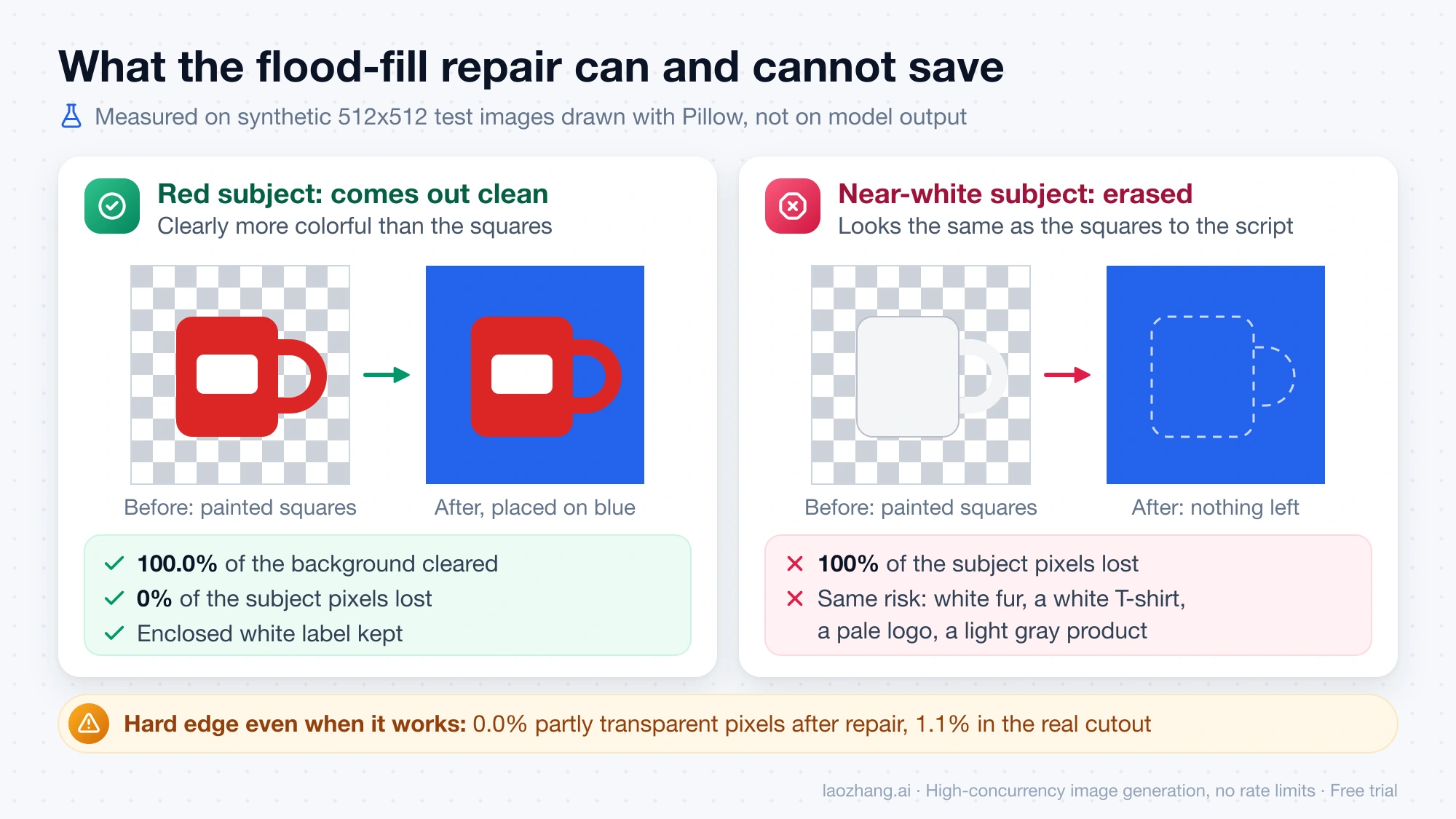
Two more limits show up in the numbers. On the noisy image 0.37% of the background was not cleared, so expect a few stray pixels on anything that has been through JPEG. And the result has a hard edge: the repaired files contain 0.0% partly transparent pixels, where the real cutout of the same shape had 1.1%. Smooth edges, hair, glass and soft shadows need those partly transparent pixels, and this method cannot rebuild them. A thin light rim around the subject is the usual sign.
When the script is the wrong tool, there are three better options:
- Generate again from the original description or upload, with the request fixed as described above. This is the only way to get proper soft edges.
- Use a background remover built for selection on the failed image or, better, on the original photo. The tools are compared in How to Make an Image Transparent (and Check It Actually Is).
- Do not ask the model to "remove the checkerboard" when the subject has to stay exactly as it is. That is another generated edit, and OpenAI's prompting guide warns that "repeated edits can still change details you intended to preserve." Its advice for anything that must stay pixel-identical is to composite onto the original instead of relying on a prompt.
Why a transparent PNG turns white after saving or sending
A file that passed the check can still lose its transparency on the way to where it is used. The usual causes are format and handling, not the image model:
- JPG cannot store an alpha channel. Saving, exporting or converting to JPG fills the empty pixels with a solid color, often white or black.
- A screenshot is a new opaque image. It captures the squares your viewer drew along with the subject.
- The extension proves nothing. A PNG can be fully opaque, and a JPEG can be renamed to
.png. The checker reports the real type. - Uploads may re-encode. Chat apps, social platforms and some site builders convert images on upload, and some convert to JPG. This varies by app and was not tested here, so send the file as an attachment or document where the app offers that, and check what arrives.
If a print shop or a client says your transparent file opened with a solid or checkered background, run the checker on the exact file you sent them. FAKE or OPAQUE means the problem was there before you sent it. REAL means their copy was changed on the way, so resend the original PNG as a file attachment or a download link instead of pasting it into a message.
Questions about GPT Image transparent PNGs
Can ChatGPT generate a PNG with a transparent background?
Yes, according to OpenAI: its help page says ChatGPT Images can "make the background transparent" on instruction. The app has no setting for it and the help page does not document the download format, so the result is not guaranteed on any single attempt. Check each saved file.
Does gpt-image-2 support a transparent background?
In preview, as of October 2, 2026. OpenAI's API reference lists transparent backgrounds as supported for gpt-image-2.5-sunburst and gpt-image-2.5-flare, and as "in preview" for gpt-image-2. Both need background set to transparent and an output format of png or webp.
Why does ChatGPT create a checkerboard pattern?
OpenAI has not published a cause. A common explanation among users is that pictures labeled "transparent" usually show a gray-and-white grid, so a model asked for transparency in words alone draws what that looks like. It is a plausible guess, not a confirmed cause.
Is the checkerboard in the ChatGPT preview a sign that the image is fake?
Not by itself. OpenAI does not document what the ChatGPT preview shows behind empty pixels, so squares on screen can mean either case. Save the image and test the file.
Does a higher resolution cause the painted checkerboard?
OpenAI's API reference does not connect transparent output to any size or quality setting. Claims that larger sizes produce a painted grid have no support in the documentation.