AI Transparent Background Test: Glass, Hair and Fine Edges
Native transparent output kept curly hair and dandelion fuzz; every local background remover turned a wine glass solid gray. One run per subject, measured.
On this page
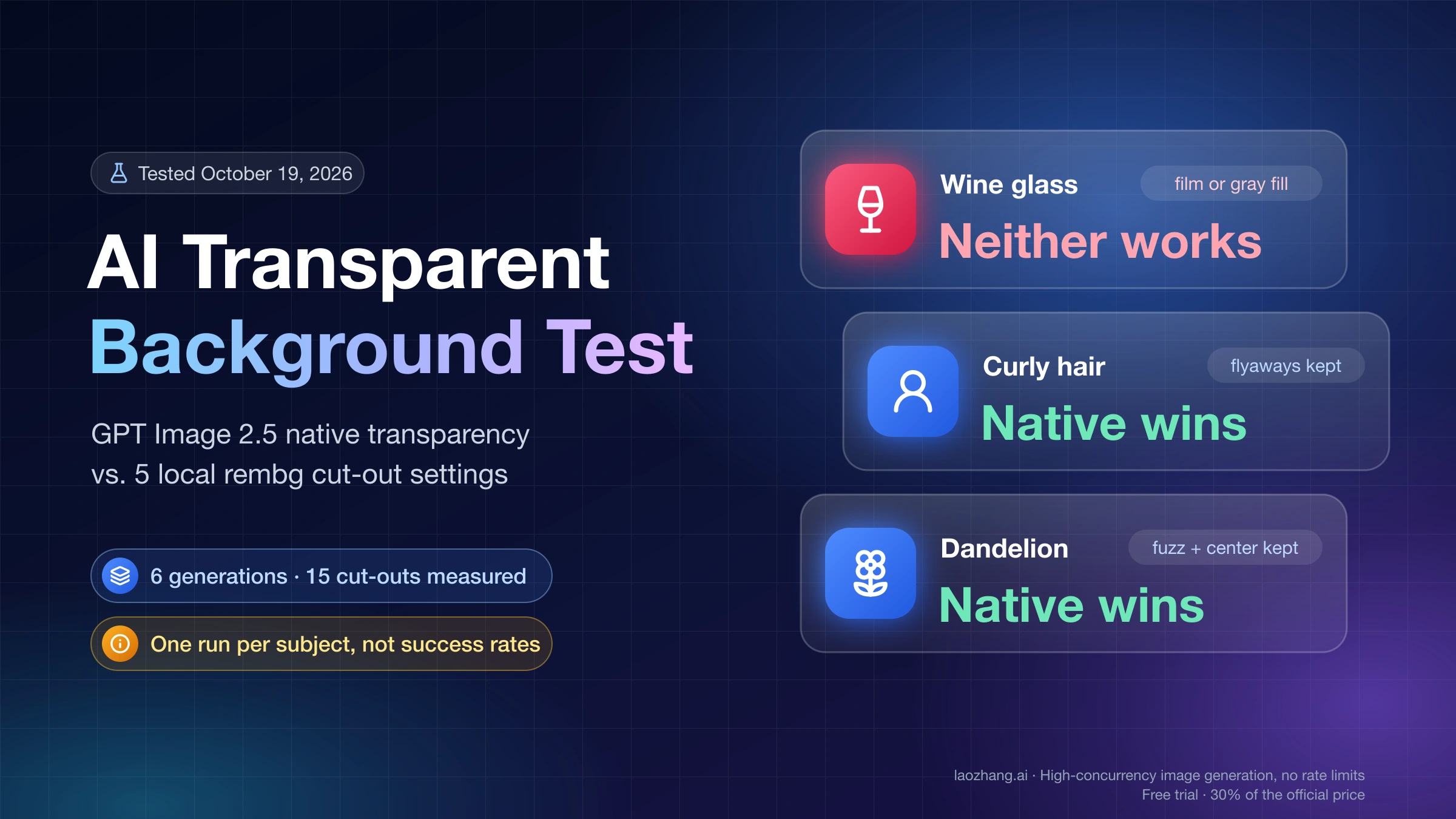
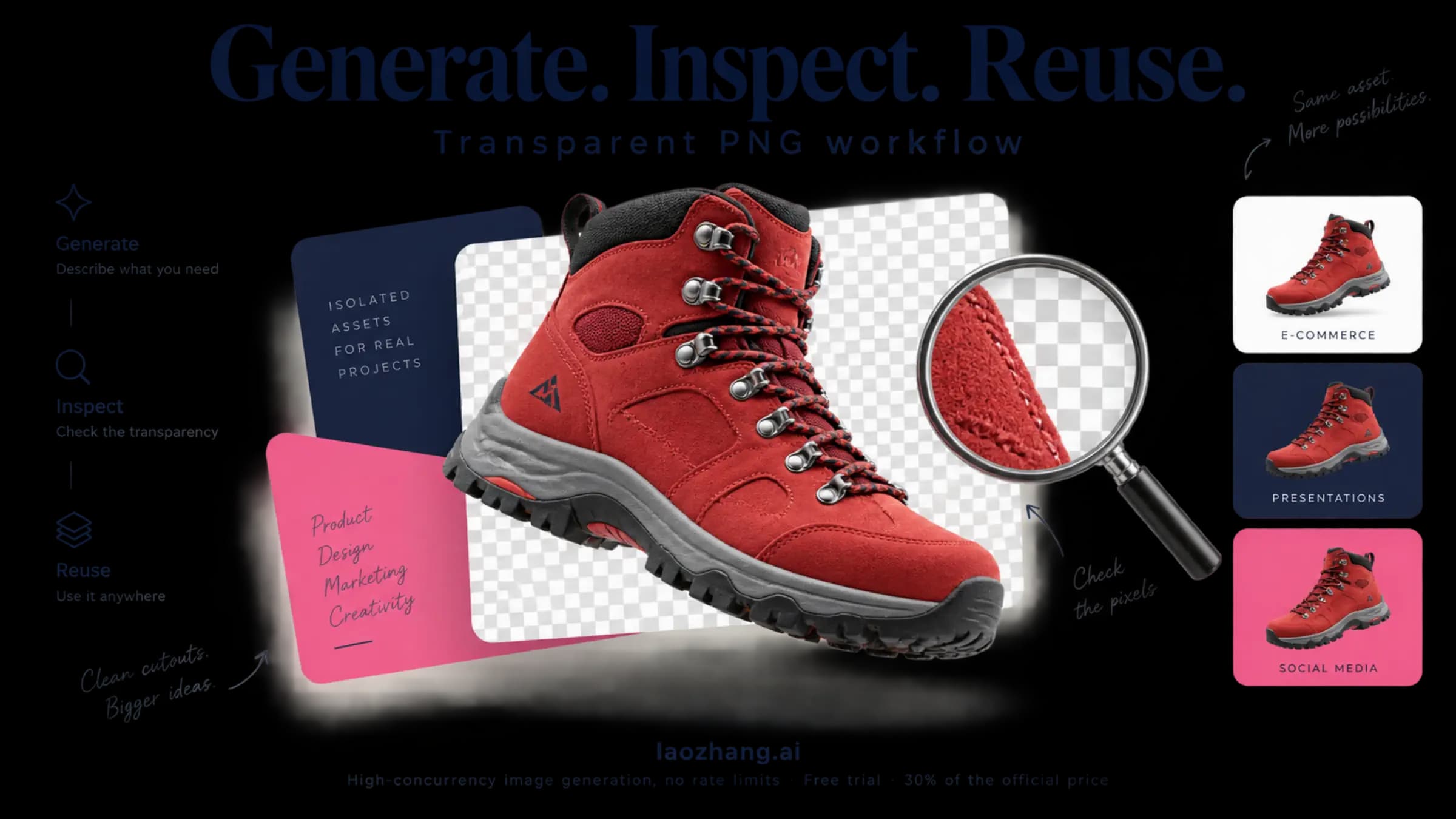
For hair, fur and fluffy subjects you are generating from scratch, ask the image model for a transparent background directly: in this test that kept the most flyaway strands, with no halo on black, white or red. For an existing photo of hair, a newer cut-out model (BRIA RMBG-2.0 or BiRefNet) beats the older u2net, but you still need to check the edges. For glass, neither approach produced a glass that looks right on a new background. Native output let the background show through but left a cloudy film in the bowl, and every cut-out filled the bowl with the old backdrop color. Put glass on its final background color, or composite it in an editor.
Here is exactly what those conclusions rest on. On October 19, 2026, six images were generated with GPT Image 2.5 Sunburst: an empty wine glass, a woman with curly flyaway hair, and a dandelion seed head, each once with a transparent background and once on a plain mid-gray backdrop. The three gray images then went through five local cut-out settings in the open-source tool rembg, which gave 15 cut-outs. Every file was measured pixel by pixel and placed on black, white and red. Each subject was generated once per method, so these are single results, not success rates. Not run: paid removers such as remove.bg, Photoroom, Canva and Adobe Express, Photoshop's Select and Mask, the ChatGPT app, OpenAI's own API, GPT Image 2.5 Flare, Gemini and Midjourney.
What the test ran: 6 GPT Image 2.5 calls and 15 rembg cut-outs
The images came from GPT Image 2.5 Sunburst through LaoZhang's gpt-image-2.5-sunburst-vip model ID at $0.03 per call, not from OpenAI directly. All six requests used 1024×1024 and quality: "high". Each returned HTTP 200 in 36–49 seconds with no retries, so the run cost 6 × $0.03 = $0.18 at that price.
The two methods differed only in the end of the prompt and one parameter:
| Method | Added to the prompt | Parameters |
|---|---|---|
| Native transparency | "Transparent background. Isolated subject. No backdrop, no scenery, no checkerboard, no cast shadow." | background: "transparent", output_format: "png" |
| Gray backdrop, then cut out | "Plain flat uniform mid-grey (#808080) studio backdrop, nothing else in the frame, no cast shadow." | background: "opaque" |
The responses echoed "background": "transparent" or "opaque" and "output_format": "png", so each request got the setting it asked for. Because every image was a separate generation, the two methods produced different women and slightly different glasses. The comparison is method against method on the same prompt, not the same pixels cut two ways.
The cut-outs used rembg 2.0.85 on CPU (Python 3.12, Apple-silicon MacBook) with five settings: u2net, u2net with alpha matting, BiRefNet-general-lite, BRIA RMBG-2.0 (rembg's default), and BRIA RMBG-2.0 with decontaminate.
Three terms keep the results readable. Fully transparent means alpha 0, so nothing of the pixel shows. Opaque means alpha 255, so nothing behind it shows. Everything from 1 to 254 is partly transparent, which is what real hair tips and glass need. A halo is a light or dark rim left over from the old background, a fringe is wrongly colored edge pixels, and haze is a faint layer of near-invisible pixels (alpha 1–3) spread across the "empty" area.
Native transparency vs. cut-out: results for glass, hair and dandelion
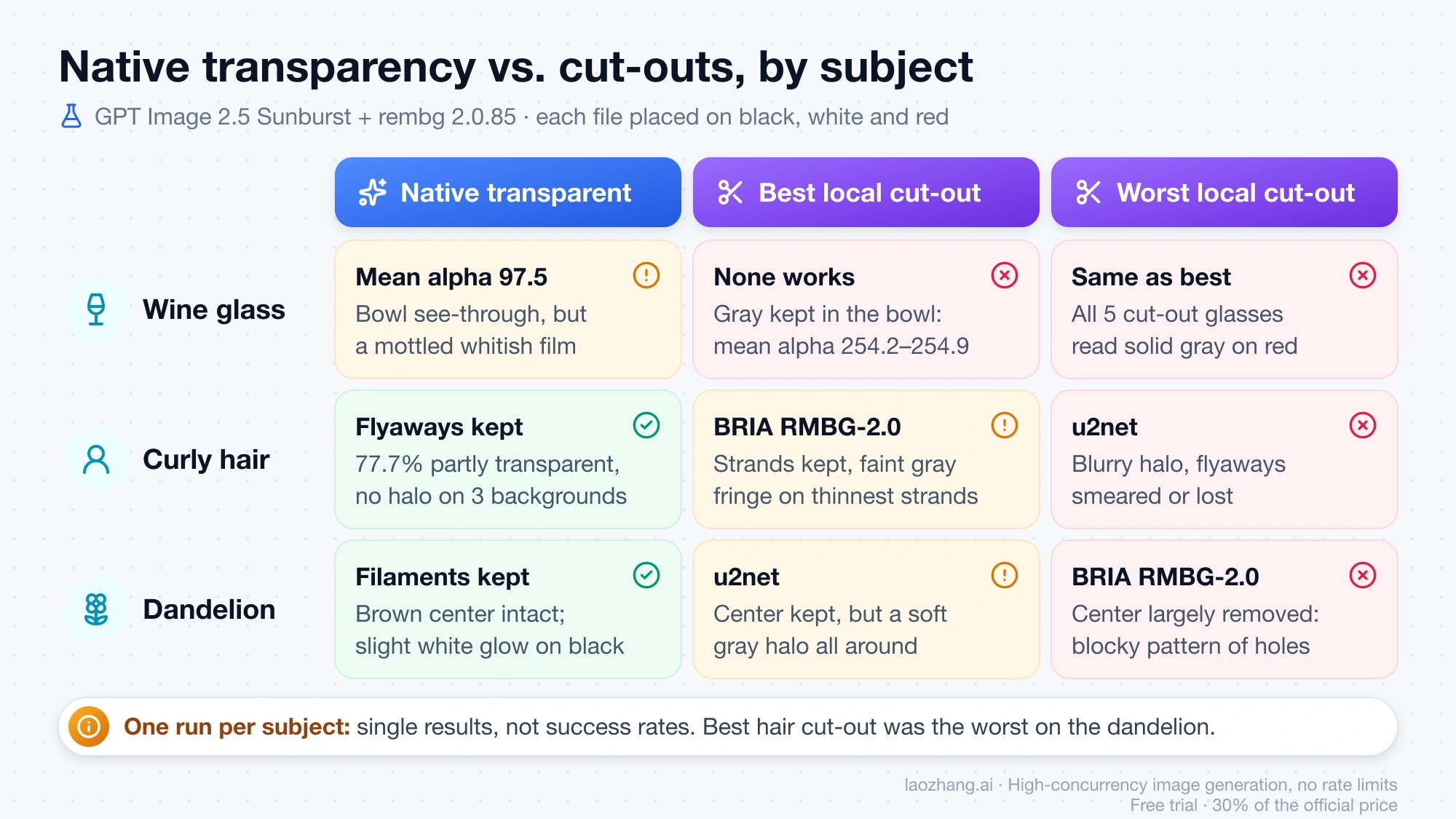
| Subject | Native transparent output | Best local cut-out | Worst local cut-out |
|---|---|---|---|
| Wine glass | Background shows through the bowl (mean alpha 97.5), but a mottled whitish film sits in it | None works: every setting keeps the gray inside the bowl (mean alpha 254.2–254.9) | Same as best: a solid gray glass |
| Curly hair | 77.7% of the frame partly transparent; flyaways kept, no halo on black, white or red | BRIA RMBG-2.0: strands kept, faint gray fringe on the thinnest ones | u2net: blurry halo, flyaways smeared or lost, gray patches beside the head |
| Dandelion | Filaments and brown center kept; slight white glow on black | u2net: center kept, but a soft gray halo around the whole head | BRIA RMBG-2.0: brown center largely removed, leaving a blocky pattern of holes |
The percentages come from counting alpha values in each 1024×1024 file. The visual judgments come from placing each file on black, white and red at 400–1024 px.
Why glass fails both ways: see-through alpha vs. a backdrop baked into the bowl
Glass is hard for a different reason than hair. A strand of hair is a thin opaque object, so the job is finding where it ends. A wine glass is a large area that should be partly transparent everywhere: the new background should show through the bowl, tinted and bent a little, with highlights on top.
The native file got the structure right. All of the bowl was partly transparent, with a mean alpha of 97.5 out of 255, so a background placed behind it does show through. The rim and stem highlights looked correct. The flaw is what the model painted into those see-through pixels: a mottled whitish-gray film. On black the bowl reads as a cloudy smudge, and on red as a pinkish wash. Usable for a small thumbnail, not for a close product shot.
The cut-outs failed in the other direction. The gray backdrop was visible through the glass when it was generated, so those gray pixels became part of the glass. Every mask then kept the bowl almost solid, with mean alpha 254.2–254.9 across all five settings. Alpha matting, which rembg describes as re-estimating coverage for when "the shape of the mask is wrong, not just its color," left only 0.1% of the bowl partly transparent. On red, all five cut-out glasses read as solid gray glass. A cut-out model decides how much of a pixel belongs to the object; it cannot work out what was behind clear glass and remove it.
Two ways around this follow from those results, though neither was part of the test run. You can generate or shoot the glass directly on the color it will end up on, so the color seen through the bowl is already correct. Or you can composite it in an editor: a cut-out for the stem and rim, and a lowered-opacity layer for the bowl.
Hair and flyaway strands: native transparent output kept the most
The native hair file was the best hair result in the run. 22.3% of the frame was fully transparent and 77.7% partly transparent, and the loose curls kept their thin ends on all three test backgrounds without a light or dark rim.
The cut-outs of the gray-backdrop portrait spread widely:
- u2net left a soft, blurry halo. Flyaway strands were smeared or lost, and gray patches stayed beside the head.
- u2net with alpha matting looked similar with a harder edge: 54.7% of the frame came out fully opaque, so fine hair was treated as either solid or gone.
- BiRefNet-general-lite kept the flyaways, but they looked grainy and broken into small blocks.
- BRIA RMBG-2.0 kept the strands best of the cut-outs, with a faint gray fringe on the thinnest ones.
- BRIA RMBG-2.0 with decontaminate produced exactly the same alpha values as plain BRIA. Decontaminate changes the color of edge pixels, not how much of the subject is kept, so the gray fringe was less visible while the shape stayed identical.
If you already have a photo of a person, generating a new one is not an option, and the BRIA or BiRefNet class of model is the place to start. If the portrait is being generated anyway, asking for a transparent background in the same request avoids the cut-out step entirely.
Dandelions and fine filaments: cut-outs gave halos or holes
The dandelion is a mix of both problems: hundreds of thin filaments around a dense brown center. Native output kept both, with 37.7% of the frame fully transparent and 62.3% partly transparent. The only visible flaw was a slight white glow on black.
Every cut-out failed one way or the other. u2net, with or without alpha matting, kept the center but drew a soft gray halo around the whole seed head. BiRefNet-general-lite punched holes in the center. BRIA RMBG-2.0, with or without decontaminate, removed most of the brown center and left a blocky hole pattern where the background shows through. The model that handled hair best handled the dandelion worst, which is a good reason to test your own subject rather than pick one remover for everything.
Which method to use for glass, hair, fur and fine detail
This table is a judgment drawn from the single test run above, not a rule from OpenAI, BRIA or rembg.
| What you need | Start with | Then check |
|---|---|---|
| New image of hair, fur, feathers or fluff | Native transparent output (background: "transparent", PNG or WebP) | Strand ends on black and on a saturated color; the haze and max-alpha numbers below |
| Existing photo of a person or pet | A BRIA RMBG-2.0 or BiRefNet cut-out, not u2net | Gray or white fringe on thin strands; decontaminate if the color is off |
| Glass, bottles, clear plastic | Generate or shoot on the final background color, or composite in an editor | Whether the bowl shows the new background, not the old one |
| Dandelions, lace, thin wires and other fine filaments | Native transparent output if you are generating it | Holes in dense areas and halos around the outline, on every background |
| Flat logos, icons, stickers | Either method; edges are simple | The checks in the general guide linked below |
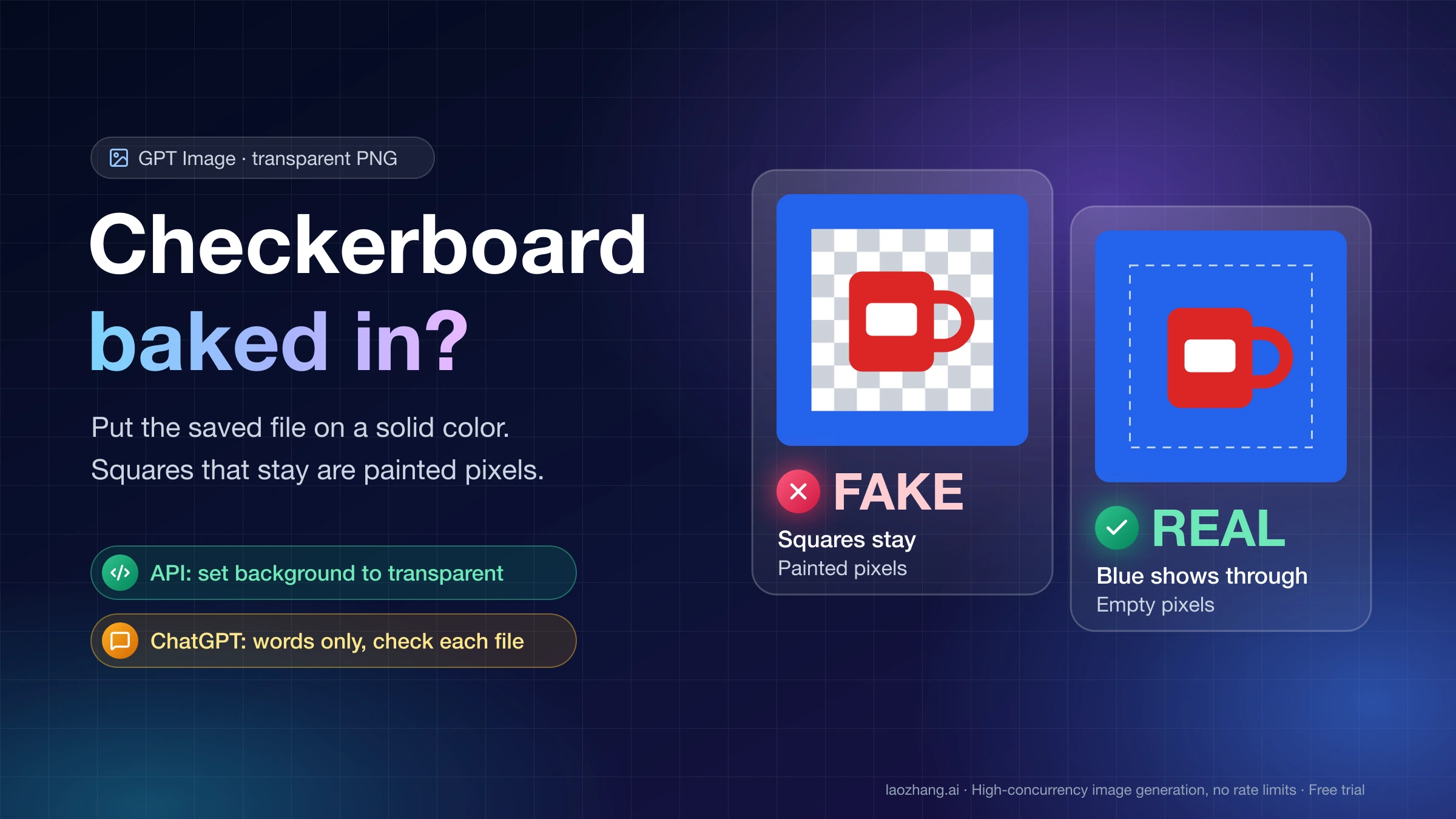
For simpler subjects, the guide How to Make an Image Transparent (and Check It Actually Is) covers Canva, Office, Preview and online removers tool by tool. If the "transparent" area shows a gray-and-white grid that stays on a colored background, that is a painted pattern, not transparency; GPT Image Transparent Background: Fix a Baked-In Checkerboard covers that problem and the API parameters.
Check a transparent PNG on dark and colored backgrounds before you ship it
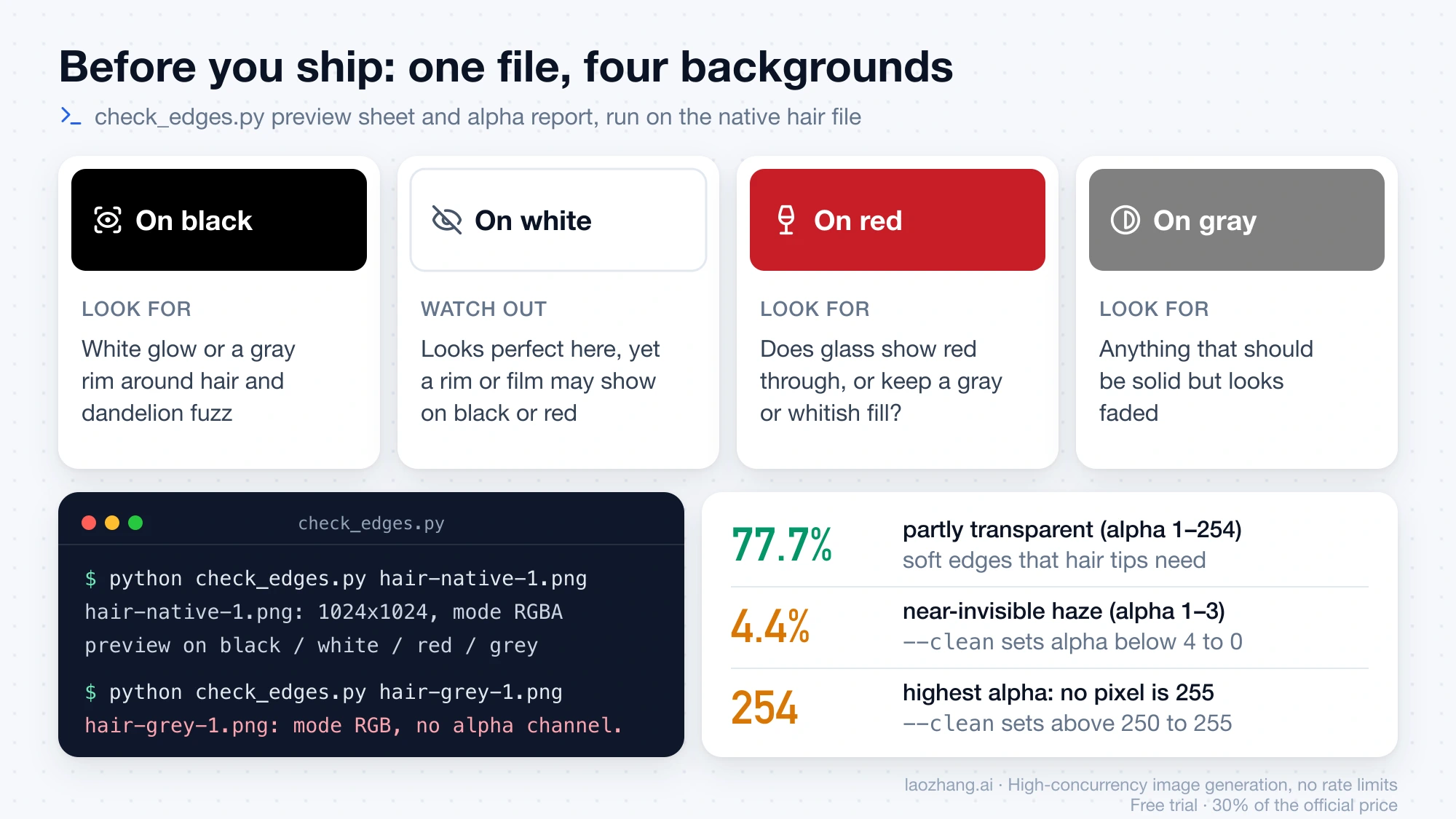
A transparent file can look perfect on a white web page and still carry a gray rim or a film that only shows on black or red. The script below was run on three files from this test. It prints how much of the image is fully transparent, opaque, partly transparent and haze, then writes a preview of the image on black, white, red and gray. With --clean it also writes a tidied copy.
"""check_edges.py — inspect a transparent PNG/WebP before you use it.

    python check_edges.py image.png            # report + preview sheet
    python check_edges.py image.png --clean    # also write image.clean.png

Needs: pip install pillow numpy
"""
import sys

import numpy as np
from PIL import Image

path = sys.argv[1]
im = Image.open(path)
if im.mode not in ("RGBA", "LA") and "transparency" not in im.info:
    sys.exit(f"{path}: mode {im.mode}, no alpha channel. Any checkerboard you see is painted pixels.")

rgba = im.convert("RGBA")
a = np.asarray(rgba)[..., 3]
total = a.size
print(f"{path}: {im.size[0]}x{im.size[1]}, mode {im.mode}")
print(f"  fully transparent (alpha 0):     {100 * (a == 0).sum() / total:5.1f}%")
print(f"  fully opaque (alpha 255):        {100 * (a == 255).sum() / total:5.1f}%")
print(f"  partly transparent (1-254):      {100 * ((a > 0) & (a < 255)).sum() / total:5.1f}%")
print(f"  near-invisible haze (alpha 1-3): {100 * ((a > 0) & (a < 4)).sum() / total:5.1f}%")
print(f"  highest alpha in the file:       {a.max()}")
if a.max() < 255:
    print("  note: no pixel is fully opaque; the whole subject lets a little of the background through")

# Preview: the same image on black, white, red and a mid grey
w, h = rgba.size
sheet = Image.new("RGB", (w * 4, h))
for i, color in enumerate([(0, 0, 0), (255, 255, 255), (200, 30, 40), (128, 128, 128)]):
    bg = Image.new("RGBA", (w, h), color + (255,))
    bg.alpha_composite(rgba)
    sheet.paste(bg.convert("RGB"), (i * w, 0))
out = path.rsplit(".", 1)[0] + ".preview.png"
sheet.save(out)
print(f"  preview on black / white / red / grey: {out}")

if "--clean" in sys.argv:
    arr = np.asarray(rgba).copy()
    alpha = arr[..., 3]
    alpha[alpha < 4] = 0      # drop the invisible haze
    alpha[alpha > 250] = 255  # make the solid core really solid
    clean = path.rsplit(".", 1)[0] + ".clean.png"
    Image.fromarray(arr, "RGBA").save(clean)
    print(f"  cleaned copy: {clean}")
Run on the native hair file from the test, it printed:
hair-native-1.png: 1024x1024, mode RGBA
  fully transparent (alpha 0):      22.3%
  fully opaque (alpha 255):          0.0%
  partly transparent (1-254):       77.7%
  near-invisible haze (alpha 1-3):   4.4%
  highest alpha in the file:       254
  note: no pixel is fully opaque; the whole subject lets a little of the background through
On the gray-backdrop version, which has no alpha channel, it stopped with "mode RGB, no alpha channel." That is the quickest way to tell a real transparent file from one that only looks transparent in a viewer.
Open the preview and look at three things. On black, check for a white glow or gray rim around hair and fuzz. On red, check whether glass shows red through it or keeps a gray or whitish fill. On gray, check whether anything that should be solid looks faded.
Max alpha 254: why GPT Image output has no fully opaque pixel
All three native files shared a quirk: the highest alpha anywhere was 254, and 99% of pixels were at 253 or below. Not a single pixel was fully opaque. The face and the solid parts of the glass sat at 251–253, so about 1% of whatever is behind them shows through. A faint haze at alpha 1–3 also covered 4.4% of the frame in the hair file and 1.0% in the glass file.
On a single layer you will not see this. It can matter in two places: checks or tools that treat only alpha 255 as "solid," and designs that stack several copies of the same cut-out, where the see-through percentage adds up. The --clean option sets alpha above 250 to 255 and below 4 to 0. On the hair file, the cleaned copy came out 58.5% opaque with 0.0% haze and a maximum alpha of 255. Both are reasoned risks rather than problems seen in a real design tool.
Free background removal with rembg: speed, downloads and the BRIA license
rembg is free to run on your own computer. Install it with pip install "rembg[cpu]" (add cli to the extras for the command line); the rembg README on GitHub lists Python 3.11 to 3.13. The test called it from Python like this:
from PIL import Image
from rembg import new_session, remove

session = new_session("bria-rmbg")  # or "birefnet-general-lite", "u2net"
out = remove(Image.open("hair-grey-1.png"), session=session, decontaminate=True)
out.save("hair-cut.png")
The tested script looped over all three images and five settings; this one-file version was condensed from it and not run on its own.
Speed and first-run downloads differed a lot on the Apple-silicon MacBook CPU used here, per 1024×1024 image:
| Setting | Time per image | First-run model download |
|---|---|---|
| u2net | 0.6–1.5 s | 176 MB |
| u2net with alpha matting | 1.3–2.1 s | (same model) |
| BiRefNet-general-lite | 16–91 s | 224 MB |
| BRIA RMBG-2.0 | 75–146 s | 1.0 GB |
| BRIA RMBG-2.0 with decontaminate | 78–130 s | (same model) |
A GPU would be much faster. The bigger question for product photos is the license. rembg's own code is MIT-licensed, but its README notes that model weights carry their own licenses, and the default model in 2.0.85 is BRIA RMBG-2.0. The BRIA RMBG-2.0 model page on Hugging Face lists CC BY-NC 4.0 for non-commercial use and says commercial use is subject to a commercial agreement with BRIA. The BiRefNet model page on Hugging Face lists an MIT license. If you are cutting out images for a store or client, check the model license before you rely on the default. This is not legal advice.
GPT Image API settings for a transparent background
OpenAI's image prompting guide says to request background="transparent" explicitly and use PNG or WebP. It also warns that "A drawn checkerboard is not transparency," tells you not to ask for a backdrop, checkerboard, scenery or shadow, and recommends checking the decoded alpha channel, including hair, glass, shadows and object edges. When you edit a transparent image later, repeat that the background must stay transparent.
The OpenAI image generation guide lists transparent backgrounds for both gpt-image-2.5-sunburst and gpt-image-2.5-flare, while the prompting guide describes transparency as a preview feature for gpt-image-2. Only Sunburst was used in this test.
The LaoZhang GPT Image 2.5 docs list the same background="transparent" and output_format="png" settings for its Sunburst and Flare VIP models, at $0.03 per call regardless of size or quality. They also mention background removal through the edit endpoint, which this test did not try. For how that per-call price compares with OpenAI's token pricing, see GPT Image 2.5 Sunburst Pricing: Official Costs vs $0.03 per Call.
Disclosure: laozhang.ai is our own service. Its prices are platform pricing, not an independent comparison.
FAQ
Can AI generate images with a transparent background?
Yes. GPT Image 2.5 Sunburst returned real RGBA PNGs with background: "transparent" in all three tries in this test. "Real" here means the files had an alpha channel and the subject sat on a colored background without a painted grid. Edge quality still depends on the subject: hair and fine filaments came out clean, while the glass kept a cloudy film.
Can ChatGPT make images with transparent backgrounds?
It can when asked, but the ChatGPT app was not part of this test, and it sometimes paints a checkerboard instead of making one. Ask for a transparent background in words, then check the downloaded file with the script above or on a dark background. The checkerboard fix guide covers what to do if the grid is painted in.
Which AI background remover handles hair and glass best?
Among the local models tested, BRIA RMBG-2.0 kept curly hair best and BiRefNet-general-lite came next. No local model handled clear glass; all of them kept the old backdrop color inside the bowl. Paid removers like remove.bg, Photoroom and Canva were outside this test, so it says nothing about them.
Which AI can remove a background for free?
rembg runs free on your own computer, with no upload and no per-image fee. Its default model, BRIA RMBG-2.0, is licensed for non-commercial use only, so commercial work needs a BRIA agreement or a model with a permissive license, such as BiRefNet, which lists MIT.
Why does my transparent PNG have a gray or white halo around the hair?
The edge pixels still carry color from the old background. In this test that happened with cut-outs from a gray backdrop (u2net most, BRIA least). It did not happen with native transparent output, apart from a slight white glow around the dandelion on black. Decontaminate in rembg recolors those edge pixels without changing the shape; generating with a transparent background avoids the old backdrop color in the first place.
Sources5
External pages this guide links to, in the order they appear. Last updated Oct 19, 2026.
Sources5
External pages this guide links to, in the order they appear. Last updated Oct 19, 2026.
- 1.rembg README on GitHubgithub.com/danielgatis/rembg
- 2.BRIA RMBG-2.0 model page on Hugging Facehuggingface.co/briaai/RMBG-2.0
- 3.BiRefNet model page on Hugging Facehuggingface.co/ZhengPeng7/BiRefNet
- 4.image prompting guidedevelopers.openai.com/api/docs/guides/image-prompting
- 5.OpenAI image generation guidedevelopers.openai.com/api/docs/guides/image-generation