Gemini Image vs Canvas: Same Prompt Tested, Which to Use
Gemini's image tool returns a picture with the text baked in; Canvas returns a page with live text. Choose by what you hand over and what you'll edit later.
On this page
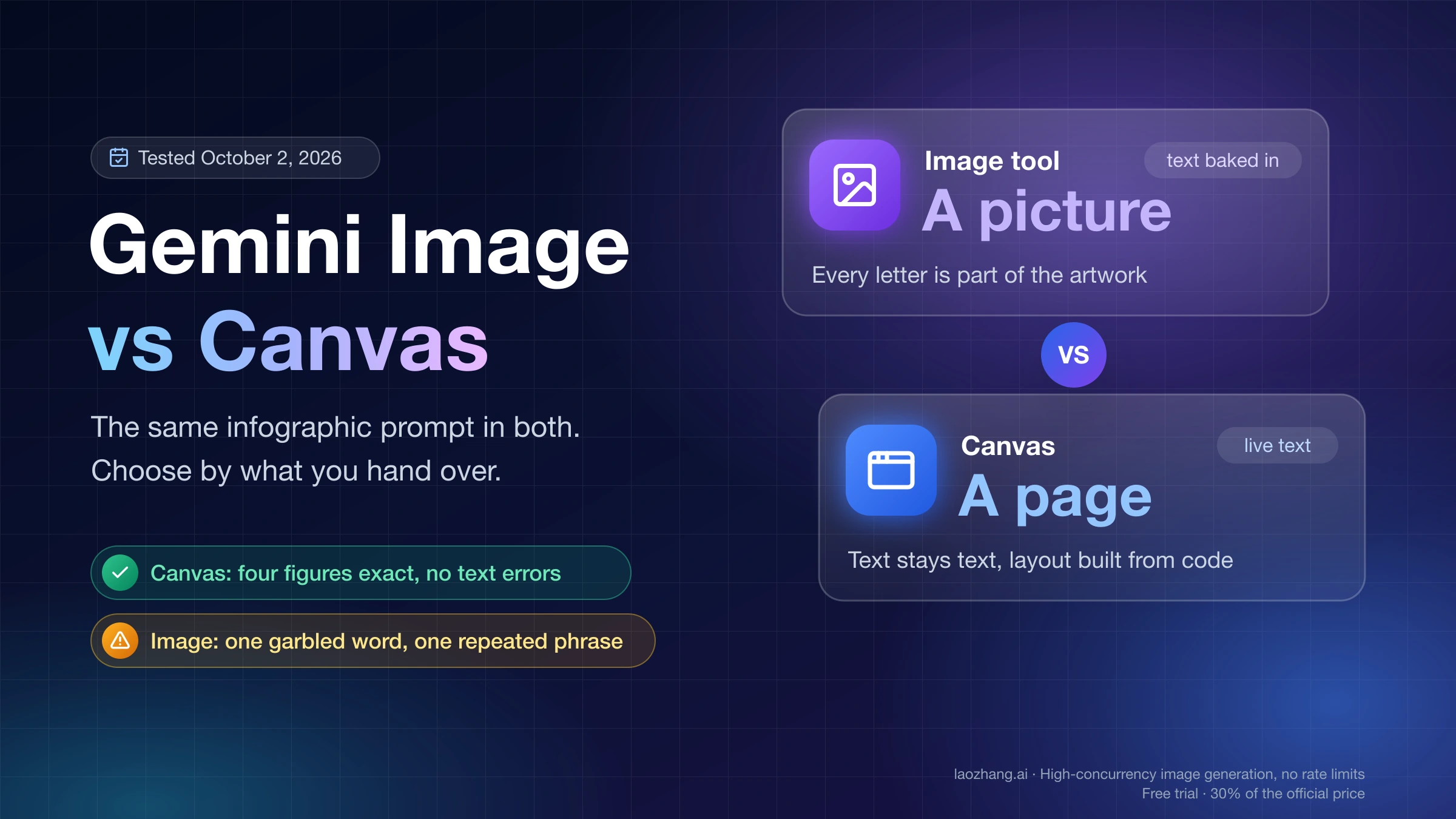
Create image and Canvas sit in the same Gemini menu, and both will accept a request like "make me an infographic." They do not return the same kind of thing. The image tool returns a picture: every letter is part of the artwork. Canvas in Gemini returns a page or document: the text stays text, and the layout is built from code.
That difference decides most cases. If the result is something people look at, such as a photo, an illustration, or a poster where mood matters more than wording, use the image tool. If the result is something people read, with figures that must be exact and wording you will revise, use Canvas. If you need a real picture and exact text on the same page, expect to use both in sequence.
One naming note before going further: Canvas here is the workspace inside the Gemini app. It is not Canva, the design product, and it is not the Canvas feature in ChatGPT.
What was run on October 2, 2026, and what was not
The comparison below rests on one prompt and one follow-up edit, each sent once to each tool. Four generations in total, on a single account.
| Details | |
|---|---|
| Account | Personal Google account with no Google AI plan |
| Where | Gemini web app in Chrome on macOS, interface in Simplified Chinese |
| Model setting | Flash, for both tools |
| Run | The same infographic prompt in Canvas and in the image tool, then one edit request in each |
| Not run | Canvas on Pro; Download and Share in either tool; export to Google Docs or Slides; documents, slides, quizzes and other Canvas outputs; asking Canvas for SVG drawings; uploading an image; the mobile apps; anything on a paid plan |
A single run shows what can happen, not how often it happens. Image text errors vary from one generation to the next, and the Canvas edit that went wrong below was not retried. Read the results as observed cases. English control names follow Google's help pages, because the test interface was in Chinese.
Where Create image and Canvas sit in the Gemini menu
Both tools open from the plus button in the prompt box. On the test account that menu listed uploads first, then a tool group in this order: Create image, Create music, Canvas, More tools. Google's help also describes an Images entry in the sidebar as a second way into the image feature.
Picking a tool puts a chip in the prompt box, and the two chips are alternatives for the next prompt. You are choosing a mode, not adding a capability.
The modes expose different controls. With the image chip on, an aspect-ratio selector appeared under the box with five options (1:1, 9:16, 3:4, 4:3, 16:9), along with a gallery of style templates such as oil painting, sketch and monochrome. With the Canvas chip on, there were no ratio or style controls at all. That is a fair summary of each tool's priorities: the image tool asks how the picture should look, and Canvas asks only what you want to build.
Gemini can also pick a tool from the wording of a prompt when no chip is selected. That routing was not tested, so if the output type matters, set the chip yourself.
Same infographic prompt: live text in Canvas, a garbled word in the image
Both tools included every requested figure, but only Canvas produced text free of errors. This was the prompt, identical in both:
Make a one-page infographic: how to brew coffee with a French press in 4 steps. Include these exact figures: 30 g coffee, 500 ml water, 93 °C, steep 4 minutes.Canvas opened a side panel containing a web page. It had a heading, four stat cards reading exactly 30 g, 500 ml, 93 °C and 4 min, numbered step cards, and a working four-minute countdown timer. All of the text was ordinary page text, sharp at any zoom and selectable. The code view showed a single HTML document that loads Tailwind CSS, Google Fonts and Font Awesome from external servers.
Two things about that result are easy to miss. Gemini added a timer and a yield calculator that the prompt never asked for, so "one-page infographic" became a small interactive app. And the page depends on those external stylesheets and fonts to look the way it does in the panel.
The image tool returned one portrait illustration: a title and four illustrated panels, one per step. The four figures were all present, and a stopwatch in the picture read 4:00. Where Canvas built cards and widgets, the image tool drew the scene.
The text was not clean, though. One panel read "PRESS DOWN THE PLUNGER SLOWLER SLOWLY AND EVENLY," with an invented extra word. Another repeated itself: "STEEP FOR 4 MINUTES (STEEP 4 MINUTES TOTAL)." No aspect ratio had been chosen, and the result came out portrait.
| Canvas | Image tool | |
|---|---|---|
| What came back | A web page in a side panel | One portrait illustration |
| The four figures | All exact, as page text | All present, drawn into the picture |
| Text errors | None seen | One garbled word, one repeated phrase |
| Visual character | Stat cards, step cards, a timer widget | Four illustrated panels under a title |
| Extras not requested | Countdown timer, calculator | None |
| Controls offered | Code and preview toggle, undo and redo, download, share | Aspect ratio, style templates, sketch and text markup on the result |
Results are from one run per tool on October 2, 2026, on the Flash setting with no paid plan.
Same edit request: the image renumbered its title, Canvas lost its styling
Neither tool handled the follow-up cleanly, and each failed in a way that fits what it produces.
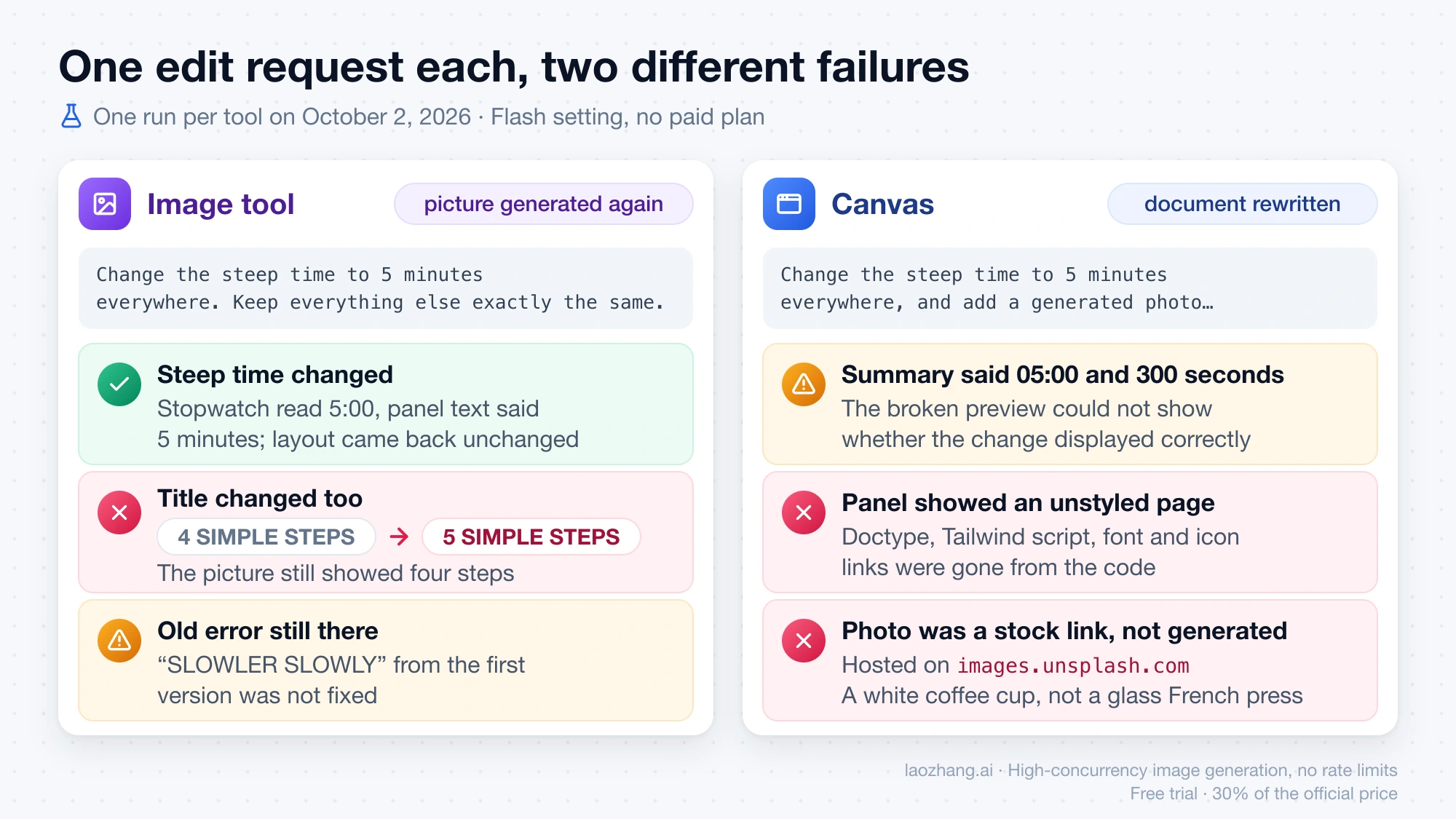
Image edit: the steep time changed, and so did a number nobody pointed at
The request was:
Change the steep time to 5 minutes everywhere. Keep everything else exactly the same.The layout and illustrations came back unchanged. The stopwatch now read 5:00 and the panel text said 5 minutes. That part worked.
The title also changed, from "4 SIMPLE STEPS" to "5 SIMPLE STEPS," although the picture still showed four steps. The "SLOWLER SLOWLY" error from the first version was still there.
This is what editing an image means. The tool does not find a text field and replace its value. It generates the picture again with your instruction in mind, so any character can shift, including ones you did not mention. A request to change a "4" put another "4" at risk.
Canvas edit: the summary said 05:00, the panel showed an unstyled page
The Canvas request asked for one more thing:
Change the steep time to 5 minutes everywhere, and add a generated photo of a glass French press on a wooden table at the top of the page.Gemini's change summary described the timer as set to 05:00 and 300 seconds. The panel then showed the page with no styling at all: default fonts, no cards, and one very large photo filling the screen. In the code view, the top of the document was gone. The doctype declaration, the Tailwind script and the font and icon links were no longer present, which explains why nothing was styled. Whether the five-minute change displayed correctly could not be judged in that broken preview.
The photo was not generated. The code contained an image element pointing at a stock photo hosted on images.unsplash.com, with a placeholder-image service as a fallback. The photo that loaded showed a white coffee cup, not a glass French press.
Undo was available in the panel toolbar and was not used, and no repair was requested. So this is one edit that went wrong once. It does not show that Canvas edits usually break pages. It does show two things to watch for: a rewrite can drop part of the document, and "add a generated photo" may produce a link to someone else's stock picture. Google's Canvas help page lists documents, apps, slides, web pages, quizzes and infographics as outputs and treats image generation as a separate feature.
Which one to use: start from what you have to hand over
Decide by the deliverable, then by what you expect to change afterward.
| You need | Use | Why |
|---|---|---|
| A photo, illustration or piece of artwork | Image tool | It is the only one of the two that draws a picture, and it has the ratio and style controls |
| A poster or social graphic where the look matters more than exact wording | Image tool | The picture is the point; keep the text short and check every word |
| An infographic with figures that must be right | Canvas | Text stays text, so numbers are typed, not drawn |
| A one-pager, slide-like page, quiz or interactive page | Canvas | These are the outputs Google lists for it |
| Something you will revise next week | Canvas | You can edit the text directly in the panel, per Google's help |
| A single file to drop into a document or send offline | Image tool | A picture is self-contained; the Canvas page in the test loaded its styles from external servers |
| A real picture plus exact text | Both, in sequence | See the next section |
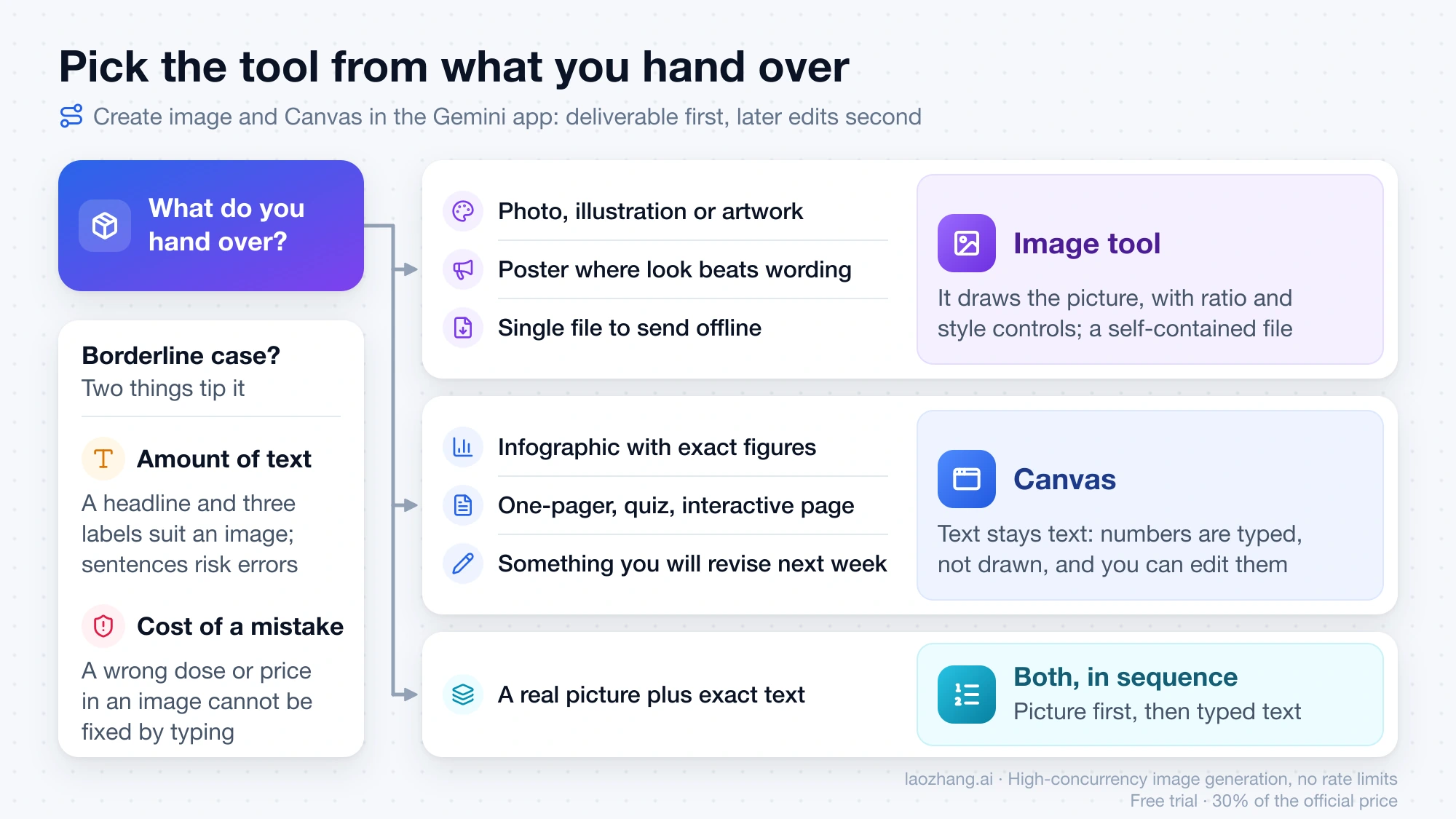
Two conditions tip a borderline case. The amount of text matters: a headline and three labels are a reasonable ask for the image tool, while four steps with sentences produced two errors in the test picture. And the cost of a mistake matters: a typo in a mood board is cosmetic, but a wrong dose, price or temperature in an image cannot be corrected by typing.
Age rules differ too. Google's image help page puts image generation at 13 and over and editing images at 18 and over, while the Canvas help page limits some Canvas features and sharing to users 18 and over.
A real picture plus exact text: use both tools in sequence
When one deliverable needs both, split the work. Make the picture with the image tool and keep text out of it, or keep it to a word or two. Then put the exact text around that picture in a tool where text is typed: a document, a slide, or a page.
Asking Canvas to do both at once is the route that failed in the test, where the "generated photo" turned out to be a stock link showing the wrong subject. Whether Canvas can embed a Nano Banana image when asked differently is not established, and Canvas on the Pro setting was not tried.
For the picture half, How to Prompt Nano Banana: Practical Guide and 50 Tested Templates covers prompt wording, and the Gemini Image Generation Guide: Pick the Right Tool and Model covers where in Gemini to generate and which model you get.
One related route comes up in a Reddit thread on r/GeminiAI: asking Canvas to draw graphics as SVG code, which keeps shapes and colors editable by instruction. That approach was not part of the test, so its quality is an open question here.
Gemini Canvas to PDF, Docs or a download: what each tool exports
An image leaves Gemini as a file. Canvas content leaves as a document, a deck, a link, or copied text.
| Canvas | Image tool | |
|---|---|---|
| Documented exports | Google Docs; Google Slides, with a PDF option; copy the text; a public link | Download; Export to Docs |
| Resolution | Not applicable to page text | 1K without a Google AI plan, 2K with one |
| Sharing limits | Shared links open only on gemini.google.com, not in the mobile app; sharing requires age 18 or over | Not link-based; the download is an ordinary file |
| Seen in the test | Download and share buttons in the panel toolbar | Download, copy and share in the image viewer |
The table follows Google's two help pages as of October 2, 2026. None of these exports was clicked in the test, so the file type the Canvas Download button saves, and how faithfully a page survives the trip into Docs or Slides, are not confirmed here.
If the destination is a slide deck or a shared review link, that favors Canvas. If the destination is a file in a folder, an email attachment, or a spot inside someone else's layout, an image is simpler.
What to check before you use either result
For an image:
- Read every word in the picture at full size, including titles and labels you did not ask about.
- After any edit, read it all again. The edit in the test fixed the steep time and changed the step count in the title.
- Count things. Steps, items and numbered labels can disagree with the drawing.
- Set the aspect ratio before generating if the picture has a fixed slot. Left alone, the test result came out portrait.
For a Canvas page:
- Compare the preview with the change summary after each edit. The summary can describe a change the preview does not show.
- If the page suddenly looks unstyled, use undo before asking for more changes.
- Open the code view and look at where any photo comes from. An address on a stock-photo site means the picture was not generated and has its own license terms.
- Remove features you did not request, such as the timer and calculator in the test, if a plain page is what you need.
- Open the result outside the Gemini panel before relying on it, since the styling may come from external servers.
Questions about Gemini Canvas and the image tool
Is Gemini Canvas free?
Canvas works without a paid plan: Google's Canvas product page says all Gemini users can use it, and the test account had no Google AI plan. The same page says Google AI Pro and Ultra subscribers get more capacity for complex projects. It gives no per-plan numbers. Image generation without a plan is also available, with limits covered in Gemini Free Image Limit: How Many Images You Can Make and Upload.
Why use Canvas in Gemini instead of the image tool?
Use Canvas when the text has to be exact or editable. In the test, Canvas reproduced four figures as page text with no errors, while the image contained a garbled word and a repeated phrase. Canvas also covers things an image cannot be: slides, quizzes, documents and interactive pages.
Can Gemini Canvas generate an image inside the page?
It did not in the test. Asked for "a generated photo," Canvas inserted a link to a stock photo that showed a different subject. Google's Canvas help does not list image generation among Canvas outputs. Whether another prompt or the Pro setting changes that is not established.
Which Gemini model creates the images?
According to Google's image help page, Nano Banana 2 Lite is used when Gemini is set to Flash-Lite, Nano Banana 2 on Flash or Pro, and Nano Banana Pro is available on paid plans through redo. The test images came from the Flash setting.
Can a Gemini image become a 3D model instead of a page?
Not through either tool's export options. That is a separate task, covered in Gemini Image to 3D Model: No GLB Export, 3 Tested Routes.