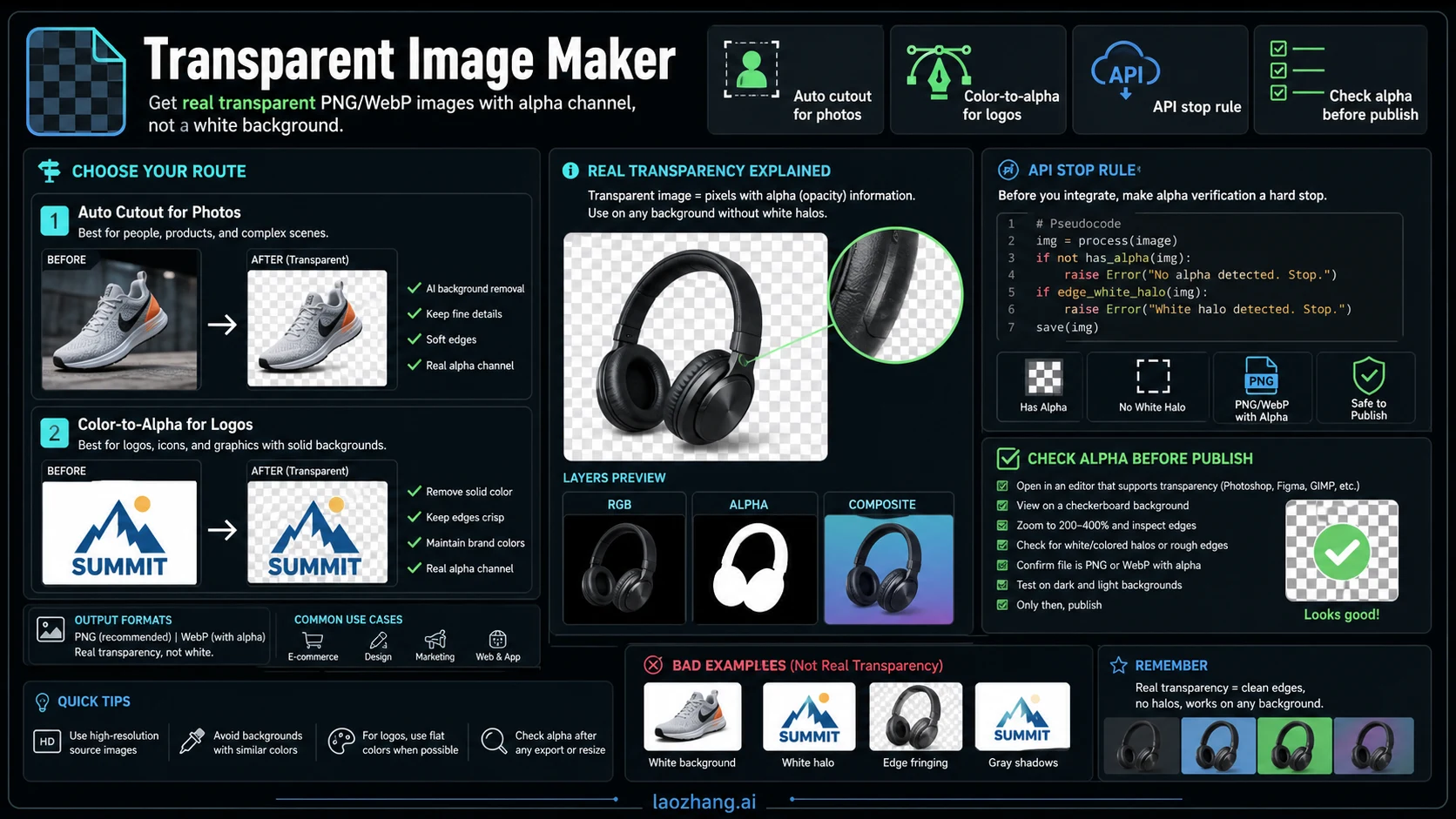
A transparent image is finished when you can place it over a new background and keep the subject without its old rectangular backdrop. A white canvas, a PNG filename, and a checkerboard preview do not establish that result.
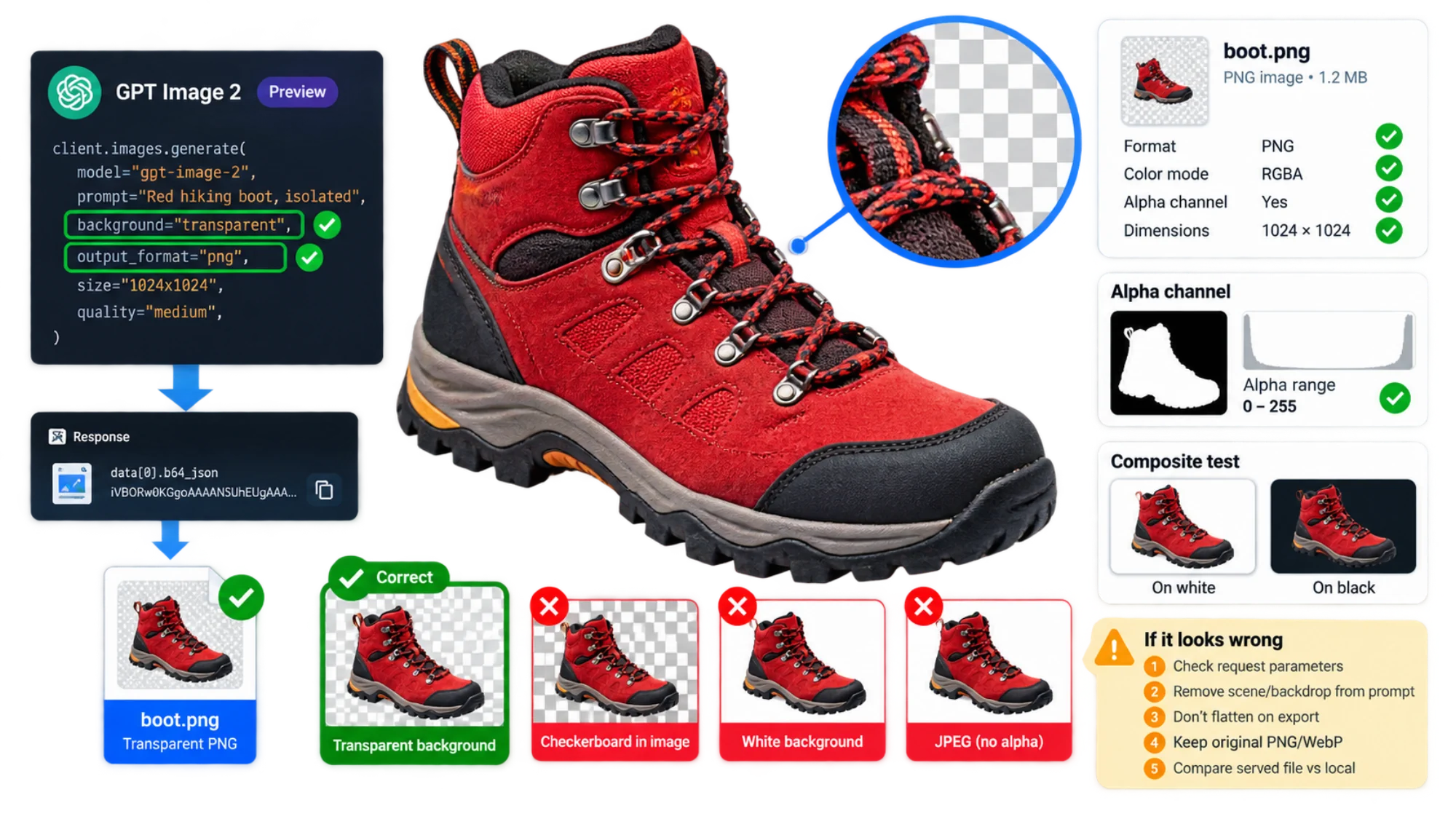
For a new asset, GPT Image 2 now offers transparent backgrounds in the API as a preview feature. OpenAI documents background="transparent" with PNG or WebP output. For an existing photograph or logo whose details must remain exact, use a selection and mask instead of asking a generative model to redraw it. The current API capability is described in OpenAI's image prompting guide.
Choose what you are willing to change
There are two different starting points. You might want a new illustration for a presentation, or you might need the exact product in an existing photograph without the wall behind it. The first is generation; the second is extraction.
For extraction, keep the original and work with a reversible mask. Use subject selection for a photograph, then refine hair, fabric and other soft edges. For a flat logo on one background color, select the connected background and adjust tolerance carefully. Removing every white pixel across the entire image can also erase white lettering or interior details.
A transparent background does not require every pixel to be either fully visible or fully invisible. Glass, soft shadows and antialiased edges can need intermediate opacity. Preserve that transition unless the intended artwork calls for a hard edge.
Request the file you actually need
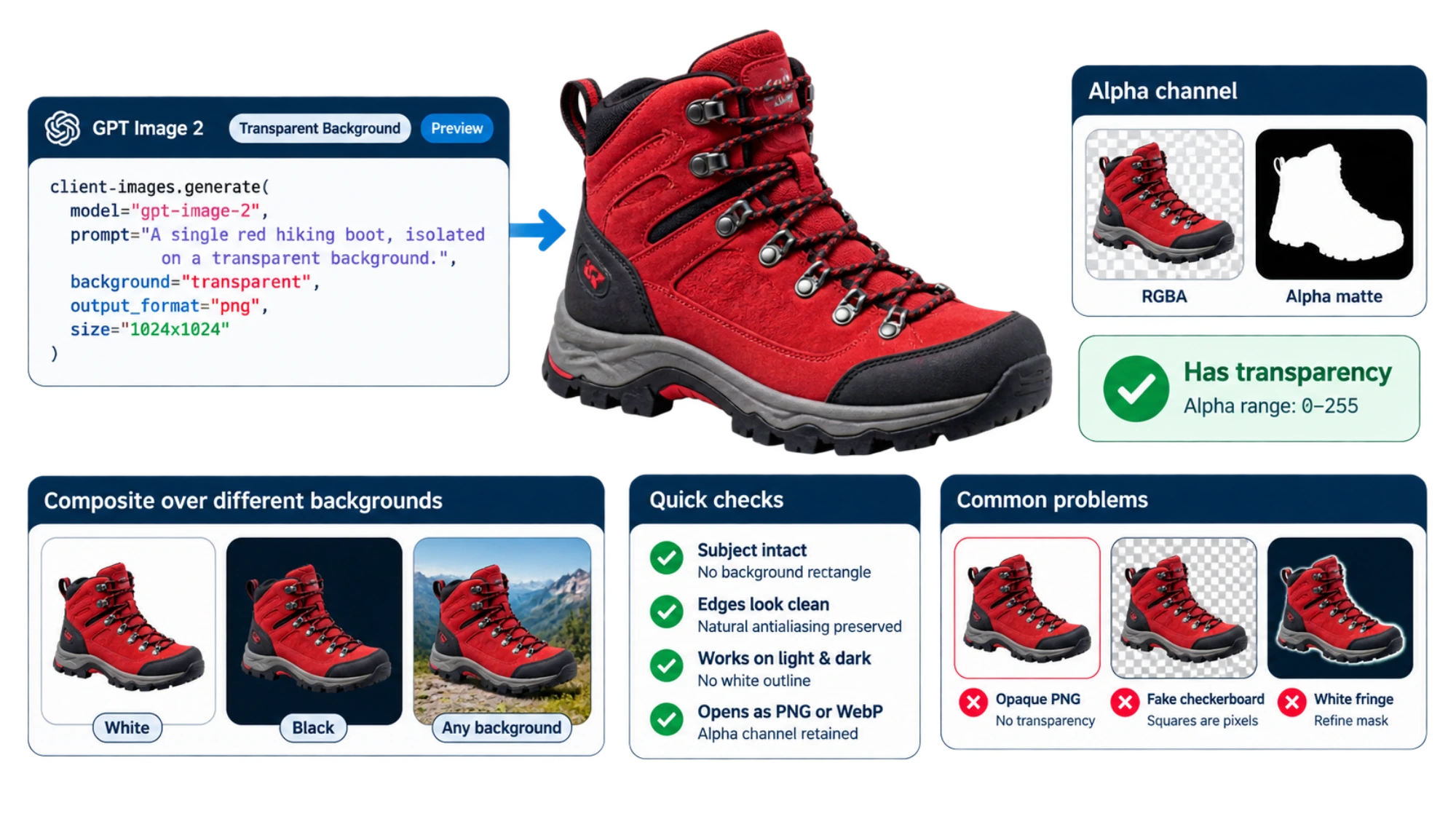
This Python example follows the official Image API workflow. Install openai and configure OPENAI_API_KEY in your environment using an account with model access. The request creates a new illustration; it is not a claim about a ChatGPT download menu or another provider's implementation.
pythonimport base64
from pathlib import Path
from openai import OpenAI

client = OpenAI()
image = client.images.generate(
    model="gpt-image-2",
    prompt=(
        "A single illustrated red hiking boot, complete and uncropped, "
        "isolated on a fully transparent background. "
        "No scene, solid backdrop, checkerboard, or cast shadow."
    ),
    background="transparent",
    output_format="png",
    size="1024x1024",
    quality="medium",
)

if not image.data or not image.data[0].b64_json:
    raise RuntimeError("The response contains no image data")

Path("boot.png").write_bytes(
    base64.b64decode(image.data[0].b64_json, validate=True)
)
output_format chooses the file format. background requests the background behavior. b64_json holds the encoded image bytes. They solve separate problems: saving the response as a PNG does not remove a background that is already part of the pixels. Do not substitute response_format="png", and omit output_compression when requesting PNG. See the image generation parameters.
Keep the scene description consistent with the request. A prompt that asks for a desk, wall or paper texture may introduce exactly the backdrop you intend to exclude. For a later edit, request the transparent background again and preserve it when saving the result. OpenAI's edit endpoint also exposes the background setting. A generative edit still needs a comparison against the original if shape, lettering or product details matter.
Test transparency before judging the edges
Open the downloaded original in an editor and place a black rectangle behind it, then a white one. If a checkerboard moves with the image, the squares were rendered into the file. If the background changes but a pale outline remains, transparency exists and the remaining problem is the edge.
For an automated first pass, install Pillow and run this on your file:
pythonfrom PIL import Image

with Image.open("boot.png") as source:
    print("Decoded format:", source.format)
    rgba = source.convert("RGBA")

alpha = rgba.getchannel("A")
low, high = alpha.getextrema()
print("Alpha range:", low, high)

if low == 255:
    print("Entirely opaque: no transparent background")
elif high == 0:
    print("Entirely invisible: no visible subject")
else:
    print("Some transparency exists; inspect the cutout")

for name, color in [("light", "white"), ("dark", "black")]:
    background = Image.new("RGBA", rgba.size, color)
    Image.alpha_composite(background, rgba).convert("RGB").save(
        f"inspection-{name}.png"
    )
These Pillow operations inspect decoded pixels. Converting an opaque file to RGBA adds an opaque alpha channel; it does not cut the subject out. The two inspection images deliberately flatten the result onto test backgrounds, so keep your original transparent file.
The script catches wholly opaque and wholly invisible outputs. It does not certify a good asset: one transparent pixel is enough to pass the first check, and a uniform translucent rectangle also has transparency. Look for the intended empty background, intact subject and usable transitions at the actual display size.
Fix the stage that introduced the defect
| What you see | What to check next |
|---|---|
| Original download is opaque | Confirm the sent background parameter, output format and service support; remove conflicting scenery from the prompt. |
| Original is transparent but an export is not | Check the export format and whether the canvas was flattened. JPEG cannot retain the transparent background. |
| Light fringe on a dark background | Refine the mask or remove old background color from edge pixels; do not shrink the whole subject indiscriminately. |
| Missing fur, thin lines or lettering | Restore those parts from the original and reduce aggressive selection or thresholding. |
| Asset becomes opaque only after upload | Compare the served file with the local master; check image conversion, compression and delivery settings. |
For a product catalog, also standardize canvas dimensions, subject scale and margins. Transparency will not correct inconsistent cropping. Save one clean master and derive delivery sizes from it; recheck light objects, dark objects and fine edges when the export settings change.