Seedream 5.5 Transparent Background: How to Get a Real Alpha PNG
Seedream 5.5 gives real alpha only with Background set to Transparent and PNG output. Solid objects and glow come out clean; glass stayed opaque in tests.
On this page
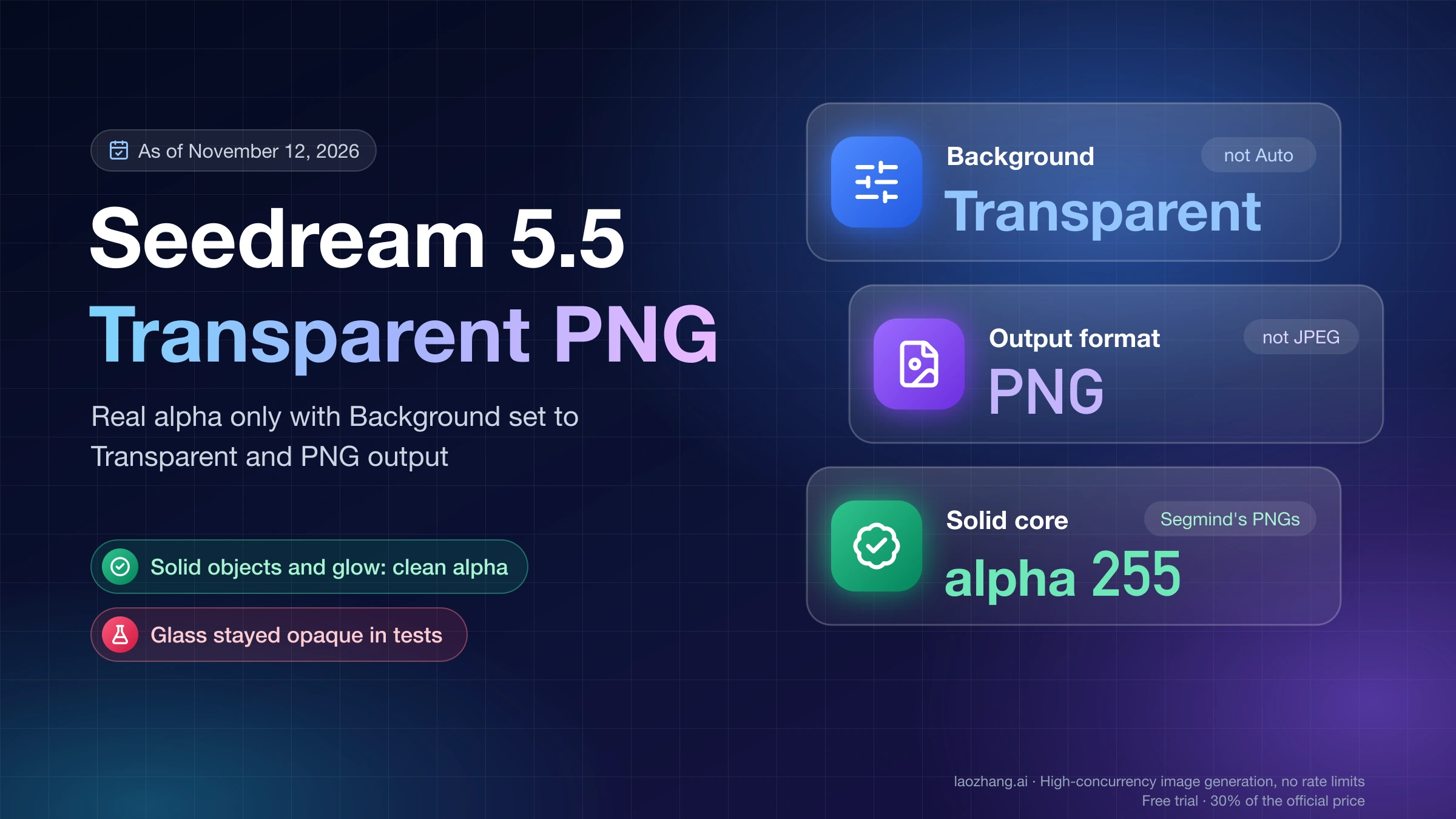
Seedream 5.5 can hand you a PNG with a real alpha channel, but only when transparency is switched on as a setting and the file stays a PNG. On the hosts that run 5.5 today, that means choosing Transparent in the Background menu next to the aspect ratio on Higgsfield, or sending background: "transparent" with output_format: "png" to Kie, WaveSpeed or Segmind. JPEG can't carry alpha, and Segmind rejects a transparent request with JPEG output before billing it. In Jimeng (即梦), ByteDance's Chinese app, tutorial authors describe a 透明背景 (transparent background) toggle beside the chat box.
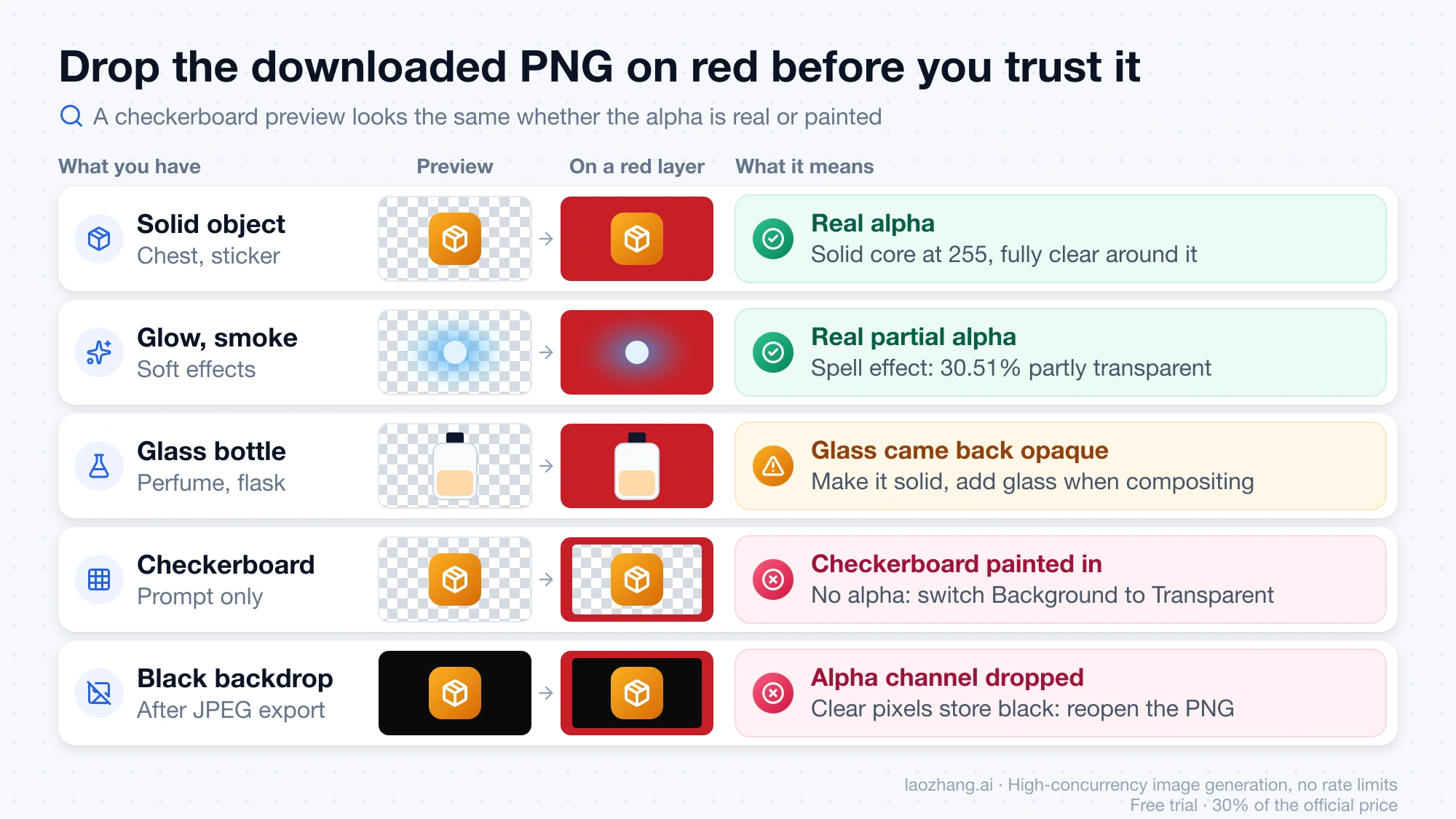
Then check the file you downloaded, not the preview. Drop it on a bright red layer or run the short Python check further down: a real cut-out keeps a solid subject at alpha 255 with fully clear pixels around it, while a checkerboard that still shows on red was painted into the image.
Two cases need a different plan. See-through glass and liquids came back opaque in both of Segmind's glass requests, so generate the bottle solid and add the glass effect when you composite. And if your API only offers Seedream 5.0 (the BytePlus ModelArk and Volcano Ark API docs list no 5.5 model ID as of November 12, 2026), background: "transparent" works only on an edit of one PNG that already has alpha; the same field on a text-to-image request returns HTTP 400.
Where to turn on transparency in each Seedream 5.5 app and API
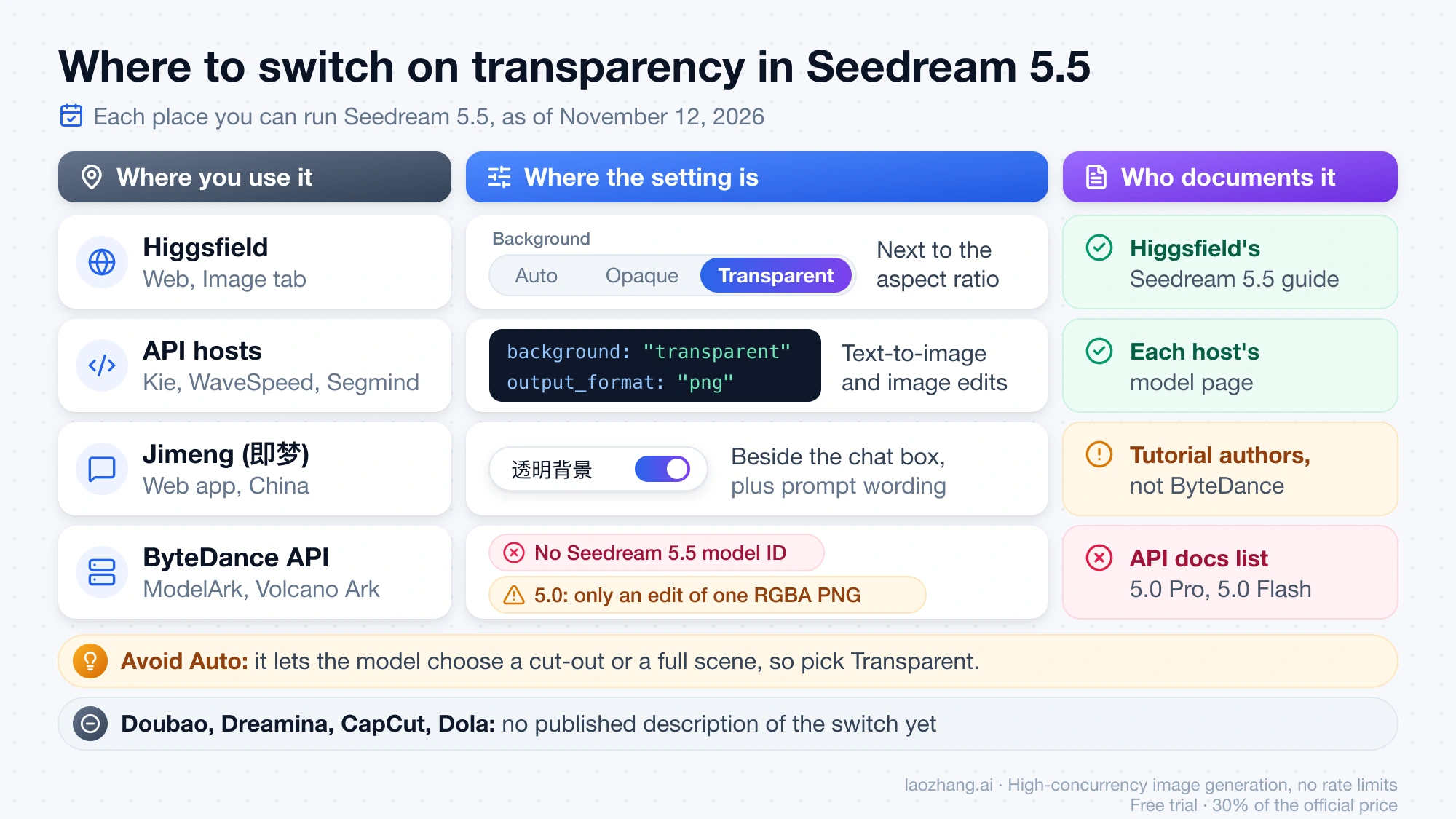
The switch sits in a different place in every entry, and as of November 12, 2026 only the third-party hosts document it in full. Wherever a Background choice offers Auto, pick Transparent instead: Higgsfield's Seedream 5.5 guide says Auto lets the model decide whether you get a cut-out or a full scene.
| Where you use Seedream 5.5 | Where the transparent setting is | Who documents it |
|---|---|---|
| Higgsfield (web, Image tab) | Pick Seedream 5.5 in the model list, open Background next to the aspect ratio, choose Transparent (Auto / Opaque / Transparent). 1–4 images per run, up to 2K, saved as PNG in every mode. | Higgsfield's guide |
| Kie, WaveSpeed, Segmind APIs | background: "transparent" plus output_format: "png", in text-to-image or image-to-image | Each host's model page |
| Jimeng (即梦) web, China | 透明背景 toggle beside the chat box; writing words such as 透明背景 or alpha 通道 in the prompt is described as a second trigger | Tutorial authors such as StartAI, not ByteDance |
| BytePlus Lumina | Export as PNG to keep the alpha channel, then check it on a checkerboard or colored background | BytePlus's Lumina Seedream 5.5 page |
| Doubao, Dreamina, CapCut, Dola | No published description of the switch as of November 12, 2026 | Not documented |
| BytePlus ModelArk and Volcano Ark APIs | No Seedream 5.5 model ID in the docs; background is documented for 5.0 Pro and 5.0 Flash only | ByteDance's API docs |
Access is not uniform. ByteDance Seed released the model on November 9, 2026, and its Seedream 5.5 model page sends English readers to Dola and the BytePlus Playground, while launch coverage says Dreamina, CapCut and BytePlus open by account and region with no published date for each. The Lumina page itself shows a "Try Seedream 5.5 now" button while its FAQ still says "launching soon." On November 12, 2026, the Jimeng web app showed a "Seedream 5.5 New" entry in its left sidebar and asked for a login before generating, so the toggle itself couldn't be seen there without an account.
The prompt still matters even with the setting on. All six transparent examples on ByteDance's model page spell it out in the prompt ("with a transparent background", "as a separate RGBA layer", "Keep the background transparent outside the sticker elements"), so describe the cut-out you want and use the setting to make the file carry it.
Seedream 5.5 API request for a transparent PNG
Every host that runs 5.5 exposes the same two fields: background set to transparent (the other values are auto, the default, and opaque) and output_format set to png. Both text-to-image and image-to-image accept them, which is the main difference from the official 5.0 API covered below. This is the synchronous call from Segmind's Seedream 5.5 test write-up, which returns the PNG bytes directly:
import os, requests

r = requests.post(
    "https://api.segmind.com/v1/seedream-5.5",
    headers={"x-api-key": os.environ["SEGMIND_API_KEY"]},
    json={
        "prompt": "A die-cut vinyl sticker of a grinning cartoon mango wearing headphones, "
                  "bold black outlines, thick white border. Isolated on a fully transparent "
                  "background with clean cut-out edges. No text.",
        "size": "1.5K",
        "aspect_ratio": "1:1",
        "background": "transparent",
        "output_format": "png",    # jpeg + transparent is rejected, unbilled
    },
    timeout=180,
)
r.raise_for_status()
open("sticker.png", "wb").write(r.content)
print("billed", r.headers.get("x-cost"))
The other hosts wrap the same idea in their own request shapes. Field names below are each host's documented parameters as of November 12, 2026; ByteDance hasn't published an official 5.5 API schema, so they may not match it once one appears.
| Host | How you send it | Documented behavior |
|---|---|---|
| Segmind | POST https://api.segmind.com/v1/seedream-5.5 with background and output_format in the JSON body | Transparent plus jpeg is rejected at once and not billed; a 1.5K transparent asset took 18–29 seconds in Segmind's runs |
| Kie | POST https://api.kie.ai/api/v1/jobs/createTask, model seedream/5-5-text-to-image or seedream/5-5-image-to-image, fields inside input | Returns a taskId to poll; Kie's own 2K test returned a 2048×2048 PNG with alpha; image-to-image takes 1–10 input images |
| WaveSpeed | bytedance/seedream-v5.5, background and output_format (default png) | Sizes 1k, 1.5k and 2k; no 4K tier |
WaveSpeed, Segmind and Higgsfield all stop at 2K for 5.5, so plan large sticker sheets and print assets around a 2K output.
How to check a Seedream PNG is really transparent
A preview on a checkerboard can't tell a real alpha channel from painted squares, so test the downloaded file itself. BytePlus gives the same advice on its Lumina page: choose PNG and check the preview "with a checkerboard or colored background to confirm the alpha channel." The steps below take under a minute per image.
- Download the original file from the app or API response, not a screenshot or a copy pasted from the preview, and confirm it ends in
.png. - Save the script below as
check_edges.py, install its two libraries withpip install pillow numpy, and runpython check_edges.py sticker.png. If it stops with "no alpha channel," the file is RGB and any checkerboard in it is paint. - Open the
sticker.preview.pngit writes. It shows the image on black, white, red and grey; a clean cut-out has no halo on any of them, and anything meant to be see-through should take on the red. - Read the numbers. The subject should reach "highest alpha 255" and most of it should count as fully opaque; glow and smoke add to "partly transparent," and a large "near-invisible haze" share means faint dust around the subject.
- If most of the subject sits just below 255 or there is haze, run
python check_edges.py sticker.png --cleanand use the.clean.pngit writes, which snaps alpha above 250 to 255 and below 4 to 0.
Without Python, put the image on a solid bright layer in Photoshop, Figma or any editor that shows layers. That catches painted backgrounds and halos, though it won't show a solid core sitting at 252 instead of 255.
"""check_edges.py — inspect a transparent PNG/WebP before you use it.

    python check_edges.py image.png            # report + preview sheet
    python check_edges.py image.png --clean    # also write image.clean.png

Needs: pip install pillow numpy
"""
import sys

import numpy as np
from PIL import Image

path = sys.argv[1]
im = Image.open(path)
if im.mode not in ("RGBA", "LA") and "transparency" not in im.info:
    sys.exit(f"{path}: mode {im.mode}, no alpha channel. Any checkerboard you see is painted pixels.")

rgba = im.convert("RGBA")
a = np.asarray(rgba)[..., 3]
total = a.size
print(f"{path}: {im.size[0]}x{im.size[1]}, mode {im.mode}")
print(f"  fully transparent (alpha 0):     {100 * (a == 0).sum() / total:5.1f}%")
print(f"  fully opaque (alpha 255):        {100 * (a == 255).sum() / total:5.1f}%")
print(f"  partly transparent (1-254):      {100 * ((a > 0) & (a < 255)).sum() / total:5.1f}%")
print(f"  near-invisible haze (alpha 1-3): {100 * ((a > 0) & (a < 4)).sum() / total:5.1f}%")
print(f"  highest alpha in the file:       {a.max()}")
if a.max() < 255:
    print("  note: no pixel is fully opaque; the whole subject lets a little of the background through")

# Preview: the same image on black, white, red and a mid grey
w, h = rgba.size
sheet = Image.new("RGB", (w * 4, h))
for i, color in enumerate([(0, 0, 0), (255, 255, 255), (200, 30, 40), (128, 128, 128)]):
    bg = Image.new("RGBA", (w, h), color + (255,))
    bg.alpha_composite(rgba)
    sheet.paste(bg.convert("RGB"), (i * w, 0))
out = path.rsplit(".", 1)[0] + ".preview.png"
sheet.save(out)
print(f"  preview on black / white / red / grey: {out}")

if "--clean" in sys.argv:
    arr = np.asarray(rgba).copy()
    alpha = arr[..., 3]
    alpha[alpha < 4] = 0      # drop the invisible haze
    alpha[alpha > 250] = 255  # make the solid core really solid
    clean = path.rsplit(".", 1)[0] + ".clean.png"
    Image.fromarray(arr, "RGBA").save(clean)
    print(f"  cleaned copy: {clean}")
The same check works on any transparent PNG or WebP, not only Seedream's. For other ways to cut out an existing image, see How to Make an Image Transparent (and Check It Actually Is).
What Seedream 5.5's alpha looked like in Segmind's published PNGs
On November 12, 2026, the seven Seedream 5.5 PNGs that Segmind published with its November 11 test were downloaded and re-measured with Pillow 12.0.0 and NumPy on a Mac, using the same counts as the script above. All seven are real RGBA files with a solid core at alpha 255. All seven are Segmind's generations. The four in the table below and a backpack cut-out are text-to-image results made with background: "transparent" and output_format: "png"; the other two are a 1.5K transparent pose edit from one reference image and a layer from the separate Layer Decomposition model. No new Seedream 5.5 image was generated for this test, and there is one file per object.
| Segmind's file | Size | Fully clear (alpha 0) | Fully opaque (alpha 255) | Partly transparent |
|---|---|---|---|---|
| Spell effect, glowing energy ball | 1024×1024, original | 47.39% | 22.10% | 30.51% |
| Treasure chest | 1024×1024, original | 54.55% | 44.44% | 1.01% |
| Potion flask | 1024×1024, original | 65.03% | 34.48% | 0.49% |
| Perfume bottle | 825×1100, resized by the blog | 64.85% | 34.15% | 1.00% |
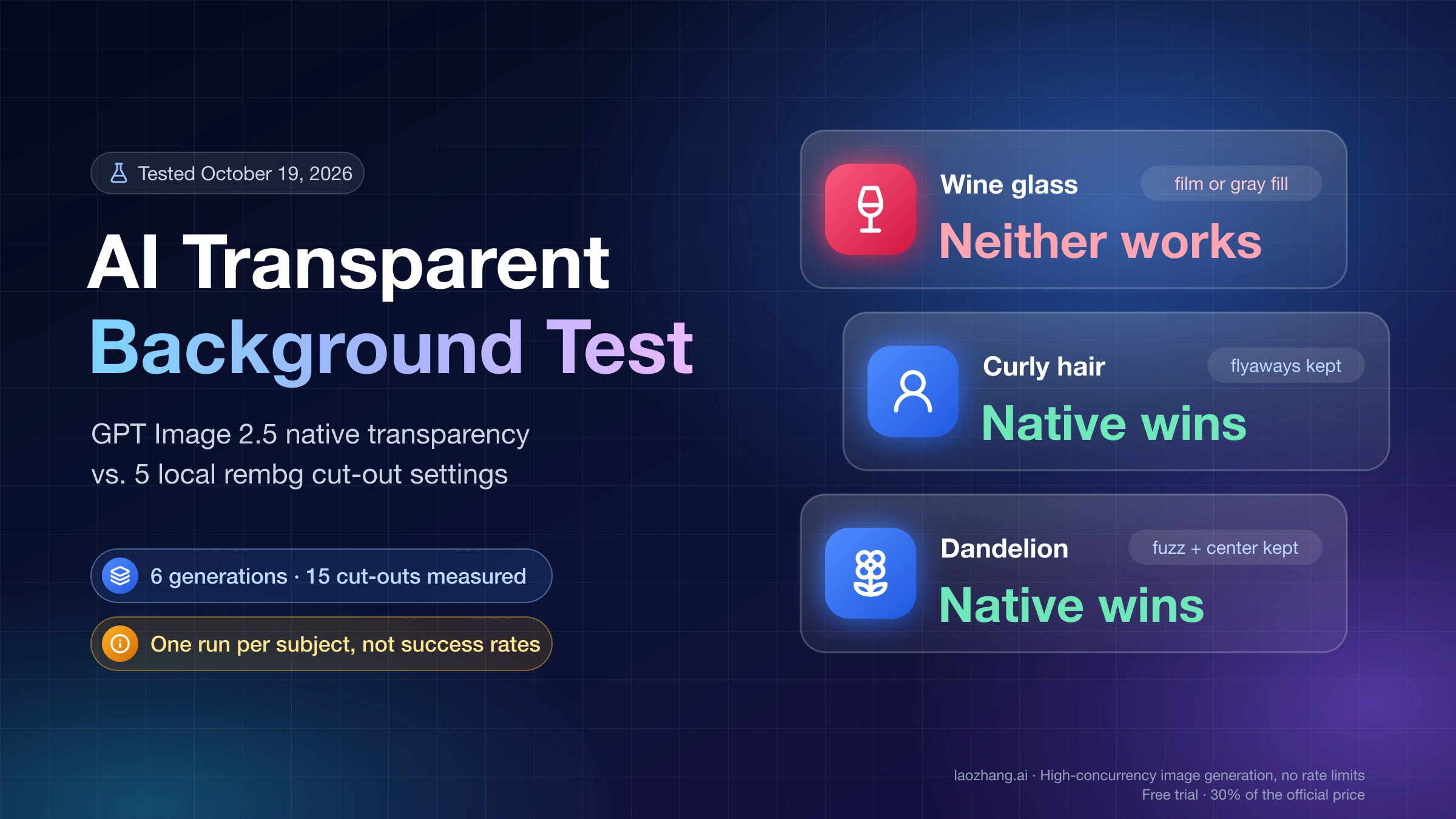
The spell effect's 30.51% partly transparent pixels match the 30.5% Segmind reported, so the glow really fades into whatever sits behind it. The three original-size files have no pixels in the 251–254 "almost solid" band and no alpha 1–3 haze, which means you can drop them on a page without the --clean step. That differs from GPT Image 2.5 Sunburst's native transparency, where no pixel in three test images reached 255 in an October 19, 2026 run on the same checker, described in AI Transparent Background Test: Glass, Hair and Fine Edges.
One detail decides what you see when transparency gets lost. Between 98.0% and 99.98% of the fully clear pixels in these files store pure black RGB (0, 0, 0), so saving one as JPEG or opening it in a viewer that ignores alpha gives you a black backdrop, not a white one. The four resized copies show a little extra edge softness from the blog's resampling, and none of the seven carries text or Content Credentials metadata, which the host or the blog may have stripped.
Does Seedream 5.5 handle glass and smoke? Glow yes, glass came back opaque
Soft effects get real partial transparency in Seedream 5.5, but see-through glass did not in the files measured so far. Segmind asked twice for see-through glass, a perfume bottle and a potion flask, and both came back with the glass painted in; the same write-up says soft effects "like glow and smoke" do get partial alpha. The November 12 re-measurement agrees: the middle third of the perfume image is 100% alpha 255, and on a red backdrop the "clear" glass stays white and grey, while the potion flask's center averages alpha 249.
Not every report points the same way. StartAI's Jimeng tutorial says glass cups, clear packaging and gauze come out clearly better than with traditional cut-out tools, but that compares edge quality against a cut-out tool, while Segmind's test asks whether light passes through the glass. With one or two images per object on each side, treat glass as something to test on your own subject. If it comes back solid, generate the bottle opaque and build the glass transparency in your editor or compositing step.
Why your Seedream image has a white, black or checkerboard background
The backdrop color tells you where the alpha went missing. Match what you see:
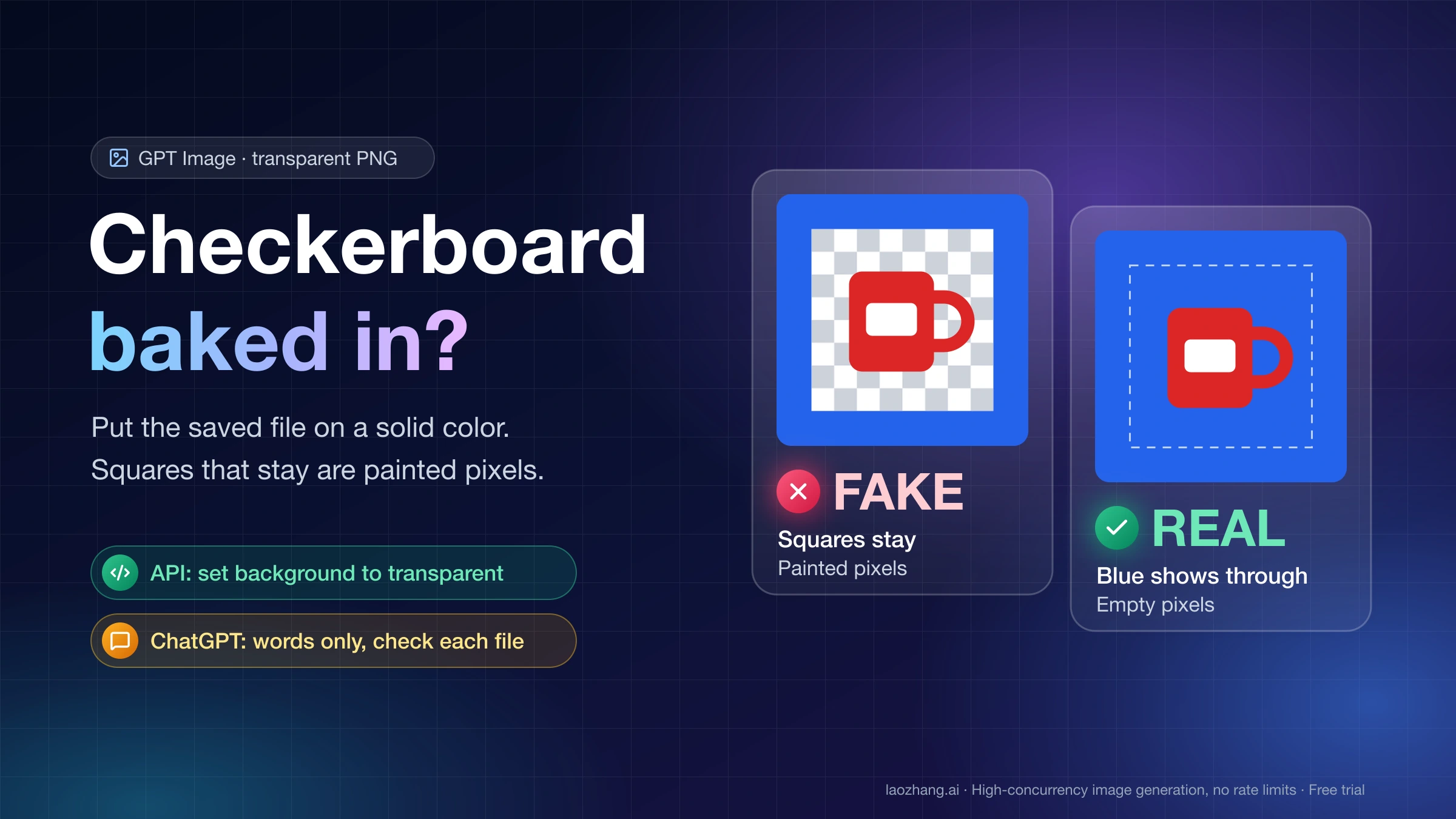
- A checkerboard that stays put when you place the image on red was drawn by the model. On November 12, 2026, a Seedream 5.0 Flash text-to-image request that said "Isolated on a fully transparent background" only in the prompt returned an RGB PNG with a painted near-white backdrop and a faint checker. Turn on the setting instead. GPT Image has the same habit, covered in GPT Image Transparent Background: Fix a Baked-In Checkerboard.
- A black backdrop means something dropped the alpha channel: a JPEG export, a format conversion, or a viewer that ignores alpha. Seedream 5.5 files store black under their clear pixels, so that's what appears. Go back to the original PNG.
- A white backdrop usually means the file never had alpha, even if the in-app preview looked clean. A tester on Doubao made the same point after generating an egret: the preview was clean, the downloaded file was a white-background image. A few Jianying (CapCut's Chinese version) desktop users also report transparent PNGs showing up white on import, which is a problem in the editor, not the file.
- An opaque scene where you expected a cut-out happens when the Background choice is left on Auto, because Auto lets the model decide.
Run the check from the earlier section on the file before you blame the model; it tells you in one line whether the alpha channel exists at all.
Seedream 5.0 API: alpha only when you edit a PNG that already has it
If your API account only lists Seedream 5.0, you can carry an existing alpha channel through an edit, but you can't create one from a prompt. The BytePlus ModelArk image generation API reference documents background for Seedream 5.0 Pro and 5.0 Flash with transparent and opaque (default opaque), and limits transparent mode to image-to-image "with exactly one input image that has an alpha channel." As of November 12, 2026, neither that page nor the Volcano Ark docs list a Seedream 5.5 model ID.
That rule was tested on November 12, 2026 with six requests to Seedream 5.0 Flash (seedream-5-0-flash-260915, size 1K) through LaoZhang's POST https://api.laozhang.ai/v1/images/generations endpoint, one request per case. LaoZhang's model list had no 5.5 ID that day; it offered Seedream 5.0 Flash, 5.0 Pro, 5.0, 4.5 and 4.0. The input image was Segmind's transparent treasure chest PNG.
Disclosure: laozhang.ai is our own service. Its prices are platform pricing, not an independent comparison.
| Request | HTTP | What came back |
|---|---|---|
One RGBA PNG input, background: "transparent", output_format: "png" | 200 in 18.7 s | RGBA PNG; the clear area matched the input's clear area on 99.44% of pixels |
Text-to-image with background: "transparent" | 400 in 1.9 s | InvalidParameter on background: "transparent background requires exactly one input image." |
JPEG input with background: "transparent" | 400 | InvalidParameter on image: "transparent background requires a PNG input: png: invalid format: not a PNG file." |
RGBA PNG input, background: "transparent", output_format: "jpeg" | 400 | InvalidParameter on output_format: "must be png when background is transparent." |
Text-to-image, prompt says "Isolated on a fully transparent background", no background field | 200 | RGB PNG with no alpha; painted near-white backdrop with a faint checker |
Same RGBA input and edit prompt, no background field | 200 | RGB PNG with no alpha; the formerly clear area turned near-black |
The working request looked like this, with the edit asking only for a color change:
{
  "model": "seedream-5-0-flash-260915",
  "prompt": "Change only the wood of the treasure chest to deep blue painted wood. Keep the gold coins, metal bands, shape and the transparent background exactly as they are.",
  "image": "data:image/png;base64,<your RGBA PNG>",
  "background": "transparent",
  "output_format": "png",
  "size": "1K",
  "response_format": "url",
  "watermark": false
}
The 5.0 Flash result needs cleanup that Seedream 5.5's files didn't. Only 7.92% of its pixels sat at exactly 255 and another 36.45% landed between 251 and 254, so most of the solid chest let a sliver of background through until the --clean step snapped it to 255. Its clear pixels store mid-grey RGB, so a lost alpha channel turns grey rather than black. The file was 4.05 MB, and 1.94 MB of that was an embedded C2PA Content Credentials block marking it as AI-generated, so strip metadata if file size matters. The three successful calls cost $0.054 at LaoZhang's list price of $0.018 per image; the three 400s weren't matched against the bill.
That fits a line on BytePlus's Lumina page that native RGBA is "not provided by 5.0 Pro": 5.0 can keep alpha you already have, but only 5.5 generates it from text. To split a finished flat image into transparent layers on 5.0 instead, see Seedream 5.0 Pro Layer Decomposition API Tutorial: PNGs to PSD.
What a transparent Seedream 5.5 image costs on Kie, WaveSpeed and Segmind
A transparent image costs the same as an opaque one at the hosts that publish 5.5 prices, so the bill depends on size and on how many reference images you send. These are list prices as of November 12, 2026:
| Host | 1K or 1.5K | 2K | Extra charges |
|---|---|---|---|
| Kie | $0.018 | $0.0315 | Each input image in image-to-image is billed separately |
| WaveSpeed | From $0.019 per run | Scales with size and options | Live estimate shown before you submit |
| Segmind | $0.021164 | $0.037037 | $0.0084656 per reference image; transparent output adds nothing |
At Segmind's rates, a 1.5K transparent pose edit with one reference image billed $0.0296, which is the 1.5K price plus one reference. CellCog's launch coverage quoted BytePlus's product page at "starting at $0.02/image," but BytePlus's price table for the official API wasn't public as of November 12, 2026.
Seedream 5.5 transparent PNG: other questions
Is Seedream 5.5's transparent background the same as layer decomposition? No. The transparent background is a setting on a normal generation or edit that returns one cut-out. Layer decomposition is a separate model, listed on Kie as seedream/5-5-layer-decomposition, that takes one finished image and returns a base plus each element as its own transparent PNG.
Can Seedream 5.5 make a transparent video or animated sticker? Not directly, as of November 12, 2026. It outputs still images; ByteDance's "running girl" example is a series of separate transparent frames you would assemble yourself. Check that your video editor keeps alpha before you rely on that route, since some Jianying users report it no longer exports transparent-background video.
Sources5
External pages this guide links to, in the order they appear. Last updated Nov 12, 2026.
Sources5
External pages this guide links to, in the order they appear. Last updated Nov 12, 2026.
- 1.Higgsfield's Seedream 5.5 guidehiggsfield.ai/blog/seedream-5-5-higgsfield
- 2.Lumina Seedream 5.5 pageai.byteplus.com/lumina/en/image/seedream-5-5
- 3.Seedream 5.5 model pageseed.bytedance.com/en/seedream5_5
- 4.Segmind's Seedream 5.5 test write-upblog.segmind.com/seedream-5-5-is-here-edit-in-rounds-transparent-pngs-and-layers
- 5.BytePlus ModelArk image generation API referencedocs.byteplus.com/en/docs/ModelArk/1541523