GPT Image 2.5 Grainy Noise: Fixes for ChatGPT and the API
ChatGPT Images 2.5 and the API have no denoise setting. Find the first file with the grain, restart from the last clean one, and change one thing per retry.
On this page
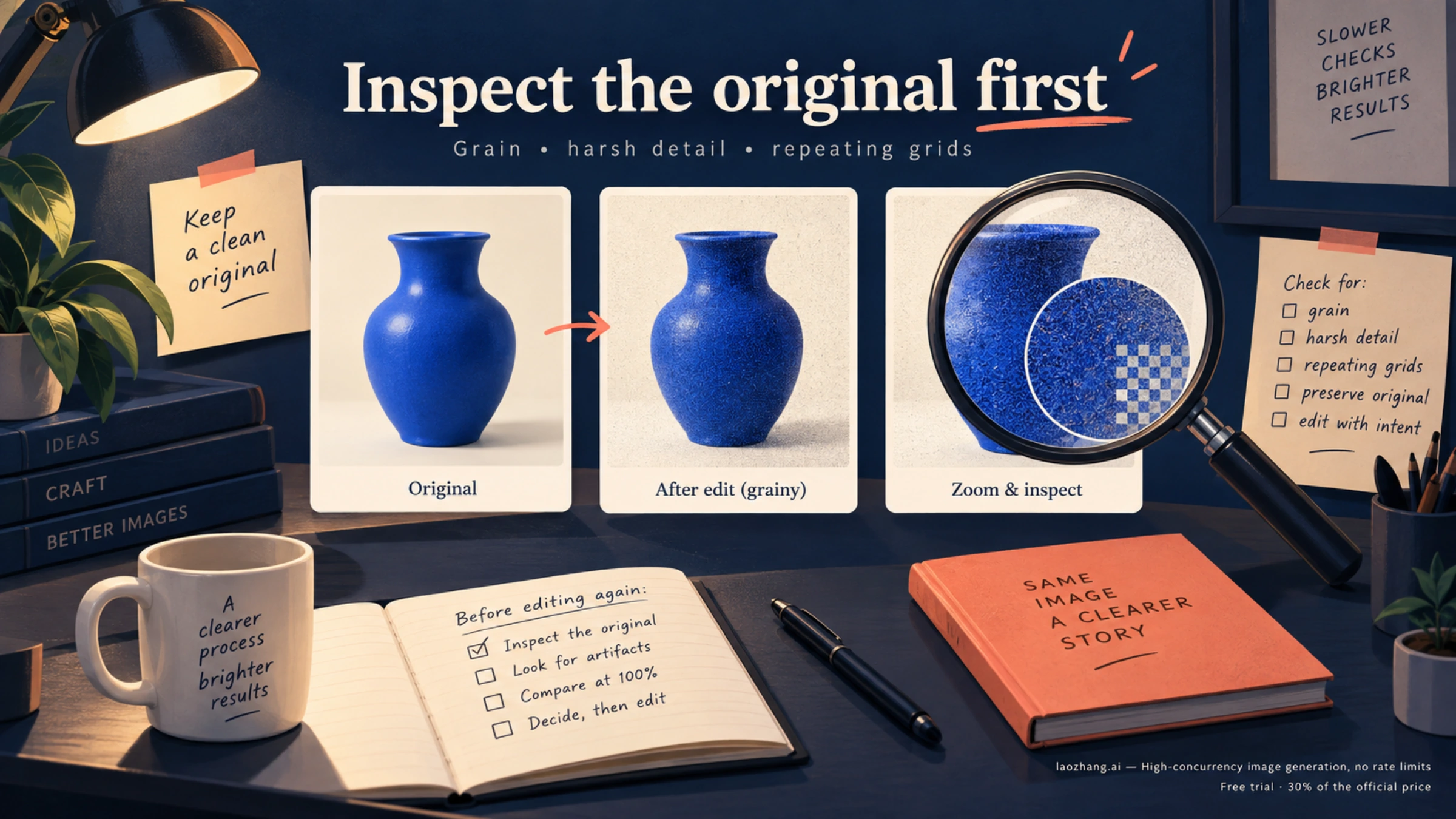
Neither ChatGPT nor the OpenAI Images API has a denoise switch for GPT Image 2.5, and as of September 25, 2026, OpenAI has not published a cause or a fix for the grain users are reporting. What you can control is where the next attempt starts. Find the first file where the texture appears (the first generation, a later edit, or an export), go back to the last file that looked right, and change one thing per retry. If a new version gets one area right, paste that area onto the original in an image editor instead of asking for yet another edit.
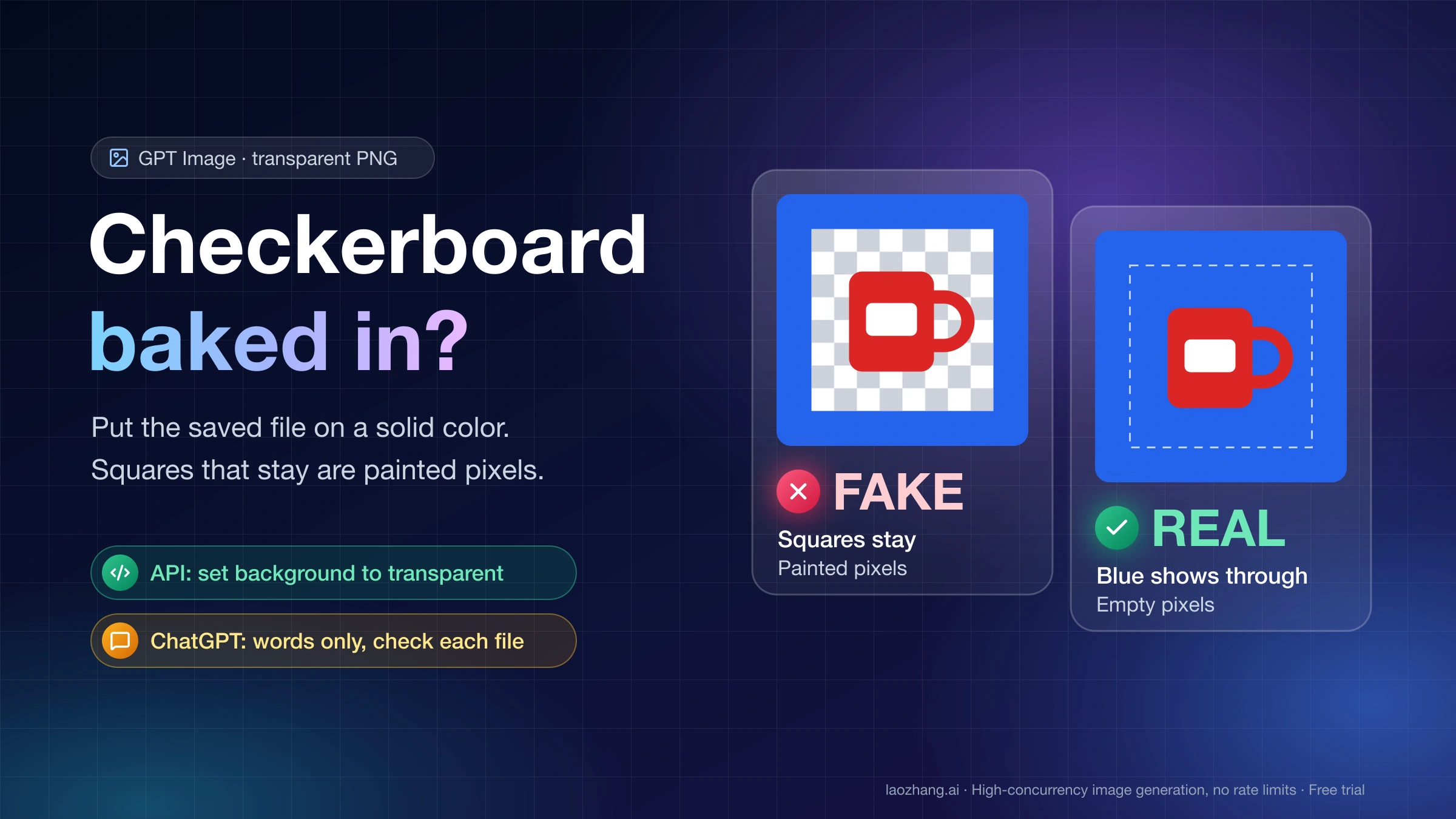
A "checkerboard" needs a different test first. It can be the transparency grid your viewer draws behind empty pixels, gray-and-white squares the model actually painted, or a repeating texture on a solid surface. Each of those has its own fix.
Where the grain shows up
TechRadar's Eric Hal Schwartz generated four ChatGPT Images 2.5 images on September 10, using prompts that explicitly asked for smooth gradients and no visual noise. He still found a "persistent granular texture" on a gray studio background, fine grain in blue twilight skies and across hair and skin, and "crunchy, heavily sharpened" mountains in a fantasy landscape. TechRadar's test covers four images in the ChatGPT app with no control over model or quality setting. Its pattern matches the reports from r/OpenAI and r/ChatGPT: the texture is easiest to see in skies, plain studio backdrops, low light, skin, and flat product surfaces such as colored packaging.
Two things are worth ruling out before you treat it as a defect:
- You asked for it. Words like "film grain," "35mm," "gritty," or "analog photo" invite texture. Remove them and regenerate before going further.
- You are judging a thumbnail or a shared copy. Open the file you actually downloaded, at 100% zoom.
Nobody outside OpenAI has shown why the texture appears. Explanations such as "the denoising stops early" or "it was trained on noisy photos" circulate without evidence. There is also no public failure rate. OpenAI's launch post promises "richer textures" and says nothing about noise. So the useful question is not what causes it but which file it first appears in.
Find the first file with the problem
The texture can enter at three points: when the image is first generated, during a later edit, or when the file is exported, re-encoded, or uploaded somewhere. Each point has a different fix, so locate it before you change anything.
- Keep the first download untouched. Save every later version as a new file instead of overwriting.
- Pick one smooth area, such as sky, a plain background, or a cheek, and open the same crop from every version at 100%. Then look at it again at the size you will publish. Grain that disappears at delivery size may not be worth fixing.
- Note the first file in the sequence where the texture appears.
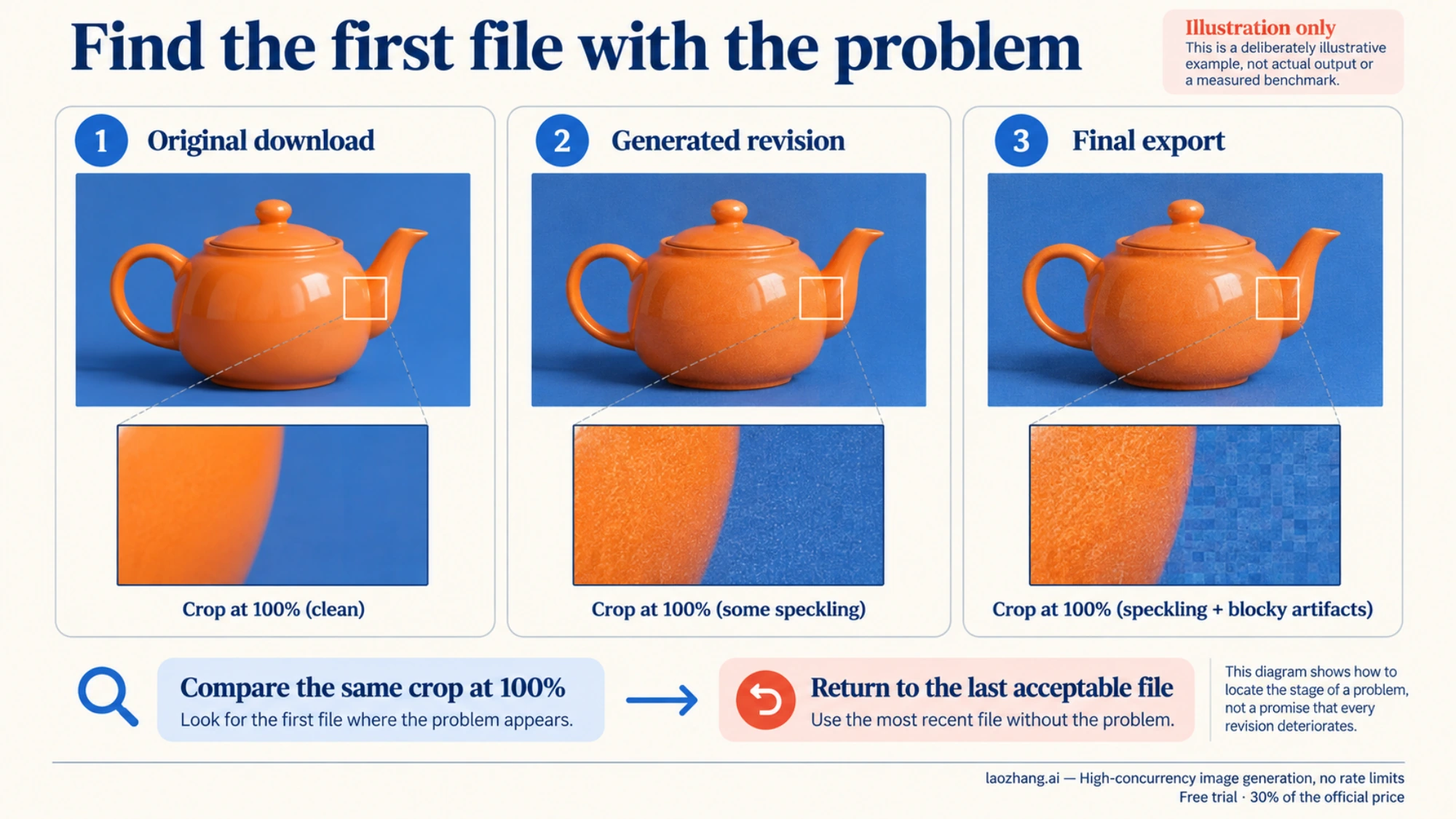
| First file that shows it | What that points to | What to do next |
|---|---|---|
| The very first download | Generation | Regenerate rather than edit the grainy file. Change the wording, or in the API the quality or model, one at a time |
| A clean first download, then an edit | The edit | Go back to the file before that edit and redo it with a narrower instruction, or composite the good part |
| Every generated file is clean; only the exported, converted, or uploaded copy is worse | Encoding | Export again from the clean file with less compression, or deliver it somewhere that does not recompress |
Converting a grainy image to PNG does not remove anything. PNG keeps every pixel exactly as it was, grain included. The format only decides whether new compression damage gets added. Blocky squares that line up in a grid and appear only after export point to JPEG or WebP compression, or to a site that recompressed your upload.
Is the checkerboard actually in the image?
Put a bright, solid color layer (magenta works well) under the image in any editor that supports layers, then look at what happens around the subject.
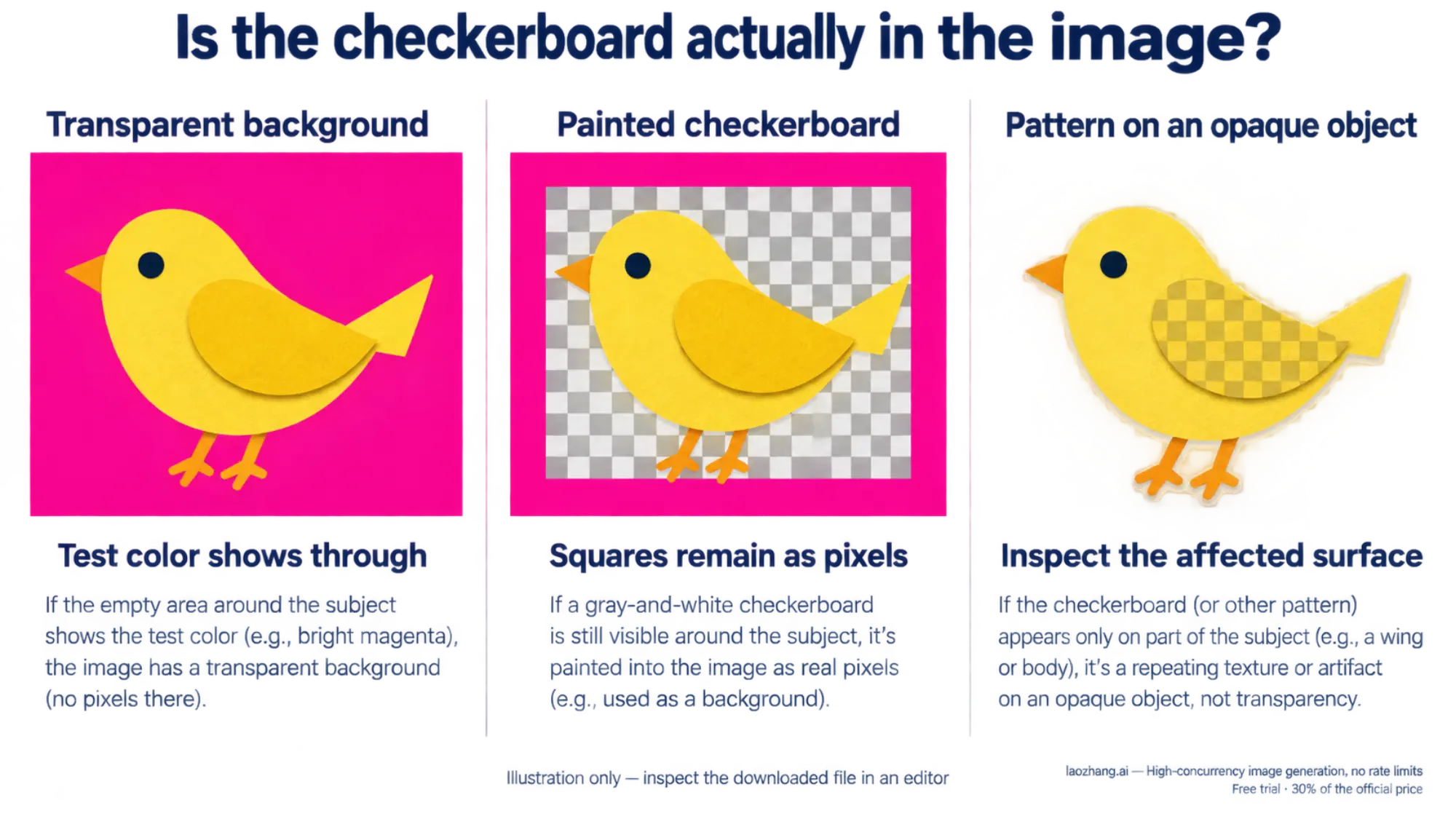
- The magenta shows through. The background is genuinely transparent. The checkerboard you saw earlier was your viewer's way of displaying empty pixels. Nothing needs fixing, but OpenAI's image prompting guide recommends checking the alpha channel around hair, glass, shadows, and object edges.
- The gray-and-white squares are still there. The model painted a checkerboard into the pixels, and the same guide warns that a drawn checkerboard is not transparency. In the API, request
background="transparent"with PNG or WebP output. ChatGPT has no documented background switch, so ask for a transparent background in words and run the same test on the downloaded file. The full workflow, including checking edges, is in How to Make an Image Transparent (and Check It Actually Is). - The pattern covers only part of the subject. A grid on a wing, a box, or a sleeve is a repeating texture on an opaque surface, not a transparency problem. Treat it like grain and find the first file that shows it.
Why edits add texture, and when to stop
OpenAI's launch post says Images 2.5 follows instructions more reliably across multi-turn edits "without degrading image quality over time." That is a vendor claim. The company's own prompting guide is more careful: "Repeated edits can still change details you intended to preserve. Restate those constraints and inspect each result. If a region must remain pixel-identical, composite the approved edit into the original image instead of relying on prompting alone."
A September 9 test on VC.ru shows what that looks like. The author ran four sequential edits on one product photo of a toy airplane in a blister pack and reports using Sunburst. The first edit, a background swap, kept the text but redrew the pack, changing the hole shape and wear marks. The second edit only added a soft shadow, yet the airplane picked up a fine, scale-like mesh that wasn't there before. By the fourth edit, a 16:9 expansion, the pack had been rebuilt and the mesh was gone. One chain on one image proves no general rule. It does show that a texture can appear in one edit and vanish in the next, which is why every version needs checking, not just the latest one.
These rules keep an edit chain from compounding the damage:
- Branch from the last clean file, not the newest one. Editing a grainy version gives the next edit a grainy starting point.
- Ask for one change at a time. Say "change only X" and list what must stay: identity, geometry, layout, lighting, labels. Repeat that list on every edit.
- Check each result at 100% before the next edit. Skipping a check means you can no longer tell which step added the texture.
- Stop editing and composite instead when a label, logo, or piece of text must stay exactly as it was, or when the same texture returns after two differently worded tries from the same clean file. Layer the new version over the original, mask everything except the region you wanted changed, and soften the mask edge.
- Keep chains short. The VC.ru author's own rule of thumb is two to three edits per chain, and small text is safer to fix by hand.
What you can change in ChatGPT
The ChatGPT app gives you four levers:
- Wording. Describe the surface you want ("smooth matte ceramic, evenly lit gray backdrop") and remove style words that invite texture. Don't expect a "no noise" instruction to do much. TechRadar's prompts already asked for no noise, and Studio Masakaki reported in its own tests that stronger "remove noise" wording did not help dramatically. One reworded attempt is reasonable; a long series of them rarely pays off.
- Which image the edit starts from. Upload or select the last clean file instead of continuing from the latest result.
- Comments on the image. Images 2.5 lets you comment directly on part of an image for a targeted edit. It is still a generative edit, so check the whole image afterward. OpenAI's help article on editing notes that a selection can affect nearby areas.
- Whether to stay in the same conversation. During GPT Image 2, some users reported that starting a new chat helped. That has not been tested with 2.5, but it costs little: open a new chat and upload the last clean file.
What you can't change in ChatGPT: the quality level, the output format, or the model. OpenAI does not say whether a given ChatGPT image came from Flare or Sunburst, and neither the look of the image, its speed, your plan, nor asking ChatGPT can tell you. For how the app and API relate, see ChatGPT Images 2.5: How to Use It in ChatGPT and the API.
What to check in the API
The API adds settings, but none of them is a grain control. There is no documented denoise, seed, negative_prompt, or steps parameter for GPT Image 2.5. Check these before concluding the model itself is the problem:
| Setting | What to check | What OpenAI says |
|---|---|---|
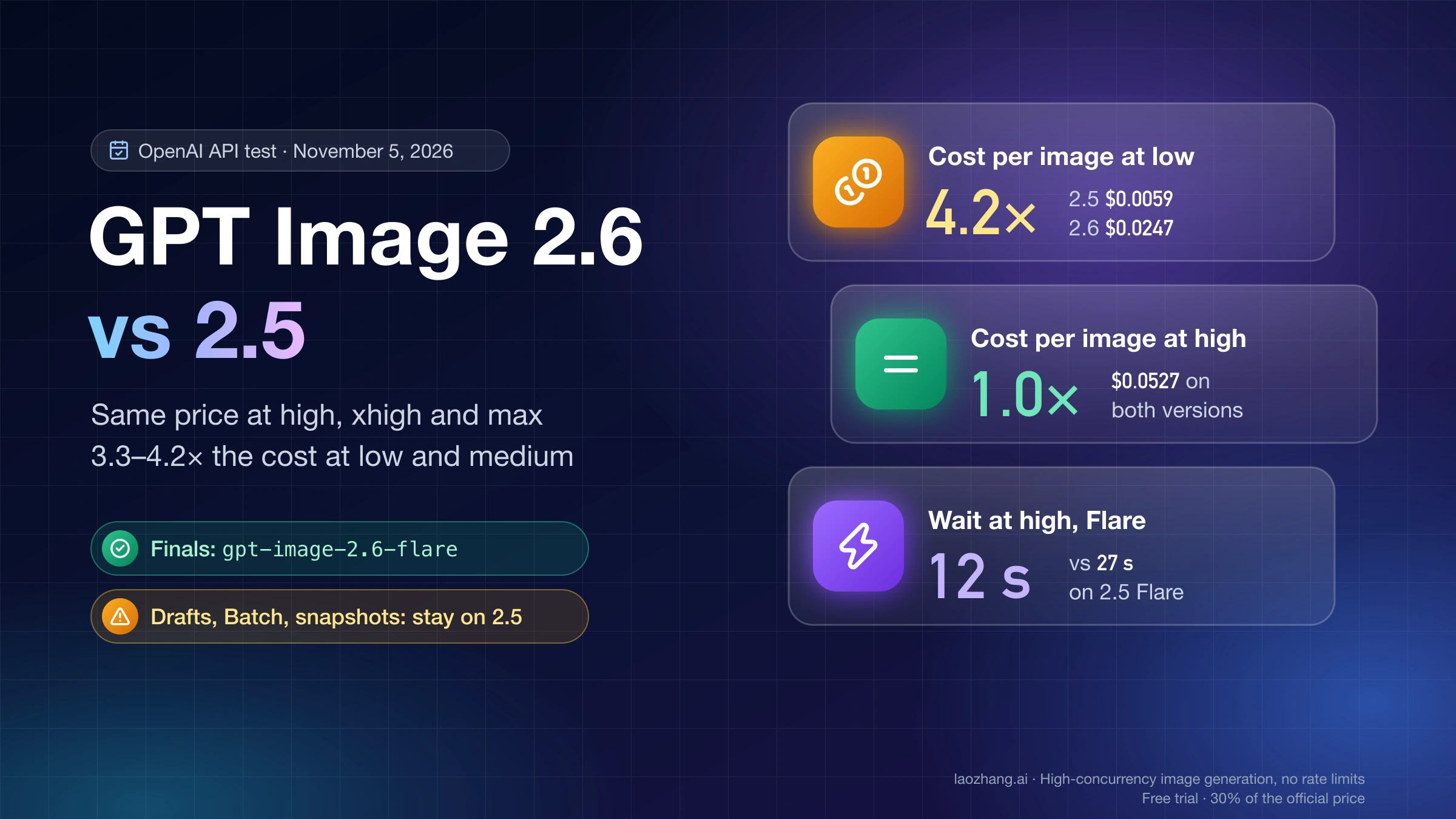
quality after migrating from GPT Image 2 | A pipeline that kept quality: "medium" asks for far less output. At 1024×1024, OpenAI's calculator shows 439 output tokens for GPT Image 2.5 medium versus 1,756 for GPT Image 2 medium, and 1,756 for 2.5 high | "The same quality label does not imply the same image quality or response time across models" (image generation guide) |
xhigh or max | Try them only after high still misses the requirement, and compare the same crop | "A higher setting doesn't guarantee a better result for every prompt" |
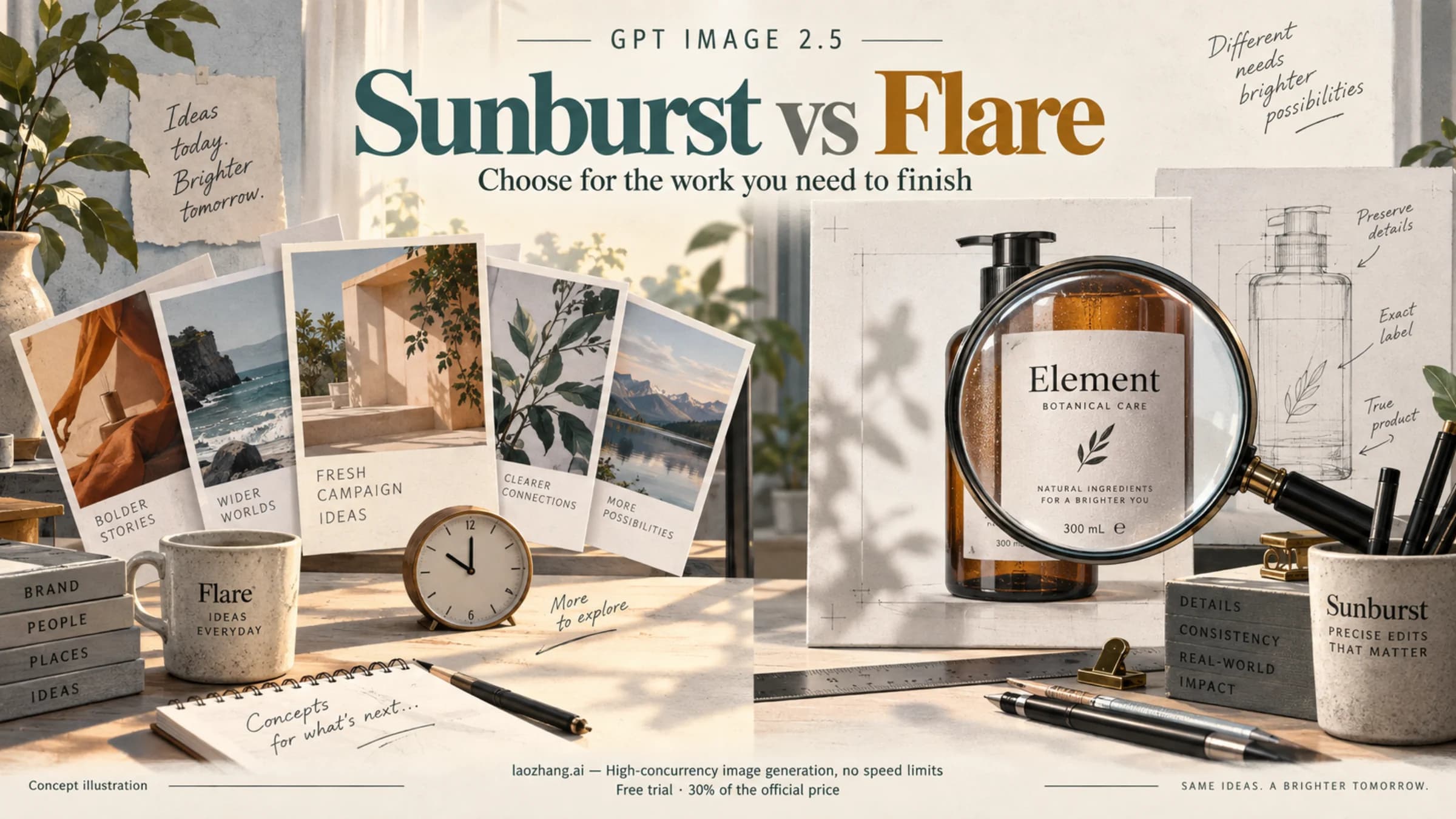
model | gpt-image-2.5-flare versus gpt-image-2.5-sunburst | Flare's image quality is "comparable to GPT Image 2"; Sunburst's is "higher" than GPT Image 2 |
output_format and output_compression | If you deliver JPEG or WebP, generate a PNG once to rule out compression | output_compression applies only to JPEG and WebP, not PNG |
The quality mismatch is something to rule out, not a proven cause of grain. If you moved from GPT Image 2 and kept the same label, compare the two models at a matching output budget before judging either. GPT Image 2.5 Flare vs Sunburst vs GPT Image 2: Which to Run walks through that migration.
The same caution applies to switching models. "Higher quality" in OpenAI's model descriptions is not a promise of less grain, and no public test shows that Sunburst reliably produces less of it. Treat a switch as one more variable to test. For the speed, editing, and cost tradeoffs, see GPT Image 2.5 Sunburst vs Flare: Which to Use, by the Numbers.
To make any comparison mean something, change one variable per attempt: the wording, the quality level, or the model. Keep the size and reference images fixed, generate from the same inputs, and compare the same crop at 100%. If two variables change at once and the grain drops, you won't know which one to keep.
Denoisers and upscaling
An external denoise filter can soften grain on a finished file, but it trades texture for smoothness. It can blur small text, fabric, hair, and fine edges along with the speckles. Run it on a copy, apply it only to the affected area, and compare the result at delivery size.
Asking the model to upscale is not a reliable cure. In Studio Masakaki's tests, an upscale request changed the style of the image without removing the color haze. If you need a larger file, generate at the size you need in the API. Each edge can be at most 3,840 pixels, and outputs above 2,560×1,440 are marked experimental.
Official documentation
Request parameters, pricing, and billing rules are documented in the LaoZhang API developer docs: GPT Image 2.5 API docs.
Disclosure: laozhang.ai is our own service. Its prices are platform pricing, not an independent comparison.
Sources7
External pages this guide links to, in the order they appear. Last updated Sep 25, 2026.
Sources7
External pages this guide links to, in the order they appear. Last updated Sep 25, 2026.
- 1.TechRadar's testtechradar.com/ai-platforms-assistants/the-noise-patterns-are-awful-some-reddit-users-arent-happy-with-the-new-chatgpt-images-2-5-so-i-did-my-own-tests-and-have-to-agree
- 2.launch postopenai.com/index/introducing-chatgpt-images-2-5
- 3.image prompting guidedevelopers.openai.com/api/docs/guides/image-prompting
- 4.VC.ruvc.ru/design/3130440-gpt-image-25-pravki-i-upakovka
- 5.Studio Masakakistudiomasakaki.com/articles/12572581
- 6.help article on editinghelp.openai.com/en/articles/11084440-im
- 7.image generation guidedevelopers.openai.com/api/docs/guides/image-generation