Google AI Studio API Key: Is It Free? Create, Secure, Verify
The Gemini API key from Google AI Studio is free. Flash, Flash-Lite and 2.5 Pro calls are free within project limits; image models and 3.1 Pro need billing.
On this page
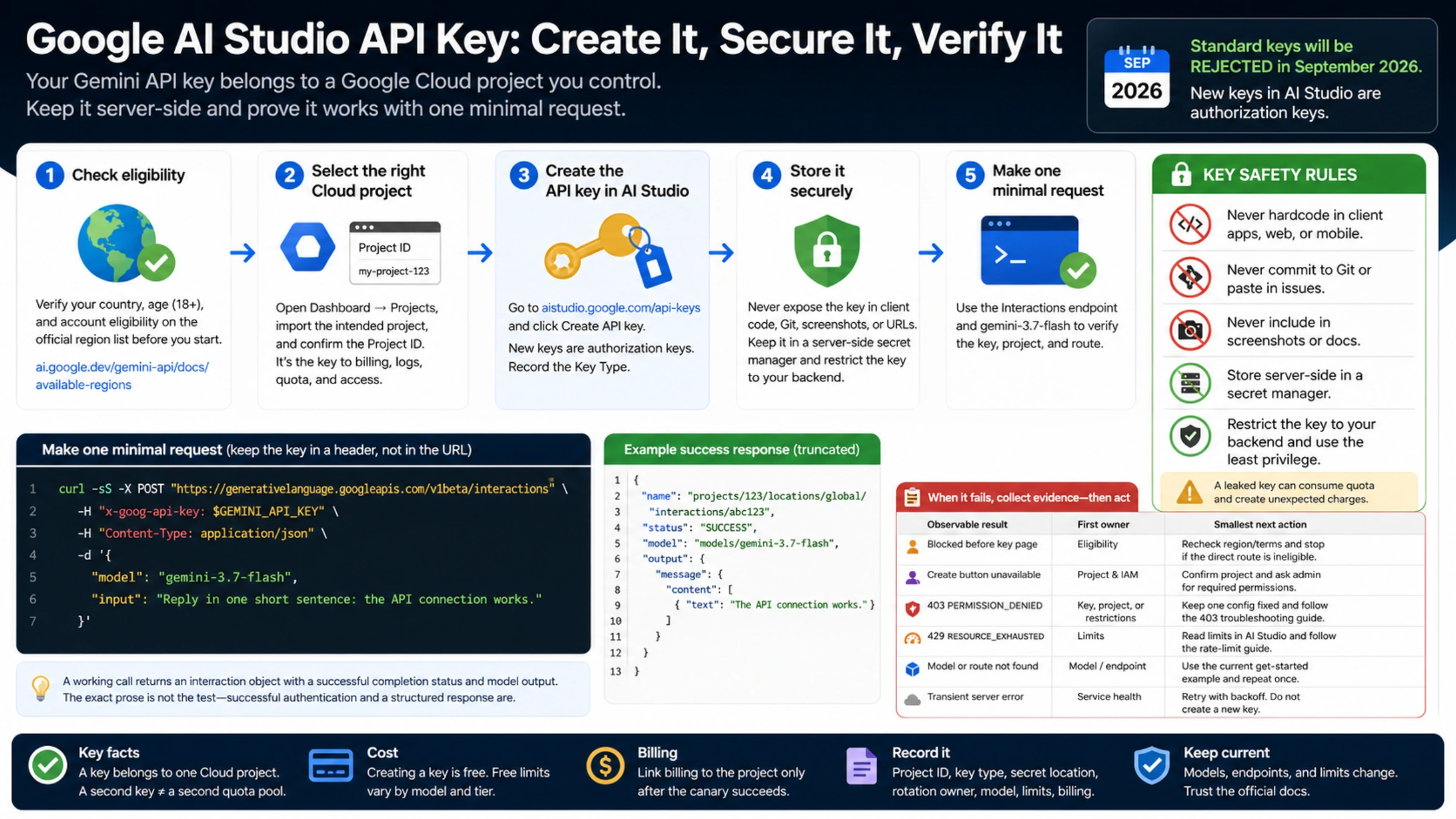
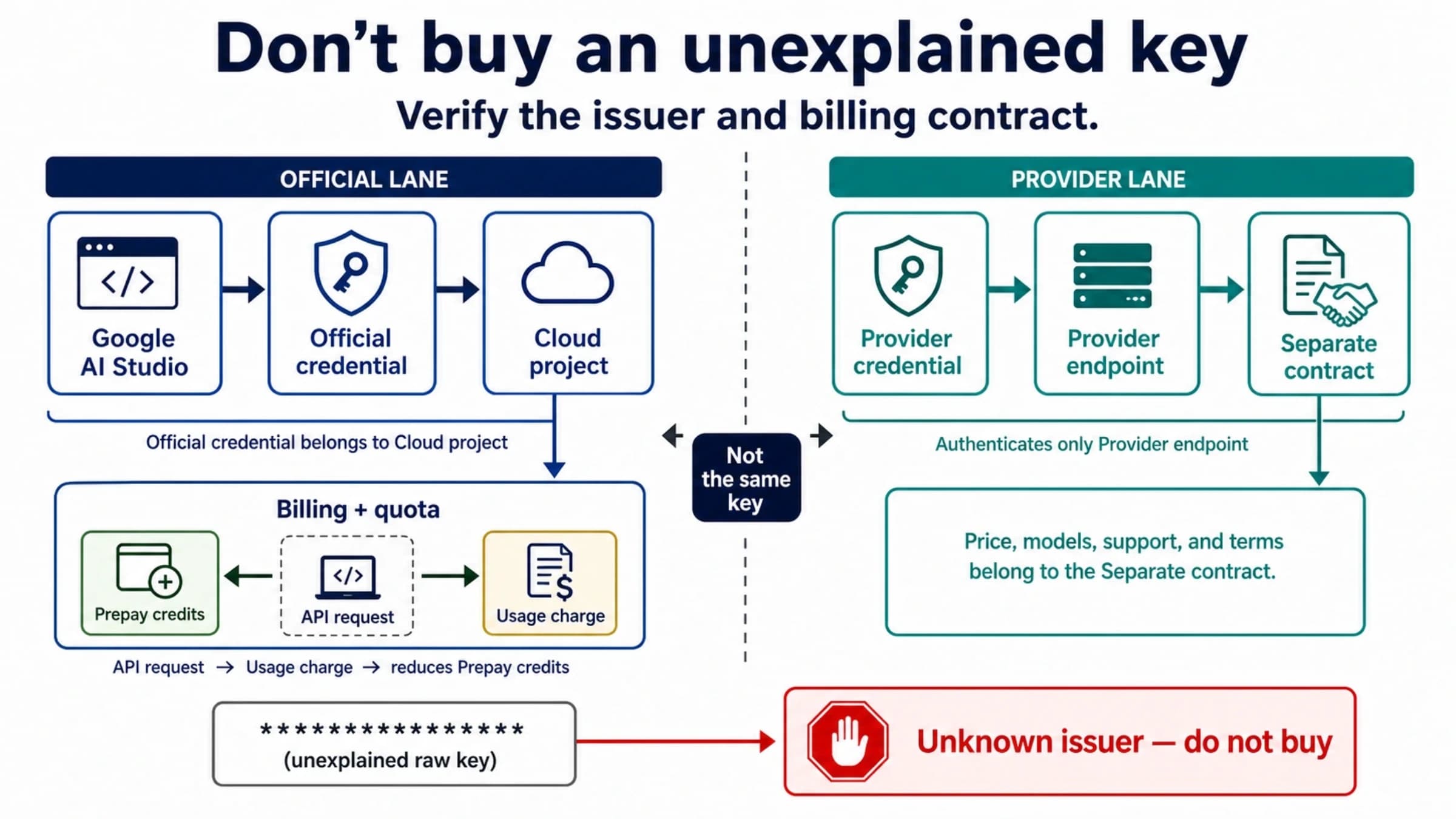
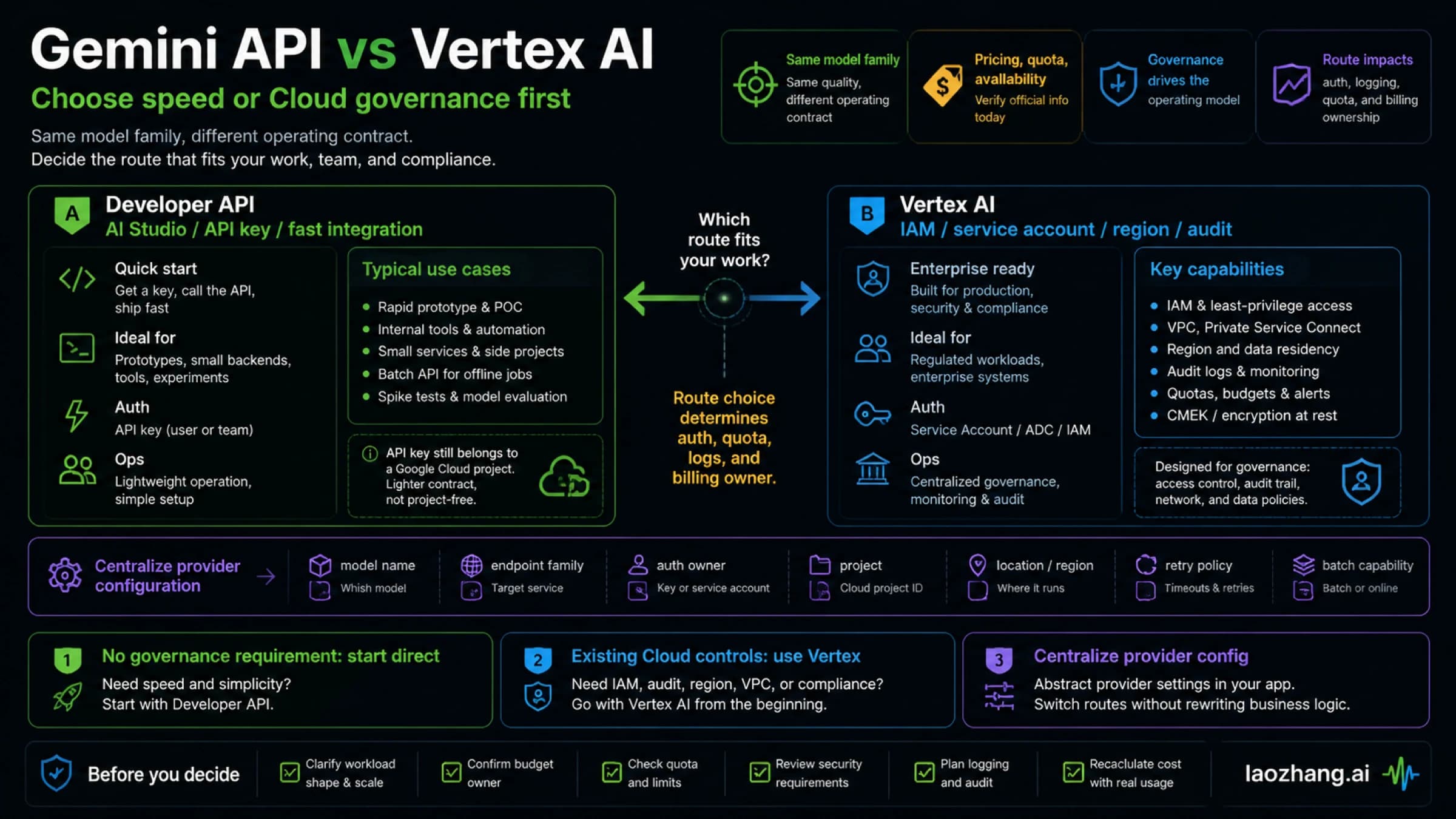
A Google AI Studio API key is the credential your application uses to call the Gemini API. The key itself is free, and a new project starts on the Free tier. As of October 8, 2026, that tier covers the Gemini Flash and Flash-Lite text models, Gemini 2.5 Pro and Gemma 4, while Gemini 3.1 Pro Preview and every image model need a project with billing. The key is not a Gemini app subscription or a separate quota pool: every key belongs to a Google Cloud project, and that project is where permissions, usage, limits and billing meet.
To get one, sign in on the Google AI Studio API Keys page. A new user gets a default project and key after accepting the terms. Before using the key in an application, check three things: the key belongs to a project you control, the secret is outside client code, and one minimal request returns a result you can identify.
Is the Gemini API key free? The key is, but not every model
Creating a Gemini API key costs nothing. What you pay depends on two things: the tier of the project the key belongs to, and the model you call. Google's Gemini API pricing page marks each model as free of charge or "not available" on the Free tier. As of October 8, 2026, it splits like this:
| What you call | Free tier | Needs a billed project |
|---|---|---|
| Text models | Gemini 3.8, 3.7, 3.6 and 3.5 Flash; 3.5 Flash-Lite and 3.1 Flash-Lite; 3 Flash Preview; 2.5 Pro, 2.5 Flash and 2.5 Flash-Lite; Gemma 4 | Gemini 3.1 Pro Preview; Gemini Omni Flash |
| Audio, live and speech models | The Live, Transcribe and Translate models; 3.8 Flash TTS, 3.8 Flash-Lite TTS, 3.1 Flash TTS Preview, 2.5 Flash Preview TTS; 2.5 Flash Native Audio | 2.5 Pro Preview TTS |
| Image models | None | Nano Banana 2.1, Nano Banana 2, Nano Banana 2 Lite, Nano Banana Pro, 2.5 Flash Image |
| Features | Standard requests | Batch, Flex, Grounding with Google Search and Google Maps |
Model names and their free status change often, so treat the pricing page as the live list. Two conditions come with the Free tier. First, the pricing page marks Free-tier usage as used to improve Google's products, while paid-tier usage is not, so keep confidential data off a Free project. Second, the limits are counted per project. Google does not publish a per-model RPM, TPM or RPD table; your active numbers appear on the AI Studio rate-limit page for the selected project. A second key in the same project shares the same limits.
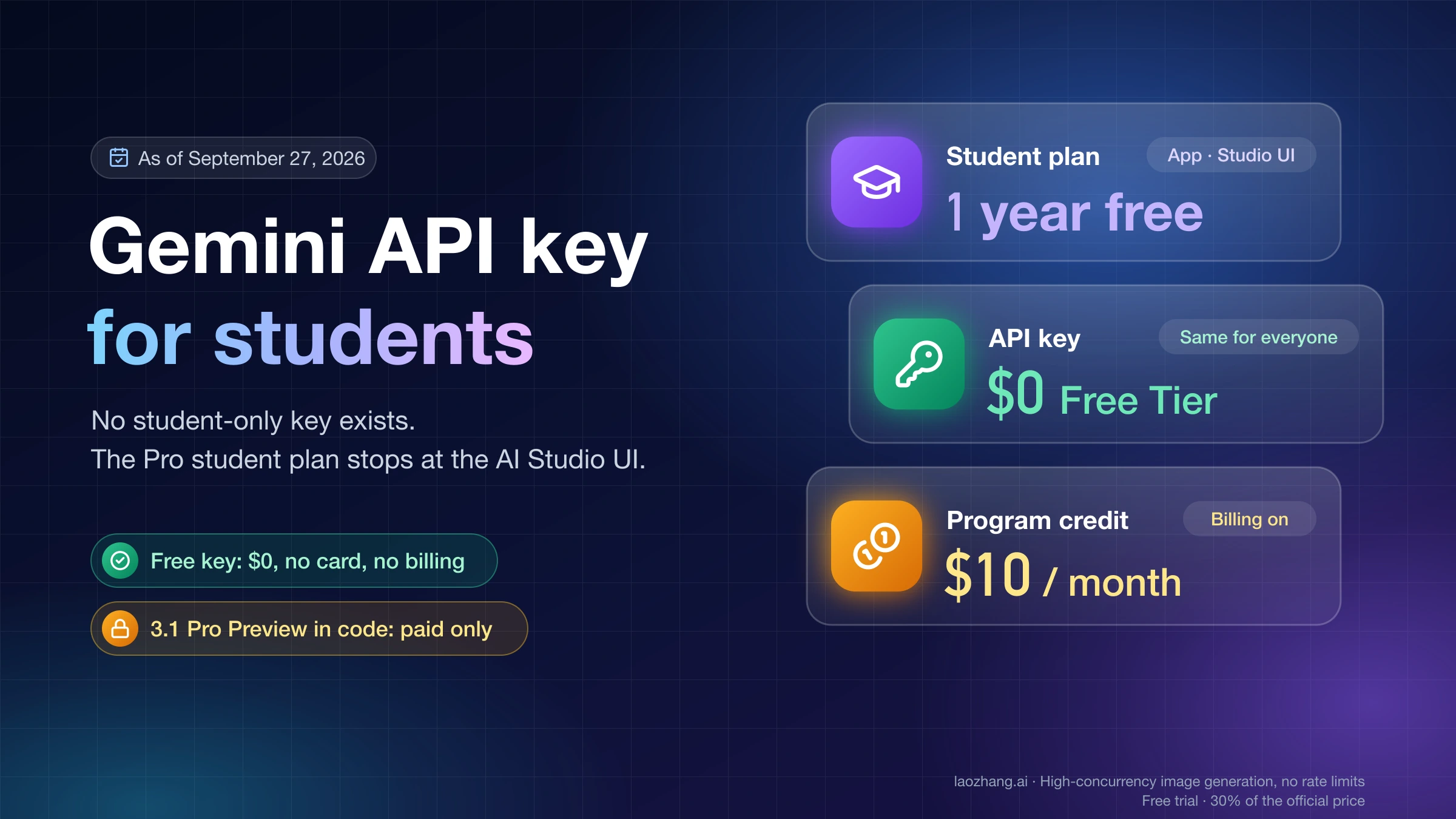
There is no free unlimited Gemini API key from Google. Websites and GitHub proxies that advertise one are third-party services, not the Gemini API Free tier, and your prompts go through their operator. Google's student offer doesn't change this either: it is a free year of Google AI Pro in the Gemini app for eligible US college students aged 18 or older, redeemable until December 31, 2026, and the Gemini student offer page lists app features and storage, not API credit or higher API limits.
For the full list of free models and how the limits behave, see Gemini API Free Tier 2026: Limits, Free Models, and Free API Keys. If you came for image generation, Gemini Image API Free? No Free Tier, but $5 Buys Up to 148 Images covers the paid image route.
Check eligibility before creating anything
Open Google's current AI Studio and Gemini API region list to check availability. As of October 8, 2026, it includes the United States, Japan, South Korea, Spain and Taiwan; Russia, mainland China and Hong Kong are not on it. Google also applies an 18+ requirement and may require age verification. A country appearing on the list does not prove that a particular account, organization policy, or payment method is eligible, but a country missing from the list is a reason to stop the direct route rather than improvise a workaround.
For an eligible US developer, the normal path starts at the Google AI Studio API Keys page. Sign in with the Google account that should own or administer the project. Do not create a production credential under a personal account if an organization is supposed to control billing, access, rotation, and incident response.
Create the key in the right Cloud project
Google's current Gemini API key documentation describes two onboarding states:
- A new AI Studio user gets a default Cloud project and API key after accepting the terms.
- A user who already has Google Cloud projects imports the intended project from Dashboard → Projects, then creates a key from the API Keys page.
Before clicking Create API key, identify the project by name and project ID. The ID matters more than a friendly label when you later compare billing, logs, quota, and deployed configuration. Pick the project whose administrators and billing account match who should pay for and answer for this app. Because rate limits are counted per project, a hobby script and a production service sharing one project also share one set of limits.
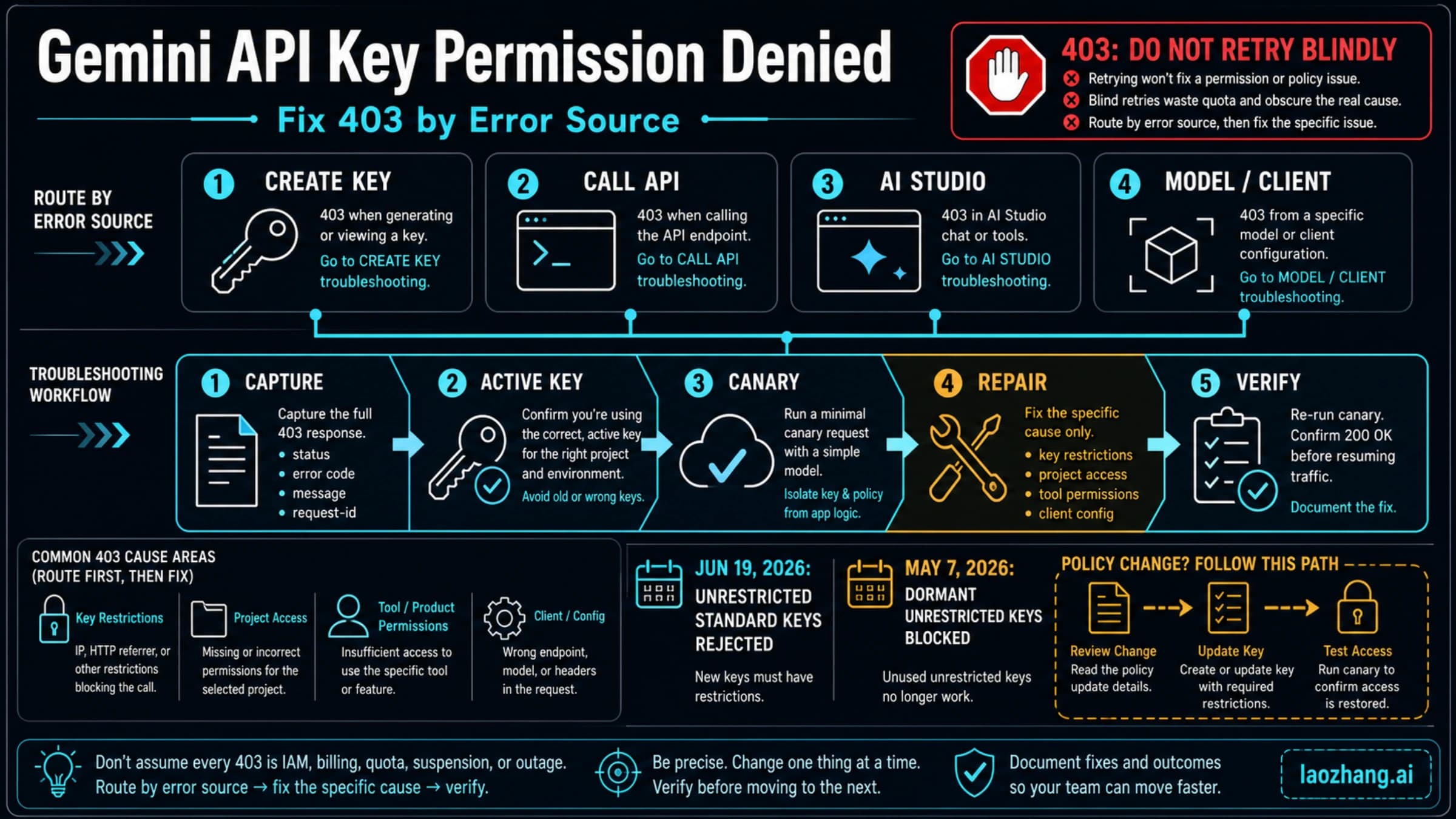
After creation, check the Key Type column. Since May 28, 2026, every new key created in AI Studio is an authorization (auth) key: it is bound to a Google Cloud service account and restricted to the Gemini API by default. The Gemini API rejects requests from unrestricted standard keys. Standard keys that have explicit API restrictions continue to work, and unrestricted keys that sat unused have been blocked since May 7, 2026. If an older standard key stops working, add an API restriction to it in Google Cloud or create a new auth key in AI Studio.
If the button says you do not have permission to create a key, random retries will not help. The project administrator must grant the permissions Google lists: resourcemanager.projects.get, apikeys.keys.create, serviceusage.services.enable, iam.serviceAccounts.create and iam.serviceAccountApiKeyBindings.create. Use a project you are authorized to manage; do not solve an IAM problem by borrowing another person's credential.
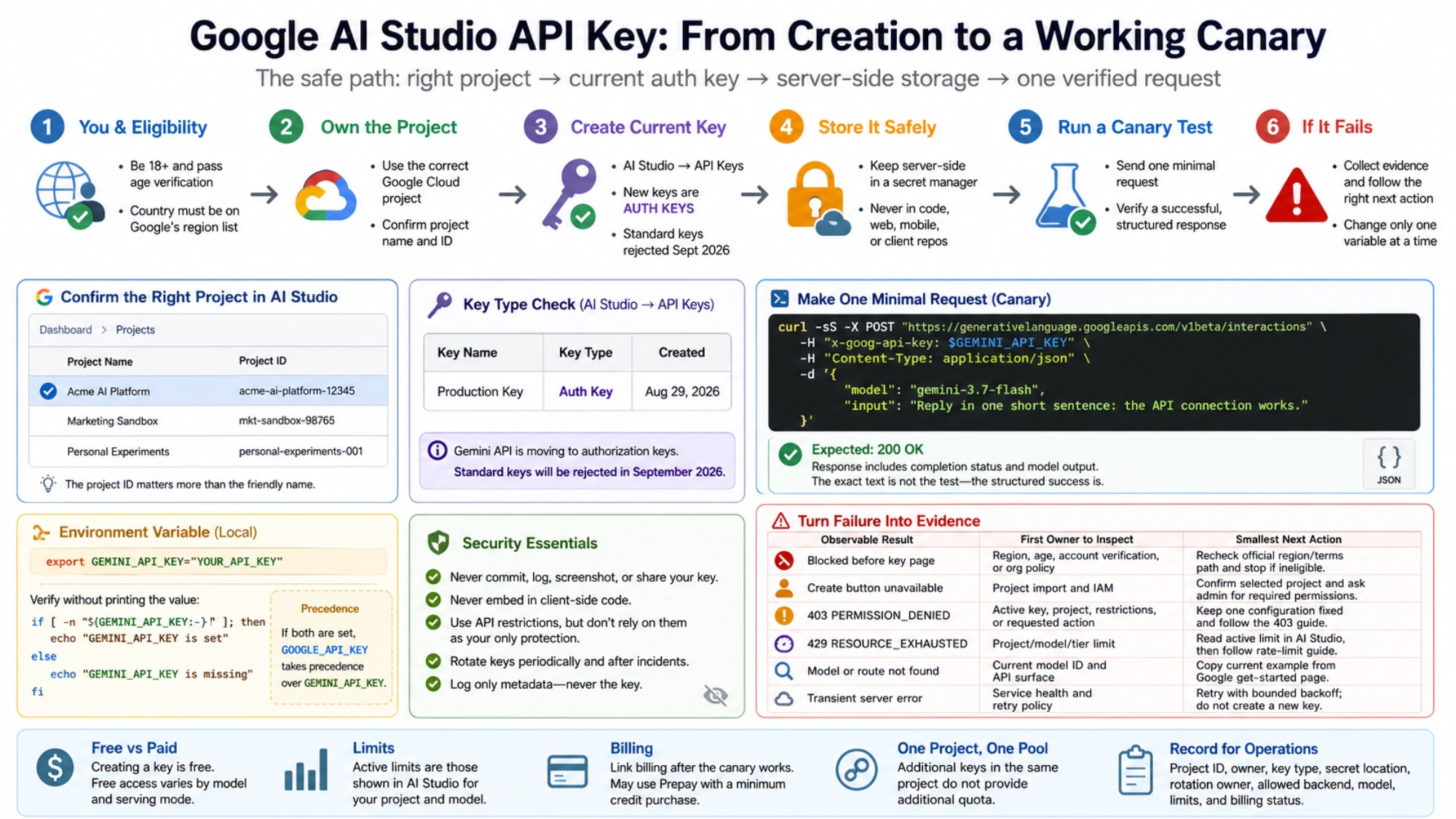
This chart predates the October 8, 2026 update. Its "standard keys rejected in September 2026" note is outdated: unrestricted standard keys are rejected now, restricted ones still work, and the test model in the text is now gemini-3.8-flash.
Put the secret outside your code
Treat the key like a password. Google explicitly warns that a leaked key can consume project quota and create unexpected charges. Never commit it to Git, paste it into an issue, include it in a screenshot, or hardcode it in a production web or mobile bundle.
For a local shell, the current client libraries recognize either GEMINI_API_KEY or GOOGLE_API_KEY. If both are set, GOOGLE_API_KEY takes precedence. That detail can explain why replacing one variable appears to have no effect.
export GEMINI_API_KEY="YOUR_API_KEY"Use this placeholder in documentation; insert the real value only in your own secure environment. For production, keep the credential in a server-side secret manager and have the browser or mobile client call your backend. An API restriction is useful, but it does not make a key embedded in client code private.
You can confirm that the variable exists without printing its value:
if [ -n "${GEMINI_API_KEY:-}" ]; then
  echo "GEMINI_API_KEY is set"
else
  echo "GEMINI_API_KEY is missing"
fi
If the key leaks, follow the order Google gives: create a replacement key, update every application that uses it, disable the compromised key once the replacement works, and audit the project's usage logs for calls you didn't make. Auth keys also come with leaked-key enforcement that quickly stops usage of keys Google's systems detect as leaked, so a key pasted somewhere public may stop working before you notice the leak.
Make one minimal request
As of October 8, 2026, Google's Gemini API get-started guide uses the Interactions endpoint and gemini-3.8-flash. Gemini 3.8 Flash is free of charge on the Free tier, so this test costs nothing on a new project. The request keeps the key in a header expanded from the environment rather than placing it in the URL:
curl -sS -X POST "https://generativelanguage.googleapis.com/v1beta/interactions" \
  -H "x-goog-api-key: $GEMINI_API_KEY" \
  -H "Content-Type: application/json" \
  -d '{
    "model": "gemini-3.8-flash",
    "input": "Reply in one short sentence: the API connection works."
  }'
A working call returns an interaction object with a completion status and model output. The exact prose is not the test. The test is that the request reaches the expected hostname, authenticates with the intended project credential, and returns a successful structured response.
Use a Free-tier model for this first call. If you test with an image model or Gemini 3.1 Pro Preview on a project without billing, the failure tells you about the tier, not about the key. Model names and endpoints change; if Google's quickstart no longer shows this model or endpoint, update the request from that page rather than substituting a model ID from an old tutorial.
Diagnose a failed request
Do not rotate keys, projects, endpoints, and models at the same time. Preserve the HTTP status, sanitized error body, selected project ID, endpoint hostname, model, UTC timestamp, and request ID if one is returned. Never preserve the full key.
| Observable result | What to inspect first | Smallest next action |
|---|---|---|
| AI Studio blocks access before the key page | Region, age, account verification, or organization policy | Recheck the official region/terms path and stop if the direct route is ineligible. |
| Create button is unavailable | Project import and IAM | Confirm the selected project and ask its administrator for the required permissions. |
| An older key is rejected while a new one works | Key Type column: an unrestricted standard key | Add an API restriction to the standard key, or switch to a new auth key. |
| A key that worked suddenly stops | Leaked-key enforcement, deletion, or restriction changes | Check whether the key was exposed, then replace it and audit usage. |
403 PERMISSION_DENIED | Active key, project, restrictions, or requested action | Keep one configuration fixed and follow the Gemini API 403 guide. |
429 RESOURCE_EXHAUSTED on a text model | Project/model/tier limit | Read the active limit in AI Studio, then use the rate-limit guide. |
429 on an image model | Free-tier project with no image quota, or a paid-tier cap | Link billing or check the cap; see Gemini Image 429 Rate Limit: How Long It Lasts and How to Fix It. |
| Model or route is not found | Current model ID and endpoint | Copy the current example from Google's get-started page and repeat once. |
| A transient server error | Service health and retry policy | Retry with bounded exponential backoff; do not create a new key. |
These checks distinguish credential problems from usage limits. A successful key can still hit a model-specific limit; a paid project can still use the wrong credential; a visible model can still require a billed project or a different serving route.
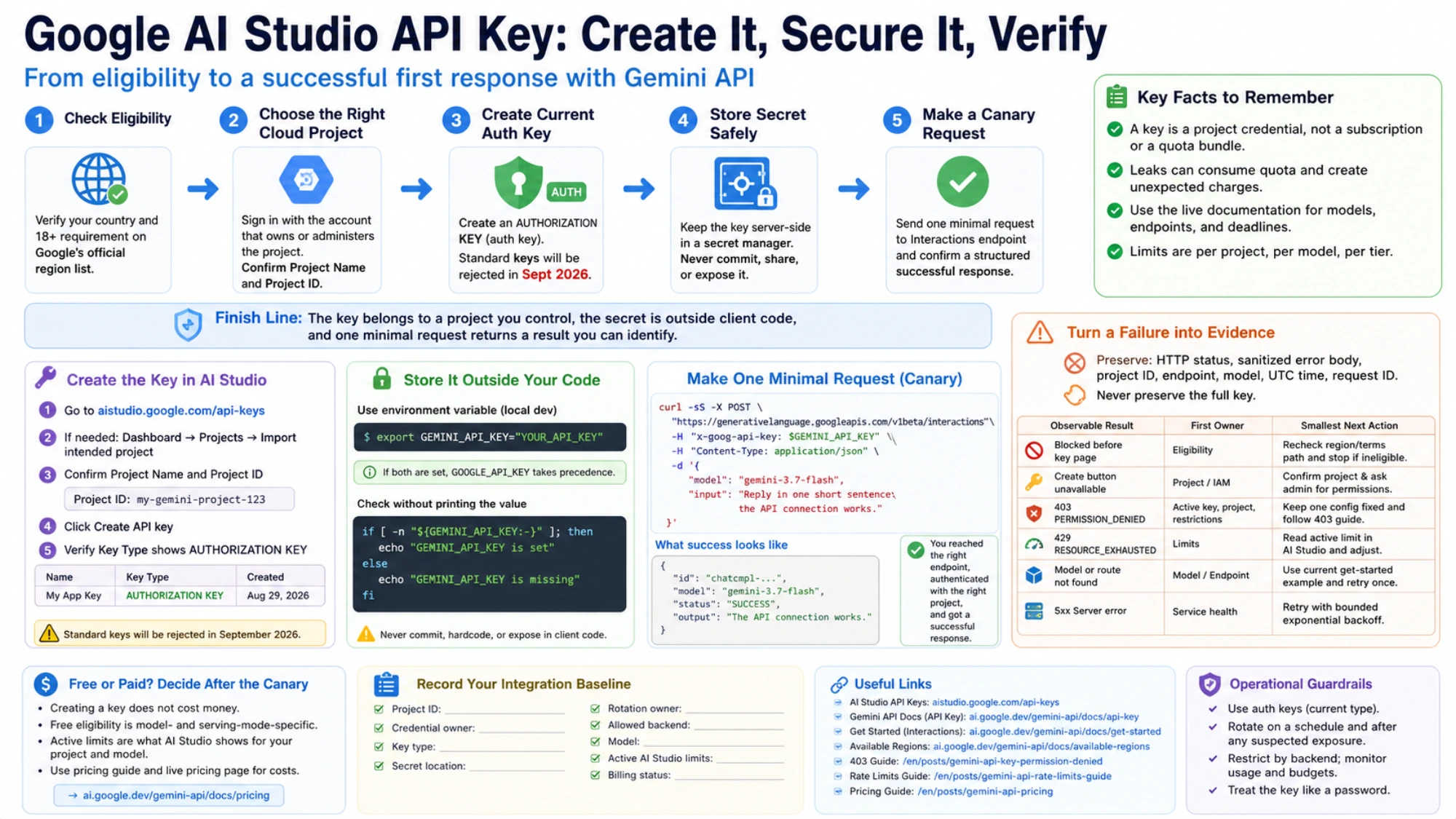
This chart predates the October 8, 2026 update. Its "standard keys will be rejected in September 2026" warning is outdated; the text above describes the current key rules and test model.
Decide whether Free or Paid fits after the test request
Creating a key does not cost money, and calls to Free-tier models stay free within your project's limits. Decide on billing only after the test request works, and only if the workload needs a paid model, Batch or Flex, Grounding with Google Search, higher limits, or paid-tier data handling.
To leave the Free tier, set up billing in AI Studio and link an active billing account to the project. That moves it to Tier 1, which Google says typically takes effect instantly; later upgrades take effect within 10 minutes. Google's Gemini API rate limits documentation lists the tiers as of October 8, 2026:
| Tier | How you qualify | Monthly spend cap | Spend cap per 10 minutes |
|---|---|---|---|
| Free | Active project or free trial | Not applicable | Not applicable |
| Tier 1 | Active billing account linked | $250 | $10 |
| Tier 2 | $100 paid and 3 days since the first successful payment | $2,000 | $50 |
| Tier 3 | $1,000 paid and 30 days since the first successful payment | $20,000–$100,000+ | $200 |
You can see which tier each project is on from the Projects page in AI Studio. On the paid tier, Gemini 3.8 Flash costs $0.75 per 1M input tokens and $3.75 per 1M output tokens through December 31, 2026, rising to $1.50 and $7.50 from January 1, 2027. For other models and account-level decisions, use the Gemini API pricing guide and the live Gemini API pricing page. A second key in the same project is not a second quota pool.
Before production, record the project ID, credential owner, key type, secret location, rotation owner, allowed backend, selected model, active AI Studio limits, and billing tier. Keep that record with your deployment notes so you can investigate access and billing problems later.
Sources8
External pages this guide links to, in the order they appear. Last updated Oct 8, 2026.
Sources8
External pages this guide links to, in the order they appear. Last updated Oct 8, 2026.
- 1.Google AI Studio API Keys pageaistudio.google.com/apikey
- 2.Gemini API pricing pageai.google.dev/gemini-api/docs/pricing
- 3.AI Studio rate-limit pageaistudio.google.com/rate-limit
- 4.Gemini student offer pagegemini.google/us/students
- 5.AI Studio and Gemini API region listai.google.dev/gemini-api/docs/available-regions
- 6.Gemini API key documentationai.google.dev/gemini-api/docs/api-key
- 7.Gemini API get-started guideai.google.dev/gemini-api/docs/get-started
- 8.Gemini API rate limits documentationai.google.dev/gemini-api/docs/rate-limits