Claude Code LSP: Plugin Setup and Fixes When Nothing Happens
Claude Code LSP is a code intelligence plugin plus a language server binary you install yourself. No flag. Install both, then check for the diagnostics line.
On this page
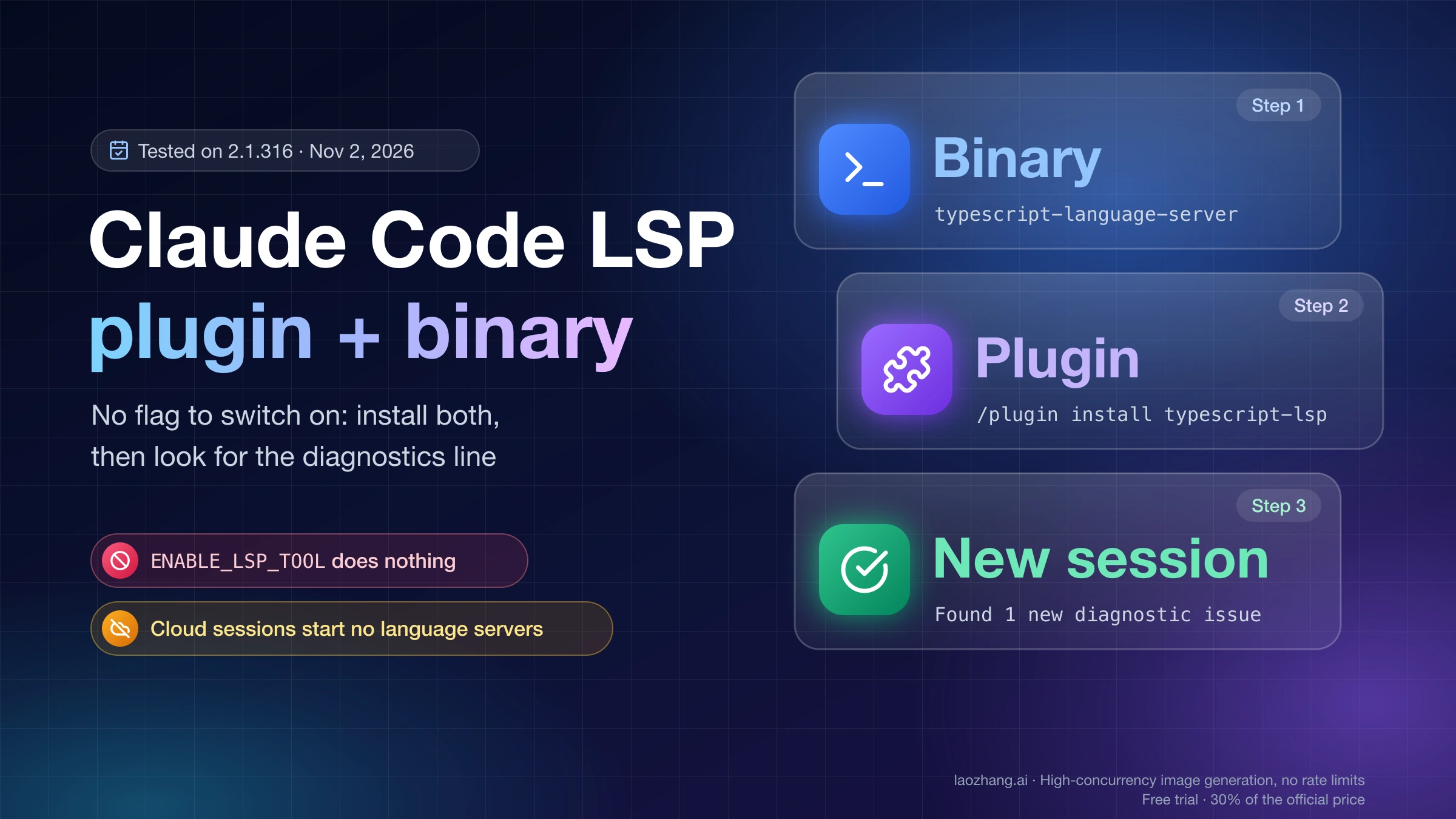
LSP in Claude Code is not a setting you switch on. It is an official code intelligence plugin, one per language, that tells Claude Code which language server to start, and the language server binary itself, which you install on your machine. Install the binary first (for TypeScript, npm install -g typescript-language-server typescript), then start claude and run /plugin install typescript-lsp@claude-plugins-official, swapping in the plugin name for your language, such as pyright-lsp for Python or gopls-lsp for Go. Start a new session and ask Claude to introduce a type error. A line reading Found 1 new diagnostic issue in 1 file (ctrl+o to expand) means it works.
What you get is two separate things. After every edit, the language server's type errors are pushed to Claude automatically. Claude also gets a read-only LSP tool for go-to-definition, references and types, which it may or may not choose to call. The old ENABLE_LSP_TOOL setting from early-2026 tutorials does nothing on current versions.
Two cases break the simple path. On a machine where you have never opened an interactive Claude Code session, the official marketplace may not be registered yet, so the install fails with not found in marketplace until you run /plugin marketplace add anthropics/claude-plugins-official. And in cloud sessions, including claude --cloud, Claude Code starts no language servers at all. The test outputs quoted below come from Claude Code 2.1.316 on macOS on November 2, 2026, with a separate config directory and a local mock endpoint standing in for the model, so every request Claude Code would have sent was captured and no real model was called.
What Claude Code LSP gives you: diagnostics after edits and an LSP tool
A code intelligence plugin connects Claude Code to one language's server through the Language Server Protocol, and Anthropic's code intelligence plugins page describes two gains. The first is diagnostics: each time Claude edits or writes a file the server handles, it receives the type errors, missing imports and syntax errors it just introduced, without running a compiler. The second is navigation: an LSP tool that looks up symbols through the server instead of searching text.
The two behave very differently in practice. Diagnostics need nothing from Claude; they arrive on their own. The navigation tool is optional, and in the November 2 test it was not even in Claude's tool list at the start of a session. After Claude first wrote or read a .ts file, Claude Code added a notice saying the LSP tool was available through tool search, and Claude had to load it before calling it. That is one reason a session can have LSP installed and still never use it for navigation.
In the test project, the tool's operations were goToDefinition, findReferences, hover, documentSymbol, workspaceSymbol, goToImplementation, prepareCallHierarchy, incomingCalls and outgoingCalls, each taking a file path plus a 1-based line and character. Once the server was warm, findReferences on a function used in three files returned Found 5 references across 3 files, and hover returned the full signature (alias) priceWithTax(amount: number, rate: number): number. The tool is read-only, needs no permission prompt, and respects your Read(...) path rules, according to the Claude Code tools reference.
Which plugin and language server binary for your language
The official marketplace lists 13 code intelligence plugins as of November 2, 2026. Pick your language's row, install the binary with one of the commands from that plugin's README, then install the plugin by name. Anthropic maintains every plugin in the table except liquid-lsp, which Shopify maintains.
| Language | Plugin to install | Binary that must be on PATH | Install command from the plugin README |
|---|---|---|---|
| TypeScript, JavaScript | typescript-lsp | typescript-language-server | npm install -g typescript-language-server typescript |
| Python | pyright-lsp | pyright-langserver | npm install -g pyright, pip install pyright or pipx install pyright |
| Go | gopls-lsp | gopls | go install golang.org/x/tools/gopls@latest |
| Rust | rust-analyzer-lsp | rust-analyzer | rustup component add rust-analyzer (also brew, apt, pacman) |
| C, C++ | clangd-lsp | clangd | brew install llvm, sudo apt install clangd or winget install LLVM.LLVM |
| C# | csharp-lsp | csharp-ls | dotnet tool install --global csharp-ls (needs .NET SDK 6.0 or later) |
| Java | jdtls-lsp | jdtls | brew install jdtls (needs a Java 17+ JDK; on Linux, mostly a manual install with a jdtls wrapper on PATH) |
| Kotlin | kotlin-lsp | kotlin-lsp | brew install JetBrains/utils/kotlin-lsp |
| PHP | php-lsp | intelephense | npm install -g intelephense |
| Ruby | ruby-lsp | ruby-lsp | gem install ruby-lsp |
| Lua | lua-lsp | lua-language-server | brew install lua-language-server (also snap, pacman, dnf) |
| Swift | swift-lsp | sourcekit-lsp | Ships with the Swift toolchain: Xcode, or brew install swift; on Linux, from swift.org |
| Liquid (Shopify) | liquid-lsp | shopify | Install the Shopify CLI |
The plugin folder itself holds only a README and a license. The server command and file extensions live in the marketplace entry: for TypeScript, typescript-language-server --stdio on .ts, .tsx, .js, .jsx, .mts, .cts, .mjs and .cjs. The Java and Kotlin entries allow 120 seconds for startup, which tells you those servers are slow to come up on a real project. The November 2 tests installed only the TypeScript server; the other install commands are quoted from each plugin's README.
How to install Claude Code LSP: binary, plugin, new session
The order matters because the plugin only tells Claude Code what to launch. If the binary is not there when the server is first needed, nothing visible happens. These steps are for the terminal; the VS Code extension and the desktop app install plugins through their own plugin screen. If Claude Code itself is not set up yet, start with How to Install Claude Code: Complete Setup Guide for Every Platform (2026).
-
Install the language server binary from the table above.
-
In the same shell you will start Claude Code from, confirm the binary is on your PATH:
which typescript-language-serveron macOS or Linux, orGet-Command typescript-language-serverin PowerShell. -
Start
claudeand run the install with your language's plugin name:/plugin install typescript-lsp@claude-plugins-official -
Read the confirmation. If it says the plugin needs a restart or
/reload-plugins, start a new session. A plain/reload-pluginswon't load it: when the reload would add theLSPtool, Claude Code printsThis reload adds the LSP tooland asks for/reload-plugins --force, which makes your next message re-read the whole conversation instead of using the prompt cache, as explained in Claude Code Cache TTL and Token Usage: Why Cache Misses Get Expensive and How to Prove It. -
Ask Claude to add a deliberate type error to a file of that language, then fix it. The diagnostics line should appear, as described in the verification section below.
If the binary is installed later, Claude Code retries the next time Claude edits a matching file. If it was installed into a directory that your current shell's PATH does not include, start a new session from a shell where it is. How the /plugin install panels work is covered in more depth in Best Claude Code Skills to Use First: Picks by Workflow.
Do you still need ENABLE_LSP_TOOL? No, the plugin turns LSP on
You can delete ENABLE_LSP_TOOL from your settings. On Claude Code 2.1.316, tested November 2, 2026, the variable changed nothing in either direction: with the TypeScript plugin enabled and ENABLE_LSP_TOOL=0, the LSP tool was still offered and diagnostics still arrived; with the plugin disabled and ENABLE_LSP_TOOL=1, there was no LSP tool and the debug log reported Total LSP servers loaded: 0. The variable is not listed in Anthropic's environment variable reference.
The flag dates from before LSP was documented. Claude Code added the LSP tool in version 2.0.74 on December 19, 2025, and tutorials from early 2026 told readers to add "ENABLE_LSP_TOOL": "1" under env; karanbansal.in's guide from February 28, 2026 still describes it as an undocumented community workaround. Scott Spence, whose March 2026 post gave the same advice, wrote in his October 10, 2026 follow-up on LSP in Claude Code that he removed it and LSP still loaded on 2.1.296.
Fix "Plugin not found in marketplace claude-plugins-official"
This error means the official marketplace is not registered on your machine yet. On a fresh Claude Code 2.1.316 config on November 2, 2026, the shell command claude plugin install typescript-lsp@claude-plugins-official failed with:
Plugin "typescript-lsp" not found in marketplace "claude-plugins-official". Your local copy may be out of date — try `claude plugin marketplace update claude-plugins-official`.The suggested update did not help. It failed with Marketplace 'claude-plugins-official' not found. Available marketplaces: anthropic-plugin-directory, because there was no local copy to update. What worked was adding the marketplace, after which the same install succeeded with typescript-lsp@claude-plugins-official (scope: user):
claude plugin marketplace add anthropics/claude-plugins-official
claude plugin install typescript-lsp@claude-plugins-official
Inside a session the equivalent is /plugin marketplace add anthropics/claude-plugins-official, which prints Successfully added marketplace: claude-plugins-official. According to Anthropic's plugin troubleshooting page, Claude Code normally registers this marketplace the first time you start an interactive terminal session, and the claude plugin shell commands never do it for you. So you are most likely to hit this if you have only used the VS Code extension, if you script installs on a new machine, if CLAUDE_CODE_DISABLE_OFFICIAL_MARKETPLACE_AUTOINSTALL is set, or if a policy blocks the source. Inside a session, the same cause shows up as Marketplace "claude-plugins-official" not found.
How to tell Claude Code LSP is working: the diagnostics line
The proof is the line Found N new diagnostic issues in M files (ctrl+o to expand) in the conversation after Claude edits a file with an error in it. Press Ctrl+O to read the errors themselves. If no line appears, open /plugin and check the Errors tab; a row like Executable not found in $PATH: "typescript-language-server" names the binary to install.
Where the line shows up can be confusing. Anthropic's docs say it appears under the edit that introduced the error, but in the November 2 interactive test it appeared one row later, under the next tool call ("Ran 1 shell command"), because diagnostics are delivered asynchronously. In that test the server answered its startup handshake in 69 ms and reported the error about 0.58 seconds after the file was opened, on a three-file project.
The request captures show what Claude actually receives. The diagnostics were not part of the result of the Write tool call. They came in on the next turn as a separate system block:
<new-diagnostics>The following new diagnostic issues were detected:

checkout.ts:
  ✘ [Line 3:43] Argument of type 'string' is not assignable to parameter of type 'number'. [2345] (typescript)</new-diagnostics>
After Claude fixed the error, the server reported zero issues and Claude Code sent nothing at all. There is no "resolved" message, so a fix looks exactly like a server that never reported anything, and silence is not proof that the file is clean. Scott Spence reported on October 10, 2026 that in two short sessions where the edit was the last thing that happened, the type error was never reported, and in a longer session it arrived about 30 seconds later. Files changed through shell commands, such as a Bash append, git checkout or a formatter, can also go unreported, according to the same post and the open issue it cites. If Claude's last action was an edit, or files changed outside Claude's own edit tools, no diagnostics does not mean the code type-checks.
LSP plugin installed but nothing happens: symptom, cause and fix
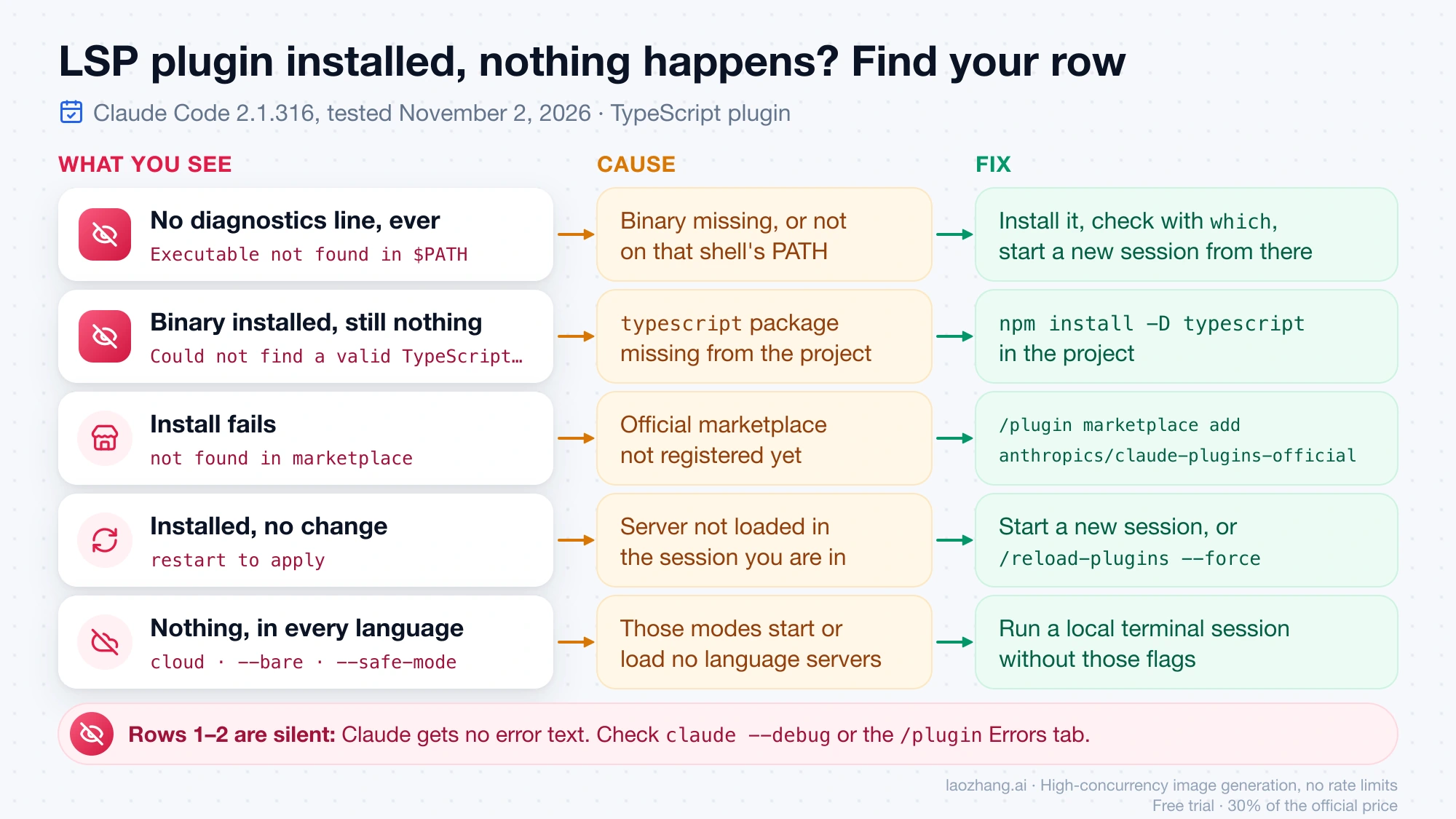
Most "LSP plugin not working" cases fall into one of these branches. Start from what you can see, because Claude itself is usually not told that anything failed.
| Symptom | Where you see it | Cause | Fix |
|---|---|---|---|
No diagnostics line ever, Executable not found in $PATH: "typescript-language-server" | /plugin Errors tab, or claude --debug log | Binary not installed, or not on the PATH of the shell that started claude | Install the binary, check with which, start a new session from that shell |
TypeScript only: binary installed, still no diagnostics, Could not find a valid TypeScript installation | claude --debug log | The typescript package is missing from the project, so the server quits during startup | Run npm install -D typescript in the project, or use the README's global command that installs both packages |
Install fails with not found in marketplace | Install output | Official marketplace not registered | Add it, as in the marketplace section above |
typescript-lsp installed · restart to apply and no change | After installing | The server is not loaded in the session you are in | Start a new session, or run /reload-plugins --force; a plain /reload-plugins stops at This reload adds the LSP tool without loading it, and the forced reload makes your next message re-read the whole conversation instead of using the cache |
An LSP call returns server is starting | The tool result in the transcript | Claude asked before the server finished starting. In the November 2 run every operation fired straight after the first edit failed this way; the mock answered in milliseconds, faster than a real model calls, but it shows the window exists right after the first edit | Ask again a few seconds later |
No diagnostics line and no LSP tool, in that language only | /plugin or claude plugin list shows the plugin as disabled | The plugin was disabled, for example after switching to a copy for the syntax-server workaround or running /plugin disable to save memory; on November 2, a disabled plugin meant Total LSP servers loaded: 0 and no recommendation dialog either | Run /plugin enable typescript-lsp@claude-plugins-official (or claude plugin enable typescript-lsp@claude-plugins-official in the shell), then start a new session |
First findReferences returns Found 1 reference, the definition itself | The tool result | The project has not finished loading, and a partial answer comes back | Retry, or for TypeScript turn off the syntax server (next section) |
No LSP server available for file type: .svelte | The tool result | No installed plugin handles that extension | Write your own .lsp.json (see the custom language section) |
| No diagnostics after Claude's last edit | The conversation | Diagnostics arrive on a later turn, and a fresh server may still be loading | Run your type check before calling the work done |
| References miss a change Claude made through a shell command | The tool result | Per Scott Spence's October 10, 2026 tests, edits from Claude's own tools reach the server but appends made from the shell can be missed | Confirm with grep before deleting code or changing a signature |
| Unresolved imports for your own packages in a monorepo | The diagnostics | The server is not configured for that workspace layout | Fix the server's own config; Anthropic says nothing needs fixing on the Claude Code side, and these errors don't block edits |
| Nothing at all, in every language | Cloud session, or --safe-mode, CLAUDE_CODE_SAFE_MODE=1 or --bare | Cloud sessions start no language servers, and safe mode and --bare skip them | Run a local terminal session without those flags |
The first two rows are the dangerous ones, because Claude gets no error text in either case. In the November 2 tests, with the binary missing and again with the typescript package missing, Claude was still told that the LSP tool was available, received no diagnostics, and saw nothing explaining why. The failure was visible only in the claude --debug log, as LSP server plugin:typescript-lsp:typescript failed to start or initialize failed. Anthropic's docs say the binary-missing case also appears in the /plugin Errors tab. Claude won't tell you LSP is broken, so check these places yourself after you install a plugin.
First findReferences returns 1 reference: turn off the syntax server
If Claude's first findReferences call in a session returns one reference, and that reference is the definition itself, you are hitting a known problem with how Claude Code queries a server that is still loading the project. Scott Spence documented it on October 10, 2026: the first call of a fresh session returned Found 1 reference in 18 of 19 sessions and in all 13 timed ones, before correct answers on retries, and he notes that an open Claude Code issue tracks it, with the same pattern reported for Python servers. In his runs, Claude took that one wrong answer and built its reply from grep instead.
The November 2 test reproduced it on a three-file project. Each session started by reading src/price.ts, then called findReferences on the same function three times. With the official typescript-lsp plugin, the first call returned only src/price.ts:1:17 in 3 of 3 sessions, against a true answer of 5 references across 3 files. The full sequences were 1, 5, 5; then 1, 1, 1; then 1, 1, 5.
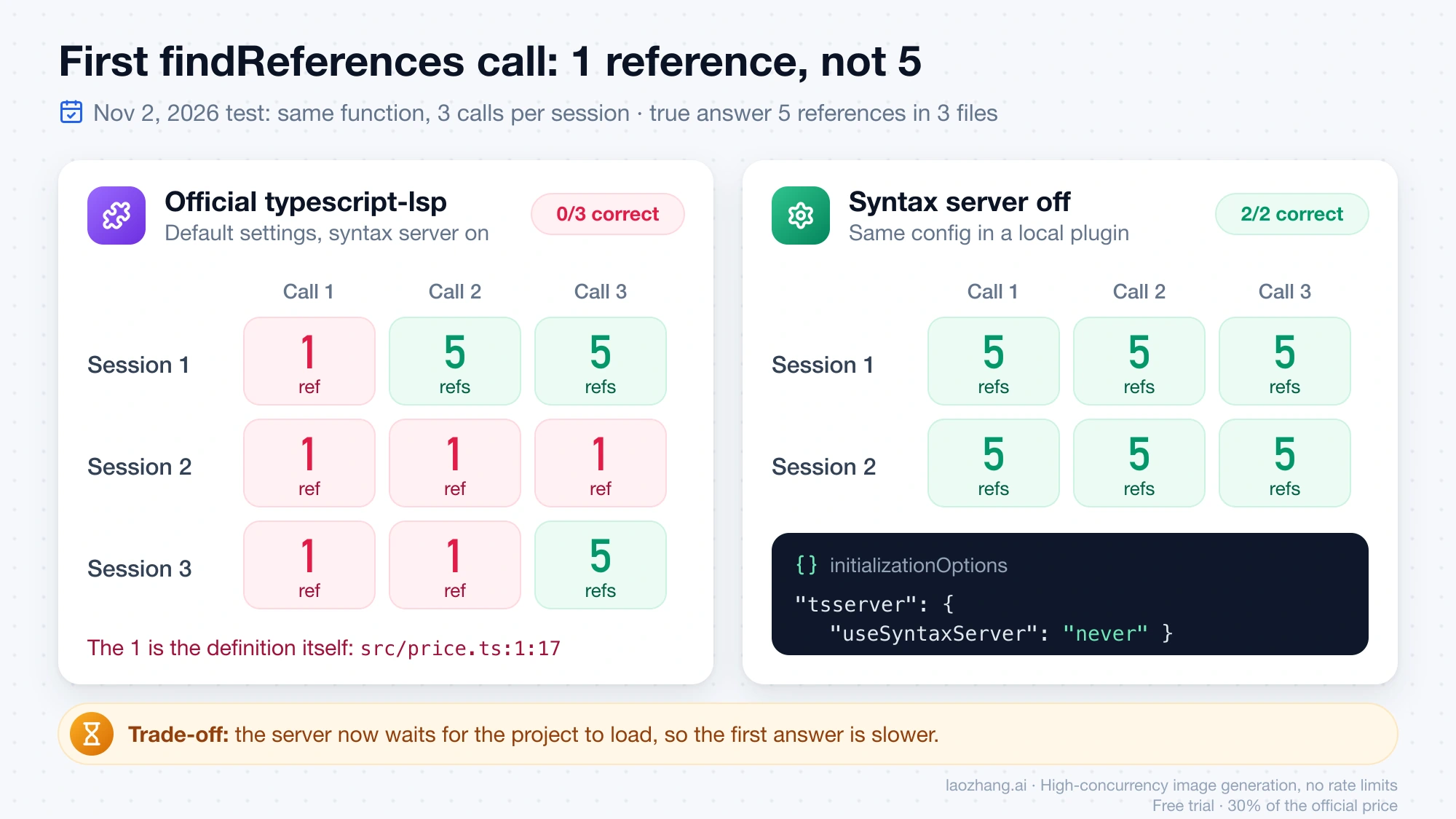
For TypeScript the cause is the lightweight syntax server that typescript-language-server runs while the project loads, which only knows the file it was asked about. Scott's workaround turns it off with one initializationOptions block added to the official server config:
{
  "typescript": {
    "command": "typescript-language-server",
    "args": ["--stdio"],
    "extensionToLanguage": {
      ".ts": "typescript",
      ".tsx": "typescriptreact",
      ".js": "javascript",
      ".jsx": "javascriptreact",
      ".mts": "typescript",
      ".cts": "typescript",
      ".mjs": "javascript",
      ".cjs": "javascript"
    },
    "initializationOptions": {
      "tsserver": { "useSyntaxServer": "never" }
    }
  }
}
There are two ways to apply it. You can find typescript under lspServers in ~/.claude/plugins/marketplaces/claude-plugins-official/.claude-plugin/marketplace.json and add the block there, but a marketplace update can overwrite that file. Or you can put the config in a separate plugin's .lsp.json and disable the official one with /plugin disable typescript-lsp@claude-plugins-official, which is what Scott did, publishing his copy as typescript-lsp@svelte-skills-kit. On November 2, the same config in a local plugin loaded with --plugin-dir, with the official plugin disabled, returned 5, 5, 5 in both sessions. Scott reported 12 of 12 correct first calls, memory dropping from about 935 MB across 4 processes to about 725 MB across 3, and a slower first answer, about 2 seconds on his project, because the server now waits for the project to load. On a large repository, expect that wait to be longer. He also checked that type errors after an edit still arrive with the option on.
Will Claude use LSP or grep? A CLAUDE.md rule decides most of it
Installing the plugin does not make Claude prefer the LSP tool over grep. In Scott Spence's October 10, 2026 tests, with an explicit CLAUDE.md rule Claude used LSP in 12 of 12 symbol questions; without the rule it used it in about half and never for a refactor. His session history from late February to April showed 32 LSP calls in 15 of about 650 sessions.
His conclusion after 54 more sessions was that grep was right every time on where-is-this-used questions, and was faster, while hover was useful for exact types and diagnostics were the real reason to keep the plugin. He changed his CLAUDE.md to use grep for references, LSP hover for types, and to never treat a findReferences result as the full list. If you want a rule like that, Claude Code Hooks vs Skills vs Slash Commands: What to Use and How to Start covers where such instructions belong. LSP is a different kind of plugin component from an MCP server; for which MCP servers to add first, see Best Claude Code MCP Servers to Install First (2026): Starter Picks by Workflow.
The "LSP plugin recommendation" dialog: what each choice does
Claude Code shows the LSP plugin recommendation dialog after Claude edits a file when a language server binary for that file type is already on your PATH and the matching plugin is not installed. It appears at most once per session, prefers the official marketplace's plugin, and never appears in cloud sessions. In the November 2 test it named Plugin: typescript-lsp, Marketplace: claude-plugins-official and Triggered by: .ts files. With the plugin installed but disabled, no dialog appeared, so disabling a plugin is enough to stop the prompt for that language.
| Choice | What happens | How to undo it |
|---|---|---|
| Yes, install | Installs the plugin for your user account and prints typescript-lsp installed · restart to apply; start a new session to load the server | /plugin disable or uninstall the plugin |
| No, not now (or Esc) | Closes the dialog; a later session can offer it again | Nothing to undo |
| Never for this plugin | Stops offering this plugin; other languages are still offered | Remove its name@marketplace id from lspRecommendationNeverPlugins in ~/.claude.json |
| Disable all LSP recommendations | Stops the dialog for every language | Remove lspRecommendationDisabled and lspRecommendationIgnoredCount from ~/.claude.json |
If you don't answer within 30 seconds, Claude Code closes the dialog and counts it as ignored, and the count carries across sessions. After five ignored dialogs, recommendations stop exactly as if you had chosen Disable all LSP recommendations, which is why some people stop seeing it without remembering a choice. If you want code intelligence for that language and memory is not a concern, Yes, install is the right answer. If the project is large and you want Claude to rely on its built-in search, Never for this plugin keeps the choice to that one language.
Add a language without an official plugin using .lsp.json
Any language server that speaks stdio can be connected with a small plugin of your own. Anthropic documents the format in the plugins reference for lspServers. The November 2 test used yaml-language-server for .yaml and .yml files.
-
Install the language server binary and make sure it is on your PATH.
-
Create a plugin folder, for example
yaml-lsp-local, with.claude-plugin/plugin.jsoncontaining{ "name": "yaml-lsp-local", "version": "0.1.0", "description": "yaml-language-server for .yaml/.yml" }. -
Add
.lsp.jsonat the plugin root:{ "yaml": { "command": "yaml-language-server", "args": ["--stdio"], "extensionToLanguage": { ".yaml": "yaml", ".yml": "yaml" } } } -
Load it for one session with
claude --plugin-dir ./yaml-lsp-local, or publish it to a marketplace. -
Start that session with
--debugas well and look forLoaded 1 LSP server(s) from plugin: yaml-lsp-localin the debug log.
Step 5 matters because claude plugin validate does not check .lsp.json. In the test it printed "Validation passed with warnings" for the correct file and also for three broken ones: an unknown key extensions, a command containing a space, and an extension key without the leading dot. The unknown-key file only failed when the plugin loaded, with LSP config validation failed for .lsp.json in plugin yaml-lsp-local and Unrecognized key: "extensions" in the debug log, and that server was simply not started.
The rules the validator skips are strict. The two required fields are command, which may not contain spaces unless it starts with / (arguments go in args), and extensionToLanguage, whose keys must start with a dot. Any unknown key fails. The optional fields include initializationOptions, settings, env, startupTimeout, requestTimeout (60,000 ms by default since v2.1.288), restartOnCrash and diagnostics, which you can set to false to keep navigation but stop pushed diagnostics. A third-party LSP plugin runs whatever command its config names on your machine, so read its config before installing; Claude Code Mods: How to Install, Vet, and Build One (v2.1.287+) explains how to vet a plugin.
When to turn Claude Code LSP off: memory and large projects
Turn a plugin off when its server costs more than the diagnostics are worth, which mostly means memory on large projects. Anthropic's troubleshooting page names rust-analyzer and pyright as servers that index the whole project, and its advice is to run /plugin disable with the plugin's name, such as /plugin disable pyright-lsp@claude-plugins-official, and rely on Claude's built-in search. Disabling keeps the plugin installed, so you can turn it back on per project.
The scale of the cost depends on the project. Scott Spence measured about 935 MB across 4 processes for the TypeScript server on his SvelteKit site with default settings. If you only want navigation and not the pushed errors, set "diagnostics": false in a custom config instead of disabling the server. For scripted claude -p runs, --bare skips LSP along with hooks and plugin sync, and safe mode (--safe-mode) skips language servers when you are tracking down a broken configuration.
Claude Code LSP in VS Code and cloud sessions
If you use Claude Code through the VS Code extension, you still need the plugin to get the LSP tool and diagnostics pushed after each edit. What VS Code gives Claude without it is different: according to Anthropic's VS Code integration docs, Claude can read the editor's Problems panel through a built-in diagnostics tool, mcp__ide__getDiagnostics for the integrated CLI or mcp__claude-vscode__getDiagnostics in the chat panel since v2.1.285. That is your editor's language server, read when Claude asks, not the plugin's automatic check after every edit. Install the plugin from the extension's plugin screen rather than with the terminal command.
Cloud sessions don't run language servers at all, so plugin diagnostics and the LSP tool are unavailable there and the recommendation dialog never appears; Claude Code Web Interface: What Exists Now and Which Route to Use explains which sessions run on your machine and which run in the cloud.
Claude Code LSP: other questions
Does Claude Code LSP work on Windows?
Yes, according to Anthropic's code intelligence docs. Install the binary, confirm it with Get-Command typescript-language-server in PowerShell, and start Claude Code from that same shell. Claude Code 2.1.74, released March 12, 2026, fixed LSP failing on Windows because of malformed file URIs, so if you tried it on Windows before then and gave up, update and try again.
Which Claude Code version do I need for LSP?
The LSP tool arrived in Claude Code 2.0.74 on December 19, 2025, but several later versions changed its behavior: 2.1.0 (January 7, 2026) stopped LSP from being enabled with no servers configured, 2.1.162 (June 3, 2026) made workspaceSymbol take a query, and 2.1.288 (October 2, 2026) added the 60-second request timeout. Version 2.1.316 was current as of November 2, 2026, so update to the latest release before troubleshooting.
Sources7
External pages this guide links to, in the order they appear. Last updated Nov 2, 2026.
Sources7
External pages this guide links to, in the order they appear. Last updated Nov 2, 2026.
- 1.code intelligence plugins pagecode.claude.com/docs/en/plugins/code-intelligence
- 2.Claude Code tools referencecode.claude.com/docs/en/tools-reference
- 3.karanbansal.in's guide from February 28, 2026karanbansal.in/blog/claude-code-lsp
- 4.October 10, 2026 follow-up on LSP in Claude Codescottspence.com/posts/revisiting-lsp-in-claude-code
- 5.plugin troubleshooting pagecode.claude.com/docs/en/plugins/troubleshooting
- 6.plugins reference for lspServerscode.claude.com/docs/en/plugins-reference
- 7.VS Code integration docscode.claude.com/docs/en/vs-code