How to Install Claude Code: Complete Setup Guide for Every Platform (2026)
Claude Code installs with a single command on macOS, Windows, and Linux using the native installer — no Node.js required. To use it you need a paid Claude plan (Pro at $20/month or higher) or a Claude Console account billed per API use. This guide covers every installation method, platform-specific steps, security warnings about fake installers, and fixes for the most common problems.
On this page

Claude Code is Anthropic's official command-line interface that brings AI coding assistance directly into your terminal. Unlike browser-based tools, it reads your entire codebase, executes commands, and handles complex multi-file edits through natural language — all without leaving the command line. As of October 2026, the recommended installation method is the native installer, which requires no dependencies and updates automatically. To sign in, you need either a paid Claude plan (Pro, Max, Team, or Enterprise; Pro starts at $20/month) or a Claude Console account that bills API usage per token. The free Claude plan does not include Claude Code.
TL;DR
Here is everything you need to know about installing Claude Code, condensed into the essential facts. On macOS or Linux, open your terminal and run curl -fsSL https://claude.ai/install.sh | bash — the entire process takes under two minutes. Windows users run irm https://claude.ai/install.ps1 | iex in PowerShell; Git for Windows is optional and only adds Git Bash for Claude Code's Bash tool. The native installer is the officially recommended method because it requires no Node.js, updates automatically, and provides the most stable experience. Homebrew (brew install --cask claude-code) and WinGet (winget install Anthropic.ClaudeCode) are supported alternatives for developers who prefer package managers. The npm package (npm install -g @anthropic-ai/claude-code) is still documented as an advanced option, not as deprecated: it needs Node.js 22 or later at install time and puts the same native binary on your machine, so it is a reasonable choice only if you already manage tools through npm. To use Claude Code you need a paid Claude plan or a Claude Console account. On claude.com/pricing as of October 20, 2026, Pro costs $20/month billed monthly or $17/month billed annually, Max 5x costs $100/month and Max 20x costs $200/month (monthly billing only), and every paid plan, including Team Standard seats, includes Claude Code. A Console account bills API usage per token instead, so it does not need a Pro or Max subscription. The free plan does not include Claude Code access. After installing, run claude in any project directory to start an interactive coding session where you can ask Claude to read, edit, and manage your code through conversation.
What Is Claude Code and Do You Really Need It?
Claude Code is not just another AI code completion tool — it is a full agentic coding environment that runs entirely in your terminal. Launched by Anthropic and reaching general availability in May 2025, Claude Code understands your entire project structure, can navigate between files, run tests, commit changes, and even debug complex issues across multiple codebases simultaneously. What makes it fundamentally different from tools like GitHub Copilot or Cursor is that Claude Code operates as an autonomous agent: you describe what you want in plain English, and it plans, executes, and verifies the changes without requiring you to manually select code or switch between files. It works with any language, any framework, and any editor — because it does not need an editor at all.
The question of whether you actually need Claude Code depends on your workflow and how much time you spend in the terminal. If you are a developer who already works heavily with command-line tools, Claude Code fits naturally into your existing process. It excels at tasks that typically require touching many files at once: refactoring a module across your entire codebase, implementing a feature that spans frontend and backend, or debugging an issue that involves tracing through multiple layers of your application. For developers evaluating AI coding tools, you may want to read the comprehensive comparison between ChatGPT and Claude to understand how Claude's underlying models stack up against the competition. If your work is primarily in a single file at a time, a traditional inline code assistant might be sufficient, but for complex, multi-file engineering tasks, Claude Code represents a significant step forward in developer productivity. The tool has found particularly strong adoption among backend developers, full-stack engineers, and DevOps professionals who regularly work across multiple services and configuration files. Early adopters on Reddit and developer forums consistently highlight that Claude Code's ability to understand project context — reading README files, analyzing dependency graphs, and understanding test patterns — makes it dramatically more useful than AI assistants that only see individual files in isolation. The fact that it runs in the terminal also means it integrates seamlessly with existing developer workflows involving git, docker, make, and other command-line tools without requiring any editor plugins or configuration.
What You Need Before Installing Claude Code
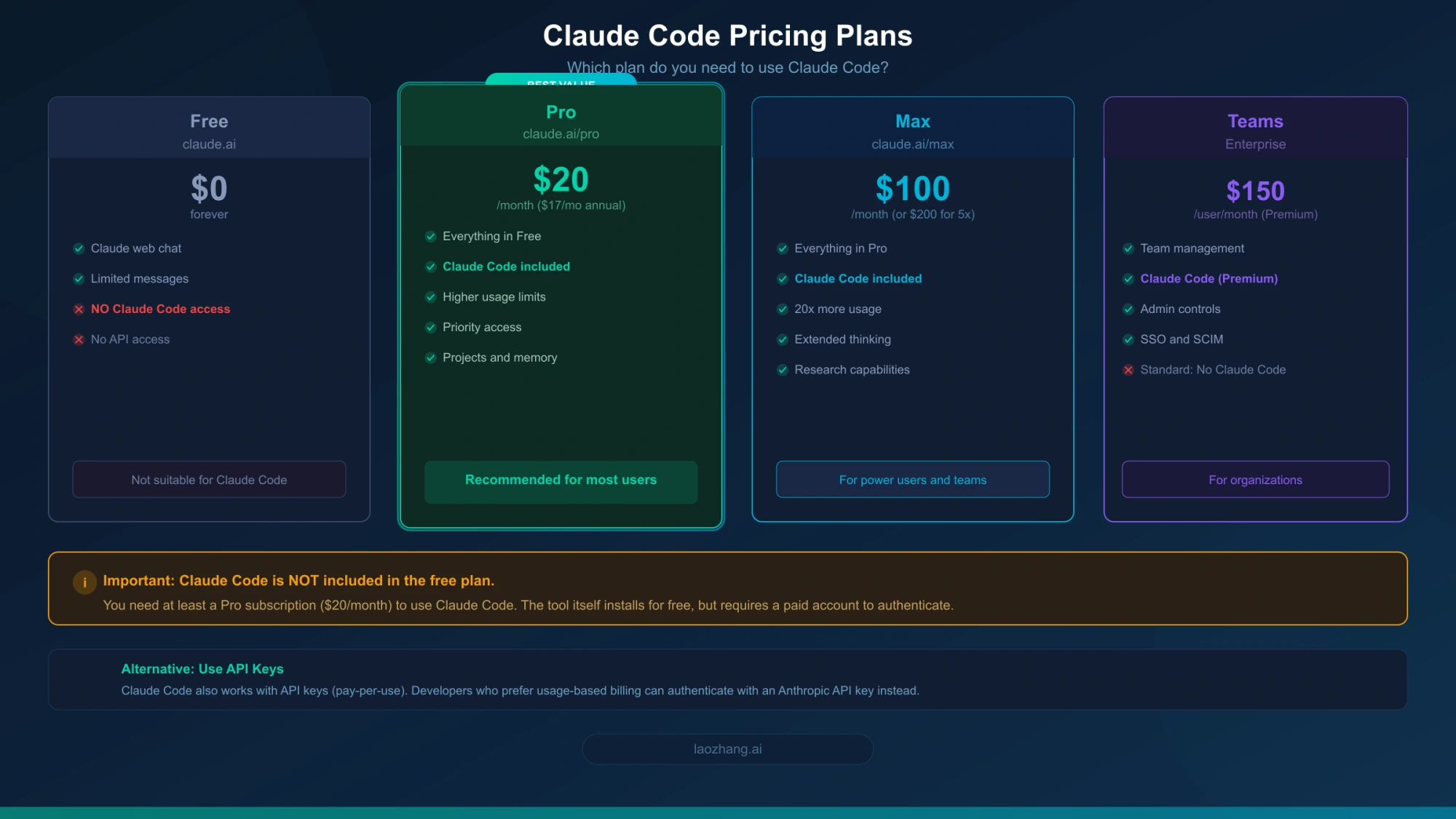
Before you run the install command, there are two things you need to sort out: your system requirements and your Claude subscription. Getting these right upfront saves you from the frustration of installing Claude Code only to discover you cannot authenticate or that your operating system is not supported. This is the step most installation guides skip, and it is the reason many developers hit a wall immediately after installation.
System requirements are straightforward but vary by platform. On macOS, you need version 13.0 (Ventura) or later — older versions of macOS are not supported by the native installer (code.claude.com/docs/en/setup, as of October 2026). Windows users need Windows 10 version 1809 or later, or Windows Server 2019+; 32-bit Windows is not supported. Git for Windows is optional: without it, Claude Code runs shell commands through its PowerShell tool, and installing it adds Git Bash, which the Bash tool needs. WSL setups do not need Git for Windows at all. Linux users need Ubuntu 20.04+, Debian 10+, or Alpine 3.19+ (Alpine requires additional dependencies). All platforms require at least 4 GB of RAM and an x64 or ARM64 processor, plus an internet connection. The supported shells are Bash, Zsh, PowerShell, and CMD.
Pricing is the part that catches people off guard. Claude Code itself is free to install — the binary costs nothing. To use it, you sign in through one of two billing routes. The first is a Claude subscription. As of October 20, 2026, claude.com/pricing lists these web prices (before tax), and its FAQ states that Claude Code is included in all paid plans: Pro is $20/month billed monthly, or $17/month when you pay $200 for the year up front; Max 5x is $100/month and Max 20x is $200/month, both billed monthly only; Team Standard seats are $25 per seat per month billed monthly or $20 billed annually, and Team Premium seats are $125 or $100, for teams of 2 to 150. The free plan ($0/month) does not include Claude Code at all. Pro is the cheapest plan that includes Claude Code, and it is what most individual developers should start with. The Max tiers are usage multipliers, not token quotas: Anthropic's Max plan help article describes Max 5x as five times and Max 20x as twenty times Pro's per-session usage allowance, with sessions resetting every five hours and a weekly limit on top, and Max also brings higher output limits and priority access at busy times. When this guide was first published in March 2026, it listed Team Premium at $150 per user per month and said standard Team seats did not include Claude Code; the current pricing page lists Claude Code for both seat types. Before assuming a free Pro trial exists, verify the current Claude Pro trial boundary, or check the detailed Claude subscription pricing breakdown for a full comparison. The second route is a Claude Console account with pay-as-you-go API billing: you log in with your Console credentials or supply an Anthropic API key, pay for the tokens you actually use, and do not need a Pro or Max subscription on top. Organizations that run Claude through Amazon Bedrock, Google Cloud's Agent Platform (Vertex AI), or Microsoft Foundry can point Claude Code at those providers instead.
How to Install Claude Code (Step by Step)
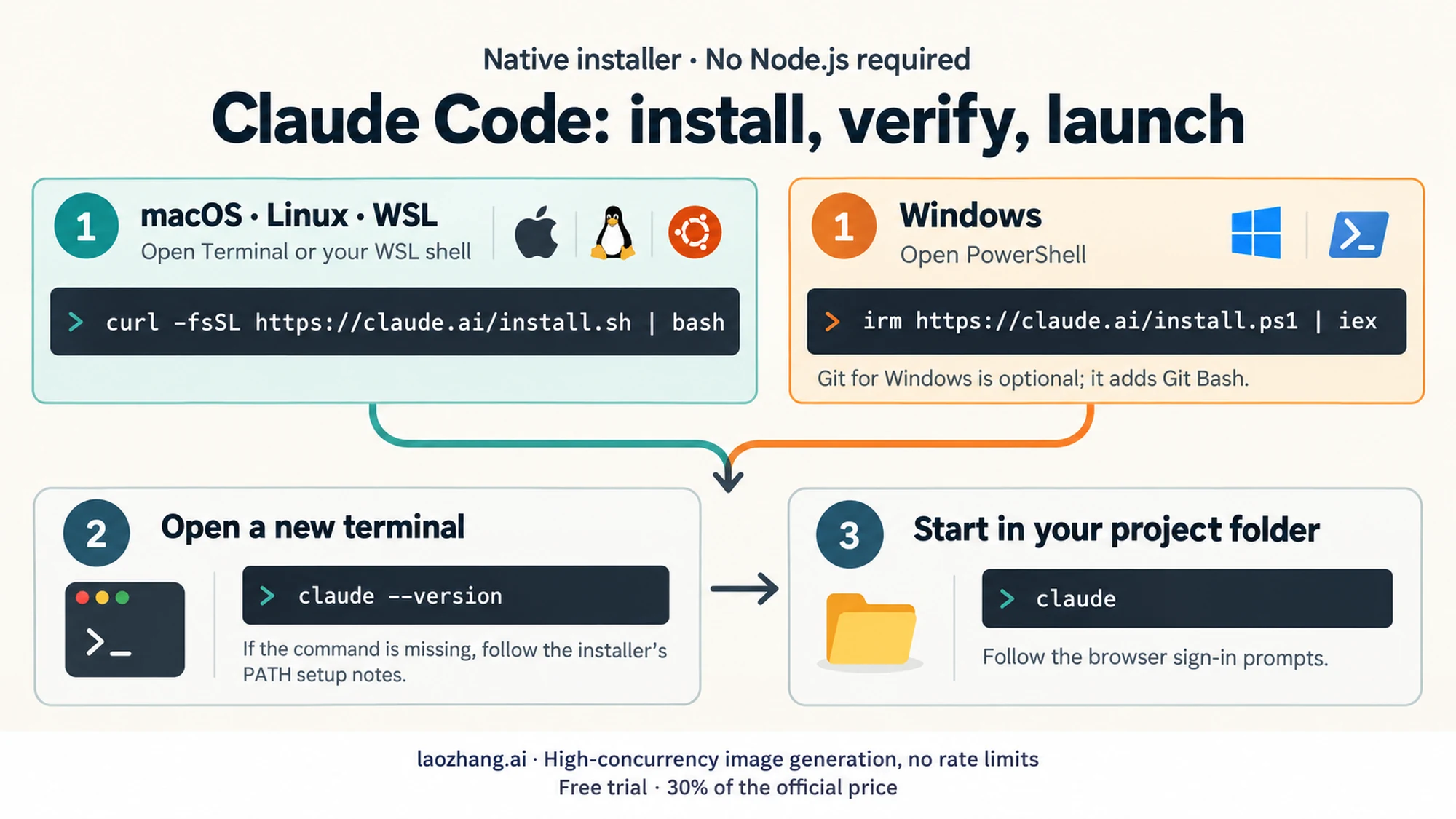
This is the core of the guide — the actual commands you need to run, organized by platform. The native installer is the recommended approach for all platforms because it bundles everything Claude Code needs without requiring you to install Node.js or manage npm packages. Each command below matches the official documentation at code.claude.com as of October 2026.
macOS and Linux (Including WSL)
Installing Claude Code on macOS or Linux is genuinely a one-command process that takes about two minutes from start to finish. Open your terminal — on macOS you can press Cmd+Space, type "Terminal", and press Enter, while on Linux you can use Ctrl+Alt+T or your preferred terminal emulator. Then run the following command: For a longer walkthrough of the Mac options, including the two Homebrew cask names and the npm-to-native migration, see How to Install Claude Code in 2026: Complete Guide for Mac, Windows & Linux.
curl -fsSL https://claude.ai/install.sh | bashThis downloads and runs the official installer script, which detects your operating system and architecture automatically, downloads the appropriate binary, and places the claude launcher at ~/.local/bin/claude. The installer shows no progress while it downloads. If ~/.local/bin is not on your PATH yet, it says so under Setup notes: in its output and prints the fix, but it does not change your PATH itself. Open a new terminal window and verify the installation by running claude --version, which should print a version number such as 2.1.301 (Claude Code). If you are using WSL (Windows Subsystem for Linux), the process is identical — open your WSL terminal and run the same curl command. The installer treats WSL as a Linux environment, so there are no special steps required. After verification, simply type claude in any project directory to launch an interactive session and start using AI-powered coding assistance.
Windows Installation
As of October 2026, Git for Windows is optional. Without it, Claude Code runs shell commands through its PowerShell tool. With it, Claude Code uses Git Bash for its Bash tool, which helps if your project relies on Bash scripts. If you want Git Bash, download Git for Windows from git-scm.com/downloads/win, select "Add to PATH" during setup, and restart your terminal afterward. You can do this before or after installing Claude Code.
You have two options for installing Claude Code on Windows, and you do not need to run either one as Administrator. The recommended method uses PowerShell — open PowerShell (you can right-click the Start button and select "Windows PowerShell" or "Terminal"), then run:
irm https://claude.ai/install.ps1 | iexIf you prefer the traditional Command Prompt (CMD), use this alternative command instead:
curl -fsSL https://claude.ai/install.cmd -o install.cmd && install.cmd && del install.cmdBoth commands achieve the same result: they download the official installer and place the Claude Code binary at %USERPROFILE%\.local\bin\claude.exe. If that folder is not on your PATH yet, the installer reports it under Setup notes: and prints the fix. The PowerShell method is slightly cleaner since it does not create a temporary file. After installation, verify with claude --version in a new terminal window. If the command is not recognized, close and reopen your terminal to refresh the PATH environment variable. If you see The token '&&' is not a valid statement separator, you pasted the CMD command into PowerShell; if you see 'irm' is not recognized, you pasted the PowerShell command into CMD. A common gotcha on Windows is that some developers try to use Git Bash (the Bash emulator that comes with Git for Windows) to run the curl-based macOS/Linux installer — while this sometimes works, it is not the recommended approach. Stick with the PowerShell or CMD method for the most reliable Windows experience. If you are using WSL on Windows, you should install within the WSL environment using the Linux curl command rather than the Windows PowerShell installer, since WSL maintains its own separate filesystem and PATH configuration.
Package Manager Alternatives (Homebrew and WinGet)
For developers who prefer managing all their tools through a package manager, Claude Code is available through Homebrew on macOS and WinGet on Windows. On macOS, simply run brew install --cask claude-code — this installs Claude Code as a Homebrew cask, which means updates are managed through brew upgrade rather than the built-in auto-updater. The claude-code cask tracks the stable release channel, typically about a week behind; brew install --cask claude-code@latest tracks the latest channel instead. On Windows, you can use winget install Anthropic.ClaudeCode to install through the Windows Package Manager. Both package manager methods provide the same Claude Code binary as the native installer, and they handle PATH configuration automatically. The trade-off is that you are managing updates through your package manager rather than through Claude Code's built-in update mechanism, which some developers prefer for consistency across their toolchain while others find less convenient for staying on the latest version.
Native Installer vs Homebrew vs npm: Which Should You Choose?
With three different installation methods available (plus WinGet for Windows), choosing the right one can feel overwhelming. The reality is simpler than it looks: for the vast majority of users, the native installer is the correct choice, and Anthropic's own documentation explicitly recommends it. The native installer requires no runtime dependencies like Node.js, includes automatic updates so you are always on the latest version, and provides the most stable experience because it is the primary method Anthropic tests and supports. It works on every platform — macOS, Windows, Linux, and WSL — through a single installation command specific to your OS.
Homebrew and WinGet are good alternatives if you have a strong preference for managing all your development tools through a unified package manager. Many experienced developers maintain their entire toolchain through brew or winget commands, and using these for Claude Code keeps your workflow consistent. The trade-off is that updates are not automatic by default — you need to explicitly run brew upgrade claude-code or winget upgrade Anthropic.ClaudeCode to get new versions, which means you might lag behind the latest features and bug fixes. If you want Claude Code to run that upgrade for you, set the environment variable CLAUDE_CODE_PACKAGE_MANAGER_AUTO_UPDATE to 1. For enterprise environments where controlled rollouts matter, this can actually be an advantage, since you choose when to update rather than having updates pushed automatically.
Understanding why the native installer is so strongly recommended helps contextualize the other options. Anthropic designed the native installer to be self-contained: it does not rely on any system-level package manager or runtime environment, which eliminates an entire category of installation problems related to dependency conflicts, version mismatches, and PATH pollution. The binary it installs is built for your specific platform and architecture. Until version 2.1.112 (April 16, 2026), the npm package was different: it ran a JavaScript build on your own Node.js. Since 2.1.113 (April 17, 2026), the npm package installs the same native binary through a per-platform optional dependency such as @anthropic-ai/claude-code-darwin-arm64, and the installed claude does not invoke Node at all. Today the native installer and npm differ in how Claude Code gets installed and updated, not in how fast it runs. The automatic update mechanism checks for new versions when you launch Claude Code and periodically while it runs, downloads updates in the background, and applies them the next time you start it.
So is npm deprecated? Not in the current documentation. As of October 2026, Anthropic's setup page lists npm install -g @anthropic-ai/claude-code under its advanced installation options and does not call it deprecated, while the native installer remains the recommended method. The "deprecated" label traces back to Claude Code 2.1.15 (January 21, 2026), which added a deprecation notification for npm installations that pointed users to claude install. The 2.1.301 build (October 15, 2026) no longer contains that notice. The npm package now requires Node.js 22 or later; the floor was Node.js 18 until version 2.1.197. On an older Node.js version, npm prints an EBADENGINE warning rather than failing, the install completes, and claude still runs, because Node.js is not used at runtime. npm installs also auto-update, unless the npm global folder is not writable; in that case Claude Code shows a one-time notice at startup and claude doctor lists the fixes.
If you stay on npm, upgrade with npm install -g @anthropic-ai/claude-code@latest and avoid npm update -g, which respects the semver range from your original install and may not move you to the newest release. Never use sudo npm install -g. If you installed with --omit=optional or --ignore-scripts, the native binary never arrives and claude prints Error: claude native binary not installed.; reinstall without those flags. If you would rather move to the native installer, run claude install (or the curl or PowerShell command for your platform), then remove the npm copy with npm uninstall -g @anthropic-ai/claude-code so only one installation stays on your PATH. Your configuration and settings will be preserved since they are stored in your home directory, not in the npm package location.
Your First 5 Minutes with Claude Code
After installation, the transition from "installed" to "productive" should be immediate, and that is exactly what Claude Code is designed for. The very first time you run claude in your terminal, you will be guided through an authentication flow that connects the CLI to your Claude account. You will be prompted to log in through your browser, where you will authorize Claude Code to use your Pro, Max, or API credentials. This is a one-time setup — subsequent launches will use your saved authentication.
Once authenticated, the most important thing to understand is that Claude Code is context-aware based on your current working directory. Navigate to a project folder using cd /path/to/your/project before launching Claude, and it will automatically scan and understand your codebase structure. You start an interactive session simply by typing claude with no arguments. From there, you can talk to Claude in natural language: ask it to explain how a particular function works, request that it implement a new feature, tell it to find and fix a bug, or instruct it to refactor a module. Claude Code reads your files, makes edits, creates new files, and can even run terminal commands on your behalf (with your permission). Some particularly useful first commands include claude "explain the architecture of this project" for getting oriented in an unfamiliar codebase, or claude "run the tests and fix any failures" for immediate practical value. You can also use the one-shot mode by passing your request directly as an argument — for example, claude "add input validation to the user registration form" — which executes the task and exits without starting an interactive session, making it perfect for quick fixes or scripted workflows.
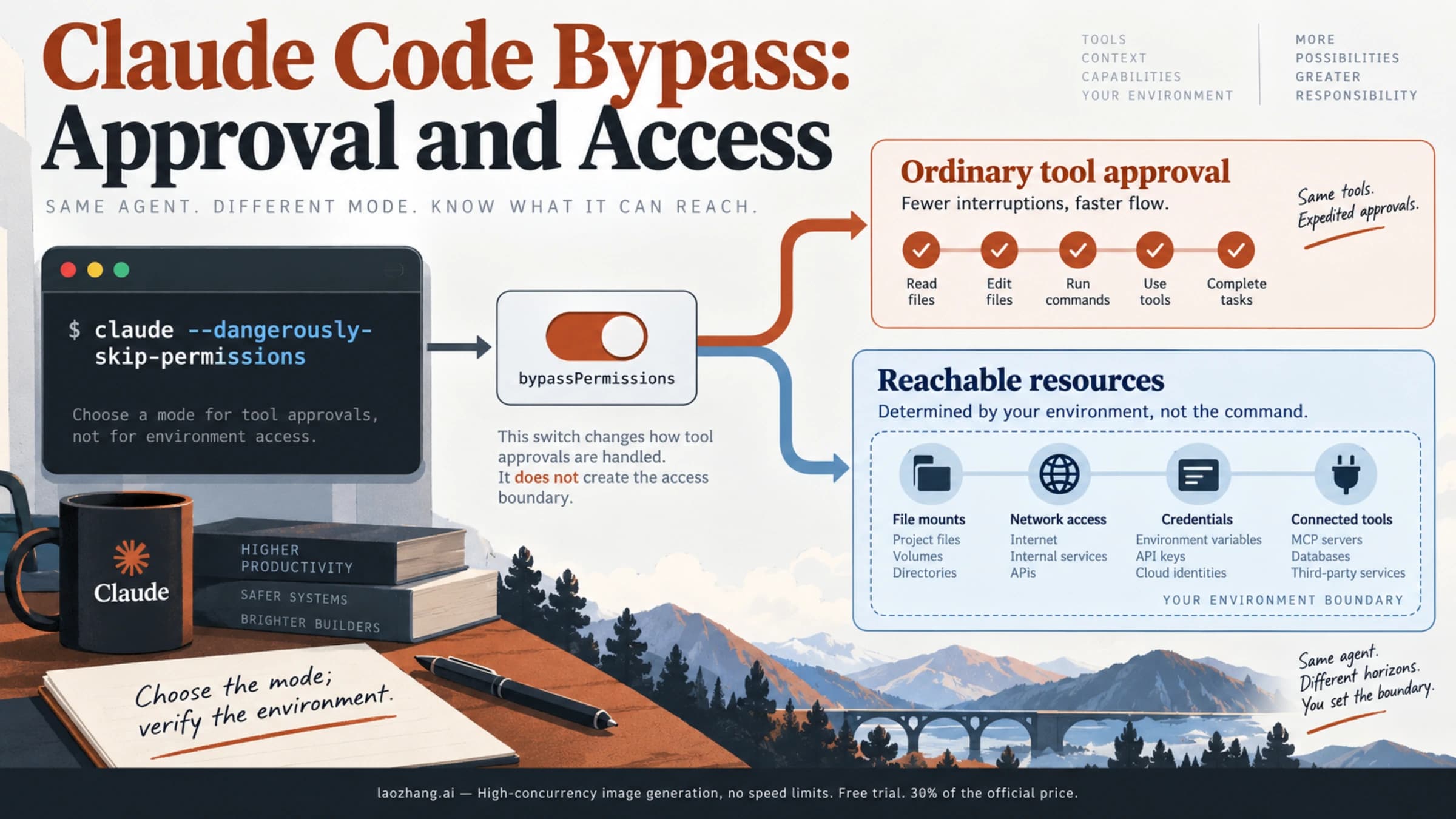
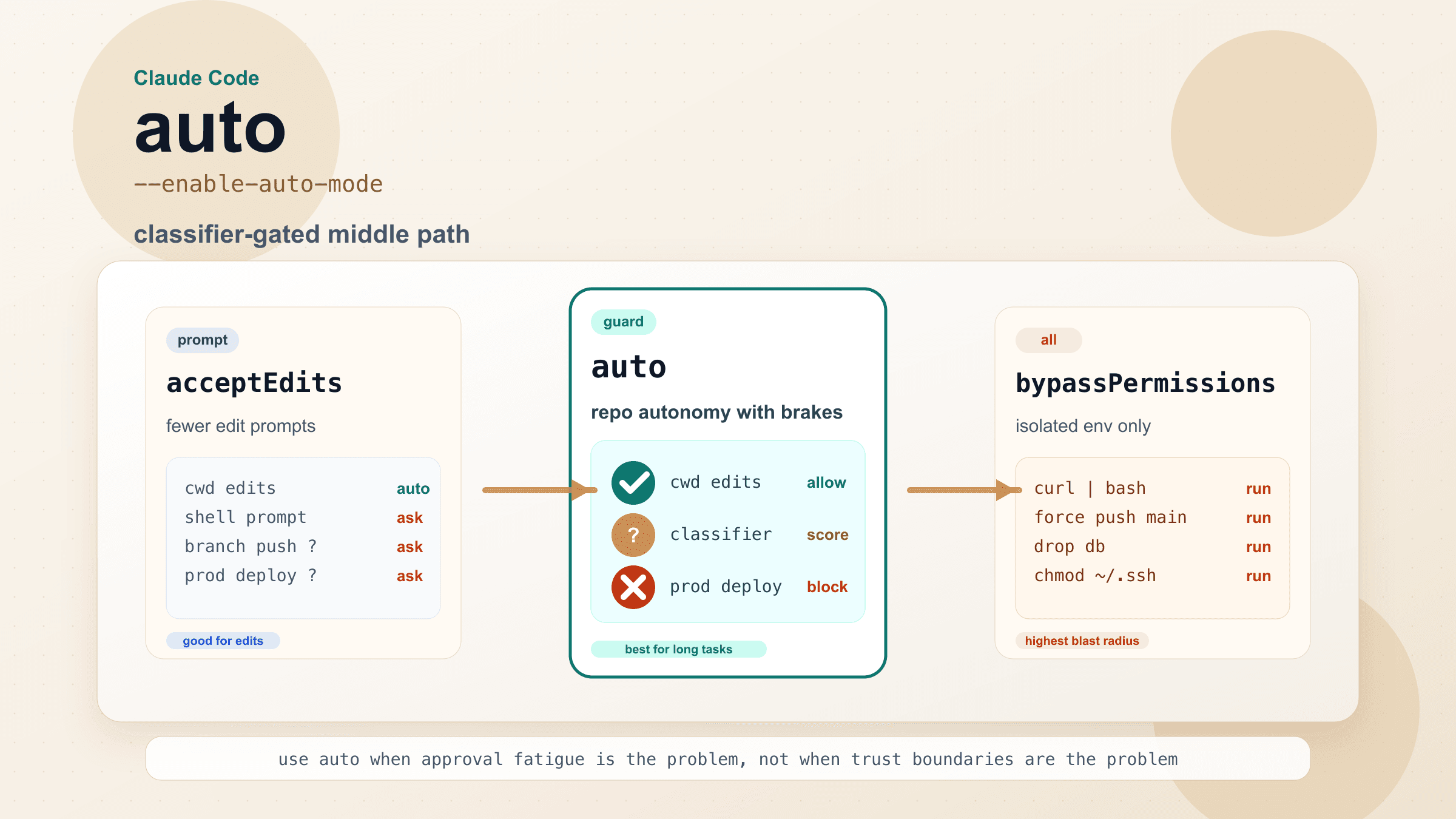
Understanding how Claude Code manages permissions is essential for trusting it with your codebase. By default, Claude Code asks for your approval before making any file changes or running shell commands, displaying exactly what it intends to do and waiting for your confirmation. You can adjust this behavior through permission modes: the default mode requires approval for every action, the "acceptEdits" mode automatically approves file edits but still asks about shell commands, and there are more permissive modes for experienced users who want faster execution. This permission system means you never have to worry about Claude Code making unexpected changes — every modification is visible and approved before it happens, giving you the same level of control as if you were making the changes manually while benefiting from AI-assisted speed and accuracy.
Beyond interactive sessions, Claude Code supports several workflow patterns that experienced users rely on daily. You can pipe content directly to Claude with commands like git diff | claude "review this code change" for quick code reviews, or cat error.log | claude "diagnose the root cause of these errors" for rapid debugging. The /init command creates a CLAUDE.md file in your project root that gives Claude persistent context about your project's conventions, coding standards, and important architectural decisions — think of it as a briefing document that makes every subsequent interaction more effective. Experienced users often populate this file with information about their tech stack, testing requirements, and coding style preferences, which dramatically improves the quality and consistency of Claude's suggestions across sessions.
You can also configure Claude Code's behavior through settings, including choosing which release channel to follow (latest, the default, or stable, which is typically about a week old), setting up MCP (Model Context Protocol) servers for extended tool access, and customizing keyboard shortcuts for your preferred terminal environment. The MCP integration is particularly powerful because it allows Claude Code to interact with external tools and services — databases, issue trackers, documentation systems — giving it capabilities that go far beyond simple code editing.
Fixing the 5 Most Common Installation Problems
Even with a straightforward installation process, things can go wrong — and when they do at the installation stage, it is especially frustrating because you cannot even start using the tool. These are the five problems that appear most frequently in community discussions and support channels, along with their solutions.
"command not found" after installation is the single most common issue, and it almost always comes down to your shell's PATH not being updated. The installer puts claude at ~/.local/bin/claude on macOS and Linux, or %USERPROFILE%\.local\bin\claude.exe on Windows, but it does not edit your PATH; when that folder is missing from PATH, it prints Native installation exists but ~/.local/bin is not in your PATH. under Setup notes:. Start by closing your terminal completely and opening a new one, since an open window keeps its old PATH. On Windows, open a new PowerShell window — do not reuse the one where you ran the installer. On macOS or Linux, check whether the folder is on your PATH with echo $PATH | tr ':' '\n' | grep -Fx "$HOME/.local/bin". If that prints nothing, add it with echo 'export PATH="$HOME/.local/bin:$PATH"' >> ~/.zshrc (use ~/.bashrc for Bash on Linux, ~/.bash_profile for Bash on macOS), then run source on the same file or open a new terminal.
Git not found on Windows means something different now, because Git for Windows is optional in current versions. Claude Code now shows Claude Code on Windows requires either Git for Windows (for bash) or PowerShell only when it finds neither shell. If PowerShell is missing from your PATH, add its default folder C:\Windows\System32\WindowsPowerShell\v1.0\ to PATH or install PowerShell 7, which provides pwsh. Installing Git for Windows is the other fix: select "Add to PATH" during setup, restart your terminal, and confirm with git --version in a new window. If Git is installed but Claude Code still cannot find Git Bash, run where.exe git in PowerShell and set the bin\bash.exe path from that installation as CLAUDE_CODE_GIT_BASH_PATH in the env block of your settings.json.
Authentication failures typically occur when the account you signed in with has no Claude Code access. The free plan does not include it; you need a paid plan (Pro at $20/month or higher, Team, or Enterprise) or a Claude Console account. If you have one of these but still cannot authenticate, try clearing your cached credentials by running claude auth logout followed by claude auth login to start the sign-in flow again (inside a running session, /logout does the same first step). Version 2.1.301 has no top-level claude logout or claude login command. Network issues, particularly corporate firewalls or VPNs that block Anthropic's authentication endpoints, can also cause authentication failures. In those cases, check whether you can access claude.ai in your browser from the same network.
Permission errors during installation happen when the installer cannot write to the target directory or execute the downloaded binary. On macOS and Linux, the installer writes to ~/.local/bin/, ~/.local/share/claude/ and ~/.claude/downloads/, among others, and the error names the path it could not write. Check the two main folders with test -w ~/.local/bin && echo "writable" || echo "not writable" and the same test on ~/.claude. If ~/.local/bin is not writable, create it and take ownership with sudo mkdir -p ~/.local/bin followed by sudo chown -R $(whoami) ~/.local. It is important to avoid using sudo for the installation unless absolutely necessary, because running the installer as root creates files owned by root in your home directory, which causes different permission problems later when you try to run Claude Code as your normal user account. If you previously ran the installer with sudo, fix the ownership with sudo chown -R $(whoami) ~/.claude and then try again without sudo. If the permission errors come from an old npm install, switch to the native installer instead of fighting npm's global folder. On Windows, the installer writes under %USERPROFILE%, which your user can write to by default, and you do not need to run PowerShell as Administrator. If you are in a corporate environment with restricted write access, endpoint protection software, or application allowlisting policies such as AppLocker, you may need to ask your IT team to allowlist claude.exe, the processes it starts (including cmd.exe and bash.exe), and the Claude Code installation directory.
Version conflicts from old npm installations can cause confusing behavior if you previously had Claude Code installed through npm and then installed the native version. Both versions may exist in your PATH, and your shell might be finding the wrong one. Run which -a claude (macOS/Linux) or where.exe claude (Windows) to list every claude on your PATH, in the order your shell finds them. The native installer's copy is ~/.local/bin/claude, a symlink into ~/.local/share/claude/versions/ (on Windows, %USERPROFILE%\.local\bin\claude.exe). A global npm install shows up in npm -g ls @anthropic-ai/claude-code, and ~/.claude/local/ is a legacy local npm install that older versions of Claude Code created. Keep only one installation: remove the others with npm uninstall -g @anthropic-ai/claude-code, rm -rf ~/.claude/local, brew uninstall --cask claude-code or winget uninstall Anthropic.ClaudeCode, whichever applies. An old JavaScript npm copy (version 2.0.25 or earlier) left on your PATH is also what produces Error: Cannot find module './yoga.wasm'; the yoga.wasm fix walks through finding and removing it. After cleaning up, open a new terminal, run which -a claude again to confirm only the copy you kept remains, and check claude --version.
If you encounter any issue not covered above, the official Claude Code troubleshooting guide at code.claude.com provides additional solutions, and the claude doctor command performs a diagnostic check that identifies common configuration problems automatically. Running claude doctor outputs a detailed report of your system configuration, authentication status, and any detected issues, making it the single best starting point when something goes wrong with your installation.
Staying Safe and Up to Date
Security is not typically the first thing you think about when installing a developer tool, but Claude Code presents a unique case that warrants attention. In 2026, security researchers discovered a campaign where fake Claude Code installation pages were being promoted through Google Ads, distributing malware known as the "InstallFix" attack (reported by BleepingComputer and TechRepublic). These malicious pages looked convincingly like official Anthropic download pages and appeared at the top of search results as paid advertisements. The takeaway is simple but critical: only install Claude Code from official sources. The legitimate installation URLs are claude.ai/install.sh for macOS/Linux, claude.ai/install.ps1 for Windows PowerShell, the official Homebrew cask, the WinGet package Anthropic.ClaudeCode, or the npm package @anthropic-ai/claude-code from the official npm registry. If you reached an installation page through a Google ad or an unfamiliar website, verify the URL carefully before running any commands.
To verify the integrity of your installation after running it, check the version output with claude --version — a legitimate installation prints a plain version string such as 2.1.301 (Claude Code). If you see anything unusual, unexpected branding, or the binary is located in an unexpected directory (check with which -a claude on macOS/Linux or where.exe claude on Windows), remove it immediately and reinstall from the official source. It is also worth noting that Claude Code communicates exclusively with Anthropic's servers for AI processing — it does not send your code to any third-party services, and you can review exactly what data is being transmitted through the tool's transparency features.
Keeping Claude Code updated is straightforward with the native installer, which checks for updates on startup and periodically while running, installs them in the background, and applies them the next time you start the tool. You can manually check your current version with claude --version and trigger an update check with claude update, which prints a "Successfully updated from" message naming the old and new version when it installs a newer build. If you installed through Homebrew, run brew upgrade claude-code (or brew upgrade claude-code@latest) periodically to stay current. For WinGet installations, use winget upgrade Anthropic.ClaudeCode. For npm installations, run npm install -g @anthropic-ai/claude-code@latest rather than npm update -g, and never with sudo. Staying on the latest version is important not just for new features, but also for security patches and stability improvements. The Claude Code team ships updates frequently, often multiple times per week, so the automatic update mechanism of the native installer is genuinely valuable for ensuring you always have the latest fixes and capabilities without any manual intervention. You can also choose between the latest and stable release channels through /config → Auto-update channel, or with "autoUpdatesChannel": "stable" in your settings.json. latest is the default and gets new features as soon as they ship. stable uses a version that is typically about a week old and skips releases with major regressions, though a newly launched model can require a version newer than stable serves.
Frequently Asked Questions
Is Claude Code free to use?
Claude Code itself is free to install — the binary costs nothing to download. However, you need a paid Claude plan or a Claude Console account to authenticate and actually use it. On the subscription route, the cheapest plan that includes Claude Code is Claude Pro at $20/month ($17/month with annual billing), as of October 20, 2026. The free Claude plan does not include Claude Code access. Alternatively, you can sign in with a Claude Console account or use an Anthropic API key with pay-per-use billing, which needs no subscription and charges based on the tokens consumed during your coding sessions rather than a flat monthly fee.
Does Claude Code work offline?
No, Claude Code requires an internet connection to function. It communicates with Anthropic's Claude models in the cloud to process your requests, so you need a stable internet connection during use. Your code itself is processed locally for context, but the AI reasoning happens on Anthropic's servers. The tool does cache some configuration locally, so launching and basic navigation work without connectivity, but any actual AI-powered assistance requires being online.
Can I use Claude Code with VS Code or JetBrains?
Yes. Claude Code is a standalone terminal tool and does not require any IDE, so it works alongside any editor: many developers run it in VS Code's integrated terminal or in a terminal tab next to their JetBrains IDE. Anthropic also ships an official VS Code extension and an official JetBrains plugin. Keep in mind that the VS Code extension bundles its own private copy of Claude Code for its chat panel and does not add claude to your PATH, so installing only the extension does not give you the claude command in a terminal. To use Claude Code from the terminal as well, install the CLI separately with one of the commands above.
How do I uninstall Claude Code?
There is no claude uninstall command; you remove Claude Code the same way you installed it. For a native install on macOS, Linux, or WSL, run rm -f ~/.local/bin/claude and rm -rf ~/.local/share/claude. On Windows PowerShell, run Remove-Item -Path "$env:USERPROFILE\.local\bin\claude.exe" -Force and Remove-Item -Path "$env:USERPROFILE\.local\share\claude" -Recurse -Force. If you installed through Homebrew, use brew uninstall --cask claude-code (or claude-code@latest). For WinGet, use winget uninstall Anthropic.ClaudeCode. If you installed through npm, use npm uninstall -g @anthropic-ai/claude-code. If claude still runs afterward, another installation is still on your PATH; find it with which -a claude (Windows: where.exe claude). Your configuration files in ~/.claude/ stay in place unless you delete them yourself, so you can reinstall later without losing your settings.
What is the difference between Claude Code and the Claude desktop app?
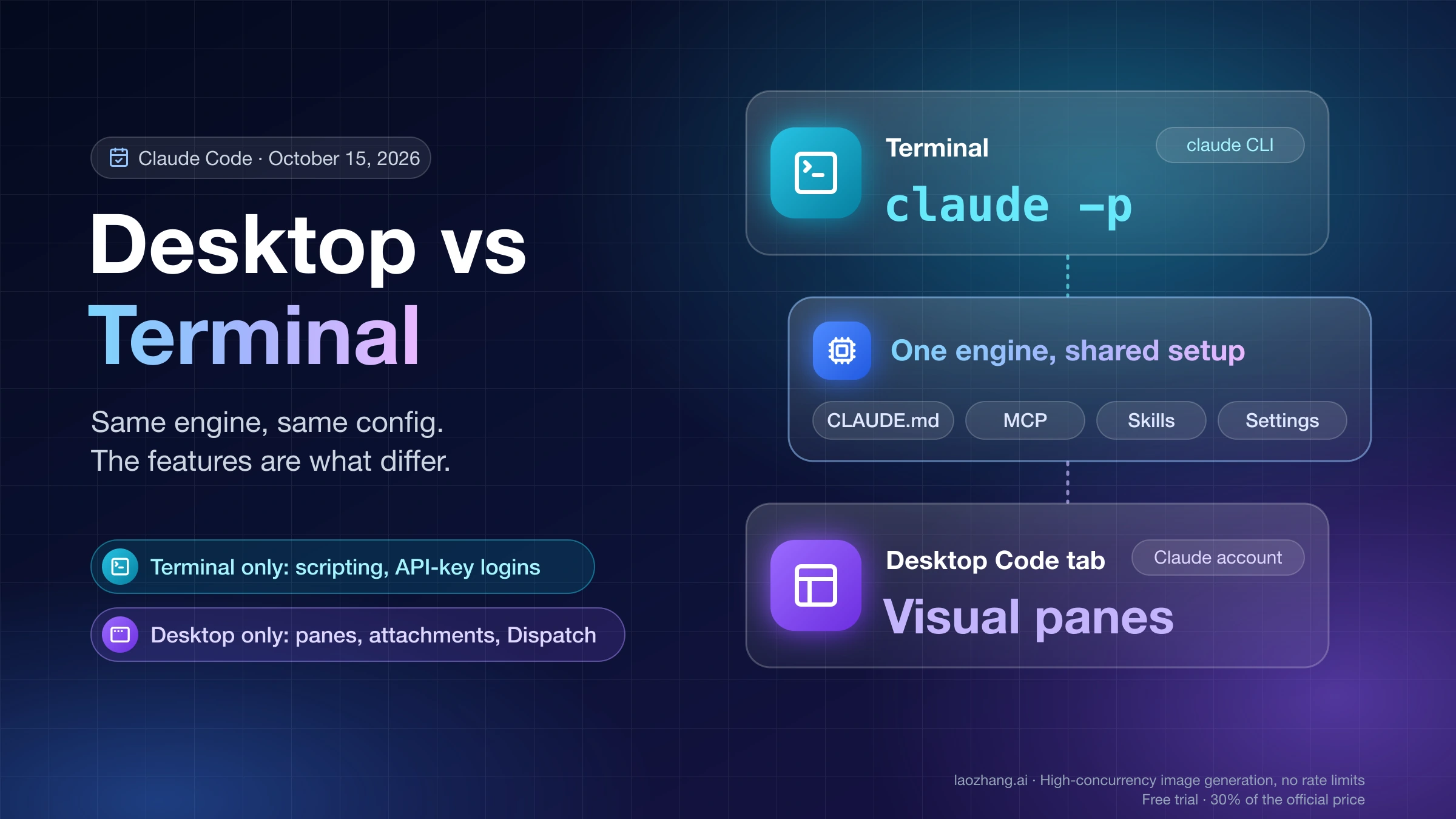
The Claude desktop app provides a graphical chat interface similar to claude.ai but as a native application on your computer. Claude Code, on the other hand, is a command-line tool specifically designed for software development. Claude Code can read and modify files in your project, run terminal commands, interact with git, and perform multi-file edits — capabilities that the desktop app does not have. Think of the desktop app as a general-purpose AI assistant and Claude Code as a specialized coding partner that lives in your terminal.
How much does Claude Code usage count against my subscription limits?
Claude Code usage does count against your subscription's usage limits, and claude.com/pricing says your work in the terminal and your chats draw from one pool. Limits reset on a rolling five-hour session window, and paid plans also have a weekly limit, so heavy Claude Code sessions (especially those involving large codebases or many sequential operations) can use up a Pro allowance quickly. As of October 20, 2026, Max 5x ($100/month) gives five times Pro's per-session usage and Max 20x ($200/month) gives twenty times; Anthropic does not publish a fixed token or message count for any plan. If you hit your usage limit, Claude Code will notify you and you will need to wait for the limit to reset, upgrade to a higher tier, or, on a paid plan, turn on usage credits billed at standard API rates. Using a Console account or API key instead of a subscription gives you pay-per-use pricing without subscription session limits, though API rate limits still apply and costs can add up with intensive usage.
Can I use Claude Code in a CI/CD pipeline or automated scripts?
Yes, Claude Code supports non-interactive usage that works well in automated environments. You can pass commands directly as arguments like claude -p "generate unit tests for src/utils.ts" which executes the task and outputs the result without any interactive prompts. For CI/CD integration, you would typically authenticate using an API key stored as an environment variable rather than an interactive browser login. This makes it possible to use Claude Code for automated code reviews, test generation, or documentation updates as part of your build pipeline. The --output-format json flag is particularly useful in scripted contexts because it returns structured output that other tools can parse programmatically.
Get Coding with Claude Code Today
Installing Claude Code takes less than five minutes on any platform, and the native installer makes the process as simple as running a single command. Start by verifying your system meets the requirements (macOS 13+, Windows 10 1809+, or Linux Ubuntu 20.04+), ensure you have a paid Claude plan (Pro at $20/month or higher) or a Claude Console account, and run the appropriate installation command for your platform. The native installer is the recommended choice for most users — it handles dependencies automatically, stays updated without manual intervention, and provides the most reliable experience that Anthropic actively tests and supports.
Remember to only download from official sources (claude.ai, code.claude.com, or GitHub anthropics/claude-code) to protect yourself from the malware campaigns that have targeted Claude Code users through fake Google Ads. If you run into issues during installation, the troubleshooting section above covers the five most common problems and their solutions, and the claude doctor command is always available as a diagnostic starting point. Once installed, navigate to your project directory, type claude, and start building — whether that means implementing a new feature, refactoring legacy code, or debugging a tricky issue across your entire codebase. Your terminal just became your most powerful coding tool, and you are now equipped with the knowledge to install, configure, and maintain Claude Code safely and effectively on any platform.