Remove Flicker from AI Video in Premiere Pro: 3 Types, 3 Fixes
AI clip flickering in Premiere? Brightness pumping needs a deflicker pass, detail shimmer needs frame averaging, and redrawn shapes need a new take.
On this page
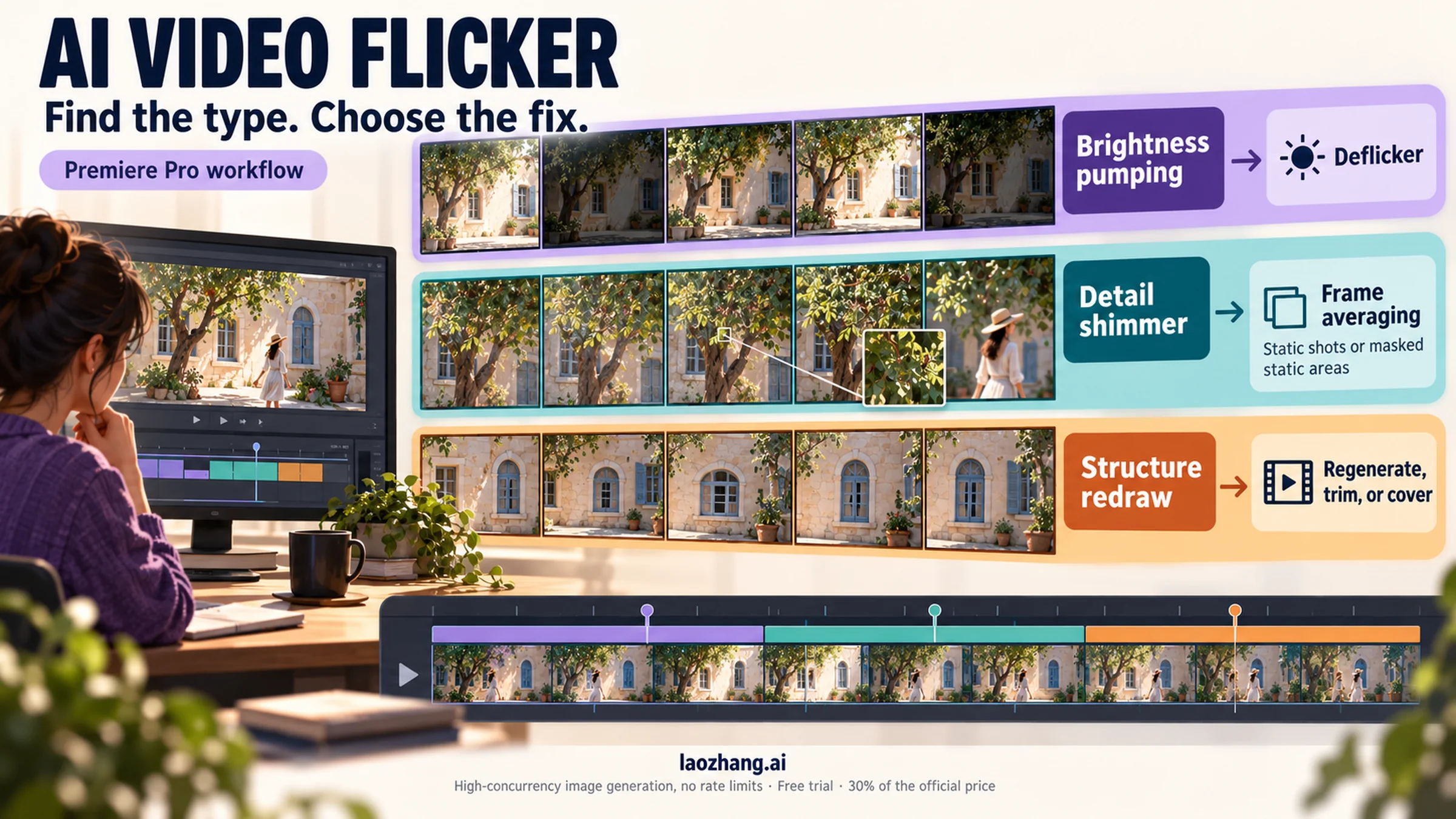
Flicker in an AI-generated clip is usually not the light flicker that most Premiere tutorials fix. It comes in three kinds, and each one needs a different fix. If the whole frame gets brighter and darker from one frame to the next, use a deflicker plug-in, Lumetri exposure keyframes or an ffmpeg deflicker pass before import. If fine detail shimmers while the overall exposure holds (hair, grass, skin pores, patterned walls, small text), average neighboring frames with Echo or stacked copies of the clip. That calms the shimmer but smears anything that moves fast, so limit it to static shots or a masked static area. If shapes, faces or letters are redrawn between frames, no Premiere filter will bring the lost structure back. Regenerate the shot, shorten it or cover it.
Two settings often suggested for flicker don't touch any of this. Premiere's Anti-flicker Filter softens fine lines within each frame. Frame Blending only creates frames when a clip's speed or frame rate changes.
The numbers below come from one ffmpeg test on synthetic clips. A 5-second, 24 fps, 1280×720 clip had brightness pumping and texture noise added, then was run through ffmpeg filters that stand in for what the Premiere tools do. Premiere Pro, the plug-ins and real AI footage were not part of that test. The Premiere steps follow Adobe's help pages and were not run in Premiere.
Which kind of flicker is in your AI clip: pumping, shimmer or redraw
Step through the clip one frame at a time (left and right arrow keys in the Program Monitor) and watch two places: an area that should be perfectly still, and the overall brightness. The Waveform in the Lumetri Scopes panel helps with the second. If the whole trace jumps up and down together, the exposure is pumping.
| What you see frame to frame | Type | What acts on it | What it costs you |
|---|---|---|---|
| The whole image steps brighter or darker, or the color cast shifts; textures stay put | Brightness/color pumping | Deflicker plug-in (luminance matching), Lumetri keyframes, ffmpeg deflicker | Little. In the test, luminance matching left no smear |
| Exposure holds, but hair, foliage, skin texture, background patterns or small text crawl and sparkle ("boiling") | Detail shimmer | Averaging 2–3 frames: Echo with Blend, stacked copies, ffmpeg tmix | Smear and ghosting on moving subjects, plus some softness |
| An eye, a hand, a logo, a window frame or a letter changes shape or position | Structure redraw | Nothing in the editor restores it. Regenerate, trim, cut away or replace the element | A new take or an edit change |
Many clips have more than one kind. Fix pumping first, because it is the cheapest to fix. Then judge whether the shimmer that's left is worth the smear. If the redraw is on the main subject, regenerate before you polish anything else.
These three types are a working rule drawn from how the tools behave and from the synthetic test. They are not a classification published by Adobe or by any AI video vendor. None of those vendors documents a flicker rate for its model.
Why the Anti-flicker Filter and Frame Blending don't fix AI flicker
Adobe's help page for the Anti-flicker Filter (Effect Controls > Motion > Anti-flicker Filter) describes a different problem: "thin lines and sharp edges in images" that flicker "when shown on interlaced displays." Adobe also says that as you raise it, "the image becomes softer." The page says nothing about brightness or detail changing from frame to frame. The filter works on the edges inside each frame. On AI footage it can hide some fine-line twitter, but only by blurring the whole shot. It does not compare one frame with the next. Source: Adobe's "Remove flicker from images in Premiere Pro" help page.
Frame Blending lives under right-click > Speed/Duration > Time Interpolation. Adobe's Time Interpolation page describes it as blending "neighboring frames to create new intermediate frames" when you change a clip's speed. Optical Flow generates new frames from motion analysis. Frame Blending is sometimes offered as a flicker fix, but a clip at 100% speed in a sequence with the same frame rate gets no new frames, so switching the setting changes nothing.
Time Interpolation does matter when the frame rates don't match. If you drop a 24 fps AI clip into a 30 fps sequence, Premiere has to invent or repeat frames, and Frame Blending will mix neighbors to do it. If the clip looks unsteady only in a mismatched sequence, the frame-rate conversion may be the cause. Edit it in a sequence that matches the clip's frame rate (right-click the clip > New Sequence From Clip), or convert the frame rate once before you edit.
Fix brightness pumping: deflicker plug-in, Lumetri keyframes or ffmpeg
Pumping is the easy case, because a tool can measure each frame's brightness and pull it back toward its neighbors without mixing any pixels.
- A deflicker plug-in. Digital Anarchy's Flicker Free 3.0 runs in Premiere Pro and has presets for time-lapse, slow motion and LED or fluorescent light. RE:Vision Effects' DEFlicker targets high-frame-rate footage and time-lapse. Both have trials. More on how they fit AI footage is in the plug-in section below.
- Lumetri exposure keyframes. For a short shot with a handful of jumps, apply Lumetri Color, find the frames that step brighter or darker on the Waveform, and keyframe Exposure on each one to match its neighbors. It's tedious, but it's free and you control it exactly. It won't keep up with a clip that pumps on every frame.
- An ffmpeg pass before import. The command is in the ffmpeg section below. In the synthetic test,
deflicker=size=5:mode=am(which matches each frame's brightness to the average of a 5-frame window) cut brightness pumping by 85%. The standard deviation of frame brightness fell from 9.12 to 1.36 on a 0–255 scale, and moving objects showed no smear.
The same test shows the limit. On a clip with fine-detail shimmer, the deflicker filter changed the shimmer score from 15.67 to 15.70, which is no improvement at all. Brightness matching treats the whole frame, so it can't settle textures that are redrawn in each frame. If shimmer is still there after the exposure is steady, you have the second type of flicker, and it needs averaging.
Calm detail shimmer with Echo or stacked layers at 24, 30 or 60 fps
Shimmer is detail that changes in each frame. Blending each frame with one or two previous frames evens it out. Premiere has two built-in ways to do this.
Echo (Effects > Video Effects > Time > Echo). Adobe's Premiere Time effects page says Echo "combines frames from different times in a clip." The control names below come from the After Effects Time effects reference, because the Premiere page lists none. The labels in your version may differ slightly.
- Echo Time (seconds): −1/frame rate, so that each echo is exactly one previous frame. Negative values look backward.
- Number of Echoes: 2. Adobe: "if the value is 2, the result is a combination of three frames."
- Starting Intensity 1 and Decay 1. Decay is the ratio of each echo's opacity to the one before it, so 1 keeps the three frames equally strong. This is a reading of the parameter descriptions. Check the result by eye.
- Echo Operator: Blend, which Adobe describes as "averages the echoes."
| Sequence frame rate | Echo Time for one frame |
|---|---|
| 24 fps (23.976) | −0.0417 s |
| 30 fps (29.97) | −0.0333 s |
| 60 fps | −0.0167 s |
A value like −0.02 s is about half a frame at 24 fps, and about one frame only at 50 fps. Calculate it from your own frame rate instead of copying a number.
Adobe also notes that "by default, any previously applied effects are ignored when you apply the Echo effect." If you have already graded the clip with Lumetri on the same clip, Echo may average the ungraded frames. Grade on an adjustment layer above, or nest the clip first and apply Echo inside the nest. This is a reading of Adobe's note, not a tested result.
Stacked copies. This is the method behind most YouTube "duplicate and lower opacity" fixes. Put the clip on V1. Put a copy on V2 shifted one frame later, and a copy on V3 shifted two frames later, all in Normal blend mode. With V2 at opacity a and V3 at opacity b, each frame's share of the final image is:
- V3 (two frames back): b
- V2 (one frame back): (1 − b) × a
- V1 (current frame): (1 − b) × (1 − a)
| Opacity settings | Current frame | 1 frame back | 2 frames back |
|---|---|---|---|
| V2 66%, V3 33% (the common recipe) | 0.23 | 0.44 | 0.33 |
| V2 50%, V3 33.3% | 0.33 | 0.33 | 0.33 |
| V2 50% only (two layers) | 0.50 | 0.50 | — |
With the popular 66%/33% recipe, the current frame is the weakest of the three. Set 50% and 33.3% for an even average. In the synthetic test, equal thirds reduced shimmer slightly more than the 66/33 stack (from 15.67 to 5.05 versus 5.46) with the same smear. Two layers at 50% reduced it to 7.78. That's roughly half, with roughly half the smear of three frames.
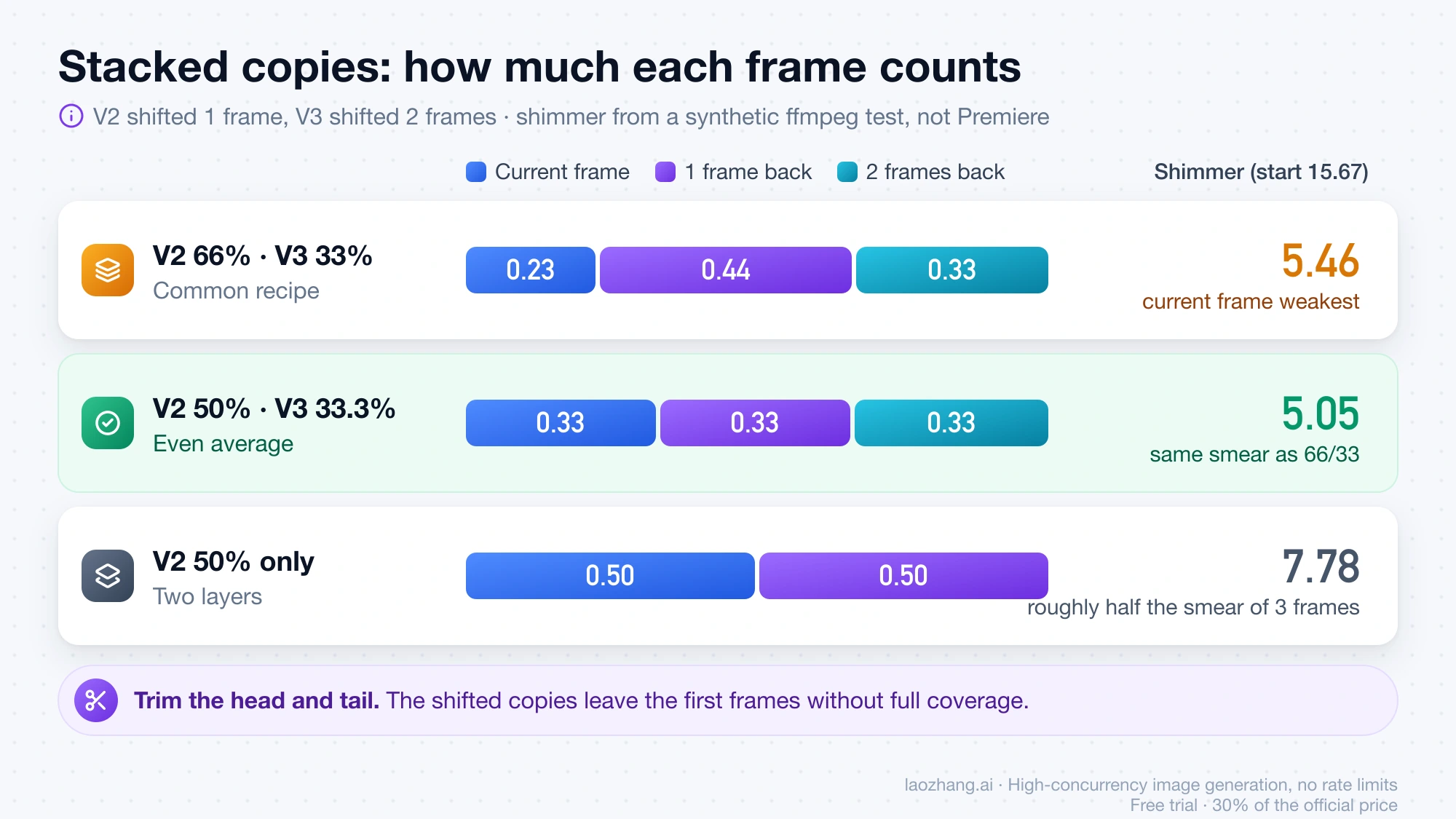
The shifted copies leave the first frame or two of the edit without full coverage. Trim the head and tail of the stack so those frames don't show.
If the duplicate-and-opacity trick isn't working, check two things. The copy may not be shifted at all: a copy at 0 frames offset averages a frame with itself. Or the flicker may be pumping or redraw, which averaging handles poorly or not at all.
The cost of frame averaging: smear on moving subjects
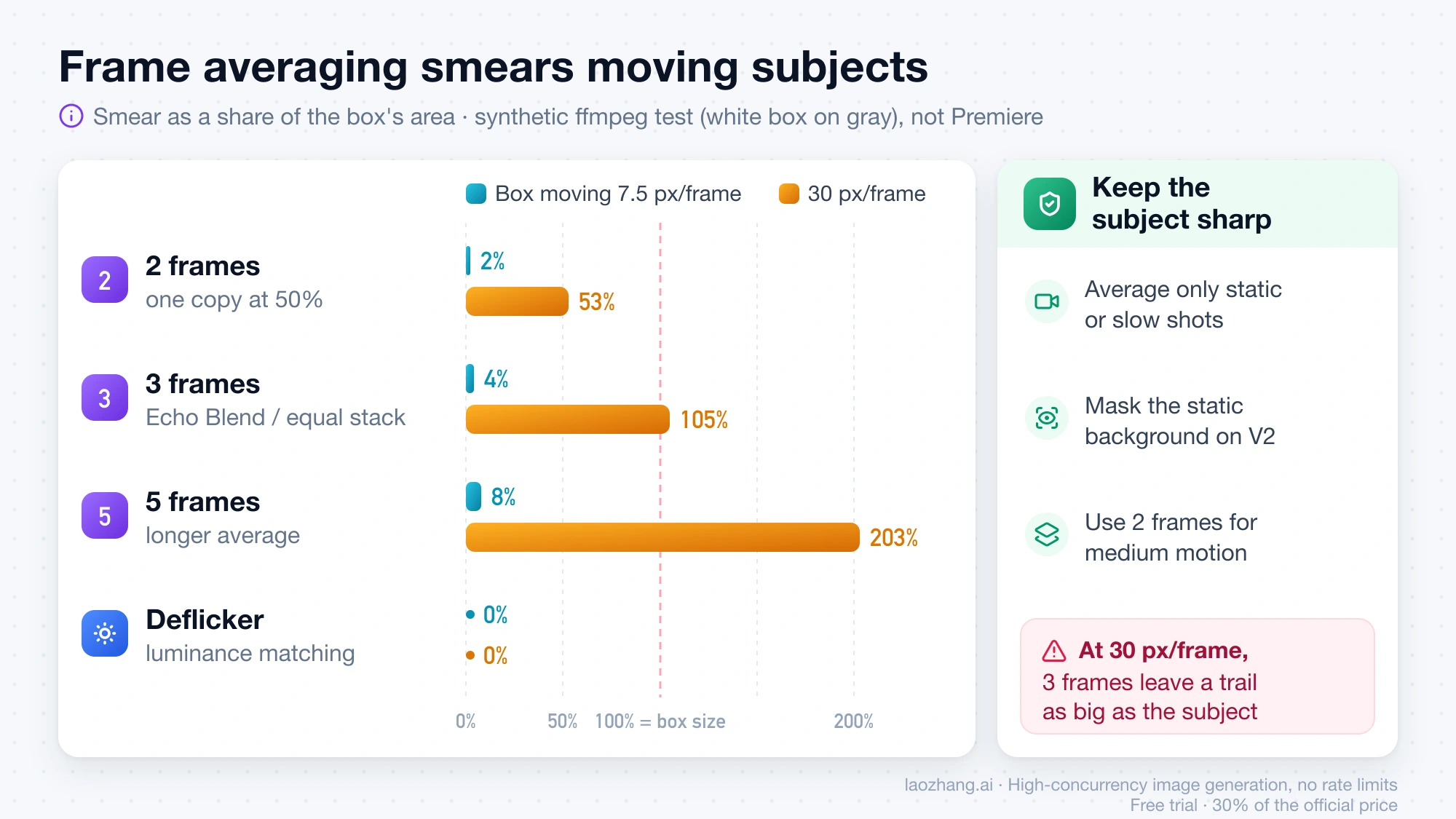
Averaging can't tell shimmer from motion. Anything that moves between frames leaves a semi-transparent trail. In the ffmpeg test, filters were applied to a clean clip with a white box moving across a gray background. Smear was counted as box-area pixels whose brightness ended up more than 24 levels (on 0–255) away from the clean frame.
| Averaging | Box moving 7.5 px/frame | Box moving 30 px/frame |
|---|---|---|
| 2 frames (one copy at 50%) | 2% of the box's area | 53% |
| 3 frames (Echo Blend or equal stack) | 4% | 105% |
| 5 frames | 8% | 203% |
Luminance matching (deflicker) | 0% | 0% |
At 7.5 px per frame (180 px per second in a 1280-wide, 24 fps frame), three-frame averaging barely shows. At 30 px per frame, the trail is as large as the subject itself, and five frames double that again. The 24-level threshold and the single resolution are choices made for this test. Real AI clips also redraw shapes, which synthetic noise doesn't. Judge your own clip at full resolution on the frames with the most motion.
Some ways to keep the subject sharp:
- Use averaging only on static or slow shots. A locked-off landscape or a product on a turntable tolerates it. A running figure, a fast pan or a hand gesture does not.
- Average only the background. Leave the original on V1. Put the Echo copy on V2 and draw an Opacity mask on V2 around the static area that shimmers, with a few pixels of feather. The moving subject then shows through from the untouched V1.
- Use two frames instead of three when the subject moves at a medium speed. In the test, that kept about half the shimmer reduction for about half the smear.
Run a deflicker pass in ffmpeg before importing into Premiere
If you don't want to buy a plug-in, ffmpeg can fix pumping and average frames before the clip reaches Premiere. Both commands below were run with ffmpeg 9.0.2 on a 5-second synthetic clip with an AAC audio track. Each produced 120 video frames, kept the audio and lasted exactly 5.000 seconds. They were not run on real AI footage.
Brightness pumping (5-frame luminance matching):
ffmpeg -i in.mp4 -vf "deflicker=size=5:mode=am" -c:v libx264 -crf 16 -pix_fmt yuv420p -c:a copy out.mp4Detail shimmer (equal 3-frame average, the same as Echo Blend with two echoes):
ffmpeg -i in.mp4 -vf "tmix=frames=3:weights='1 1 1'" -c:v libx264 -crf 16 -pix_fmt yuv420p -c:a copy out.mp4For a gentler pass, tmix=frames=2 averages two frames. tmedian=radius=1 takes the median of three frames instead of the mean. In the test it reduced shimmer to 6.01 with about the smear of a two-frame average (52% at 30 px/frame). If a clip has both kinds of flicker, run deflicker first and judge the result before you add any averaging. -crf 16 keeps the re-encode close to the source. A lower number means higher quality and a bigger file.
When to stop and regenerate: shapes, faces and letters that redraw
If stepping through the frames shows that the structure itself changes, with a pupil sliding, fingers changing count, window bars bending or a letter turning into a different letter, no editor filter brings back the right shape. Averaging just blends two wrong versions into a ghost. At that point you have these choices:
- Regenerate the shot. Simplify what moves, or anchor the subject with a reference image. The Seedance 2 Prompt Guide: Shots, Reference Assets, and Targeted Repairs covers writing a tighter take. If one model keeps redrawing the same kind of detail, AI Video Generator from Image: Best Image-to-Video Routes and When to Switch helps you choose another route.
- Shorten the clip to the stretch before the redraw starts. Redraws often build up over a long generation, so the first second or two may be usable.
- Cut away or cover the moment with a different angle, a B-roll insert or a graphic.
- Replace the element. If the problem is only a logo or lettering, see Fix Logo Distortion in AI Video: Regenerate, Repair, or Composite.
A higher-resolution or "higher quality" render can reduce how much shimmer you see, but no AI video vendor publishes flicker figures for its settings. Treat it as a new take to judge, not a guaranteed fix.
Flicker Free, DEFlicker or Neat Video for AI footage in Premiere
None of these vendors says anything about AI-generated video. Their documentation is about light flicker, time-lapse and high-frame-rate footage. Some users in Reddit threads report that Flicker Free or Neat Video's flicker handling didn't work on their footage. These are individual reports, not tests. Use a trial on your own clip before you pay, and check each vendor's site for current prices.
- Digital Anarchy Flicker Free 3.0: works in Premiere Pro, After Effects, Final Cut Pro, Avid and OpenFX hosts such as DaVinci Resolve. The vendor says it "uses optical flow algorithms to detect and delineate independently moving objects" and offers motion compensation for moving cameras. That is the property that matters most for AI shots with a moving subject. The trial is fully functional with a watermark.
- RE:Vision Effects DEFlicker: a plug-in for Premiere Pro and many other hosts. It is built for flicker from man-made light in high-frame-rate footage and for brightness pops in time-lapse. Free trial per host.
- Neat Video: a noise-reduction plug-in. Its feature page says it accounts for "localized or frame-wide flicker" while removing noise. It can help when AI shimmer looks like noise, but it is first a denoiser.
The useful question for any of them is which of the three types it treats. Brightness smoothing handles pumping, as the ffmpeg deflicker test suggests for that class of tool. Any tool that settles detail shimmer has to compare frames over time. Watch whether it keeps a moving subject sharp, which is where Flicker Free's motion detection claims to help. No plug-in can restore a shape that the model redrew.
Removing flicker from AI-generated video in Premiere: FAQ
Can I remove flicker from AI-generated video in Premiere for free?
Yes, for the first two types. Echo, stacked copies with opacity, Opacity masks and Lumetri keyframes are all built into Premiere Pro. ffmpeg is free and handles both pumping and averaging before import. Flicker Free and DEFlicker offer trials, and the Flicker Free trial adds a watermark. Redrawn shapes have no free fix or paid fix. They need a new take.
Is there an AI tool that removes flicker from AI video?
Not one that documents results on AI-generated clips. Flicker Free uses optical flow to separate moving objects from the flicker. That's the closest to what AI footage needs, but the vendor describes light, time-lapse and drone presets. For redrawn detail, the "AI fix" is to regenerate the shot, not to filter it.
Why does the duplicate-layer opacity trick not work on my clip?
Check that each copy is shifted by one frame, and use 50%/33% opacity for an even three-frame average rather than 66%/33%. If the flicker is the whole frame brightening and darkening, a deflicker pass works better. If shapes are changing, averaging can't help and only adds ghosting.
Does the Premiere Anti-flicker Filter remove AI video flicker?
Not the frame-to-frame kind. Adobe documents it for thin lines and sharp edges that flicker on interlaced displays, and it works by softening the image. It may hide fine-line twitter on AI footage at the cost of sharpness across the whole shot.
Sources6
External pages this guide links to, in the order they appear. Last updated Oct 19, 2026.
Sources6
External pages this guide links to, in the order they appear. Last updated Oct 19, 2026.
- 1.Adobe's "Remove flicker from images in Premiere Pro" help pagehelpx.adobe.com/premiere/desktop/troubleshooting/media-issues/eliminate-flicker.html
- 2.Adobe's Time Interpolation pagehelpx.adobe.com/premiere/desktop/edit-projects/change-clip-speed/apply-time-interpolation-methods-to-adjust-clip-speed.html
- 3.Flicker Free 3.0digitalanarchy.com/flicker-free
- 4.DEFlickerrevisionfx.com/products/deflicker
- 5.Adobe's Premiere Time effects pagehelpx.adobe.com/premiere/desktop/add-video-effects/effects-and-transitions-library/time-effects.html
- 6.After Effects Time effects referencehelpx.adobe.com/after-effects/desktop/apply-effects-and-animation-presets/list-of-effects/time-effects.html