How to Use Seedance 2.0: Step-by-Step Access Guide for Any Country (Free & Paid Methods, 2026)
Seedance 2.0 is ByteDance's AI video generation model that creates up to 15-second clips at 2K resolution with native audio. This guide covers 4 access methods (including free Dreamina), step-by-step tutorials for text-to-video, image-to-video, the 12-file multimodal reference system, lip sync in 8+ languages, commercial use guidance, and current limitations with workarounds.
On this page
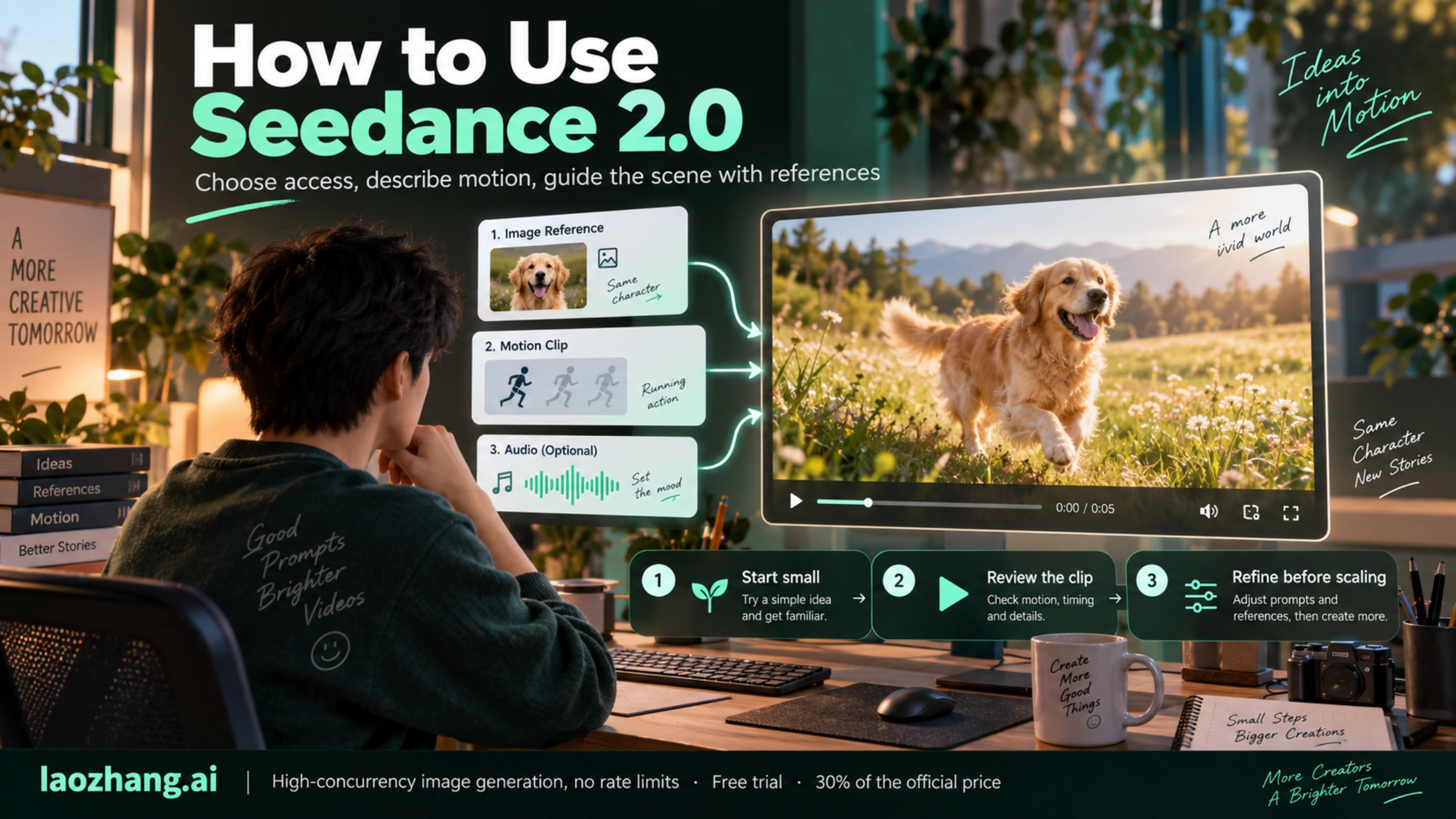
Seedance 2.0 is ByteDance's latest AI video generation model, launched on February 12, 2026, and it has quickly become one of the most talked-about tools in the creator community. The fastest way to start using it internationally is through Dreamina, which offers a free tier with daily credits that refresh every 24 hours. This guide covers everything you need to know: four working access methods for any country, step-by-step tutorials for every generation mode, the powerful 12-file reference system that most guides skip over, and honest information about current limitations and commercial use rights.
TL;DR
Seedance 2.0 generates up to 15-second video clips at 2K resolution with native audio, supporting text-to-video, image-to-video, and a unique multi-modal reference system that accepts up to 12 files in total, with per-type ceilings of 9 images, 3 videos and 3 audio files. Access it free through Dreamina (international) or Jimeng (China, 69 RMB/month). After the Disney cease-and-desist on February 13, 2026, ByteDance added copyright safeguards, but the platform remains fully operational. Below you will find copy-paste prompts, parameter guides, and practical workarounds for every limitation.
Seedance 2.0 in 60 Seconds — What It Is & Why It Matters
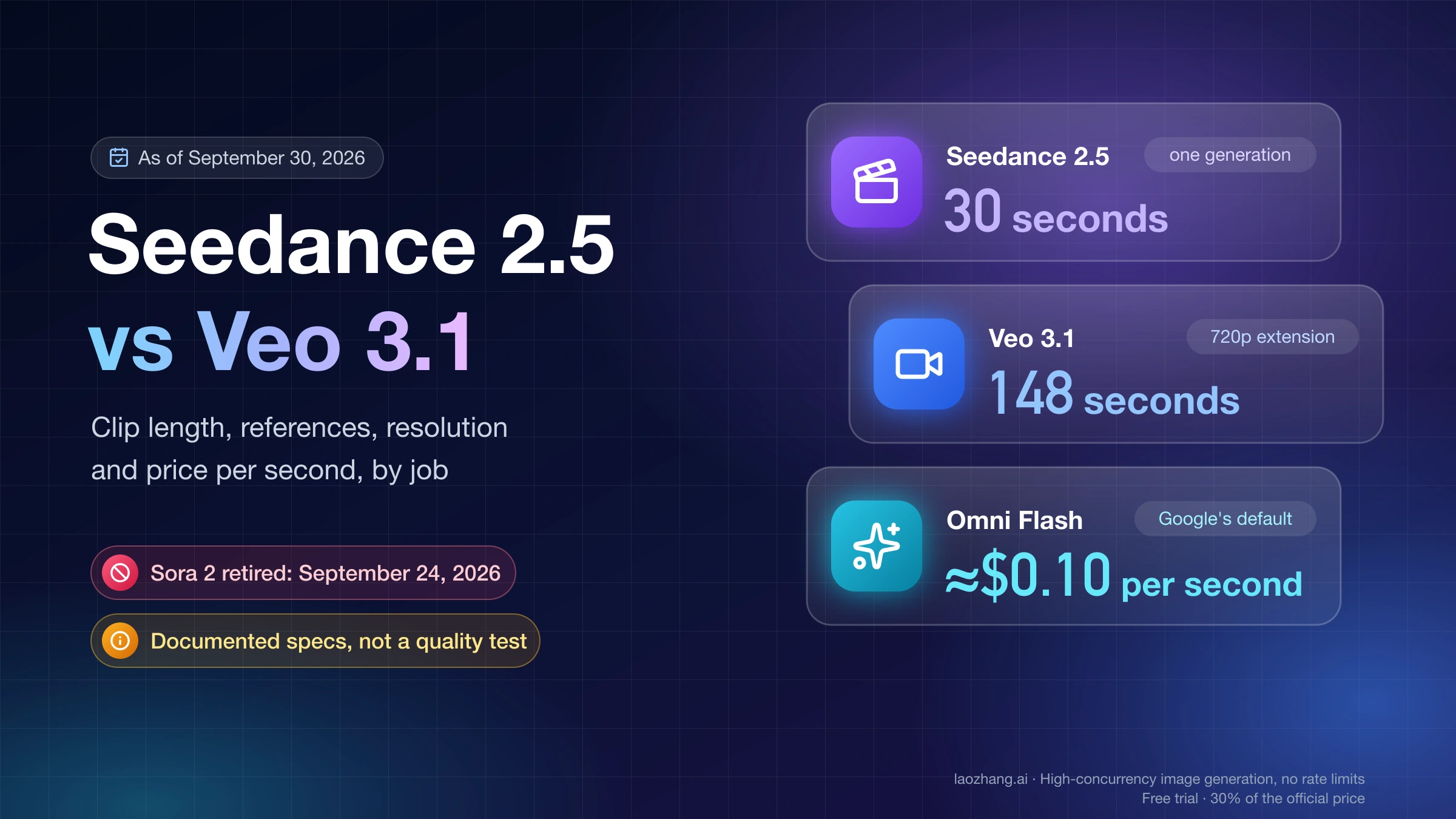
ByteDance released Seedance 2.0 on February 12, 2026, positioning it as a unified multi-modal audio-video joint generation architecture that directly competes with OpenAI's Sora 2 and Google's Veo 3.1. Unlike earlier AI video models that treated video and audio as separate processes, Seedance 2.0 generates both simultaneously in a single pass — which means characters can speak, environments can produce ambient sounds, and music can sync with visual motion without any post-production work. This native audio generation is arguably its most significant technical achievement and the primary reason it generated so much attention across social media platforms within hours of its launch.
The model accepts multiple input types through what ByteDance calls a multi-modal reference system: you can feed it text prompts, upload images for character or style consistency, reference existing videos for motion guidance, and even provide audio clips for voice matching or soundtrack generation. The system supports up to 12 reference files simultaneously, with separate ceilings of 9 images, 3 videos and 3 audio files within that combined total, giving creators an unprecedented level of control over the output. If you want to understand how Seedance 2.0 compares to Sora 2 and Veo 3 on a technical level, the key differentiator is this joint audio-video architecture — neither Sora 2 nor Veo 3.1 offers native audio generation as an integrated feature.
The practical specifications matter for planning your workflow. Each generation produces up to 15 seconds of video at up to 2K resolution, with generation times approximately 30% faster than the previous Seedance 1.5 model. While 15 seconds may sound short, the multi-modal reference system makes it possible to generate consistent sequences that can be stitched together for longer content. One important context note: on February 13, 2026 — just one day after launch — Disney sent ByteDance a cease-and-desist letter regarding copyright concerns, and the Motion Picture Association also issued a public statement. ByteDance responded approximately three days later by pledging to implement additional safeguards, which are now active on both Dreamina and Jimeng platforms. The model remains fully operational as of February 22, 2026, though some third-party platforms have voluntarily deactivated their Seedance 2.0 integrations.
4 Working Methods to Access Seedance 2.0 (Any Country)
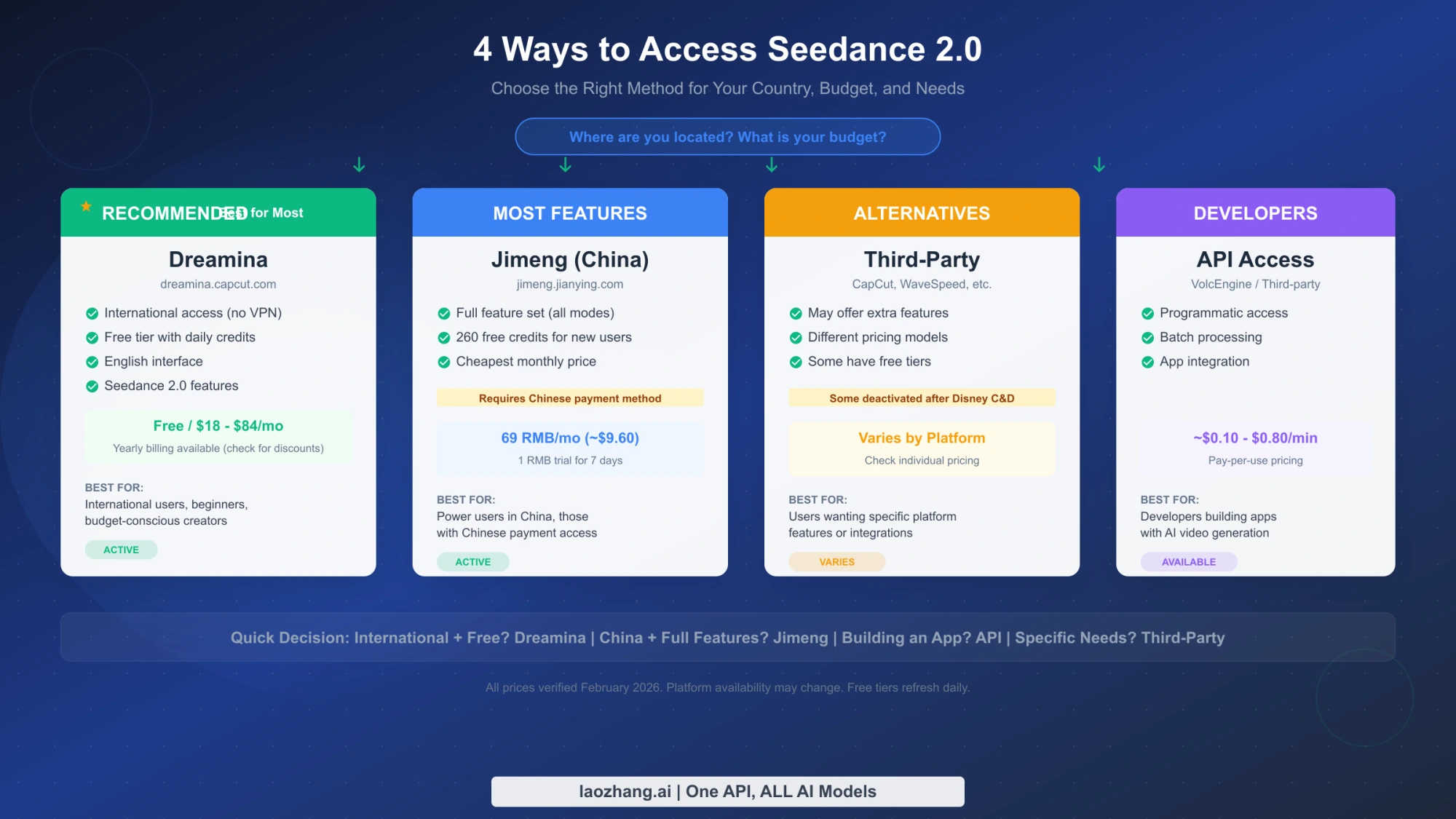
The single biggest frustration for new users is figuring out which platform actually works for their situation. Seedance 2.0 is available through multiple channels, each with different feature sets, pricing, and regional availability. Rather than simply listing platforms, here is a decision framework that helps you choose based on your specific circumstances — where you are located, how much you want to spend, and what you plan to create.
Dreamina — The Recommended Starting Point for International Users
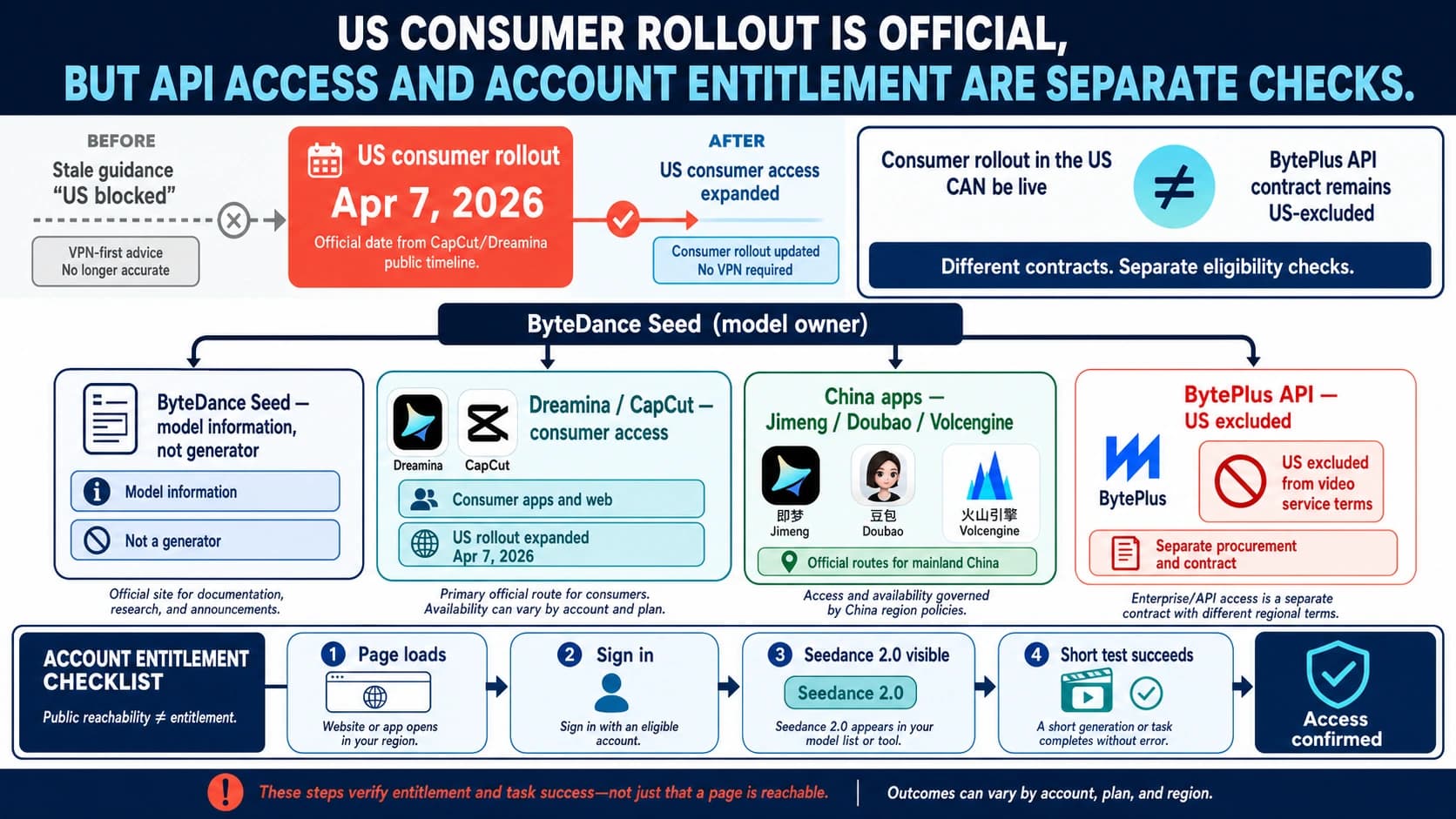
Dreamina (dreamina.capcut.com) is ByteDance's official international platform for Seedance 2.0, and it is the path of least resistance for anyone outside China. The interface is fully in English, registration requires only an email address or Google account, and there is a free tier that provides daily credits refreshing every 24 hours. This means you can start generating videos within minutes of signing up without entering any payment information. For users who need more generation capacity, paid plans start at $18 per month for Basic, $42 per month for Standard, and $84 per month for Advanced (as shown in the Dreamina pricing page in February 2026). Yearly billing is available at significant discounts — check the platform for current annual rates, as promotional pricing changes frequently. Dreamina supports all core Seedance 2.0 features including text-to-video, image-to-video, and the multi-modal reference system. The gradual rollout means some advanced features may appear slightly later than on Jimeng, but for most users the difference is negligible. For a detailed breakdown of pricing tiers and what each plan includes, see our Seedance 2.0 pricing guide.
Jimeng — Full Feature Access for Power Users
Jimeng (jimeng.jianying.com) is the original Chinese platform where Seedance 2.0 first launched, and it consistently offers the most complete feature set. The monthly subscription costs 69 RMB (approximately $9.60 USD), and new users can access a 7-day trial for just 1 RMB. New accounts also receive 260 initial credits to get started. The catch is that Jimeng requires a Chinese phone number for registration and a Chinese payment method (Alipay or TG) for subscription. The interface is entirely in Chinese, though browser translation tools handle most navigation adequately. If you have access to Chinese payment methods and want the absolute latest features, Jimeng is the most capable option. However, for the vast majority of international users, Dreamina provides a nearly identical experience with far less friction.
Third-Party Platforms — Alternatives with Caveats
Several third-party platforms have integrated Seedance 2.0 into their own workflows, including CapCut (ByteDance's own video editor), WaveSpeed, and others. These can be useful if you already have an account on one of these services or if their specific interface features appeal to you. However, an important caveat applies: following the Disney copyright controversy in February 2026, some third-party platforms have voluntarily deactivated their Seedance 2.0 integrations. Platform availability in this category is volatile, so check current status before committing to a paid plan on any third-party service. The advantage of using CapCut specifically is that it integrates Seedance 2.0 directly into a video editing workflow, which can streamline production if you plan to combine AI-generated clips with other footage.
API Access — For Developers Building Applications
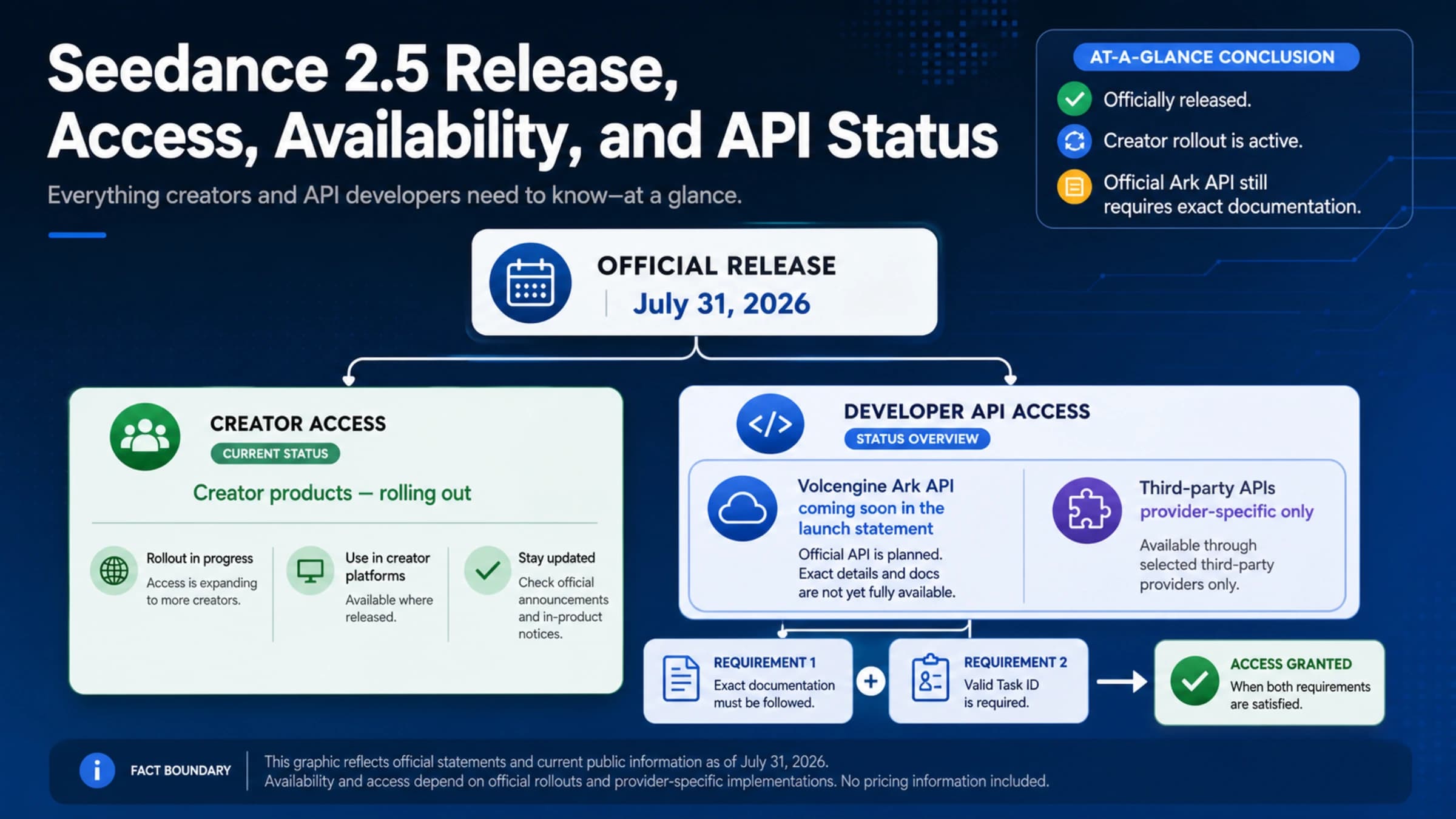
For developers who need programmatic access, Seedance 2.0 is available through VolcEngine (ByteDance's cloud platform) and through various third-party API providers. Pricing typically ranges from approximately $0.10 to $0.80 per minute of generated video, depending on the provider and resolution settings. API access enables batch processing, integration into custom applications, and automated workflows. If the official platforms become unavailable in your region or you need reliable programmatic access, API providers like laozhang.ai offer aggregated access to multiple AI video models including Seedance 2.0, Sora 2, and Veo 3.1 through a single unified endpoint, which provides redundancy if any single platform experiences downtime.
The quick decision rule is straightforward: if you are an international user who wants to try Seedance 2.0 for free, start with Dreamina. If you are in China and want every available feature, use Jimeng. If you are building an application, go with API access. And if you have specific workflow needs, check whether any third-party platform serves them before committing.
Text-to-Video — Your First Video in 5 Minutes
Text-to-video is the most accessible way to start using Seedance 2.0, and the entire process from opening the platform to downloading your first generated video takes about five minutes. Here is the exact workflow on Dreamina, which applies with minor interface differences to Jimeng and other platforms.
After signing into Dreamina, navigate to the video generation section and select Seedance 2.0 as your model. You will see a text input field where you enter your prompt, along with parameter controls for duration, resolution, and aspect ratio. The default settings (5 seconds, standard resolution, 16:9 aspect ratio) are perfectly fine for your first generation. The most important factor in getting good results is your prompt, so let us focus on that rather than interface navigation that may change as the platform updates.
A common mistake with AI video generation is writing prompts the same way you would for image generation. Video prompts need to describe motion, temporal progression, and camera behavior in addition to visual appearance. Here is a practical template that consistently produces good results with Seedance 2.0: start with the subject description, then describe the action or motion, then specify the environment, and finally mention the camera movement or visual style. For example, instead of writing "a woman in a red dress in a garden" (which is a static image prompt), write something like: "A young woman in a flowing red dress walks slowly through a sunlit rose garden, petals drifting in a gentle breeze, the camera follows her from a low angle as she turns to look over her shoulder, cinematic lighting, shallow depth of field." The difference in output quality between a vague prompt and a well-structured one is dramatic.
The parameter settings deserve attention once you move beyond your first test generation. Duration can be set between 5 and 15 seconds — shorter clips generate faster and consume fewer credits, so use 5-second clips for testing prompt ideas before committing to full 15-second generations. Resolution scales up to 2K, but standard resolution is sufficient for social media content and uses fewer credits. Aspect ratio options typically include 16:9 (widescreen, ideal for YouTube), 9:16 (vertical, ideal for TikTok and Instagram Reels), and 1:1 (square, ideal for Instagram feed posts). Choosing the right aspect ratio at generation time avoids quality loss from cropping later. A 5-second video at standard resolution typically costs approximately 30-50 credits on Dreamina, though exact costs vary by your subscription tier and current platform pricing.
For your first prompt, here is one you can copy and paste directly: "A golden retriever puppy runs across a grassy meadow at sunset, ears flapping, tongue out, the camera tracks alongside at the same speed, warm golden hour lighting, slow motion, cinematic." This prompt works well because it specifies a clear subject, defined motion, environmental context, camera behavior, and visual style — all the elements Seedance 2.0 responds to most effectively.
Once your first generation completes, you will develop a sense for how the model interprets your instructions, and you can begin refining your approach. The iteration workflow that experienced Seedance 2.0 users follow is: generate a quick 5-second test at standard resolution to evaluate the prompt concept, review the result and identify what needs adjustment (usually camera movement or subject motion descriptions need the most iteration), refine the prompt wording, test again, and only generate the final 15-second high-resolution version once you are satisfied with the concept. This approach costs far fewer credits than generating full-length videos from untested prompts, and it produces better final results because you catch issues early. Common prompt adjustments include adding "smooth" or "steady" when camera motion is too jerky, specifying "subtle" movements when the model over-animates faces or bodies, and including explicit timing cues like "slowly" or "gradually" to control the pace of action within the clip. Another effective technique is using negative descriptions — phrases like "no sudden camera cuts, no zooming" help the model understand what you do not want, which is sometimes easier than describing exactly what you do want.
Image-to-Video — Bring Static Photos to Life
Image-to-video generation takes a still photograph or illustration and transforms it into a video clip with motion, which is particularly powerful for product photography, portraits, and artwork. The workflow is similar to text-to-video, but instead of relying entirely on a text prompt to define the visual appearance, you upload a source image that establishes the look while your text prompt defines how things should move.
The upload process on Dreamina is straightforward: select the image-to-video mode, upload your source image, and then write a prompt that describes what motion should occur. The critical insight that most tutorials miss is that your prompt for image-to-video should focus almost entirely on describing motion and change rather than repeating what is already visible in the image. If you upload a portrait of a person, you do not need to describe their appearance again — Seedance 2.0 already has that information from the image. Instead, describe what they should do: "The person slowly turns their head to the left, smiles warmly, and raises one hand in a gentle wave, natural eye movement, soft ambient lighting." This approach produces dramatically better results than prompts that redundantly describe the uploaded image.
Image format and quality significantly impact output. Seedance 2.0 works best with high-resolution source images in JPG or PNG format, ideally at least 1024x1024 pixels. Images with clear subjects, good lighting, and minimal noise produce the best animations. Particularly effective source images include product photos on clean backgrounds (for product animation), portrait photographs with clear facial features (for talking head or expression animations), landscape photographs with depth (for parallax-style camera movements), and illustrations or artwork (for creative animations). Avoid source images that are heavily compressed, blurry, or have very low resolution, as these artifacts will be amplified in the generated video.
One advanced technique that produces impressive results is combining image-to-video with the multi-modal reference system. Upload your primary image as the source, then add additional @Image references for style guidance. For example, you could upload a product photo as your main image and reference a cinematic still from a movie for lighting and camera style guidance. This layered approach gives you control over both the content (from your source image) and the aesthetic (from your style reference) simultaneously.
Different types of source images produce distinctly different animation styles, and understanding these patterns helps you choose the right source material for your intended result. Portrait photographs with clear frontal faces produce the most reliable lip-sync and expression animations — the model can identify facial landmarks accurately and generate natural-looking speech movements, eye blinks, and subtle head tilts. Product photographs on clean white or neutral backgrounds are excellent for spinning or rotating animations where the model slowly rotates the product to show different angles, which is immediately useful for e-commerce content. Landscape and architecture photographs work best with slow parallax-style camera movements where foreground and background elements move at different speeds, creating a cinematic depth effect from a single flat image. Illustrations and digital artwork tend to produce animations with slightly more stylized motion that respects the artistic style of the original image, rather than trying to make it look photorealistic.
A practical tip that saves significant time: before committing to a full generation, test your source image with a short 5-second clip to see how the model interprets it. Some images contain ambiguities that the model resolves in unexpected ways — for instance, a photo where a person is partially obscured might cause the model to generate strange completion artifacts when animating the hidden area. If the 5-second test reveals issues, you can crop your source image differently, adjust the prompt to guide the model away from problem areas, or choose a different source image entirely, all before using credits on a longer generation.
Multi-Modal Magic — The 12-File Reference System
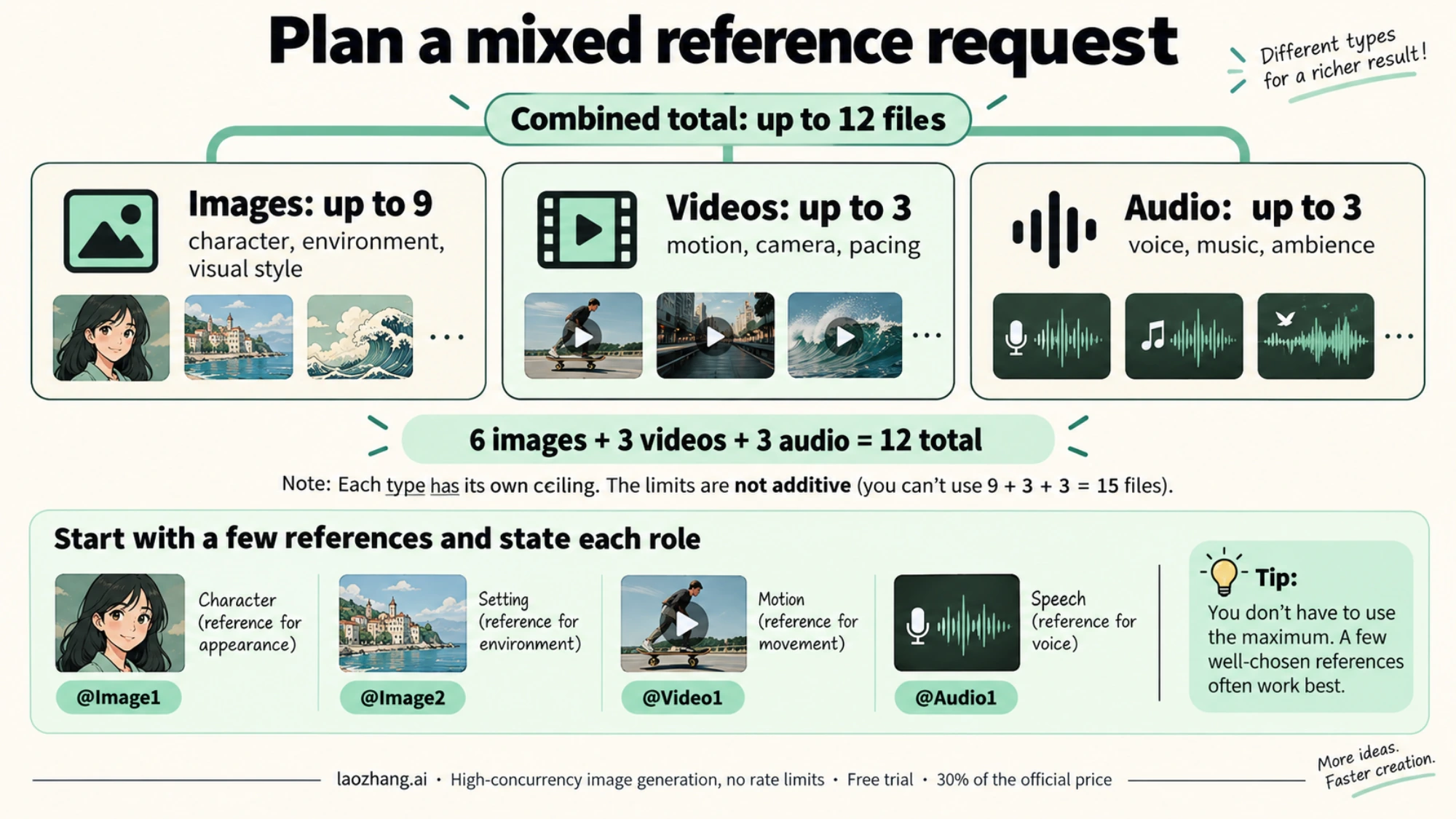
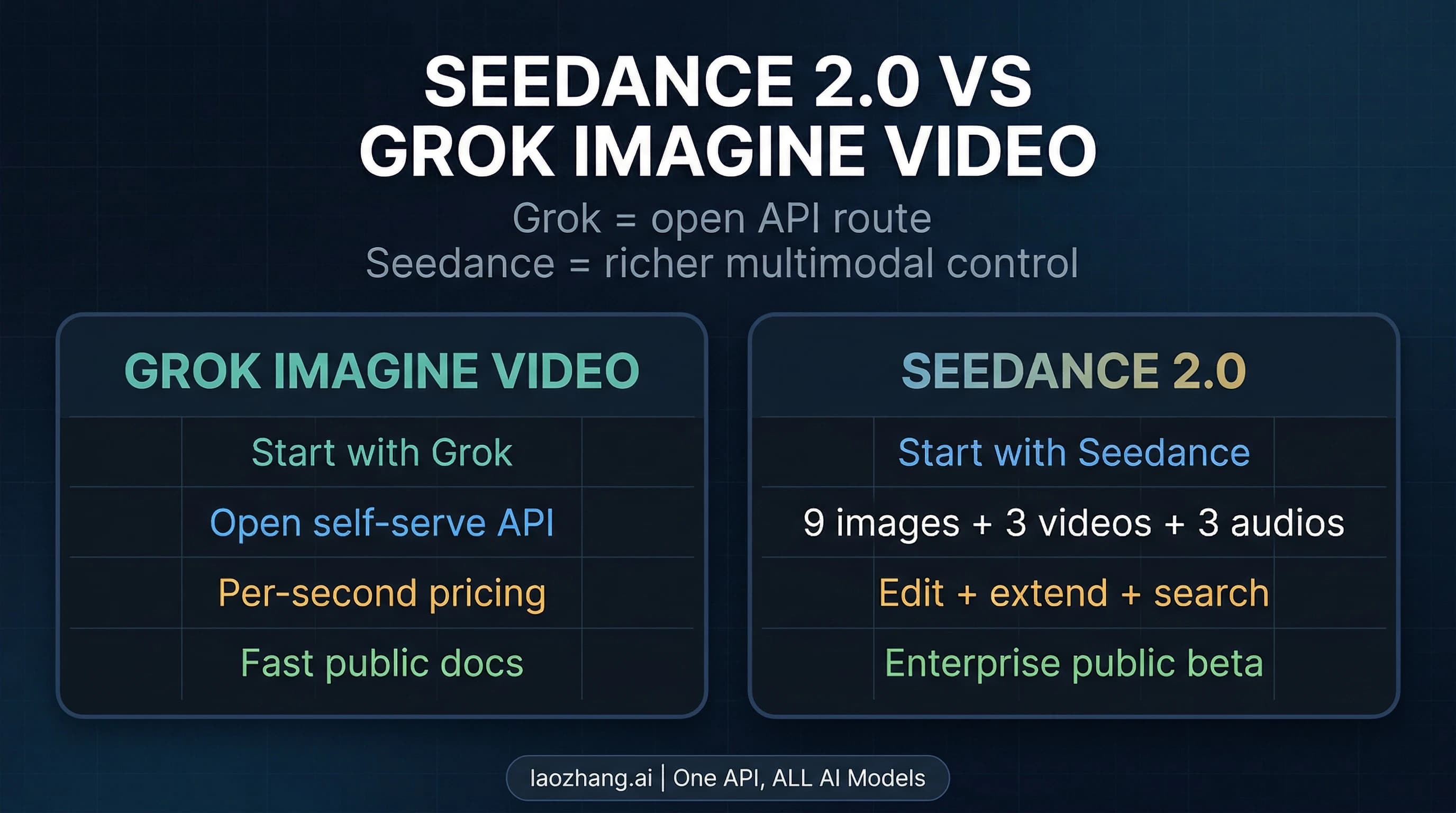
The multi-modal reference system is Seedance 2.0's most powerful and least understood feature. While most AI video tools accept either text or a single image as input, Seedance 2.0 allows you to upload and reference up to 12 files simultaneously, with per-type ceilings of 9 images, 3 videos and 3 audio files, creating an incredibly detailed specification for what you want the model to generate. The per-type ceilings are not additive: a mixed request still stays within 12 total files. For example, 6 images + 3 videos + 3 audio files totals 12. This is the feature that truly sets Seedance 2.0 apart from Sora 2, Veo 3.1, and every other AI video model available as of February 2026, yet almost no existing guide explains how to actually use it effectively.
The syntax is based on @tags that you include in your text prompt. When you upload reference files, each one is assigned a tag: @Image1 through @Image9, @Video1 through @Video3, and @Audio1 through @Audio3. You then reference these tags in your prompt to tell the model how each file should influence the output. For example, a prompt might read: "@Image1 as the main character, walking through the environment shown in @Image2, with the camera movement style from @Video1, speaking with the voice quality of @Audio1." The model interprets these references and combines them into a coherent video generation that respects all the specified inputs.
Understanding what each reference type controls is essential for getting good results. Image references primarily control visual appearance: @Image1 might define your character's face and body, @Image2 could set the background environment, @Image3 might provide a color palette or artistic style reference, and additional image slots could specify poses, props, lighting setups, or other visual elements you want to appear in the output. Practically speaking, most users will get excellent results with 2-4 image references — you do not need to fill all 9 slots for every generation. Video references control motion dynamics: @Video1 might provide a reference for how the camera should move, or how a character should walk, or the overall pacing and rhythm of the scene. This is particularly useful when you want to replicate a specific type of movement without having to describe it precisely in text. Audio references control the sound layer: @Audio1 might be a voice recording that the model uses for lip-sync generation, @Audio2 could be a music track that influences the pacing and mood of the video, and @Audio3 might provide ambient sound effects.
A practical combination example that demonstrates the system's power: upload a headshot photo as @Image1 (character reference), a nature landscape as @Image2 (background), a walking video clip as @Video1 (motion reference), and a voice recording as @Audio1 (dialogue). Then prompt: "@Image1 walks through the @Image2 landscape following the walking style in @Video1, speaking the words in @Audio1 with natural lip sync, cinematic tracking shot." This single generation request leverages four different reference files to produce a video that would be extremely difficult to achieve with text-only prompting. Start with 2-3 references for your first multi-modal generation and gradually add more as you understand how the model interprets each input type.
Lip Sync & Audio — Native Sound Generation
Native audio generation is Seedance 2.0's signature differentiator — the feature that generated the most excitement when the model launched and the one that competitors have not yet matched. Where Sora 2 and Veo 3.1 generate silent video that requires separate audio in post-production, Seedance 2.0 produces audio and video simultaneously as a unified output. This means dialogue matches lip movements naturally, footsteps sync with walking, ambient sounds match the environment, and music can follow the visual rhythm without manual alignment.
The lip-sync capability supports 8 or more languages, making it particularly valuable for content creators who produce multilingual content. The workflow for generating video with lip-sync audio involves uploading an audio reference file (@Audio tag) containing the speech you want your character to say, combined with a character image reference and a text prompt that describes the scene. Seedance 2.0 analyzes the audio, matches mouth movements to the phonemes in the speech, and generates a video where the character appears to naturally speak the provided audio. The quality is best with clear, well-recorded audio at conversational pace — heavily processed or very fast speech can reduce sync accuracy.
Beyond dialogue, the native audio system generates environmental sounds automatically based on the visual content. A scene set in a forest will include bird sounds and rustling leaves. An urban street scene will include traffic noise and crowd ambience. A rainstorm scene will include rain and thunder. This automatic sound design saves significant post-production time and creates a more immersive result than manually adding sound effects later. You can influence the audio output through your text prompt — specifying "quiet, peaceful atmosphere" versus "busy, energetic environment" changes the audio generation alongside the visual content. If you need precise control over specific audio elements, the @Audio reference system lets you provide audio samples that guide the model's sound design without completely overriding its automatic generation. For creators who need absolute precision in their audio, the recommended workflow is to generate the video with Seedance 2.0's native audio first, then selectively replace or enhance specific audio elements in a dedicated audio editor or video editor like CapCut.
The multilingual lip-sync capability deserves special attention because it opens up a workflow that was previously expensive and time-consuming: creating the same video content in multiple languages. The traditional approach required hiring voice actors for each language, recording separate audio tracks, and manually syncing each one to the character's mouth movements using specialized software. With Seedance 2.0, you can record (or generate) speech in different languages, upload each as an @Audio reference with the same character @Image reference, and produce language-specific versions of the same scene in separate generation passes. The lip movements will naturally adapt to the phonemes of each language, producing results that look natively recorded rather than dubbed. This is particularly valuable for brands that create marketing content for international audiences, educators producing multilingual course material, and content creators who publish on platforms with audiences in different language markets.
For best audio quality results with the lip-sync system, your input audio should be recorded at 44.1kHz or 48kHz sample rate, in WAV or high-quality MP3 format, with minimal background noise and clear pronunciation. Speaking at a natural conversational pace produces the best synchronization — very fast speech or heavily accented pronunciation can sometimes cause the model to lose sync accuracy. If you are recording your own voice for lip-sync, speaking into a decent USB microphone in a quiet room produces dramatically better results than a phone recording in a noisy environment. The model also handles tonal languages like Mandarin and Cantonese, where pitch changes carry meaning, with reasonable accuracy — though the lip movements may be slightly less precise than for non-tonal languages like English or Spanish.
Download, Export & Commercial Use
Once you have generated a video you are satisfied with, Seedance 2.0 outputs MP4 files that can be downloaded directly from the platform. The export options are straightforward: videos are available at the resolution you selected during generation (up to 2K), in standard MP4 format compatible with virtually all video editing software and social media platforms. On Dreamina, free-tier downloads may include a small watermark, while paid subscribers can download without watermarks. On Jimeng, the watermark behavior depends on your subscription level.
The commercial use question is the one that most guides avoid, but it deserves a clear answer. As of February 2026, ByteDance's terms of service for both Dreamina and Jimeng generally allow commercial use of generated content, with important caveats. Content generated using original prompts and your own reference materials (not copyrighted characters or protected intellectual property) can typically be used for commercial purposes including social media content, marketing materials, and creative projects. However, the copyright landscape is actively evolving following the Disney controversy. ByteDance has implemented safeguards that attempt to prevent generation of recognizable copyrighted characters, and content that resembles existing intellectual property may face additional restrictions. The practical advice is: if you are creating content for commercial use, stick to original character descriptions, use your own photography and artwork as references, and avoid prompting for anything that closely resembles existing copyrighted material. This approach keeps you in clearly safe territory regardless of how copyright policies evolve in the coming months.
For workflow efficiency, consider your export pipeline before you begin generating. If you are creating content for TikTok or Instagram Reels, generate directly in 9:16 aspect ratio rather than cropping from 16:9 later. If you need longer content, generate individual clips at the same resolution and aspect ratio so they stitch together seamlessly. And if you plan to do color grading or other post-production work, the higher resolution 2K output provides more headroom for adjustments without quality loss.
Seedance 2.0 Limitations & Workarounds (February 2026)
Every AI tool has limitations, and being transparent about them is more useful than pretending they do not exist. Seedance 2.0 is impressive, but understanding its current boundaries will save you time and help you plan realistic production workflows. Here are the significant limitations as of February 2026, along with practical workarounds for each.
The 15-second maximum duration is the most commonly cited limitation, and it is a hard constraint of the current model architecture — there is no setting to override it. The workaround that professional creators use is generating multiple consistent clips and joining them in a video editor. The key to making this work is using the @Image reference system to maintain character and scene consistency across clips. Take the last frame of your first clip, use it as the starting image reference for your second clip, and include the same character and environment references. This produces clips that can be cut together with natural-looking continuity. Tools like CapCut, Adobe Premiere, and DaVinci Resolve all handle this workflow well.
The copyright content restrictions implemented after the Disney cease-and-desist are functional but sometimes overly aggressive. The safeguards can occasionally block prompts that do not actually reference copyrighted material if certain keyword combinations trigger the filter. If your prompt is blocked unexpectedly, try rephrasing using different descriptive terms. Instead of naming a specific art style associated with a studio, describe the visual characteristics you want: "soft rounded character design with warm colors" instead of naming a specific animation studio's style. Using your own @Image references for character design is the most reliable way to avoid filter issues entirely, because the model can see exactly what you want without relying on potentially filtered text descriptions.
Platform availability remains volatile. Since the controversy began, some third-party integrations have been temporarily or permanently deactivated. The safest approach is to use official channels — Dreamina for international access and Jimeng for Chinese users. These are the least likely to experience unexpected outages since they are directly controlled by ByteDance. If you need guaranteed uptime for production workflows, API access through established providers offers the most reliable path. For context on how the broader AI video landscape is evolving and what alternatives exist, see our guide to which AI video model is best for your needs.
The audio generation system, while groundbreaking, has limitations in fine-grained control. You cannot independently adjust the timing of individual sound effects, precisely control the volume balance between dialogue and ambient sound, or generate specific musical compositions on demand. The @Audio reference system provides guidance rather than precise control. For productions requiring exact audio specifications, the recommended approach is to generate the video with Seedance 2.0's audio for reference, then replace or enhance specific audio tracks in post-production using your preferred audio editing software. This hybrid approach leverages Seedance 2.0's ability to generate naturally synchronized base audio while giving you full control over the final mix.
FAQ — Common Questions Answered
Is Seedance 2.0 free to use?
Yes, Seedance 2.0 is available for free through Dreamina's free tier, which provides daily credits that refresh every 24 hours. The free credits are sufficient for several short video generations per day. Paid plans on Dreamina start at $18/month (Basic), and Jimeng offers a 7-day trial for just 1 RMB (~$0.14) with 260 initial free credits for new accounts. You can generate meaningful content without spending anything.
Is Seedance 2.0 safe to use after the Disney controversy?
Yes. ByteDance implemented copyright safeguards approximately three days after the Disney cease-and-desist (around February 16, 2026), and both Dreamina and Jimeng remain fully operational. The safeguards prevent generation of recognizable copyrighted characters, but original content creation is unaffected. The platform itself is not at legal risk for individual users creating original content.
Can I use Seedance 2.0 outside China?
Yes. Dreamina (dreamina.capcut.com) is ByteDance's international platform specifically designed for users outside China. It requires no VPN, accepts international payment methods, and has a full English interface. You can also access Seedance 2.0 through various third-party platforms and API providers that serve international users.
How does Seedance 2.0 compare to Sora 2 and Veo 3.1?
Seedance 2.0's primary advantage is native joint audio-video generation — neither Sora 2 nor Veo 3.1 generates audio natively. It also offers the 12-file multi-modal reference system, which provides more input flexibility than either competitor. For a comprehensive comparison, see our four-way comparison of leading AI video models that covers quality, pricing, and feature differences in detail.
How many credits does one video cost?
On Dreamina, a typical 5-second video at standard resolution costs approximately 30-50 credits. A 15-second generation at higher resolution costs more. Exact credit consumption depends on resolution, duration, and whether you use advanced features like multi-modal references. Free tier credits refresh daily, and paid plans provide monthly credit allocations that vary by tier.
Sources1
External pages this guide links to, in the order they appear. Last updated Oct 5, 2026.
Sources1
External pages this guide links to, in the order they appear. Last updated Oct 5, 2026.