Fix Logo Distortion in AI Video: Regenerate, Repair, or Composite
Logo warped in an AI product video? Regenerate if the product drifts too, try an AI edit for a short flaw, or composite the real logo when it must match.
On this page
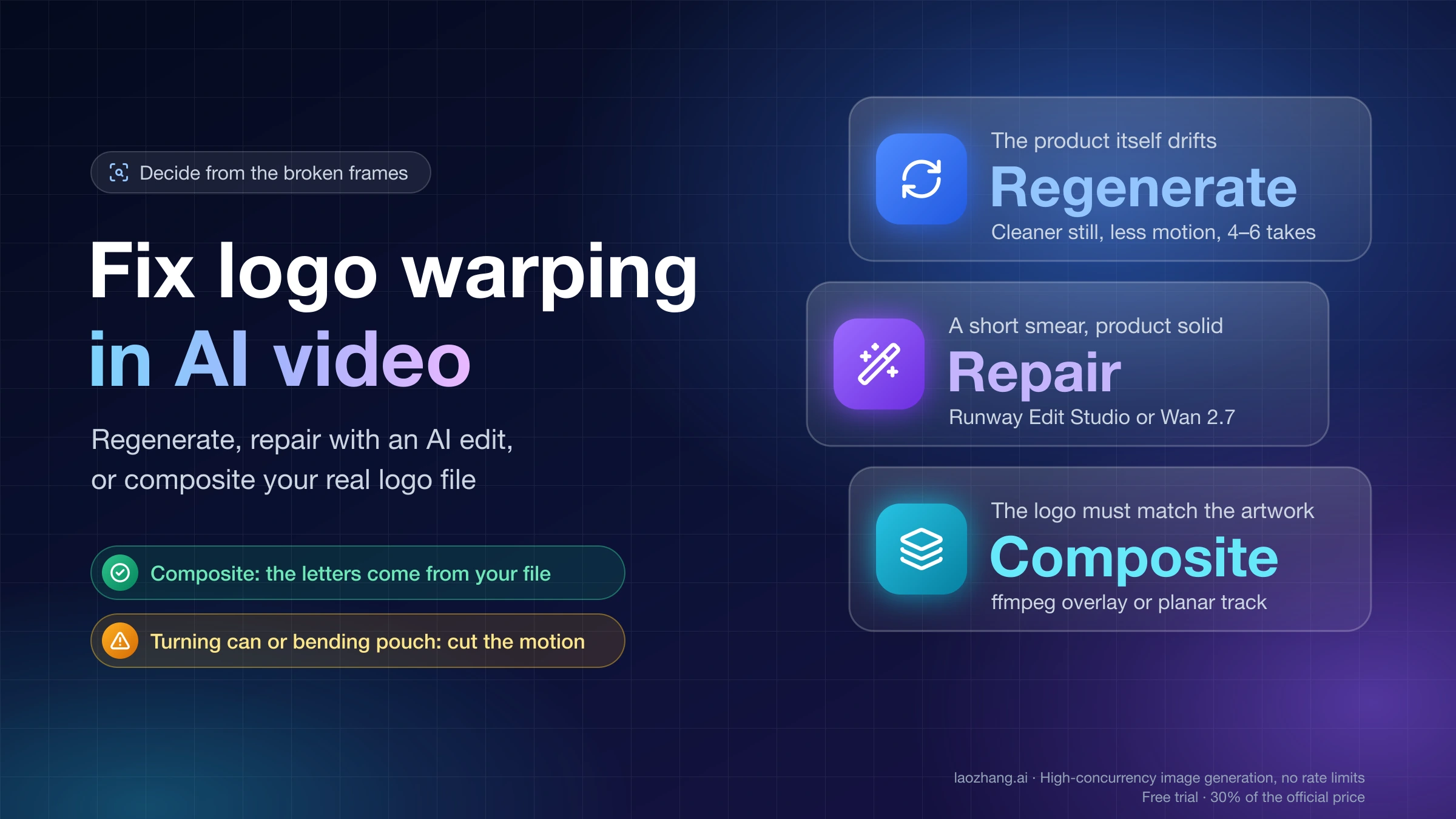
Look at where the logo breaks before you spend another credit. If the bottle, box or pouch itself changes shape across the clip, regenerate: no fix applied to the logo will rescue a product that drifts. If the product holds still and only the logo smears for a moment, an AI video edit can repair that stretch, but it redraws the letters rather than restoring your file. If the logo has to match the approved artwork in every readable frame, composite the real logo on top. A locked-off shot needs one ffmpeg command. A moving camera needs a planar track in After Effects or DaVinci Resolve.
There is one hard limit. Compositing works on flat surfaces, like a box face, a carton or a flat label on a bottle that barely turns. A wrap-around label on a can that rotates, or a flexible pouch that bends, is hard to track. For those, cut the motion and regenerate, or keep the product as a still image and animate only the scene around it.
The ffmpeg commands below were run on synthetic test clips with Homebrew ffmpeg 9.0.2 on macOS. Each clip was a gradient background with a box standing in for the product, at 1920×1080, 24 fps and 6 seconds. No real AI-generated clip went through them. After Effects, Mocha AE, DaVinci Resolve, Runway, Wan and Dreamina were not run here, so what those tools do comes from their own documentation.
Regenerate, repair or composite: decide from the broken frames
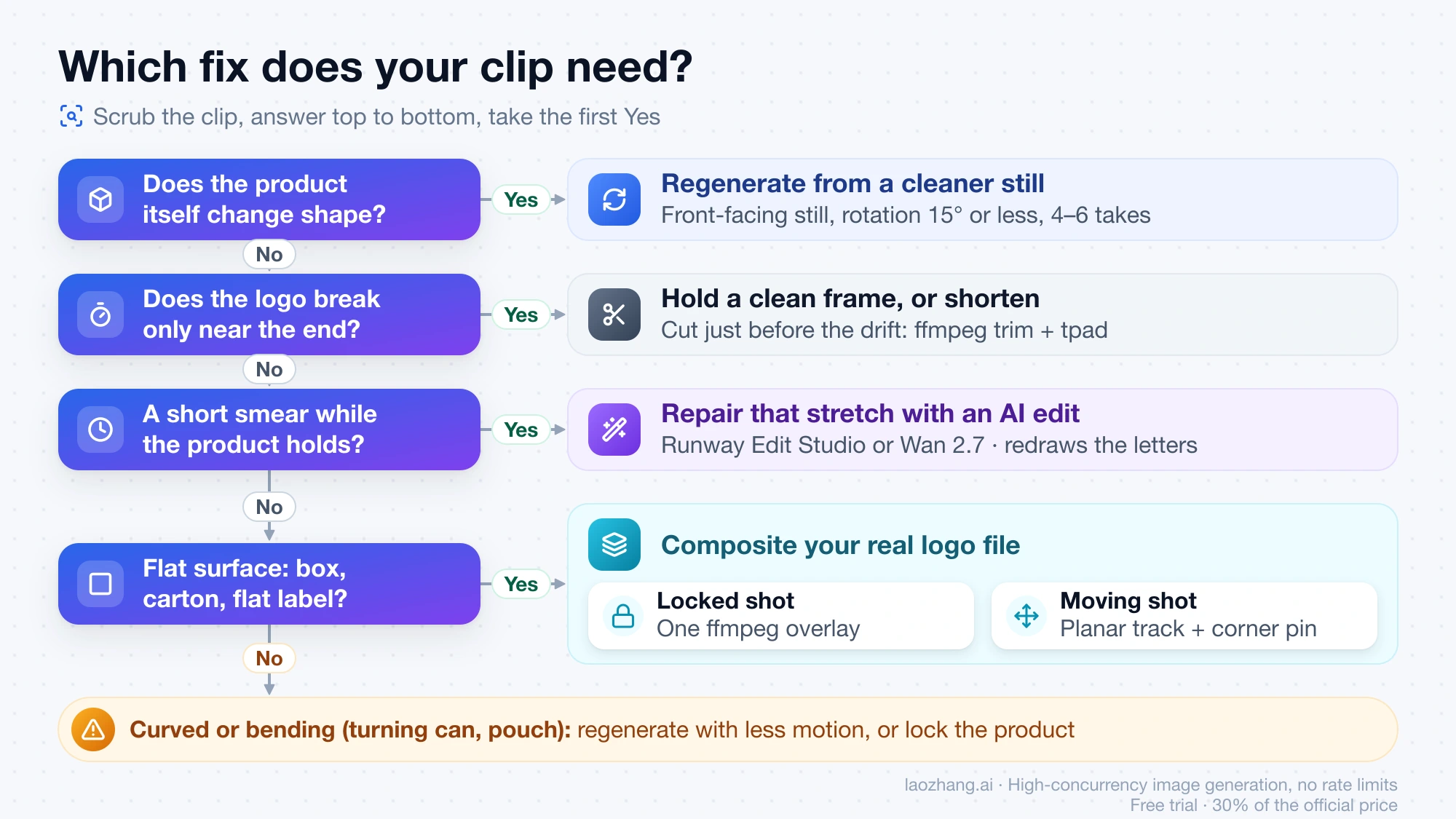
Scrub the clip and note four things: whether the product outline changes, how many frames show the broken logo, whether the camera moves, and what shape the logo sits on. Then read across this table.
| What you see in the clip | Best route | Why |
|---|---|---|
| Product outline, cap, proportions or colors drift, not just the logo | Regenerate | The source image or the motion is the problem; patching the logo leaves a morphing product |
| Every take warps at the same moment | Regenerate from a cleaner still | Domo AI's diagnosis: the source image has a detail the model can't hold |
| Logo is fine until the last second or two | Hold a clean frame, or shorten | The model drifted as the clip ran on; cut before it breaks |
| Logo smears for a short stretch, product stays solid | Repair with an AI edit, or cover with an insert shot | Small target, short range, cheap to try |
| Logo letters are wrong, flicker or change through most of the clip, camera locked, flat surface | Composite the real logo (static overlay) | Your artwork file is exact; the model's version never will be |
| Same, but the camera pushes, pans or the product turns a little | Composite with a planar track | Corner pin follows the flat surface |
| Wrap label on a turning can, bending pouch, hands covering the logo | Regenerate with less motion, or lock the product and animate the scene | Planar tracking assumes a flat plane |
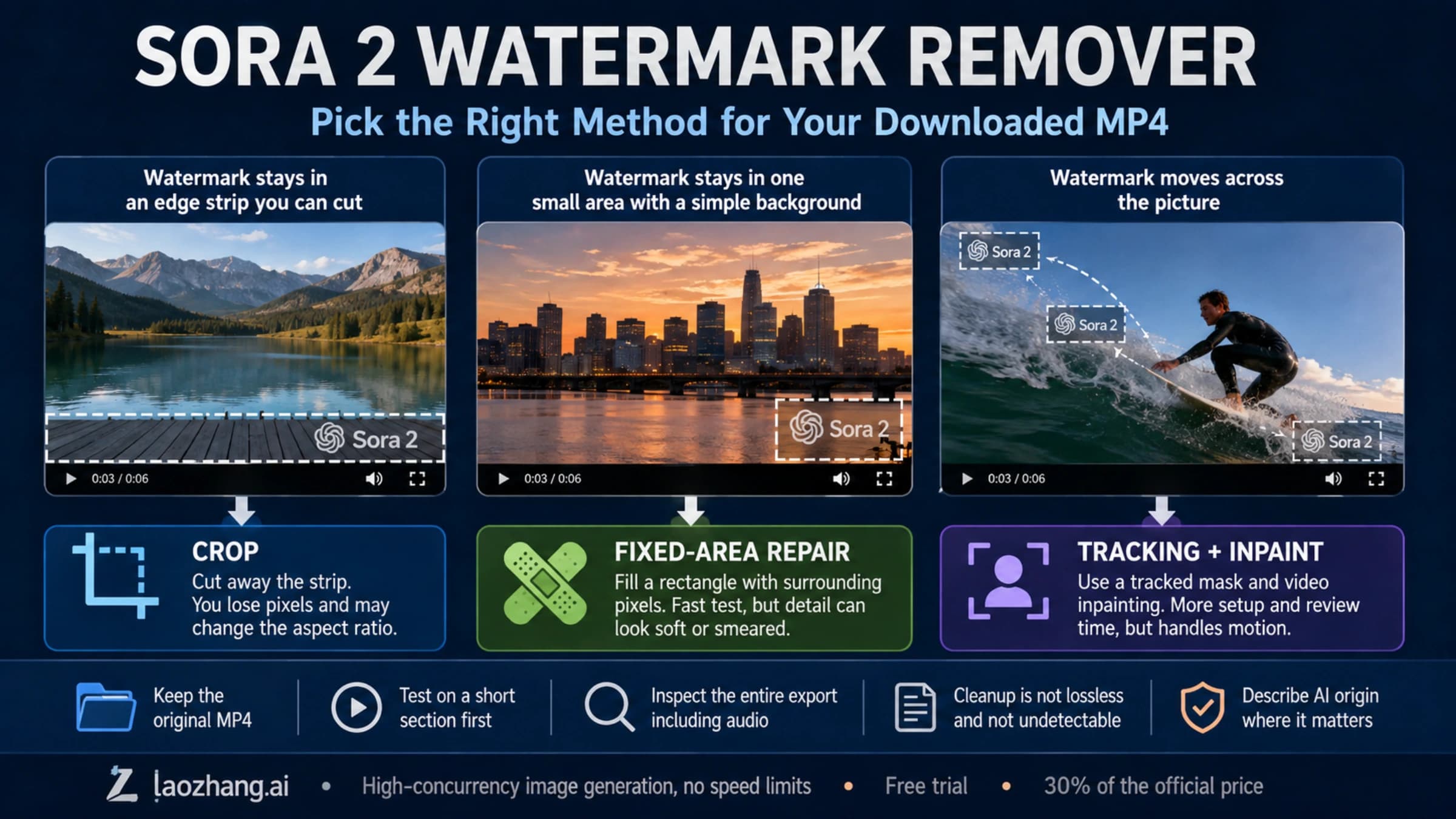
Two cases don't fit the table. If the logo looks blocky rather than warped after you put it back, the logo file is too small for the frame, and you need a larger PNG rendered from the vector source. If the job is removing a watermark or someone else's mark rather than fixing your own, that is a different task, covered in Sora 2 Watermark Remover: How to Clean Up a Downloaded MP4.
Why logos warp in AI product video, and which fix that points to
Image-to-video models move pixels from frame to frame. They have no idea that a group of pixels is a trademark. Letterforms are precise, so an edge shift of a pixel or two reads as a smear. Domo AI's product-video guide (August 23, 2026) adds the part that predicts the fix. When the product turns, the model has to invent label area it never saw in the source image, and it rarely gets that right.
Shape matters for the same reason. In Domo AI's guide, wrap labels on bottles and cans fail first because the curve gets recalculated every frame. Flat boxes hold better, though corners drift. Flexible pouches are the worst, because nothing rigid anchors the surface.
Each route answers a different part of that cause:
- Regenerate gives the model less to invent: a cleaner front-facing still and smaller motion.
- Repair asks a second model to redraw the bad stretch. It is still a model inventing pixels, just with a tighter instruction.
- Composite takes the logo out of the model's hands. The letters come from your file, so they are exact, and the only thing left to get right is placement.
No vendor publishes a logo-fidelity success rate for any video model, at any tier. Treat claims like "your product stays pixel-exact" as marketing until you have checked your own clip frame by frame.
What each fix costs: takes, edit seconds or your own time
The money cost is easy to estimate from list prices. The real cost depends on how many attempts fail, and nobody publishes that. The figures below are per attempt, as of October 19, 2026.
| Route | Example | Arithmetic | Per attempt |
|---|---|---|---|
| Regenerate, Seedance 2.0 (laozhang.ai list price) | Six 5-second 720p takes | 6 × $0.86 | $5.16 |
| Regenerate, Seedance 2.5 (laozhang.ai list price) | Six 5-second 720p takes | 6 × $1.31 | $7.86 |
| Regenerate, Seedance 2.5 at 1080p | Six 5-second takes | 6 × $3.23 | $19.38 |
Repair, Wan 2.7 wan2.7-videoedit (laozhang.ai list price) | Edit a 5 s clip, 5 s output at 720P | (5 + 5) × $0.1028 | about $1.03 |
| Same at 1080P | 5 s in, 5 s out | (5 + 5) × $0.1714 | about $1.71 |
| Repair, Runway Edit Studio (Aleph 2.0) | Whole 5 s clip | 5 × 28 credits | 140 credits |
| Same, ranged edit of 2 s | Only the broken stretch | 56-credit minimum | 56 credits |
| Composite | Static overlay or planar track | Software you have plus your time | ffmpeg is free; AE or Resolve if you already own them |
Disclosure: laozhang.ai is our own service. Its prices are platform pricing, not an independent comparison.
Some notes on those rows:
- Six takes follows Domo AI's advice to generate four to six takes and keep the best. It is not a measured success rate. If none of the six is usable, the cost per usable clip doubles with the next batch.
- Seedance prices are the per-video estimates in the laozhang.ai Seedance video generation docs for a 5-second 16:9 video with no input video. Billing is by tokens, so the real charge is the sum of the log entries. Cheaper tiers exist there too, such as 2.0 fast at $0.69 and 2.0 mini at $0.43 per 5-second 720p clip.
- Wan 2.7 video edit bills input seconds plus output seconds, and only for successful tasks, according to the Alibaba Cloud Wan video editing API reference. The $0.1028 and $0.1714 per-second figures come from the laozhang.ai Wan video generation docs, where Wan 2.7 editing costs the same as the other Wan 2.7 models.
- Runway credits are left as credits. What a credit costs depends on your Runway plan. Keyframe previews cost extra: 20 credits per image with Nano Banana Pro, 8 with Gen-4 Image, 5 with GPT Image 2.
The time cost runs the other way. Regenerating costs nothing but waiting. An AI edit takes minutes plus review. A static overlay takes minutes. A planar track on a 5-second shot is manual work, and it gets slower when hands or motion blur get in the way.
Regenerate: fix the source still and the motion before the next take
Regenerating only helps if something changes between takes. Running the same prompt on the same still tends to repeat the same failure. Work in this order:
- Approve a still first. Use a front-facing or slight three-quarter shot with the whole label in frame, at least 1080×1080, evenly lit, on a plain background (Domo AI's checklist). Media.io's guide (October 15, 2026) makes the same point. Lock down the things that must not change, such as shape, colors, cap and logo position, and keep them separate from the scene details you are happy to vary.
- Shrink the motion. Domo AI suggests keeping rotation at 15° or less, and prompts that move the light, steam or camera instead of spinning the product. Treat "Spin," "360" and "dramatic zoom into label" as warnings.
- Give the model references if your tool takes them. Veo 3.1 and Veo 3.1 Fast accept up to three reference images, and the clip must be 8 seconds when you use them, per the Gemini API Veo documentation. Veo 3.1 Lite and Veo 3 do not take reference images. Seedance 2.5 accepts up to 30 reference images on the laozhang.ai route. A close-up of the label is a useful reference. No document claims a reference image keeps text exact.
- Generate four to six takes and compare them the same way each time. Check frame 1 against the source, frames 5–10 for outline drift, and the last frame for letter shapes.
Disclosure: laozhang.ai is our own service. Its prices are platform pricing, not an independent comparison.
If the label is too dense to survive any motion, follow Domo AI's "lock the product, animate the scene" method. Animate only the background, cut the product out of the approved still, and lay it over the moving scene as a fixed image. The product never moves, so the logo can't warp.
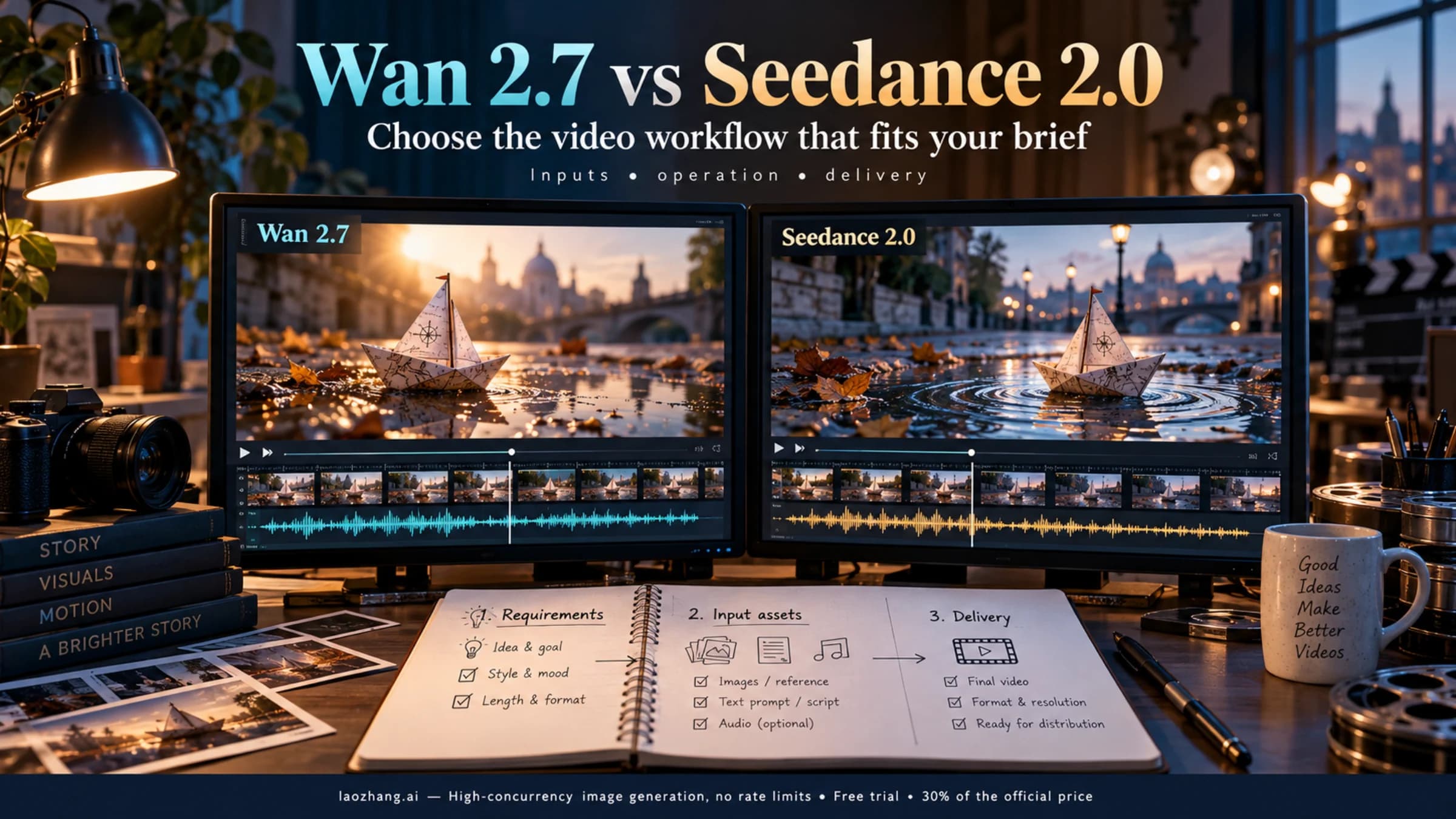
Making that clean still is its own task. Nano Banana Pro for Ecommerce Product Photography covers it in detail. If you'd rather work in a browser, yingtu.ai runs Nano Banana Pro, Nano Banana 2.1, GPT Image 2 and Seedream with optional reference images. It charges per image, from $0.018. Its logo accuracy wasn't tested here, so check the letters on any still before you animate it. To choose which image-to-video tool to animate with, see AI Video Generator from Image: Best Image-to-Video Routes and When to Switch. For choosing between Wan 2.7 and Seedance 2.0, including Wan's video editing inputs, see the separate comparison.
Repair the clip with an AI edit: Runway Edit Studio or Wan 2.7
An AI video edit makes sense when you like the take, the product holds its shape and only the logo goes wrong. Keep in mind what you get back. The model redraws the letters to match your prompt and reference, so the result is another generated logo, not your artwork file. Whether a brand team will sign off on that is a question to ask before you spend the time.
Runway Edit Studio (Aleph 2.0). The Runway Edit Studio help article describes the steps:
- Upload the clip. It needs a conventional aspect ratio, a length between 2 and 30 seconds (longer clips are trimmed), 480p–1080p resolution, 24–30 fps and no more than 10 cuts.
- In Single edit mode, pick a keyframe where the logo is clearly visible.
- Write a short prompt that starts with an action verb. The Aleph 2.0 prompting guide recommends verbs such as replace, change or remove plus the result you want, for example "Replace the label text with the reference logo, keep the bottle shape and lighting".
- Add your logo artwork as the reference image, which Runway says can guide "products, objects, or styles".
- Preview the keyframe edit, then drag the range handles so only the broken seconds are edited and billed.
Runway retired its old mask-based Inpainting tool on July 30, 2026. Its newer no-mask Remove from Video app is built for removing objects and logos, not for restoring a correct one.
Wan 2.7 video edit (wan2.7-videoedit). This is an API model that edits from an instruction. Per the Alibaba Cloud reference, it takes a 2–10 second MP4 or MOV up to 100 MB and up to four reference images, and returns 720P or 1080P. Set audio_setting: origin to keep the original sound. Two limits matter for logos:
- There is no mask or region parameter, so the whole frame can change, not only the label.
- Reference PNGs must have no alpha channel. A transparent logo file has to be flattened onto a solid background before you upload it.
Dreamina advertises a "Fix Product Details in AI Video" tool on its Spanish landing page. You select a region and guide the edit with Seedance 2.5. The page gives no limits or prices.
After any AI edit, run the frame checks in the last section. An edit that fixes the keyframe can still drift on the frames around it.
Composite the real logo: one ffmpeg command on a locked shot
Compositing means placing your actual logo file on top of the video so it covers the broken one. On a locked-off shot, where the product and camera don't move, the logo stays in one place and a single ffmpeg command does it. This is the command as tested, using a transparent logo.png:
ffmpeg -i base_static.mp4 -i logo.png -filter_complex "[1:v]scale=300:-1[l];[0:v][l]overlay=x=810:y=470:format=auto" -c:v libx264 -crf 18 -pix_fmt yuv420p composite_static.mp4On the 1920×1080, 144-frame test clip it exited cleanly and kept the full frame and frame count. Swap in values for your own clip:
base_static.mp4andcomposite_static.mp4are your input and output files.scale=300:-1(set this): 300 is the logo width in pixels used in the test. Use the width the logo should appear at.-1keeps its proportions.x=810:y=470(set this): the test position of the logo's top-left corner, in pixels. Read the position off a paused frame in any player or editor that shows pixel coordinates.
Three practical points:
- Cover the old logo completely. If warped letters poke out around your overlay, they'll show. A small patch in the label color placed under the logo hides them. Building that patch is an extra step you'd add yourself; it wasn't part of the test.
- Render the PNG from the vector source at the size it will appear or larger. An undersized PNG is what makes a logo look pixelated in video.
- Check the audio. The test clips had no sound, so check that your output still has it.
Hold a clean frame when only the end drifts. This command keeps the first 4 seconds and freezes the last kept frame for 2 more:
ffmpeg -i warped.mp4 -vf "trim=0:4,setpts=PTS-STARTPTS,tpad=stop_mode=clone:stop_duration=2" -c:v libx264 -crf 18 hold_last.mp4The output ran exactly 6.000 seconds: 4 seconds of motion plus 2 seconds of frozen frame. Set trim=0:4 to end just before the logo starts to drift, and stop_duration=2 to however long the hold should be. The test clip had no audio. On a real clip, add -an to drop the sound, or handle the audio separately, because the trimmed video and the original audio will no longer line up.
Composite on a moving shot: planar tracking in After Effects or Resolve
When the camera pushes in or the product turns slightly, the logo has to follow the surface. Tracking means software follows a patch of the image across frames. Planar tracking follows a flat surface and hands its four corners to a corner pin, which warps your logo to match.
After Effects with Mocha AE. The Adobe After Effects tracking guide explains that a one-point track gives position, two points add scale and rotation, and four points give a corner pin. For harder shots, with motion blur or the label leaving frame, use the bundled Mocha AE plug-in:
- Apply Effect > Boris FX Mocha > Mocha AE to the clip.
- Track the flat face that carries the logo.
- Back in After Effects, choose Tracking Data > Create Track Data.
- Export it as Corner Pin to your logo layer.
Mocha inside Premiere Pro needs the separate Mocha Pro plug-in.
DaVinci Resolve. The Fusion page has a Planar Tracker for flat surfaces such as signs and screens, and it can corner-pin a replacement graphic onto them. Resolve also has a Surface Tracker for surfaces that bend. Tutorials describe it as a Studio feature, but Blackmagic's own documentation doesn't say which edition includes it, so check your edition before you plan on it.
Know when to stop. Planar tracking assumes a flat plane. A wrap label on a can turning more than a few degrees, a pouch that creases or fingers sliding over the logo will break a planar track. Don't spend an afternoon on it. Regenerate with smaller motion, or use the locked product over an animated scene.
Check the logo frame by frame before it ships
Whichever route you took, check the result against the approved artwork before it goes to a client, an ad account or a marketplace listing.
1. Make a contact sheet of the logo region. This command takes a frame every half second, crops the logo area and tiles 12 crops into one image:
ffmpeg -i warped.mp4 -vf "fps=2,crop=400:200:760:420,tile=4x3" -frames:v 1 sheet_warped.pngcrop=400:200:760:420 (set this) is width:height:x:y of the logo box in the test clip. Draw a box a little larger than your logo. On the deliberately wobbling test clip, the size wobble was obvious by eye across the 12 tiles.
2. Measure drift against a reference crop. SSIM is a similarity score between two images, where 1.0 means identical. These three commands save the logo crop from the first frame, score every frame's crop against it and print the worst score:
ffmpeg -i clip.mp4 -vf "crop=400:200:760:420" -frames:v 1 ref.png
ffmpeg -i clip.mp4 -i ref.png -filter_complex "[0:v]crop=400:200:760:420[a];[a][1:v]ssim=stats_file=ssim.txt" -f null -
grep -o 'All:[0-9.]*' ssim.txt | cut -d: -f2 | sort -n | head -1
Use the same crop values (set these) as in the contact sheet. On the test clips:
| Clip (synthetic, 144 frames) | Lowest SSIM | Frames below 0.95 |
|---|---|---|
| Static logo composite | 0.999291 | 0 |
| Stand-in for a warped logo (size and position wobble of a few pixels) | 0.857136 | 138 of 144 |
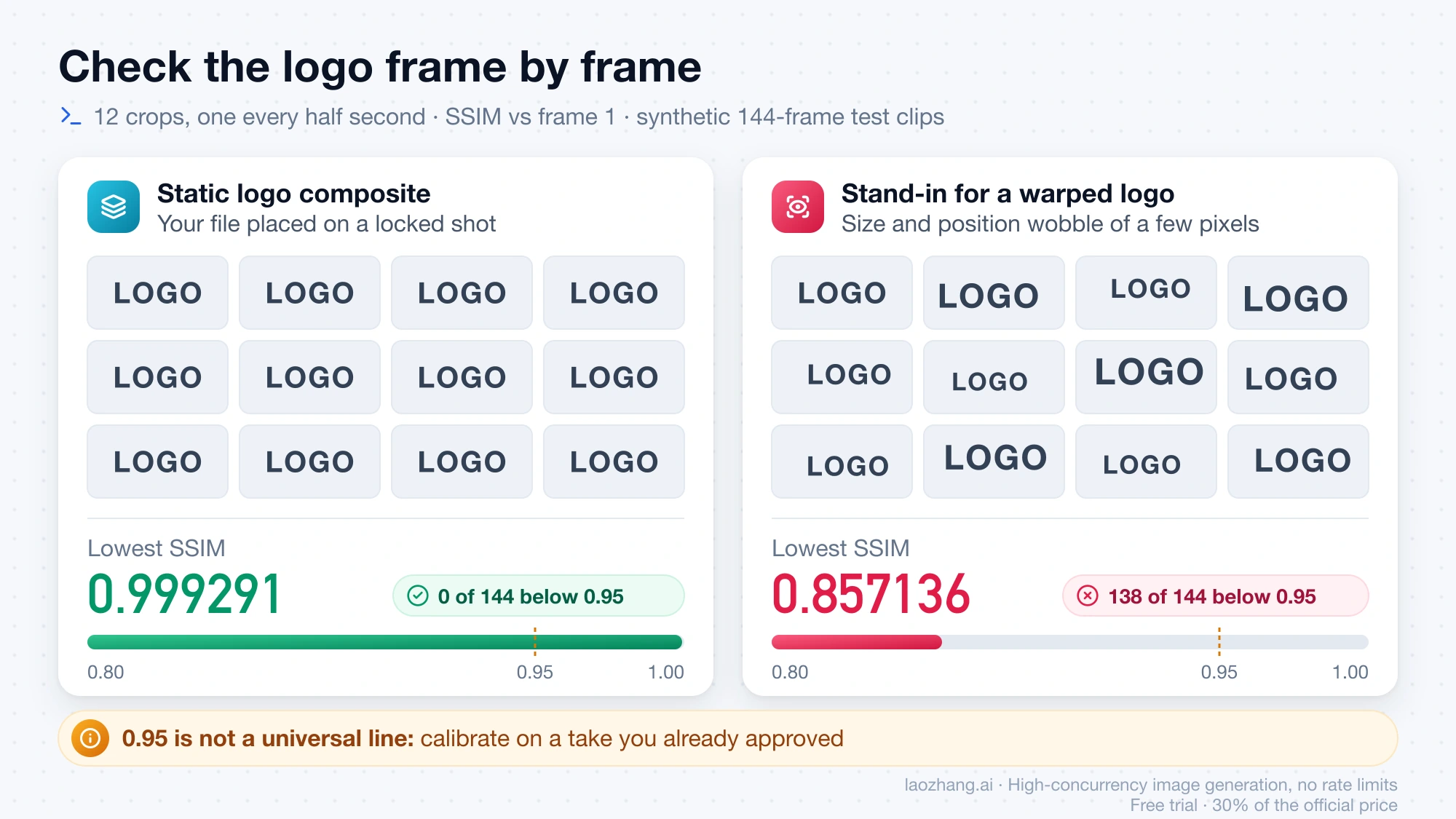
Read those numbers carefully:
- 0.95 is not a universal threshold. It is just the line that separated these two synthetic clips. Calibrate on a take you have already approved.
- The check only works if the logo stays inside the crop. That means a locked-off shot, or a clip you've stabilized or tracked first. On a moving camera, the score drops because the logo moves out of the box, not because it warped.
- The reference is the first frame. If frame 1 is already wrong, the scores mean nothing. Make sure the first frame matches the artwork, or trim the clip so it starts on a frame that does.
- Don't add
-loop 1to the reference image. Combined with-shortest, the test run never finished, and the stats file reached 568,280 lines before it was stopped. Without it, ffmpeg repeats the single image on its own and stops at the end of the video.
3. Run the human checklist. Scores catch wobble. They don't catch a wrong letter that holds perfectly still.
- First frame, last frame and the frame with the fastest motion match the master artwork: letters, spacing, colors and proportions.
- Frames where a hand, reflection or shadow crosses the logo are clean.
- The edges of a composited logo don't show a halo, and no trace of the old logo shows around them.
- The product outline, cap and colors stay the same from start to end.
- The clip is checked at the size people will see it, such as a phone screen for Reels or TikTok, and again at full size.
- Whoever owns the brand has approved the final file, not a preview.
If the clip fails the checks twice on the same route, switch routes rather than trying a third time. A failed repair usually means compositing. A failed track usually means regenerating with less motion.
Questions about fixing logos in AI product videos
How do I fix a logo in a video that an AI model distorted?
Decide by what breaks. If the product shape drifts, regenerate from a cleaner still with less motion. If only a short stretch of the logo is wrong, try an AI edit such as Runway Edit Studio on that range. If the logo must be exact, place your real logo file on top, with a static overlay on a locked shot or a planar track on a moving one.
Is it worth paying for a higher video model tier to avoid text distortion?
No published data shows that it is. No vendor publishes a logo-fidelity success rate for any tier, and a higher tier doesn't change the cause: the model still has to invent label area when the product moves. Money spent on a cleaner still, smaller motion and several takes, or on compositing the real logo, targets the cause directly.
Can I just put my logo on top of the AI video?
Yes, if the logo sits on a flat surface. On a locked-off shot, the single ffmpeg overlay command above does it in one pass. If the camera or product moves, the logo needs a planar track and corner pin so it follows the surface. The overlay has to cover the warped logo completely.
What if the logo is on a can or bottle that turns?
A wrap-around label on a turning cylinder is the hardest case for every route. Keep rotation small (Domo AI suggests 15° or less) and regenerate, or keep the product as a still image composited over an animated background. Planar tracking assumes a flat surface, so it breaks on a curved label that rotates.
Why does my logo look pixelated after I add it to the video?
That is a resolution problem, not AI distortion. The logo image is smaller than the size it appears at, so it gets scaled up. Export the PNG from the vector source at the displayed size or larger, then composite again.
Are there free tools for making the whole product video ad?
Some ad generators have free tiers, with limits that vary by tool. Best Free AI Video Ad Generators in 2026: Which Ones Are Actually Free? compares what each one actually gives you for free. The logo checks above still apply to whatever they produce.
Sources5
External pages this guide links to, in the order they appear. Last updated Oct 19, 2026.
Sources5
External pages this guide links to, in the order they appear. Last updated Oct 19, 2026.
- 1.Alibaba Cloud Wan video editing API referencealibabacloud.com/help/en/model-studio/wan-video-editing-api-reference
- 2.Gemini API Veo documentationai.google.dev/gemini-api/docs/veo
- 3.Runway Edit Studio help articlehelp.runwayml.com/hc/en-us/articles/51683104370451-Creating-with-Edit-Studio
- 4.Aleph 2.0 prompting guidehelp.runwayml.com/hc/en-us/articles/52150503729171-Aleph-2-0-Prompting-Guide
- 5.Adobe After Effects tracking guidehelpx.adobe.com/after-effects/desktop/animate-in-after-effects/track-motion/tracking-stabilizing-motion-cs5.html