GPT Image 2.6 Prompt Guide: Which Rules Held Up in Testing
Write GPT Image 2.6 prompts in plain words: result, details, quoted text, exclusions. Quoted text held 2 of 2 times; edits need a size that matches the photo.
On this page
A GPT Image 2.6 prompt lands on the first try when it reads like a short art direction note: say what the image is for and how it is framed, describe what should be visible, put any exact words in quotes with how many times they appear, and finish with what must not appear. OpenAI's GPT Image 2.6 prompting guide, published with the models on November 4, 2026, says no special syntax is needed. A paragraph, labeled sections or JSON-like fields all work, as long as you can read and update them.
Fix your settings before you judge a prompt. Always send quality, leave complexity at its default high for open-ended designs and use low for small edits, and when you edit a photo, pass a size with the same aspect ratio as the input. Then change one thing per run and check the output against a short list: every word correct, nothing extra, only the requested change.
Not every rule did what it promised in tests run on November 5, 2026 through LaoZhang's per-call models. Quoting a tagline and asking for it "exactly once" with "no extra text" gave a clean ad in 2 of 2 runs, while a loose prompt added slogans nobody asked for both times. An edit sent without size came back as a recomposed square. A loop instruction and a drawn circle did not, on their own, produce a clean loop or the intended local edit.
Write the prompt in six parts, in this order
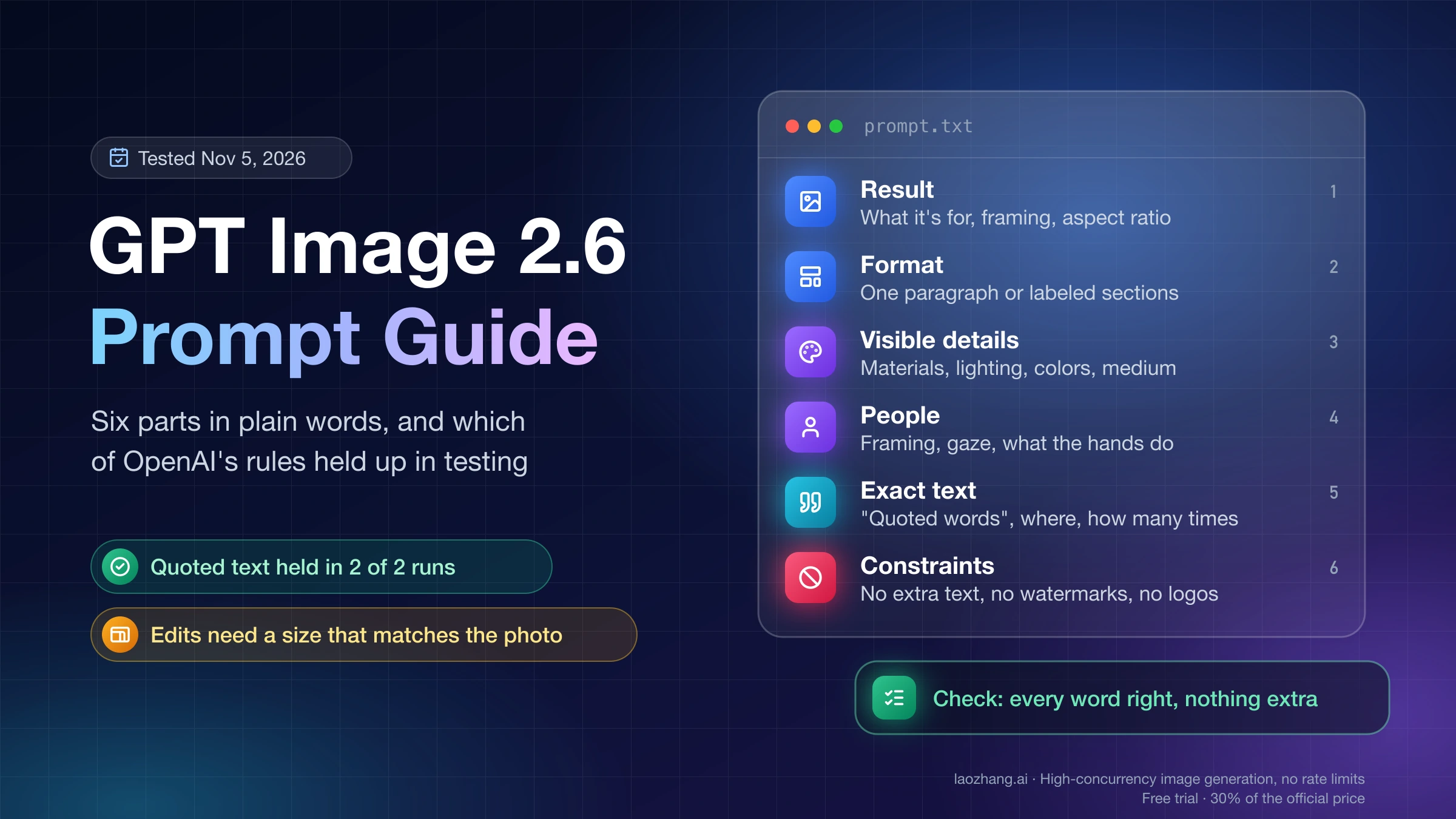
Six parts cover nearly every GPT Image 2.6 request: the result, the prompt format, visible details, people, exact text and constraints. They condense OpenAI's eight prompting fundamentals; the two that only matter once you have images to work with, giving reference images a role and changing one thing per iteration, come in when you edit and refine. Skip a part only when you genuinely don't care how the model fills it in.
- Name the result and its use: a product photo, an ad, a diagram, a slide. Add the composition, the aspect ratio and where the important things sit.
- Pick a format you can maintain. One paragraph works for a simple image; for a complex one, OpenAI suggests labeled sections such as scene, subject, details and constraints.
- Describe what should be visible: materials, lighting, colors and the medium. Write "photorealistic" or "real photograph" when you want a photo. Treat camera specs as hints about the look, not physics, and for wide, low-light, rainy or neon scenes describe scale, atmosphere and color instead of leaning on mood words.
- Describe people by framing, scale, gaze and what their hands are doing, for example "full body visible, feet included" or "hands gripping the handlebars".
- Quote every word that must appear and say where it goes, in what style, and how many times.
- End with exclusions: no extra text, no watermarks, no unrelated logos, plus anything you have already seen go wrong.
Here is the same structure as a reusable template. Delete the lines you don't need rather than leaving them vague:
Result: [what it is] for [where it will be used], [portrait / landscape / square], [composition and placement].
Visible details: [subject], [materials], [lighting], [colors], [medium: real photograph / paper-cut illustration / flat vector].
People: [framing, e.g. full body visible, feet included], [gaze], [interaction with objects].
Text: render "[exact words]" exactly once, [position], [type style]. Spell [unusual name] as [L-E-T-T-E-R-S].
Constraints: no extra text, no watermarks, no unrelated logos, [anything else that must not appear].
Leaving a decision open is a valid choice. If you don't specify the trophy or the lettering style, the model decides, and that is exactly the room the complexity setting controls (see the settings table below).
Exact text: quote it, say how many times, and ban the rest
To get exact text in a GPT Image 2.6 image, put the wording in quotes, say where it goes and how it should look, state how many times it appears, and add "no extra text". Spell unusual brand names letter by letter. If the words are small or dense, compare medium and high quality at the same settings, because OpenAI's guide ties small lettering to the quality level.
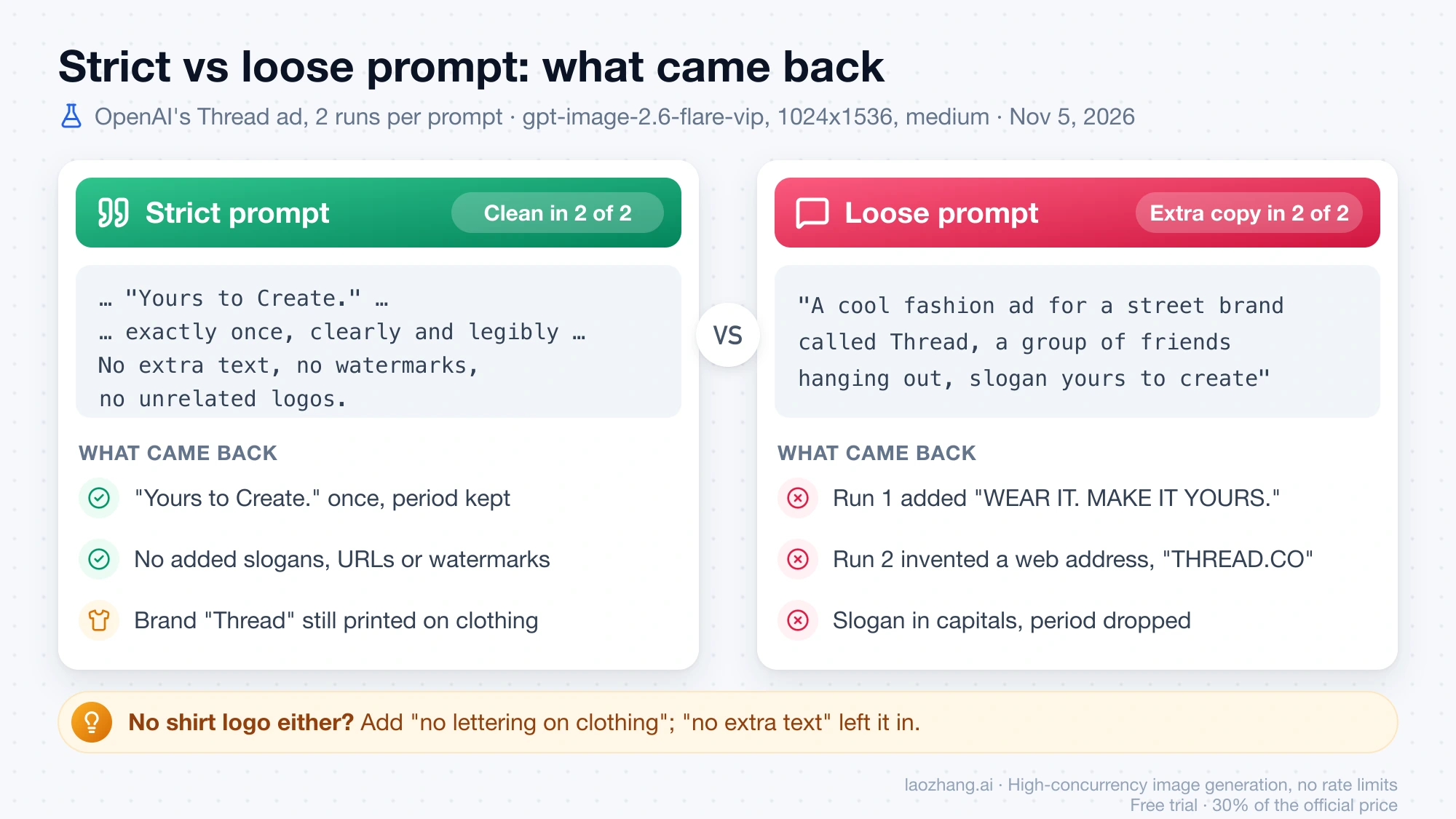
The "no extra text" line is the part that visibly mattered. On November 5, 2026, OpenAI's own Thread streetwear prompt and a loose rewrite were each run twice through LaoZhang API's gpt-image-2.6-flare-vip model at 1024x1536, medium quality. The strict prompt quotes the tagline "Yours to Create.", asks for it "exactly once, clearly and legibly", and ends with "No extra text, no watermarks, no unrelated logos." Both images showed the tagline once, with its period, and the only other lettering was the brand name "Thread" printed small on clothing.
Disclosure: laozhang.ai is our own service. Its prices are platform pricing, not an independent comparison.
The loose prompt, "A cool fashion ad for a street brand called Thread, a group of friends hanging out, slogan yours to create", made the model finish the ad on its own. Run 1 added "THREAD STREETWEAR EST. 2019" and "WEAR IT. MAKE IT YOURS."; run 2 added "WEAR IT / STYLE IT / MAKE IT YOURS" and an invented web address, "THREAD.CO". Both rendered the slogan in capitals without the period. Two runs per prompt show the direction of the effect, not a success rate. If even a logo on a T-shirt is unacceptable for your use, say so ("no lettering on clothing"), because "no extra text" did not remove it here.
Non-English text: five scripts came out letter-correct in one run
GPT Image 2.6 can render short non-Latin text when you quote it exactly. In a single run on November 5, 2026 (gpt-image-2.6-flare-vip, 1536x1024, high quality), a prompt asked for five shop signs reading "欢迎光临", "いらっしゃいませ", "어서 오세요", "Добро пожаловать" and "Bienvenidos" with no other text. All five came back letter-correct, and nothing else was written on the image.
That result covers short phrases on large signs. It says nothing about paragraphs, small print or several fonts in one image, which are the cases where OpenAI's guide suggests comparing medium and high quality. Check every character before you publish, and for a brand name in a script you can't read yourself, compare the output with the original string character by character rather than by eye.
quality, complexity and size: what to hold fixed while you compare
Three request settings change the image besides your words. Hold all three fixed while you compare two prompts, and when you tune, change only one of them. complexity is easy to misread: it is not how busy the picture is. OpenAI defines it as how much the model plans before rendering.
| Setting | What it controls | Change it when | Hold it fixed when |
|---|---|---|---|
quality (auto, low, medium, high, xhigh, max) | How much visual detail the model can render, such as texture and small lettering | The layout is right but small text is hard to read: compare medium and high at the same complexity | You compare prompts or complexity levels. Always send it explicitly |
complexity (low, medium, high; default high on both models) | How much the model plans the composition before rendering | Your prompt leaves design decisions open (try high), or you make a targeted edit (start with low) | You compare quality levels or prompts |
size (auto, 1024x1024, 1536x1024, 1024x1536, or custom) | Output pixel dimensions. Custom sizes need both sides in multiples of 16 and an aspect ratio from 1:3 to 3:1, such as 1536x864 | You need a different shape, or you edit a photo and must match its aspect ratio | You compare anything else |
Send quality every time, even when you are happy with the default. Without it, Flare picks a level from the prompt itself: in tests by LaoZhang's documentation team against OpenAI directly, a detailed prompt used about 5,800 output tokens for one 1024-pixel image across three runs, while a 1024-pixel image at high used 1,756 tokens in the same team's per-quality measurements. Sunburst defaults to high.
For what complexity does, OpenAI's own example is the clearest evidence. With one paper-cut illustration prompt of a football team celebrating, on Sunburst at 1024x1536 and medium quality, low put a crown on the trophy and a banner in front of the team, medium added a laurel wreath and shirt crests, and high moved the "CHAMPIONS" sign into the stands to leave the foreground for the players. OpenAI also notes that a fully specified design may look much the same at every level, and complexity carries no separate fee.
The same prompt was sent on November 5, 2026 to gpt-image-2.6-flare-vip with complexity: "low" and "high". Both were accepted without error and the two images differed: low placed the banner above the trophy with numbered jerseys, high ran the banner across the foreground. That is the opposite of where OpenAI's high-complexity image put the sign, which is why one sample per setting can't separate the effect of complexity from ordinary run-to-run variation. To judge it on your own work, repeat each setting several times on the same prompt.
Edit one thing without redrawing the whole photo
A GPT Image 2.6 edit needs two things to stay contained: a size that keeps the photo's shape, and a prompt that names the one change and everything that stays. Start edits at complexity: "low", which OpenAI recommends for most editing tasks, and leave out input_fidelity, which 2.6 doesn't use.
- Read the input's pixel dimensions and choose a
sizewith the same aspect ratio, both sides multiples of 16. A 1200×900 photo maps to1536x1152. - Write the change as "Change only [X] to [Y]." and then list what must stay: identity, product shape, layout, lighting, labels, and for precise local edits the saturation, contrast, camera angle and surrounding objects.
- Add exclusions such as "no new text, logos or watermarks".
- Send the edit with
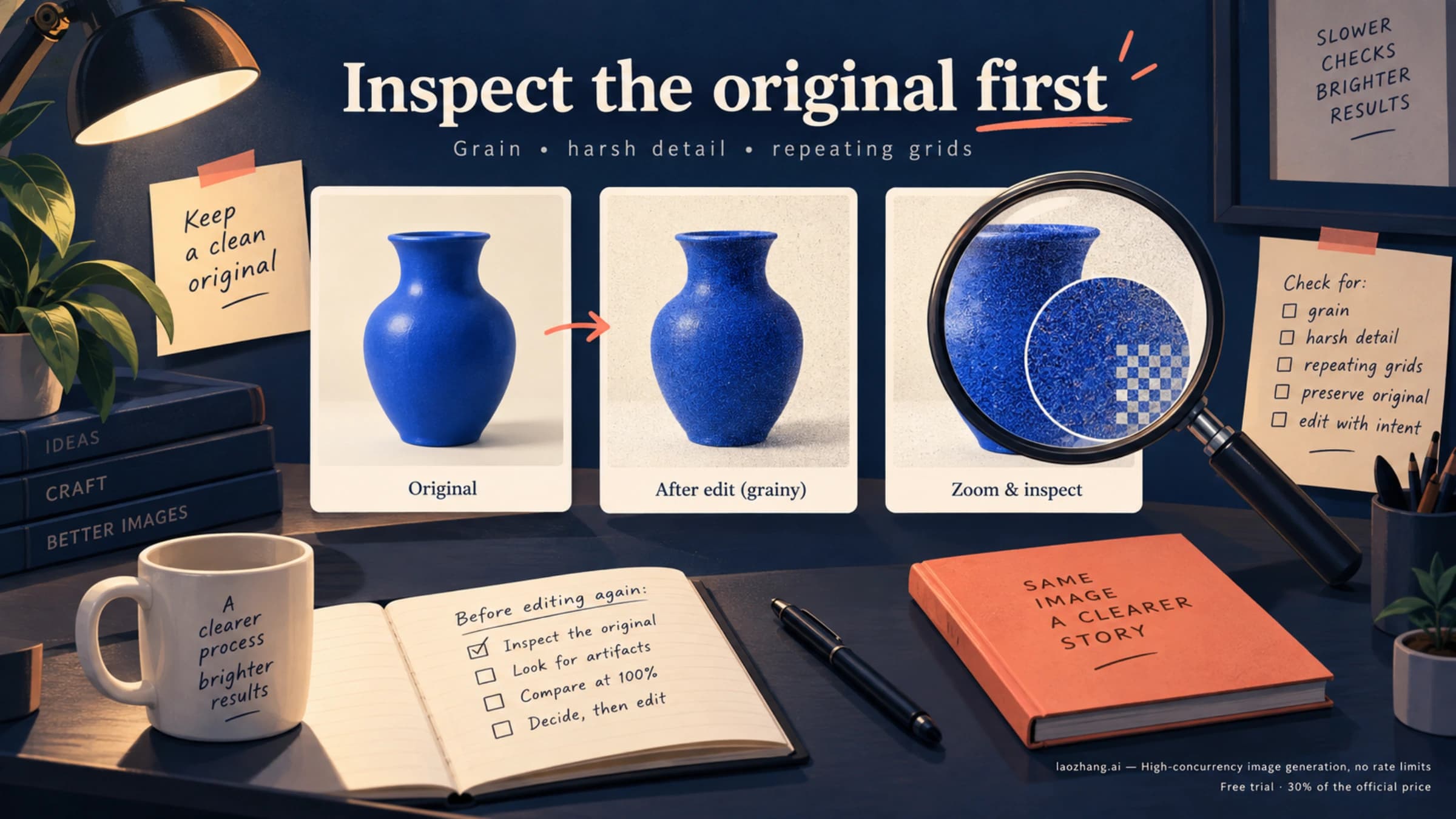
complexity: "low"and a fixedquality, so you can compare attempts. - Put the result next to the original and look for changes you didn't ask for. If part of the image must stay pixel-identical, composite the approved edit back into the original, as OpenAI's guide advises.
- For the next change, pass this output back as the new input, request one change, and repeat the list of things to keep.
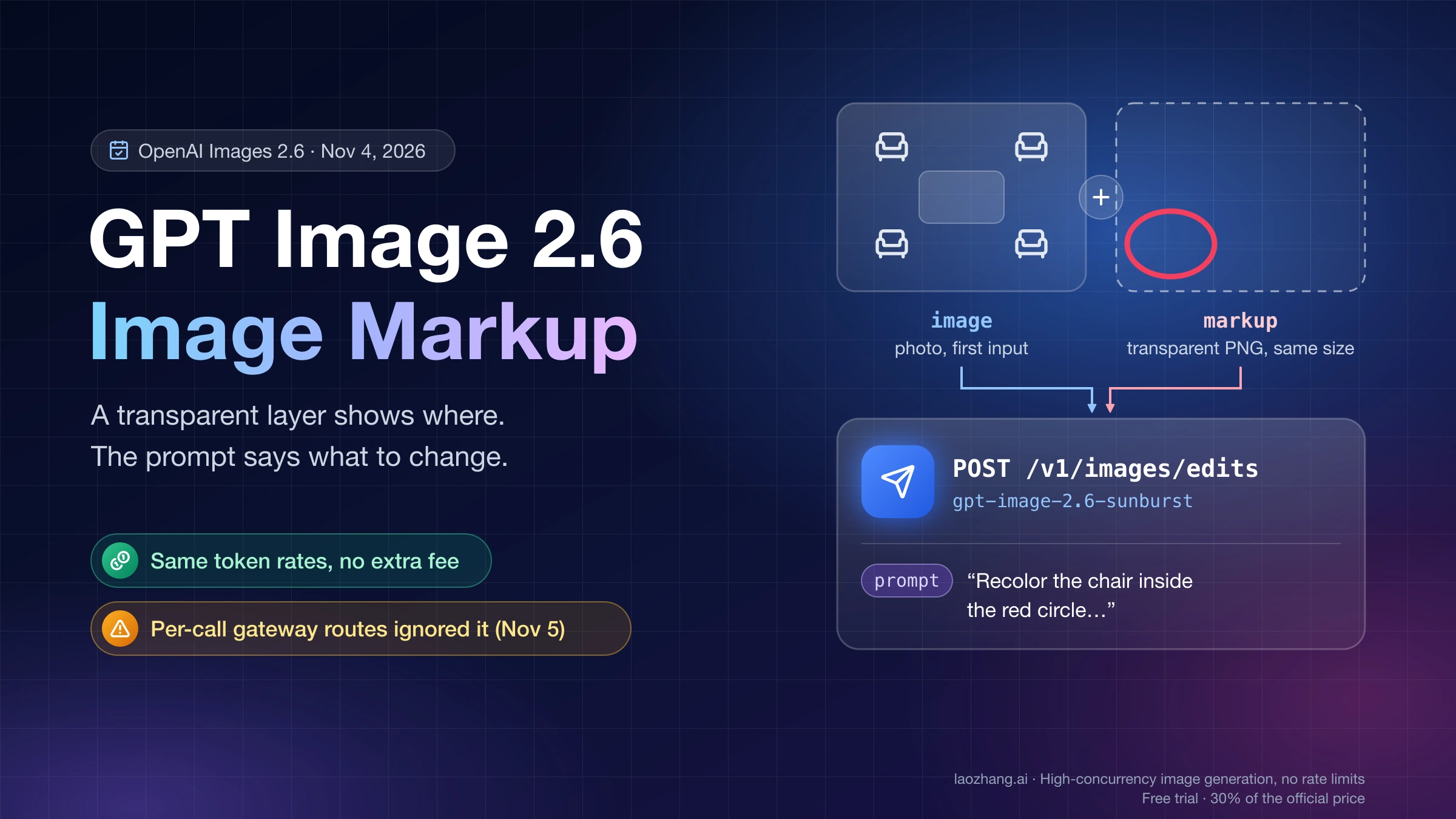
To point at an area instead of describing it, GPT Image 2.6 has a markup edit parameter: a transparent PNG overlay, the same pixel size as the first input, with your circle drawn on it. In the November 5 test on LaoZhang's per-call models, a circled chair among four identical white chairs was never the one recolored, with or without the overlay. The request format and where markup works are in the GPT Image 2.6 markup edit guide; the Markup button in the ChatGPT app is covered in ChatGPT Image Editor: How to Use Each Tool and What It Redraws.
Why an edit came back square or reframed
In the November 5 tests, the cause was a missing size, and no wording fixed it. On November 5, 2026, OpenAI's 1200×900 kitchen photo was sent to LaoZhang's gpt-image-2.6-sunburst-vip model without size, and every edit came back as a 2048×2048 square with the room recomposed. An edit sent with size: "1536x1152" kept the 4:3 frame. The gpt-image-2.6-web model, also without size, returned 1448×1086, the same dimensions as OpenAI's published outputs for that photo.
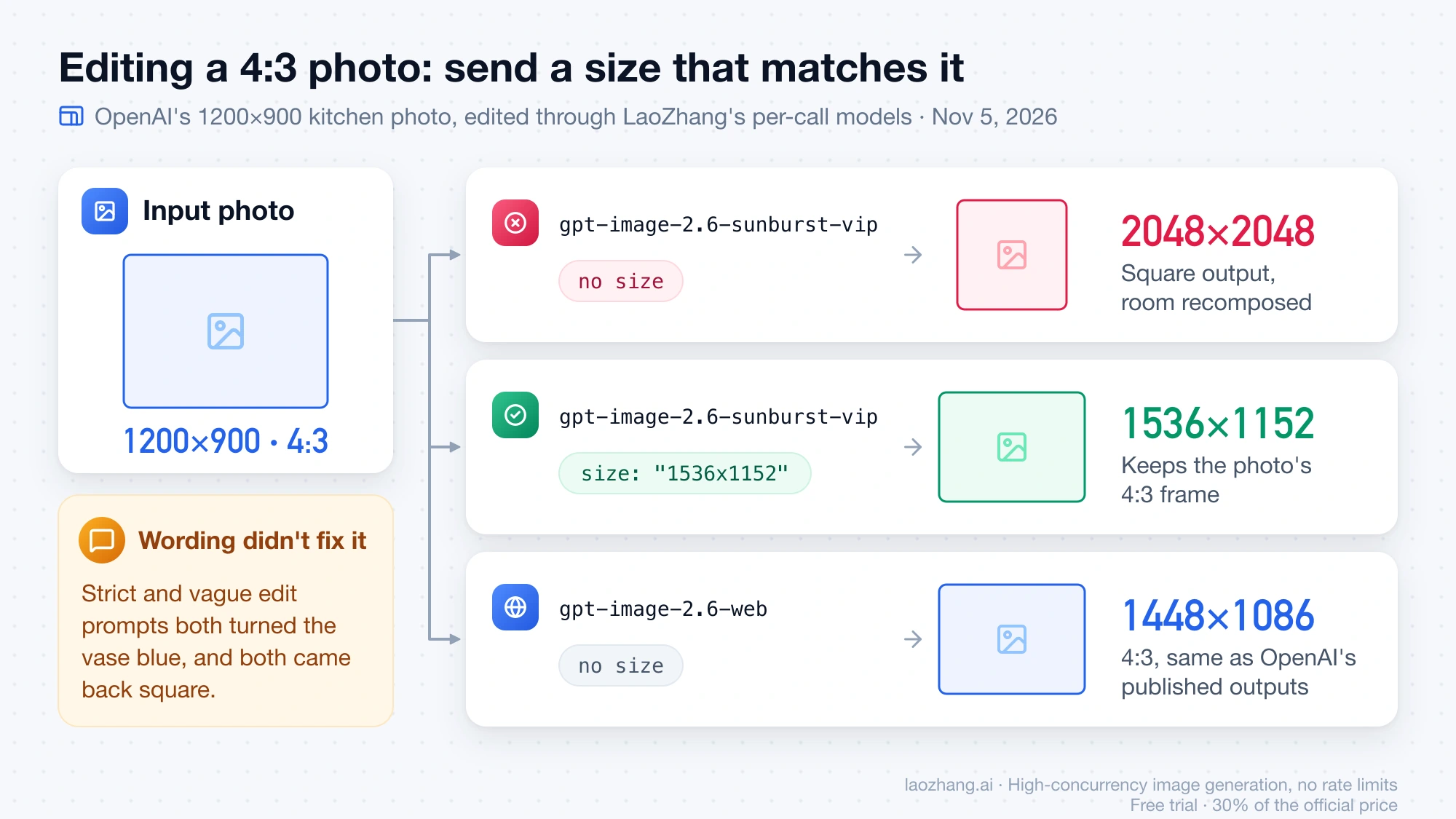
A strict prompt ("Change only the striped vase … keep everything else exactly the same") and a vague one ("Make the vase blue.") both turned the vase blue, and both came back square. With one run each, that doesn't show whether the strict wording preserves more of the room; it shows that "keep everything else the same" can't hold the frame when the request leaves the output size to the model.
Reference images: number each input and give it one job
When you send more than one image, refer to each by number and state its purpose: subject, style, clothing or background. Then say how they combine, for example "Image 1 is the product. Image 2 sets the lighting and background. Place the product from Image 1 on the table in Image 2 and keep its label readable." Without roles, the model has to guess which picture supplies what, and it may blend them halfway.
Order matters when you also send markup. OpenAI's guide says the overlay applies only to the first input image and any further images serve as references, so put the photo you are editing first.
Looping GIF prompts: a return pose is advice, not a seamless loop
For a looping GIF, describe the motion as a short sequence that ends where it started, and say whether the camera moves. OpenAI's example has a monkey lift a lantern, look up, blink, and lower it "back to its starting pose", with "Keep the lantern in its hands and the camera still. Make the motion loop smoothly."
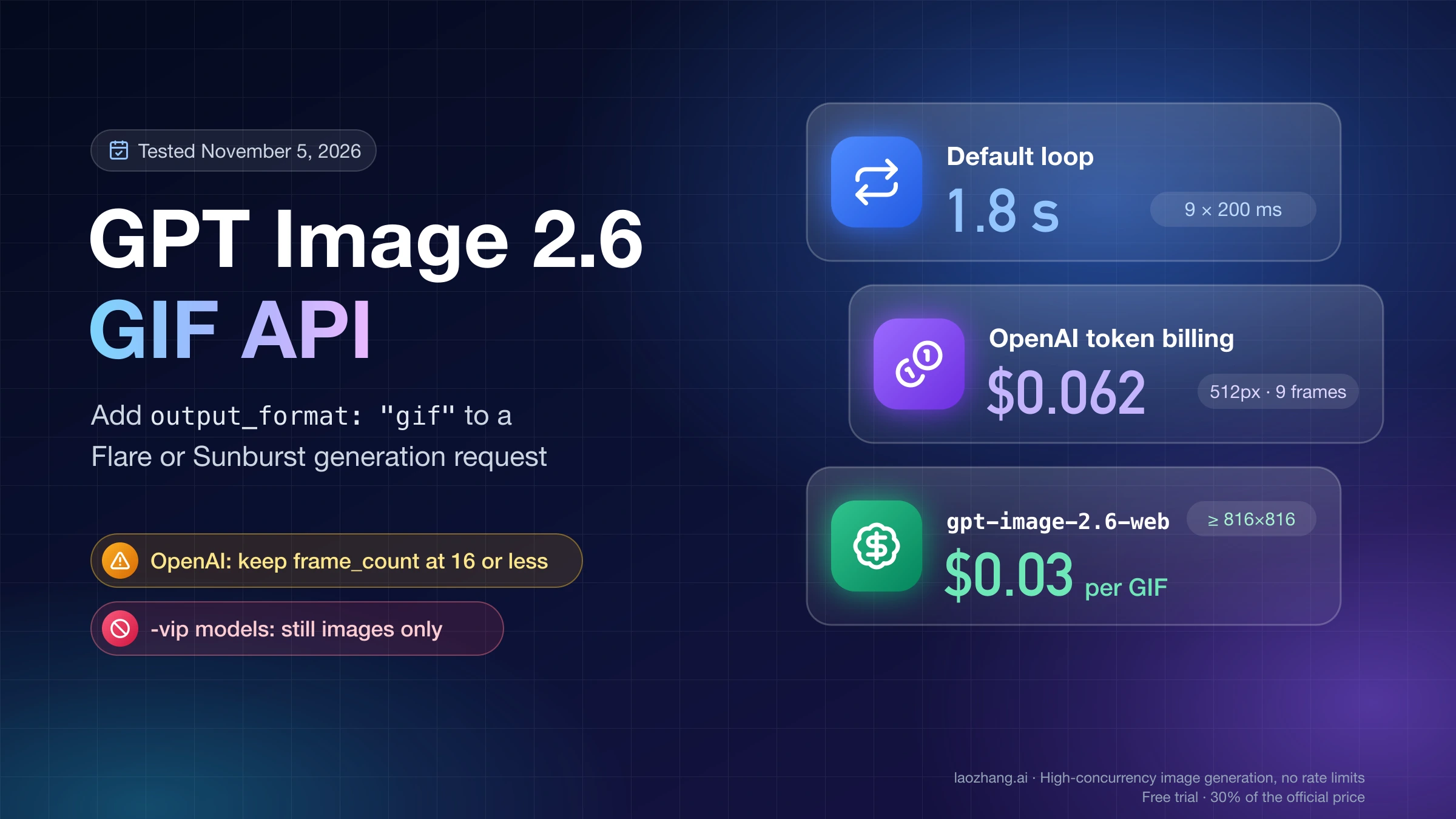
In a test on November 5, 2026, that wording did not close the loop. Run on LaoZhang's gpt-image-2.6-web model at 1024 pixels with 9 frames of 200 ms, OpenAI's prompt produced a jump from the last frame back to the first of 1.38 times an average frame-to-frame step, a visible hitch in the lantern and pose. A vague prompt, "A cute monkey with a lantern in the snow, animated.", came in at 1.08 times. The same loop prompt at 4 frames measured 0.72 and at 16 frames 0.93, under one, meaning no jump bigger than a normal step. Each figure is one sample, so treat the loop instruction as a request: play the GIF, watch the wrap, and regenerate if it hitches.
GIF output is only available on generation requests. Frame settings, limits and cost through the API are in the GPT Image 2.6 GIF API guide; making one in the ChatGPT app is covered in How to Make a GIF in ChatGPT (Images 2.6): Frames, Speed, Edits.
Logo prompts for SVG output: name the shapes and keep them flat
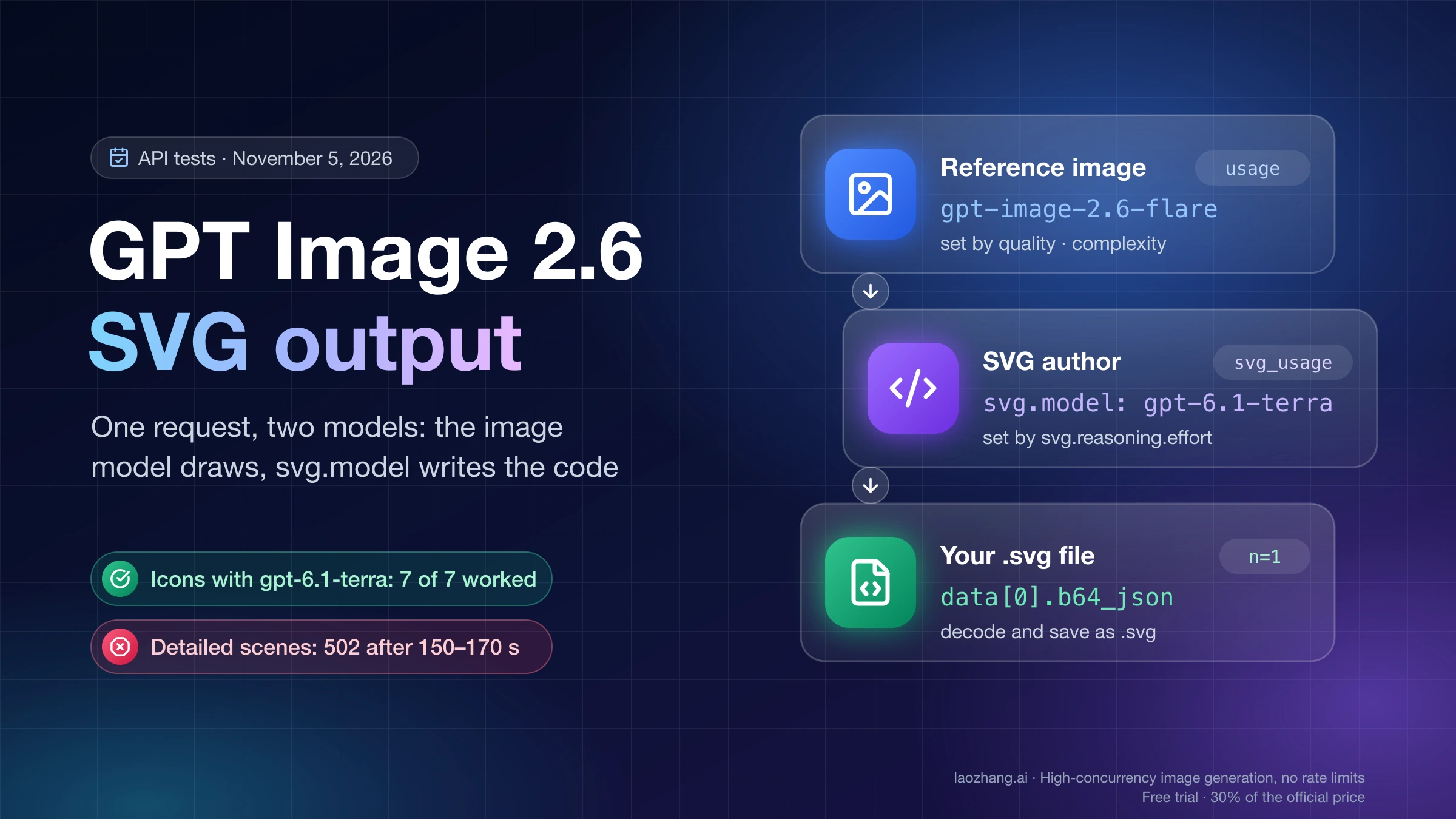
An SVG prompt should read like a logo designer's instructions: name the brand and the shapes that define the mark, then ask for clean, vector-like shapes, a strong silhouette, balanced negative space, flat design with minimal strokes and no gradients unless essential. OpenAI's bakery example finishes with a fully transparent background and a single centered logo with generous padding, and sends it to the generations endpoint with output_format="svg" and n=1.
Keep SVG requests to icons, logos and simple graphics. In tests by LaoZhang's documentation team, detailed full scenes mostly failed, ending in an error from OpenAI after two to three minutes. How the SVG request is billed and how to check the file before using it are in the GPT Image 2.6 SVG output guide.
If you need a raster logo instead, OpenAI's guide uses output_format="png" with background="transparent". Check that the decoded file really has transparent pixels; a gray-and-white pattern drawn into the image is a different problem, covered in GPT Image Transparent Background: Fix a Baked-In Checkerboard.
Check the output, then accept, regenerate or change one thing
Judge each image against the same short list before deciding what to do next. The list below follows OpenAI's result checks, plus the two failure points that showed up in the November 5 tests: framing on edits and the wrap on loops.
- Read every word. Does it match the quoted text letter for letter, and is there any copy you didn't ask for, such as taglines, URLs or watermarks?
- For diagrams, check that labels sit on the right parts and relationships are correct.
- Check that identities, product shapes, labels and details from reference images survived.
- For an edit, confirm that only the requested change happened and that the output has the input's aspect ratio.
- If you asked for transparency, confirm the decoded file contains transparent pixels.
- For a GIF, watch the last frame run into the first.
Accept the image when every check passes. Regenerate with the same prompt and settings when the failure looks like chance, such as one misspelled word in a prompt that already quotes the text and bans extras, or a hitch in a loop. When the same failure appears twice, change one thing: add the missing rule, raise quality for small text, or pass the output back as an edit with a single request. If the image drifts over several edits, restate the critical constraints rather than relying on "same as before".
When you are choosing between prompts or models for a workflow rather than a single image, run each candidate several times on representative inputs and compare response time, failures, retries and cost per accepted image, which is how OpenAI frames its own migration advice.
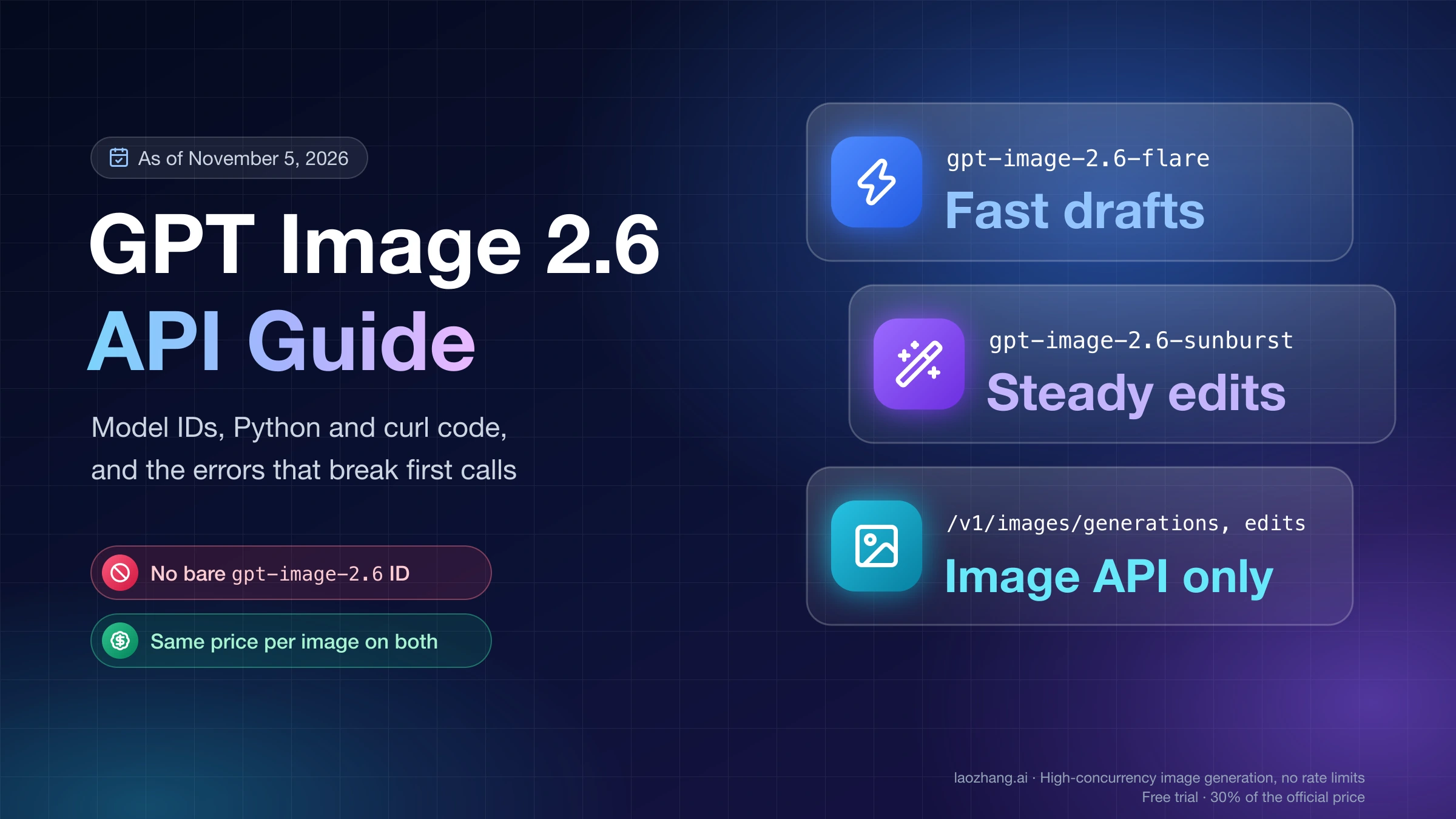
Flare or Sunburst: pick by speed or by detail
Start with gpt-image-2.6-flare when response time matters most, and with gpt-image-2.6-sunburst when the image has demanding detail, layout or edit accuracy requirements. That is OpenAI's recommendation for new workflows. In the LaoZhang documentation team's tests against OpenAI, a 1024-pixel image took Flare 8–39 seconds and Sunburst 34–157 seconds, from low to max quality.
If Sunburst gives you what you need, try Flare with the same prompts, reference images, dimensions and quality setting before you settle, because the faster model may be enough for your workload. The prompt rules above apply to both models; only the settings and the time you wait change.
Coming from GPT Image 2.5 prompts: what changed in 2.6
If you already write GPT Image 2.5 prompts with quoted text, "change only" edits and numbered references, those habits carry over: they are the same ideas as OpenAI's 2.6 prompting fundamentals. What is new is in the request: the complexity setting, markup overlays on edits, and svg and gif as output formats on generations. Leave input_fidelity out of edit requests, and don't ask for reasoning.summary, which 2.6 doesn't support.
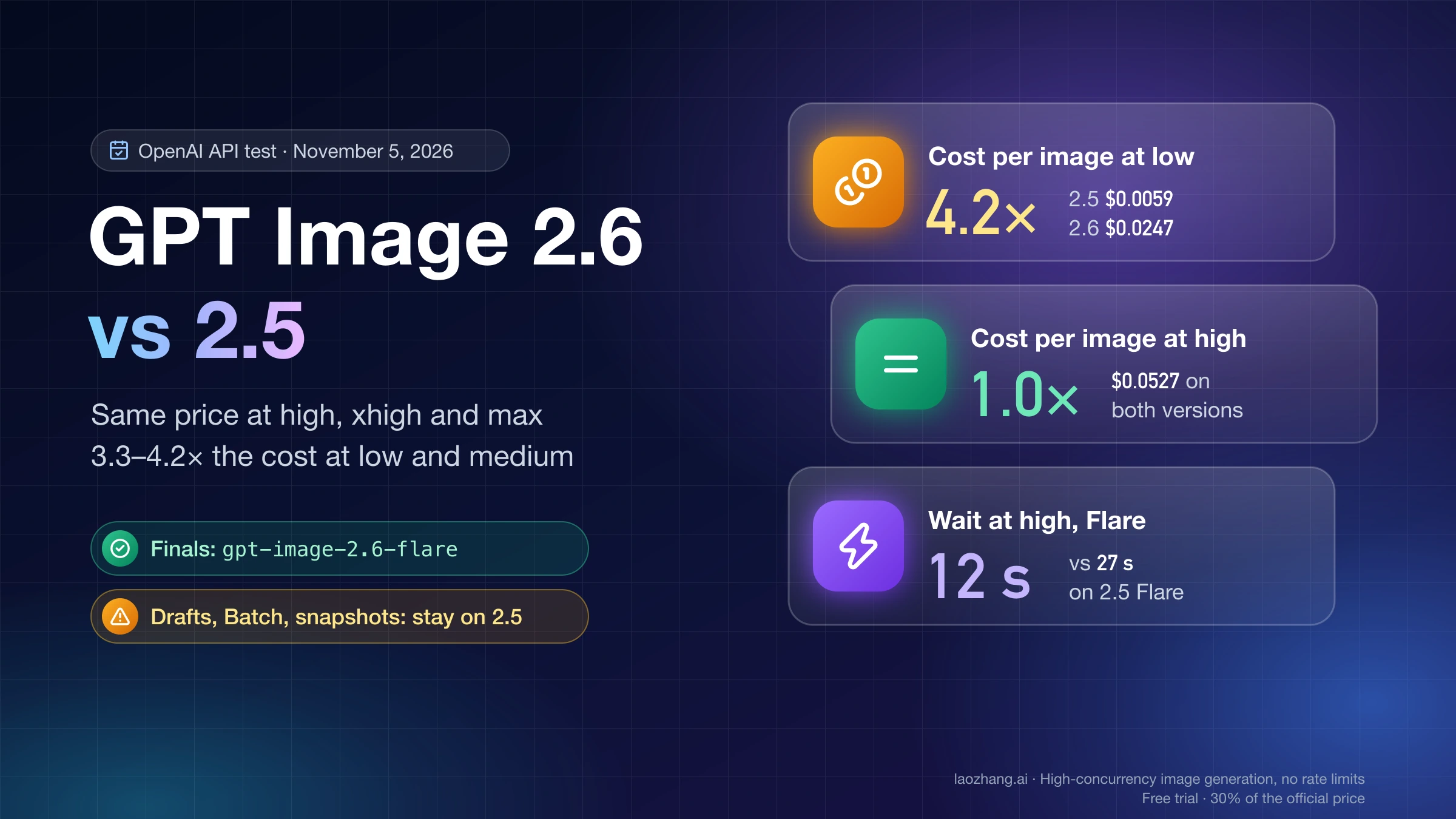
OpenAI's migration advice for 2.5 users is to test the matching 2.6 model first (2.5 Flare to 2.6 Flare, 2.5 Sunburst to 2.6 Sunburst) with the same prompt, references, size, quality and format, leaving complexity at its default. Whether switching pays off is mostly a cost question, because 2.6 uses more tokens at some quality levels; per-level costs are in GPT Image 2.6 vs 2.5: Same Price at High, 4× the Cost at Low.
Where each GPT Image 2.6 output works: PNG, GIF, SVG and markup
On OpenAI's API, both models return PNG, JPEG and WebP, generations can also return GIF and SVG, and markup is an edit option. On LaoZhang API, the per-call models are a cheap way to test prompts, but they don't cover every output, as of November 5, 2026:
Disclosure: laozhang.ai is our own service. Its prices are platform pricing, not an independent comparison.
| Model | Price | Outputs | Use it for |
|---|---|---|---|
gpt-image-2.6-flare-vip, gpt-image-2.6-sunburst-vip (default group) | $0.03 per image | PNG only, quality up to high (xhigh and max return a 400 error) | Iterating on still-image prompts and edits |
gpt-image-2.6-web | $0.03 per call | Still images and GIF; no SVG | Trying loop prompts |
gpt-image-2.6-flare, gpt-image-2.6-sunburst (OpenAI Official group) | OpenAI token prices | Every format including GIF and SVG, every quality level up to max | SVG logos, top quality levels, and markup edits |
The prices above come from LaoZhang's GPT Image documentation. Because the markup overlay made no visible difference on the per-call models in the November 5 test, run any edit that depends on a drawn circle through the OpenAI Official group, where OpenAI's own example shows markup working.