GPT Image 2.6 Image Markup API: Python Example, Overlay Checker
Put a transparent PNG the photo's exact size in markup on /v1/images/edits with gpt-image-2.6-flare or -sunburst. Per-call gateway routes ignored it on Nov 5.
On this page
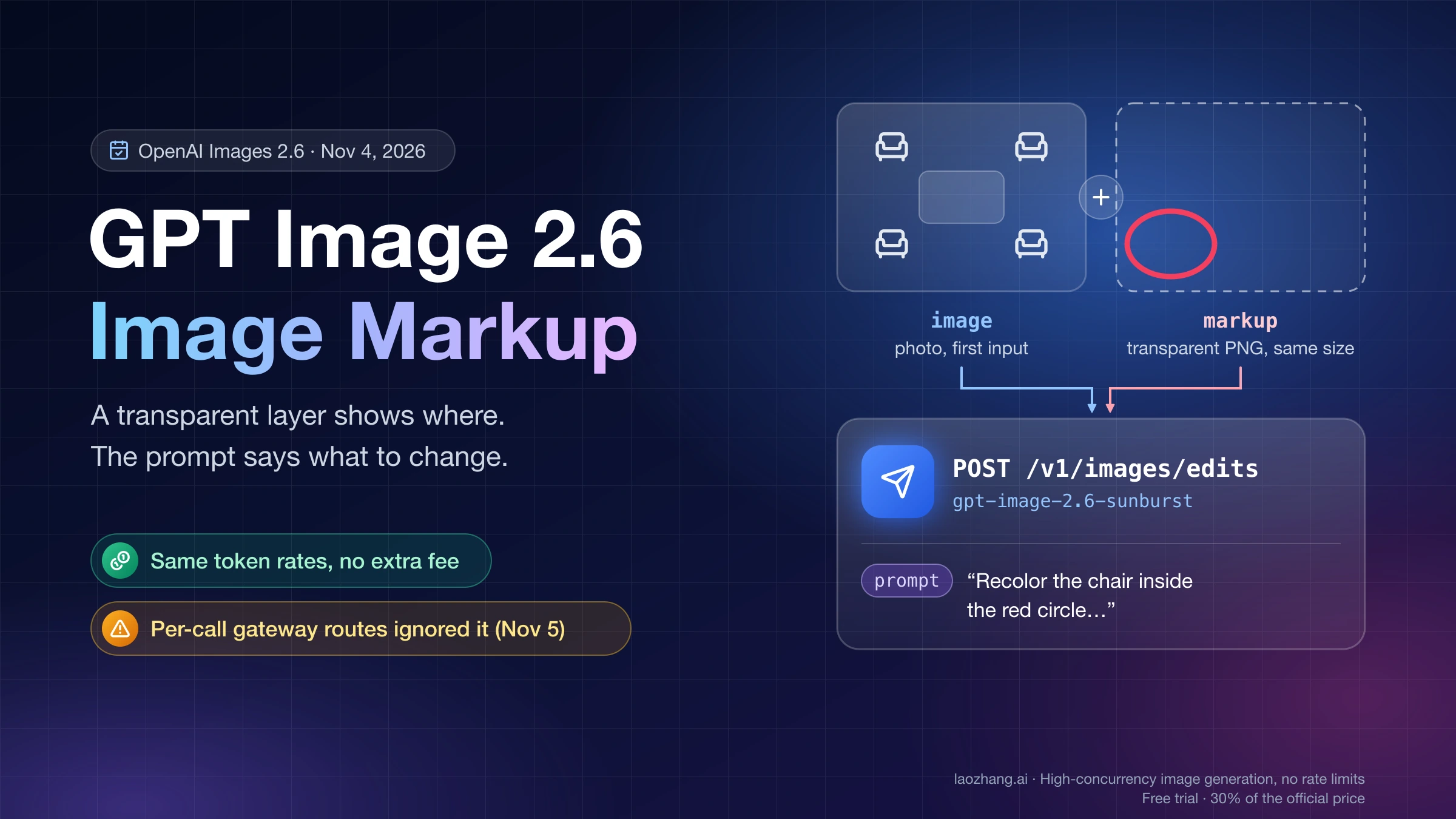
To guide a GPT Image 2.6 edit with markup, draw your circle or sketch on a separate transparent PNG that has exactly the same width and height as the photo, send it in the markup field of POST /v1/images/edits with gpt-image-2.6-flare or gpt-image-2.6-sunburst, and say in prompt what should change. The overlay shows where; the prompt still says what. It is not a mask, it can't be sent together with mask or prompt_rewriter, and it applies only to the first input image. OpenAI released Images 2.6 on November 4, 2026, and markup-guided edits cost the same token rates as any other edit.
The route decides whether the overlay is read at all. On November 5, 2026, the same chair-recolor edit was sent through LaoZhang API's $0.03 per-call routes, gpt-image-2.6-web and gpt-image-2.6-sunburst-vip, with and without an overlay: every call returned 200 and a yellow chair, but never the circled one. So send markup to OpenAI directly, or through a gateway route that forwards the request body unchanged, such as LaoZhang's official forwarding with gpt-image-2.6-sunburst. That forwarding route follows OpenAI's documented request shape, but markup has not been run through it in these tests.
Disclosure: laozhang.ai is our own service. Its prices are platform pricing, not an independent comparison.
Two local checks save you from paying for a call that silently does nothing: validate the overlay file before you send it, and after the edit, compare everything outside the circle with the original. Both scripts are below.
How markup works: the overlay shows where, the prompt says what
Markup is an annotation layer that sits on top of the first input image. You draw circles, arrows or rough sketches on a transparent PNG, and the model reads that drawing as "this is the spot." Everything about the change itself, such as the new color, the material, and what has to stay the same, still goes into prompt. OpenAI's image generation guide describes it in exactly those terms: "Use an annotation layer to show where a change should happen and describe the change in prompt."
That split matters when you write the prompt. Refer to the drawing the way a person would ("the chair inside the red circle"), state the change, list what to keep, and ask for the mark to be removed. OpenAI's worked example in its image prompting guide uses this prompt for a 1200×900 kitchen photo with a circled vase:
Recolor the striped vase inside the red circle to solid cobalt blue ceramic. Keep its shape, the dried stems, and the rest of the kitchen unchanged. Remove the red circle from the finished photo.Three rules come with the field, all from the same guide. Markup only applies to the first image in the request; any further images are treated as references. It can't be combined with mask or with prompt_rewriter, so drop both when you add markup. And it is an Image API feature on /v1/images/edits: for regional edits through the Responses API, OpenAI points you to a mask instead. For wording the "change only X, keep Y" part of the prompt, see the GPT Image 2.6 prompt guide.
Markup, mask or text only: which GPT Image 2.6 edit to use
Use a text-only prompt when the target can be named uniquely in words, markup when it can't, and a mask when you are on the Responses API or want to hand the model an explicit editable area. The deciding question is whether a sentence alone picks out one object. "The striped vase" does, because the kitchen has one vase. Four identical white chairs don't: in the chair test described below, the prompt only said "the chair inside the red circle," so without an overlay it gave the model nothing to locate, and with the overlay on LaoZhang's per-call routes the model still recolored the wrong chair. That is the case markup exists for, provided the route actually reads it. Naming the target by position as well ("the front-left chair") is a cheap extra hint to add to the prompt, but it wasn't part of that test.
| Text-only prompt | Markup (markup) | Mask (mask) | |
|---|---|---|---|
| What you send | Photo and prompt | Photo, prompt, and a transparent PNG with circles or sketches | Photo, prompt, and a PNG with an alpha channel marking the area to edit |
| Where it works | /v1/images/edits and the Responses API | Image API POST /v1/images/edits only | /v1/images/edits and Responses API regional edits |
| How exact it is | As exact as your description | Shows the spot; the prompt describes the change | "Entirely prompt-based"; the model "may not follow its exact shape with complete precision" |
| Combine with the others | The prompt is required in all three | Not with mask or prompt_rewriter | Not with markup |
| File rules | None | Same width and height as the first image after orientation, transparent pixels, at most 16,777,216 px and 50 MB | Same format and size as the image, under 50 MB, alpha channel required |
| Best for | One clearly nameable object | One of several similar objects, or a spot with no name ("this patch of wall") | Responses API workflows, or a precise area you already have as a selection |
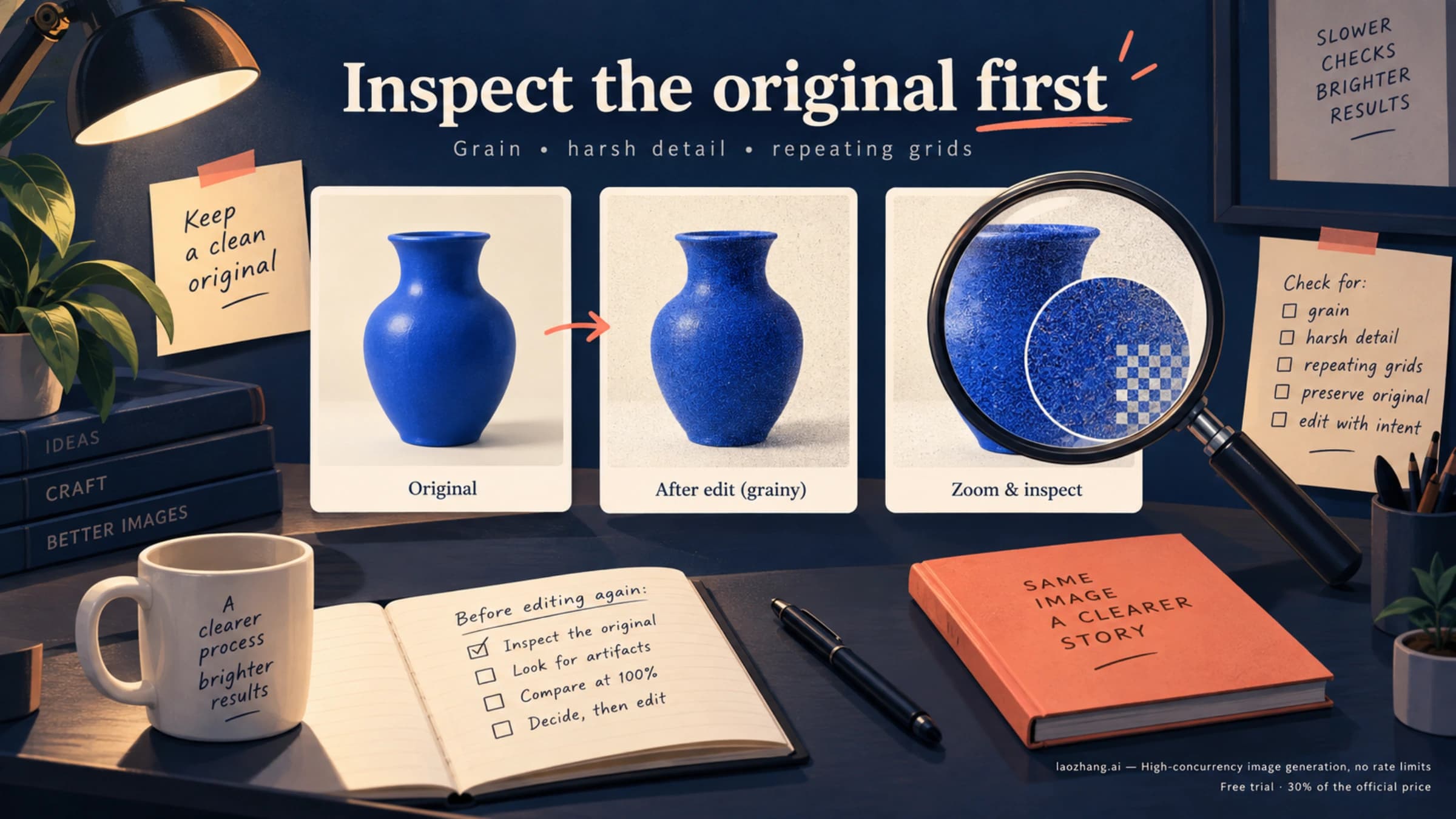
The precision row is worth reading twice. A mask sounds more exact than a circle, but OpenAI's own wording says the model treats it as guidance and may not follow its outline. Neither option gives pixel-perfect protection of the rest of the photo, so check the result against the original instead of trusting the input.
Overlay rules: same size after EXIF rotation, real transparency
An overlay is valid when it is a PNG with real transparent pixels and the same width and height as the first image after EXIF orientation, with each file at most 16,777,216 pixels and the overlay file at most 50 MB. These rules come from OpenAI's image generation guide as of November 5, 2026. The API reference repeats the size and transparency rules in its markup description.
| Rule | How it usually goes wrong | Message from the script below |
|---|---|---|
| Same width and height as the first image, after orientation | A phone photo stored as 4032×3024 with a "rotate 90°" EXIF tag displays as 3024×4032; an overlay sized from the raw pixels won't match | size (1000, 750) != photo (1200, 900) |
| Contains transparent pixels | The circle is drawn onto a copy of the photo or a white canvas and saved, so the layer is opaque | no transparent pixels (flattened overlay) |
| At most 16,777,216 pixels each for the photo and the overlay | A 6000×4000 camera file is 24,000,000 pixels; downscale both files together first | overlay over 16,777,216 pixels |
| Overlay file at most 50 MB | Rare for a transparent PNG; a 1200×900 overlay with one circle is 5,645 bytes | overlay over 50 MB |
| Applies to the first input image | The photo is passed second, after a reference image | Not checked; keep the photo first |
Draw the mark in the photo's oriented pixel coordinates, the way the photo looks on screen, not the way it is stored. OpenAI's example and the test below both draw a red ellipse and refer to it in the prompt as "the red circle."
Build and check the overlay in Python before you pay for a call
The script below builds an overlay and checks it against those four file rules in one step. It opens the photo with EXIF orientation applied, draws a red ellipse on a fully transparent canvas of the same size, saves it, and then validates the saved file. It needs Python 3 and Pillow (pip install pillow).
"""Build and check a markup overlay for GPT Image 2.6 / 2.5 edits.
Draws a red ellipse on a fully transparent canvas the same size as the photo (after EXIF orientation),
then checks OpenAI's stated rules: same width/height as the first input image, contains transparent pixels,
at most 16,777,216 pixels, at most 50 MB.
Usage: python3 make_markup_overlay.py photo.jpg x0 y0 x1 y1 [out.png]"""
import os, sys
from PIL import Image, ImageDraw, ImageOps

MAX_PIXELS = 16_777_216
MAX_BYTES = 50 * 1024 * 1024


def build(photo, box, out):
    img = ImageOps.exif_transpose(Image.open(photo))  # the API compares sizes after orientation
    overlay = Image.new("RGBA", img.size, (0, 0, 0, 0))
    ImageDraw.Draw(overlay).ellipse(box, outline=(230, 20, 20, 255), width=max(4, img.width // 150))
    overlay.save(out)
    return img.size


def check(photo, out):
    img = ImageOps.exif_transpose(Image.open(photo))
    ov = Image.open(out)
    problems = []
    if ov.size != img.size:
        problems.append(f"size {ov.size} != photo {img.size}")
    if ov.mode != "RGBA" or ov.getchannel("A").getextrema()[0] == 255:
        problems.append("no transparent pixels (flattened overlay)")
    if ov.width * ov.height > MAX_PIXELS:
        problems.append("overlay over 16,777,216 pixels")
    if os.path.getsize(out) > MAX_BYTES:
        problems.append("overlay over 50 MB")
    return problems


if __name__ == "__main__":
    photo, *nums = sys.argv[1:6]
    out = sys.argv[6] if len(sys.argv) > 6 else "markup.png"
    size = build(photo, [int(n) for n in nums], out)
    issues = check(photo, out)
    print(f"photo {size[0]}x{size[1]} -> {out} ({os.path.getsize(out)} bytes)")
    print("OK" if not issues else "FAIL: " + "; ".join(issues))
The four numbers are the ellipse's bounding box: left, top, right, bottom, in pixels. Circling the front-left chair in OpenAI's 1200×900 kitchen photo, run on November 5, 2026:
python3 make_markup_overlay.py kitchen.png 235 610 465 785 markup.png
# photo 1200x900 -> markup.png (5645 bytes)
# OK
To check an overlay you drew in another tool, call check() on it:
python3 -c "from make_markup_overlay import check; print(check('kitchen.png', 'my-overlay.png'))"On the same day, three files went through that check. An overlay resized to 1000×750 failed with size (1000, 750) != photo (1200, 900); the same circle composited onto a white canvas failed with no transparent pixels (flattened overlay); OpenAI's own vase overlay from its guide passed with an empty list. The script also flags palette-mode or grayscale PNGs as flattened even when they have transparency, so convert those with Image.open(path).convert("RGBA") first.
The check covers OpenAI's written rules. It can't tell you what OpenAI's API returns for an overlay that breaks them, and a gateway may not tell you either: LaoZhang's VIP route accepted both the wrong-size and the opaque overlay with a 200 and no error message.
Send markup to /v1/images/edits: Python, curl and JSON examples
A markup request has the photo as the first image, the overlay as markup, a GPT Image 2.6 model, and a prompt that refers to the mark. You can send it as multipart form data with two file uploads, or as JSON where the photo goes in the images array and markup is an object with exactly one of image_url (an HTTPS URL or a base64 data URL) or file_id.
- Build and check
markup.pngwith the script in the previous section. - Choose the model:
gpt-image-2.6-sunburstfor edits where the rest of the photo must stay put, orgpt-image-2.6-flarefor speed. OpenAI's launch post says Sunburst keeps "greater image consistency across edits when quality is set to medium or high." - Set
size. OpenAI's example usessize="auto", which kept the 4:3 shape and returned 1448×1086 from a 1200×900 photo. If a route returns a square when you leavesizeout, pass a size with the photo's aspect ratio. - Leave out
mask,prompt_rewriterandinput_fidelity. OpenAI's prompting guide says to omitinput_fidelityon image edits. - Send the request with one of the examples below, then run the comparison in the last section before you use the result.
The Python version uses the official openai package and mirrors OpenAI's own markup example; only the photo, the prompt and the model are swapped for the chair edit. If your installed package doesn't accept the markup argument, upgrade it with pip install -U openai.
import base64
from pathlib import Path

from openai import OpenAI

client = OpenAI()  # reads OPENAI_API_KEY

with open("kitchen.png", "rb") as photo, open("markup.png", "rb") as overlay:
    result = client.images.edit(
        model="gpt-image-2.6-sunburst",
        image=("kitchen.png", photo, "image/png"),
        markup=("markup.png", overlay, "image/png"),
        prompt=(
            "Recolor the chair inside the red circle to bright mustard-yellow leather. "
            "Keep its shape. Keep the other chairs white and keep the rest of the kitchen unchanged. "
            "Remove the red circle from the finished photo."
        ),
        quality="medium",
        size="auto",
    )

Path("edited.png").write_bytes(base64.b64decode(result.data[0].b64_json))
The same request with curl:
curl --fail-with-body https://api.openai.com/v1/images/edits \
  -H "Authorization: Bearer $OPENAI_API_KEY" \
  -F model=gpt-image-2.6-sunburst \
  -F quality=medium \
  -F size=auto \
  -F 'image=@kitchen.png;type=image/png' \
  -F 'markup=@markup.png;type=image/png' \
  -F 'prompt=Recolor the chair inside the red circle to bright mustard-yellow leather. Keep its shape. Keep the other chairs white and keep the rest of the kitchen unchanged. Remove the red circle from the finished photo.' \
  | jq -er '.data[0].b64_json' | base64 --decode > edited.png
For JSON, both images travel as references. This version builds base64 data URLs, which suits small files; a transparent overlay is usually only a few kilobytes.
import base64
import os
from pathlib import Path

import requests


def data_url(path):
    return "data:image/png;base64," + base64.b64encode(Path(path).read_bytes()).decode()


body = {
    "model": "gpt-image-2.6-sunburst",
    "images": [{"image_url": data_url("kitchen.png")}],  # the photo must be first
    "markup": {"image_url": data_url("markup.png")},     # or {"file_id": "file-..."}
    "prompt": (
        "Recolor the chair inside the red circle to bright mustard-yellow leather. "
        "Keep its shape. Keep the other chairs white and keep the rest of the kitchen unchanged. "
        "Remove the red circle from the finished photo."
    ),
    "quality": "medium",
    "size": "auto",
}
r = requests.post(
    "https://api.openai.com/v1/images/edits",
    headers={"Authorization": f"Bearer {os.environ['OPENAI_API_KEY']}"},
    json=body,
    timeout=300,
)
r.raise_for_status()
Path("edited.png").write_bytes(base64.b64decode(r.json()["data"][0]["b64_json"]))
The API reference caps an image_url string at 20,971,520 characters, so for large photos upload the files once and pass file_id instead. OpenAI's mask example uploads image files with client.files.create(file=..., purpose="vision").
OpenAI's guide also recommends starting a targeted edit at complexity="low" and checking that the surroundings stay intact; the launch post suggests medium or high complexity only for scenes with many elements or constraints.
Which route reads markup: chair test on gpt-image-2.6-web and -vip
OpenAI documents markup for its own API; LaoZhang's per-call 2.6 routes did not read it in a test on November 5, 2026. A gateway can accept the markup field, return 200, and still produce an image that was made without it. For markup through LaoZhang, use the official forwarding models in an OpenAI Official group, which take the same request body as OpenAI; markup has not yet been run through that route in these tests.
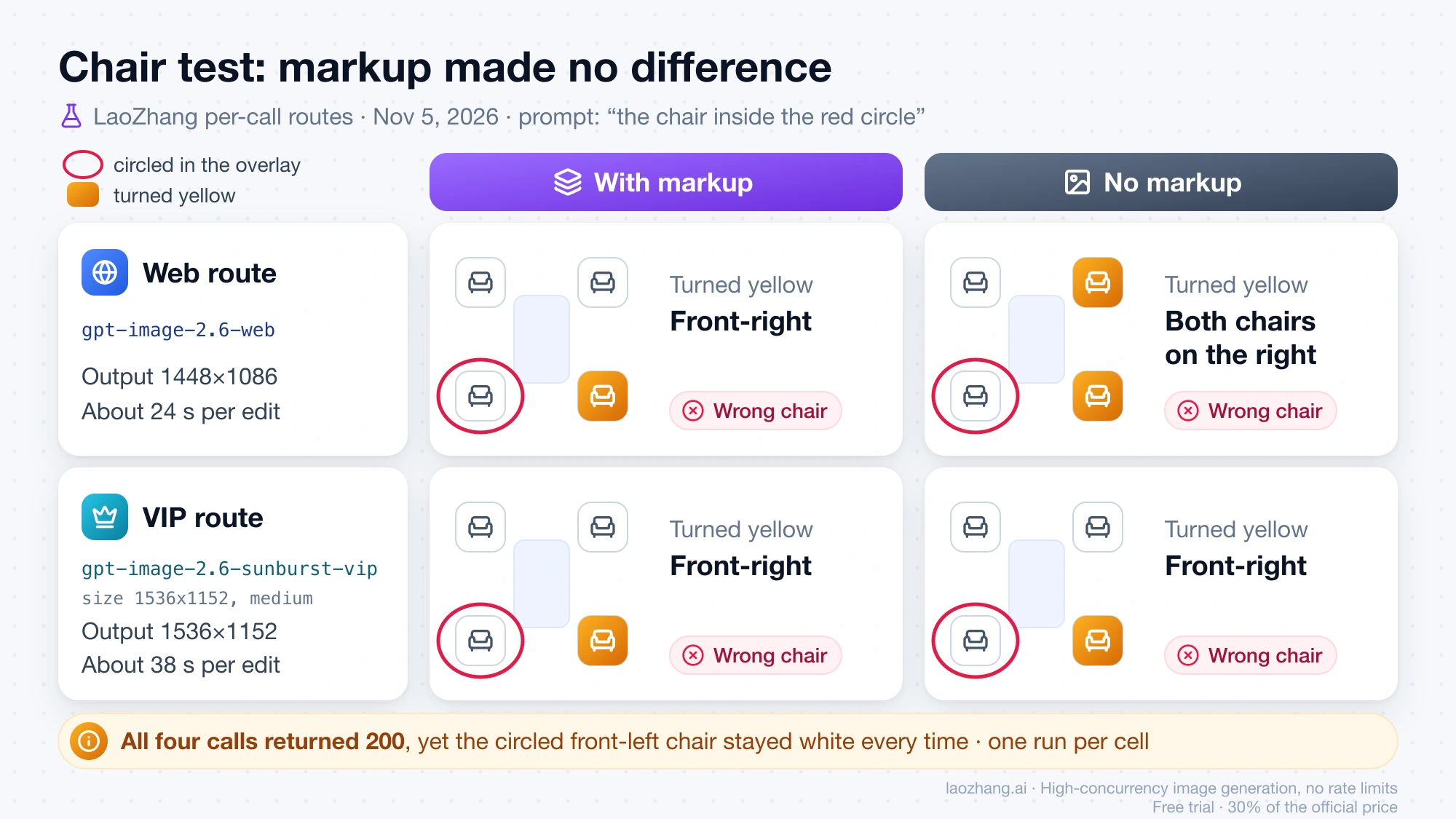
The test used OpenAI's 1200×900 kitchen photo, which has four identical white chairs around a glass table. The overlay circled the front-left chair, and the prompt named it only as "the chair inside the red circle," so the model could find the right chair only by reading the overlay. Each route ran once with the overlay and once without it, as multipart requests to /v1/images/edits.
| Route and request | Output size | Chair that turned yellow |
|---|---|---|
gpt-image-2.6-web, with markup | 1448×1086 | Front-right (wrong) |
gpt-image-2.6-web, no markup | 1448×1086 | Both chairs on the right (wrong) |
gpt-image-2.6-sunburst-vip, with markup, size: "1536x1152", quality: "medium" | 1536×1152 | Front-right (wrong) |
gpt-image-2.6-sunburst-vip, no markup, same settings | 1536×1152 | Front-right (wrong) |
The circled chair stayed white in all four results, no red circle was left in any of them, and the outputs with and without the overlay picked the same wrong chair on the VIP route. The web route took about 24 seconds and the VIP route about 38 seconds per edit. Each cell is a single run, so this shows that the overlay made no visible difference on these two routes on that day; it says nothing about OpenAI's own API or about LaoZhang's official forwarding.
An earlier round on the same day explains why the chair test was needed. With OpenAI's vase example, every per-call edit turned the vase blue, with or without the overlay, because "the striped vase" can be found from the text alone. That round also showed that VIP accepted a 1000×750 overlay and a fully opaque overlay with 200 and no error, so a successful response is not evidence that the overlay was read. To test any route yourself, pick a target that the prompt can't identify without the mark, and run the request with and without markup.
On LaoZhang API, official forwarding is the route that matches OpenAI's request body. Create a token in the OpenAI Official group (or OpenAI Official Enterprise, which bills the official price plus 20%) with the Usage first or Usage-based billing mode, point your client at https://api.laozhang.ai/v1, and use gpt-image-2.6-flare or gpt-image-2.6-sunburst as the model. LaoZhang's GPT Image 2.5 and 2.6 API documentation says official-forward requests keep OpenAI's parameters and only model changes; it doesn't mention markup, so run the chair-style test above once before you rely on it. In the Python example, add import os and replace client = OpenAI() with:
Disclosure: laozhang.ai is our own service. Its prices are platform pricing, not an independent comparison.
client = OpenAI(api_key=os.environ["LAOZHANG_API_KEY"], base_url="https://api.laozhang.ai/v1")If you edit on the VIP route for other reasons, pass size explicitly. In the vase round, VIP edits without size came back as 2048×2048 squares, with the 4:3 room recomposed to fit, while an explicit size: "1536x1152" kept the 4:3 framing.
Check the edit stayed inside the circle: compare it with the original
Markup tells the model where to work, but it doesn't lock the rest of the photo, so compare the result with the original before you use it. OpenAI's own guide ends its markup example with the same instruction: "Compare the rest of each image with the original to check for other changes." The script below turns that into two numbers and a difference map.
- Keep the original photo, the overlay you sent, and the edited output in one folder.
- Run
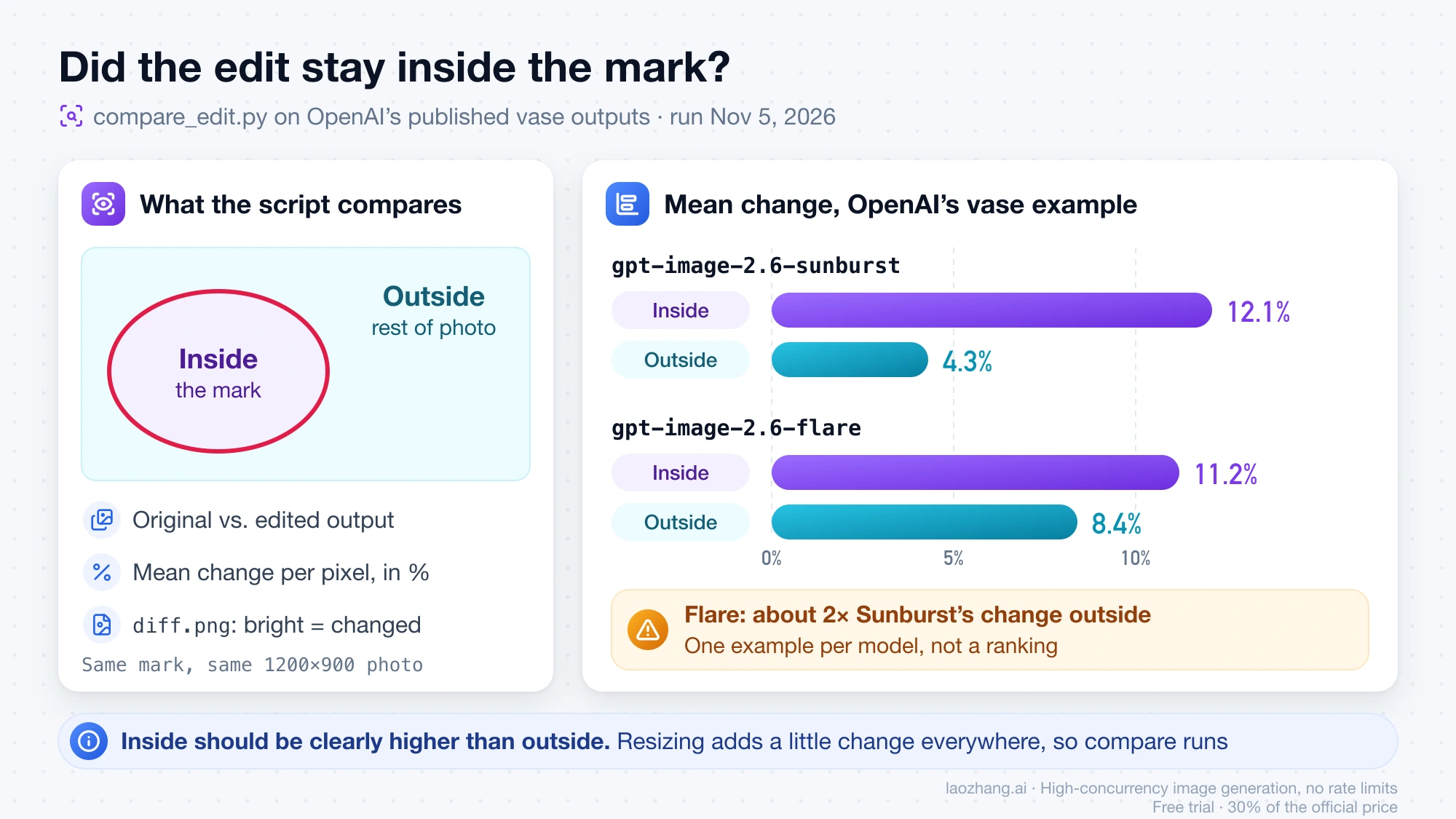
python3 compare_edit.py kitchen.png markup.png edited.png(needs Pillow and NumPy). - Compare the two percentages: the inside number should be clearly higher than the outside number.
- Open
diff.pngand look for large bright areas outside the circle. Thin bright edges and busy textures such as leaves appear everywhere because the output is resized back to the original's dimensions. - If the outside number is high or a bright area sits on something you asked to keep, run the edit again on Sunburst at
mediumorhighquality, or tighten the "keep" part of the prompt.
"""Did the edit stay inside the mark?
Usage: python3 compare_edit.py original.png markup.png edited.png"""
import sys

import numpy as np
from PIL import Image, ImageDraw, ImageOps

orig = ImageOps.exif_transpose(Image.open(sys.argv[1])).convert("RGB")
alpha = np.array(Image.open(sys.argv[2]).convert("RGBA"))[:, :, 3]
edited = Image.open(sys.argv[3]).convert("RGB")
print(f"original {orig.width}x{orig.height}, edited {edited.width}x{edited.height}")

# Region = the filled ellipse spanned by everything drawn on the overlay
ys, xs = np.nonzero(alpha)
region = Image.new("L", orig.size, 0)
ImageDraw.Draw(region).ellipse([xs.min(), ys.min(), xs.max(), ys.max()], fill=255)
inside = np.array(region) > 0

a = np.array(orig, dtype=float)
b = np.array(edited.resize(orig.size, Image.LANCZOS), dtype=float)
diff = np.abs(b - a).mean(axis=2) / 255 * 100  # percent per pixel
print(f"inside the mark:  {diff[inside].mean():.1f}% mean change")
print(f"outside the mark: {diff[~inside].mean():.1f}% mean change")

# Bright pixels in diff.png = places that changed
Image.fromarray(np.clip(diff * 4, 0, 255).astype("uint8")).save("diff.png")
There is no universal pass mark, because resizing alone produces a small difference everywhere, so compare runs against each other rather than against zero. As a reference point, the script was run on November 5, 2026 against the two outputs OpenAI publishes for its vase example. Both are 1448×1086 from the 1200×900 photo. Sunburst changed the circled area by 12.1% on average and the rest of the photo by 4.3%; Flare changed the circle by 11.2% and the rest by 8.4%, about twice as much outside the mark. That is one example per model, not a ranking, but it is consistent with OpenAI's claim that Sunburst holds the image steadier across edits at medium quality and above.
Markup cost: same token rates as other edits, no extra fee
Markup doesn't add a fee. OpenAI's image generation guide says "Markup-guided edits use the same token rates as other edits, with no extra fee," and as of November 5, 2026 the GPT Image 2.6 rates are $8 per million image input tokens, $30 per million image output tokens and $5 per million text input tokens. An edit's cost is therefore the image and text input tokens at their rates plus the output tokens at $30 per million, and it rises with output size and quality.
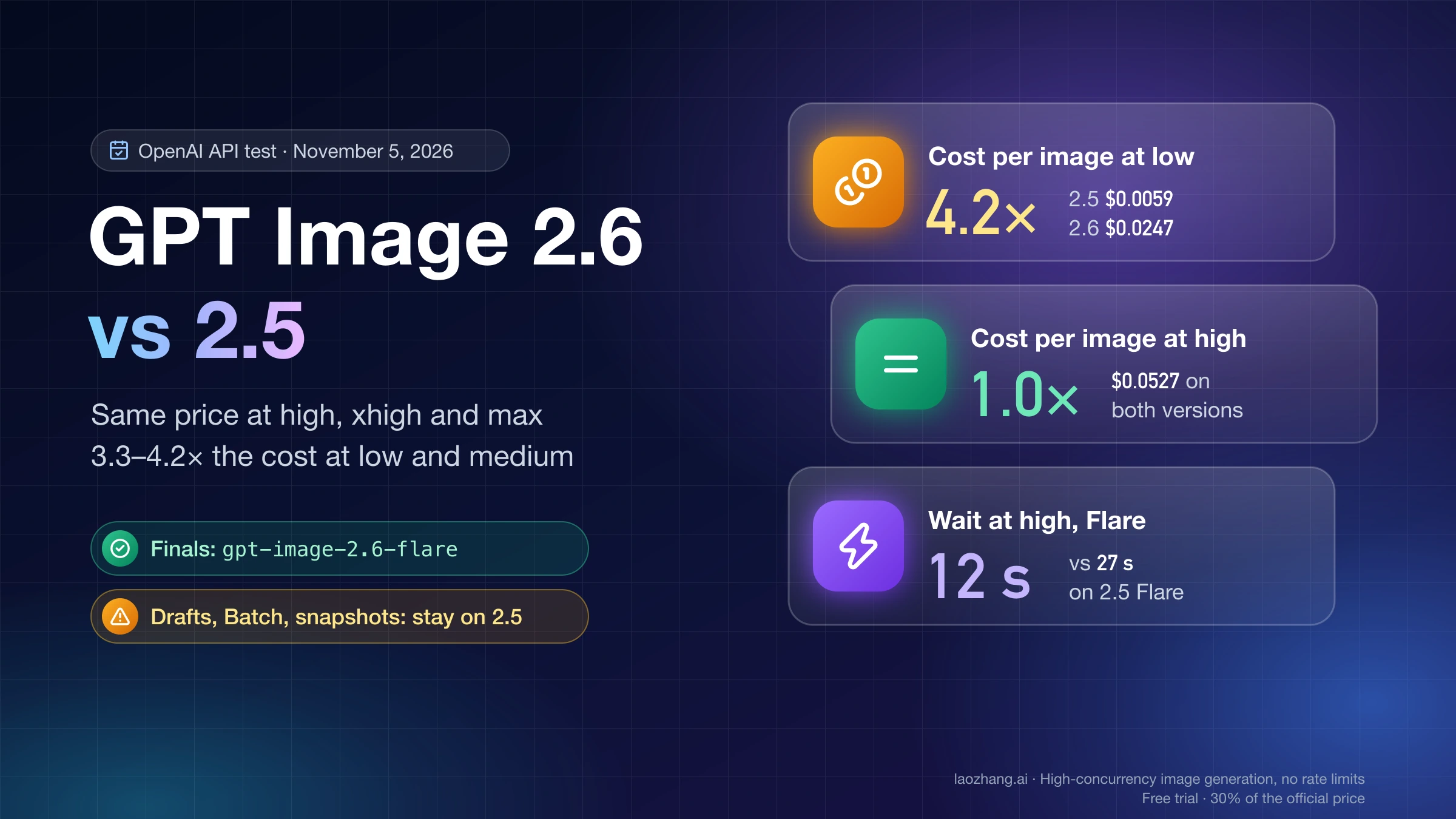
For a sense of scale, one ordinary 2.6 Sunburst edit at low through LaoZhang's official forwarding cost $0.03301 in a measurement by LaoZhang's docs team on November 5, 2026. The $0.03 flat price of the per-call routes doesn't help here, because those routes didn't read the overlay in the chair test. If you are still deciding between versions, GPT Image 2.6 vs 2.5: Same Price at High, 4× the Cost at Low breaks down the cost per quality tier.
GPT Image 2.6 markup API: other questions
Does image markup work with GPT Image 2.5?
OpenAI's documents disagree as of November 5, 2026. The image generation guide says to use /v1/images/edits "for markup-guided edits with supported GPT Image 2.5 and 2.6 models," and the Images 2.6 launch post and 2.6 model pages list markup for 2.6. The API reference for the markup field still says only "Supports GPT Image 2.5." The guide and the launch post are the newer statements, and both name 2.5 and 2.6 together or 2.6 specifically. Markup reached the API spec in late October, before 2.6 launched on November 4, 2026, which is why write-ups from that week call it a 2.5 feature and say 2.6 has no model ID; both 2.6 IDs are live now.
Can I circle things in the ChatGPT app instead of the API?
Yes, ChatGPT's image editor has its own Markup tool, but its buttons regenerate the image rather than send a layer you control; see ChatGPT Image Editor: How to Use Each Tool and What It Redraws.
Should I switch my edit pipeline from GPT Image 2.5 to 2.6 for markup?
Both versions are listed for markup in OpenAI's guide, so the switch is a cost and quality decision, covered in GPT Image 2.6 vs 2.5: Same Price at High, 4× the Cost at Low.