Best Free AI Video Ad Generators in 2026: Free Exports and Limits
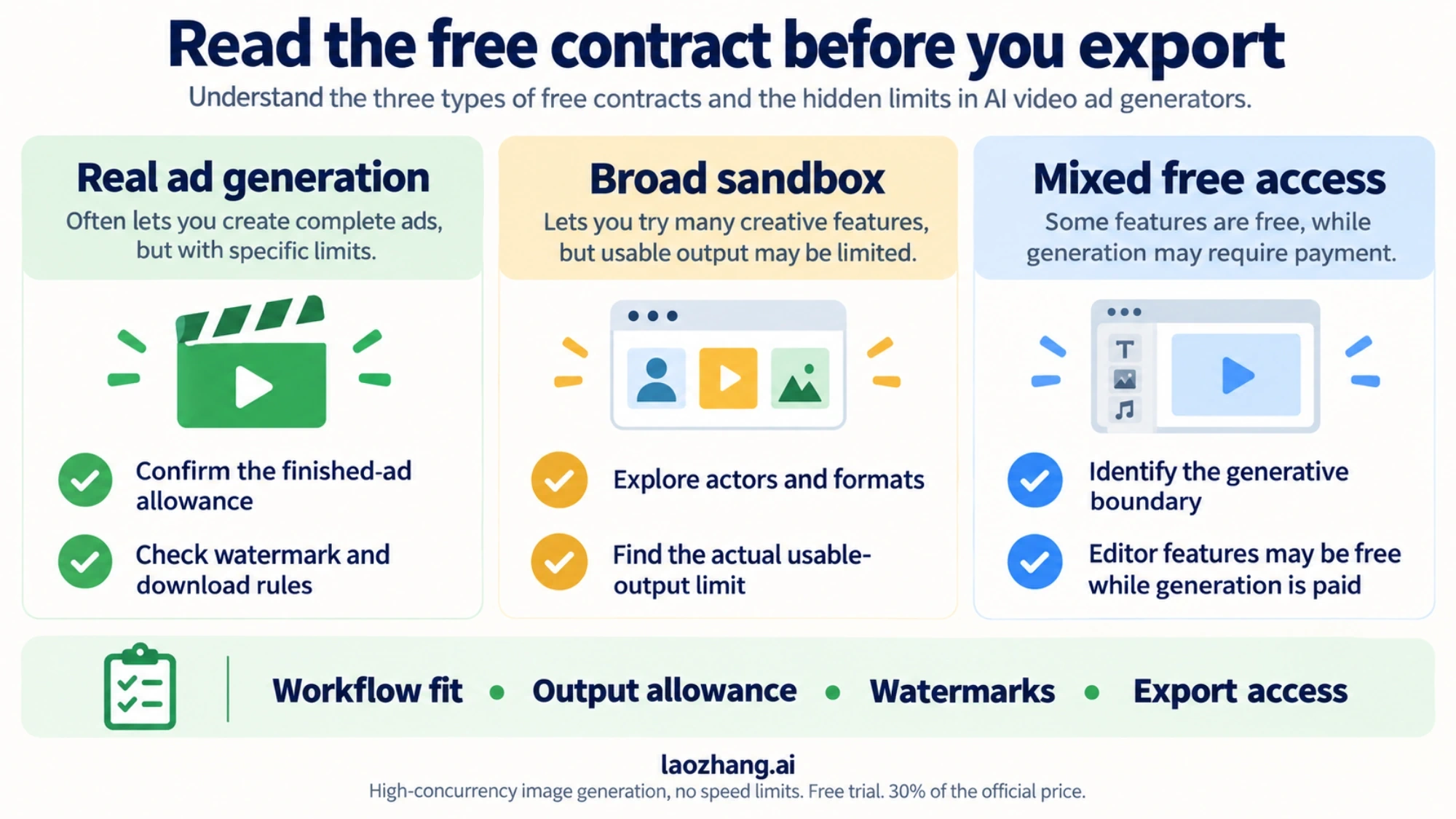
For a free ad you can finish from existing product photos, start with Canva and free or self-owned assets. Try Creatify for generated product ads with a watermark. HeyGen Free is limited to personal use and internal evaluation, so it is not a free commercial-ad option.
On this page
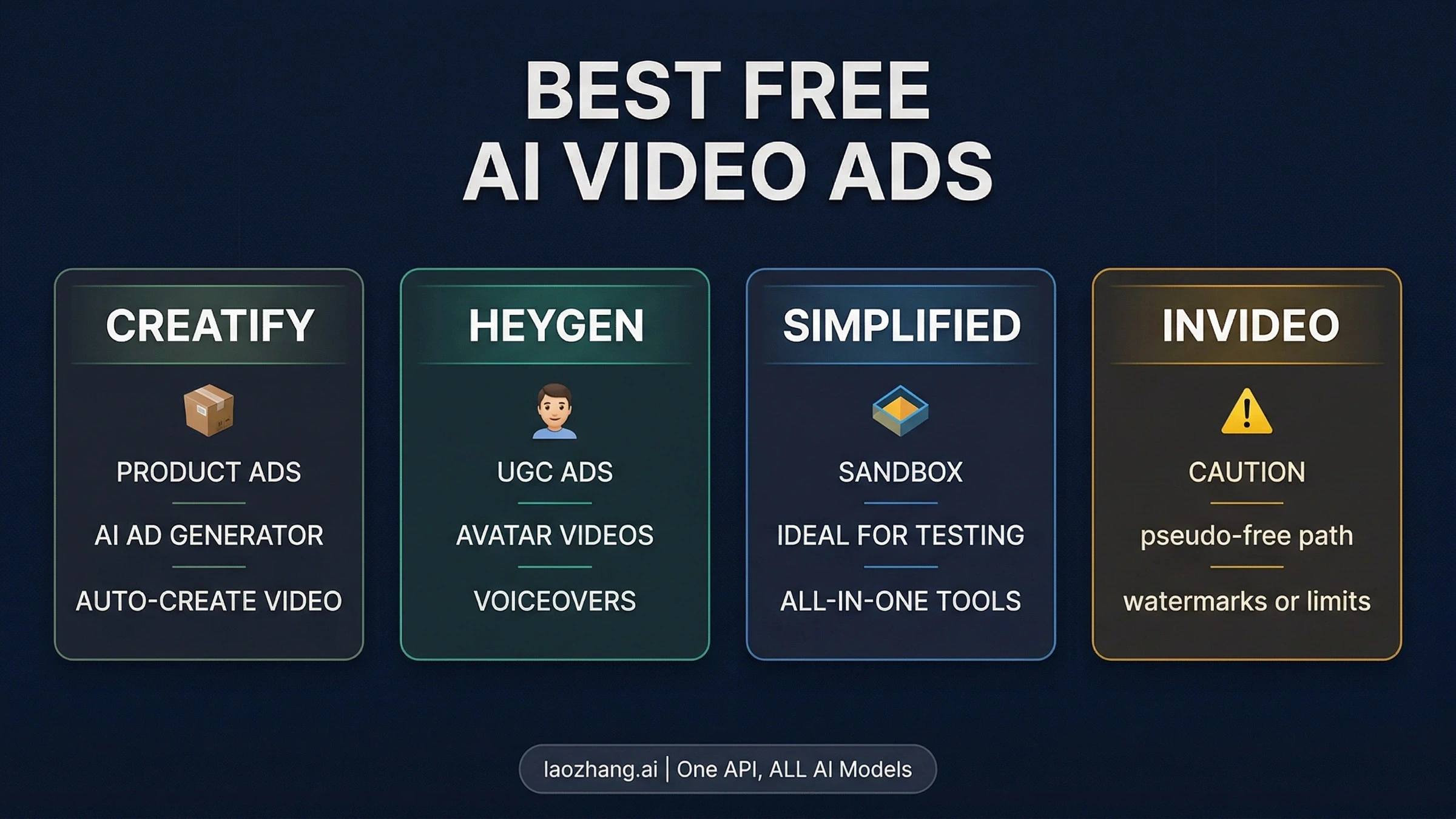
Start with Canva if you already have product photos or footage and need a finished ad without paying. Its free editor can assemble the ad and export without a watermark when you use your own assets or eligible free content. If you specifically want AI to generate the ad from a product URL, media, or text, try Creatify: its Free plan has 10 monthly credits, but exports carry a watermark.
For a generated spokesperson, HeyGen Free is an internal preview option, not a free commercial-ad solution. Its current terms exclude advertising and client work from permitted Free output uses. Simplified advertises a free UGC-style generator, but its unquantified credit allowance and content-license attribution condition need checking before you commit a campaign to it.
The choices below are based on official plan, help, and license information checked on November 9, 2026. They compare what you can make and use under those published conditions; they are not a video-quality or conversion-rate test.
Which free tool should you start with?
A finished ad needs a message, visuals, a call to action, and an export you can use. Generating new footage is one way to get there; editing your existing product assets is another.
| Your immediate job | Start here | What the free route gives you | What changes the choice |
|---|---|---|---|
| Turn existing product photos or clips into an ad | Canva | Free ad templates and editing; watermark-free export with eligible free or self-owned assets | Premium assets and some AI generation features require a different entitlement; asset licenses still apply |
| Generate a product-ad concept from a URL, media, or text | Creatify | 10 credits per month; up to two short standard video-ad generations | Free exports are watermarked; duration and regeneration consume the small allowance |
| Try a spokesperson script privately | HeyGen | Three videos per month, up to one minute each, with a watermark | Free output cannot be used for advertising, client work, or other commercial purposes |
| Explore a free UGC-style actor workflow | Simplified | A landing-page offer with limited monthly credits and a claimed watermark-free commercial export | No published clip-count formula; export wording is inconsistent, and licensed content has attribution conditions |
Sources: Canva ad maker, Canva free-export conditions, Creatify pricing and Free Plan help, HeyGen pricing and terms, section 4, Simplified free UGC offer and content license.
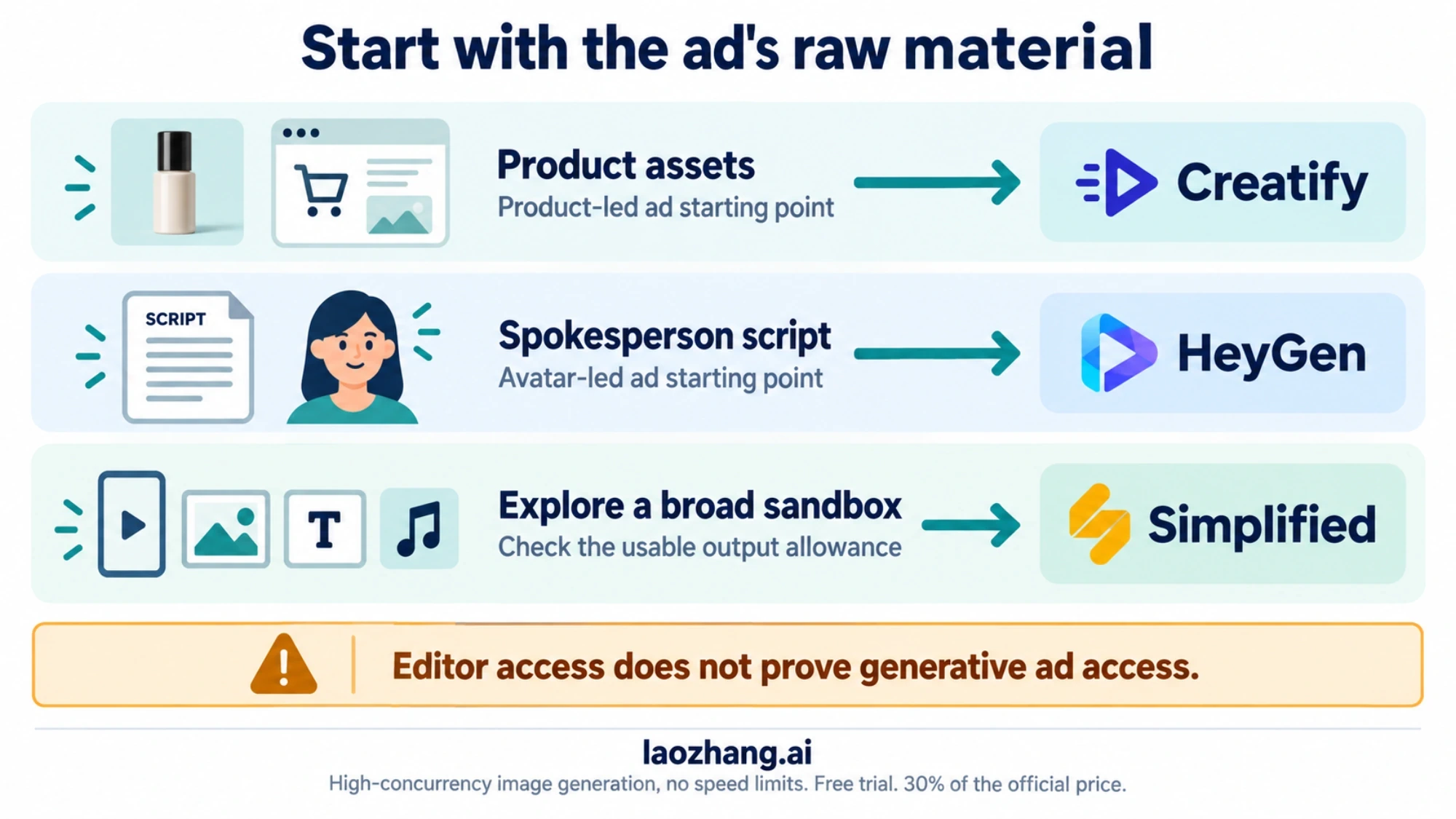
The practical default is straightforward: use the editor route to finish an ad at zero cost; use a small generative allowance to test an idea before buying more generation. That recommendation changes if you have no source visuals, require a synthetic presenter, or need more variations than the free quota supports.
Make a free product ad with Canva
Canva is the strongest starting point here when the goal is a finished promotional video from materials you already own. Its video ad maker supports uploaded photos and footage, templates, and edits to text, colors, and fonts. You need an account to download or share the result.
This route gives you an actual ad rather than just an isolated generated shot. It also avoids spending scarce generation credits on details you can change manually, such as a price card or closing message.
For example, a small shop selling a ceramic travel mug could make a short vertical ad from three original photos:
- Open with the product in use. Show the mug beside a packed bag, with a concise hook such as “Your morning coffee, ready to go.”
- Show one demonstrable feature. Use a close-up of the lid or handle and describe only what your product information supports. Avoid inventing performance claims to fill the frame.
- End with the buying action. Add the product name and a clear message such as “Choose your color.” Keep the destination consistent with the actual product page.
- Check every included asset before export. Replace premium elements if you want to stay on the free path, then download and play the complete video. Check the crop, text timing, audio, destination, and absence of an unexpected watermark.
That is an editorial example, not a tested Canva template or a promise of ad performance. You can use the same sequence for screenshots of an app, a short product demonstration, or photos of a local service.
Can Canva export a commercial ad without a watermark?
Yes, within the relevant content conditions. Canva's desktop editor FAQ says Free videos have no watermark when they use free elements, images, footage, and music. Premium elements on a Free account require a license; removing or cropping their watermark does not supply one.
For commercial use, Canva's Content License Agreement permits ordinary Free Content in advertising and promotional videos. Special categories can have different restrictions: Branded Content, Education Pro Content, and Popular Music should not be treated as ordinary free commercial assets. Using your own product photos and your own audio keeps the third-party asset check simpler.
Do not confuse this free editing route with free access to every AI video feature. Canva's Create a Video Clip feature, powered by Veo 3, lists eligible paid and organizational plans and limited monthly generation. The free ad editor does not establish a free Veo generation quota.
Test a generated product ad with Creatify
Creatify is the clearer choice when you want the tool to construct a product-ad concept from a URL, uploaded media, or text. Its current pricing page lists 10 monthly Free credits and up to two video ads, with a watermark. Treat this as a small concept-testing allowance, especially if a clean final export is part of your requirement.
The duration rule matters more than the headline “two video ads.” Creatify's dedicated Free Plan help, dated August 19, 2026, charges 5 credits for each started 15-second block of standard Video Ad or Avatar Video output.
| Generated duration | Published credit calculation | Credits used |
|---|---|---|
| 15 seconds | One 15-second block × 5 | 5 |
| 16 seconds | Two started blocks × 5 | 10 |
| 30 seconds | Two blocks × 5 | 10 |
| 31 seconds | Three started blocks × 5 | 15 |
With 10 credits, that arithmetic supports two generations of at most 15 seconds each, or one generation of up to 30 seconds. It does not guarantee two usable ads: an unsuccessful creative idea can still leave you wanting another generation. The same help page says the Free allowance cannot complete a full video in Agent or AdFlow, so do not apply the standard-video calculation to those workflows.
A sensible first test is one short product angle. Prepare the product facts, photos, and call to action before generating. Keep the requested duration within 15 seconds if you want to preserve enough credits for a second attempt. Check the cost shown before you submit, since the selected feature or model can change it.
After generation, distinguish editing from regenerating. The current pricing FAQ says manual changes to text, captions, trimming, media, or layout in an exported project and re-exporting do not cost credits. Rerunning AI video, avatar, voice, or script generation is a new generation. Fix a caption manually rather than spending another attempt merely to change a word.
Creatify's terms allow business and personal use subject to the applicable tier and policies, and require rights and consent for your inputs. That permission does not clear a third party's logo, a person's likeness, an unsupported product claim, or every ad platform's acceptance rules. For a zero-cost, watermark-free final ad, the Canva route remains the more suitable starting point in this comparison.
If you only need to animate a still product image into a short shot, use the separate free image-to-video AI guide. You would still need to assemble that shot into an ad with a message and buying action.
Use HeyGen Free for a private spokesperson preview
HeyGen Free can help you decide whether a presenter-led format suits your script. Its pricing page currently lists three videos per month, a maximum of one minute per video, and a watermark.
The decisive limit is usage permission. Under section 4 of HeyGen's current terms, last updated October 16, 2026, Free output is limited to personal, noncommercial use and internal evaluation. Advertising, client work, monetization, and revenue-generating products are excluded. A free render should therefore remain a private evaluation asset, even if the interface lets you download it.
For an advertiser, the useful free task is to evaluate the script: does the hook work when spoken, is the explanation too long, and does a presenter help explain the product? If you decide to proceed, use a plan and generation workflow whose terms cover the intended commercial use. Do not assume a later upgrade automatically licenses a video generated under Free; that has not been established here.
A synthetic presenter also should not be scripted as a real customer describing an experience they never had. A product explanation and a genuine customer testimonial are different claims, regardless of the tool used to produce the video.
Consider Simplified when you need a UGC-style actor
Simplified's free UGC generator page advertises no-card access, limited monthly credits, multiple actors and formats, and a watermark-free commercial output. That makes it a candidate when an actor is central to your concept and you want to explore the workflow before paying.
There are two reasons to keep the first test small. The offer does not publish enough credit and per-video numbers to calculate a monthly video total. Its FAQ claims free watermark-free downloads, while another bullet associates watermark removal with paid features. Confirm the actual export terms and credit charge shown for your account before investing time in a batch of scripts.
Also, watermark-free is different from attribution-free. Simplified's content license, section 3 d.10, calls for credit adjacent to audio and video productions using its licensed content; third-party materials keep their own license conditions. The broader wording about appreciated attribution does not justify promising an attribution-free commercial ad.
Choose this route if you can accommodate the applicable credit and license conditions and the account's free export matches the advertised offer. If you need a predictable quantity of unbranded commercial actor videos for a client deadline, the published free information is not enough to plan that delivery.
What about InVideo and “unlimited free” generators?
InVideo remains relevant to ad creation, but its current public information does not support a precise free-generation recommendation here. Its account and plan documentation, updated November 3, 2026, says manual edits and exports are free, while generation, transcripts, and paid stock consume credits. The actual plan controls credits and model access. Its pricing page presents paid per-seat plans.
That does not prove every account has zero free generation. It means the old figures of 10 AI minutes and four exports per week should not be used to promise today's free allowance. If you already have an InVideo account, inspect its current credit balance, generation cost, and export conditions before making the first version.
Likewise, “unlimited free” is not an established option among the generative plans compared here. A free editor can let you keep working with existing assets, while an AI tool can meter each new generation. Unlimited editing and unlimited generated video are different offers.
Frequently asked questions
What is the best completely free AI video ad generator?
For a finished ad made from your existing assets, start with Canva's free video ad maker and eligible free or self-owned content. For generated product ads, Creatify Free offers 10 monthly credits, but its exports are watermarked. There is no single verified option here that combines unlimited generation, watermark-free exports, and unrestricted commercial use.
Can I make a free video ad without a watermark or attribution?
The clearest route in this comparison is to assemble your own product photos, footage, text, and audio in Canva Free, without premium elements. Canva documents watermark-free export with eligible free content. If you add stock assets, check their exact license and attribution conditions; a clean export alone does not answer that question. Simplified's content license includes an attribution condition for audio and video productions using licensed content.
How many free video ads can I make with Creatify?
Its published Free allowance is 10 credits per month. For standard Video Ad and Avatar Video, the dedicated Free Plan rule is 5 credits per started 15 seconds. That covers two generations of up to 15 seconds each or one of up to 30 seconds, before further generation. Free output is watermarked, and this calculation does not cover a complete Agent or AdFlow video.
Can I use a HeyGen Free video in paid ads or client work?
No. Section 4 of HeyGen's current terms excludes advertising and client work from permitted Free output uses. Use Free for private evaluation, then choose a commercially permitted plan and workflow before producing the campaign asset.
Is a free image-to-video clip enough to make an ad?
It can provide a shot, but you still need to add the product message, a suitable call to action, and any required disclosures, then confirm the clip's license and export conditions. Start with the image-to-video guide for animating a still image; use an editor to turn the result into a complete promotional video.
Sources14
External pages this guide links to, in the order they appear. Last updated Nov 9, 2026.
Sources14
External pages this guide links to, in the order they appear. Last updated Nov 9, 2026.
- 1.export without a watermarkcanva.com/video-editor/desktop-download
- 2.Free plancreatify.ai/pricing
- 3.current termsheygen.com/terms
- 4.Simplified advertises a free UGC-style generatorsimplified.com/ai-ugc-video-generator/free
- 5.Canva ad makercanva.com/create/advertising-videos
- 6.Free Plan helphelp.creatify.ai/en/articles/9945986-free-plan
- 7.HeyGen pricingheygen.com/pricing
- 8.content licensesimplified.com/license-agreement
- 9.Premium elementscanva.com/help/premium-elements
- 10.Content License Agreementcanva.com/policies/content-license-agreement
- 11.Create a Video Clip featurecanva.com/features/ai-video-generator
- 12.termscreatify.ai/terms
- 13.account and plan documentationdocs.invideo.io/account/plans
- 14.pricing pageinvideo.io/pricing