Antigravity Remote Control: Set Up Browser Access Without Losing the Host Boundary
Choose the right remote boundary before you install anything: official Remote Control drives an Antigravity session, while Remote SSH, remote desktop, and third-party companions solve different jobs.
On this page
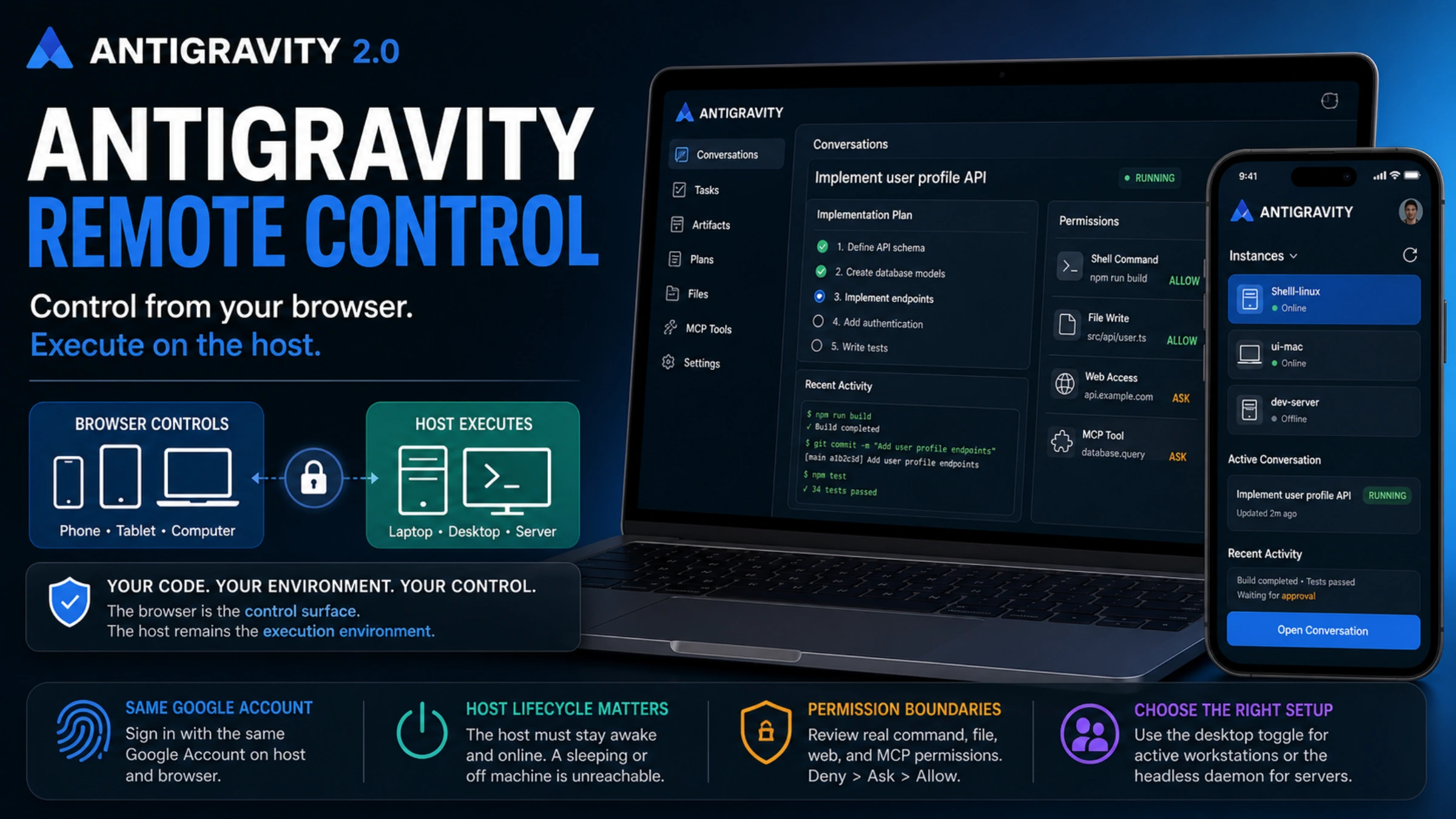
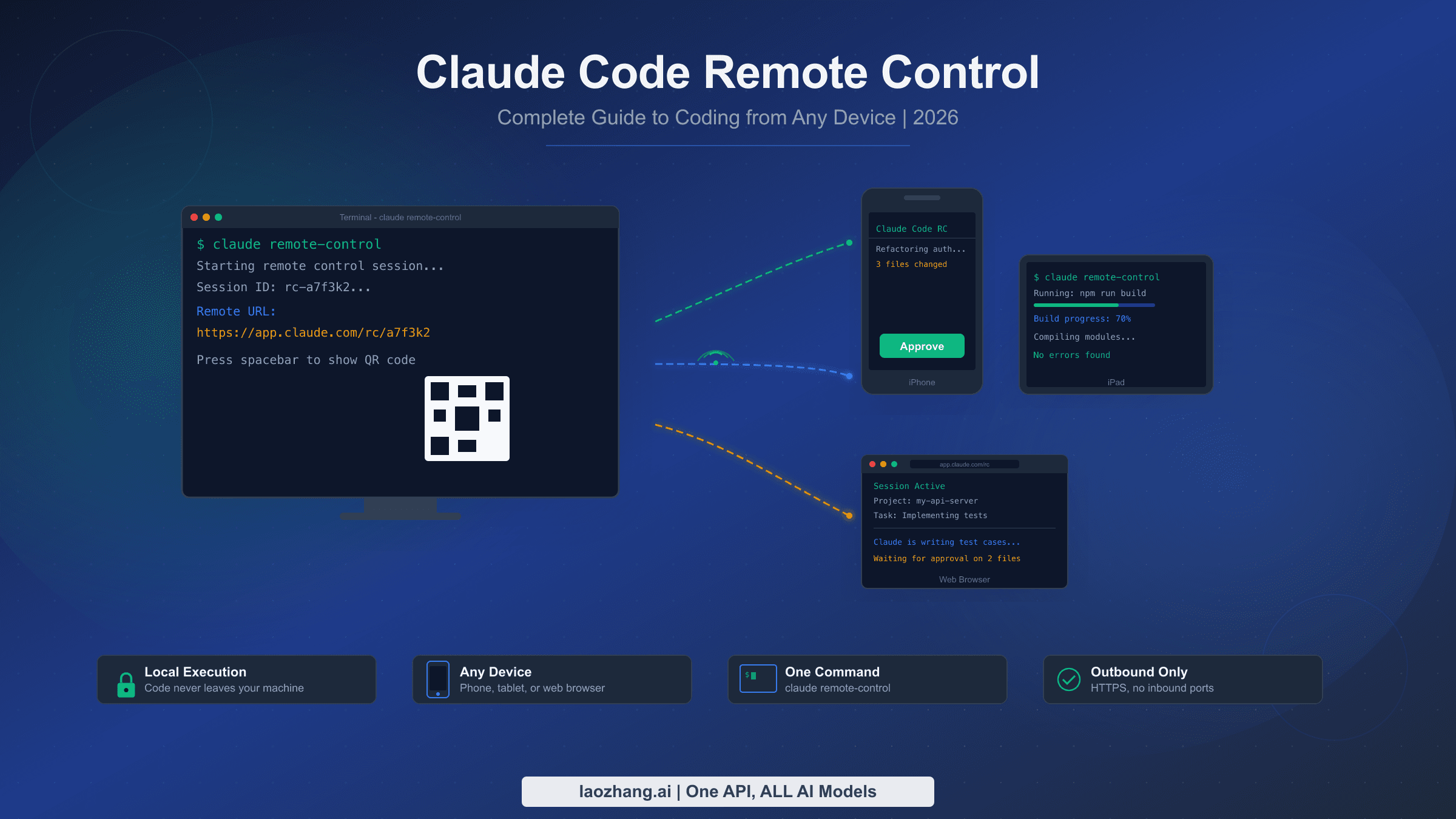
Google Antigravity 2.0 Remote Control is useful when an agent is already working on your laptop, desktop, or server and you need to leave the keyboard. From another browser, you can inspect active conversations, start a task, review implementation plans, and check artifacts without rebuilding the development environment on the device in your hand.
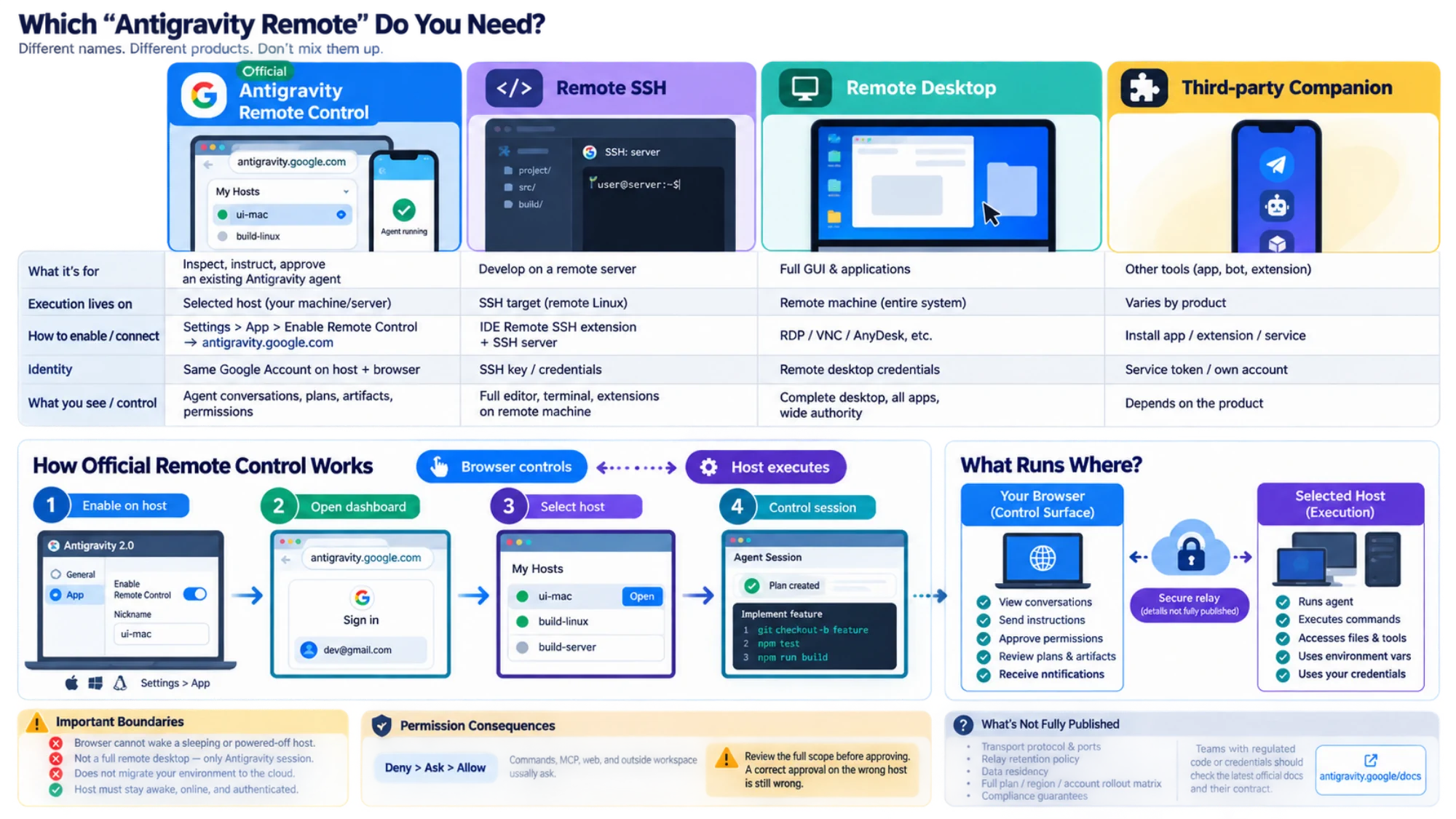
The important mental model is simple: the browser controls; the host executes. Your project, build tools, environment variables, and credentials remain available because the Antigravity instance is still running on the original machine. A phone does not become a replacement host, and an open browser cannot keep a sleeping or powered-off workstation alive.
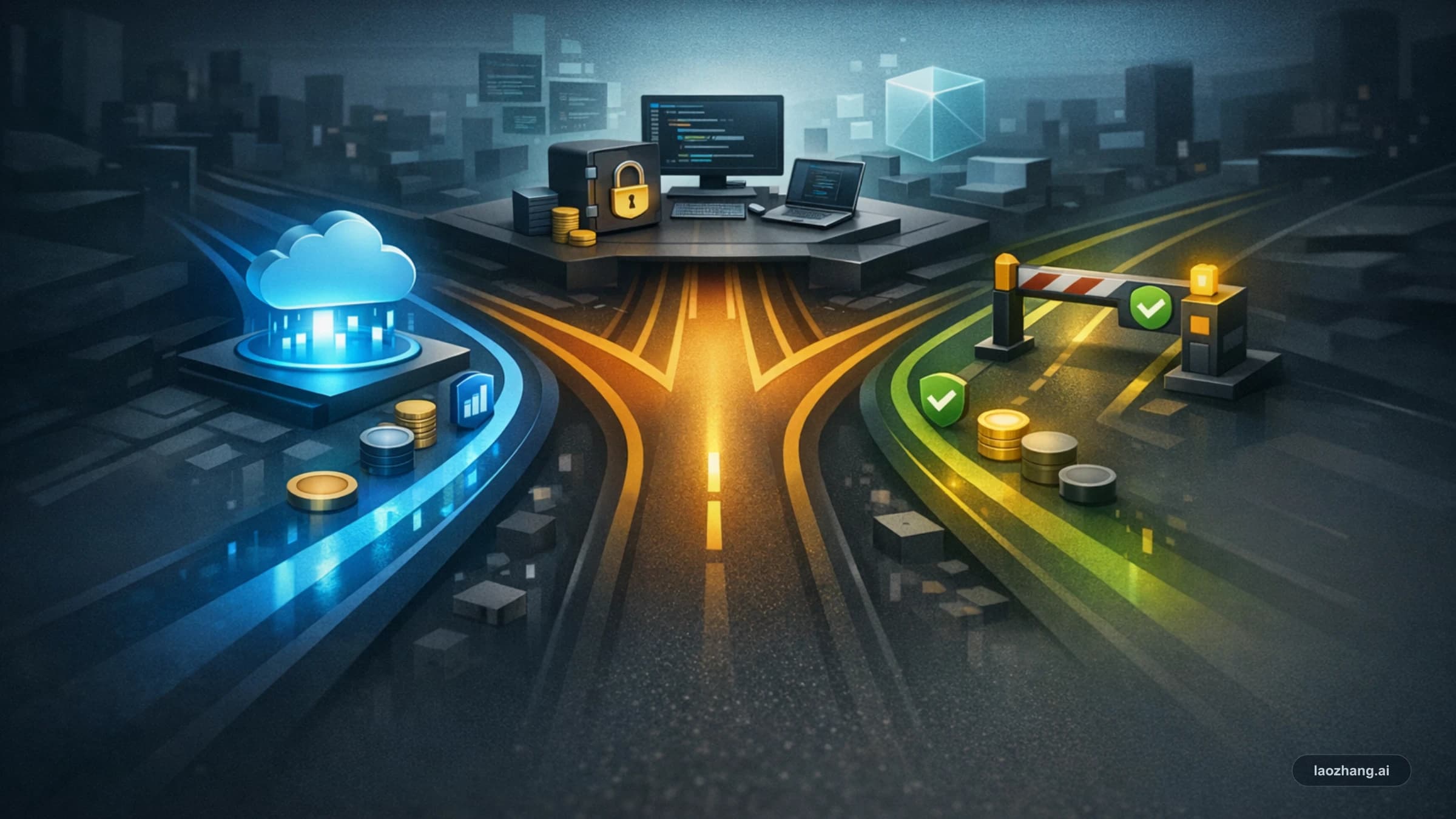
Identify the remote boundary before you configure it
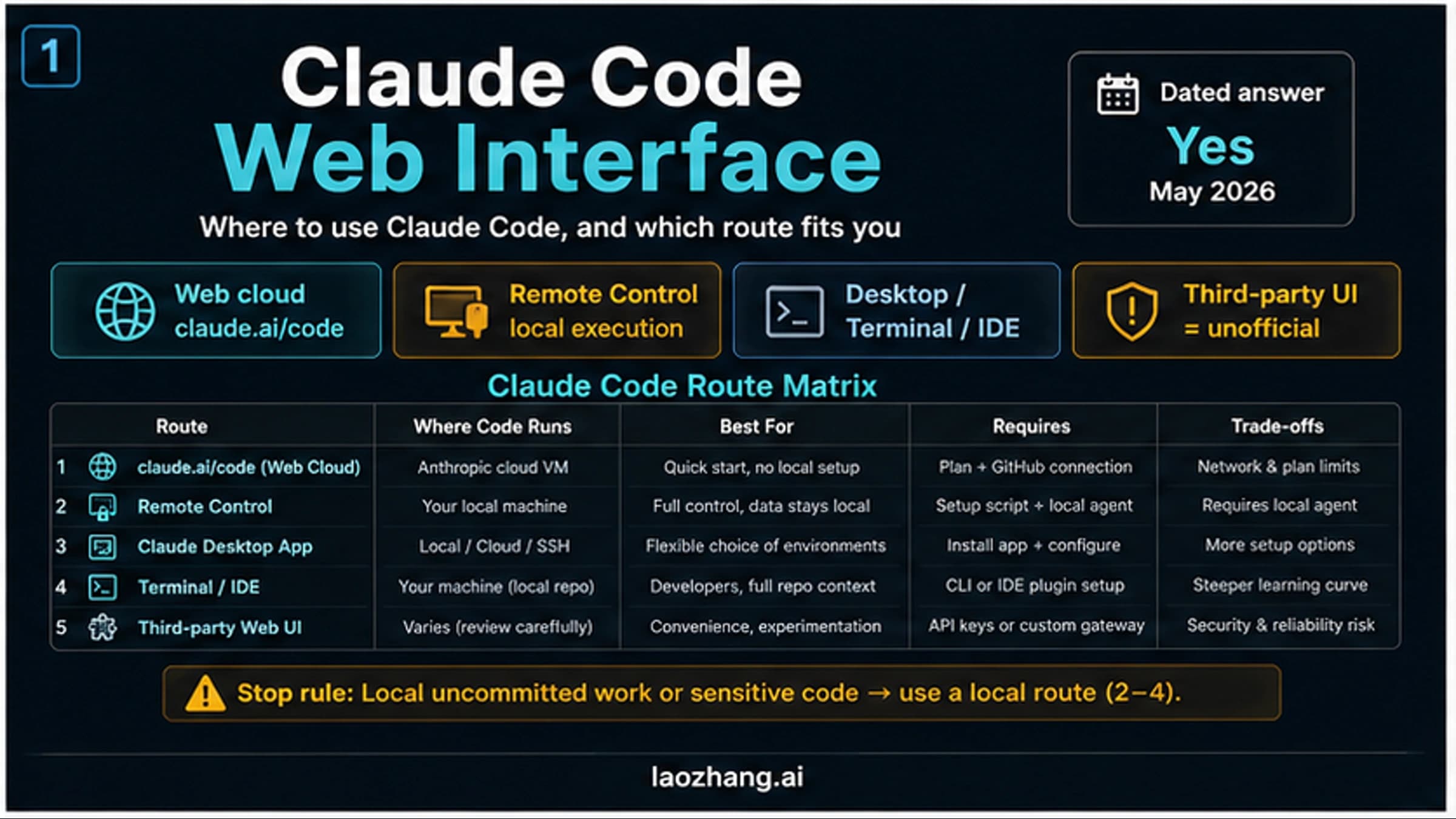
Several products and workflows now appear under nearly identical “Antigravity remote” names. They are not interchangeable, and a fix for one can be irrelevant—or unsafe—for another.
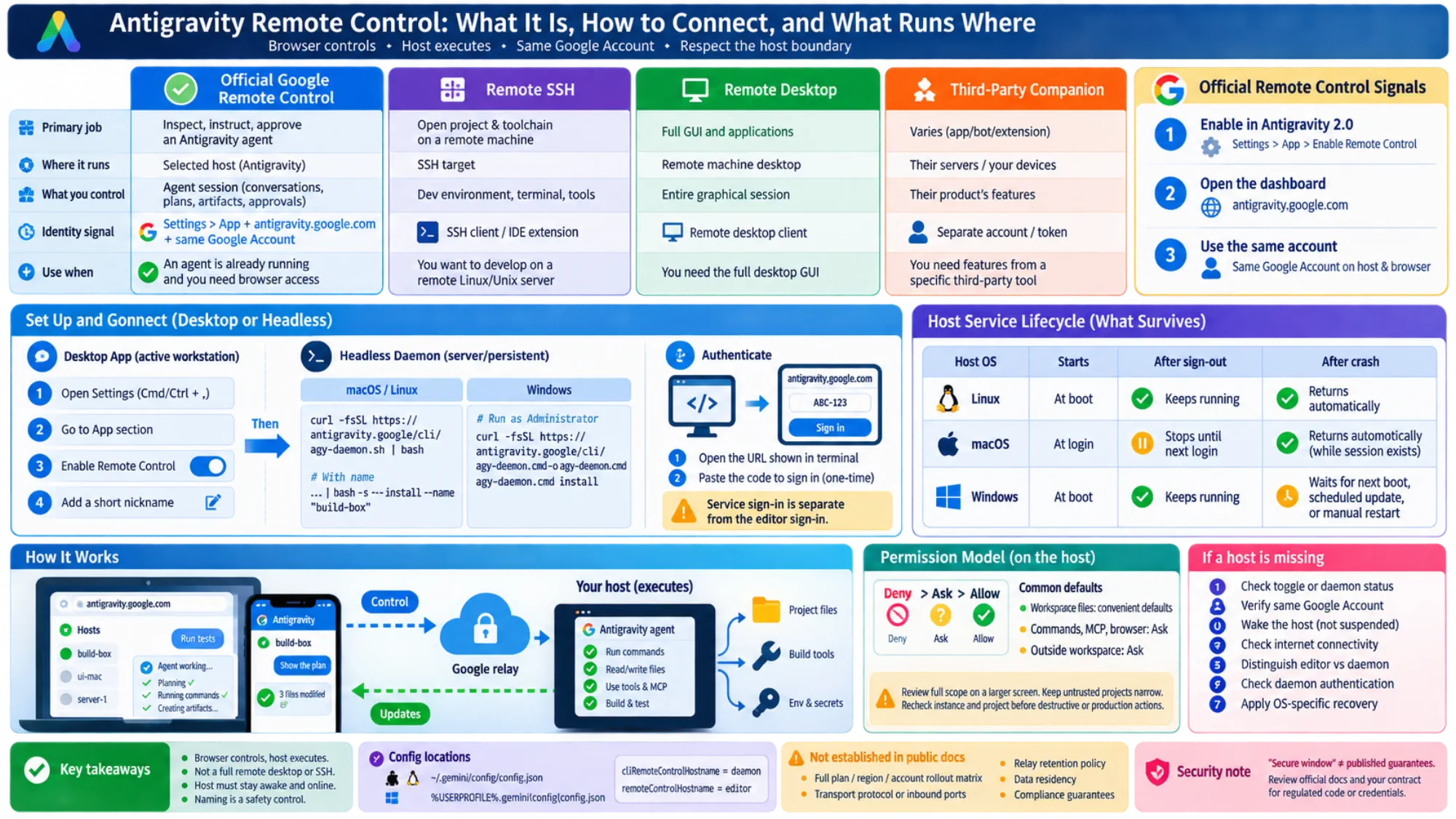
| What you actually need | Matching route | Where execution and trust live |
|---|---|---|
| Inspect, instruct, or approve an Antigravity agent that is already running | Google's official Remote Control | The browser is a control surface; files, commands, credentials, and permissions remain on the selected host |
| Open a project and toolchain on a remote Linux machine or server | Remote SSH | Development runs on the SSH target; extension, proxy, and remote-service failures belong to that connection |
| Operate the host's full GUI and arbitrary applications | Remote desktop | The entire graphical session is exposed, with a broader authority surface than one Antigravity session |
| Install a similarly named phone app, extension, bot, or open-source console | Third-party companion | It has its own code, server, credentials, permissions, maintainer, and update path |
The official route has three strong identity signals: enable it inside Antigravity 2.0 under Settings > App, open antigravity.google.com, and use the same Google Account on the host and browser. If a guide asks for another extension, a Telegram bot, a separate service token, or a Language Server API, it describes a different product. That product may be useful, but Google's Remote Control documentation cannot serve as its security or compatibility review.
A quick diagnostic question prevents most wrong turns: is the Remote Control dashboard missing a host you already enabled, or is an IDE failing to connect to an SSH server? The first problem belongs to account, sleep, daemon, and host-connectivity checks in this guide. The second belongs to the SSH target, proxy, extension, and remote development environment.
A 30-second readiness check
Remote Control is a good fit only if all four statements are true:
- Antigravity 2.0 is running on a reachable host, or you are prepared to install its headless daemon.
- You can sign in to the remote dashboard with the same Google Account used by the host instance.
- The host can remain awake and online for the duration of the job.
- You are comfortable reviewing real command, file, web, and MCP permissions from the remote surface.
If your goal is a full graphical desktop, use an approved remote-desktop route instead. If your goal is to survive a host shutdown, Remote Control cannot provide that outcome. It preserves access to an existing host environment; it is not a cloud migration of that environment.
Use the desktop switch for an active workstation
For a machine where you already use the Antigravity 2.0 desktop app, the built-in switch is the shortest path. Google's current Remote Control documentation gives these steps:
- Open Settings with
Cmd + ,on macOS orCtrl + ,on Windows and Linux. You can also use Settings at the bottom of the left sidebar. - Open the
Appsection. - Turn
Enable Remote Controlon. - Optionally assign a short Nickname that distinguishes this machine from your other instances.
Next, open the Antigravity Remote Control dashboard on your phone, tablet, or second computer. Sign in with the same Google Account, open the instance switcher, and select the host you just enabled.
A useful nickname describes the machine's role without leaking a customer, hostname, IP address, or internal project name. ui-mac and build-linux are easier to verify on a small screen than two instances both called “My computer.” Correct naming is a safety control when one tap can send an instruction to the wrong working tree.
On mobile, you can optionally install the dashboard as a web app. Google's launch post says the web app can send push notifications when an agent finishes or needs input. Treat a notification as a prompt to inspect the session, not as proof that the host stayed healthy or that every command completed.
Use the headless daemon for a persistent machine
The headless route is for a server, a machine without the desktop editor, or an instance you want to identify independently in the dashboard. It has its own authentication and service lifecycle. That makes it more flexible than the desktop switch, but also more operationally consequential.
Google currently publishes this Linux/macOS installer command:
curl -fsSL https://antigravity.google/cli/agy-daemon.sh | bashFor a scripted name, the documented form is:
curl -fsSL https://antigravity.google/cli/agy-daemon.sh | bash -s -- install --name "build-box"Review a downloaded installer under your device and organization policy before executing a pipe-to-shell command. The fact that the URL is first-party does not remove the need to understand what a persistent service will install, update, and run.
On Windows, installation must happen in Command Prompt opened as Administrator, not PowerShell:
curl -fsSL https://antigravity.google/cli/agy-daemon.cmd -o agy-daemon.cmd && agy-daemon.cmd installThe official docs say install and uninstall need an Administrator prompt, while status and restart work in a normal prompt. Both installer routes also support options including --interval weekly, --no-auto-update, and --no-prompt.
During setup, the daemon asks for a one-time terminal sign-in. Open the printed URL and paste the code back. This authentication is separate from the editor's sign-in; being signed in to the desktop app does not mean the service already has access. Signing out of agy on that machine also removes the service's access until setup is run again.
Know what survives on each operating system
“Installed as a service” does not mean identical behavior across operating systems. Google's current lifecycle table has important differences:
| Host OS | Starts | After user sign-out | After a crash |
|---|---|---|---|
| Linux | At boot | Keeps running | Returns automatically |
| macOS | At user login | Stops until the next login | Returns automatically while the user session exists |
| Windows | At boot | Keeps running | Waits for the next boot, scheduled update, or manual restart |
This is often the explanation when an instance was available yesterday but is missing after a reboot or sign-out. A Mac sitting at the login screen does not have the same daemon continuity as a Linux host. A crashed Windows service may need an explicit restart even though the dashboard is still open on your phone.
The current settings locations are:
- Linux and macOS:
~/.gemini/config/config.json - Windows:
%USERPROFILE%\.gemini\config\config.json
Two names in that file are easy to confuse. cliRemoteControlHostname belongs to the daemon; remoteControlHostname belongs to the Antigravity editor on the same machine. If you installed with --name, that argument wins again when the service restarts. Do not paste the full config into a public issue: inspect and redact unrelated machine or account details first.
Diagnose a missing instance from the host outward
Repeatedly refreshing the dashboard is rarely the fastest fix. Follow the dependency chain:
- Confirm the entry point. For desktop, verify
Enable Remote Controlis still on. For the daemon, use the documentedstatusoperation. - Verify account identity. The browser and host must use the same Google Account. A browser with several signed-in accounts can land on the wrong one without making the mistake obvious.
- Wake the host. A lit dashboard cannot wake a suspended machine by itself. Check the host's actual power state and sleep policy.
- Verify host connectivity. Google's troubleshooting notes say the web interface retries after a temporary disconnect. Existing background agent tasks and shell commands continue only while the host itself maintains an internet connection.
- Distinguish editor from daemon. If two similar instances appear, one may be the desktop editor and the other the service. Rename the one you intend to use rather than deleting a healthy route by guesswork.
- Check daemon authentication. A sign-in error in the service log means setup needs to be repeated. Renaming also requires a service restart before the dashboard reflects it.
- Apply the OS-specific recovery. Log in to macOS, restart the Windows service after a crash, or verify the Linux service state at boot.
This sequence also tells you when to stop. If the host is powered off, suspended, or offline, the problem is not in the phone UI. If the accounts differ, changing a nickname will not help. If the service is authenticated but commands cannot proceed, inspect permissions rather than reinstalling it.
Remote approval is still host authority
Remote Control reduces the distance between an agent asking and you answering. It does not reduce the consequence of the answer. Antigravity's permission model evaluates conflicts as Deny > Ask > Allow. Workspace file access has convenient defaults, while commands, MCP calls, browser actuation, and files outside the workspace generally fall back to Ask unless you have configured another rule.
Three habits matter more on a phone:
- Do not approve a command, path, domain, or MCP tool whose complete scope does not fit on the screen. Move to a larger device and inspect the context.
- Keep untrusted projects on narrow project permissions.
Full machineandUnrestrictedare not fixes for approval fatigue. - Recheck the instance and project before destructive, publishing, credential, payment, or production actions. A correct approval on the wrong host is still wrong.
Google describes Remote Control as a secure window into the workspace. The public pages reviewed here do not document enough low-level detail to promise a particular transport design, inbound-port behavior, relay retention policy, data residency, or compliance posture. Teams with regulated code or credentials should evaluate the current product documentation and their contract instead of translating the word “secure” into guarantees Google has not published on these pages.
If the toggle is missing
As of August 31, 2026, the Antigravity 2.0 feature and setup docs are public. Those pages do not provide a complete matrix showing every plan, region, account type, and rollout wave. A missing Enable Remote Control switch is therefore not evidence that buying a particular subscription will unlock it.
Check the product boundary first:
- confirm that you are in Antigravity 2.0 rather than an older build or an IDE integration;
- update and restart the app;
- verify the Google Account and managed-workspace policy;
- compare your UI with the latest official instructions;
- use current official support information for account-specific rollout questions.
The setup is complete when a second browser shows the correctly named host, opens the intended conversation, displays the expected plan or artifact, and applies the same permission boundary you expect on the host. That is a stronger test than merely seeing an online dot: it proves that identity, instance selection, context, and authority all line up before you rely on Remote Control for a long-running job.
Sources3
External pages this guide links to, in the order they appear. Last updated Aug 31, 2026.
Sources3
External pages this guide links to, in the order they appear. Last updated Aug 31, 2026.