Codex Browser Disabled Even When Enabled: 2 Messages, 2 Fixes
Browser on but Codex says it is disabled? Fully quit and reopen the ChatGPT app, continue in a new chat, then check Work preferences → Local browser use.
On this page
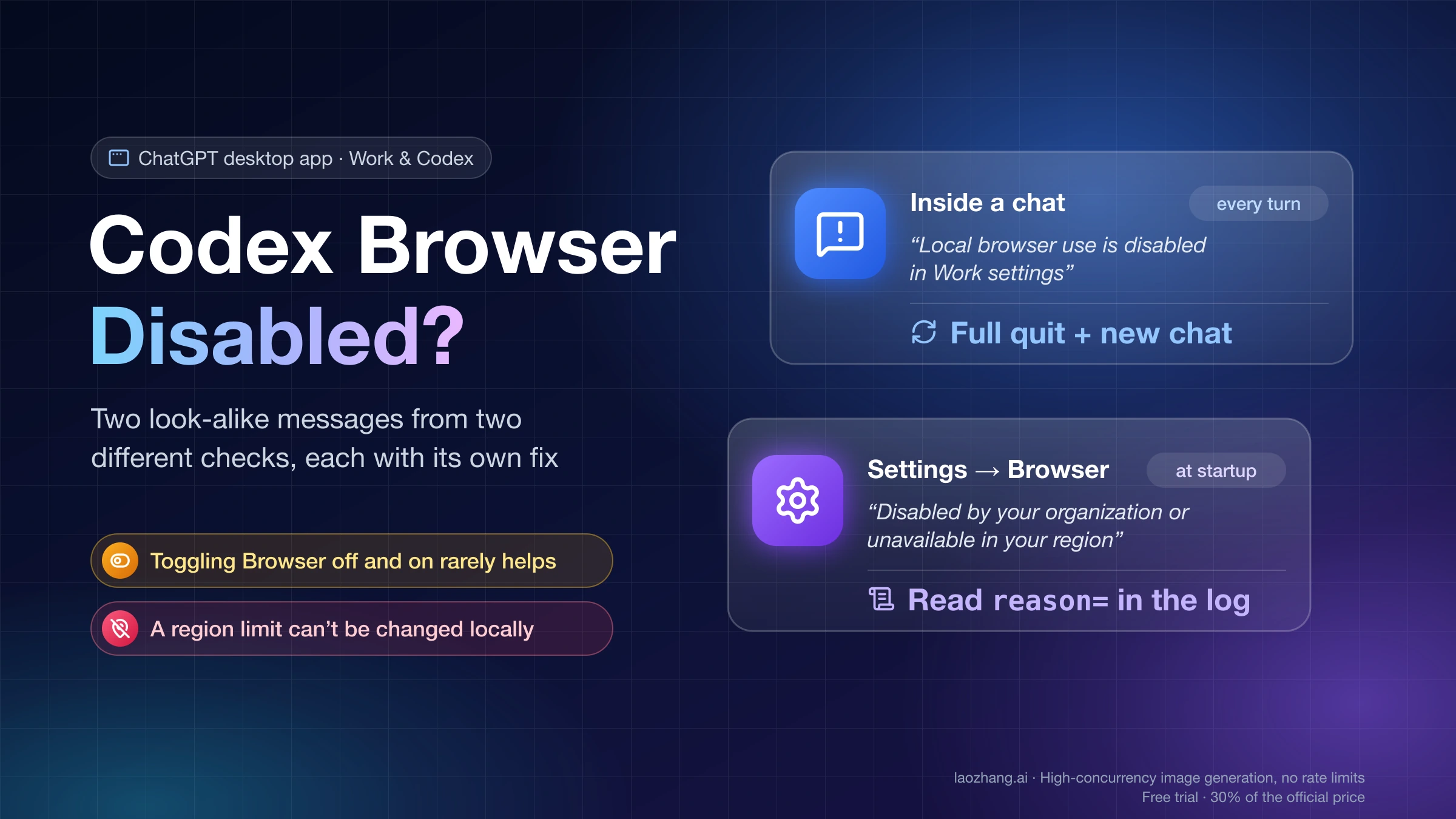
If the Browser toggle in the ChatGPT desktop app is on and a Work or Codex chat still tells you the browser is disabled, the fix depends on which sentence you see. For "Local browser use is disabled in Work settings", fully quit and reopen the ChatGPT app (on Windows, end it in Task Manager, because closing the window doesn't quit it), then continue in a new chat, especially if you switched accounts. If it comes back, open Settings → Work preferences → Local browser use and make sure it is on. For "Disabled by your organization or unavailable in your region" under Settings → Browser, restart once, then read the reason= value in the app log: one value clears on restart, one needs your workspace admin, and a region limit can't be changed from your machine.
What was checked: on October 22, 2026, the bundled code, interface strings, and local logs of the ChatGPT desktop app 26.1013.40934 on a Mac running macOS 26.1 were inspected. Neither failure appeared on that Mac. Its only log lines other than available were two passing startup values that resolved to available within milliseconds. The steps below come from how the app's code decides each message, plus public reports from people who fixed it. None of it is a reproduced fix.
Two "disabled" messages that come from two different checks
The two sentences look alike, but the app produces them at different moments and for different reasons.
| What you see | Where | When the app decides | Most likely fix |
|---|---|---|---|
| "Disabled by your organization or unavailable in your region" | Settings → Browser, under "Let ChatGPT control the built-in browser" | Once, when the app starts | Restart; if it persists, read the log reason, then admin or stop |
| "Local browser use is disabled in Work settings" | Returned by a browser call inside a chat, often one that worked earlier | Again at every turn of the chat | Full quit and reopen, new chat, then the Work preferences row |
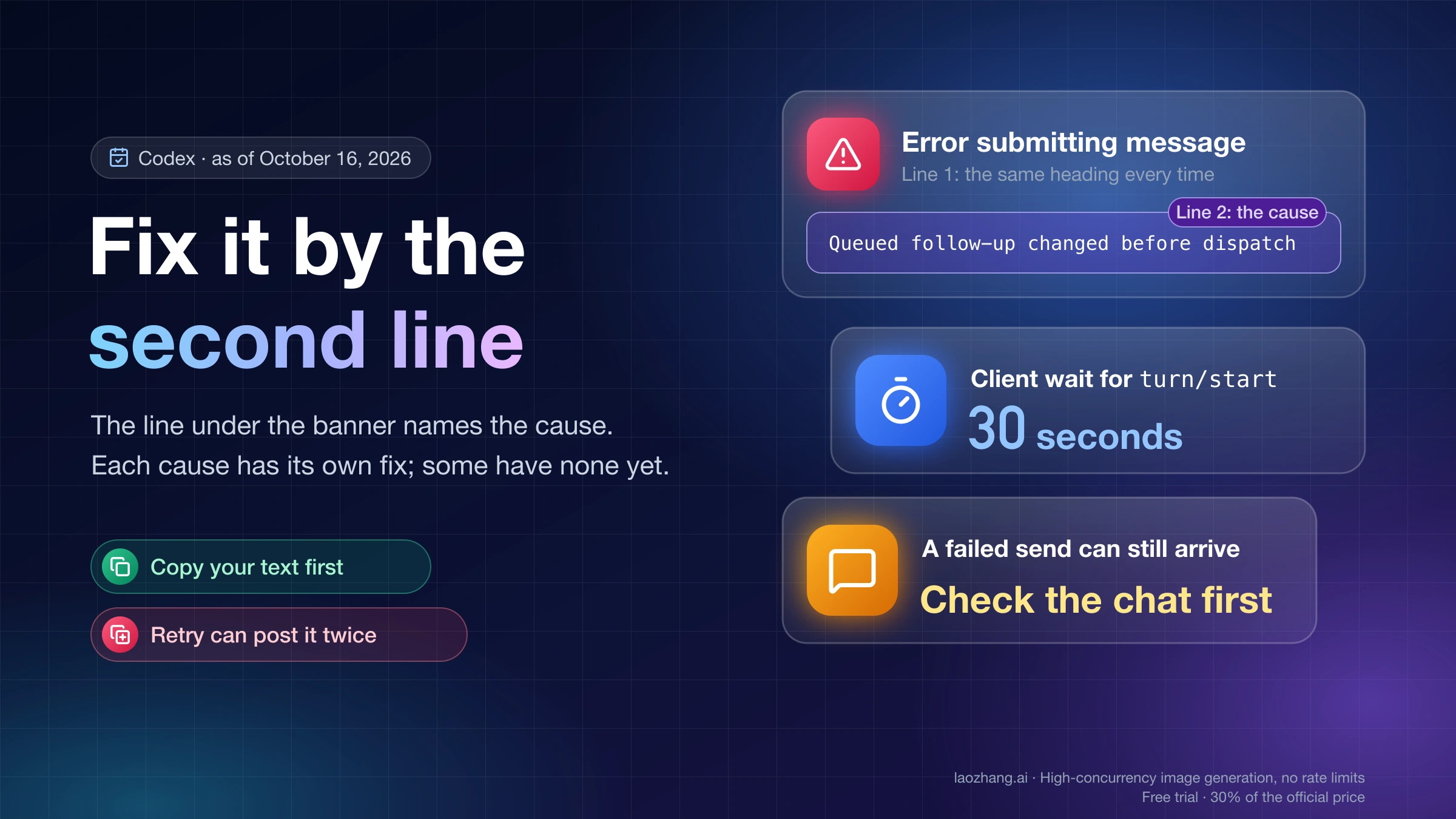
The first is a startup availability check. The second is a per-turn permission check inside the Browser plugin. That plugin says "Work settings" for every denial, including denials no Work toggle can fix. That is why turning the Browser toggle off and on rarely helps with either one.
As of October 22, 2026, OpenAI hasn't documented the "Local browser use is disabled in Work settings" sentence. The built-in browser help article, the learn.chatgpt.com Browser page, and the ChatGPT desktop troubleshooting reference don't mention it, and nobody from OpenAI has replied in the main GitHub report.
"Local browser use is disabled in Work settings": restart first
Work through these in order and stop as soon as browser control works again.
- Fully quit the ChatGPT app and reopen it. On macOS, quit from the menu bar or with ⌘Q. On Windows, closing the window leaves the app running, so end it in Task Manager first. The guide to Codex Windows background processes shows which processes belong to the app and when it is safe to end them.
- Continue in a new chat. If the old chat has context you need, ask the new chat to pick up where the old one stopped. This step matters most if you signed in with a different account after the chat started.
- Check Settings → Work preferences → Local browser use. This path comes from the app's interface text in version 26.1013.40934 as of October 22, 2026; the page itself wasn't screenshotted. It sits on its own Settings page, separate from Settings → Browser and from Settings → Configuration. If it is Off, switch it On and start another new chat.
- If a Work task keeps hanging with Browser enabled, one macOS reporter found that turning Browser off let the same task finish. That trades away browser control for that task, and it is a single report.
Why a restart or a new chat clears it
The app's code decides this message in two steps. When a chat's browser tool starts, the app stamps it with the identity of the account signed in at that moment. At each turn, it compares that stamp with the account signed in now.
- Same account: browser access is allowed. In Work chats running the everyday detail mode, the app also fetches your Work preferences and denies access if Local browser use is set to Off.
- Different account: the request goes to a cloud-side check meant for cloud browsers. Reading the code, a local chat without cloud browser authorization gets "no" there. That reading matches the GitHub report openai/codex #54989, where switching from one account to another and continuing the same chat triggered the denial, and a new chat fixed it.
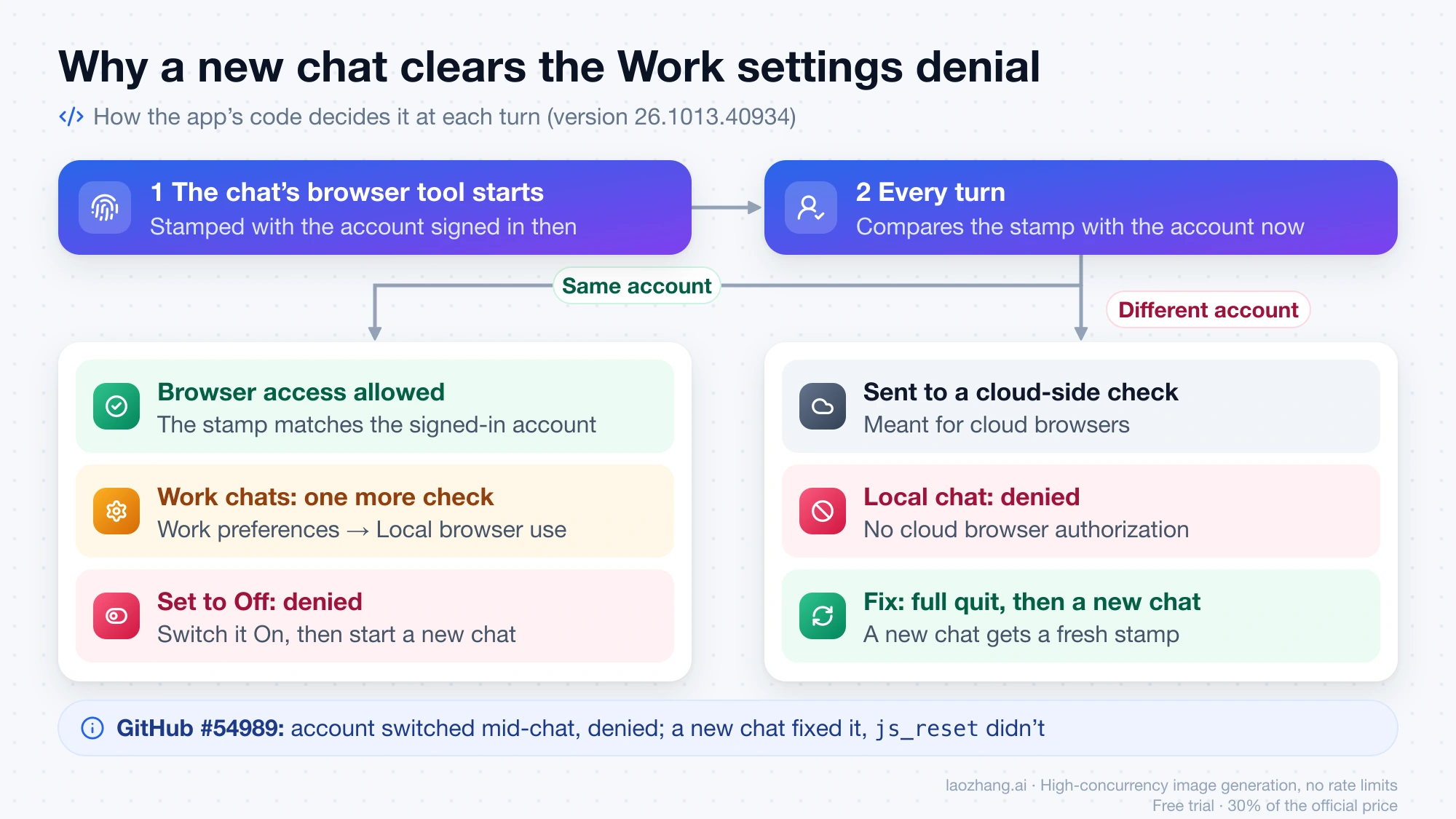
So a fresh chat gets a fresh stamp, and a full restart rebuilds the tool's state. That fits what reporters found. In #54989, resetting the tool kernel (js_reset) and sending another message did not help, while a full app restart without rebooting Windows did. In OpenAI Developer Community topic 1408172, ending the app in Task Manager and starting a new chat fixed it, though the reporter couldn't tell which of the two did the job. A later reply there says "the official troubleshooting is to restart the app", but no OpenAI page says that.
Many reporters never switched accounts, and why their stamp went stale isn't established. The denial has shown up on Windows 10, Windows 11, and macOS, on app versions 26.1013 through 26.1016, including personal Plus accounts.
Where "Work settings" actually lives
The error says "Work settings", but the page is labeled Work preferences. Reporters in #54989 looked under Settings → Configuration and found no such row, which is expected. Work preferences holds On/Off rows for Local browser use, Local network access, Local file access, Local web search, and Local approval policy. The app only shows that page when your account has Work access. Whether every account that sees the error also sees the page isn't confirmed.
On a workspace, "Allow local computer access" is a separate setting that only the workspace owner controls, and it governs local access for Work. The troubleshooting reference says a cloud policy with enforce_residency turns it off. Nothing public ties that setting to this exact sentence, but if your workspace uses data residency, mention it to your admin. For how Work and Codex reach your machine in general, see ChatGPT Agent Local Files: Work, Codex, and Claude Code Access.
"Disabled by your organization or unavailable in your region": check logs
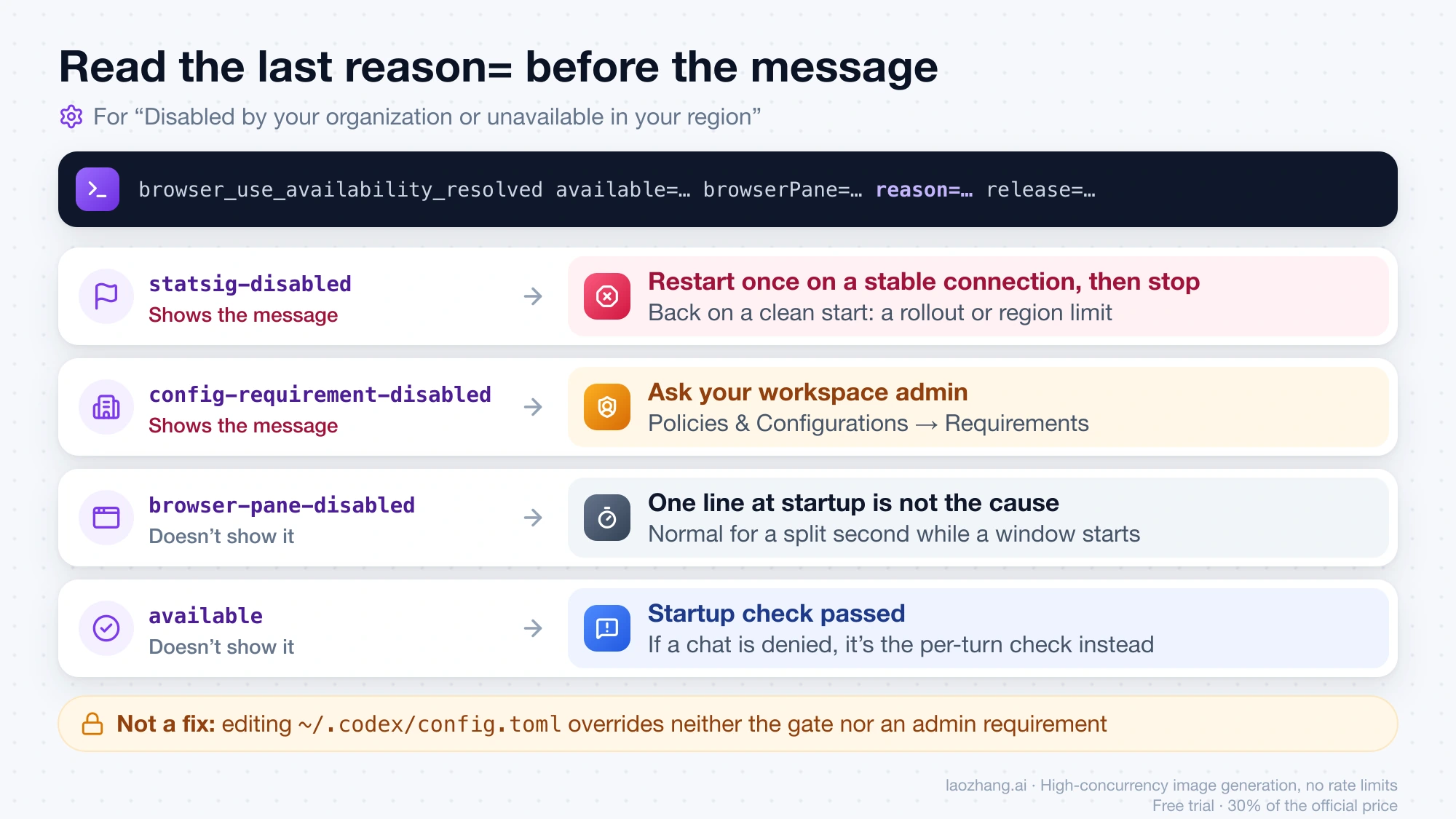
This message is set at startup. The app checks a fixed list of conditions in order and records the first one that fails as a reason. In version 26.1013.40934, the Settings message appears for two of those reasons, and they need different fixes.
reason= value | What it means | Shows the Settings message? | What to do |
|---|---|---|---|
available | Browser is usable | No | Nothing at startup; if a chat is denied, see the section above |
loading | Requirements still loading | No | Wait a moment |
config-requirement-disabled | Managed requirements turned browser control off, or the browser_use feature is off | Yes | Ask your workspace admin |
browser-pane-disabled | The browser pane is off | No | Normal for a split second while a background window starts |
statsig-disabled | OpenAI's remote feature gate returned off | Yes | Restart; if it stays, it is a rollout or region limit |
wsl-disabled | Codex is running inside WSL | No | Browser isn't offered there |
window-type-disabled | The Chrome extension's own window | No | Expected |
Statsig is the remote feature-flag service the app uses. Which accounts or countries that gate excludes isn't published.
Find the reason in the log
Each decision is written as one line, browser_use_availability_resolved available=… browserPane=… platform=… reason=… release=…. On macOS the logs live in ~/Library/Logs/com.openai.codex/YYYY/MM/DD. This command counts every decision in a month folder:
grep -rh "browser_use_availability_resolved" ~/Library/Logs/com.openai.codex/2026/10/ \
  | grep -o "available=[a-z]* browserPane=[a-z]* platform=[A-Za-z]* reason=[a-z-]* release=[0-9.]*" \
  | sort | uniq -c | sort -rn
On the test Mac on October 22, 2026, it returned 216 lines with reason=available across releases 26.1002.52244 to 26.1013.40934. It also returned two lines with available=false browserPane=false reason=browser-pane-disabled. In one of those log files, the disabled line was followed 7 ms later by reason=available for the same window. A single browser-pane-disabled line at startup is that kind of passing state and not the cause of your problem. What matters is the last reason logged before you saw the message. The same Mac had no statsig-disabled lines, no "Local browser use is disabled" lines, and no /etc/codex folder. Reporters in #54989 checked /etc/codex/requirements.toml for the same reason and didn't find it either. The Windows log location wasn't checked.
statsig-disabled: restart once, then stop
In GitHub issue openai/codex #44721, a macOS user's log showed the gate's startup request failing with net::ERR_CONNECTION_RESET. Fifteen seconds later came reason=statsig-disabled, and the app then removed the bundled Browser, Chrome, and Computer Use plugins. A full restart on the same version brought back reason=available and the plugins, without deleting caches or reinstalling. A second reporter hit a timeout on that same request while running a proxy app. If you see statsig-disabled next to a failed or timed-out Statsig line, one clean restart on a stable connection is worth trying.
If statsig-disabled keeps returning on a clean start, nothing on your machine will change it. In GitHub issue openai/codex #27882, a user forced the plugin and browser_use = true / in_app_browser = true in ~/.codex/config.toml, repaired the plugin cache, and set environment variables, and the reason stayed statsig-disabled. Your own config can't override the gate.
"Unavailable in your region" can also be literal. The ChatGPT supported countries list doesn't include mainland China, Hong Kong, Macau, Russia, or Belarus, and OpenAI warns that using its services outside the listed places may get an account blocked or suspended. Computer Use and the Chrome extension reached the EEA, the UK, and Switzerland on June 16, 2026. If you are in an unlisted place, the message is accurate. It isn't something to work around.
config-requirement-disabled: ask your admin, and name the page
On a workspace, this reason usually means an admin requirement. OpenAI's guide to managing browser and computer use in an Enterprise workspace puts those controls under Policies & Configurations → Requirements. There an admin can disable the in-app browser pane, Browser Use in the in-app browser, Browser Use through the Chrome extension, or native Computer Use. Requirements are limits members can't relax, and approvals don't override them. More than one policy can apply. A policy marked "Stops after match" skips everything below it, including the workspace baseline.
When you ask, give your admin three things: the exact message, the reason=config-requirement-disabled line, and that page name. The app reads requirement names including allow_browser_and_computer_use, features.in_app_browser, features.browser_use, features.browser_use_external, and features.browser_use_full_cdp_access. Of these, only features.browser_use_full_cdp_access is documented on learn.chatgpt.com, so admins should make changes through the Requirements page.
When to stop and report it
- Stop when the log says
statsig-disabledafter clean restarts, or you are outside the supported countries. Changing local files won't help, and a VPN can put the account at risk. - Hand it to your admin when the reason is
config-requirement-disabledon a workspace, or the Work-side denial survives a restart, a new chat, and Local browser use set to On. - Report it when you are on a personal account and the runtime sentence keeps returning after all four steps. Type
/in the chat composer to send feedback, or add your app version and log lines to GitHub issue openai/codex #54989.
"Browser is not available: iab" is a different failure
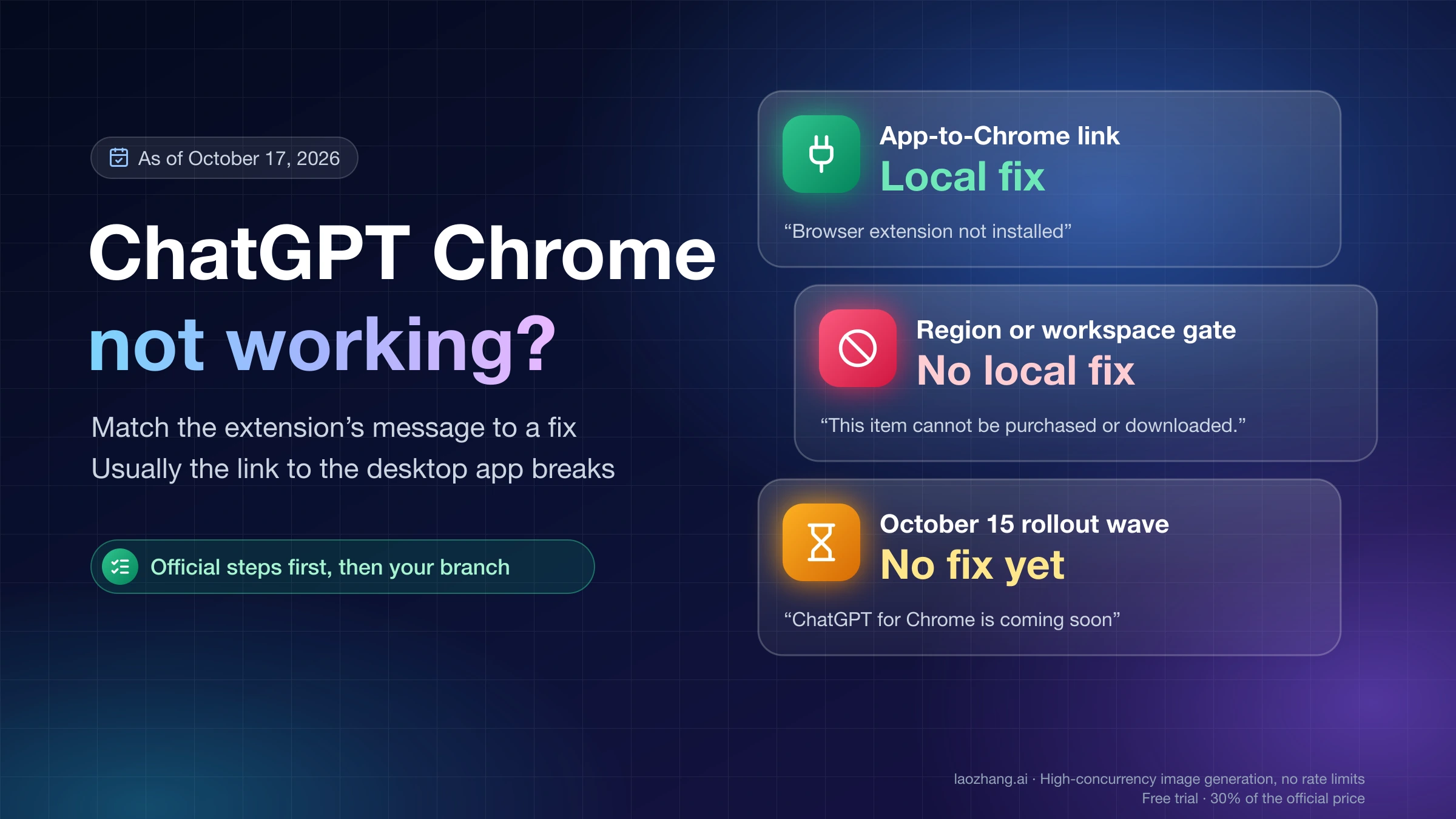
Sometimes the browser pane opens fine, but the agent says Browser is not available: iab, or its discovery lists only "Codex MCP Apps". That isn't either message above. One known cause is CODEX_HOME reached through a symlink or junction. Setting it to the real path and restarting the app and browser fixed it on two Windows machines. Other cases, including one with both iab and chrome unavailable and "No ChatGPT browser route is available for browser session" in the log, have no known workaround. For Chrome extension messages, see ChatGPT Chrome Extension Not Working: Match the Message to a Fix. For setting up Computer Use, see Codex Computer Use: Setup on Mac and Windows, and When to Use It.
FAQ
How do I enable the browser in Codex?
Use a Work or Codex chat in the ChatGPT desktop app on macOS or Windows, and turn on "Let ChatGPT control the built-in browser" under Settings → Browser. Open the browser from the toolbar or with ⌘⇧B on Mac or Ctrl+Shift+B on Windows. If that row shows "Disabled by your organization or unavailable in your region", the toggle isn't the problem. Read the log reason as described above.
Why can't I find "Local browser use" in Codex settings?
It isn't under Configuration or Browser. It is on the Settings page called Work preferences, which appears only for accounts with Work access. If you can't see that page, a full quit and a new chat are the steps that fixed most reported cases.
Does editing config.toml turn the Codex browser back on?
No. Setting browser_use = true or enabling browser@openai-bundled in ~/.codex/config.toml doesn't override the remote gate (statsig-disabled), and members can't relax an admin requirement. Don't edit files inside the app bundle either.
Does the built-in browser work in Codex CLI or the IDE extension?
No. OpenAI's help article says Browser isn't available in Codex CLI or the Codex IDE extension. It runs only in the ChatGPT desktop app.
Does "unavailable in your region" mean my country is blocked?
Sometimes. If you are in mainland China, Hong Kong, Macau, Russia, Belarus, or another place missing from the supported countries list, the message is literal. Elsewhere, check the log. A statsig-disabled reason right after a failed Statsig startup request has cleared with a restart.
Sources9
External pages this guide links to, in the order they appear. Last updated Oct 22, 2026.
Sources9
External pages this guide links to, in the order they appear. Last updated Oct 22, 2026.
- 1.built-in browser help articlehelp.openai.com/en/articles/20001277-using-the-built-in-browser-in-the-chatgpt-desktop-app
- 2.learn.chatgpt.com Browser pagelearn.chatgpt.com/docs/browser
- 3.ChatGPT desktop troubleshooting referencelearn.chatgpt.com/docs/reference/troubleshooting
- 4.GitHub report openai/codex #54989github.com/openai/codex/issues/54989
- 5.OpenAI Developer Community topic 1408172community.openai.com/t/1408172
- 6.GitHub issue openai/codex #44721github.com/openai/codex/issues/44721
- 7.GitHub issue openai/codex #27882github.com/openai/codex/issues/27882
- 8.ChatGPT supported countries listhelp.openai.com/en/articles/7947663-chatgpt-supported-countries
- 9.guide to managing browser and computer use in an Enterprise workspacehelp.openai.com/en/articles/20001510-manage-browser-and-computer-use-in-your-enterprise-workspace