Codex Windows Background Processes: What to End and What to Leave Running
Use ownership, activity, and lifecycle—not a raw process count—to decide what to leave running, what to verify, and when to end a residual Codex process tree.
On this page
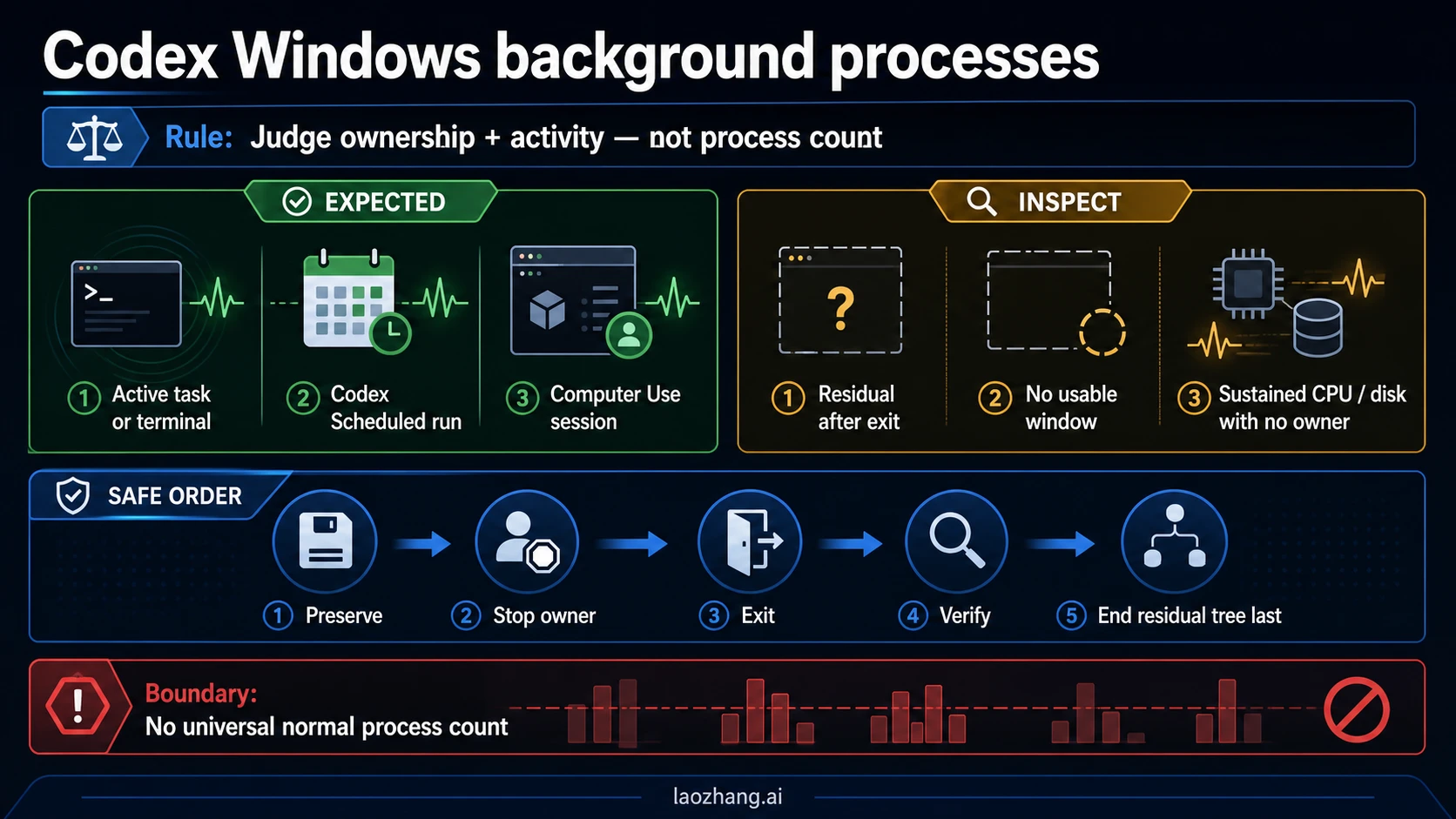
If Codex disappears but its Windows processes remain, launches without a window, or keeps CPU or disk busy while no task appears active, do not judge the tree by process count alone. First check whether an active task, terminal, Scheduled run, or Computer Use session still owns the work. Owned work should be left running.
If nothing owns it, preserve prompts, patches, and terminal output; exit Codex normally; wait briefly; then verify the window state, remaining process tree, and CPU or disk activity. End the Codex tree only when it is residual, stays busy at idle, or blocks relaunch. Reopen once. If the same state returns, record the app and Windows versions, environment, resource pattern, and reproduction steps instead of repeating destructive cleanup.
Decide What You Are Seeing Before Ending Anything
Codex can legitimately own more than one process. An agent may launch a shell, terminal command, Git operation, language runtime, browser task, or WSL process. The useful question is not “How many Codex processes should there be?” It is “What work owns this tree, and is that work still active?”
| What you see | First check | What to do now | Verification signal |
|---|---|---|---|
| A task or terminal is visibly running | Check the task state and terminal output | Leave the tree running unless you intentionally stop that work | Output advances, files change, or the task reaches a terminal state |
| A Scheduled run is due or active | Open Scheduled and identify the run | Stop or disable the schedule from its owning surface if you no longer want it | The run stops and no new local run starts |
| The app closed but processes remain | Check for unfinished tasks, terminals, and unsaved output | Preserve work, use the normal app exit, wait, then inspect again | The tree settles or exits without force |
| Codex starts but no usable window appears | Check whether an old Codex tree is still present | Verify the old tree, recover it once, then reopen once | One usable window appears without a second growing tree |
| CPU or disk stays busy while Codex should be idle | Confirm no task, terminal, schedule, or Computer Use session is active | Capture a before-state, then use the safe exit ladder | Activity falls after the owning work or residual tree ends |
PowerShell, pwsh, conhost, Node, Git, Python, or WSL children remain | Trace their parent and start time | Stop the owner, not every process with that name | Only the Codex-owned branch ends; unrelated developer work continues |
The illustration is a decision aid, not a literal executable inventory or a performance baseline. OpenAI does not publish a universal normal process count, and process names can change with app versions, tools, project types, and Windows versus WSL execution.
Route the Symptom, Not the Process Name
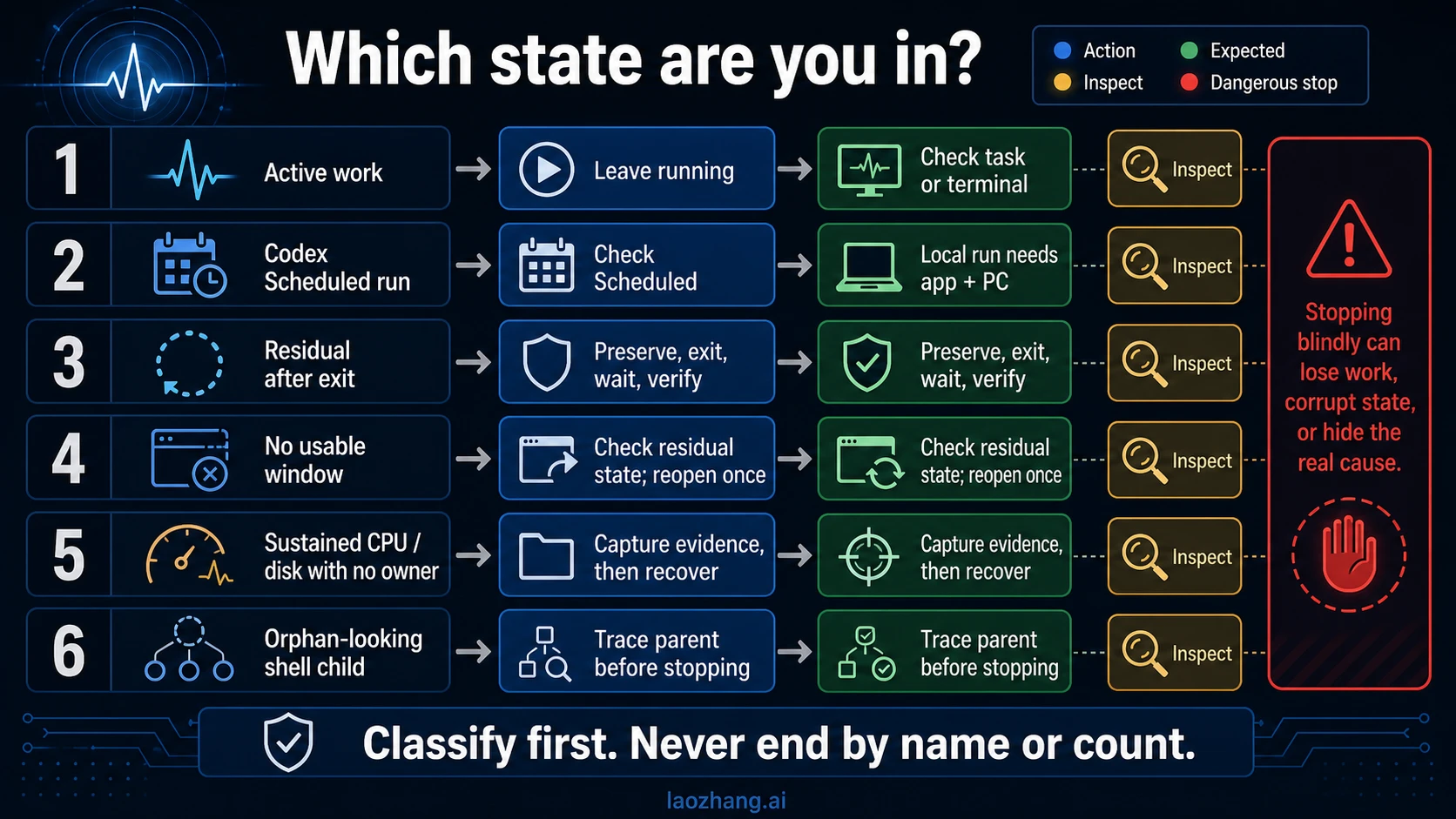
Active task or terminal
If a task is generating code, running tests, waiting for approval, or streaming terminal output, helper processes are owned work. Ending the tree can discard an in-progress patch, interrupt a command, or leave a partial external operation. Stop the task from the Codex task or terminal surface first. Then confirm it reached a stopped, failed, cancelled, or completed state.
Scheduled run
OpenAI's Scheduled tasks documentation says local-project runs execute in the background and require the computer to stay on and the desktop app to remain running. A background Codex tree can therefore be intentional even when you are not looking at a foreground task.
Check the schedule name, last run, next run, and whether it uses a local checkout or worktree. If it is unwanted, disable or stop the schedule in Codex rather than repeatedly killing its Windows processes. A killed process does not change the schedule that started it.
Residual tree after exit
Closing a window and completing an application exit are not always the same lifecycle event. If you deliberately exit Codex, no task or schedule should remain, and the tree still persists, treat it as residual—but give it a short settling period first. A helper can be finishing file writes, terminal shutdown, or cleanup.
The decision boundary is behavior: the tree remains after a deliberate exit, has no owner you can identify, or blocks a clean relaunch. A short-lived process after exit is not enough to prove a leak.
Background-only or no-window launch
Repeatedly clicking the app icon can make the state harder to read. First look for an existing Codex tree and note its start time. Preserve any reachable work, perform one clean recovery, and launch once. If a usable window still does not appear, record the exact launch sequence and version before changing more variables.
Sustained idle CPU or disk activity
“Idle” means you have verified that no task, terminal command, Scheduled run, or Computer Use session should be working. Observe the tree for more than a single Task Manager refresh. Capture CPU, disk, and memory before and after the owning work stops. A brief indexing or shutdown spike is different from activity that stays high with no owner.
One Windows issue report may contain a process count or resource figure for one machine and build. Treat those numbers as reproduction evidence for that report, not a normal or abnormal threshold for your system.
Orphan-looking shell children
PowerShell, pwsh, conhost.exe, Node, Git, Python, and WSL are shared tools. They may belong to Codex, your IDE, another terminal, a dev server, or a separate automation. Trace the parent before stopping anything. A permanent “kill every Node or PowerShell process” rule is unsafe on a development machine.
Use the Preserve-First Safe Exit Ladder
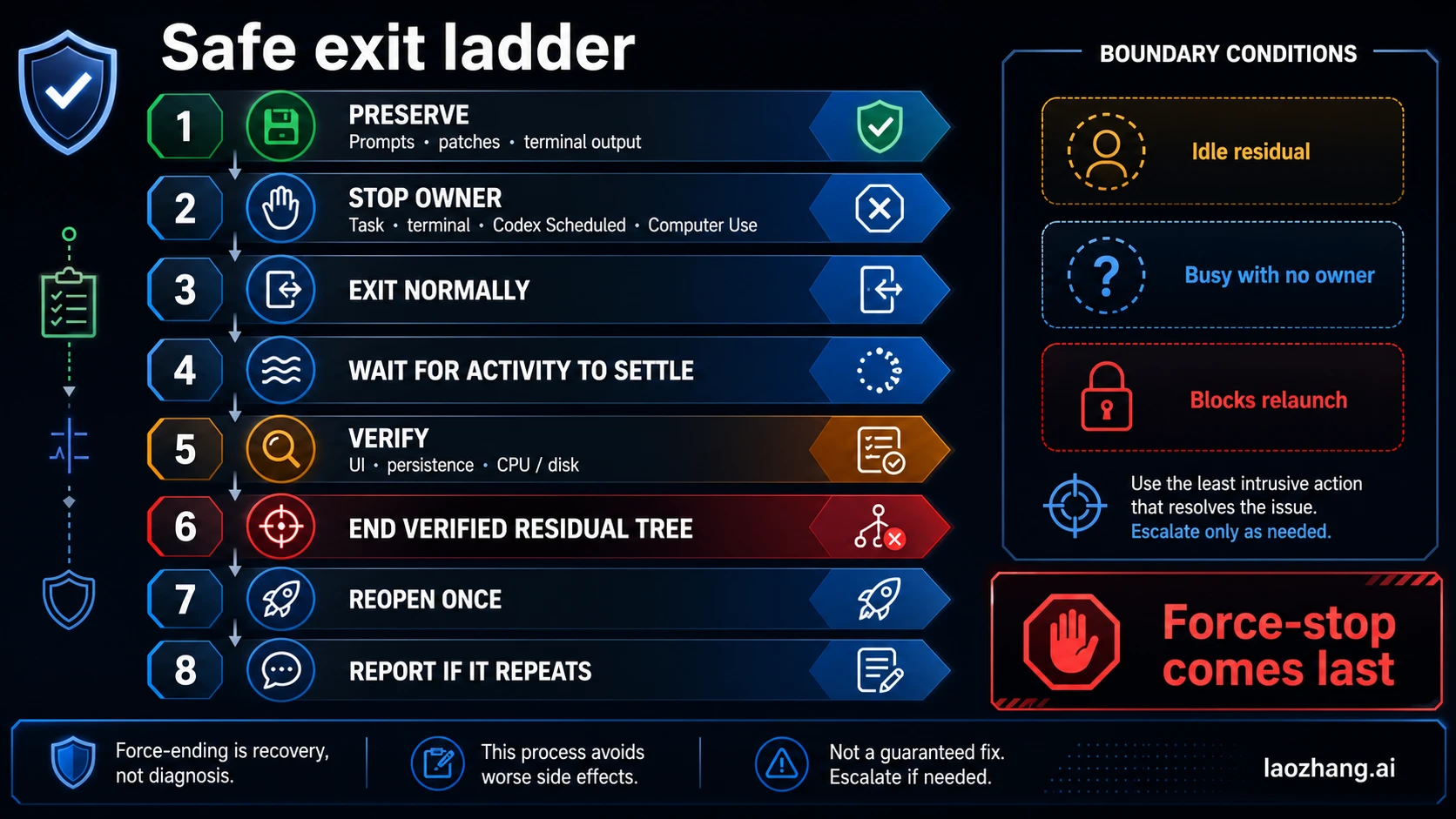
Follow these steps in order. Stop as soon as the issue is resolved.
- Preserve work. Copy an unsent prompt, save relevant terminal output, and make sure important patches or files are on disk. If a task is still producing a change, decide whether to let it finish or cancel it from Codex.
- Stop the owner. Cancel the active task, stop the terminal command you launched, disable the Scheduled run, or end the active Computer Use session. This removes the reason for the helper tree to exist.
- Exit normally. Use the app's normal exit path. Do not jump straight to force-ending processes while the UI still responds.
- Wait briefly. Give terminal children and file operations time to close. There is no magic universal timeout; the point is to distinguish cleanup from indefinite persistence.
- Verify. Check whether the window is gone, whether the process tree is shrinking or settled, and whether CPU or disk activity has stopped.
- End the residual tree only if needed. Use this when no owned work remains and the tree is idle, stays busy without an owner, or prevents a usable relaunch.
- Reopen once. Confirm that one app window and one coherent task state return. Avoid a loop of repeated launches and forced exits.
- Report a recurrence. If the same state returns, preserve the evidence before reinstalling, deleting state, or changing several settings at once.
In Task Manager, the safer manual route is to identify the top-level Codex-owned group, confirm no owned work remains, and use End task only at step 6. If the UI cannot end a verified residual tree, an administrator may use the Windows tree option:
taskkill /PID <top-level-codex-pid> /T /F/T includes child processes and /F forces termination. That makes the command useful for recovery and destructive to in-progress work. Never paste a guessed PID, never target a shared shell by name, and never run it before saving work and tracing the tree.
Inspect the Process Tree Without Guessing
Task Manager is the fastest place to answer three questions:
- Is the Codex group still changing?
- Which child shows CPU, disk, or memory activity?
- Does activity stop when the owning task, terminal, or schedule stops?
Use the Processes view for live activity and the Details view when you need process IDs. Resource Monitor can add disk-file context. Avoid treating a single CPU reading or memory total as a verdict; compare a short before-and-after sequence.
For a privacy-safer parent/child snapshot in PowerShell, omit command lines at first:
Get-CimInstance Win32_Process |
  Where-Object { $_.Name -match 'codex|powershell|pwsh|conhost|node|git|python|wsl' } |
  Sort-Object ParentProcessId, ProcessId |
  Select-Object Name, ProcessId, ParentProcessId, CreationDate
This filter is an observation aid, not a Codex process definition. It can include unrelated development tools and miss helpers with other names. Use the parent IDs and start times to reconstruct ownership.
To capture a lightweight resource snapshot:
Get-Process |
  Where-Object { $_.ProcessName -match 'codex|powershell|pwsh|conhost|node|git|python|wsl' } |
  Sort-Object CPU -Descending |
  Select-Object ProcessName, Id,
    @{Name='CPUSeconds'; Expression={[math]::Round($_.CPU, 1)}},
    @{Name='MemoryMB'; Expression={[math]::Round($_.WorkingSet64 / 1MB, 1)}}
CPUSeconds is cumulative CPU time, not instantaneous CPU percentage. Run the snapshot twice and compare it with live Task Manager CPU and disk columns. If a process refuses access, record that fact instead of elevating privileges solely to collect a prettier table.
Do not share an unredacted CommandLine field by default. Command lines can expose repository paths, branch names, prompts, file names, tokens, and other secrets.
Keep Windows Native, WSL, and the Terminal Separate
OpenAI's current ChatGPT desktop app for Windows documentation distinguishes a native Windows agent using PowerShell and the Windows sandbox from an agent that runs in WSL2. It also treats the integrated terminal choice separately from the agent environment. Switching the agent environment to WSL requires an app restart.
That distinction changes what a plausible child tree looks like:
| Environment | Children you may observe | What to verify |
|---|---|---|
| Native Windows agent | PowerShell, console host, Git, Node, Python, project tools | Which Codex task or terminal launched them |
| WSL2 agent | WSL host processes plus Linux shell and project tools | Whether the agent is in WSL and which distro/project path it owns |
| Integrated terminal choice | A shell chosen for interactive terminal work | Do not assume the terminal choice proves where the agent itself runs |
Do not switch Windows/WSL mode as the first recovery step. A mode change changes the experiment and requires a restart. First capture the failing state; then change one variable if the problem remains reproducible.
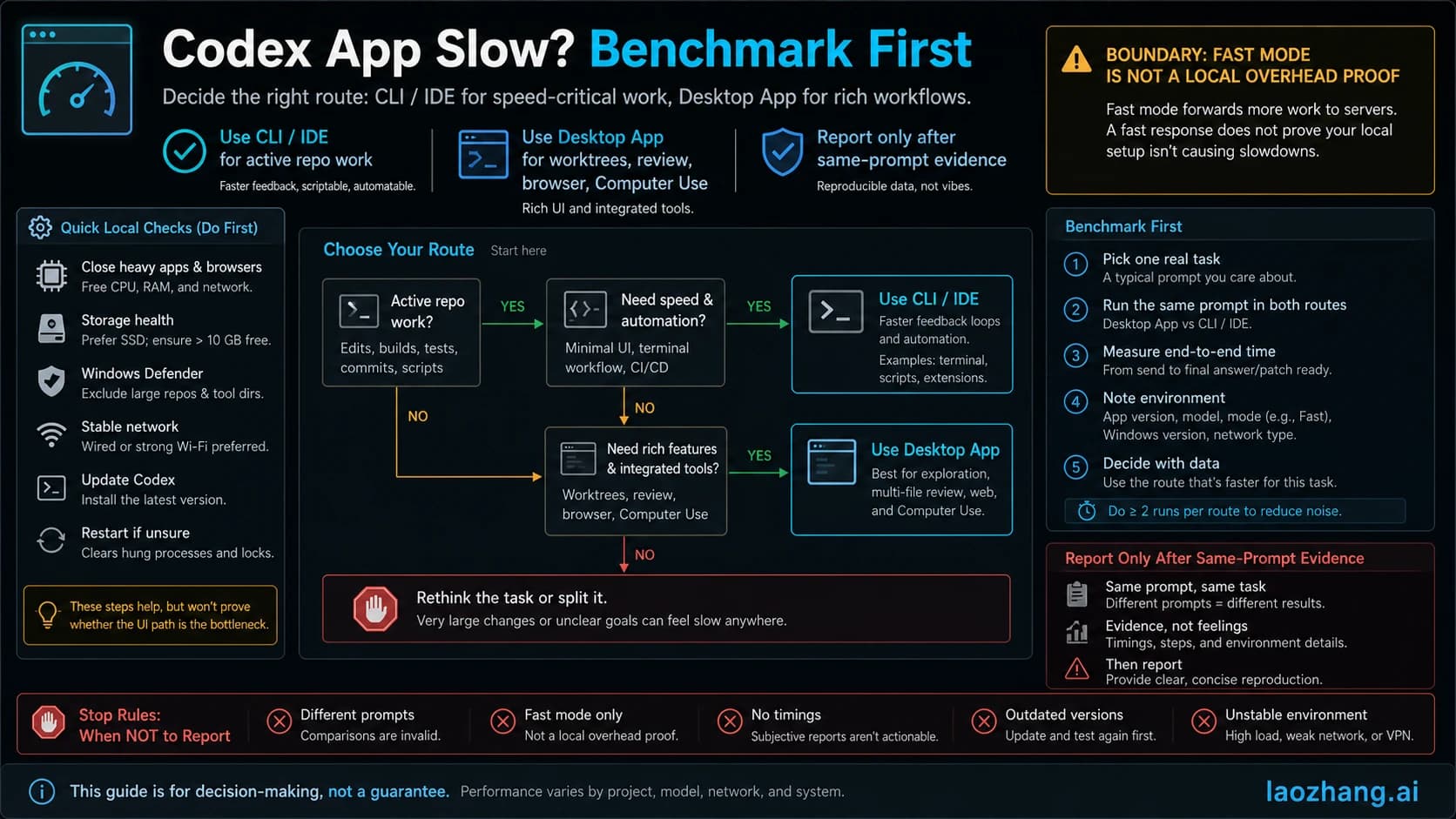
If your larger problem is that the desktop surface stays slow compared with CLI or an IDE even after the process tree is healthy, use the separate Codex App versus CLI route check. That workflow owns cross-surface benchmarking; the process checks here own background-process lifecycle and recovery.
Do Not Confuse This With Computer Use
A Computer Use session can intentionally keep app and browser work active. Check whether a session is running before ending the Codex tree. End the session from its owning surface when possible, then verify that the related activity stops.
Computer Use has its own permission, control, and safety model. The Codex Computer Use guide is the better handoff when your question is how background GUI work is started or supervised. Here, Computer Use matters only as a possible owner of the processes you are diagnosing.
Build a Useful Report If the State Returns
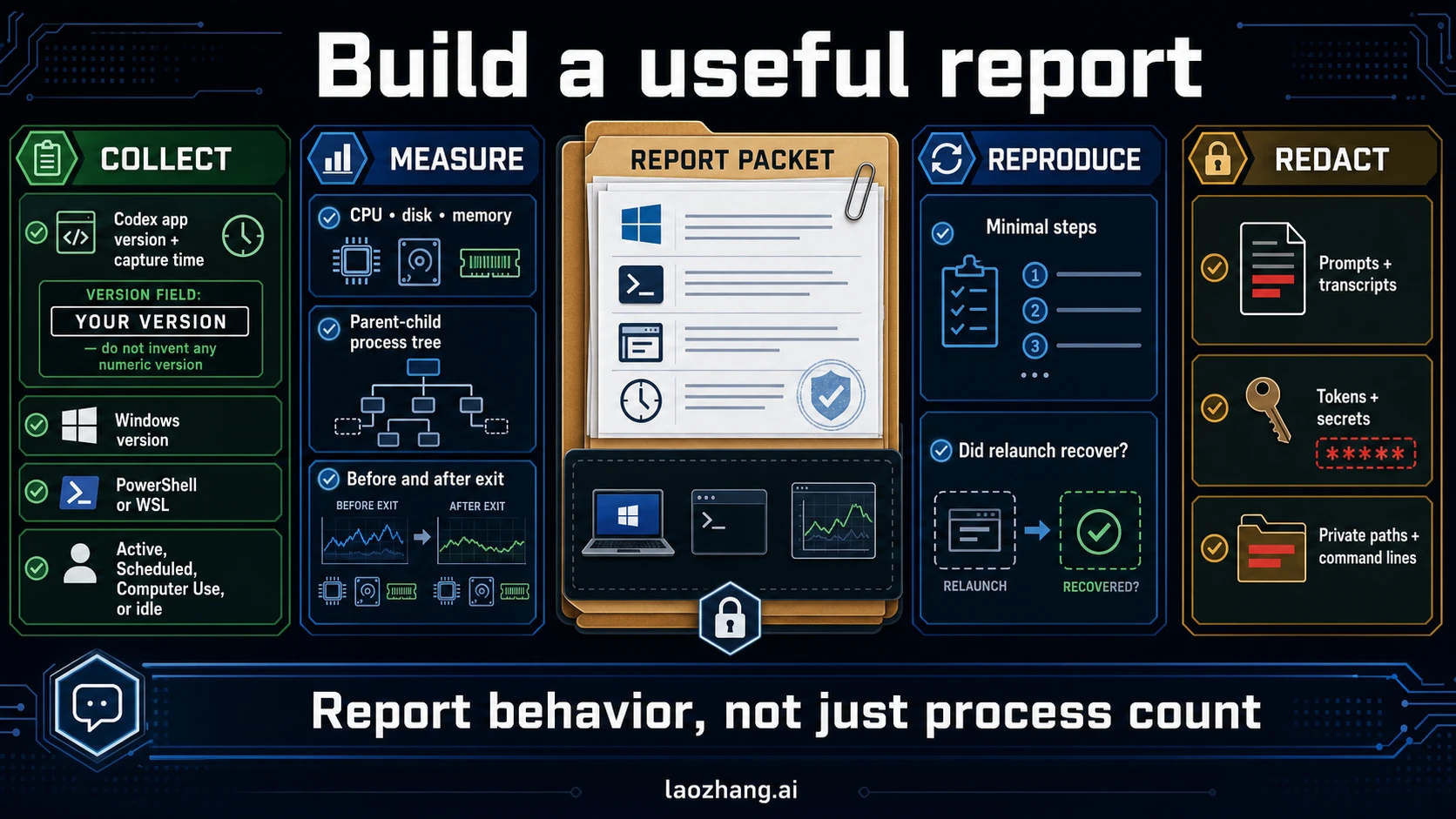
OpenAI's current feedback and logs guidance directs Codex reports to existing GitHub issues or a new issue and warns users to review shared logs and transcripts for sensitive information. It documents session transcripts under $CODEX_HOME/sessions; it does not provide a universal Windows app-log path, so do not invent one.
Capture this packet before destructive cleanup:
- Codex app version and the local capture time
- Windows version and architecture
- Native Windows/PowerShell or WSL2 agent environment
- integrated terminal choice if relevant
- project type and whether the run used a local checkout or worktree
- whether Tasks, Scheduled, a terminal, or Computer Use showed active work
- the visible symptom: residual after exit, no-window launch, or sustained idle activity
- parent/child process IDs and start times
- CPU, disk, and memory observations before and after normal exit
- minimal reproduction steps and whether one clean relaunch recovered
Use a compact issue format:
Codex app version:
Windows version:
Agent environment: Native Windows / WSL2
Terminal choice:
Project type and path type: [redacted if needed]
Owned work active: Task / Scheduled / Terminal / Computer Use / None
Symptom:
Minimal steps to reproduce:
Expected result:
Observed result:
Before/after CPU, disk, memory:
Did normal exit clear the tree?
Did one clean relaunch recover?
Before sharing, redact prompts, transcript content, tokens, customer data, private repository names, user names, full local paths, and sensitive command-line arguments. A public issue tracker is not the place to paste a whole session directory.
Avoid These Destructive Shortcuts
- Do not set a fixed process-count threshold. The tree varies with the task, tools, environment, and app build.
- Do not kill by process name. Shared Node, PowerShell, Git, Python, console-host, and WSL processes may belong to unrelated work.
- Do not delete caches, session transcripts, or
.codexstate as a first step. You can lose evidence or configuration without learning whether lifecycle recovery worked. - Do not reinstall before capturing a reproduction. Reinstallation changes the environment and may erase the most useful comparison.
- Do not change Windows/WSL mode, terminal, permissions, and project location all at once. Change one variable after a baseline.
- Do not repeat force-exit and relaunch loops. One clean recovery attempt is enough to decide whether the problem recurs.
Frequently Asked Questions
How many Codex processes are normal on Windows?
There is no universal published number. The process tree depends on active tasks, terminals, Git and language tools, browser or Computer Use activity, Scheduled runs, Windows versus WSL mode, and the current app build. Judge ownership, lifecycle, and sustained activity instead of count.
Is it safe to end Codex in Task Manager?
It is reasonable only after you preserve work, stop the owning task or session, try a normal exit, wait, and verify that the remaining tree is residual or blocks relaunch. Ending the tree can interrupt terminals, patches, file writes, and external tools.
Why does Codex run after I close its window?
An active task, terminal, Scheduled run, or Computer Use session may still own background work, or the app may be completing cleanup. If none is active and the tree survives a deliberate normal exit, treat it as a residual lifecycle symptom and follow the safe exit ladder.
What should I do when Codex appears in Task Manager but no window opens?
Do not launch it repeatedly. Check for an existing tree, preserve any reachable work, perform one clean recovery, and reopen once. If no usable window appears again, capture versions, start times, process ownership, and the exact reproduction sequence.
Does high CPU or disk prove Codex is stuck?
No. Brief activity can belong to an agent task, terminal command, Git operation, indexing step, schedule, or cleanup. It becomes actionable when activity is sustained, no owned work should be active, and the before/after check ties the activity to the residual Codex tree.
Is background_terminal_max_timeout a process-count setting?
No. The current Codex configuration reference describes it as a maximum polling window for background terminal output. It does not define how many Windows processes Codex should run and is not a first-line fix for a residual desktop process tree.
Should I end every PowerShell, Node, Git, or WSL process under Codex?
No. First confirm the parent/child relationship and the work owner. End the top-level verified residual Codex tree only after the preserve-first checks; leave unrelated development processes alone.
The Practical Rule
Leave Codex background processes running when a task, terminal, schedule, or Computer Use session owns them. When no work remains, recover in order: preserve, stop the owner, exit normally, wait, verify, end only the residual tree, reopen once, and report recurrence with a redacted evidence packet.
That sequence solves the immediate Windows problem without turning a process list into a diagnosis—or destroying the evidence needed to fix a repeatable one.
Sources4
External pages this guide links to, in the order they appear. Last updated Jul 16, 2026.
Sources4
External pages this guide links to, in the order they appear. Last updated Jul 16, 2026.
- 1.Scheduled tasks documentationdevelopers.openai.com/codex/app/automations
- 2.ChatGPT desktop app for Windows documentationdevelopers.openai.com/codex/app/windows
- 3.feedback and logs guidancelearn.chatgpt.com/docs/reference/troubleshooting
- 4.Codex configuration referencelearn.chatgpt.com/docs/config-file/config-reference