Codex Computer Use: Setup on Mac and Windows, and When to Use It
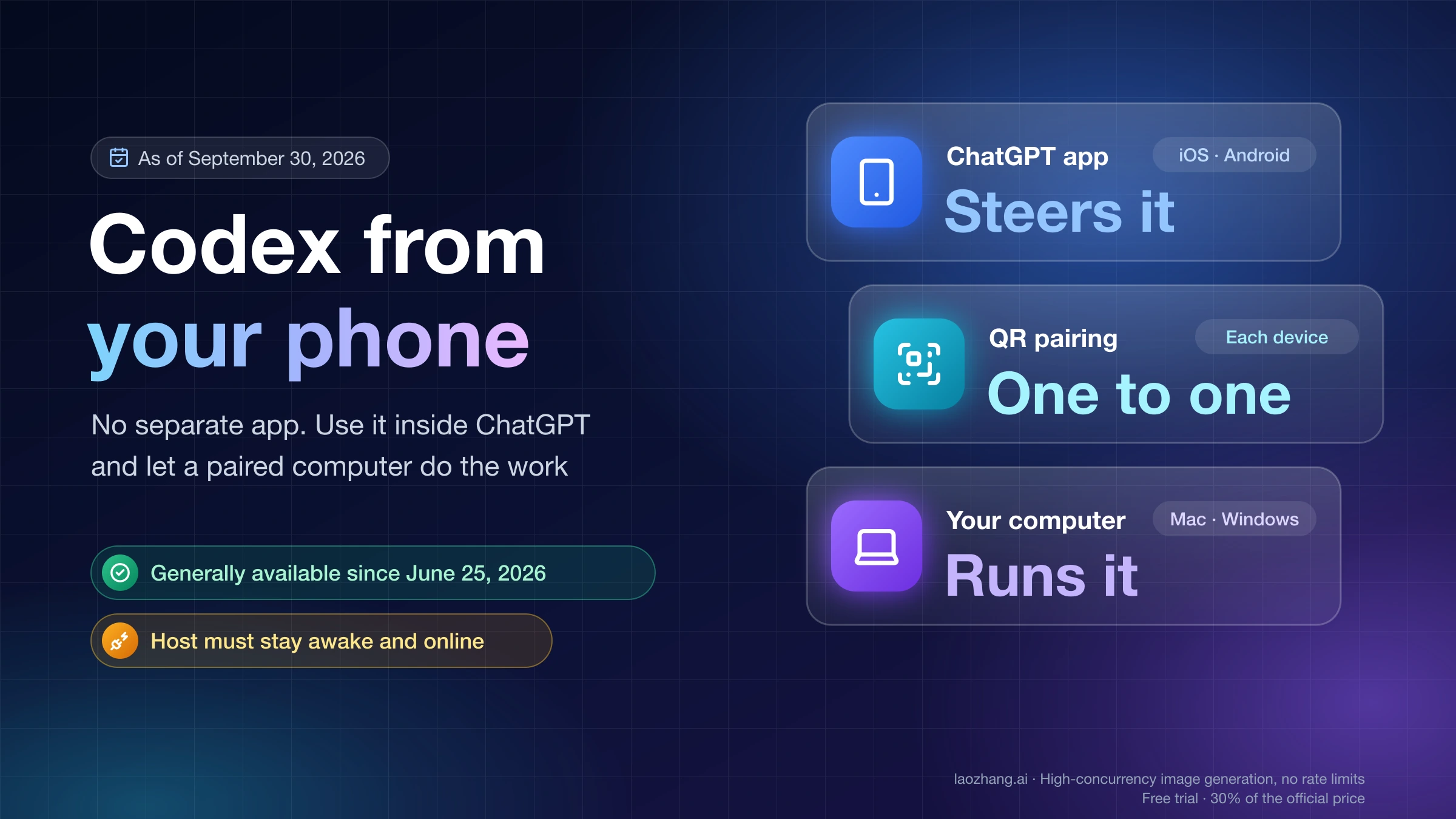
Computer Use now runs in the ChatGPT desktop app on macOS and Windows, in Work or Codex. Install the plugin, grant OS access, then mention @Computer or an app.
On this page
Codex Computer Use is the ability for ChatGPT to see your screen and operate desktop apps by clicking, typing, and navigating menus, the way you would. As of September 30, 2026, it lives in the ChatGPT desktop app on macOS and Windows, and you use it from either Work or Codex inside that app. You turn it on by installing the Computer Use plugin, granting operating-system access, and then mentioning @Computer or an app such as @Chrome in your prompt.
That is a bigger footprint than the feature had at its April launch, when it was a Mac-only feature of the Codex desktop app and wasn't yet offered in the EEA, the UK, or Switzerland. Windows support arrived on May 29, 2026, and since June 16, 2026 Computer Use has been available on macOS and Windows in the European Economic Area, the United Kingdom, and Switzerland as well. OpenAI's old page at developers.openai.com/codex/app/computer-use now redirects to the current Computer Use documentation on learn.chatgpt.com.
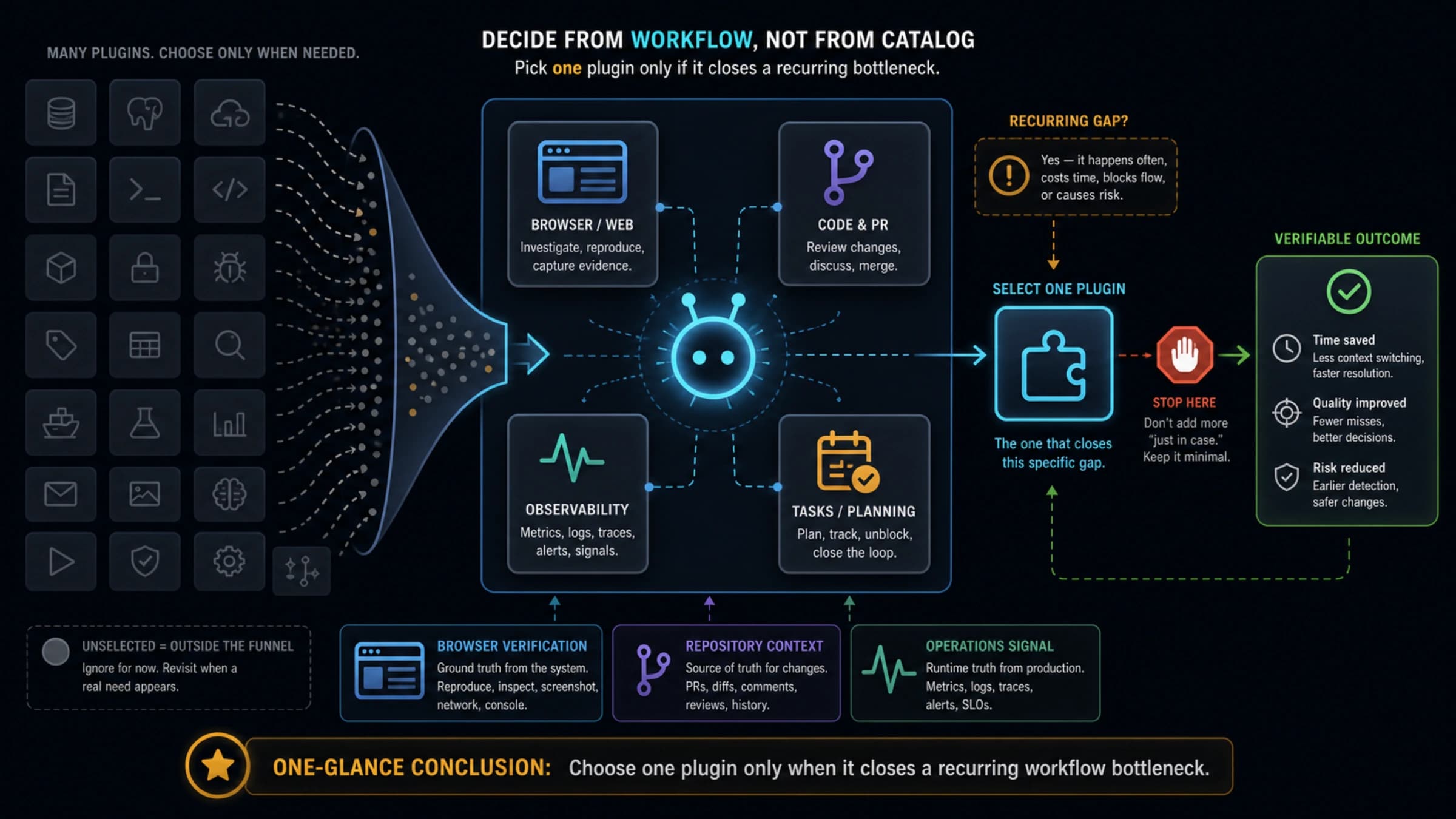
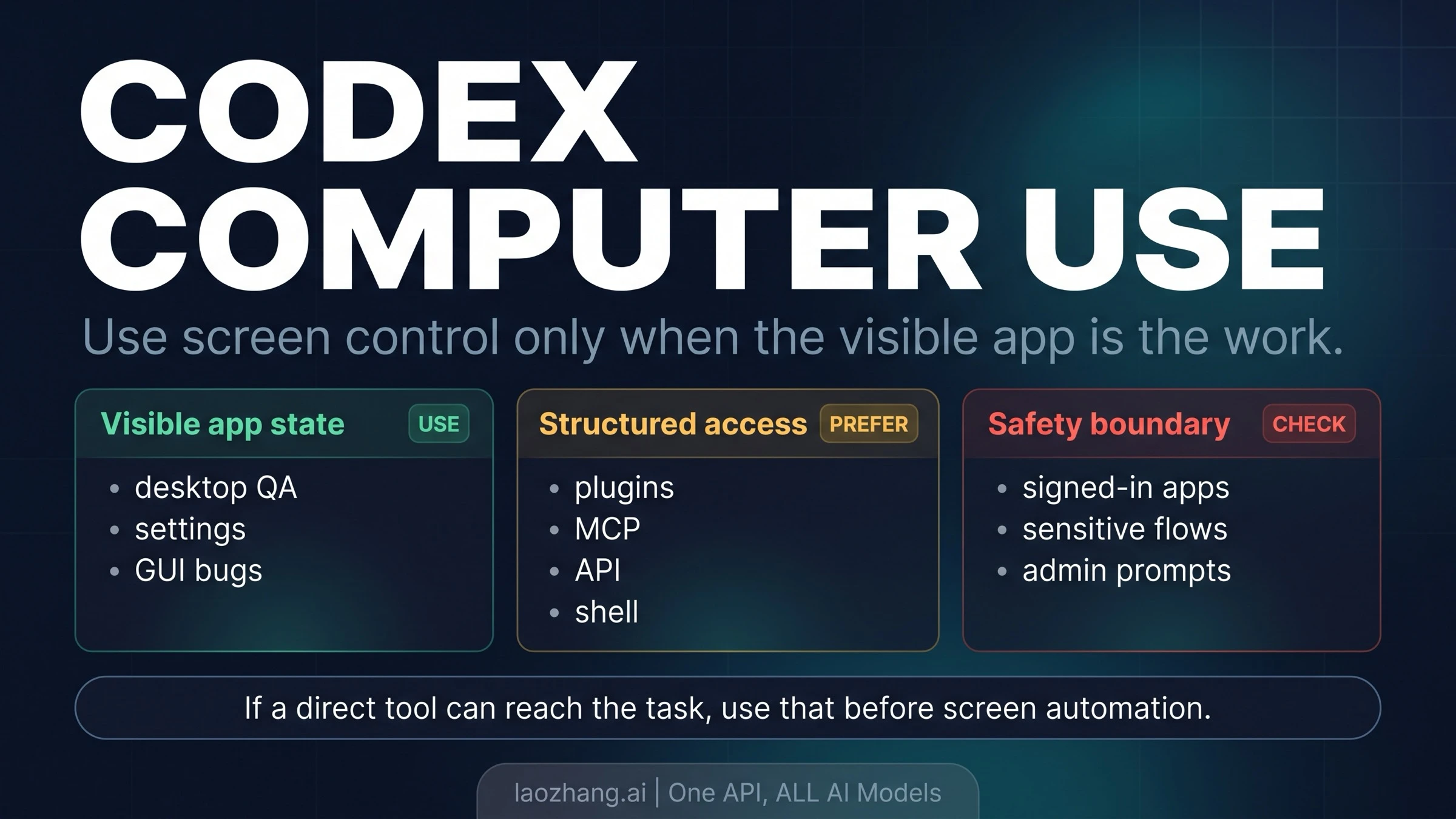
Screen control is also the slowest and least predictable way for an agent to get work done. Use it when the graphical interface is the thing you need checked or changed, and reach for a plugin, the built-in browser, or the shell first when they can do the job.
What Computer Use can and can't do
With Computer Use, ChatGPT can view screen content, take screenshots, and interact with windows, menus, keyboard input, and the clipboard in the app you point it at. That makes it useful for work that files and command output can't show you: a desktop app you're building, a settings pane with no API, a bug that only appears after a specific click path, or a workflow that hops between several apps.
Some limits are fixed by design, and no setting unlocks them:
- It can't automate terminal apps or ChatGPT itself. OpenAI's reason is that automating either could bypass ChatGPT's security policies.
- It can't authenticate as an administrator or approve security and privacy permission prompts on your computer. When a task reaches one of those prompts, you handle it.
- File reads, file edits, and shell commands in your project still follow the sandbox and approval settings for the task. Enabling Computer Use doesn't widen them.
OpenAI documents Computer Use for macOS and Windows only. There is no official Linux version. Open-source MCP servers that borrow the "Codex Computer Use" name are community projects, not OpenAI's plugin, so their setup, permissions, and safety behavior are whatever their authors built.
OpenAI also doesn't publish a per-plan list for Computer Use. Codex itself is included across ChatGPT plans, including Free and Go, and Computer Use requires a supported region. The practical test is whether Computer Use appears under Plugins in your desktop app and whether your workspace allows it.
Set up Computer Use in the ChatGPT desktop app
Setup happens once per computer. The steps are the same on both systems until you reach operating-system permissions.
- Open the ChatGPT desktop app. Select ChatGPT and switch to Work in the switcher, or select Codex.
- Open Plugins > Computer Use. Select Install plugin if prompted. If the app shows Enable instead, select it.
- Turn on both the Computer Use server toggle and the skill toggle.
- Select Try now to start your first task.
- On macOS, grant the two permissions when prompted: Screen Recording lets ChatGPT see the target app, and Accessibility lets it click, type, and navigate.
- On Windows, there's no equivalent prompt to accept. Instead, keep the target app visible on the active desktop while a task runs.
Afterward, open Settings > Computer use to review what ChatGPT can reach. The app access list includes entries such as Any App, Google Chrome (marked "Connected to browser extension for additional control" when the Chrome extension is linked, with a Manage action), and add-ins for Microsoft Excel and PowerPoint. Apps you approve for future tasks appear under Always-allowed apps, and you can remove them there.
Keep the two permission layers separate in your head. The macOS Screen Recording and Accessibility switches are system permissions for the app. Approving a specific app for a specific task is a separate step inside ChatGPT. Granting the first doesn't grant the second.
Start a task with @Computer or @AppName
Mention @Computer or @AppName in your prompt, or simply ask ChatGPT to use Computer Use. Then name the exact app, window, or flow it should operate. Vague goals such as "clean up my desktop" give the agent too many windows to guess between.
OpenAI's own examples show the level of detail that works:
Open the app with Computer Use, reproduce the onboarding bug, and fix the smallest code path that causes it. After each change, run the same UI flow again.
Open @Chrome and verify the checkout page still works after the latest changes.
A good first prompt adds a stopping point. For example: "Open @Notes, find the note titled 'Q3 launch checklist', and tell me which items are unchecked. Don't edit anything." That gives ChatGPT one target, a read-only job, and a clear end. After one clean run, move to a small reversible change.
During the task, ChatGPT asks for your permission before it uses an app. You can approve once or choose Always allow for that app. It may also stop and ask before sensitive or disruptive actions. For visually difficult work that depends on screenshots or fine visual judgment, OpenAI suggests choosing GPT-6 Astra in the model selector when it's available to you.
Once a workflow works, Record & Replay on macOS can turn a demonstrated workflow into a reusable skill. It requires Computer Use to be available and enabled, and since July 31, 2026 it has also been available in the EU, UK, and Switzerland.
Choose the right tool before screen control
Computer Use is one of several ways ChatGPT can reach beyond your project files, and it's the broadest. OpenAI's guidance points the other way for two common cases: for web apps you're building locally, use the built-in browser first, and if the target app has a dedicated plugin or MCP server, prefer that structured integration for data access and repeatable operations.
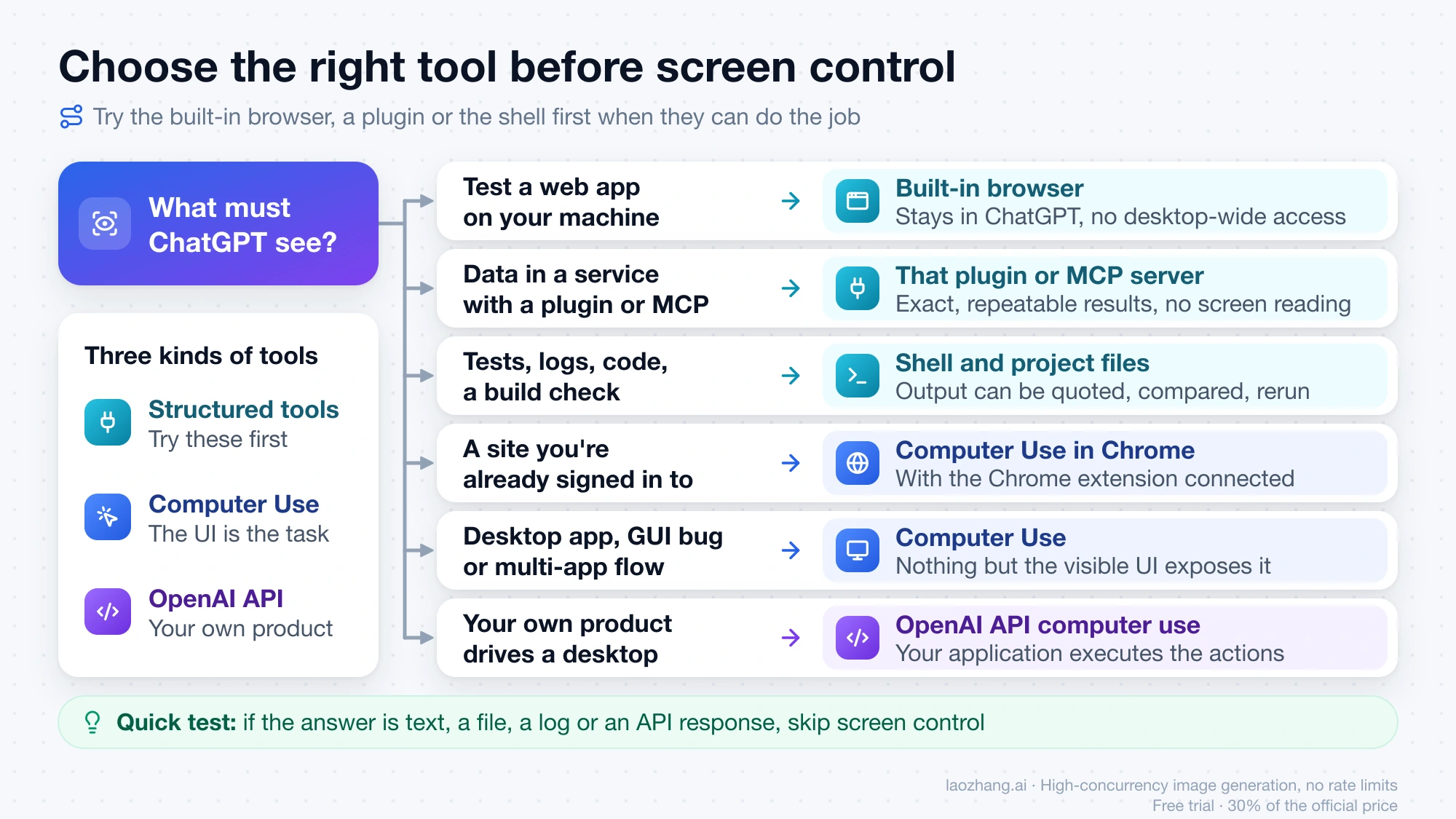
| Your task | Try first | Why |
|---|---|---|
| Test a web app running on your machine | Built-in browser | It keeps the loop inside ChatGPT and doesn't need desktop-wide access. |
| Read or update data in a service that has a plugin or MCP server (issues, docs, mail, calendars) | That plugin or MCP server | Structured results are exact and repeatable, with no screen reading. |
| Run tests, read logs, edit code, check a build | Shell and project files | Output can be quoted, compared, and rerun. |
| Work on a site where you're already signed in | Computer Use in Chrome, with the Chrome extension connected | The task needs your real browser session, and the extension gives additional control. |
| Test a macOS app, Windows app, or iOS simulator flow you're building | Computer Use | The interface is what you need verified. |
| Change app settings, reproduce a GUI-only bug, or pull data from an app with no plugin | Computer Use | Nothing but the visible UI exposes it. |
| Run a workflow that spans several desktop apps | Computer Use | Only screen control can move between them. |
| Build your own product where a model drives a browser or desktop | OpenAI API computer use | Your application owns the environment and executes the actions. |
A quick way to decide: ask what ChatGPT actually needs to see. If the answer is text, a file, a log, a repository, or an API response, screen control adds risk without adding information. If the answer is "how the app looks and behaves after these clicks," Computer Use is the right tool.
Mac and Windows don't behave the same way
The biggest practical difference is whether you can keep using the computer while a task runs.
On macOS, Computer Use can run a scoped task in the background while you keep working in other apps. That makes it reasonable to hand off a UI check and carry on with something else.
On Windows, Computer Use runs on the active desktop. It can't operate in the background while you keep using the same Windows session. The target app has to stay visible, and if you start clicking around, you're competing with it for the same screen. For Windows tasks that should continue while you step away, OpenAI lists three options:
- Keep the Windows device unlocked and connected, and leave it alone until the task ends.
- Use remote control from your phone. The setup is covered in OpenAI Codex in the ChatGPT mobile app.
- Run the ChatGPT desktop app inside a Windows virtual machine, so the task has its own desktop.
macOS has one more option Windows doesn't: locked use. It's opt-in and lets ChatGPT keep using apps after your Mac locks, driven from a connected device. Turning it on installs an Apple authorization plug-in. OpenAI describes several safeguards: authorization is short-lived and scoped, the Mac unlocks automatically only during active Computer Use turns, every display stays covered while the Mac is unlocked, and the Mac relocks as soon as it detects local keyboard or pointer input. OpenAI is explicit that this is not a general-purpose remote-unlock path.
When Computer Use is missing or can't control the app
Most "it doesn't work" reports come down to one of a few layers: where you're looking, your region, the plugin state, operating-system permissions, the Windows foreground rule, or workspace policy. Work through them in that order.
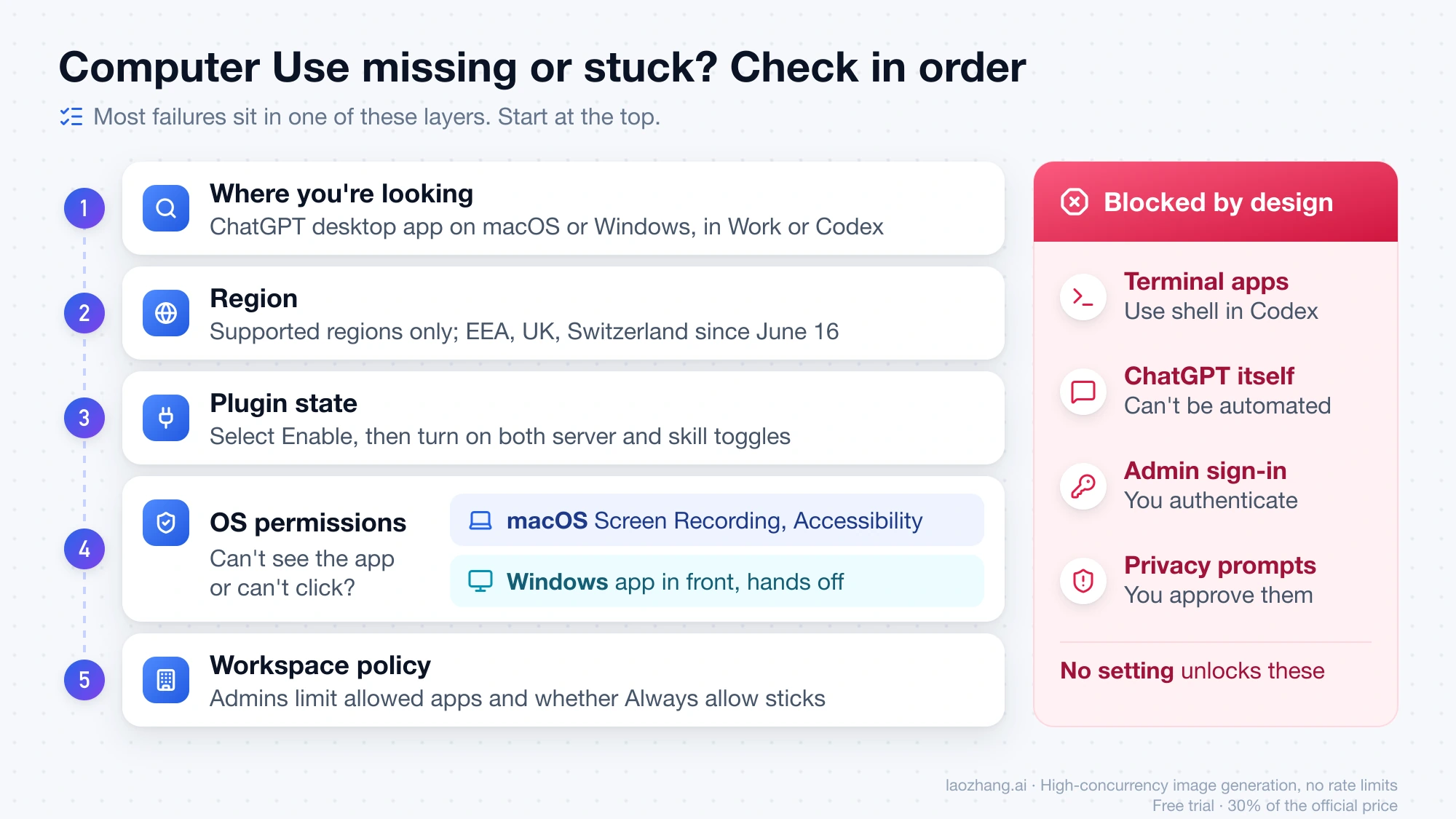
| What you see | Likely cause | What to do |
|---|---|---|
| No Computer Use anywhere | You're in a regular chat, on chatgpt.com, or on mobile | Open the ChatGPT desktop app on macOS or Windows and switch to Work or select Codex. Update the desktop app if Plugins doesn't list Computer Use. |
| Still missing in Work and Codex | Your region isn't supported, or your workspace admin hasn't made it available | Check with your workspace admin. Computer Use is only offered in supported regions. |
| Computer Use shows Enable or the plugin appears unavailable | The plugin is installed but switched off | Select Enable, then turn on both the server and skill toggles. |
| You're in the EU, UK, or Switzerland and read that it's excluded | That information predates June 16, 2026 | Computer Use has been available on macOS and Windows in the EEA, UK, and Switzerland since June 16, 2026. |
| On Mac, it says it can't see the app | Screen Recording is off for Computer Use | Open System Settings > Privacy & Security > Screen Recording and turn on Codex Computer Use. |
| On Mac, it sees the app but can't click or type | Accessibility is off | Open System Settings > Privacy & Security > Accessibility and turn on Codex Computer Use. |
| On Windows, the task stalls or acts on the wrong window | The target app isn't visible on the active desktop, or you took over the session | Bring the app to the front, leave the mouse and keyboard alone, or move the job to a Windows VM. |
| It refuses to open Terminal, PowerShell, or ChatGPT | Terminal apps and ChatGPT are blocked by design | Use shell commands in Codex for terminal work. |
| It stops at a password, admin, or privacy prompt | It can't authenticate as an administrator or approve those prompts | Approve the prompt yourself if you intend to, then let the task continue. |
| An app can't be approved, or Always allow doesn't stick | Your workspace admin restricts which apps are allowed and whether approvals can be saved | Ask the admin. This is a policy setting, not a bug. |
| It edited a file in a desktop app, but the review pane shows nothing | The change hasn't been saved to disk or isn't tracked by the project | Save the file in that app and confirm it's inside the project folder. |
If the fix involves reading or writing local files rather than operating an app, Computer Use is the wrong lever. The comparison in ChatGPT Agent Local Files Workarounds: Claude Code vs Codex Permissions covers which tool can reach your files and under what permissions.
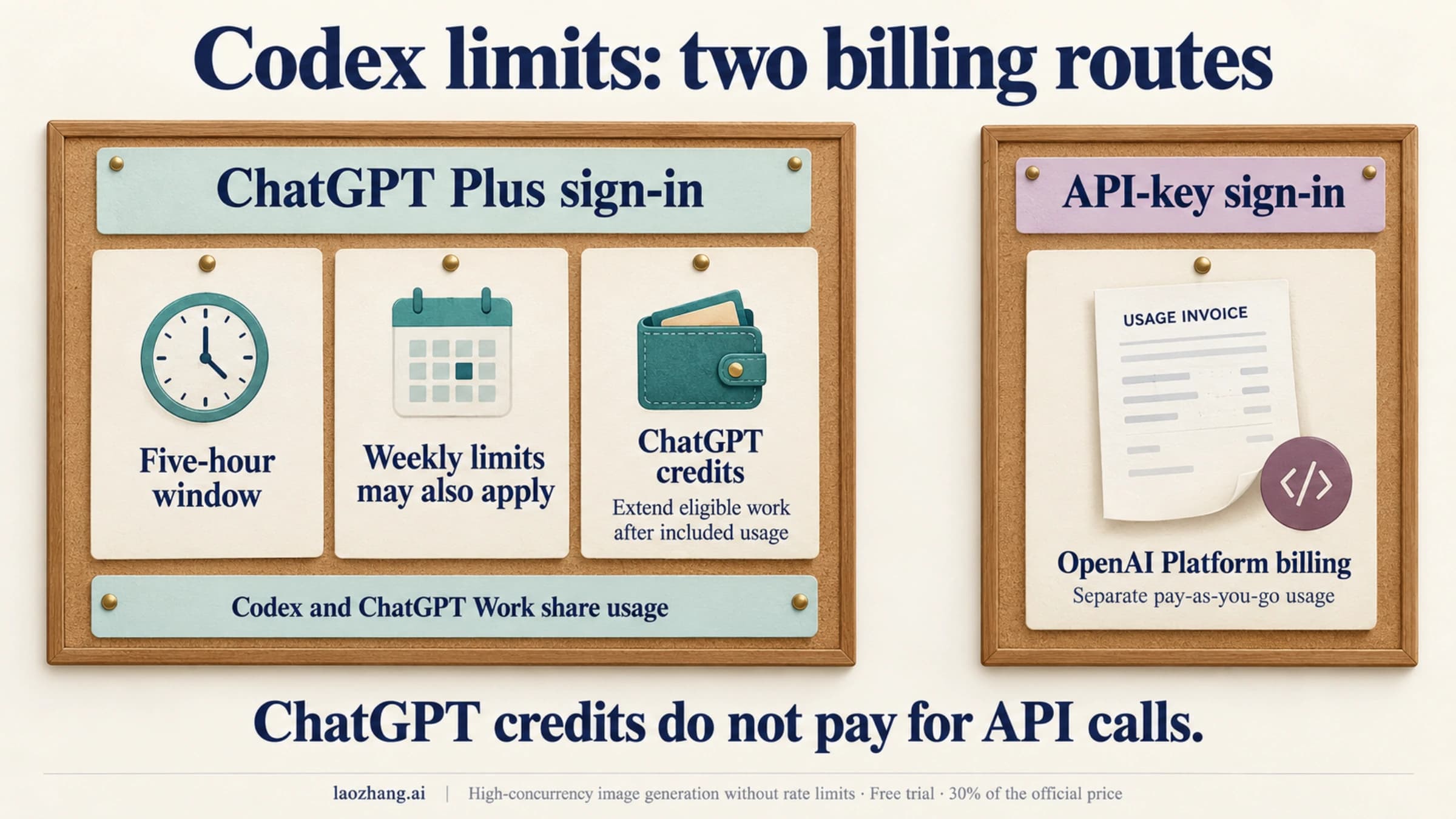
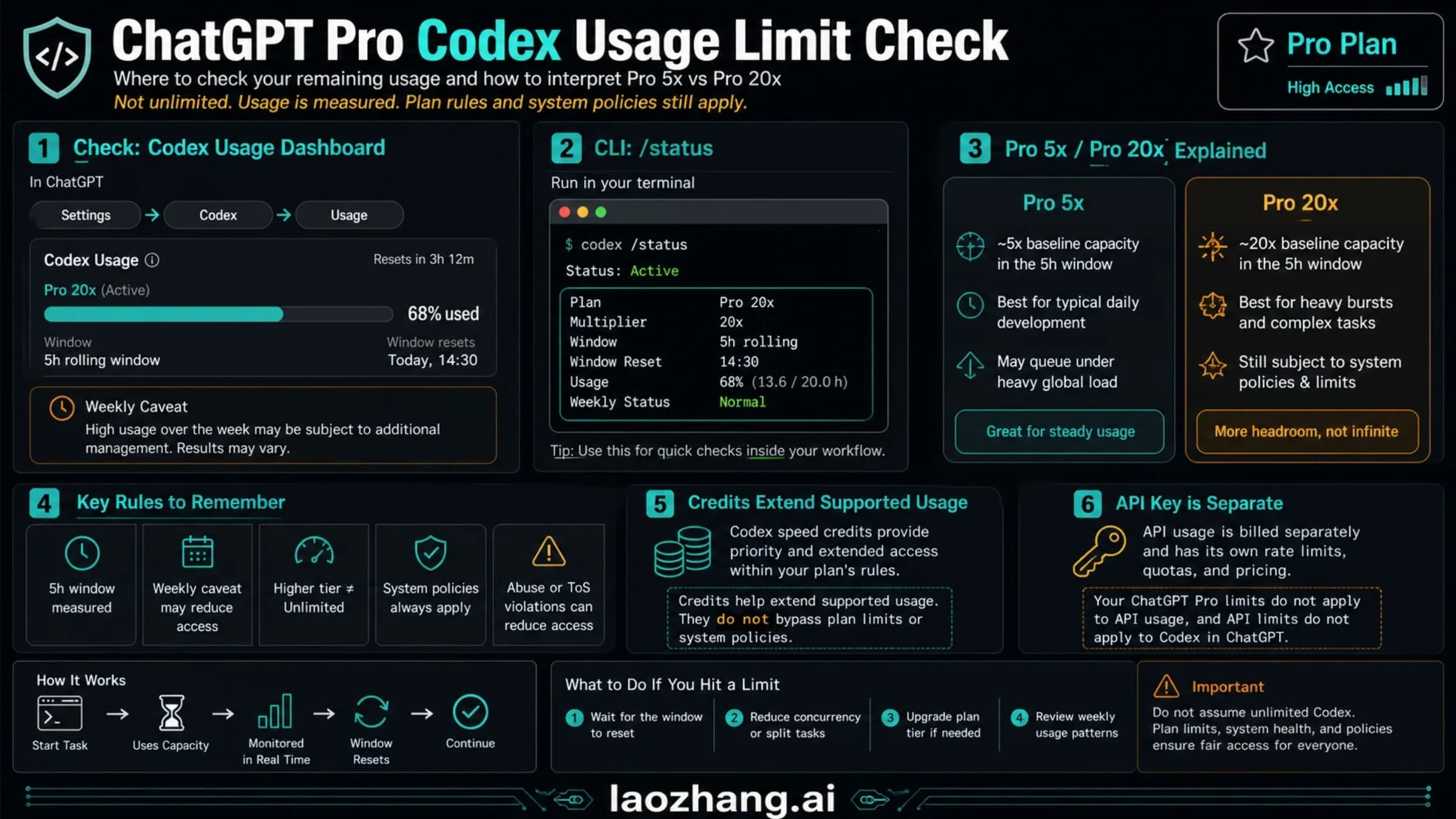
A long Computer Use session is still a Codex or Work task on your account. If one stops because you've hit a usage limit, Codex Weekly Limit Reset: Find Your Time or Reset Now explains where to see when your allowance comes back.
Is Codex Computer Use safe?
It's as safe as the scope you give it. The feature can change app and system state outside your project folder, and it acts with your identity in any app it touches. If it uses your browser, it can interact with pages where you're already signed in, so a click it makes on your bank or email counts as your click.
The habits OpenAI recommends are practical:
- Keep tasks narrow. One clear target app per task. Tell ChatGPT where to stop, such as "go to the confirmation screen and report what it says, but don't confirm."
- Close what it shouldn't see. Keep sensitive apps closed while a task runs. Your ChatGPT data controls also apply to screenshots taken by Computer Use.
- Stay present for sensitive settings. Anything involving accounts, security, privacy, networks, payments, or credentials should happen while you're watching. Avoid tasks that need secrets unless you're there.
- Use Always allow sparingly. Save it for apps you trust and use often. Review the Always-allowed list in Settings > Computer use now and then.
- Cancel early. If ChatGPT starts interacting with the wrong window, stop the task.
- Give it its own browser. To keep using your browser while ChatGPT works, ask it to use a different one.
Screen reading also means the agent reads whatever text is on screen, including instructions planted in a web page or document. Narrow tasks with a named target and a stop point leave little room for stray on-screen text to redirect the work.
Computer Use in ChatGPT vs computer use in the API
The OpenAI API has a feature with nearly the same name, and the two are easy to mix up. They share a concept and nothing else in setup.
| Computer Use in the ChatGPT desktop app | Computer use in the OpenAI API | |
|---|---|---|
| Who it's for | You, delegating a task on your own Mac or Windows PC | Developers building an agent into their own product |
| Where actions run | Your desktop, in apps you approve | An environment you provide and operate |
| How you connect | Install the plugin, grant OS permissions, mention @Computer or an app | Code execution with a library such as PyAutoGUI or Playwright, or the computer tool returning mouse and keyboard actions your app executes |
| Safety controls | Built into ChatGPT: app approvals, Always allow, workspace restrictions | Yours to design |
| Cost | Your ChatGPT plan's usage | API pricing, separate from ChatGPT plans |
OpenAI's API computer use guide recommends code execution for GPT-6 Astra. If you only need ChatGPT to check an app on your own computer, don't build an API harness. If you need an automation that many users run unattended, don't build it on your personal desktop session.
FAQ
Is Codex Computer Use available on Windows?
Yes. Windows support launched on May 29, 2026. Tasks on Windows run in the foreground on the active desktop, so the target app must stay visible and you can't keep using the same session in parallel. On macOS, scoped tasks can run in the background.
Does Codex Computer Use work on Linux?
No. OpenAI documents Computer Use for macOS and Windows only. Open-source MCP servers that imitate it on Linux are third-party projects.
Is Computer Use a plugin, an MCP server, or a skill?
In the ChatGPT desktop app it's installed as a plugin from Plugins > Computer Use, and setup asks you to turn on both a server toggle and a skill toggle. Separately, if the app you want to control has its own plugin or MCP server, OpenAI recommends using that instead of screen control.
Can I use Computer Use on the Free plan?
OpenAI doesn't list Computer Use eligibility by plan. Codex is included across ChatGPT plans, including Free and Go. Check whether Plugins > Computer Use appears in your ChatGPT desktop app and whether your workspace admin allows it.
Is Computer Use available in the EU and UK?
Yes. Since June 16, 2026, Computer Use has been available on macOS and Windows in the European Economic Area, the United Kingdom, and Switzerland. Record & Replay followed in those regions on July 31, 2026.
Can Computer Use keep working while my Mac is locked?
Only if you turn on locked use, which is macOS-only and opt-in. It unlocks the Mac only during active Computer Use turns and relocks as soon as someone touches the local keyboard or pointer.
Sources2
External pages this guide links to, in the order they appear. Last updated Sep 30, 2026.
Sources2
External pages this guide links to, in the order they appear. Last updated Sep 30, 2026.