How to Delete ChatGPT Images: Fix Some Files Couldn't Be Deleted
On the web, delete a ChatGPT image from Library; on a phone, delete its chat. If it says "Some files couldn't be deleted", retry on chatgpt.com.
On this page
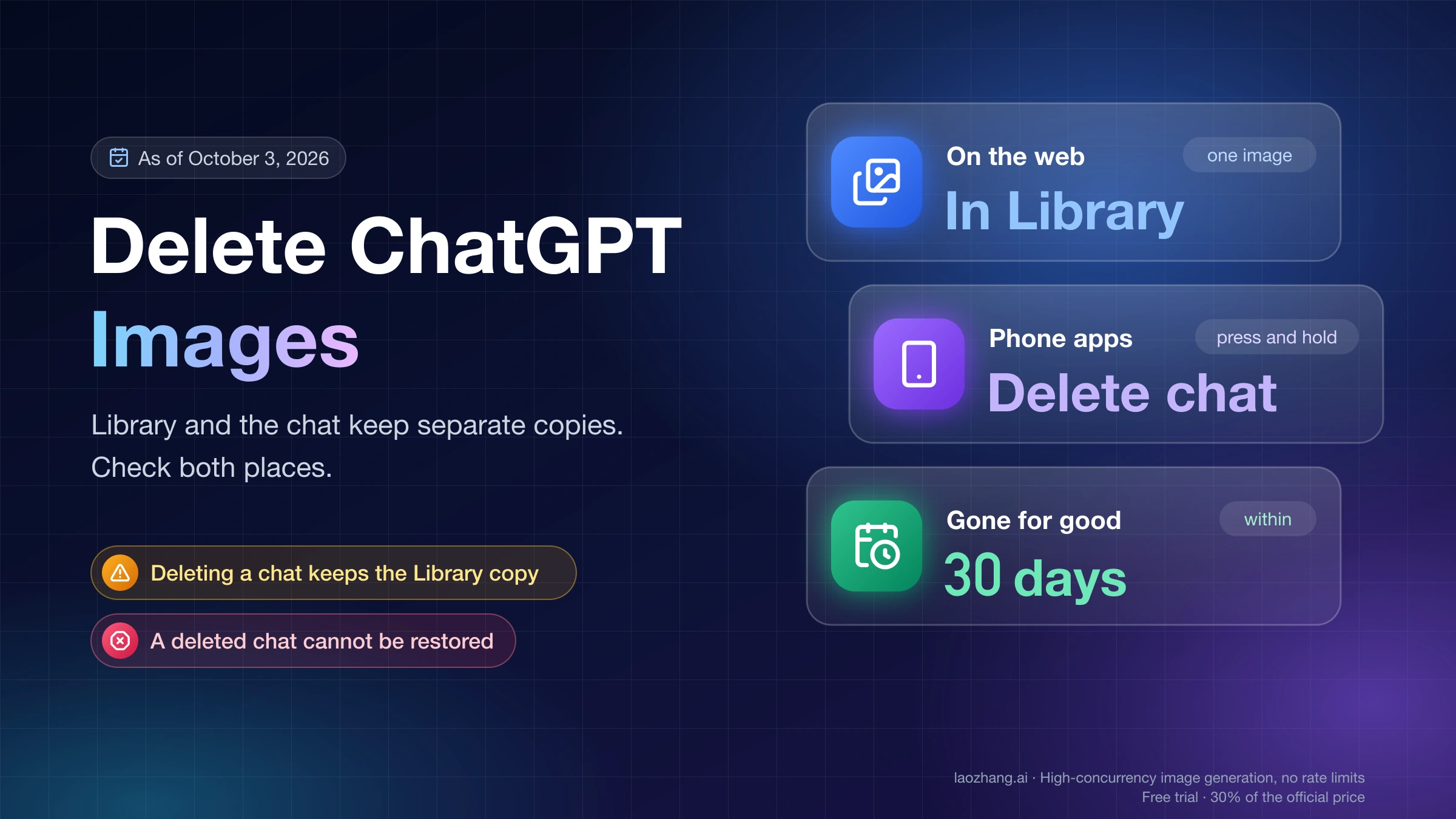
To delete an image in ChatGPT on the web, open Library from the left sidebar, select the image, and choose Delete. On iPhone and Android, the only method OpenAI documents is deleting the conversation that created the image: press and hold the conversation title, then select Delete.
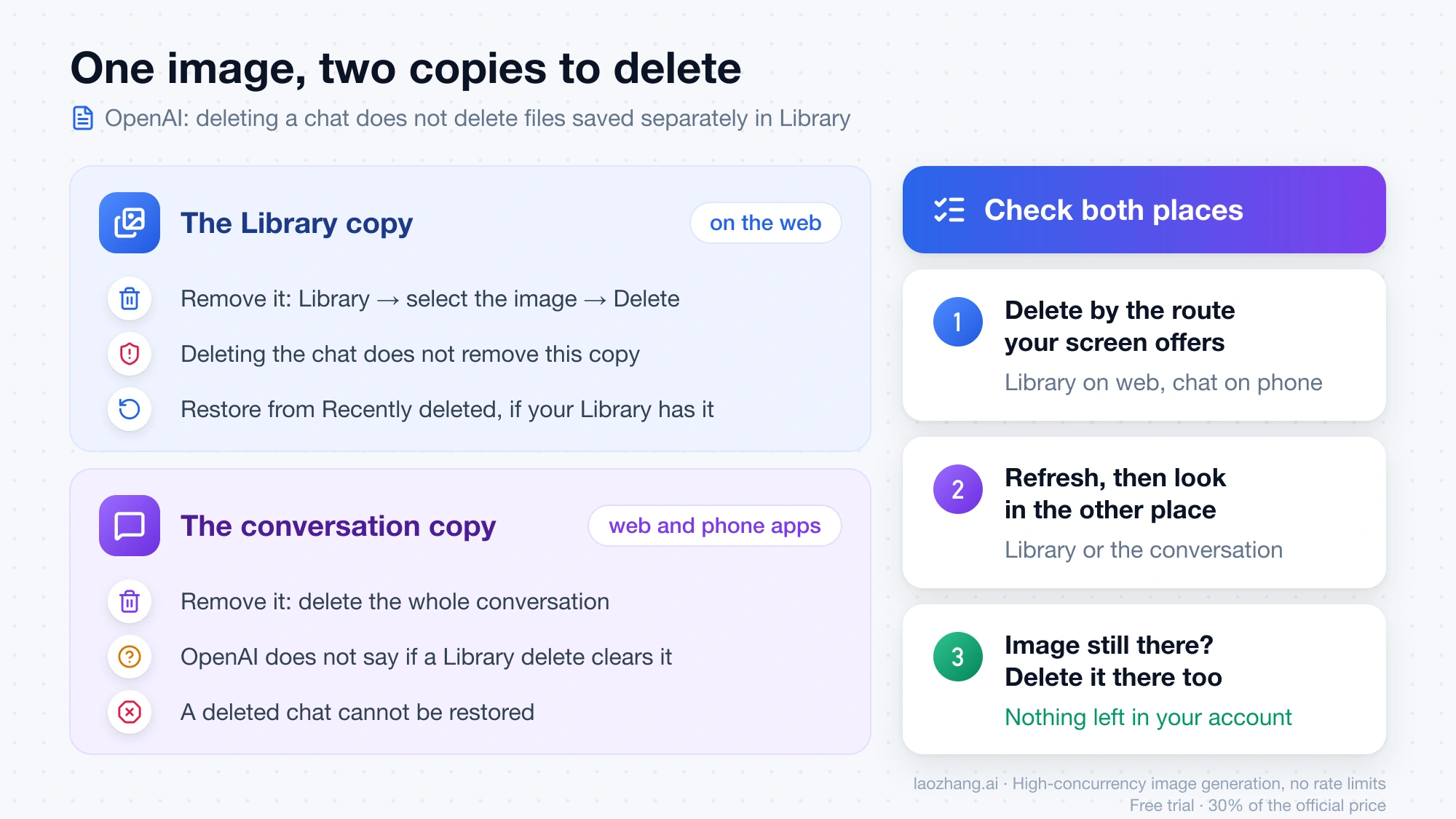
Those two routes remove two different things. Library keeps its own copy of every image you generate or upload, and OpenAI's chat-deletion page says that deleting a chat does not delete files saved in Library. So an image you want fully gone needs a check in both places: the Library entry and the conversation.
One note on how far the steps below go. They follow OpenAI's help pages and the menus of the web interface as of October 3, 2026. No deletion was carried out to produce them, so the confirmation prompt, the restore step, and everything about the phone apps are described from OpenAI's text, not from a completed deletion.
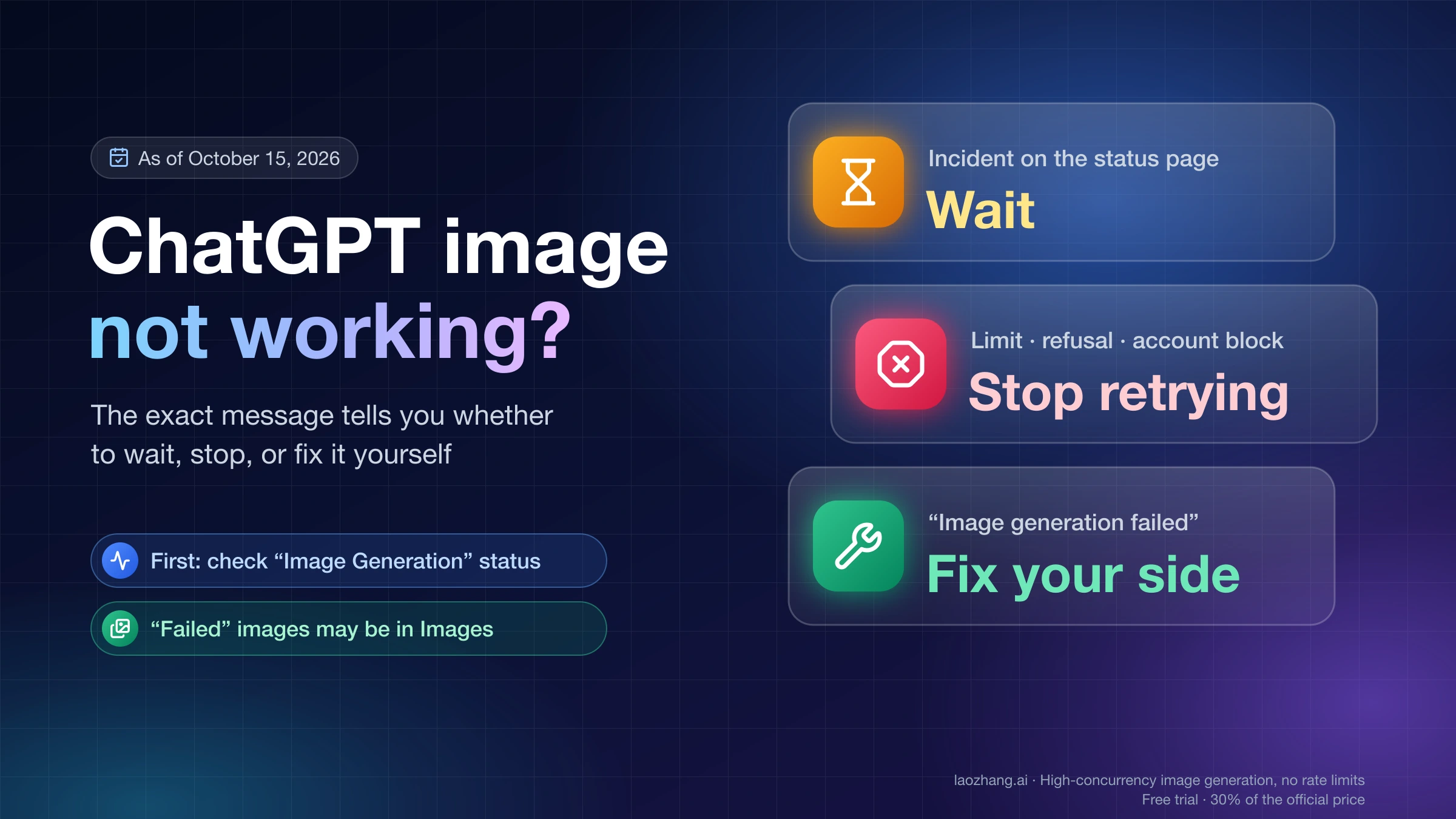
If ChatGPT answers a delete with "Some files couldn't be deleted" or "Failed to delete item," OpenAI hasn't published a cause, so retry once at chatgpt.com in a browser and then follow the steps for a ChatGPT file that won't delete.
Which delete route fits your ChatGPT image
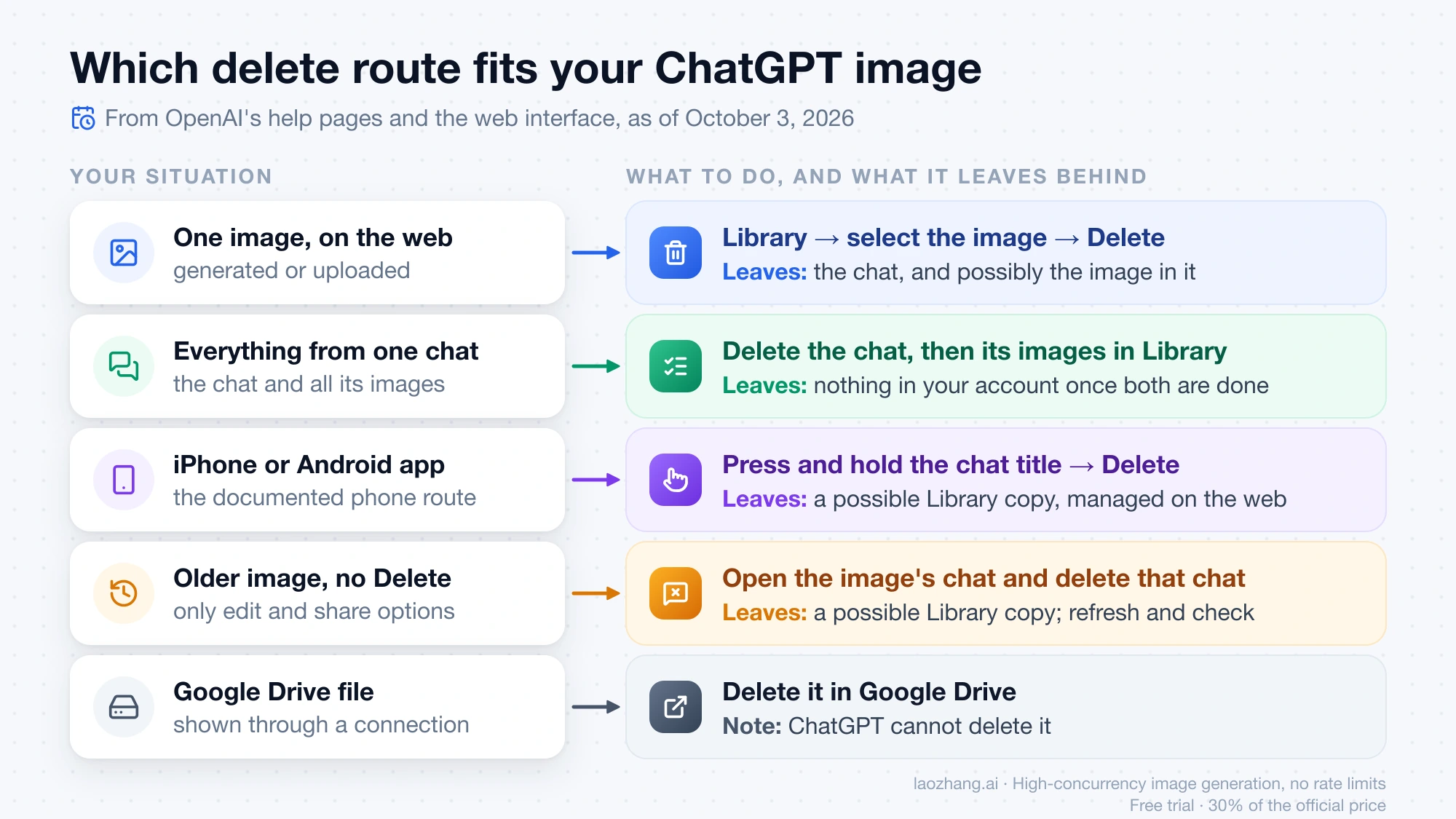
The right route depends on where you are (web or phone app), whether the image shows a Delete option, and how much you want removed.
| Your situation | What to do | What it leaves behind |
|---|---|---|
| One generated or uploaded image, on the web | Library → select the image → Delete | The conversation, and possibly the image inside it |
| Everything from one chat | Delete the conversation, then delete its images in Library | Nothing in your account once both are done |
| You are on the iPhone or Android app | Press and hold the conversation title → Delete | A possible Library copy, which is managed on the web |
| An older image shows no Delete option | Open the image's chat and delete that chat | A possible Library copy; check after refreshing |
| All images at once | Library: filter to Images, Select all, Delete (not in OpenAI's help; see the section on deleting all images); Images tab: delete the chats | Library files sit in Trash for 30 days unless you empty it; deleted chats leave their Library copies |
| The file comes from connected Google Drive | Delete it in Google Drive | ChatGPT cannot delete it |
In every row, the image leaves your view right away, while permanent removal from OpenAI's systems is scheduled within 30 days.
Delete one image from Library on the web
OpenAI's Library help page gives two steps: select the file in the Library tab, then click Delete or click the trash icon next to the file. Library is available on Free, Go, Plus, Pro, Business, Enterprise, Edu, and Healthcare, and the page describes it as available on web.
In practice, as of October 3, 2026, the web interface on one account looked like this:
- Library opens from the left sidebar. On that account the address chatgpt.com/library redirected to chatgpt.com/space, so a different URL in your address bar is not a sign you are in the wrong place.
- An Images view inside it has two tabs, one for images you created and one for images you uploaded. A photo you attached to a chat is under the uploaded tab, not next to your generations.
- Hovering over an image tile reveals a three-dot button in its top-right corner. Its menu lists share, rename, download, favorite, and move-to-folder actions, with a red delete item last.
- A trash view sits at the bottom of the Library panel.
That interface was viewed in a non-English language setting, so the exact English wording on your screen may differ from this description. The names Delete, Recently deleted, Delete forever, and Delete all are the ones OpenAI's help page uses.
If you opened an image inside a chat and saw only Share and Download, that is the chat's image viewer. The delete action lives in Library, on the image's own menu.
After you delete, the image leaves the main Library view immediately. If your Library includes Recently deleted, you can restore the image from there, or remove it sooner with Delete forever. In Space, OpenAI calls this view Trash, and the current ChatGPT desktop app code (macOS 26.1106.51428, checked read-only on November 14, 2026) labels the Library bin Trash too, with Restore and Delete forever; OpenAI's Library page still calls it Recently deleted. OpenAI words this as "if your Library includes Recently deleted," which means not every account is guaranteed to have that view.
OpenAI's pages do not say whether deleting a Library image also removes it from the conversation where it was made. Open that conversation afterward. If the image is still displayed and you want it gone, delete the conversation as well.
How to delete all images in ChatGPT Library
OpenAI's help pages describe no "delete all images" button, but the ChatGPT app's Library has a bulk delete: filter the list to Images, select all, choose Delete, then empty the trash if you don't want to wait 30 days. That flow comes from a read-only search of the ChatGPT desktop app's code (macOS version 26.1106.51428, November 14, 2026), not from OpenAI's help and not from deleting files on an account, so the labels on your screen may differ slightly:
- Filter down to images. Library search results can be filtered by file type (Images) and by source (Uploaded or Generated), according to OpenAI's Library page. That gets every image into one list.
- Select all, then Delete. In the list view, tick individual rows, or use the checkbox in the list header labelled "Select all". It selects only the items already loaded, so scroll to the bottom of the list first to load the rest. Choose Delete, and the confirmation reads "Delete # files?" with the note that the files "will be moved to Trash and permanently deleted after 30 days." OpenAI's Library page documents selecting multiple files only for Download.
- Expect batches if a limit appears. A Reddit thread and an August 2026 how-to video report that Library deletes up to 20 images at a time. The app code shows no such cap, so treat it as a report: if Select all stops at 20, delete in batches until the list is empty.
- Delete all in Recently deleted. This empties the trash and permanently removes files you have already deleted. In the app code the button is "Empty file trash", and it covers every file in Trash, including files outside the current filter, not only images. It does not clear your Library.
Generated images also appear in the Images tab, and OpenAI's only documented way to remove one there is deleting the conversation that created it, which leaves the Library copy behind, as explained in Deleted the chat but the image is still in Library.
For conversations, Settings → Data controls → Delete all chats removes every chat at once. OpenAI's chat-deletion page warns that this cannot be undone and can affect chats in projects. Per the same page, it does not delete files saved separately in Library, so your images there still need the steps above.
"Clear image history" is the same job under another name: ChatGPT has no separate image history beyond the Library entries and the conversations themselves.
Delete ChatGPT images on iPhone or Android: delete the conversation
On the phone apps, OpenAI's documented route is to delete the conversation where the image was created. The Images in ChatGPT page puts it this way: press and hold the conversation title, then select Delete in the menu. That page is the only OpenAI instruction that names iOS and Android, and it is the sole basis for this section.
Three things to know before you do it:
- Deleting the conversation removes the whole chat and every image made in it. A deleted chat cannot be restored in ChatGPT or through OpenAI Support.
- The Library page describes Library as available on web and does not describe a Library screen in the apps. If you want to confirm no saved copy remains, sign in at chatgpt.com in a browser and look in Library.
- The same Images page mentions that image controls on mobile include Resize and Remove. They appear in its editing section, and OpenAI does not explain Remove as a way to delete the image from your account, so do not rely on it for that.
Deleted the chat but the image is still in Library
This happens because Library stores its copy separately from the conversation. OpenAI states it twice. The chat-deletion page says: "Deleting a chat does not delete files saved separately in Library. Delete the files from Library if you also want to remove those saved copies." The retention page repeats the point.
OpenAI's Images page says something that reads differently: "To delete an image from My images, delete the conversation where the image was created." Both statements are current. The Images page was updated around September 11, 2026, and the Library, chat-deletion, and retention pages between about September 20 and October 2, 2026. OpenAI does not explain how the two fit together.
The practical rule covers both readings:
- Delete by whichever route your screen offers.
- Refresh, then look in the other place.
- If the image is still there, delete it there too.
This also explains why older tutorials disagree. Posts and videos from 2025 that say ChatGPT cannot delete single images, only whole chats, describe the product before Library had its own Delete. Advice to delete images from Settings, or with a "Delete Selected" button, does not match either of OpenAI's current pages.
How to delete an image that won't delete: no Delete option on older images
If an older image shows edit and share options but no Delete, deleting its conversation is the reported fix. The report comes from TechRadar writer Graham Barlow, published May 21, 2026. He found that the delete option "only appears for newly created images, since the new Library was added in May 2026, but not for your older images."
His workaround:
- In the image grid, open the image's three-dot menu and choose Open chat.
- Send any message in that chat. This moves it to the top of your recent conversations so you can find it.
- Delete that chat from its menu on the web, or press and hold it on a phone.
- Refresh the image grid.
Deleting the chat removes every image created in it, so download anything you want to keep first.
Treat this as one author's account from May 2026. OpenAI has not described a split between older and newer images, and whether the gap still exists in October 2026 is unknown. The workaround itself matches OpenAI's own instruction on the Images page, so it carries no risk beyond that of any chat deletion: the chat cannot be restored.
If an image has a Delete option that does nothing, or the image returns after a refresh, no documented control covers that case. Work through the steps for "Some files couldn't be deleted" and "Failed to delete item" in the next section, and contact OpenAI Support through the help center if the image still won't go.
"Some files couldn't be deleted" or "Failed to delete item" in ChatGPT
Both messages mean ChatGPT tried to delete a file from Library and the deletion didn't complete, so the file is still in your account. "Failed to delete item" is what the web and the desktop app show when deleting a Library file fails. "Some files couldn't be deleted" is how the Android app words the same failure, according to a user who saw both messages for one image. OpenAI has not published a cause for either, and its Library help page has no entry for failed deletions as of November 14, 2026.
A read-only search of the ChatGPT desktop app's code (macOS version 26.1106.51428, November 14, 2026) shows where the messages sit. "Failed to delete item" carries the developer note "Error toast when deleting a Library file fails," next to "Failed to delete folder." for folders. "Some items couldn't be deleted. Try again." is the result when you empty Recently deleted and at least one file could not be permanently deleted. The note on that message says the remaining items can be retried. The exact text "Some files couldn't be deleted" does not appear in that build, which is consistent with it coming from the Android app. The search only read the app's files: the web and Android apps were not inspected, and no file was deleted to trigger either message.
Why a ChatGPT Library file won't delete: no published cause
What is known comes from user reports on the OpenAI Developer Community forum, and they describe a single file that stays stuck while others delete normally. In a Community thread about a "Failed to delete" error with code 409 from October 9, 2026, an Android user got "Some files couldn't be deleted" for one image, and the web said "failed to delete," even after deleting the conversation and clearing the cache. In a Community thread about a file in Space that returns a 409 on delete from October 31, 2026, one file left over from a group deletion on chatgpt.com kept disappearing and coming back after a refresh, or showed "Failed to delete item." Renaming it, or moving it into a folder and deleting the folder, didn't help. The October 31 report captured a 409 conflict for that one file in the server's response, and the October 9 thread's title mentions the same code.
On November 13, 2026, OpenAI Support answered the second report: the 409 indicated "the deletion didn't complete successfully," and "the exact cause of the conflict isn't clear from the available details." That is the most OpenAI has said in public. An earlier report from June 8, 2026 describes a quieter version on the web: clicking Delete in the dialog had no effect, and the file stayed after a refresh in both Firefox and Edge.
What to try when a ChatGPT Library file won't delete
Each step comes from OpenAI's help pages or from OpenAI Support's replies in those threads. Go in order and stop when the file is gone:
- Retry once on the web. Open chatgpt.com in a browser and delete the file again, even if the error came from the Android or desktop app. This was OpenAI Support's first suggestion on November 7, 2026.
- Check whether the file is in the main Library or in Recently deleted. If it is in Recently deleted, select just that file and use Delete forever, as Support suggested in the same reply, instead of Delete all. If Delete all ended with "Some items couldn't be deleted. Try again.", at least one file wasn't permanently deleted, and the app's own note says those items can be retried, so use Delete forever on whichever file is still there.
- Try another browser. Support asked about this on November 13, 2026. It tells you whether the problem follows the file or the browser; it isn't a known fix, because the June report failed the same way in two browsers.
- Don't count on deleting the chat. Deleting a conversation doesn't remove the Library copy, as covered in Deleted the chat but the image is still in Library, and files from connected Google Drive can't be deleted from ChatGPT at all; delete those in Google Drive.
- Contact OpenAI Support. OpenAI's Library help page asks for a description of what happens, your workspace, the time and time zone, your browser or app version, and the exact error message. In the June thread, a community member also suggested sending the
x-oai-request-idof the failed delete request, which you can find in your browser's developer tools on the Network tab.
If your account shows Space instead of Library, OpenAI says Space takes the place of Library, and the same steps apply.
When a deleted ChatGPT image is permanently gone: within 30 days
Deleting removes an image from your view immediately, and OpenAI schedules it for permanent deletion from its systems within 30 days. The Library page lists two exceptions: the chat has already been de-identified and disassociated from you, or OpenAI must retain it longer for security or legal obligations. The same schedule and exceptions apply to deleted chats.
So there are three stages, not one:
| Stage | Where the image is | Can you get it back? |
|---|---|---|
| Deleted from Library | Recently deleted, if your Library has it | Yes, by restoring it |
| Deleted forever, or the trash period ends | Out of your account | No |
| Within 30 days of deletion | Removed from OpenAI's systems, barring the two exceptions | No |
The trash view (Trash in Space and in the current desktop app code) carries a matching note: items moved there are permanently deleted after 30 days. If you want the shortest path, use Delete forever in Recently deleted instead of waiting.
Deletion does not reach copies that already left your account. Anyone who saved the image from a shared link still has it, and deleting is separate from the "Improve the model for everyone" setting under Settings → Data Controls. Both topics are covered in the guide to where ChatGPT saves your photos and how to remove every copy.
Images you cannot delete from ChatGPT's Library
Four kinds of files follow rules other than the Library delete button:
- Connected Google Drive files. Drive files and folders shown in Library "can't be deleted from ChatGPT." Open the original item in Google Drive.
- Enterprise, Edu, and Healthcare workspaces. Library files are retained according to the workspace's retention policy. Deleting from your view may not shorten that period.
- Files in a project. They stay until the project or the file is deleted, or a workspace retention policy removes them.
- Files in a custom GPT's knowledge. They stay until you remove them in the GPT builder or delete the GPT.
If you uploaded a photo to a project or attached it as GPT knowledge, a Library deletion alone will not clear it. Remove it where it was added.
Deleting images to free up Library storage
If you are deleting because Library is full, the Storage button in Library shows your total usage, what remains, and whether you are over the limit. The caps as of October 3, 2026, from OpenAI's Library page:
| Plan | Library storage |
|---|---|
| Free | 500 MB |
| Go | 4 GB |
| Plus and Business | 20 GB |
| Pro | 100 GB |
A single image can be up to 20 MB, so at that maximum size the Free cap holds 25 images (500 MB ÷ 20 MB). Library storage is separate from the daily attachment limits; those are covered in the guide to how many files you can upload to ChatGPT on each plan. OpenAI does not say whether files sitting in Recently deleted still count toward the cap, so check the Storage figure after emptying it.
Questions about removing ChatGPT images
How do I remove images from a conversation and keep the chat?
OpenAI documents no control for removing one image from a conversation while keeping the rest of the chat. The documented options are deleting the image's Library entry and deleting the whole conversation. If the chat matters, copy out the text you need before deleting it.
How do I hide images in ChatGPT Library?
There is no documented hide feature for Library images. Archiving applies to chats: it removes a chat from the regular sidebar without deleting it, and it does nothing to the Library copy. Moving an image into a folder organizes it but leaves it in your Library.
Does ChatGPT keep your images?
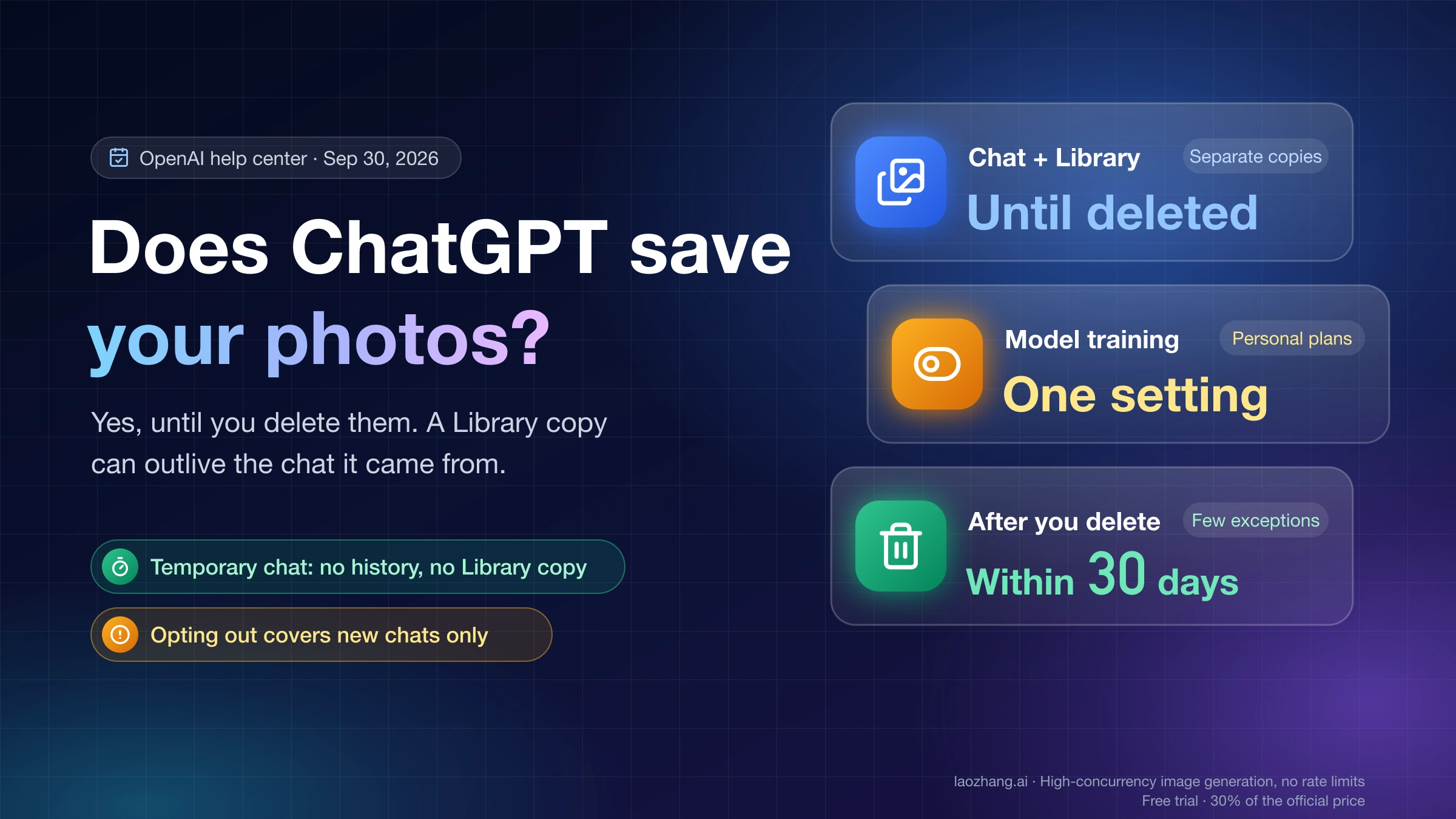
Yes, until you delete them. OpenAI's Library page says files are saved to your account until you delete them manually, and that applies to both generated and uploaded images. The exception is Temporary Chat: files uploaded there are not saved to your account or Library, though OpenAI may keep a copy for up to 30 days for safety purposes.
Does deleting a ChatGPT image delete it from the chat too?
OpenAI's help pages do not say. They state only the reverse direction, that deleting a chat does not delete the Library copy. After deleting from Library, open the conversation and check; delete the conversation if the image is still shown and you want it removed.
Sources7
External pages this guide links to, in the order they appear. Last updated Nov 14, 2026.
Sources7
External pages this guide links to, in the order they appear. Last updated Nov 14, 2026.
- 1.Library help pagehelp.openai.com/en/articles/20001052-using-library-to-manage-files-in-chatgpt
- 2.chat-deletion pagehelp.openai.com/en/articles/8809935-deleting-and-archiving-chats-in-chatgpt
- 3.Images in ChatGPT pagehelp.openai.com/en/articles/11084440-images-in-chatgpt
- 4.retention pagehelp.openai.com/en/articles/8983778-chat-and-file-retention-in-chatgpt
- 5.published May 21, 2026tech.yahoo.com/ai/chatgpt/articles/couldn-t-figure-delete-old-010000089.html
- 6.Community thread about a "Failed to delete" error with code 409community.openai.com/t/1404678
- 7.Community thread about a file in Space that returns a 409 on deletecommunity.openai.com/t/1411257