Set Up Codex in Cursor and Complete a Reviewable First Edit
Get the official Codex extension working in a real Cursor project, then confirm the workflow with one narrow edit you can inspect and reverse.
On this page
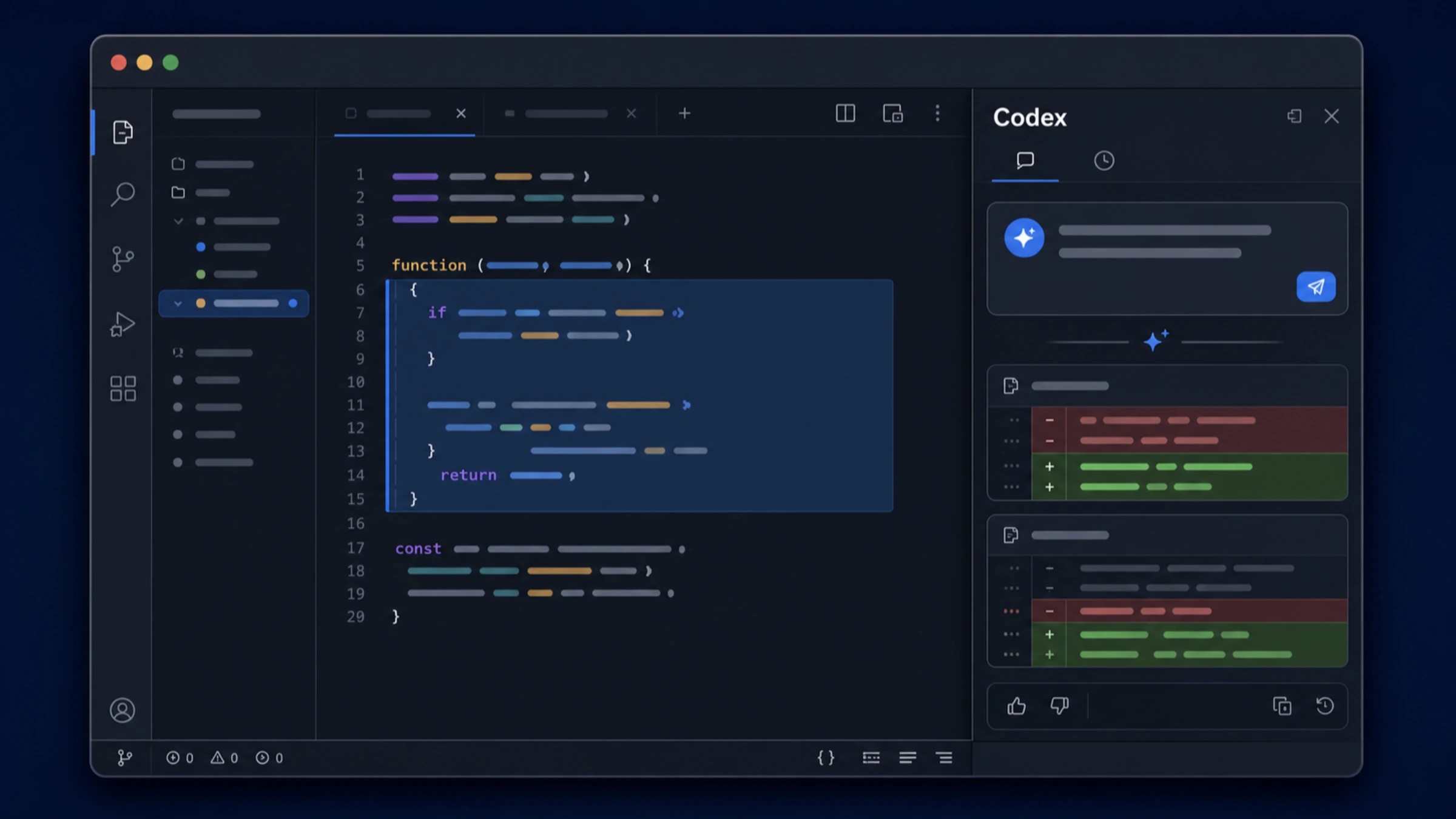
A low-risk way to start with Codex in Cursor is to make one small, reversible change in a project you understand. Install the official extension, open the Codex sidebar, select the relevant code, and ask for a narrowly defined result. Then inspect the diff and the actual test output before you keep anything.
That workflow confirms more than an installed-extension badge. It lets you check whether Codex used the context you intended, stayed within the boundary you set, and left evidence you can review. If a checkpoint fails, you can diagnose that stage before widening the request.
OpenAI currently lists Cursor as a compatible editor and links to the official extension, identified as openai.chatgpt, in its Codex IDE documentation. The product details in this guide were checked on August 15, 2026. Extension labels, interface placement, and account availability can change, so use the linked documentation as the current source of truth.
Install the official extension and open Codex
Start from the official Codex IDE page and follow its link for Cursor. Using the documented route helps you verify the extension identity instead of relying on a familiar icon or a similarly named third-party listing.
Let Cursor finish the installation and reload the editor if prompted. Then open the local project you want to work on. A real project folder matters: Codex needs code and project context to do useful work, while an empty editor can only confirm that the interface opens.
Open Codex in either of the ways documented by OpenAI:
- Select the Codex icon in Cursor.
- Open the Command Palette and run Codex: Open Codex Sidebar.
If the extension presents a sign-in or access flow, complete the prompts shown in that interface. Do not infer a particular subscription, quota, regional entitlement, or API-key setup from a successful installation alone. Those conditions can vary; use the current prompt and linked OpenAI documentation to determine what your account needs.
You have cleared the setup stage when the Codex sidebar opens inside the project. You have not yet proved that it is using the right code or that it can make a trustworthy change.
Create a recovery point before the first edit
Before asking Codex to modify files, make the current state easy to recover. OpenAI's Codex IDE documentation recommends Git checkpoints before and after an initial IDE task so changes can be inspected and reversed. In practice, that means beginning with a working tree whose existing changes you understand.
Run:
git status --shortIf the output contains work you have not committed, do not treat it as disposable. Commit the changes you want to preserve, stash them if that is appropriate for your workflow, or choose a clean test repository. A rollback is only safe when you know which edits existed before Codex started.
For a first attempt, use a low-risk file with a test you can run quickly. Avoid migrations, authentication, billing, deployment configuration, or a repository-wide refactor. The objective is to validate the interaction loop, not to prove that an AI agent can safely own a large change on its first try.
Give Codex context it can verify
The Codex IDE documentation explains that open files and selected code can be supplied as context. Use that deliberately:
- Open the exact file involved.
- Select the smallest function or block that matters.
- Name the behavior you want to understand or change.
- State what must remain unchanged.
- Ask for an observable result, such as a diff or a specific test outcome.
First, try an explanation-only request. It carries little risk and reveals whether the selected code reached Codex:
Explain what the selected function returns when it receives an empty array. Point to the branch that determines the result. Do not edit any files.
Compare the response with the code on screen. The answer should refer to the correct symbol and trace behavior that actually exists. A fluent explanation about the wrong function is a context failure, not a successful setup.
If the answer matches the selection, move to a bounded edit:
In the open file, make the selected function return an empty array for empty input. Keep its public signature unchanged. Make the smallest relevant edit, show me the change, and tell me which existing test covers it.
This request gives Codex a location, an outcome, a constraint, and a review expectation. Adapt all four to your repository. “Improve this file” has no objective stopping point; “change this behavior without changing this interface” does.
When you already know the relevant test command, provide it explicitly:
Make the smallest change needed for the selected function to handle empty input. Then run
npm test -- path/to/relevant.test.ts. Report the command and its actual result. If the command cannot run, stop and explain the blocker.
Replace the path with a real test file and use the command your project supports. A proposed test is not a test run, and a passing narrow test does not prove that unrelated behavior is unaffected.
Review the change as evidence, not as a summary
The Codex IDE workflow presents proposed changes for review in the editor, according to the official documentation. The diff is where you decide whether the task succeeded. A confident final message is not a substitute for inspecting the files.
Review the result in five passes:
- File scope: Did Codex touch only the files needed for the request?
- Behavior: Does the code implement the outcome you asked for, including the edge case?
- Constraints: Did any signature, dependency, configuration, or unrelated behavior change?
- Verification: Which command actually ran, and did its output show a pass, failure, or inability to execute?
- Uncertainty: Did Codex make assumptions about types, callers, framework behavior, or project conventions that require your decision?
Reject, revise, or revert a proposal that exceeds the boundary. Do not keep a broad diff merely because some lines are useful. A narrower second request is easier to reason about than manually separating a large, mixed change.
After reviewing the diff, run git status --short again. That gives you a simple before-and-after inventory. If your repository has formatting, type-checking, linting, or targeted tests relevant to the modified code, run them before accepting the task as complete.
The first workflow is successful when all of the following are true:
- The Codex sidebar opens in the intended Cursor project.
- An explanation about selected code matches the file and symbol on screen.
- The editing request produces an inspectable diff within the stated boundary.
- You can identify which checks actually ran and what they returned.
- You can keep or reverse the changes without losing unrelated work.
This is a useful definition of success because every item is observable. It does not depend on a particular layout, account tier, or promise that the generated code is correct by default.
Diagnose the first broken checkpoint
When the workflow fails, start with the earliest checkpoint that did not work. Broad reinstallation or a larger prompt often hides the real problem.
The Codex command is missing
Open Cursor's Command Palette and look for Codex: Open Codex Sidebar. If it is absent, confirm that openai.chatgpt is installed and enabled in the active Cursor profile, then reload the editor. Return to the official installation link if the extension identity is uncertain.
A Codex-named model in Cursor's own model selector does not confirm that this sidebar extension is active. The visible checkpoint for this workflow is the Codex command or sidebar.
The sidebar opens but access does not complete
Follow the account prompts currently displayed by the official extension and consult the current OpenAI documentation for access requirements. Capture the exact visible error before changing settings. Do not add a custom API key, subscription workaround, or third-party account bridge unless the setup you intentionally chose requires it.
If a managed network blocks the flow, test according to your organization's policy or ask the administrator responsible for the restriction. Repeated sign-in attempts will not resolve a network or policy boundary.
Codex responds about the wrong code
Reduce the context before expanding the request. Open one file, select one relevant block, and ask Codex to name the file and symbol it is using before it edits. Correcting an ambiguous context boundary is safer than granting access to more files in the hope that the right one will be discovered.
If the answer still does not match the selection, restart the sidebar or editor and repeat the explanation-only check. Keep installation diagnosis separate from code-change diagnosis: a working sidebar can still receive insufficient context.
The proposed change is too large
Do not accept it. Revert or reject the proposal through the review controls, verify the working tree, and split the request into one behavior at a time. State the allowed file, the required outcome, and the interfaces that must not change.
For higher-risk code, use two turns: ask for an explanation and a change plan without edits, verify that understanding yourself, and only then authorize the specific edit. The extra pause catches incorrect assumptions before they become a multi-file diff.
Codex suggests a test but does not run it
Ask whether the relevant command is available in the current project and request its actual execution. If permissions or the environment prevent it from running, treat that as an unresolved verification step. You can run the command yourself in Cursor's terminal, but record the real output rather than converting a recommendation into a claimed pass.
Build from one safe edit to regular use
Once the first bounded change works, expand scope gradually. A sensible next task might include one implementation file and its existing test, followed by the repository's normal lint or type-check command. Keep the same habits: intentional context, a precise result, explicit constraints, a reviewable diff, actual verification, and a known recovery path.
Reserve broader tasks for a repository whose conventions and test commands are clear. Ask Codex to surface assumptions when requirements are incomplete, and stop the task when a missing product decision cannot be resolved from the code. Human review matters most where the change affects security, permissions, data loss, money, production systems, or public interfaces.
Your next useful action is simple: open a low-risk function in Cursor, create a clean Git checkpoint, and use the explanation-only request. If Codex identifies the correct code, authorize one small edit and inspect the diff. You will finish with evidence that the integration works in your project—and with a workflow you can safely repeat.
Sources1
External pages this guide links to, in the order they appear. Last updated Aug 15, 2026.
Sources1
External pages this guide links to, in the order they appear. Last updated Aug 15, 2026.