How to Paste an Image in Claude Code: Ctrl+V, Alt+V, or a Path
In the Claude Code terminal, Ctrl+V pastes an image (the Control key, even on a Mac); Windows and WSL use Alt+V. If it fails, drag the file or give its path.
On this page
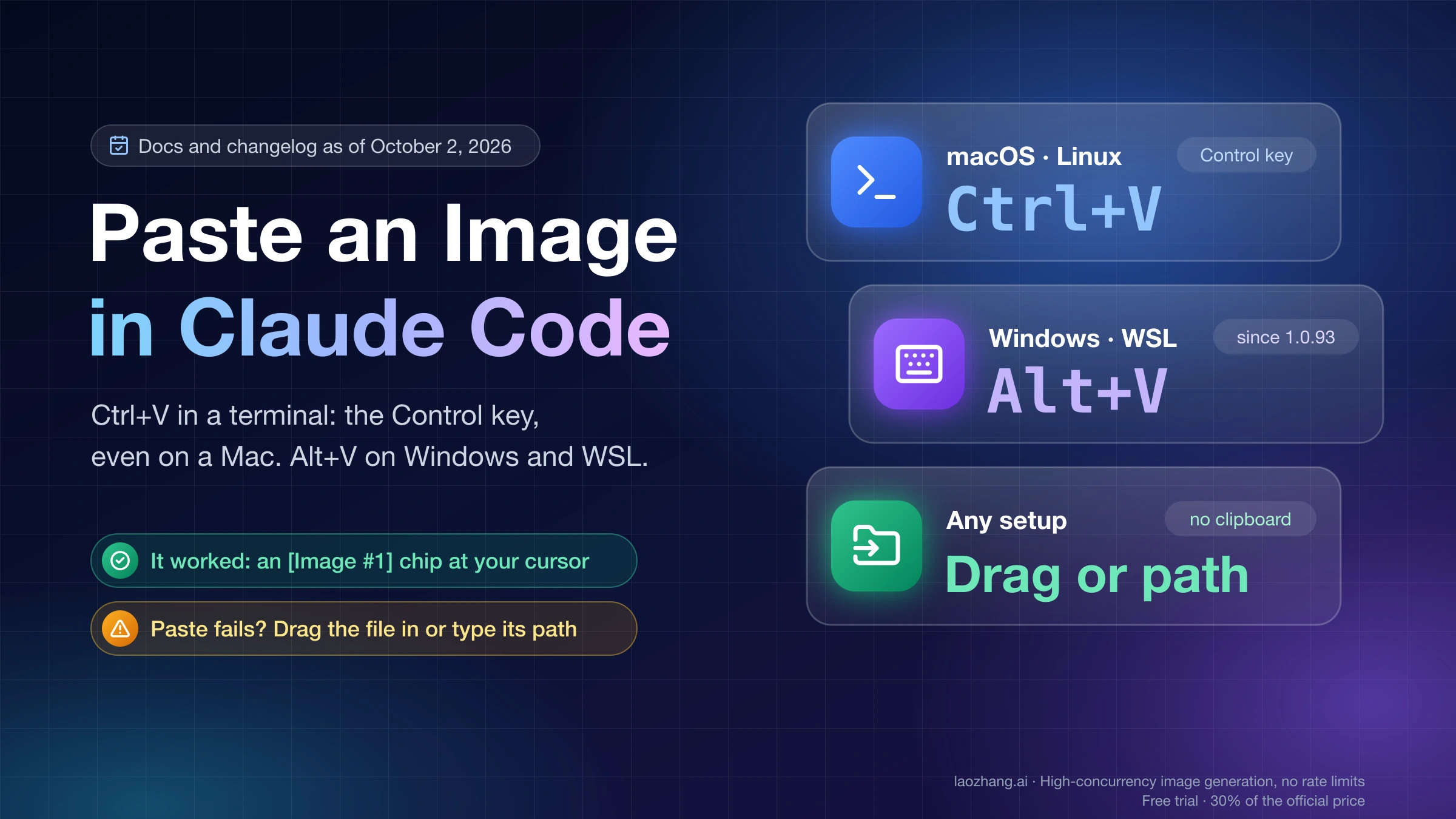
To paste an image into Claude Code in a terminal, copy the image and press Ctrl+V. On a Mac that means the Control key, not Command. On Windows and WSL the key is Alt+V, and in iTerm2 Cmd+V also works. A successful paste puts an [Image #1] chip at your cursor. If nothing appears, or you get "No image found in clipboard", drag the image file into the window or type its path instead. Both of those skip the clipboard entirely.
These shortcuts are taken from Anthropic's Claude Code documentation and changelog as of October 2, 2026, when the latest changelog entry was version 2.1.287. None of them was pressed in a terminal to produce this page. The one route that was actually run is the file path: in the Claude Code desktop app on macOS 26.1, Claude was given the paths of two image files, a 1416×1366 PNG and a 2000×1125 WebP, and described the contents of both.
Which key pastes an image in Claude Code, by setup
The key depends on where Claude Code is running, not on which operating system's paste key you are used to. Find your row.
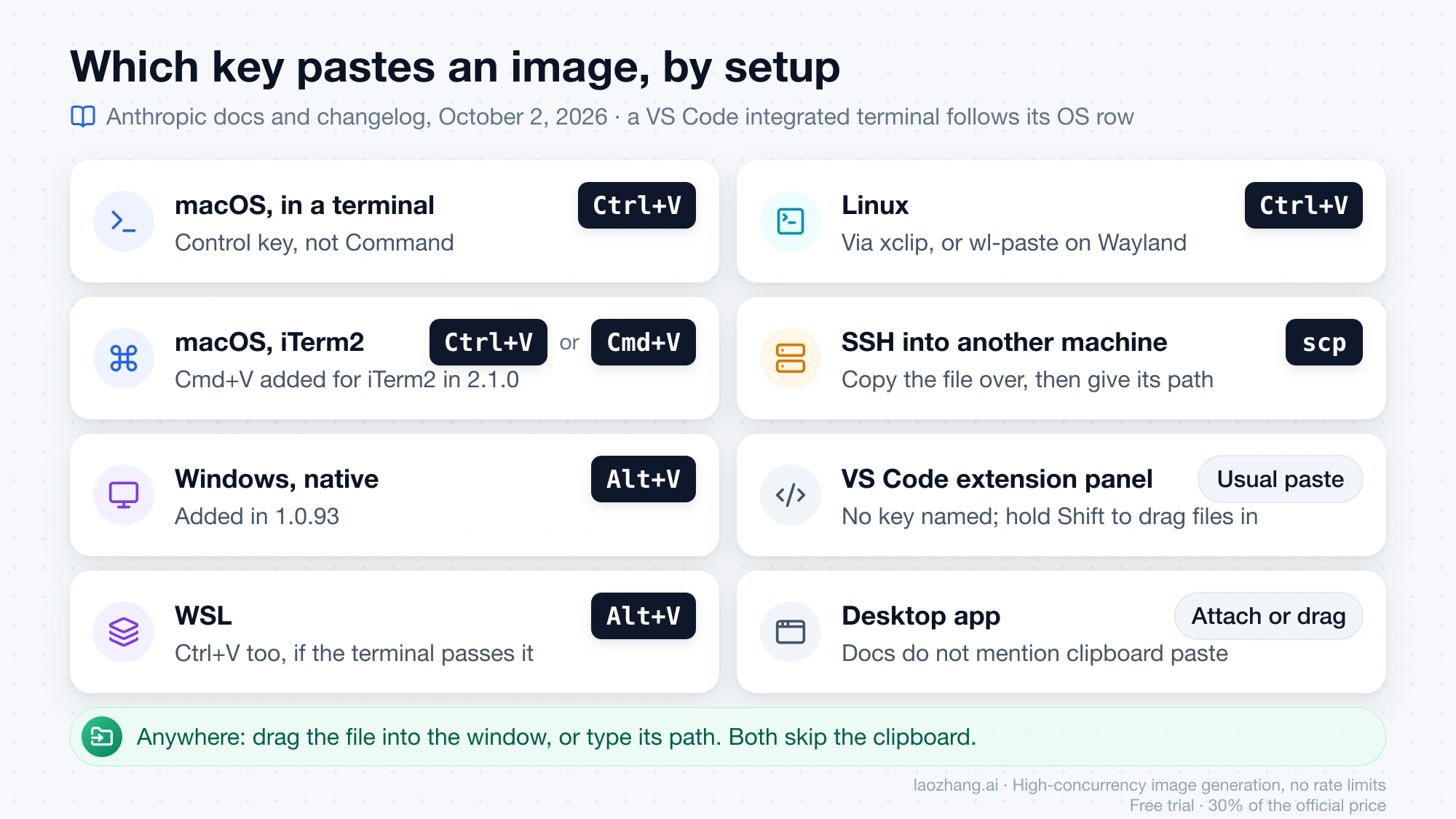
| Where Claude Code runs | How to get the image in | How firm the answer is |
|---|---|---|
| macOS, in a terminal | Ctrl+V (Control key) | Documented in the shortcut table |
| macOS, iTerm2 | Ctrl+V or Cmd+V | Documented; Cmd+V was added for iTerm2 in 2.1.0 and is not listed for any other terminal |
| Windows, native | Alt+V | Documented; added in 1.0.93 |
| WSL | Alt+V, or Ctrl+V if your terminal passes it through | Documented: both are bound, and Alt+V is the one to use when the terminal intercepts Ctrl+V |
| Linux | Ctrl+V | Documented key; the release notes show the paste reads the clipboard through xclip, or wl-paste on Wayland |
| SSH into another machine | Copy the file over with scp, then give its path | Since 2.1.2 the error message itself suggests scp |
| VS Code extension panel | Paste into the prompt box with your usual paste shortcut; hold Shift while dragging files in | Documented in the VS Code page, which does not name a key |
| VS Code integrated terminal | Same as the terminal row for your OS | It is the CLI, so the CLI keys apply |
| Desktop app | Attachment button, or drag and drop onto the prompt | Documented in the desktop page, which does not mention clipboard paste |
| Anywhere | Drag the file into the window, or type its path | Documented; the path route is the one exercised here |
Anthropic's own table carries the note "Keyboard shortcuts may vary by platform and terminal." Per-terminal behavior for Ghostty, Kitty, WezTerm, Warp, Apple Terminal, Windows Terminal, cmd.exe and PowerShell is not described in the documentation. If you use one of those and the documented key does nothing, go straight to the drag or path route below rather than hunting for another key.
Why it is Ctrl+V and not Cmd+V on a Mac
The system paste key never reaches Claude Code with an image, because your terminal handles that key itself. When you press Cmd+V on macOS, or Ctrl+Shift+V or right-click in many Linux and Windows terminals, the terminal takes the clipboard's text and types it into the running program. An image has no text form, so the terminal sends nothing, and Claude Code sees no keypress at all.
Claude Code's image paste is a separate key binding inside the program. When it receives Ctrl+V, it reads the clipboard on its own and attaches whatever image it finds. That is why the key is Control on a Mac: it has to be a key the terminal passes through instead of acting on. It is also why Windows got Alt+V: many Windows terminals already use Ctrl+V as their own paste, so that key is swallowed before Claude Code sees it.
iTerm2 is the exception Anthropic names. Since version 2.1.0, Cmd+V in iTerm2 is mapped to the same image paste. The documentation does not extend that to other macOS terminals.
This explanation is general terminal behavior rather than a statement from Anthropic, but it is consistent with the shortcut table and with the changelog entries.
How to tell the image went in: the Image #N chip
A pasted image shows up as a chip reading [Image #1], [Image #2] and so on, inserted where your cursor is. The chip has been part of the prompt since version 2.1.83, and it is positional: you can write "compare [Image #1] with [Image #2]" and put each chip where it belongs in the sentence.
Two more signals are documented:
- While the clipboard is being read, the footer shows a "Pasting…" hint. This was added in 2.1.132, so an older build stays silent for a moment.
- When Claude refers back to an image as
[Image #1], you canCmd+Clickit on a Mac, orCtrl+Clickon Windows and Linux, to open it in your default viewer.
You can use several images in one conversation; the common workflows page says so directly. Since 2.1.83 Claude can also refer to the on-disk path of a pasted image, and since 2.1.275 pasted and attached images are saved where Claude can open them as files without a permission prompt. In practice that means a follow-up like "save that screenshot into the docs folder" has a file to act on.
If you press the key and no chip appears, the image is not in the prompt. Sending the message anyway gives Claude text only.
"No image found in clipboard": five causes, in the order to check
That message means Claude Code received the paste key but did not find image data it could read. Work through these in order; each one is quicker to rule out than the next.
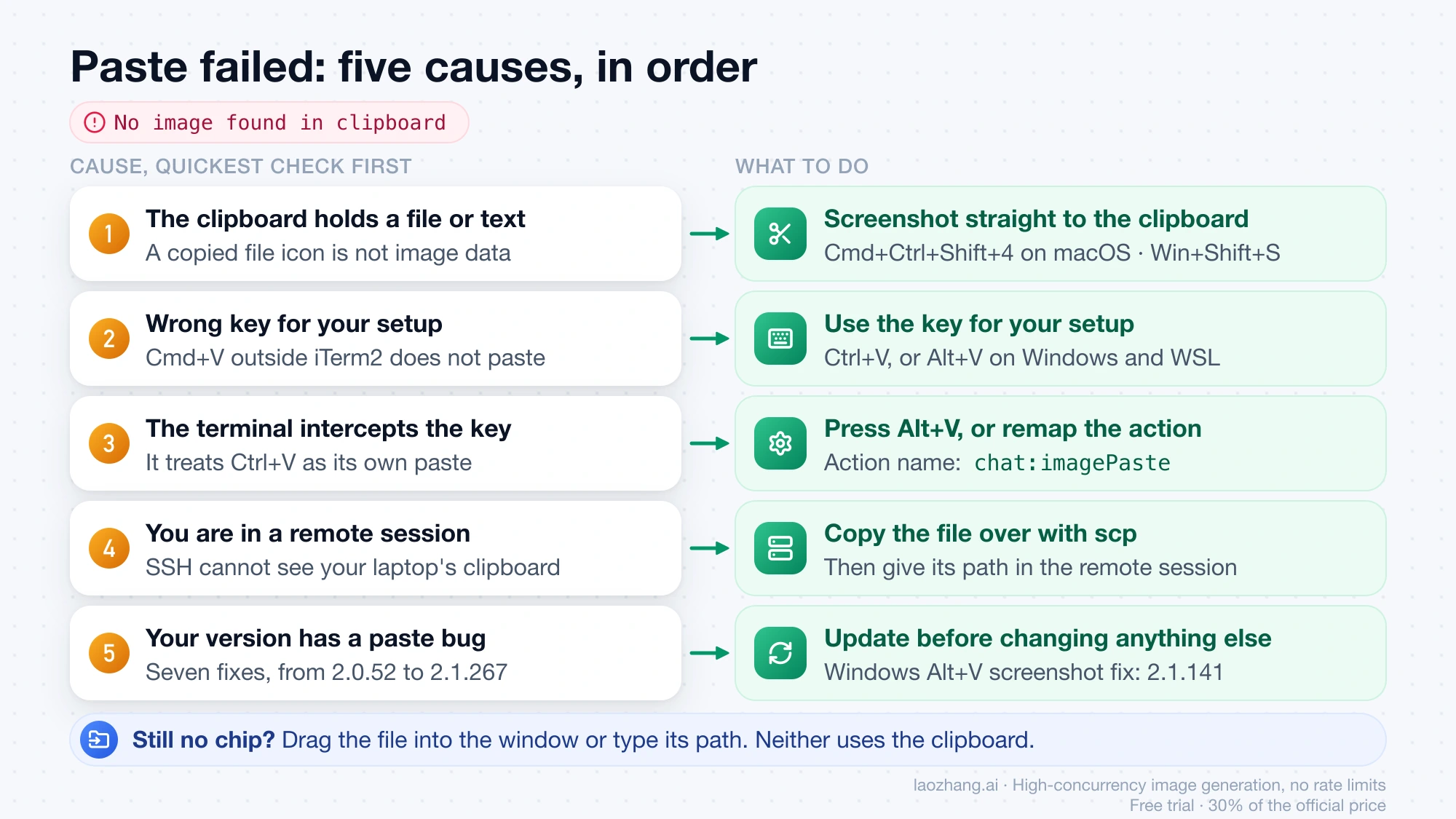
1. The clipboard holds a file or text, not image data. Copying a file icon in Finder or Explorer is not the same as copying pixels. Take the screenshot straight to the clipboard instead:
- macOS:
Cmd+Ctrl+Shift+4copies the selected area. Without Control,Cmd+Shift+4saves a file to disk and leaves the clipboard alone. - Windows:
Win+Shift+Scopies a snip to the clipboard.
If you already have a file on disk, do not fight the clipboard. Drag the file in or type its path.
2. You pressed the wrong key for your setup. Cmd+V outside iTerm2, or Ctrl+V in a Windows terminal that treats it as its own paste, will not trigger the image paste. Check your row in the table above.
3. The terminal is intercepting the key. This is the documented reason Alt+V exists on Windows and WSL. A GitHub issue reply from February 2026 puts it the same way: press Alt+V in the prompt, because Ctrl+V is often intercepted by the terminal. If your terminal has claimed the key for something else, you can either free it in the terminal's settings or remap Claude Code's side: the action is named chat:imagePaste in the keybindings reference.
4. You are in a remote session. Over SSH, the Claude Code process runs on the other machine and cannot see your laptop's clipboard. No key fixes this. See the SSH section below.
5. Your version has a paste bug that was fixed later. Several "no image found" cases were bugs, and the changelog names the release that fixed each one:
| Symptom | Fixed in |
|---|---|
| Paste does nothing on Linux under Wayland | 2.0.52 (falls back to wl-paste when xclip is unavailable) |
| WSL2 cannot read an image from the Windows clipboard | 2.1.136 (PowerShell fallback when xclip or wl-paste cannot read image data) |
Windows Alt+V reports "no image found" with a screenshot on the clipboard | 2.1.141 |
WSL Alt+V binding and screenshot paste on Windows 11 | 2.1.157 (also added dragging images from Windows Explorer) |
Ctrl+V shows "No image found in clipboard" when the clipboard contains text | 2.1.181 |
| Image paste add-on fails to load on Alpine/musl builds | 2.1.239 |
| VS Code on WSL2/WSLg inserts raw image bytes into the chat input | 2.1.267 |
If your installed version is older than the row that matches your symptom, updating is the fix, and it is worth doing before changing anything else.
Linux: the paste goes through xclip or wl-paste
On Linux, the release notes indicate that Claude Code reads the clipboard through an external helper. The 2.0.52 entry says image paste "now falls back to wl-paste when xclip is unavailable", and the 2.1.136 entry mentions the case where "xclip/wl-paste cannot read image data". Anthropic does not publish a requirements list for this, so treat it as a reading of the changelog: if neither xclip nor wl-paste is installed on a Linux desktop, an image paste has nothing to read the clipboard with. Installing the one that matches your display server (X11 or Wayland) is the step to try for "paste not working on Ubuntu".
Windows: cmd.exe, PowerShell and screenshot tools
The documented key on Windows is Alt+V, and the documentation does not distinguish between shells. One Chinese-language blog post from April 2026 reports that on Windows 11, Alt+V in cmd.exe could not paste a capture made with Snipaste and returned "No image found in clipboard", while the same paste worked in PowerShell. That is a single report, not a documented limitation. If you hit the same thing, try another shell or save the capture to a file and give its path.
Pasting over SSH: copy the file with scp, then give its path
A clipboard shortcut cannot work in an SSH session, because the image is on your local machine and Claude Code is reading the clipboard of the remote one. Since version 2.1.2, the error for this case suggests using scp instead of repeating the shortcut hint.
The pattern is to copy the file to the remote machine and then reference it. The host and paths below are placeholders:
# run on your local machine
scp ~/Desktop/error.png you@build-server:/tmp/error.png
Then, in the remote Claude Code session:
Here's a screenshot of the error: /tmp/error.png. What's causing it?How image paste behaves inside tmux is not described in the documentation. If you run Claude Code under tmux and the key does nothing, the path route is the dependable one.
VS Code extension, integrated terminal and the desktop app
"Claude Code in VS Code" can mean two different programs, and they take images differently.
In the extension's panel, the prompt box is a graphical input. The VS Code page says to attach an image by pasting it from your clipboard into the prompt box, and to attach files by holding Shift while dragging them in. No special key is named, so this is your normal paste shortcut. Click the X on an attachment to remove it from context.
In the integrated terminal, running claude gives you the command-line program, so the terminal rules apply: Ctrl+V on macOS and Linux, Alt+V on Windows and WSL. A paste that works in the panel and fails in the terminal next to it is usually this difference and nothing more. If you are also unsure which login that VS Code session is using, the steps are in Check Your Claude Code Account in VS Code.
In the desktop app, the Code tab has an attachment button next to the prompt box, and you can drag files directly onto the prompt. The desktop page lists images, PDFs and other files as attachable and does not mention pasting from the clipboard, so the button and drag and drop are the documented ways in.
Drag the file in or give its path when the clipboard fails
Both fallbacks work without the clipboard, which makes them the fix for every case above that has no key-based answer. Anthropic lists them alongside paste as the three ways to add an image:
- Drag and drop an image into the Claude Code window.
- Copy an image and paste it with
Ctrl+V, orAlt+Von Windows and WSL. - Provide an image path, for example "Analyze this image: /path/to/your/image.png".
The path route is the one that was run for this page: in the desktop app on macOS, Claude's Read tool loaded both files from their paths, and Claude described what was in each. Drag and drop was not run; it is documented, and since 2.1.2 an image dragged onto the terminal carries its source path with it.
For screenshots you take often, saving to a file is a reasonable habit rather than a workaround. On macOS, Cmd+Shift+4 writes the capture to disk, and you can drag it from there or type the path. A file also survives a session restart, which a clipboard does not.
Once the image is in, the prompts are ordinary ones. Anthropic's examples include "Here's a screenshot of the error. What's causing it?" and "Generate CSS to match this design mockup".
Version table: why older advice about the paste key conflicts
Most contradictory advice traces back to the version it was written for. The feature changed several times, and each row below is a one-line entry from the Claude Code changelog.
| Version | What changed |
|---|---|
| 0.2.59 | Copy and paste images directly into the prompt |
| 0.2.75 | Drag in or copy and paste image files |
| 1.0.93 | Windows: Alt+V added for pasting images |
| 2.1.0 | Cmd+V image paste in iTerm2 (mapped to Ctrl+V); macOS screenshot paste made more reliable with TIFF support |
| 2.1.2 | SSH error message now suggests scp |
| 2.1.83 | Pasted images insert an [Image #N] chip at the cursor |
| 2.1.132 | "Pasting…" footer hint while the clipboard is read |
| 2.1.275 | Pasted and attached images saved where Claude can open them as files, including in Desktop and VS Code |
So a guide that says "Ctrl+V on Windows" predates Alt+V, a guide that says "Cmd+V works on Mac" is describing iTerm2 after 2.1.0, and a guide with no mention of the chip was written before 2.1.83.
Image size and formats: what Anthropic has and has not stated
There is no published maximum file size or list of accepted formats for pasted images in the pages cited above. What exists is a set of changelog entries describing how large or broken images are handled:
- 2.1.0 fixed large pasted images failing with an "Image was too large" error.
- 2.1.97 made pasted and attached images compress to the same token budget as images read with the Read tool.
- 2.1.126 fixed a paste larger than 2000px breaking the session. Images are now downscaled on paste, and oversized images already in the history are removed and the request retried.
- 2.1.157 turned unprocessable images (zero-byte or corrupt) into a text placeholder instead of a crashed request.
The 2000px figure describes a past bug, not a documented limit. The practical reading is that on a current version a large screenshot is shrunk for you, so fine detail in a very large capture may be lost. Cropping to the part that matters before you copy it is the safer choice when small text has to be legible.
One widely shared post on X claims each paste costs roughly 1,000 to 3,000 vision tokens that are re-read every turn. Anthropic does not publish a per-image token figure for Claude Code, so take that as one person's estimate.
Questions that come up after the first paste
How can I insert screenshots into Claude Code without saving a file?
Copy the screenshot to the clipboard and use the image paste key. On macOS, Cmd+Ctrl+Shift+4 copies a selected area, then Ctrl+V in Claude Code attaches it. On Windows, Win+Shift+S copies a snip, then Alt+V attaches it.
How do I paste an image in Claude Code in PowerShell?
Use Alt+V. Anthropic documents it for Windows and WSL without naming a shell. If it returns "No image found in clipboard", check that your version is at least 2.1.141, which fixed that message for screenshots, then fall back to a file path.
Does image paste work in Ghostty?
Anthropic's documentation names only iTerm2 as a terminal with its own mapping, so Ghostty-specific behavior is not documented. Try Ctrl+V with the Control key first. If Ghostty has that key bound to something else, either remap the chat:imagePaste action or drag the file in.
Can Claude Code also generate images?
Reading an image you paste and producing a new one are separate capabilities. For the second, see How to Use Claude Code for Image Generation.