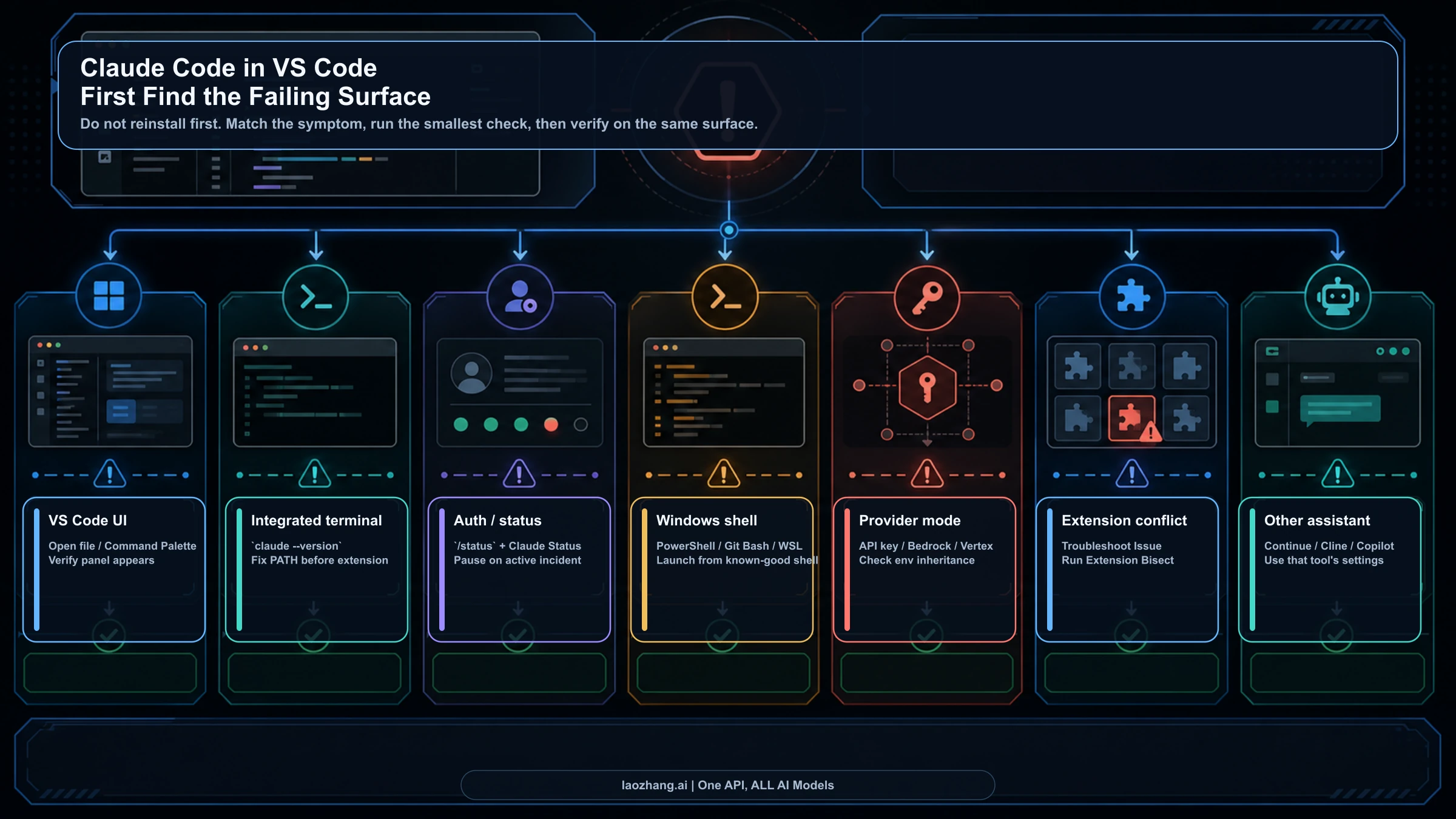
Claude Code in VS Code usually fails on a surface you can prove: the official extension UI, the integrated terminal, login or status, Windows shell state, provider configuration, VS Code extension state, performance stability, or a different assistant. Start by matching the visible symptom before you reinstall VS Code, downgrade the extension, or change credentials.
| What you see | Next owner to test | First check | Verify or stop |
|---|---|---|---|
| Spark icon, panel, or command is missing | Official Claude Code extension UI | Open a file, try the Status Bar or Command Palette, then run Developer: Reload Window. | Claude Code command and panel appear in VS Code. |
claude is missing in the integrated terminal | CLI, PATH, or install route | Run claude --version; launch VS Code from a shell that already sees claude. | claude doctor works from the VS Code terminal. |
| Login loops, no response, or incident-like behavior | Session and service status | Run /status, check Claude Status, then logout/login only after the UI path loads. | Retry after an active incident clears, or collect logs if status is green. |
| Panel opens but freezes, burns CPU, or keeps refilling context | Performance and stability | Start a fresh conversation or restart Claude Code, use /compact, and keep oversized build output out of context. | The same task responds normally; if memory stays high, collect /heapdump evidence. |
| Windows, Git Bash, WSL, or PowerShell behaves differently | Shell ownership | Compare PowerShell, Git for Windows, Git Bash, WSL, and the launch context. | External shell and VS Code terminal see the same claude path. |
| API key, Bedrock, Vertex, or Foundry is involved | Provider mode | Check ANTHROPIC_API_KEY and provider-specific configuration before changing the extension. | VS Code inherits the intended provider route. |
| Other extensions or workspace trust look suspicious | VS Code environment | Disable extensions, use Help: Troubleshoot Issue, then run Extension Bisect. | The conflict or Restricted Mode boundary is isolated. |
| Continue, Cline, Roo Code, Copilot Chat, or another assistant is failing | Third-party VS Code assistant | Leave the Claude Code branch and inspect that tool's model/provider settings. | Official Claude Code docs no longer own the next fix. |
If the first branch fails, keep the evidence narrow: Claude Code version, VS Code version, OS, install method, exact command output, Claude Status timestamp, provider route, memory or heap evidence, and the relevant Claude Code log. That packet is more useful than reinstalling everything twice.
Repair the official VS Code extension UI
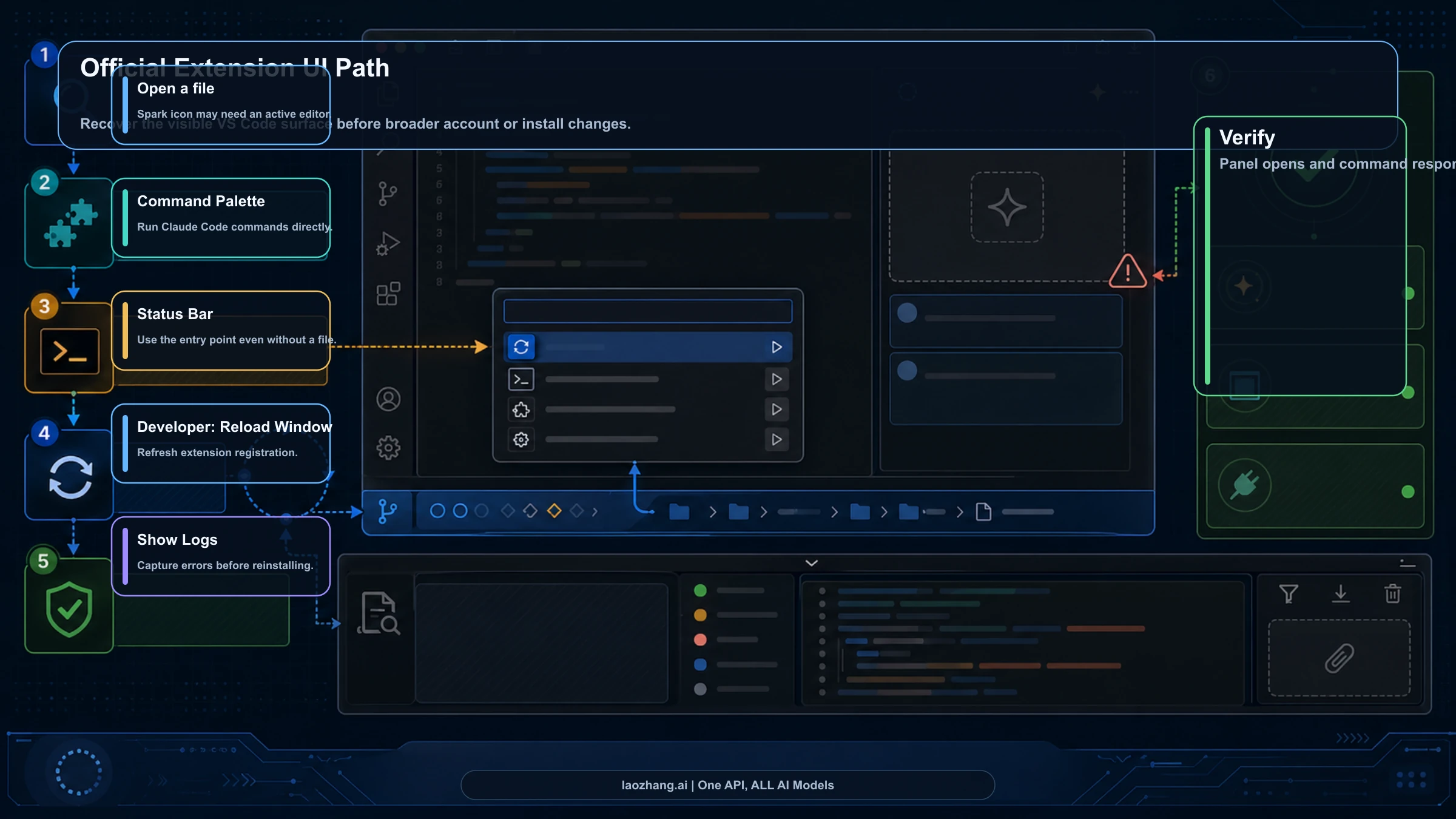
If the Spark icon, sidebar panel, or Claude Code command is missing, stay inside the VS Code UI branch first. Anthropic's Claude Code VS Code docs say the official extension requires VS Code 1.98.0 or newer, can be installed from the Marketplace or Extensions view, and may need Developer: Reload Window when it does not appear after installation. That is a cheaper test than reinstalling VS Code.
Use three entry points before you assume the extension is broken. Open a file because the Spark icon can depend on an active editor. Try the Status Bar entry because it can work without an open file. Then use the Command Palette and search for Claude Code commands. If those routes do not appear, reload the VS Code window and check the Claude Code logs from the command list.
The verification is concrete: after the reload, the Claude Code panel or command should appear in the same VS Code window. If it appears and then login fails, move to the auth/status branch. If it appears only with extensions disabled, move to the conflict branch. If it still does not appear, record VS Code version, extension version, install method, and log output before escalating.
Do not make rollback the first UI fix. Community reports about command-registration failures can be useful when the exact command name and version match, but they are dated branch evidence. Official low-cost checks should happen first: open the right surface, reload, inspect logs, and verify whether the command path exists.
Prove the CLI from the integrated terminal
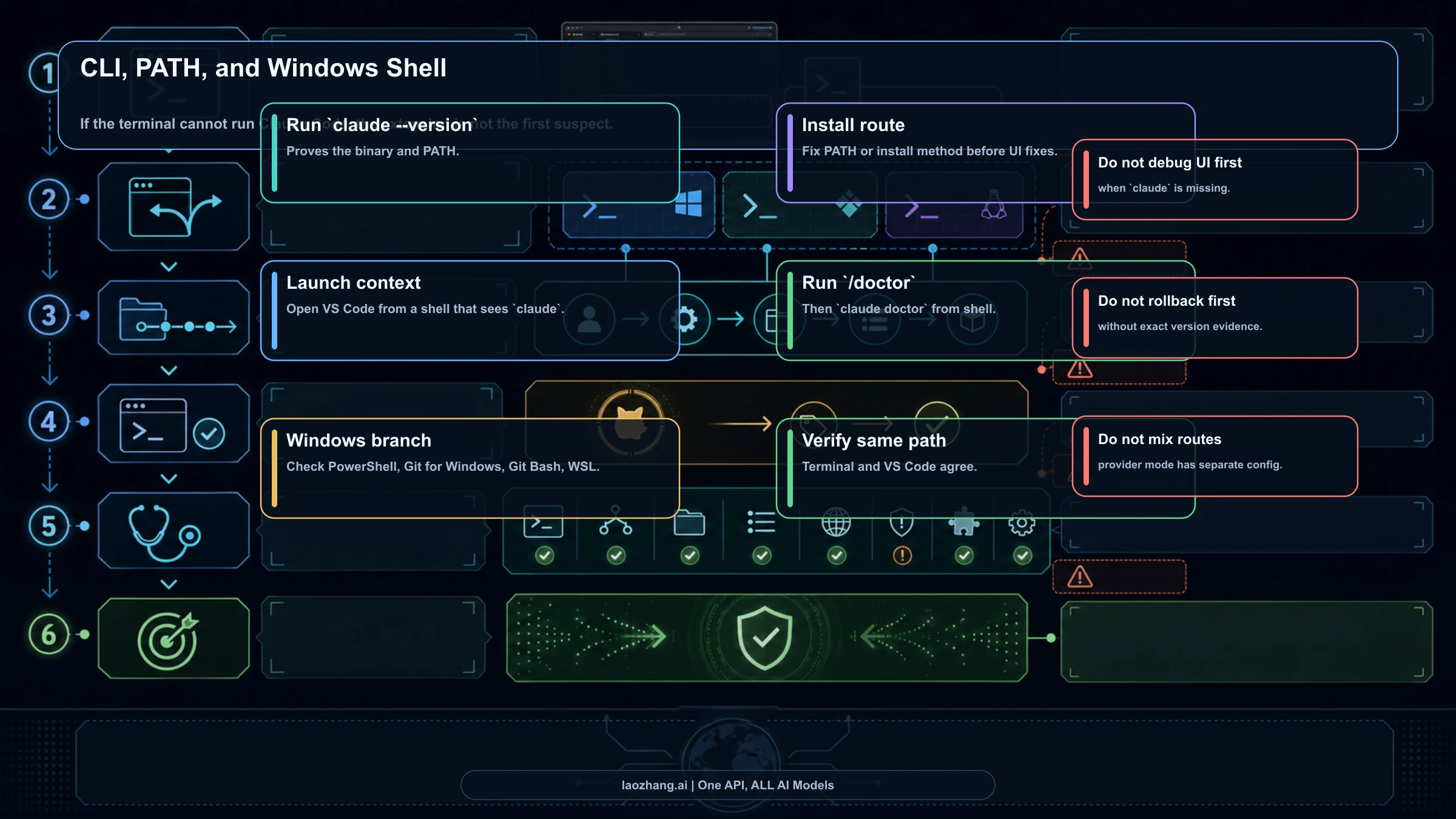
The integrated terminal is the fastest way to separate extension UI trouble from a missing Claude Code binary. Run:
bashclaude --version
If the command is not found inside VS Code, do not keep changing extension settings. You are in the CLI, PATH, shell, or install branch. Launch VS Code from a shell that already sees claude, then run the same command in the integrated terminal. If the external shell works but the VS Code terminal does not, the launch context or shell profile is the owner.
After claude --version works, run the official diagnostics. Anthropic's troubleshooting docs recommend /doctor inside Claude Code or claude doctor from the shell when the failure owner is unclear. Use them as proof, not as decoration. A useful result is not "I tried doctor"; it is "doctor passed from the same terminal that was failing" or "doctor still reports this exact install or login issue."
If the CLI is still missing, route to the Claude Code install guide instead of forcing the VS Code article to become an install tutorial. The repair job here is to classify the failing surface. If the binary does not exist, the next branch belongs to installation and shell setup.
Handle Windows shell and PATH mismatches
Windows failures often look like extension failures because the visible error appears inside VS Code. The branch owner can still be PowerShell, Git for Windows, Git Bash, WSL, PATH, or the way VS Code was launched. Anthropic's install and login troubleshooting docs explicitly call out Windows shell and PATH checks, plus claude --version as the binary-health proof.
Use a two-column comparison. In an external shell, run claude --version. In the VS Code integrated terminal, run the same command. If PowerShell works but Git Bash does not, or WSL works but the Windows terminal does not, fix that shell route before you blame the extension. If neither works, the install route owns the problem.
The safest Windows order is:
- Confirm Git for Windows or the intended shell is installed and available.
- Launch VS Code from the shell where
claudealready works. - Verify the integrated terminal sees the same path.
- Run
claude doctor. - Return to the extension UI only after the terminal path is healthy.
This branch also protects provider configuration. If your shell contains ANTHROPIC_API_KEY, Bedrock, Vertex, Foundry, or gateway variables, VS Code may not inherit them the way you expect. Shell health and provider ownership are related, but not identical. Prove the binary first, then prove the route.
Separate login, Claude Status, and provider mode
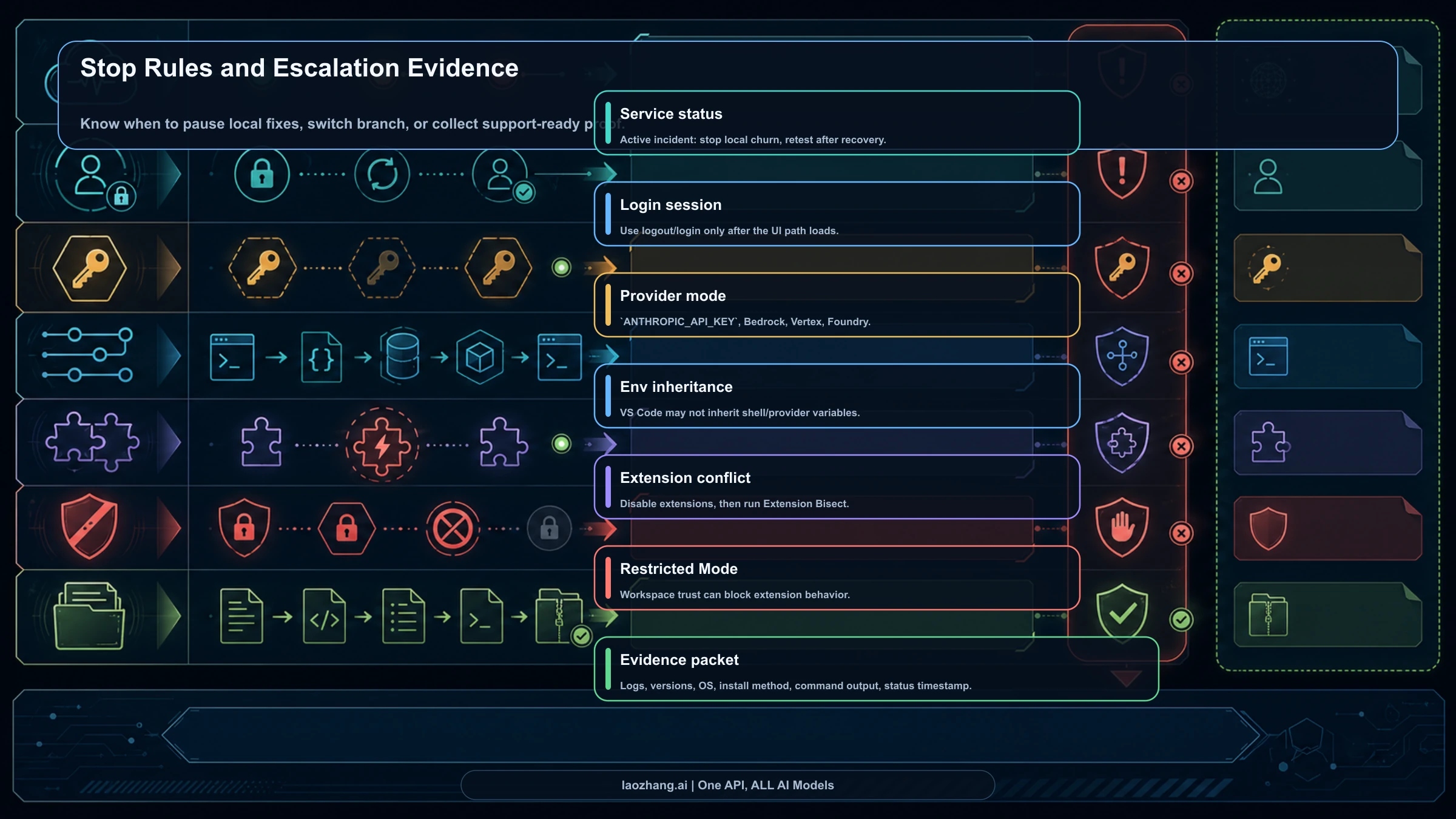
Login loops and no-response behavior need a different first move than missing UI or missing CLI. Run /status when the Claude Code surface loads far enough to accept commands, then check Claude Status. At the May 2, 2026 refresh check, Claude Status reported no incidents for May 2 or May 1, while recent resolved incidents on April 28-30 had affected Claude.ai, API behavior, authentication, model error rates, and Claude Code login paths. That combination is the important boundary: current status is a dated branch signal, not proof that your local VS Code state is healthy.
If a relevant incident is active, stop local churn. Do not reinstall, downgrade, rotate credentials, and disable random extensions during an active service or login incident. Keep the timestamp and retry the same intended path after recovery. If status is green and the same path still fails, now local UI, CLI, session, provider, or VS Code state becomes more likely.
Provider mode is another separate branch. If ANTHROPIC_API_KEY, Bedrock, Vertex, Foundry, or a compatible gateway is involved, the next owner may be credential precedence or environment inheritance rather than the official extension UI. Use the Claude Code API configuration guide when you need to audit route variables, settings files, or provider selection. Use the API key vs subscription billing guide when the real question is which account or meter owns the session.
The practical test is narrow: confirm /status, confirm the intended auth or provider owner, restart VS Code from a shell with the intended environment, and rerun the same task. If that fixes the problem, you had a route mismatch. If it does not, collect the route evidence before escalating.
Handle freezes, high memory, and context thrash
An open Claude Code panel that freezes is not the same failure as a missing panel. Anthropic's troubleshooting docs route high CPU or memory usage, command hangs, auto-compaction thrashing, and search problems to the performance and stability branch once Claude Code is already running.
Use the cheapest recovery path first. Start a fresh conversation or restart Claude Code between large tasks, run /compact when the context is too full, and keep large build directories, generated files, and huge logs out of the context path. If the command itself hangs, try Ctrl+C; if that does not respond, close the terminal or Claude Code session, restart, and resume the same directory with claude --resume.
The escalation point is also specific. If memory remains high after restart and compaction, run /heapdump and attach the heap snapshot plus memory breakdown when reporting the issue. If the freeze disappears only when other VS Code extensions are disabled, move to the conflict branch. If the same task fails while Claude Status has an active incident, stop local debugging and retest after recovery.
Isolate VS Code conflicts and Restricted Mode
VS Code can own the failure even when Claude Code is installed correctly and the CLI is healthy. Extension conflicts, special profiles, workspace trust, and Restricted Mode can all change the extension path. Anthropic's VS Code docs call out Restricted Mode as a possible blocker, and VS Code's own troubleshooting tools are built for this exact kind of local isolation.
Start with a reversible isolation pass:
bashcode --disable-extensions
If Claude Code works when other extensions are disabled, the official extension is not the first suspect anymore. Use the Command Palette path for "Disable All Installed Extensions" or Help: Troubleshoot Issue, then run Extension Bisect to locate the conflicting extension. Do not manually uninstall half your editor if VS Code can binary-search the conflict.
Workspace trust is different from a generic conflict. If the workspace is restricted, the extension may not get the capabilities it needs. Trust the workspace only when you understand the repository and local policy. The verification remains the same: after the trust or conflict change, the Claude Code command, panel, and terminal route should work in the same workspace.
Treat version regressions as narrow evidence
Version-specific breakage is real, but it is not a universal fix strategy. The visible community evidence for this topic includes command-registration errors such as command 'claude-vscode.editor.openLast' not found, sidebar loading failures, and Windows-specific reports where the CLI still worked outside the VS Code extension. Those reports are useful because they give symptom language and version clues.
They do not replace official branch checks. A regression branch should only activate when three things match:
- the exact command or panel symptom
- the extension or Claude Code version range
- the platform and shell context
When those match, capture logs, version, VS Code version, OS, and the exact command error. Then check whether the current release has already fixed the issue. Temporary rollback can be reasonable in a controlled local environment, but it should be recorded as a version-regression workaround, not as the default answer for everyone who sees "Claude not working" in an editor.
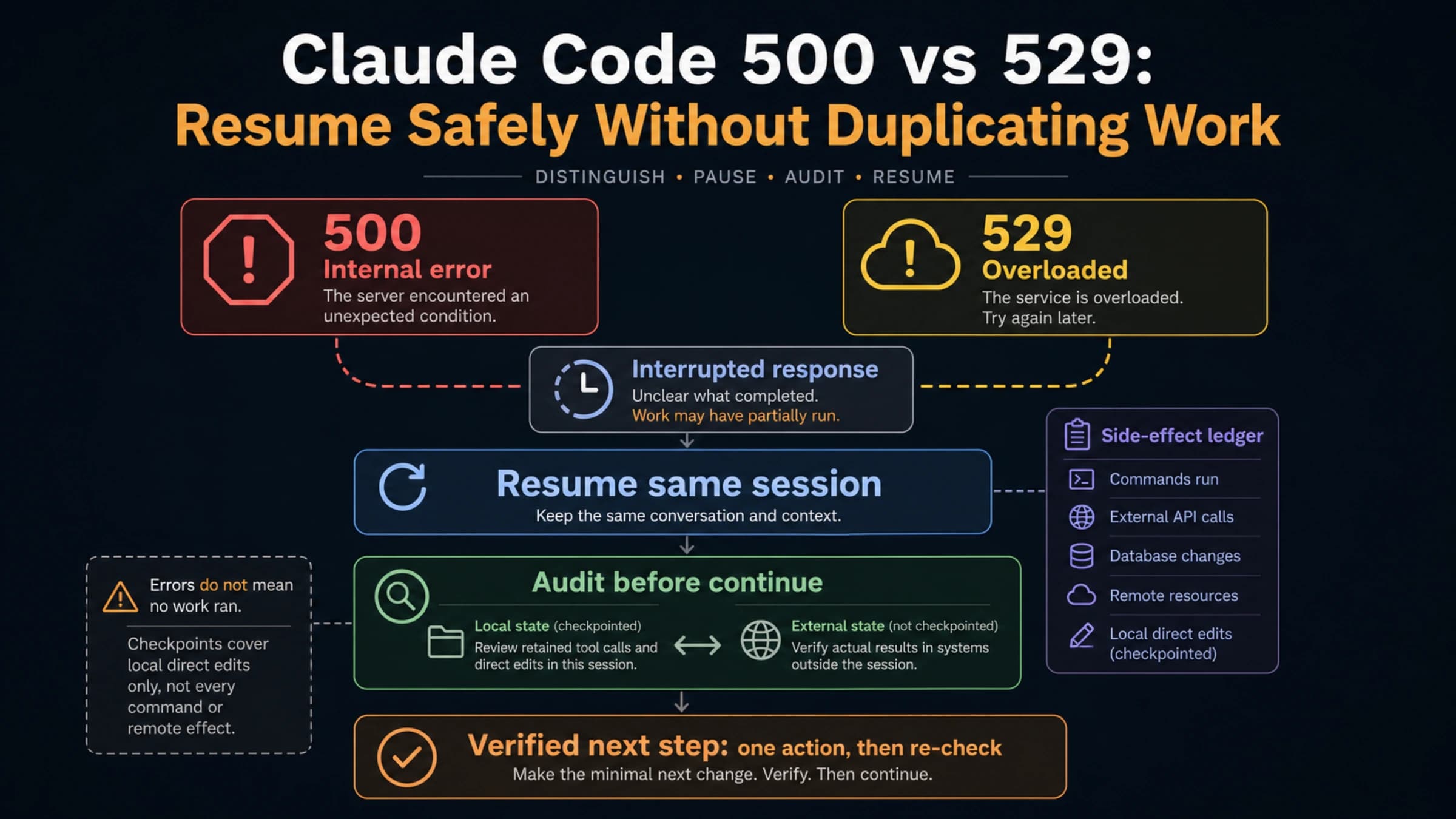
If the exact error is actually API Error: 500, switch to the Claude Code API error 500 guide. If the exact symptom is overloaded traffic or 529, use the Claude Code overloaded error guide. If the deeper issue is shared quota or limit drain, use the Claude Code usage limits guide.
Leave the Claude Code branch when another assistant owns it
The broad complaint can hide a simple ownership mistake: the failing tool may not be the official Anthropic Claude Code extension. Continue, Cline, Roo Code, Copilot Chat, and other VS Code assistants can all route to Claude models through their own provider settings. Their UI failures, model dropdown issues, API key fields, or gateway errors are not fixed by Claude Code docs.
The exit rule is simple. If the panel, command, or settings surface belongs to another extension, stop applying Claude Code-specific commands. Check that extension's model provider, key, base URL, workspace permissions, and logs. If the tool uses the Anthropic API directly, its failure may belong to the app's provider configuration or to Anthropic API status, not to Claude Code's VS Code integration.
This distinction is not pedantic. It prevents destructive fixes. Removing the official Claude Code extension will not fix a broken Continue provider setting. Rotating an API key will not make the Claude Code Spark icon appear. Matching the owner first is what makes the recovery path fast.
Verify the fix and escalate with a useful packet
A good verification step repeats the same intended surface after one branch-specific change. A bad verification step changes version, shell, auth, route, workspace, and task shape at once, then leaves you with no signal.
Use this escalation packet only after the same branch still fails:
- Claude Code version and extension version
- VS Code version
- OS and shell, including PowerShell, Git Bash, WSL, or launch context
- install method and whether
claude --versionworks inside the VS Code terminal /status,claude doctor, or/doctoroutput, with secrets removed- Claude Status timestamp and whether an incident was active
- provider route, such as subscription login,
ANTHROPIC_API_KEY, Bedrock, Vertex, Foundry, or gateway - Claude Code logs and the exact command or panel error
That packet is short because the branch work already did the sorting. "Status green, claude --version works inside VS Code, official command missing after reload, logs attached" is actionable. "Claude is broken in my editor and I reinstalled a lot of things" is not.
The stop rule is also clear. If the evidence points to a service incident, wait. If the terminal cannot see the binary, fix install or PATH. If provider mode owns the route, fix credential precedence. If another assistant owns the UI, leave the Claude Code path. If the official extension still fails after those branches are clean, escalate with the packet above.
Frequently Asked Questions
Why is Claude Code not showing in VS Code?
Start with the official extension UI branch. Open a file, try the Status Bar and Command Palette, then run Developer: Reload Window. If the command still does not appear, confirm VS Code is 1.98.0 or newer, check the Claude Code logs, and verify whether Restricted Mode or an extension conflict is blocking it.
Why does claude work in my external terminal but not inside VS Code?
That usually means VS Code was launched from a different shell context or did not inherit the same PATH. Open VS Code from the shell where claude --version works, then retest in the integrated terminal. On Windows, compare PowerShell, Git Bash, WSL, and Git for Windows before changing extension settings.
Should I reinstall VS Code when Claude Code stops working?
Usually no. Reload the VS Code window, check Command Palette and Status Bar entry points, verify claude --version, run doctor diagnostics, and isolate extension conflicts first. Reinstalling early removes evidence and often does not touch the real branch.
Can Claude Status be green while the VS Code extension still fails?
Yes. Status only rules out the active service-incident branch at that moment. A green status page does not prove the local VS Code extension, shell PATH, provider environment, workspace trust, or third-party assistant settings are healthy.
Is an API key required for Claude Code in VS Code?
Not for the normal subscription-login route. API keys matter when you deliberately use provider mode, direct Anthropic API routing, Bedrock, Vertex, Foundry, or a compatible gateway. If ANTHROPIC_API_KEY is present, verify the active route before assuming subscription login owns the session.
What if Claude Code opens but freezes or uses too much memory?
Treat that as performance and stability, not as a missing-extension problem. Start a fresh conversation, restart Claude Code, compact the context, exclude oversized build output, and collect /heapdump evidence only if memory remains high after those cheaper checks.
When is extension rollback worth trying?
Only when the exact command or panel error, platform, and version range match a known regression. Try official checks first: reload, logs, CLI proof, status, and extension isolation. If you do roll back for a confirmed regression, keep version evidence and update again when the fix is released.