OpenClaw + laozhang.ai Setup Guide: Configure and Verify Your Custom Provider
Add laozhang.ai as an OpenClaw custom provider using https://api.laozhang.ai/v1 and the openai-completions adapter, then select an accessible model. A configured entry is only the first step: the Gateway must resolve its API key, and the agent and session must actually use that route.
On this page
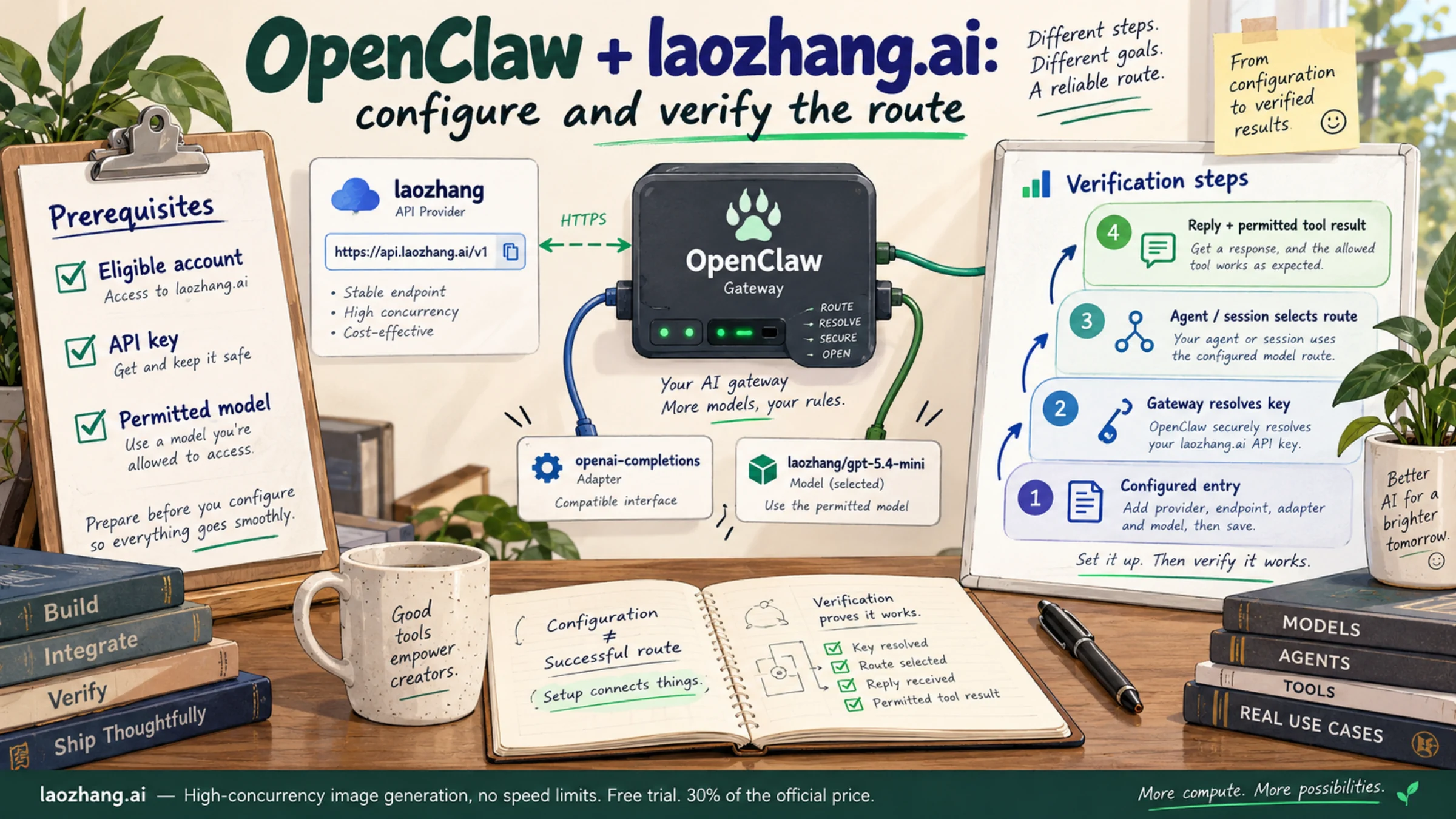
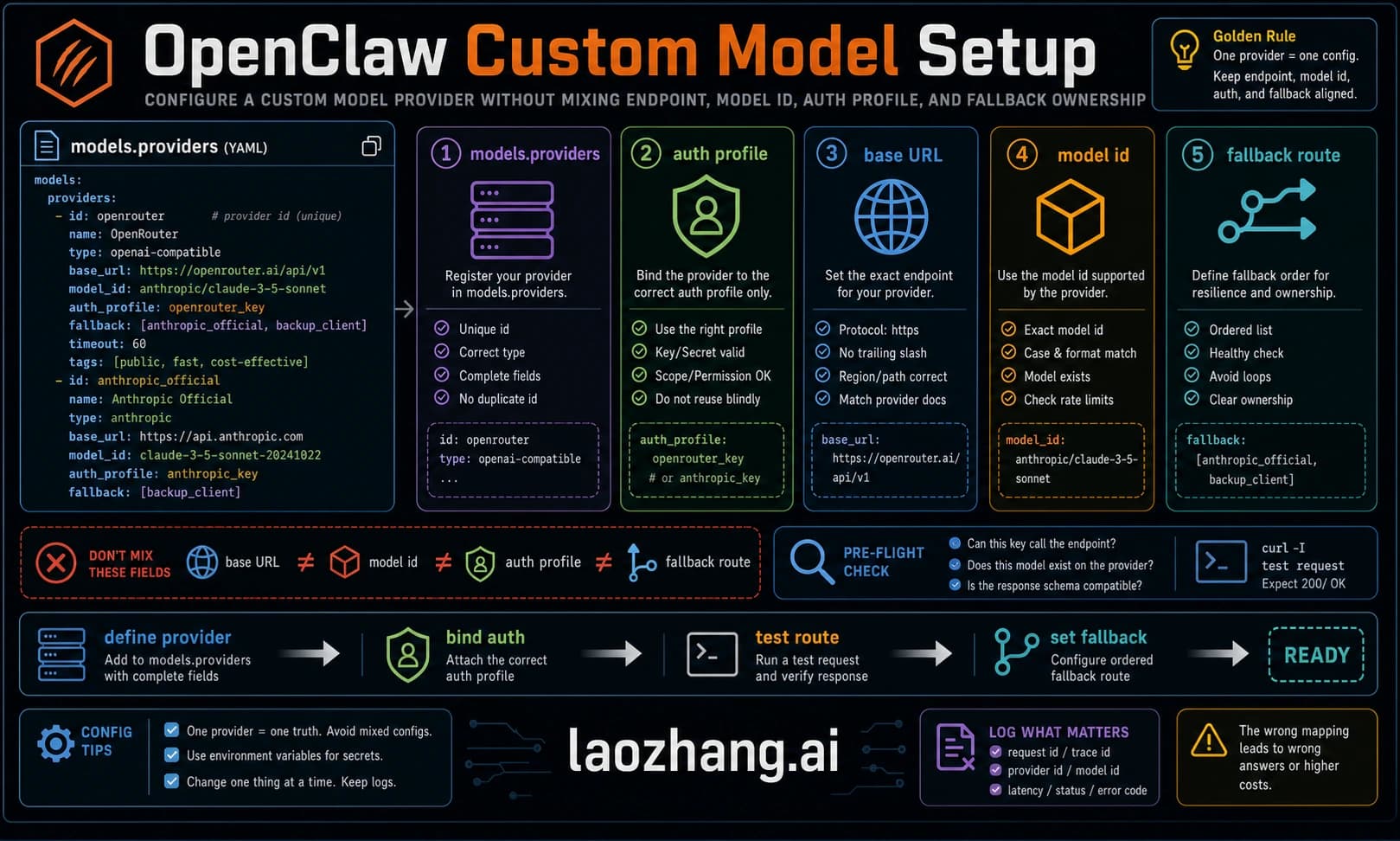
To connect OpenClaw to laozhang.ai, add a laozhang entry under models.providers, set baseUrl to https://api.laozhang.ai/v1, use the openai-completions adapter, and select a model through its full reference, such as laozhang/gpt-5.4-mini. The API key must be available to the process running the OpenClaw Gateway. After saving, check the effective agent and session model before treating a reply as confirmation of this connection.
Disclosure: laozhang.ai is our own service. Its prices are platform pricing, not an independent comparison.
This guide assumes OpenClaw is already installed. It uses LaoZhang's documented Chat Completions route and a model named in its tool-integration guidance. As of October 7, 2026, new LaoZhang access requires enterprise whitelist approval, and its public catalog says Claude models are temporarily offline. The old promises of instant registration, free signup credits, and access to every advertised model do not establish current eligibility. Start with the current access requirements and your token's permitted group.
The configuration below is a documentation-based example. Its JSON and cost calculation were checked offline; we have not run an OpenClaw session, authenticated provider request, or tool test for this article.
What you need from LaoZhang before editing OpenClaw
Have an eligible account, an API key, and the exact ID of a model that your token can access. An account AccessToken is a different credential from an API key. LaoZhang documents Bearer API-key authentication for its OpenAI-compatible endpoints; copying the wrong credential into OpenClaw will not authenticate the model request. See its connection and authentication manual.
Disclosure: laozhang.ai is our own service. Its prices are platform pricing, not an independent comparison.
For the first configuration, use gpt-5.4-mini if it is available to your token. It appears in the default-group catalog and in LaoZhang's Chat Completions tool-integration guidance. That makes it a documented starting point for an agent connection, rather than a claim that it is the best model for every coding task. The provider reports its own streaming tool checks; those checks do not demonstrate that your OpenClaw version, tool settings, and token work together. Model catalog, tool-integration guidance.
Keep these names distinct:
| Value | Where it belongs | What it means |
|---|---|---|
laozhang | Key under models.providers | Your local provider name in OpenClaw |
gpt-5.4-mini | A provider model's id | The model identifier sent to LaoZhang |
laozhang/gpt-5.4-mini | Agent defaults or session model selection | OpenClaw's complete provider/model reference |
https://api.laozhang.ai/v1 | Provider baseUrl | API base, without the individual request endpoint |
openai-completions | Provider api | OpenClaw's adapter for Chat Completions |
An entry in LaoZhang's public catalog is not permission for your token. The catalog includes image, audio, embedding, and video products as well as text models; its total is not a count of interchangeable OpenClaw agent models. Check group access and the required protocol for the specific model you intend to use.
Add the provider and choose a default model
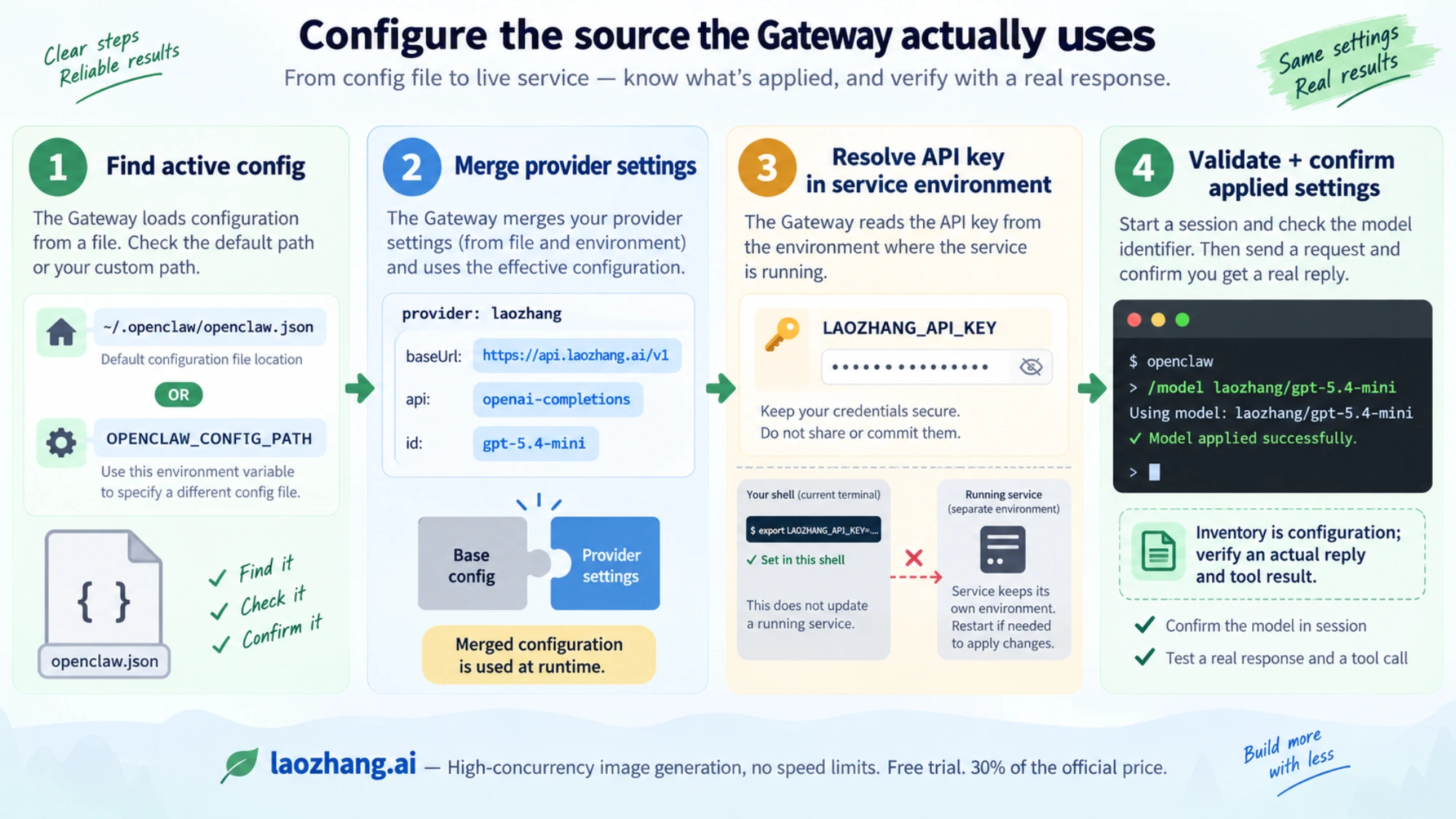
OpenClaw's default configuration file is ~/.openclaw/openclaw.json. A deployment can use another file through OPENCLAW_CONFIG_PATH, and some configurations split settings across included files. Edit the configuration actually used by your Gateway, preserving its existing agents, channels, tools, and other providers. OpenClaw accepts JSON5, but still validates field names and types strictly. Configuration documentation.
Merge the following settings into that configuration. This is a fragment for an existing installation, not a replacement for its entire file. If you already have models or agents objects, combine their contents rather than creating duplicate keys.
{
  "models": {
    "mode": "merge",
    "providers": {
      "laozhang": {
        "baseUrl": "https://api.laozhang.ai/v1",
        "apiKey": "${LAOZHANG_API_KEY}",
        "api": "openai-completions",
        "models": [
          {
            "id": "gpt-5.4-mini",
            "name": "GPT-5.4 Mini via LaoZhang"
          }
        ]
      }
    }
  },
  "agents": {
    "defaults": {
      "model": {
        "primary": "laozhang/gpt-5.4-mini"
      }
    }
  }
}
mode: "merge" makes the intended behavior explicit. Merge is already the default; omitting that setting does not automatically remove built-in providers. Use replace only when you deliberately want to replace the model inventory. OpenClaw also supports per-agent models.json files, so an existing matching provider there can affect the effective configuration. Custom-provider documentation.
If requests keep going to an old endpoint, inspect the matching provider in the intended agent's models.json: a nonempty baseUrl there can take precedence during the merge. Credential merging also treats SecretRef-backed keys specially, so do not solve an endpoint mismatch by copying a plaintext key into every file. Identify the setting that controls the effective provider and correct that source.
The capitalization matters: use baseUrl. Keep /v1 once in the base URL. Do not put /chat/completions into this field; the adapter supplies the request endpoint.
This example deliberately declares one model. Add other model entries only after checking their exact LaoZhang IDs, token groups, and protocol requirements. A display name, an alias, or a familiar upstream model name cannot substitute for the id accepted by the gateway.
Make the key available to the Gateway process
The placeholder ${LAOZHANG_API_KEY} is resolved from OpenClaw's environment. Set the real key through the environment mechanism used by your Gateway deployment. For example, a private ~/.openclaw/.env file can contain this entry, with the placeholder replaced locally:
LAOZHANG_API_KEY=REPLACE_WITH_YOUR_LAOZHANG_API_KEYKeep that file out of version control and do not print the key or paste it into chat. OpenClaw reads the parent process environment, a .env in its working directory, and the global ~/.openclaw/.env; environment files do not override values already set. A stale parent-process value can therefore take precedence over the key you just put in an environment file. Environment-variable documentation.
Exporting a variable in another terminal does not update a Gateway already running under launchd, systemd, or a container. Supply the variable to the service that launches the Gateway, and apply any restart required by that service's environment change. Missing or empty variables remain unresolved with a warning. Check the variable's availability and source without exposing its value.
Confirm that the edit was accepted
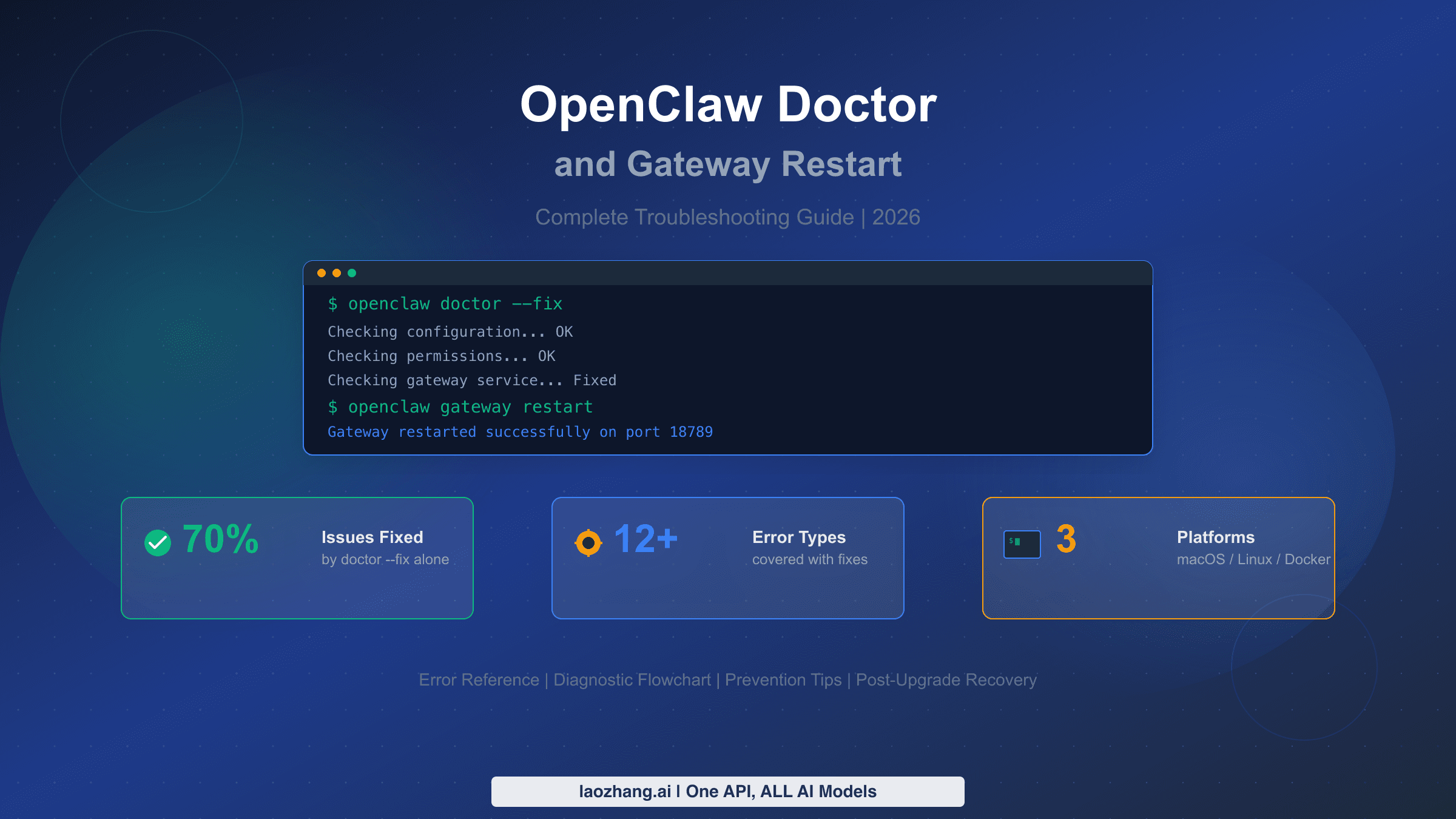
OpenClaw documents openclaw config validate for checking configuration validity. A successful validation is useful, but it does not call LaoZhang or prove that a key is valid. Do not use doctor --fix as a harmless synonym: it performs repairs. Configuration documentation.
Provider, model, default, and fallback changes can hot-apply. With the default hybrid reload mode, a routine model edit does not always require a manual Gateway restart; with reload disabled, it waits for one. An invalid external edit can leave the Gateway using its last valid configuration. Confirm that the intended change was applied rather than assuming that saved file contents are the running settings. Hot-reload behavior.
Verify the route before trusting a successful reply
A working chat can still be using another provider. Check the connection in stages so that each result answers a specific question.
- Is the model registered? The documented
openclaw models list --provider laozhangcommand shows the provider's configured inventory. Findinglaozhang/gpt-5.4-miniconfirms an entry exists; it does not prove access or a successful request. - What will this agent select? Check its effective default and any agent-specific override.
openclaw models statusdescribes configuration and authentication state, but a listed credential source is not a live authentication result. - What has this session selected? In the intended chat, use
/model laozhang/gpt-5.4-minito select the route explicitly. A session pin can override a changed default./model defaultclears that pin when you want the session to follow the default again. - Does the selected route answer? Send a small text request in that session, then inspect the session's actual model information or relevant run record. A response plus confirmation of the LaoZhang provider/model is the meaningful result; asking the model to identify itself is insufficient.
- Does the agent complete a permitted tool task? Use a small read-only task with a tool already enabled for this agent—for example, asking it to read a harmless workspace file and report one fact. Confirm a tool invocation, its result, and the final answer. Describing what a tool would do does not show that it ran.
The first two stages are configuration observations. The last two involve model requests and can consume credits; the tool stage also requires the agent's existing permission. This article has not performed those requests. Model selection, models CLI.
If you choose the CLI's models status --probe route, treat it as a separate live diagnostic. It makes real calls and requires exclusive ownership of the state: stop the Gateway, avoid concurrent access, and let the probe finish cleanup before restarting. Ordinary status output, including a successful --check exit, is not equivalent to that probe. The models scan command targets OpenRouter's free-model inventory; its default workflow can make live checks and write configuration. It is not a LaoZhang discovery or tool-compatibility test. CLI details.
For a broader choice between hosted providers, local models, and fallback strategies, use the OpenClaw LLM setup guide. The steps here focus on confirming this specific LaoZhang connection.
Fix authentication, model selection, and tool failures
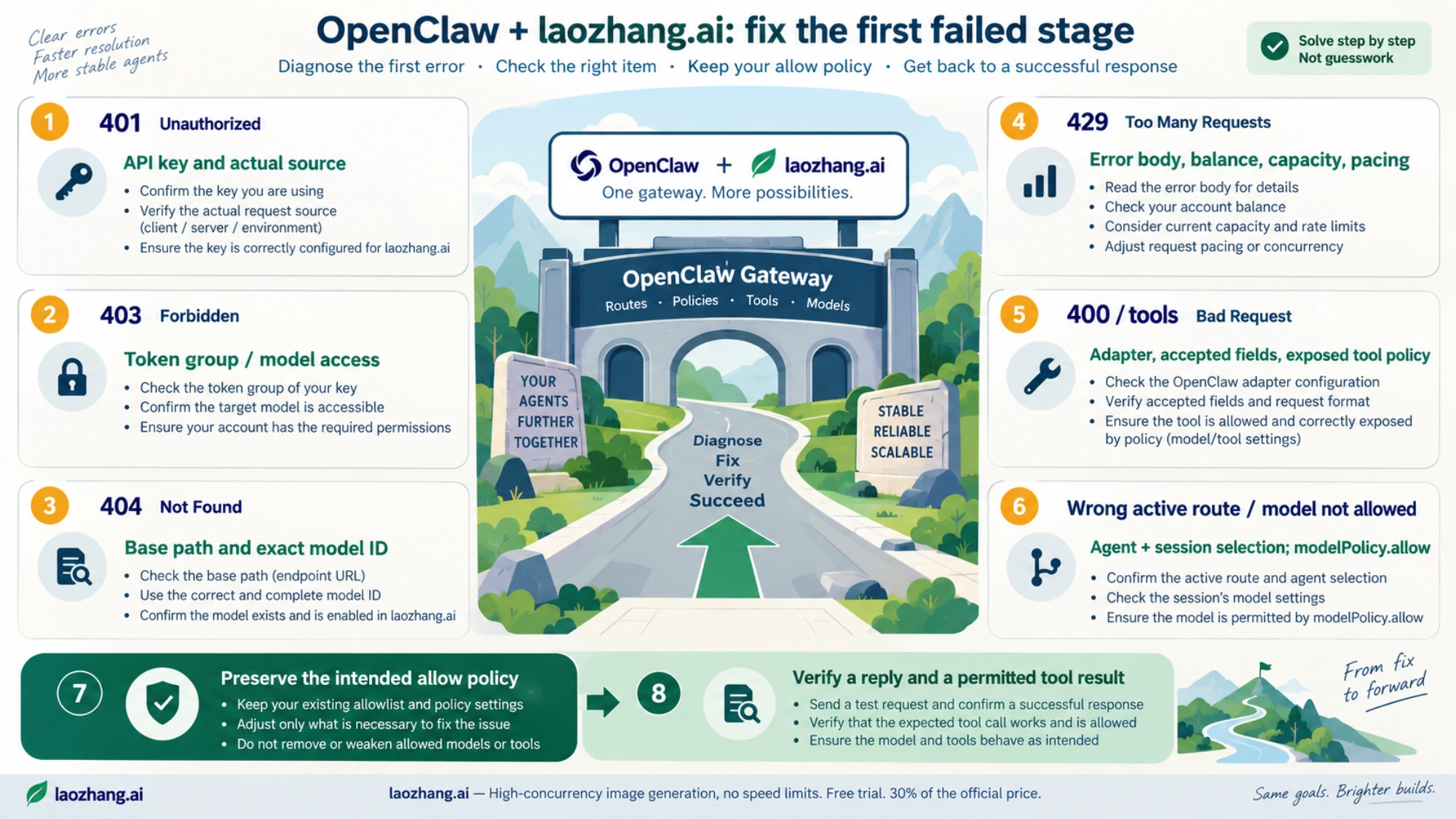
Troubleshoot the first stage that fails. Changing model prices or adding fallbacks will not fix an unresolved key; changing the key will not clear a session pinned to another provider.
| Symptom | First thing to check | Next action |
|---|---|---|
| No LaoZhang model in the inventory | Actual configuration path, models.providers.laozhang, and the model array | Correct the declaration and confirm the edit was accepted. Do not infer an upstream outage from a missing local entry. |
| Model is listed, but chat uses another provider | Agent override, current session pin, and applied runtime settings | Select the full LaoZhang reference in the intended session; clear the pin with /model default when returning to defaults. |
401 | API key versus account AccessToken; the key source available to the Gateway | Correct the credential at its actual source. A variable in an unrelated shell is insufficient. |
403 | Token group and permissions for the requested model | Use a permitted model or resolve the account/group restriction. A catalog listing does not bypass it. |
404 | Base path and exact upstream model ID | Keep https://api.laozhang.ai/v1 as the base, avoid a duplicated endpoint, and check the current catalog and token access. |
429 | Error body, usage balance, capacity, and request rate | Address the stated cause. Do not assume every 429 is a rate limit or keep retrying a billing restriction. |
400 after switching models | Unsupported parameters, token limit, context length, or adapter mismatch | Match the request to the model's documented protocol and accepted fields before trying a larger request. |
5xx or timeout | Provider service response and the network path from the Gateway | Separate a service failure from a connection failure, and avoid rapid repeated calls. |
Disclosure: laozhang.ai is our own service. Its prices are platform pricing, not an independent comparison.
The HTTP distinctions above follow LaoZhang's API manual. Keep the relevant error text when diagnosing a request, but redact credentials before sharing logs.
“Model not allowed” needs a policy check
Current OpenClaw uses agents.defaults.modelPolicy.allow, a string array of permitted model references, for explicit default restrictions. The agents.defaults.models map holds aliases and settings. This policy distinction was introduced in v2026.8.1. Add the exact laozhang/gpt-5.4-mini reference to your existing allowed entries. An agent's own modelPolicy.allow can replace the default policy for that agent, so check that override too. Current policy and migration behavior.
An unmigrated configuration can still retain restrictions from its legacy model map, and incomplete migration can leave those restrictions unresolved. Follow the migration guidance for your version while preserving the intended access policy. Do not delete the whole model map, empty the allow array, or use an unrestricted wildcard just to make the error disappear: omitting or emptying the current allow policy means unrestricted access.
If the correct model is permitted but the wrong model still appears, return to the agent and session checks. A provider declaration makes the model available to configuration; it does not select it for every agent or every conversation.
Text works, but tools fail or the reply looks empty
A successful text answer does not establish tool calling. Check that the selected model supports tools over the configured protocol, that the agent exposes the required tool, and that its policy permits the operation. LaoZhang's integration guidance specifically identifies Chat Completions tool candidates, but it also documents parameter errors for some GPT-6 combinations. Do not copy a reasoning-effort setting or token-limit field from another model indiscriminately. Provider integration guidance.
Chat Completions requires model and messages. Streaming uses SSE chunks and deltas, and a tool-call response can contain tool_calls with no ordinary text. An empty text field in that response is not by itself a broken connection: the client may need to execute the tool and continue the conversation. Models can also differ in whether they accept max_tokens or max_completion_tokens. Chat Completions reference.
If a model needs Responses, configure a route that actually supports Responses and its request fields. LaoZhang documents /v1/responses separately from /v1/chat/completions; changing the model name alone does not change the adapter. Likewise, declaring image input, a larger context window, or a cost in OpenClaw's model metadata cannot grant upstream capability or change LaoZhang's billing. LaoZhang protocols, OpenClaw provider fields.
Choose costs and fallbacks from the calls you actually make
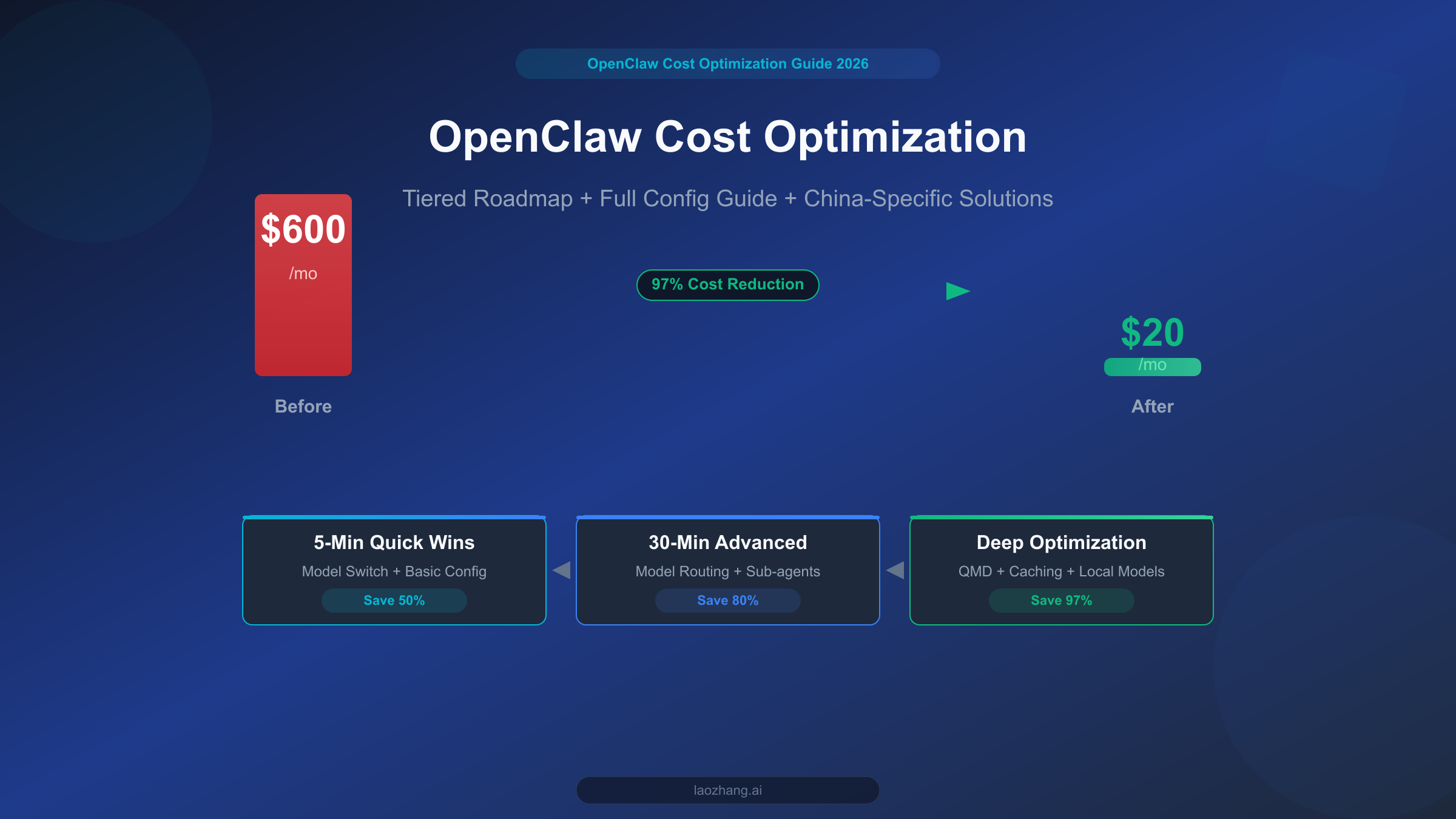
Start with one functioning model, then decide whether another model solves a specific problem. Keep a cheaper model as the default only if it completes your permitted tasks reliably enough; switch deliberately when you need different capabilities. OpenClaw does not automatically classify every task as easy or difficult and choose the cheapest suitable provider.
For a concrete budget calculation, LaoZhang's October 7 catalog lists gpt-5.4-mini at USD $0.75 per million input tokens and $4.50 per million output tokens, with cache reads priced separately at $0.075 per million. A hypothetical request with 20,000 uncached input tokens and 2,000 output tokens costs:
Input:  20,000 / 1,000,000 × $0.75 = $0.015
Output:  2,000 / 1,000,000 × $4.50 = $0.009
Total before applicable group/billing adjustments = $0.024
That is arithmetic for the stated token counts, not a measured agent turn, monthly budget, or savings guarantee. An agent task can make several requests, carry earlier context forward, and produce additional tool exchanges. Token group, billing mode, cache accounting, and any applicable multiplier affect deductions; use the LaoZhang control panel's usage records for the actual bill. The service is prepaid and charges for usage. Catalog rates, billing rules.
Disclosure: laozhang.ai is our own service. Its prices are platform pricing, not an independent comparison.
Fallbacks help with eligible failures after OpenClaw's same-model recovery and authentication rotation. They are tried in the configured order; they do not automatically upgrade an unsatisfactory answer. Authentication, rate, billing, and missing-model failures can be eligible, while context overflow and final refusals are not universal fallback triggers. An explicitly selected session model is strict, so do not expect a pinned session to follow the ordinary fallback chain. Model failover behavior.
Only add an accessible, protocol-compatible fallback that you are willing to pay for. Two models behind the same LaoZhang gateway can share an account-credit problem or gateway outage. Putting a second name in the list does not eliminate that shared dependency. Claude is not a useful current fallback while the catalog reports it offline.
Frequently asked questions
Do I need an OpenAI API key as well as a LaoZhang key?
For the custom provider shown here, use a LaoZhang API key. Requests go to api.laozhang.ai, so an upstream OpenAI key or a ChatGPT subscription does not establish access to this gateway. Other separately configured providers can have their own credentials. LaoZhang authentication.
Can I use Claude through this configuration?
Do not rely on it currently. As of October 7, 2026, LaoZhang's public catalog reports Claude models temporarily offline because of resource shortages. Recheck availability, token-group access, and the supported protocol before adding a Claude entry. An old model ID remaining in your file is not proof that it works. Current catalog.
Does listing the model mean my API key works?
No. The inventory can show a configured model without making a successful provider call. Confirm the selected agent and session route, then check a small actual response. Tool use needs its own permitted task and invocation/result confirmation. The CLI's live probe is a separate operation with cost and exclusive-state requirements. Models CLI.
Why did changing the default leave my conversation on another model?
A session selection or agent-specific override can take precedence. Select /model laozhang/gpt-5.4-mini to try this route in the conversation, or use /model default to clear a session pin. Also confirm that the Gateway accepted the edit rather than continuing with its last valid settings. Model selection, reload behavior.
Are free signup credits enough to verify this setup?
Do not plan around a guaranteed free-credit amount. Current access documentation requires enterprise whitelist approval, and this guide has not verified a signup grant or account balance. Check your eligibility and prepaid balance before making a model or tool request. Access requirements, pricing and billing.
Sources7
External pages this guide links to, in the order they appear. Last updated Oct 8, 2026.
Sources7
External pages this guide links to, in the order they appear. Last updated Oct 8, 2026.
- 1.Configuration documentationdocs.openclaw.ai/gateway/configuration
- 2.Custom-provider documentationdocs.openclaw.ai/gateway/config-tools/custom-providers
- 3.Environment-variable documentationdocs.openclaw.ai/gateway/configuration/environment-variables
- 4.Hot-reload behaviordocs.openclaw.ai/gateway/configuration/hot-reload
- 5.Model selectiondocs.openclaw.ai/concepts/models
- 6.models CLIdocs.openclaw.ai/cli/models
- 7.Model failover behaviordocs.openclaw.ai/concepts/model-failover