OpenClaw API Key Error Fix: 401, No API Key, 429, and Gateway Auth Routes
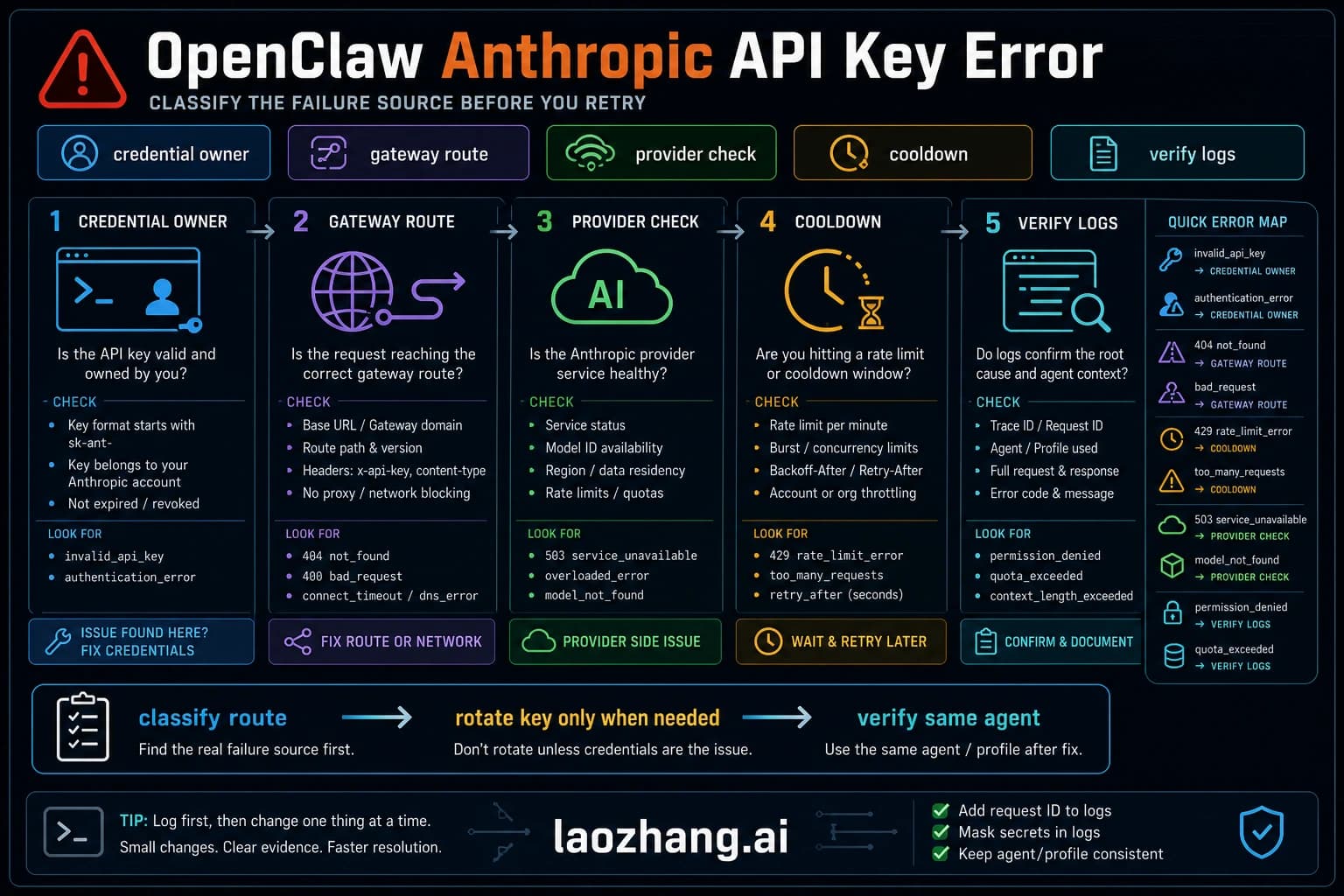
OpenClaw API key errors do not have one universal fix. Start with status, gateway status, logs, doctor, and models status, then route the error to the owner shown in the log: provider auth, gateway token, model cooldown, request shape, context pressure, or Docker environment override.
On this page
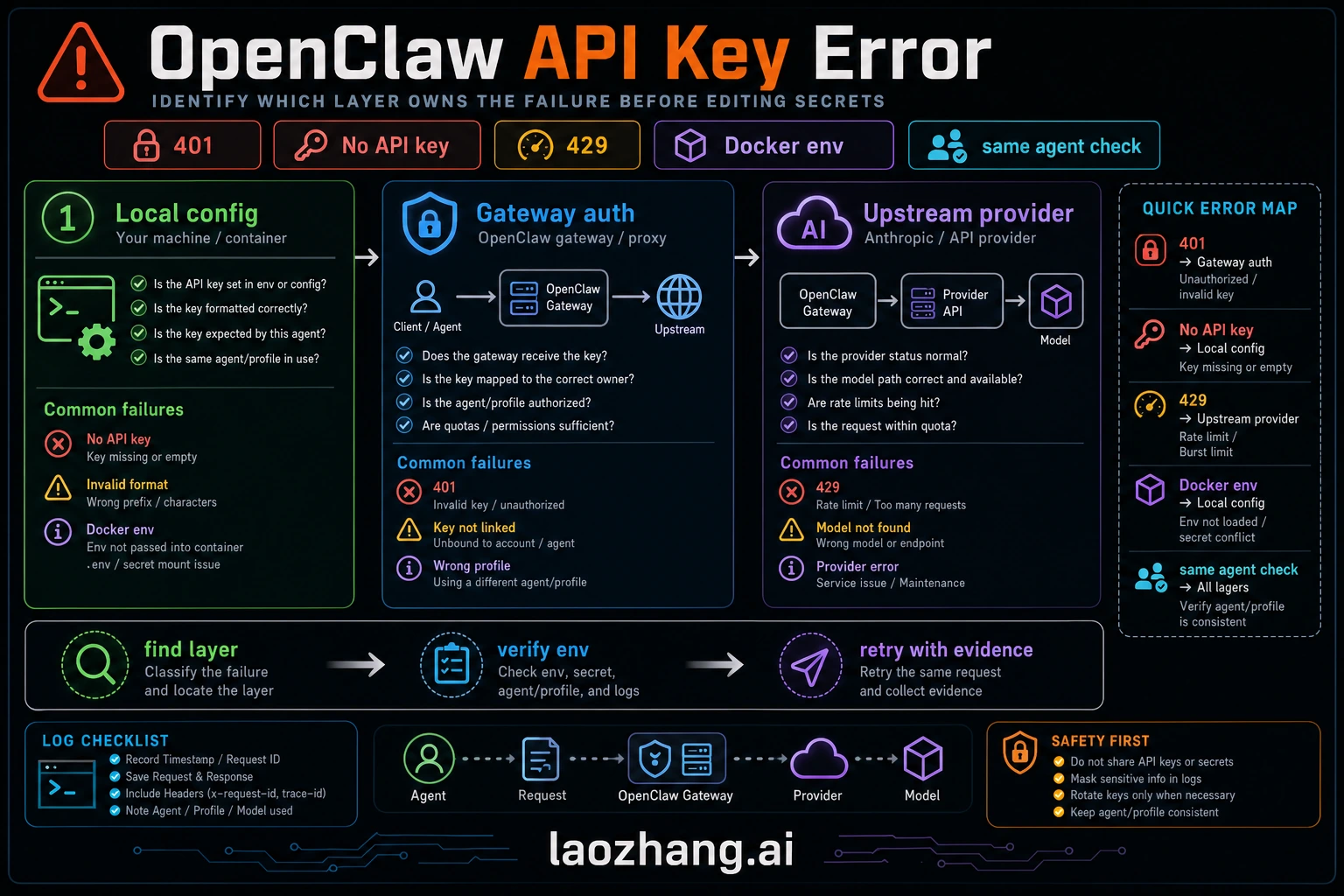
OpenClaw API key errors now show up in several different ways: 401 Unauthorized, No API key found for provider, AUTH_TOKEN_MISMATCH, all in cooldown, 429 Too Many Requests, and sometimes a generic gateway or channel failure. The fix depends on which layer produced the error. Do not start by rotating every key. First prove whether the failing owner is the model provider, the OpenClaw gateway, the channel/client, Docker environment overrides, or context pressure that is being misread as an API failure.
TL;DR
Run this ladder before changing credentials:
openclaw status
openclaw gateway status
openclaw logs --follow
openclaw doctor
openclaw models status
If the log says No API key found for provider "anthropic" or another provider, run openclaw onboard or add the provider auth profile, then verify with openclaw models status. If the log says AUTH_TOKEN_MISMATCH, device nonce, pairing required, or gateway 1008, fix the gateway/client auth path, not the Anthropic key. If the error is 429, respect retry-after, reduce context/tool loops, or move work to a configured fallback provider. If it happens only inside Docker, inspect env | grep OPENCLAW inside the container before editing mounted config files.
Quick Diagnosis — Identify Your Error Before Changing Keys
Most OpenClaw API key incidents look similar at the surface but come from different owners. A useful fix is not "check your API key" repeated in different words. It is a routing map: identify the layer, prove it with one command, and only then change the credential or config.
Start with openclaw status and openclaw gateway status. A healthy gateway should show that the runtime is running and connectivity is OK. If that fails, you are not yet debugging the upstream model key. Use openclaw logs --follow to capture the first real error before retries and cooldowns bury the cause.
For model-provider authentication, use openclaw models status. Recent OpenClaw model docs describe this command as the detailed view for the resolved primary model, fallbacks, image model, and provider auth state. If a configured provider has no credentials, the output surfaces a missing-auth section. That is the signal to add auth. It is not a signal to rewrite unrelated gateway or channel settings.
Use openclaw doctor as a validator. Use its repair mode only when the output points to a structural config repair, such as rejected or clobbered config, malformed JSON, missing required fields, or known service state drift. It cannot create a valid provider key for you, cannot lift a provider rate limit, and should not be treated as a universal magic command.
| What you see | Likely owner | First proof | First action |
|---|---|---|---|
No API key found for provider "anthropic" | Provider auth profile | openclaw models status | Run openclaw onboard or add provider auth, then restart only if needed |
401, invalid bearer token, incorrect api key provided | Provider credential or wrong base URL | openclaw models status plus a direct provider console check | Replace the provider key or remove stale env overrides |
AUTH_TOKEN_MISSING or AUTH_TOKEN_MISMATCH | Gateway/client auth | openclaw gateway status --json or failed connect details | Set the current gateway auth token in the client or re-pair the device |
PAIRING_REQUIRED, missing_scope, Forbidden, 401/403 in channel logs | Channel/device permission | openclaw channels status --probe | Approve pairing or fix channel allowlist/scopes |
429, all in cooldown, repeated model failover | Provider quota/cooldown | openclaw models status and provider response headers | Wait, reduce load, shorten context, or move to fallback provider |
context_length_exceeded during model failover | Context or misclassified 429 | /status, logs, provider headers | Compact or shorten context before changing keys |
| Docker-only token mismatch | Environment override | `docker exec | grep OPENCLAW` |
| Gateway start failure after editing config | Invalid config | openclaw config validate and openclaw logs --follow | Restore from rejected/clobbered config and validate before restart |
Authentication Errors (401) — API Keys, Tokens, and Gateway
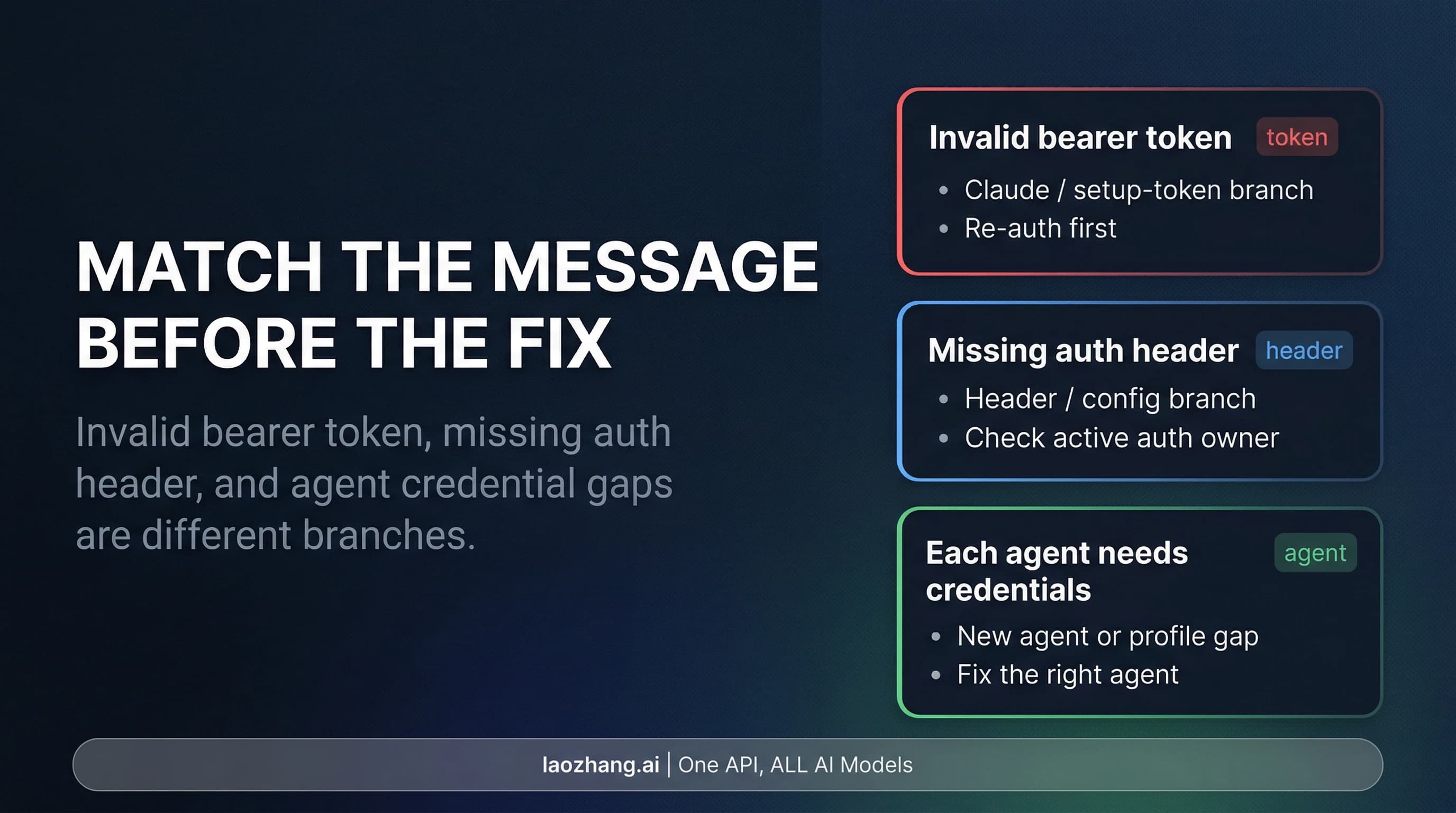
Authentication errors are confusing because OpenClaw can reject a request before it ever reaches Anthropic, OpenAI, OpenRouter, or a custom provider. Treat authentication as three layers: the provider auth profile, the OpenClaw gateway/client token or device identity, and the channel or UI permission layer.
Layer 1: provider authentication. When the log says No API key found for provider "anthropic" or another provider ID, OpenClaw has no usable credential for the selected provider/model. Run openclaw onboard for the guided path, or use the provider-specific auth command from the current docs. Then verify with openclaw models status. Avoid hard-coding a single key prefix as the test; provider key formats change, and custom gateways may use their own token shape.
If you need to validate an Anthropic key outside OpenClaw, test it against the current Anthropic API docs and a model your account can actually access. The point is not the exact model name in a blog post; the point is whether the provider accepts the key and account permissions today.
curl -s https://api.anthropic.com/v1/messages \
  -H "x-api-key: YOUR_KEY_HERE" \
  -H "anthropic-version: 2023-06-01" \
  -H "content-type: application/json" \
  -d '{"model":"YOUR_ACCESSIBLE_MODEL","max_tokens":10,"messages":[{"role":"user","content":"hi"}]}' \
  | head -c 200
If this returns a valid response, your key works and the problem lies elsewhere in the OpenClaw stack. If it returns {"type":"error","error":{"type":"authentication_error"}}, your key itself is invalid and needs replacement from the Anthropic Console.
Layer 2: gateway token and device identity. OpenClaw's gateway troubleshooting docs map AUTH_TOKEN_MISSING, AUTH_TOKEN_MISMATCH, AUTH_DEVICE_TOKEN_MISMATCH, and PAIRING_REQUIRED to different remediation paths. These are gateway/client problems. For dashboard and Control UI paths, fetch the current gateway auth token from config and paste it into the client only if the docs for your auth mode require a shared token. For device identity flows, approve or rotate the paired device instead of replacing the model-provider key. For deeper Anthropic-specific authentication issues, see our dedicated guide to Anthropic API key errors in OpenClaw.
Layer 3: upstream provider rejection. Even with correct OpenClaw gateway auth, the provider can reject the request because the key was revoked, the billing/account state changed, the selected model is not available to that account, the base URL points at the wrong gateway, or an environment variable overrides the intended credential. Verify account and model access in the provider console before assuming OpenClaw corrupted the key.
Cooldown is a symptom, not the root cause. When every auth profile for a provider is in cooldown, the original error may have been authentication, quota, network, or provider overload. Check openclaw logs --follow for the first failure before the cooldown message. Clearing cooldown without fixing the first failure just repeats the loop.
Authentication method choice. Use direct provider API keys for server and CI workloads. Use OAuth or CLI-backed auth only when the current OpenClaw provider docs explicitly support that path and you accept refresh/host requirements. Use auth profiles when agents or teams need isolated credentials. Use an OpenAI-compatible gateway such as laozhang.ai only when the reader's job is multi-provider routing, budget control, fallback, or simplified provider access; it should not be inserted into fixes that are purely local gateway or channel-auth problems.
Rate Limiting (429) — Headers, Owners, and Prevention
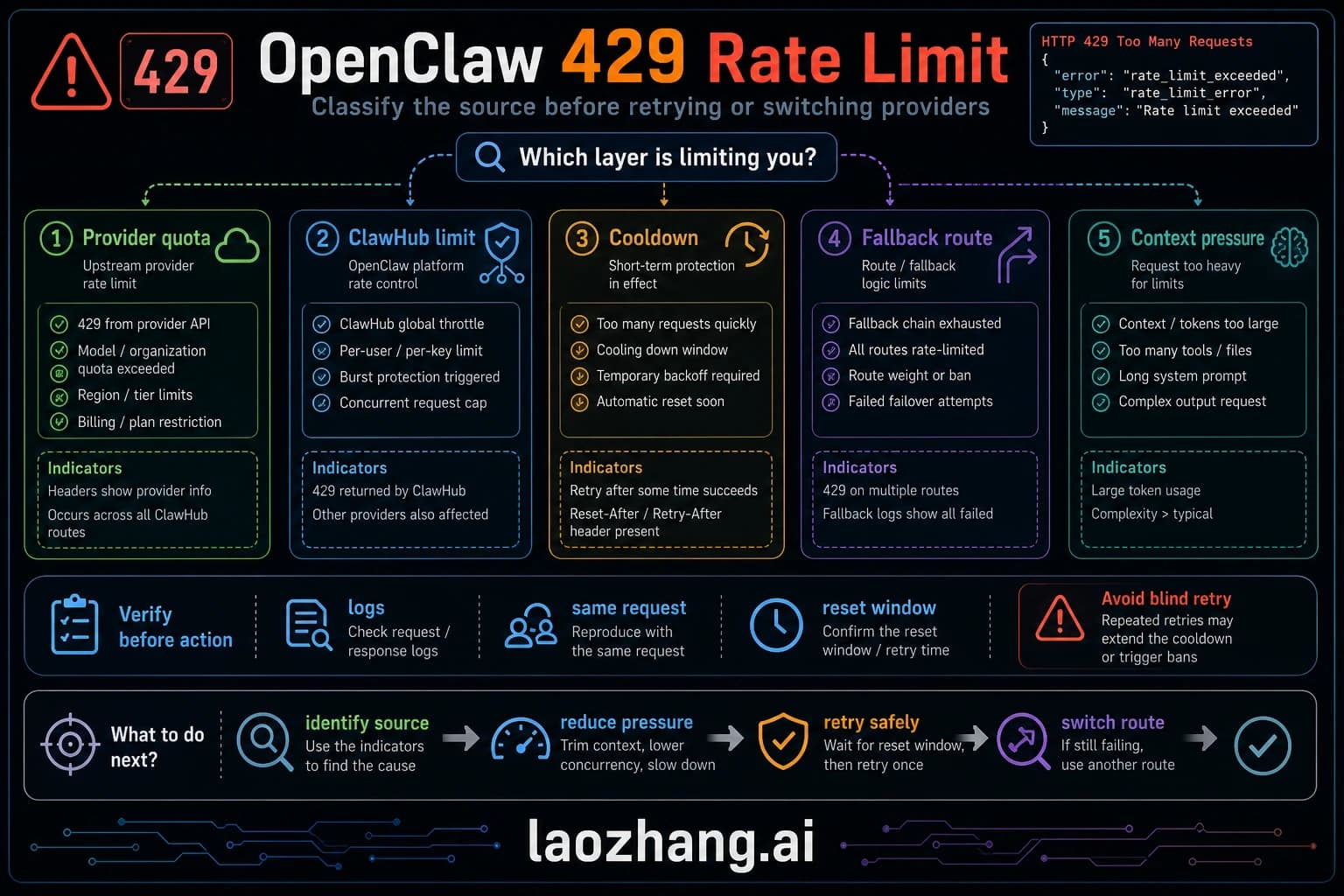
A 429 response usually means the selected provider, gateway route, hub route, or account/project owner is refusing more work for the current window. It does not prove the key is invalid. It also does not prove the problem is Anthropic: OpenAI-compatible providers, Gemini routes, private gateways, and download hubs can all surface rate-limit language through OpenClaw.
Provider limits change frequently and differ by account, model, region, project, and route. Do not copy old tier tables from a blog post into an operational fix. Read the live provider dashboard and the actual response headers. In OpenClaw, a 429 can also trigger fallback and cooldown behavior, so the visible error can lag behind the original provider response.
Reading rate-limit headers. When the failing route is Anthropic, the response may include retry-after and anthropic-ratelimit-* headers that help explain whether you exhausted request budget, token budget, or a reset window. Treat those headers as live evidence for the current key and model route, not reusable numbers:
| Header | What to read | How to use it |
|---|---|---|
retry-after | Provider-supplied wait time | Sleep for the returned value instead of hard-coding a delay. |
anthropic-ratelimit-requests-limit | Current request ceiling for this key/account/route | Treat it as live contract data, not a reusable number. |
anthropic-ratelimit-requests-remaining | Remaining request budget in the current window | If it is exhausted while token budget remains, reduce request frequency or batch work. |
anthropic-ratelimit-requests-reset | Request-window reset time | Resume after the returned reset window, adjusted for clock skew. |
anthropic-ratelimit-tokens-limit | Current token ceiling for this key/account/route | Compare it with the assembled OpenClaw request size. |
anthropic-ratelimit-tokens-remaining | Remaining token budget in the current window | If it is exhausted first, reduce context, tool output, or concurrent agent work. |
anthropic-ratelimit-tokens-reset | Token-window reset time | Retry after the live reset time, not after an old blog-table interval. |
When those headers are present, compare anthropic-ratelimit-requests-remaining and anthropic-ratelimit-tokens-remaining to determine which dimension is exhausted. If request budget is gone while token budget remains, reduce request frequency or batch small calls. If token budget is gone first, shorten context, trim tool output, or split conversations.
Context-looking failures can still be quota failures. If a context_length_exceeded error appears immediately after model failover, provider cooldown, or repeated retries, check the original logs and rate-limit headers before rebuilding context settings. A real context overflow usually grows with session length and tool output; a rate-limit/failover symptom often appears suddenly.
For teams that need higher throughput, first reduce avoidable calls, shorten oversized context, cap concurrent agents, and read the provider dashboard for the exact key or project that owns the 429. Multiple keys or an OpenAI-compatible gateway can be part of a routing strategy only when every route is owned, billed, and tested separately; do not treat that pattern as guaranteed extra quota. For a comprehensive deep dive into rate limiting strategies, see our complete guide to OpenClaw rate limiting, and for managing costs alongside rate limits, explore optimizing token usage and costs.
Request Errors (400) — Beta Flags and Context Overflow
Request errors with HTTP status 400 indicate that your request was syntactically valid but semantically incorrect—the API understood what you sent but cannot process it. In OpenClaw, the two most common 400 errors are invalid beta flags and context length exceeded, each requiring different diagnosis and resolution strategies.
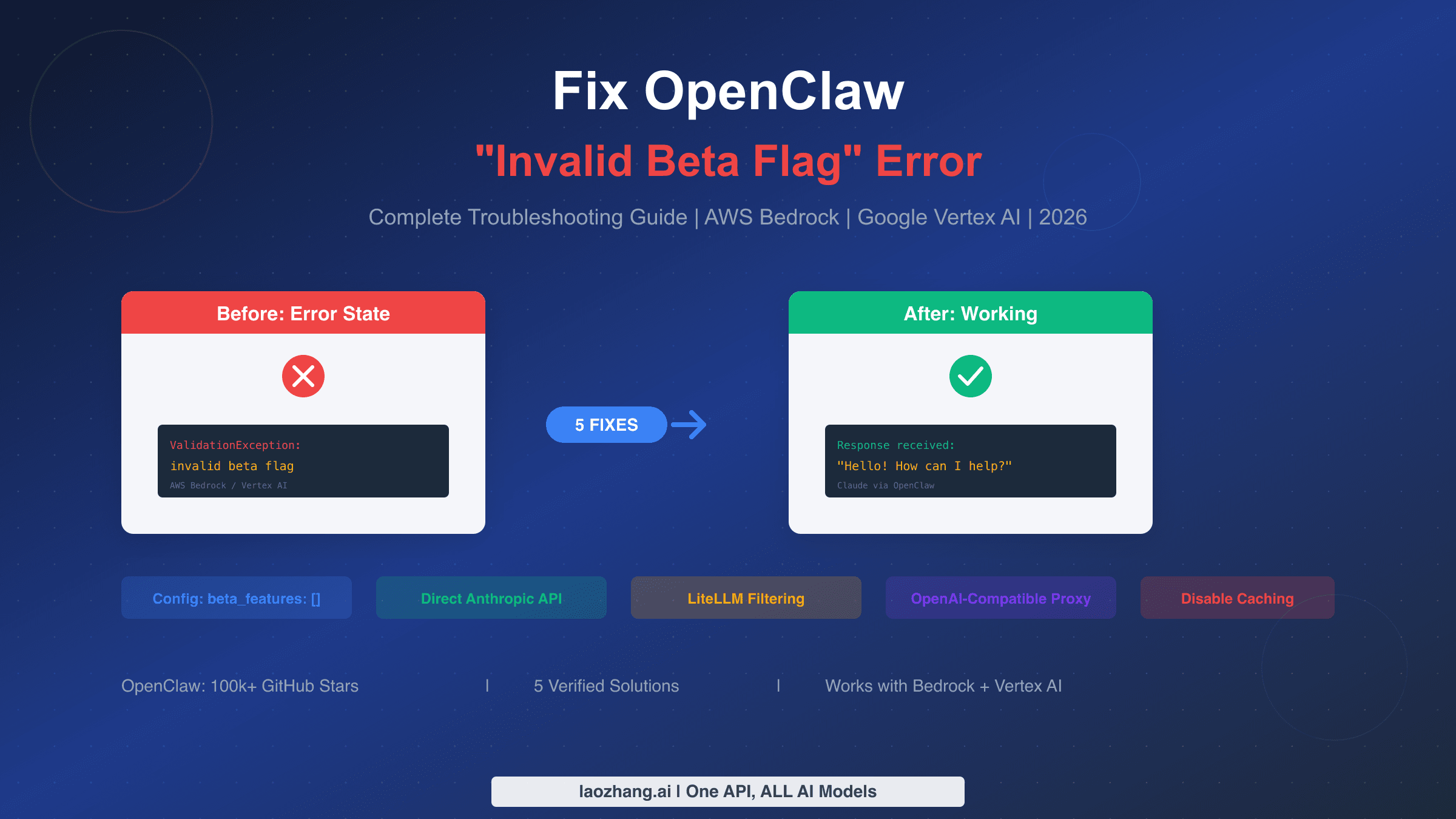
Invalid beta flag errors. The error message invalid_request_error: Invalid beta flag occurs when your OpenClaw configuration includes a provider feature flag that the selected route does not support. This is common when a proxy, Bedrock route, Vertex route, or OpenAI-compatible gateway implements only part of the direct provider API.
The diagnostic approach is to identify which beta or feature flags your configuration includes and verify them against the provider route you are actually using. Check your OpenClaw configuration for provider-specific beta or capability fields, then remove unsupported flags or switch to a route that supports them. For step-by-step instructions, see our detailed invalid beta flag troubleshooting guide.
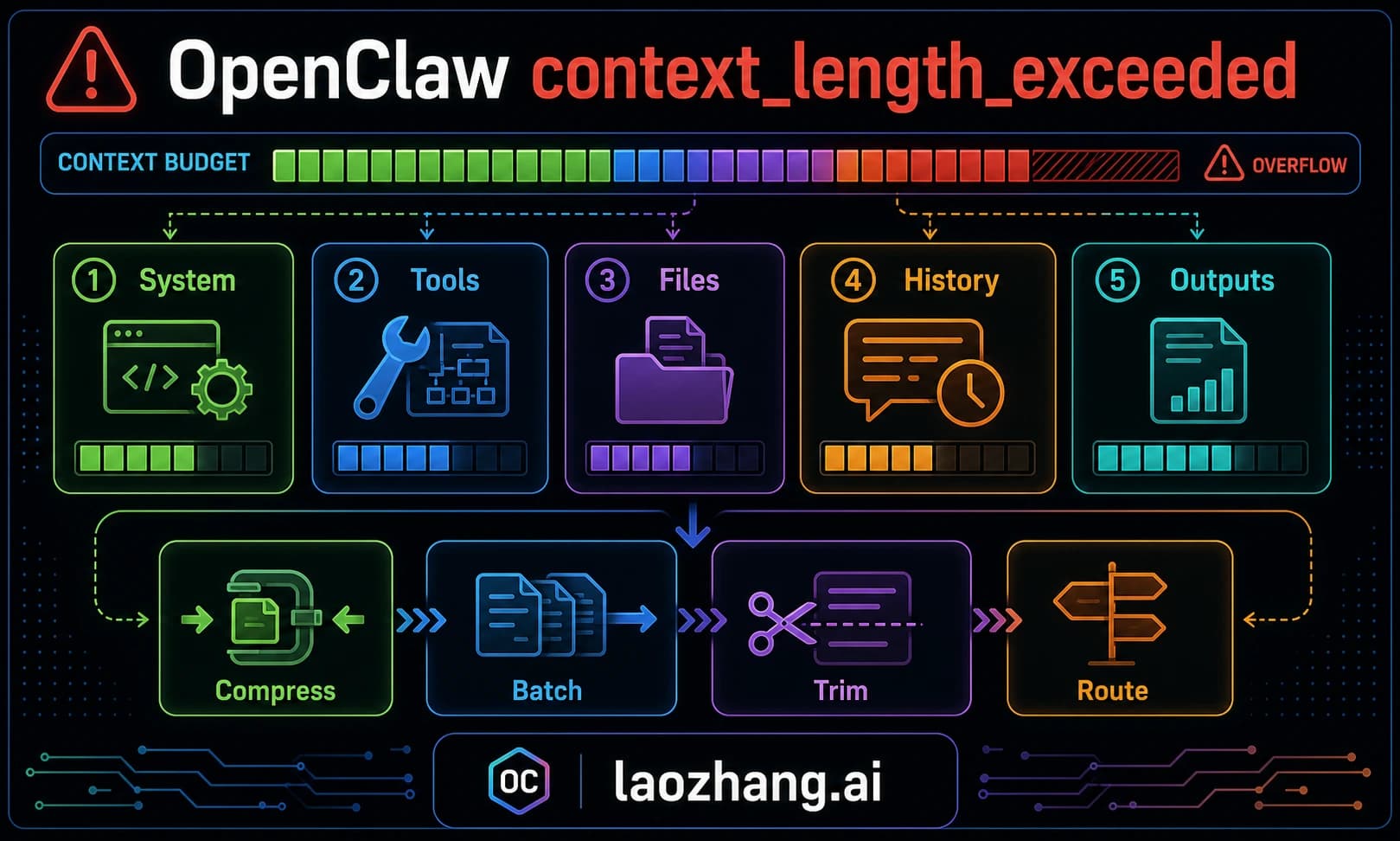
Context Length Exceeded. The context_length_exceeded error fires when the model request exceeds the selected provider/model context window. In OpenClaw, the payload can include the system prompt, tool schemas, selected workspace context, retrieved memory, channel metadata, and conversation history. Fix it by compacting or starting a new session, reducing large tool outputs, selecting a model with a larger current window, or adjusting model routing. Do not publish a fixed context-window number unless you verified it for that exact model and route today.
If your installed version exposes a history or compaction setting, tune it from current docs or openclaw config output rather than copying an old default. The stable fix is to reduce the amount of old conversation and tool output that enters each request while preserving enough recent context for the agent to stay coherent.
For programmatic context management, implement a token counting strategy that monitors accumulated tokens and summarizes or truncates older messages before they push the total over the limit. This is particularly important for production applications where conversations may persist for hours. The key insight is that context overflow should never be a surprise—implement monitoring that warns you at 80% context utilization so you can take action before the hard failure. See managing context length in OpenClaw for implementation patterns.
Be aware of the failover misclassification mentioned in the Rate Limiting section. If you see context_length_exceeded errors that appear suddenly rather than building up gradually over a conversation, check rate-limit status and the first provider log before changing context configuration.
Server and Connection Errors (502, 1008, SSL)
Server and connection errors indicate infrastructure-level problems between your OpenClaw agent, the gateway, and upstream providers. Unlike authentication or request errors, these failures often resolve themselves as transient conditions clear, but persistent occurrences require systematic diagnosis of the network path.
502 Bad Gateway. A 502 error means the OpenClaw gateway received an invalid response from the upstream provider. This typically indicates that Anthropic's API (or whichever provider you're using) is experiencing an outage or degraded performance. Check the Anthropic status page (status.anthropic.com) to confirm whether there's a known incident. If the status page shows all systems operational, the 502 may be caused by a network issue between your gateway and the API endpoint—firewalls, DNS resolution failures, or proxy misconfigurations can all produce 502 errors.
The diagnostic approach for persistent 502 errors is to test the network path directly. Use curl -v https://api.anthropic.com/v1/messages to verify that your server can reach Anthropic's API endpoint. Look for SSL handshake completion, correct DNS resolution, and successful TCP connection. If the direct connection works but OpenClaw still shows 502, the issue is likely in the gateway's proxy configuration or connection pooling settings.
1008 WebSocket Token Mismatch. WebSocket code 1008 usually means a gateway policy or auth check rejected the connection. In current OpenClaw docs, the useful proof is the connect detail code: AUTH_TOKEN_MISSING, AUTH_TOKEN_MISMATCH, AUTH_DEVICE_TOKEN_MISMATCH, or PAIRING_REQUIRED. Each one points to a different fix. Shared-token clients need the current gateway token; device-token clients need re-approval or rotation; pairing-required clients need an approved device request.
Do not regenerate tokens blindly. First run openclaw gateway status --json or inspect the failed connect response. If the shared gateway token drifted, update the client with the current token from gateway config and restart the client. If the device token drifted, rotate or re-approve that device. If pairing is required, approve the pending request after reviewing the requested scope.
SSL Certificate Errors. SSL handshake failures in OpenClaw fall into two categories: certificate chain problems (the gateway or upstream API presents a certificate your system doesn't trust) and certificate expiration (a certificate in the chain has expired). For self-signed certificates in development environments, you can configure OpenClaw to accept them by setting NODE_TLS_REJECT_UNAUTHORIZED=0 in your environment—but never use this in production as it disables all certificate validation.
For corporate environments with custom certificate authorities, add your CA certificate to the Node.js trust store by setting the NODE_EXTRA_CA_CERTS environment variable to point to your CA bundle file. This is the correct production approach for environments with TLS inspection proxies or internal PKI infrastructure.
Docker and Deployment Troubleshooting
Docker deployments introduce a unique category of OpenClaw errors that don't exist in bare-metal installations. The most common pattern is an environment variable override: a stale value in docker-compose.yml, .env, or the container runtime wins over the mounted config file. Understanding Docker-specific failure modes is critical because they can make correctly configured files appear broken.
The OPENCLAW_GATEWAY_TOKEN Override Problem. When running OpenClaw in Docker, environment variables set in your docker-compose.yml or docker run command silently override values from the mounted configuration files. This means that even if your ~/.openclaw/openclaw.json contains the correct gateway token, a stale OPENCLAW_GATEWAY_TOKEN environment variable from a previous deployment will take precedence. The symptom is persistent "1008 token mismatch" errors that resist all normal troubleshooting because the configuration files look correct.
The diagnostic approach is to check for environment variable overrides inside the running container. Execute docker exec <container_name> env | grep OPENCLAW to see all OpenClaw-related environment variables. If OPENCLAW_GATEWAY_TOKEN appears in the output and differs from the value in your mounted configuration file, you've found the problem. The fix is either removing the environment variable from your Docker configuration or updating it to match the current gateway token.
Docker Network Configuration. OpenClaw's gateway needs to reach both your local agent and the upstream provider API. In Docker, the default bridge network can prevent the gateway from reaching services on the host or in other containers. Use Docker's host network mode for simplest configuration, or explicitly configure the bridge network with proper DNS resolution. For docker-compose deployments, ensure all OpenClaw services share the same network:
# docker-compose.yml - OpenClaw deployment
version: '3.8'
services:
  openclaw-gateway:
    image: openclaw/gateway:latest
    ports:
      - "18789:18789"
      - "18791:18791"
    volumes:
      - ./openclaw-config:/root/.openclaw
    environment:
      - NODE_ENV=production
      # Do NOT set OPENCLAW_GATEWAY_TOKEN here unless intentional
    networks:
      - openclaw-net

  openclaw-agent:
    image: openclaw/agent:latest
    depends_on:
      - openclaw-gateway
    volumes:
      - ./openclaw-config:/root/.openclaw
    networks:
      - openclaw-net

networks:
  openclaw-net:
    driver: bridge
Volume Mount Permissions. Configuration files mounted from the host into Docker containers may have incorrect permissions inside the container, preventing OpenClaw from reading or writing its configuration. Ensure the mounted files are readable by the container's user (typically root in most OpenClaw Docker images). Use docker exec <container> ls -la /root/.openclaw/ to verify permissions, and chmod on the host if needed.
For comprehensive Docker deployment guidance including initial setup, see our OpenClaw installation and deployment guide.
Skills Not Loading and Configuration Errors
OpenClaw's skills system extends the agent's capabilities through markdown-based configuration files. When skills fail to load, the agent operates without its extended capabilities—custom tools don't appear, specialized behaviors don't activate, and the agent may seem "dumb" compared to its expected performance. Skills failures are silent by default, making them harder to detect than explicit error messages.
Skill File Syntax Errors. OpenClaw skills are defined in .md files with a specific frontmatter format. The most common syntax errors are: missing or malformed YAML frontmatter (the --- delimiters must be on their own lines), invalid field types (using a string where a list is expected), and encoding issues (non-UTF-8 characters in skill descriptions). The diagnostic command openclaw skills list shows all detected skills and their load status. Skills that failed to parse appear with an error indicator and a brief explanation of the syntax problem.
When a skill file fails to parse, OpenClaw logs the specific parsing error but continues loading other skills. This means a single broken skill file doesn't prevent other skills from loading—but it also means you might not notice the failure unless you explicitly check. The fix is to validate your skill file syntax against the OpenClaw skill schema. Every skill file must include at minimum a name field, a description field, and the skill body content. Optional fields like dependencies, permissions, and triggers follow specific format requirements documented in the OpenClaw skills reference.
Directory Structure Requirements. OpenClaw looks for skills in specific directories, and misplacing skill files is a common cause of "skill not found" errors. The standard skill directories are: ~/.openclaw/skills/ for user-level skills (available to all agents), and .openclaw/skills/ in the project directory for project-specific skills. Skills placed outside these directories won't be discovered by OpenClaw's skill loader.
Dependency Resolution Failures. Some skills declare dependencies on external tools or other skills. When a dependency cannot be satisfied—for instance, a skill requires python3 but the environment only has python—the skill may be skipped or reported as unavailable. Check the skill's dependency list against the runtime, then use openclaw doctor and logs to confirm whether the problem is dependency resolution, tool approval, or an allowlist policy.
Production Error Handling — Retry Logic and Multi-Provider Failover
Moving from development troubleshooting to production reliability requires implementing systematic error handling that goes beyond fixing individual errors. Production applications need to classify errors, apply appropriate retry strategies, failover to alternative providers when primary providers fail, and maintain visibility into error patterns through monitoring. The following implementations cover Python and JavaScript—the two most common languages for OpenClaw integrations.
Error Classification: Retryable vs. Fatal. The first decision in any error handling pipeline is whether to retry or fail immediately. Retrying a fatal error wastes time and quota; failing on a retryable error reduces reliability. This classification table guides the decision:
| Error Code | Error Type | Retryable? | Strategy |
|---|---|---|---|
| 429 | Rate Limit Exceeded | Yes | Exponential backoff with retry-after header |
| 529 | Overloaded | Yes | Back off, prefer provider guidance when available |
| 502 | Bad Gateway | Yes | Retry a small number of times, then inspect upstream health |
| 408 | Request Timeout | Yes | Retry with bounded backoff and better timeout telemetry |
| 401 | Authentication Error | No | Fix credentials, do not retry |
| 400 | Bad Request | No | Fix request payload, do not retry |
| 403 | Permission Denied | No | Fix permissions, do not retry |
Python Production Retry Implementation:
import time
import httpx
from typing import Optional

class OpenClawRetryHandler:
    def __init__(self, max_retries: int = 3, base_delay: float = 1.0):
        self.max_retries = max_retries
        self.base_delay = base_delay
        self.retryable_codes = {429, 529, 502, 408}

    def execute_with_retry(self, request_fn, **kwargs):
        last_error = None
        for attempt in range(self.max_retries + 1):
            try:
                response = request_fn(**kwargs)
                return response
            except httpx.HTTPStatusError as e:
                last_error = e
                status = e.response.status_code
                if status not in self.retryable_codes:
                    raise  # Fatal error, don't retry
                delay = self._calculate_delay(e.response, attempt)
                print(f"Attempt {attempt+1} failed ({status}), "
                      f"retrying in {delay:.1f}s...")
                time.sleep(delay)
        raise last_error

    def _calculate_delay(self, response, attempt: int) -> float:
        # Prefer retry-after header when available
        retry_after = response.headers.get("retry-after")
        if retry_after:
            return float(retry_after)
        # Exponential backoff with jitter
        import random
        delay = self.base_delay * (2 ** attempt)
        jitter = random.uniform(0, delay * 0.1)
        return min(delay + jitter, 60.0)  # Cap at 60 seconds
JavaScript Production Retry Implementation:
class OpenClawRetryHandler {
  constructor({ maxRetries = 3, baseDelay = 1000 } = {}) {
    this.maxRetries = maxRetries;
    this.baseDelay = baseDelay;
    this.retryableCodes = new Set([429, 529, 502, 408]);
  }

  async executeWithRetry(requestFn) {
    let lastError;
    for (let attempt = 0; attempt <= this.maxRetries; attempt++) {
      try {
        return await requestFn();
      } catch (error) {
        lastError = error;
        const status = error.status || error.response?.status;
        if (!this.retryableCodes.has(status)) throw error;
        const delay = this._calculateDelay(error, attempt);
        console.log(`Attempt ${attempt+1} failed (${status}), `
          + `retrying in ${(delay/1000).toFixed(1)}s...`);
        await new Promise(r => setTimeout(r, delay));
      }
    }
    throw lastError;
  }

  _calculateDelay(error, attempt) {
    const retryAfter = error.response?.headers?.get?.('retry-after');
    if (retryAfter) return parseFloat(retryAfter) * 1000;
    const delay = this.baseDelay * Math.pow(2, attempt);
    const jitter = Math.random() * delay * 0.1;
    return Math.min(delay + jitter, 60000);
  }
}
Multi-Provider Failover. For production reliability, configure OpenClaw with multiple providers only after each provider has a valid key, tested model route, enough quota, and compatible tool/context behavior. An OpenAI-compatible gateway such as laozhang.ai can simplify provider routing when that is the reader's actual job, but its current model IDs, pricing, quota behavior, and fallback semantics must be verified before it becomes part of the incident path.
class MultiProviderFailover:
    def __init__(self, providers: list):
        self.providers = providers  # Ordered by preference
        self.retry_handler = OpenClawRetryHandler(max_retries=2)

    def execute(self, request_fn):
        errors = []
        for provider in self.providers:
            try:
                return self.retry_handler.execute_with_retry(
                    request_fn, provider=provider
                )
            except Exception as e:
                errors.append((provider, e))
                print(f"Provider {provider} failed, "
                      f"trying next...")
        raise Exception(
            f"All providers failed: "
            f"{[(p, str(e)) for p, e in errors]}"
        )
This pattern ensures that a temporary Anthropic outage, rate limit event, or authentication issue on one provider doesn't bring down your entire application. Combined with the retry logic above, it provides three levels of resilience: retry within a provider, failover between providers, and graceful degradation when all providers are unavailable.
Frequently Asked Questions
How do I fix "OpenClaw API key not working"? Start with openclaw status, openclaw gateway status, openclaw logs --follow, openclaw doctor, and openclaw models status. If the output shows "No API key found," run openclaw onboard or add the provider auth profile. If it shows an invalid provider token, verify the key and model access in the provider console. If it shows gateway auth detail codes, fix the gateway/client token or device pairing instead of changing the model-provider key.
Why does OpenClaw say "unauthorized" when my API key is correct? "Unauthorized" can come from the upstream provider, the OpenClaw gateway, or the channel/client. Your provider key may be valid while the gateway shared token is stale, a device token was revoked, or a Docker/env value is overriding the intended credential. Check the owner named in logs before rotating the key.
How do I reset the OpenClaw gateway token? First confirm the failure is AUTH_TOKEN_MISMATCH or an equivalent shared-token drift. Then fetch the current token from gateway config and update the client that is connecting to it. If your deployment uses device identity, rotate or re-approve the device token instead of resetting the shared token.
What causes OpenClaw rate limiting and how do I prevent it? Rate limiting occurs when the selected provider or gateway route refuses more work for the current window. The fix is to respect retry-after, reduce request frequency, shorten context-heavy loops, configure fallbacks, or upgrade the provider/account tier shown in the live provider dashboard. Do not rely on stale tier numbers copied from old screenshots.
How do I fix OpenClaw context_length_exceeded? Confirm it is a real context overflow with /status, context diagnostics, and logs. Then compact or start a fresh session, reduce large workspace/tool outputs, or choose a model route with a larger current context window. If the error appears suddenly after failover or cooldown, inspect rate-limit logs before changing context settings.
Why are my OpenClaw skills not loading? Run openclaw skills list, openclaw logs --follow, and openclaw doctor. Common causes are malformed skill files, the wrong skill directory, a disabled plugin/allowlist policy, or missing runtime dependencies. Fix the specific log signature rather than reinstalling every skill.
How do I fix OpenClaw Docker "gateway token mismatch"? This is almost always caused by the OPENCLAW_GATEWAY_TOKEN environment variable in your Docker configuration overriding the value in your mounted config files. Run docker exec <container> env | grep OPENCLAW to check for environment variable overrides. Either remove the environment variable from your docker-compose.yml or update it to match the current gateway token in your configuration file.
Is there a way to test all OpenClaw connections at once? Use the command ladder rather than one overloaded command: openclaw status, openclaw gateway status, openclaw logs --follow, openclaw doctor, openclaw channels status --probe, and openclaw models status. That sequence separates gateway health, channel permission, config validity, and model-provider auth.