OpenClaw LLM Setup: Current Provider, Model, Auth, and Fallback Guide (2026)
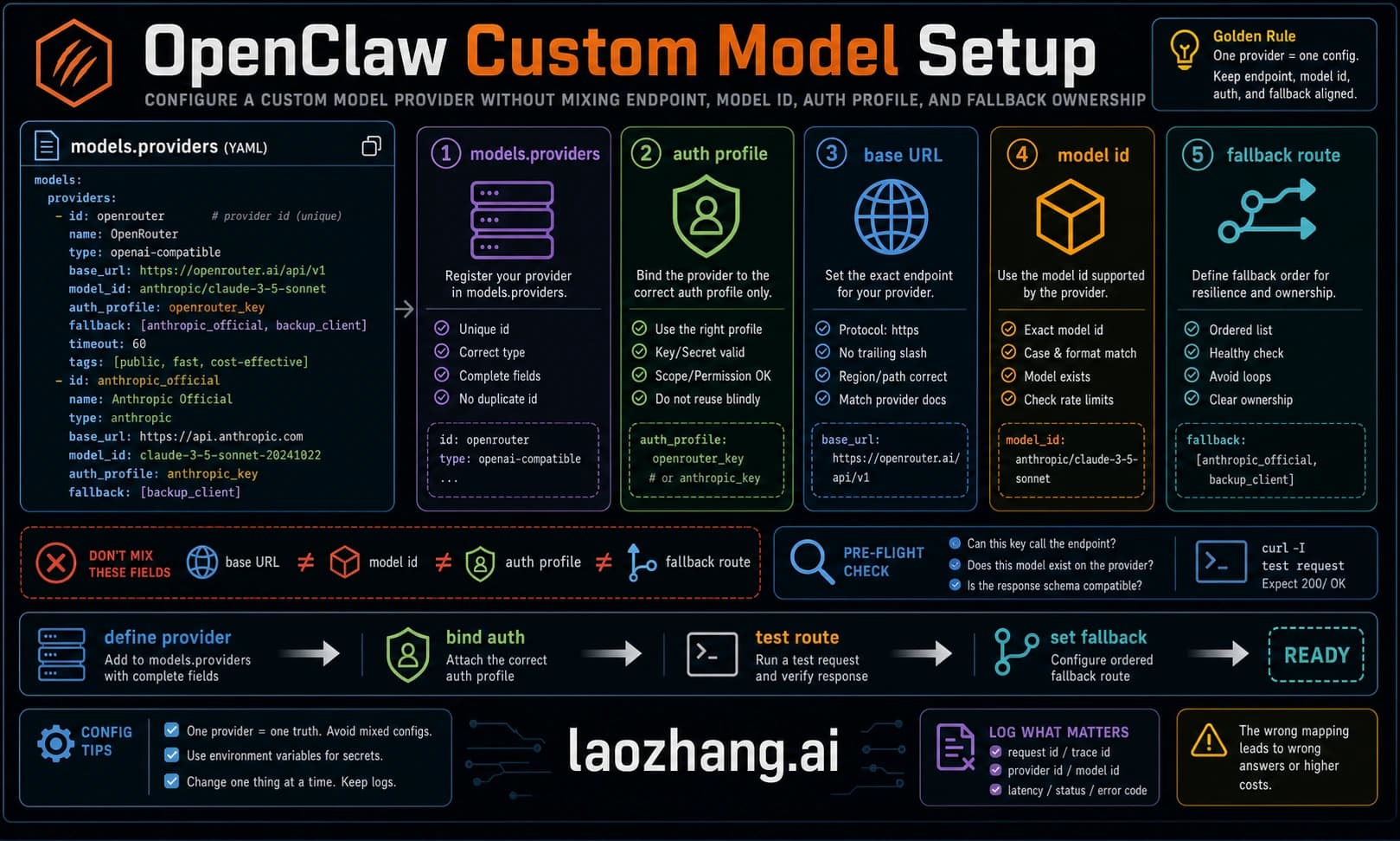
OpenClaw model setup now depends on the provider surface you choose: built-in provider plugins, direct API-key providers, subscription-style OAuth providers, local runtimes, Bedrock/Vertex-style cloud providers, or custom `models.providers` proxies. This guide starts with the current `provider/model` contract, then shows how to authenticate, set defaults, verify model availability, and avoid stale provider lists.
On this page
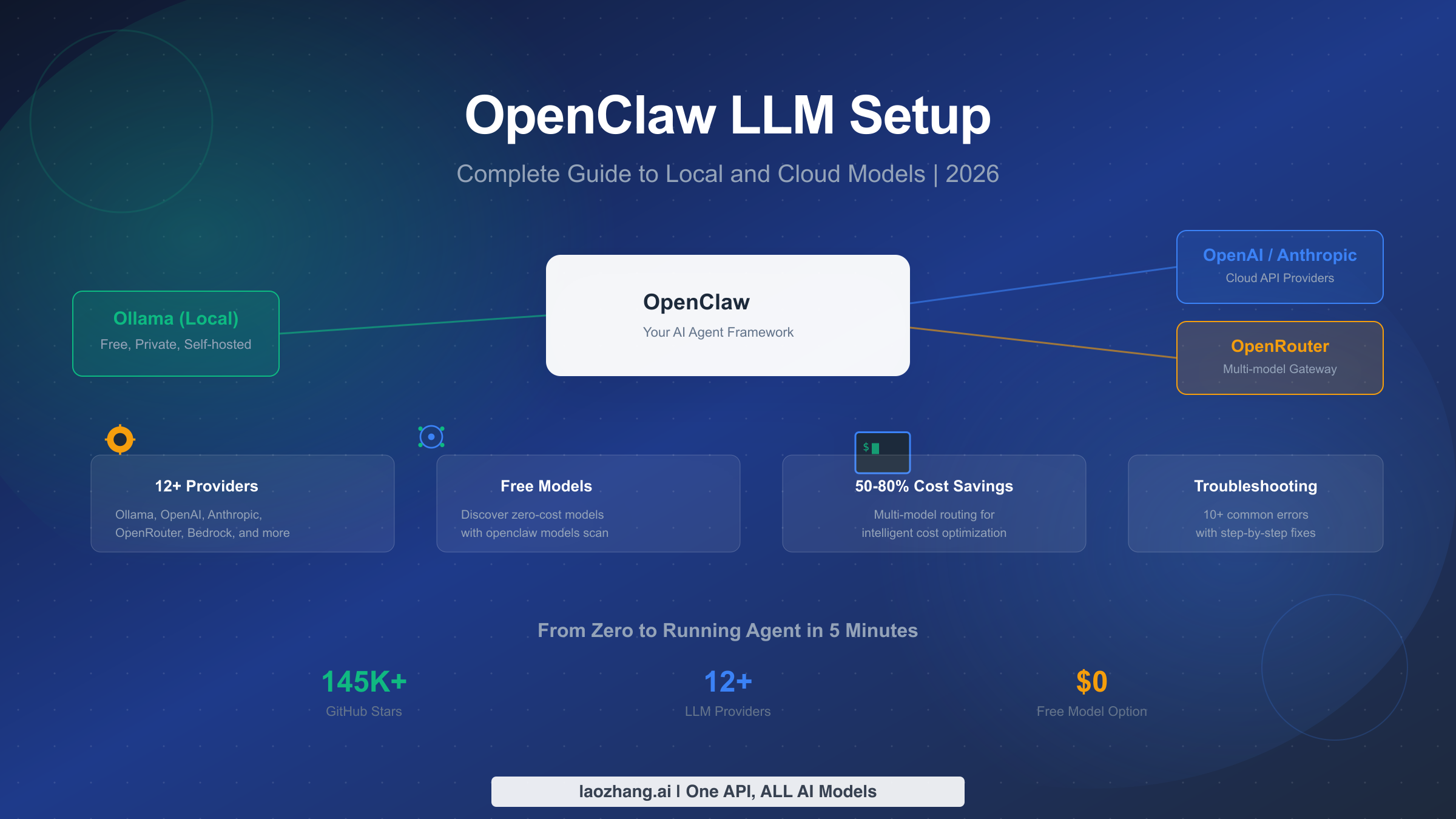
OpenClaw model setup is no longer a fixed "12 providers" checklist. As of May 8, 2026, the current contract is: choose a provider surface, authenticate that provider, select a model as provider/model, verify it with OpenClaw's model commands, and only use models.providers when you need to override a built-in provider, add a custom base URL, or define a proxy/local model that OpenClaw cannot discover for you.
The practical question is not "which model is best?" It is "which route owns auth, rate limits, context behavior, cache behavior, and fallback?" Anthropic API keys, Claude CLI/OAuth-style routes, OpenAI/Codex, Google Gemini, Bedrock, Ollama, LM Studio, OpenRouter, Vercel AI Gateway, and custom proxies all look similar after configuration, but they fail in different places. This guide starts with that route split so you can set the model once and debug the right layer when it breaks.
What Is OpenClaw and Why Your LLM Choice Matters
OpenClaw is a self-hosted agent Gateway that connects chat surfaces, the Control UI, tools, skills, local execution, and model providers. Unlike a simple chat wrapper, OpenClaw lets the selected model operate through tools, files, shell commands, browser flows, memory, channels, and plugins. That makes provider choice a systems decision, not a taste preference.
The provider you configure determines five things that shape daily reliability. It controls the model catalog, credential storage, request transport, rate-limit owner, and which provider-specific request features OpenClaw can safely send. A direct Anthropic route can use Anthropic-specific params such as prompt caching and explicit 1M-context beta when the credential is eligible. A Bedrock route uses the AWS SDK credential chain and Bedrock Converse streaming, not an Anthropic API key. A custom OpenAI-compatible proxy should not be treated as native OpenAI because OpenClaw intentionally skips native-only request shaping on non-native endpoints.
Start with this current map:
| Route | Best use | Setup owner | Model ref pattern | What to verify |
|---|---|---|---|---|
| Direct Anthropic | Claude-first coding, long context when eligible | openclaw onboard or Anthropic provider auth | anthropic/claude-opus-4-6 | API key/profile, cacheRetention, optional params.context1m |
| OpenAI / Codex | GPT or Codex-backed workflows | API key or OAuth route | openai/... or openai-codex/... | Native vs proxy endpoint, entitlement, model catalog |
| Google Gemini | Gemini API key or Gemini CLI route | Google provider auth | google/... or google-gemini-cli/... | API key/OAuth account, project env, model normalization |
| Amazon Bedrock | Enterprise AWS controls and IAM | AWS SDK credential chain | amazon-bedrock/<model-id> | Region, model access, ListFoundationModels, ListInferenceProfiles |
| Local runtime | Privacy, offline tests, cheap fallback | Ollama/LM Studio/vLLM provider | ollama/..., lmstudio/..., or custom | Local server, context cap, timeout, model memory fit |
| Custom proxy | Regional access, gateway pricing, private relay | models.providers.<id> | <custom-id>/<model-id> | Base URL, API shape, explicit model metadata, unsupported native params |
The rest of this guide keeps the old practical walkthroughs, but the first rule is now stricter: do not copy a February provider list or price table into production planning. Run onboarding or inspect the provider docs for the current provider, then verify the resolved model from the host that will run the Gateway.
How to Choose the Right LLM Provider
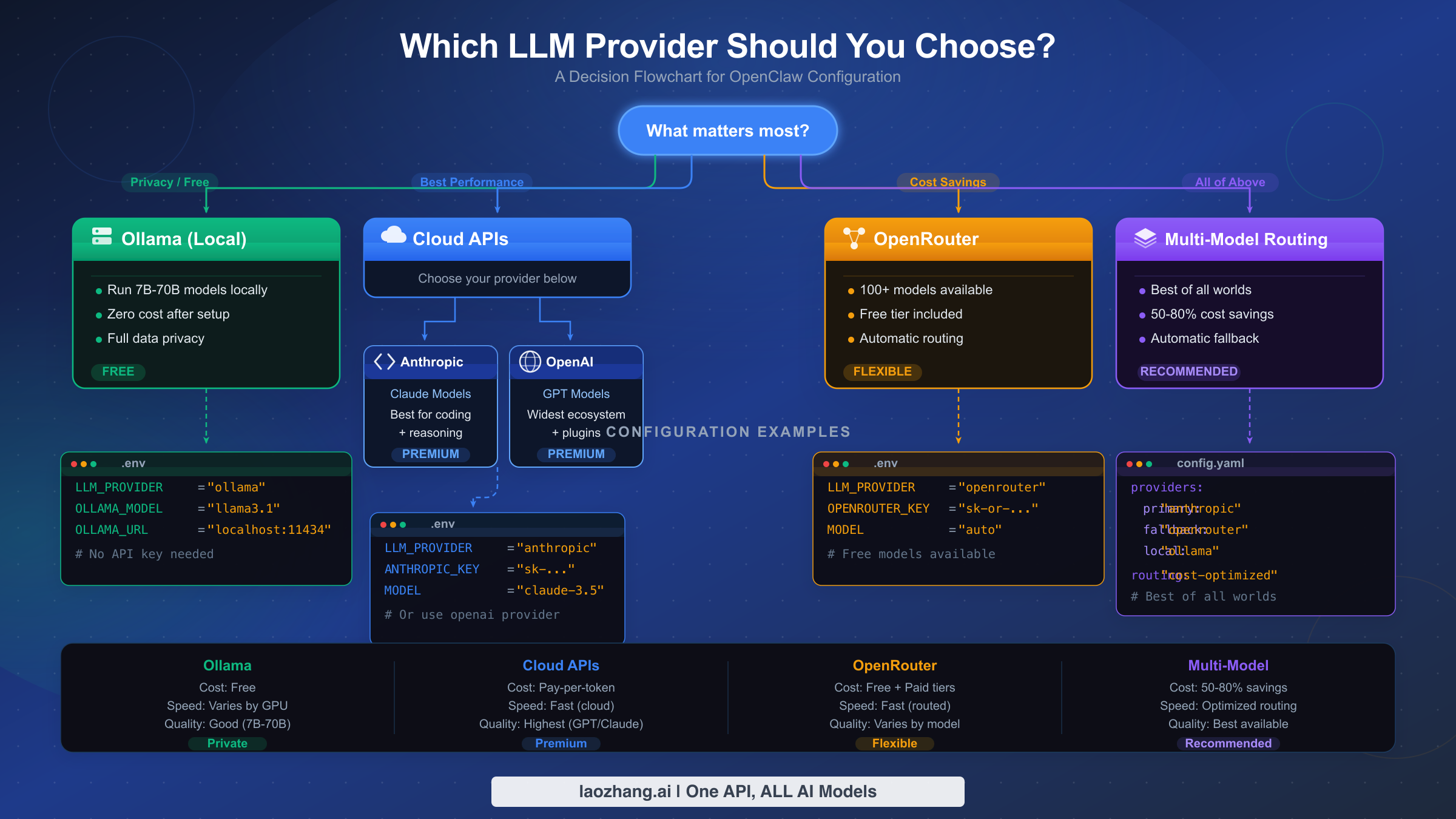
Choosing the right LLM provider for OpenClaw comes down to four factors: your budget, your hardware, your privacy requirements, and the complexity of tasks you plan to run. Rather than listing every provider and leaving you to figure it out, this section gives you a concrete decision path based on what matters most to you. The flowchart above summarizes the four main paths, and the decision table below maps common scenarios to specific recommendations.
| Priority | Recommended route | First model test | Setup difficulty | Main risk |
|---|---|---|---|---|
| Privacy + local control | Ollama or LM Studio | A small coding model that fits RAM | Medium | Weak model or local timeout |
| Best Claude workflow | Direct Anthropic | anthropic/claude-opus-4-6 or current Sonnet | Easy | API key eligibility, rate limits, 1M-context beta access |
| OpenAI/Codex workflow | Native OpenAI or OpenAI Codex route | Current entitled GPT/Codex model | Medium | Confusing native endpoint with proxy endpoint |
| Cloud enterprise controls | Amazon Bedrock | amazon-bedrock/... Claude profile/model | Hard | AWS region/model access/IAM permissions |
| Regional or gateway access | OpenAI/Anthropic-compatible proxy | Provider-owned model id | Medium | Missing metadata, unsupported headers, wrong API shape |
If privacy is your top priority, start with a local runtime such as Ollama or LM Studio. The decision is not "free versus paid"; it is whether the model can follow tools reliably enough for the agent job. Use local models for private drafts, simple file edits, and offline fallback. Escalate to a stronger cloud route when the task needs deep multi-file reasoning, long context, or higher tool-call reliability.
If you want the best Claude workflow, use the direct Anthropic provider or a sanctioned Claude CLI/OAuth route exposed by current OpenClaw docs. That keeps Anthropic-specific behavior, prompt caching, and optional long-context settings on the route that actually understands them. If you need AWS controls instead, use Bedrock and accept that the request surface is different.
If you want cloud flexibility, use a gateway provider only after you understand what is native and what is proxy-style. OpenClaw intentionally skips native-only OpenAI request shaping on non-native endpoints, and it suppresses implicit Anthropic beta headers on non-direct Anthropic-compatible endpoints. That protects many users, but it also means you should not expect every native feature to survive a proxy hop.
If you want maximum resilience, combine one reliable default model with a small fallback chain. A fallback chain is not a magic cost optimizer by itself; it only triggers when the primary route fails or is unavailable. For deliberate cost routing, switch models intentionally with OpenClaw's model controls or create separate agents with different defaults.
Setting Up Local Models with Ollama
Ollama is the most popular local LLM runtime for OpenClaw, and for good reason: it is free, keeps all data on your machine, and requires no API keys. The setup process has three stages — installing Ollama, pulling a model, and connecting it to OpenClaw. The entire process takes under ten minutes on a modern machine with a decent internet connection.
Installing Ollama is straightforward on all three major platforms. On macOS, download the installer from ollama.com or use Homebrew. On Linux, the official install script handles everything. On Windows, Ollama now provides a native installer.
# macOS (Homebrew)
brew install ollama

# Linux (official script)
curl -fsSL https://ollama.com/install.sh | sh

# Windows: download from ollama.com/download
After installation, start the Ollama server. On macOS and Windows, the desktop app starts it automatically. On Linux, you may need to start the service manually with ollama serve. The server listens on http://127.0.0.1:11434 by default — this is the endpoint OpenClaw will connect to.
Pulling the right model depends entirely on your available RAM. This is where most users make their first mistake: they try to pull a 70B parameter model on a 16GB laptop and wonder why everything grinds to a halt. The rule of thumb is that you need roughly 1GB of RAM per billion parameters for quantized models, plus overhead for the operating system and OpenClaw itself.
| Available RAM | Recommended Model | Parameters | Expected Speed | Use Case |
|---|---|---|---|---|
| 8GB | qwen2.5-coder:3b | 3B | 25-35 tok/s | Light edits, simple scripts |
| 16GB | qwen2.5-coder:7b | 7B | 15-20 tok/s | Single-file coding, debugging |
| 32GB | deepseek-coder-v2:16b | 16B | 12-18 tok/s | Multi-file tasks, moderate reasoning |
| 64GB+ | deepseek-coder-v2:33b | 33B | 10-15 tok/s | Complex refactoring, architecture |
Pull your chosen model with a single command:
# For 16GB machines (most common)
ollama pull qwen2.5-coder:7b

# Verify the model is available
ollama list
Connecting Ollama to OpenClaw happens through the onboard wizard. Run openclaw onboard and select Ollama as your provider. The wizard will detect models you have already pulled and let you choose one. Behind the scenes, it writes the configuration to your OpenClaw settings file with the key agents.defaults.model.primary.
# Start the setup wizard
openclaw onboard

# Or configure manually via CLI
openclaw models set ollama/qwen2.5-coder:7b
If you prefer to configure manually, the key environment variable is OLLAMA_API_KEY. Despite the name, Ollama does not actually require authentication — set it to any non-empty string like ollama-local to satisfy OpenClaw's validation:
export OLLAMA_API_KEY="ollama-local"One important detail from the official documentation: Ollama streaming is disabled by default in OpenClaw. This means you will see the complete response appear at once rather than token by token. For most agent workflows this is fine, but if you prefer streaming output, you can enable it in the provider configuration.
Verifying your setup is a critical step that many guides skip. After connecting a local runtime to OpenClaw, send a simple test prompt and one tool-using prompt. If the agent can answer, inspect files, and complete a basic command without malformed tool calls, the route is usable. If it answers text but refuses tools or produces malformed tool payloads, treat that as a model capability mismatch, not an OpenClaw install failure.
Performance tuning for local models makes a noticeable difference in daily usage. If responses feel slow, check how many models Ollama has loaded in memory with ollama ps. Ollama keeps recently used models in memory, and having multiple large models loaded simultaneously will degrade performance. Use ollama stop MODEL_NAME to unload models you are not actively using. On Apple Silicon Macs, ensure that Ollama is using the GPU acceleration — this happens automatically, but you can verify it in the Ollama logs. For Linux users with NVIDIA GPUs, Ollama supports CUDA acceleration when the appropriate drivers are installed, which can increase inference speed by 3-5x compared to CPU-only inference.
Configuring Cloud LLM Providers
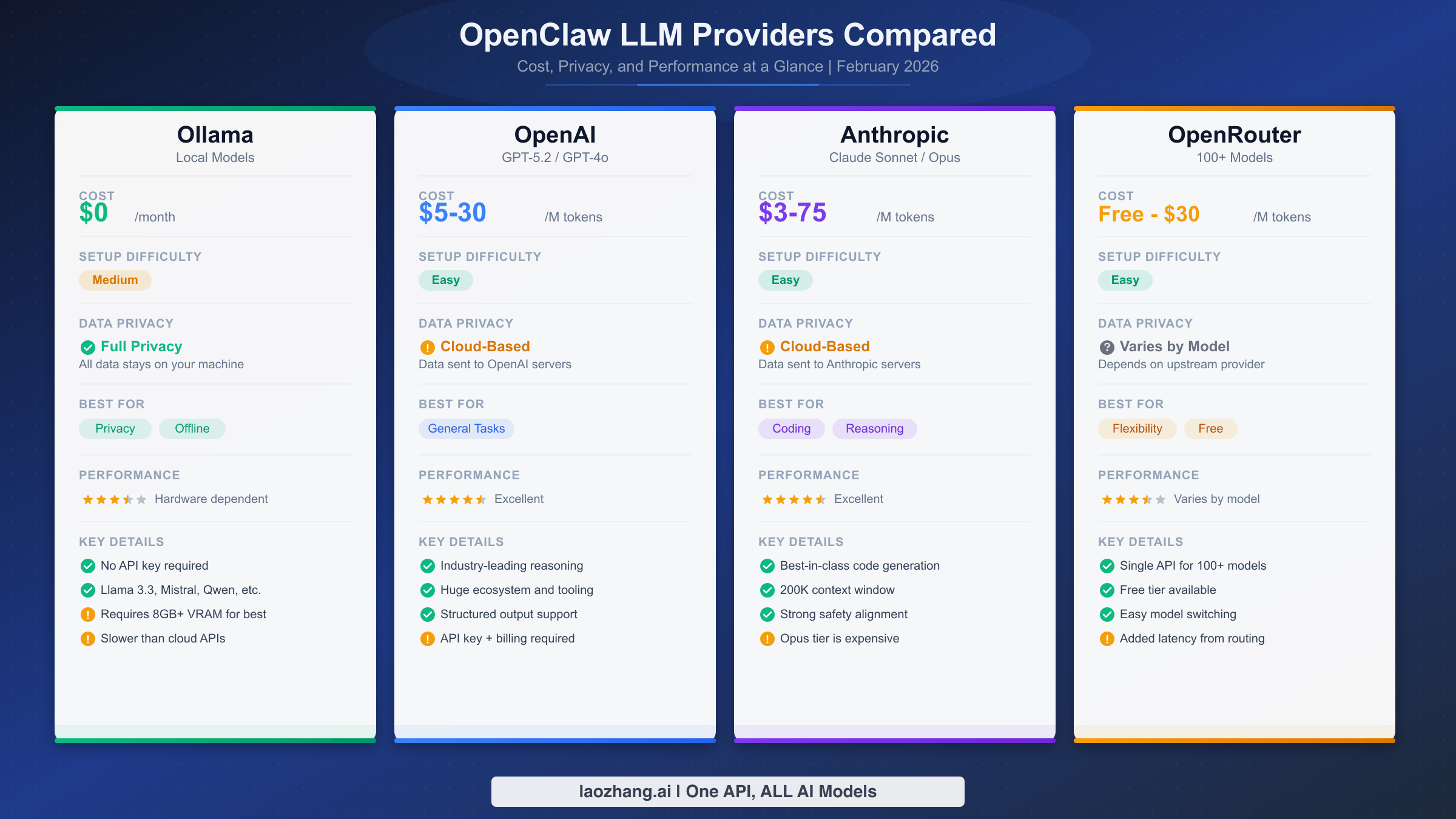
Cloud providers give your OpenClaw agent stronger models, hosted availability, and richer provider catalogs, but they also move prompts over a network route that owns pricing, rate limits, data controls, and feature compatibility. Use openclaw onboard for built-in providers when possible; use direct environment variables only when you understand which process account runs the Gateway.
OpenAI setup uses a native OpenAI route when the base URL is the public OpenAI API. Do not treat an OpenAI-compatible proxy as identical to native OpenAI. Configure the native route through onboarding or environment variables, then verify the model list from the Gateway host:
export OPENAI_API_KEY="sk-proj-..."

# Run the setup wizard
openclaw onboard
openclaw models list
Use native OpenAI for GPT-family models and OpenAI-specific request behavior. Use a custom provider id for a proxy so future debugging can distinguish native OpenAI failures from proxy failures.
Anthropic setup should keep direct Anthropic and proxy-style Anthropic-compatible routes separate. Direct Anthropic can use Anthropic-specific params such as prompt caching and explicit long-context beta when eligible:
export ANTHROPIC_API_KEY="sk-ant-..."

openclaw onboard
openclaw models status
If you encounter auth, cooldown, missing-profile, or proxy-header issues, use the dedicated OpenClaw Anthropic API key error guide instead of guessing from a generic provider table.
Amazon Bedrock setup is different from direct Anthropic. Bedrock auth uses the AWS SDK credential chain, region, and IAM permissions. The provider route is amazon-bedrock, and model discovery may require permissions such as bedrock:ListFoundationModels and bedrock:ListInferenceProfiles.
export AWS_REGION="us-east-1"
export AWS_PROFILE="default"

openclaw models list
Custom gateway or relay setup belongs under models.providers.<id>. Set the base URL, API shape, model ids, and metadata explicitly. Do not leave context window, max output, or compatibility behavior to inference when the proxy has strict limits.
Using Free Models with OpenClaw
There are two durable zero-cost paths: local models and time-limited provider free tiers. Treat everything else as volatile. Free cloud model availability, rate limits, and terms can change without warning, so do not build a production plan around a free catalog unless the provider's current dashboard and terms confirm it.
For learning OpenClaw, local models are usually the cleanest no-spend route. Use them to test onboarding, Gateway health, tool permissions, memory behavior, and channel wiring. Then switch to a paid or enterprise route only when the local model is clearly the bottleneck.
For cloud free tiers, verify current terms with the provider before publishing or deploying. The right workflow is: create the key, run onboarding, check openclaw models list, send one small tool-using test, then set billing/spend controls before a long agent session.
Cost Optimization and Multi-Model Routing
Running OpenClaw with cloud models can get expensive quickly because agent sessions carry files, tool results, memory, and retries. Avoid exact cost promises unless you have checked current provider pricing. The stable optimization principles are narrower and more useful:
- keep context small before switching models;
- use prompt/cache settings only on routes that support them;
- choose a default model that is good enough for the job;
- use fallbacks for reliability, not as a substitute for deliberate task routing;
- put spend limits and usage alerts on the provider account.
OpenClaw supports fallback chains through agents.defaults.model.fallbacks. The primary model handles the request first; fallbacks are recovery routes when the primary fails, cools down, or is unavailable:
# Reliability-oriented configuration example
agents:
  defaults:
    model:
      primary: "anthropic/claude-opus-4-6"
      fallbacks:
        - "openai-codex/gpt-5.4"
        - "ollama/qwen2.5-coder:7b"
For more granular cost control, separate agents by job. A lightweight notification agent, a local-file cleanup agent, and a high-reasoning coding agent should not share one default just because the UI makes that easy. The cheapest token is still the one you never send: use /clear, constrain files, avoid dumping logs, and keep local tooling in the loop.
Troubleshooting Common OpenClaw LLM Issues
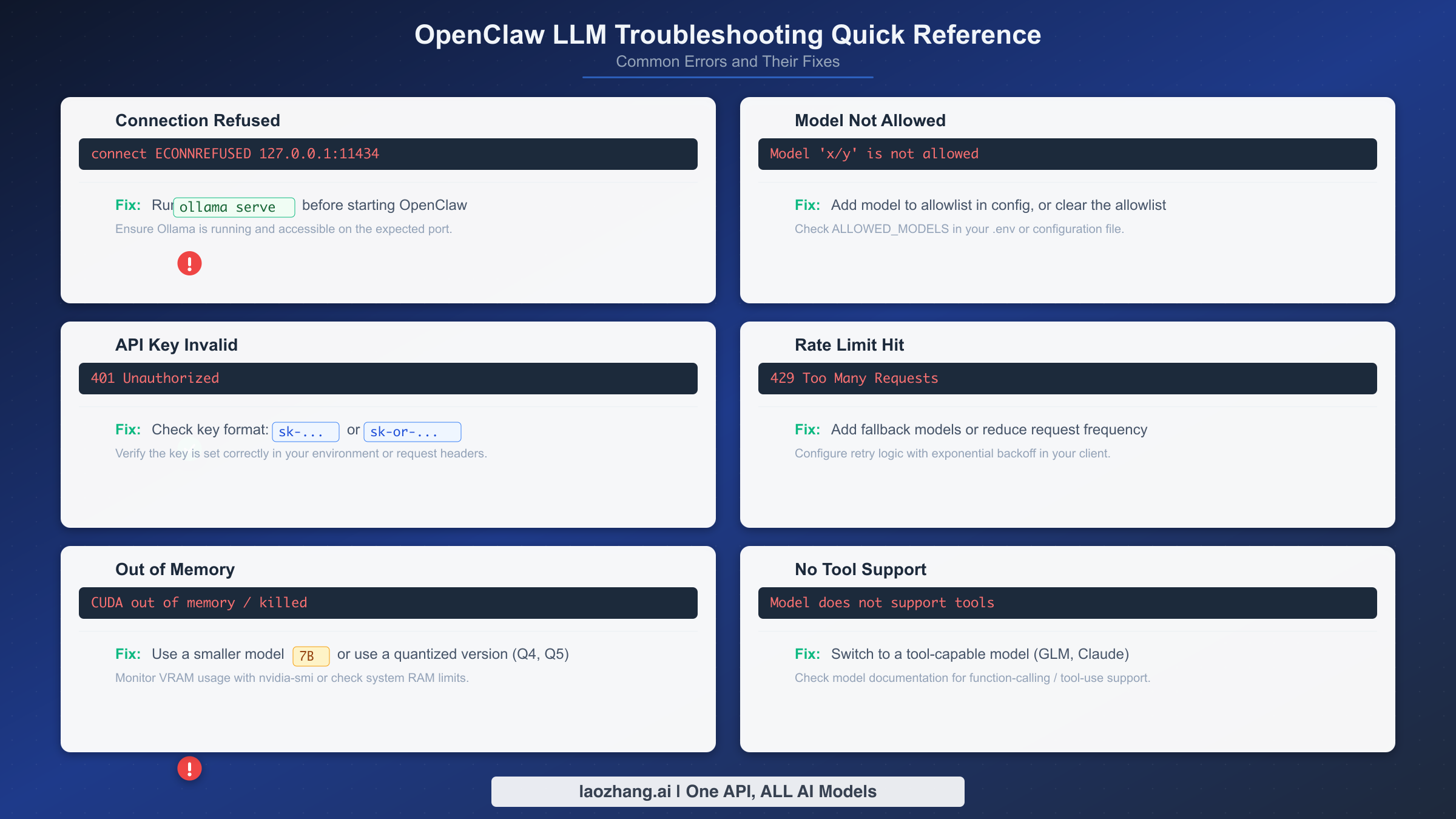
Every OpenClaw user hits at least one of these errors during setup. The frustration is real — you have spent time configuring everything, and then a cryptic error message blocks you. This section covers the ten most common LLM-related errors with their exact error messages and verified solutions, so you can get back to productive work in minutes rather than hours.
Error 1: "Connection refused" when using Ollama. This means OpenClaw cannot reach the Ollama server at http://127.0.0.1:11434. The fix is almost always that the Ollama server is not running. On macOS, open the Ollama desktop app. On Linux, run ollama serve in a separate terminal. Verify the server is accessible with curl http://127.0.0.1:11434/api/tags — if you get a JSON response listing your models, the server is running correctly and the issue is likely a firewall or proxy configuration blocking localhost connections.
# Check if Ollama is running
curl http://127.0.0.1:11434/api/tags

# Start Ollama server (Linux)
ollama serve

# If using a custom port, update OpenClaw config
export OLLAMA_BASE_URL="http://127.0.0.1:YOUR_PORT"
Error 2: "Model not allowed" or "Model not found." This occurs when you request a model that either does not exist on your provider or is not available for your API tier. For Ollama, it means you have not pulled the model yet — run ollama pull MODEL_NAME. For cloud providers, double-check the exact model identifier: OpenClaw uses the format provider/model-name, and a typo in either part triggers this error. Use openclaw models list to see all available models for your configured providers.
Error 3: "Invalid API key" or authentication failures. The API key is either missing, malformed, or expired. For Anthropic, keys start with sk-ant-. For OpenAI, keys start with sk-proj- (newer format) or sk- (legacy). For OpenRouter, keys start with sk-or-. Check that you have set the correct environment variable (ANTHROPIC_API_KEY, OPENAI_API_KEY, or OPENROUTER_API_KEY) and that it does not contain trailing whitespace or newline characters. A common mistake is copying the key with invisible characters from a password manager.
Error 4: "Rate limit exceeded" (HTTP 429). You are sending too many requests too quickly. This is especially common with free-tier API accounts that have low rate limits. The immediate fix is to wait 30-60 seconds and retry. The long-term fix is to configure multi-model routing with fallbacks so that when one provider rate-limits you, the agent automatically switches to another. For persistent rate limit issues, our detailed guide on rate limit exceeded errors covers provider-specific limits and mitigation strategies.
Error 5: "Out of memory" when running local models. You are trying to run a model that exceeds your available RAM. The fix is simple: switch to a smaller model. If you have 16GB of RAM and pulled a 30B parameter model, switch to the 7B variant. Use ollama list to see which models you have installed, and refer to the hardware-to-model table in the Ollama setup section above to find the right fit for your machine.
Error 6: "Tool calling not supported" or agent cannot execute commands. Some models, especially smaller local models or proxy-routed models with incomplete schema support, do not handle OpenClaw tool calls reliably. First verify the provider route and model metadata. Then switch to a current model known by that provider to support tool use, or use a stronger cloud route for tool-heavy work.
Error 7: "Invalid beta flag" errors. This is a version-related issue that occurs when OpenClaw sends API headers that the provider does not recognize. The most common cause is running an outdated version of OpenClaw. Update to the latest version with npm install -g openclaw@latest (requires Node.js v24+). For a detailed walkthrough of this specific error, see our guide on the invalid beta flag error and how to fix it.
Error 8: Context window exceeded. Long conversations or large files can push the total token count beyond the model's runtime context cap. Symptoms include truncated responses or errors about maximum context length. Start a new conversation with /clear, compact or narrow the files in scope, and only then switch to a larger-context route. For custom providers, set explicit contextWindow and runtime caps that match the proxy/model limits.
Error 9: Slow response times with local models. If your local model is responding but taking 30+ seconds per response, you are likely running a model too large for your hardware. Check ollama ps to see current model memory usage, and refer to the hardware table to right-size your model. Also ensure no other memory-intensive applications are running while using OpenClaw with local models.
Error 10: OpenClaw not recognizing provider after configuration. After running openclaw onboard, the agent still defaults to the wrong provider. Use openclaw models status to check the current configuration, and openclaw models set PROVIDER/MODEL to explicitly set your desired model. The /model command within an active OpenClaw session also lets you switch models on the fly without restarting.
What to Do After Setup — Getting Productive
With your LLM provider configured and verified, you are ready to start using OpenClaw as a genuine productivity tool rather than a toy to experiment with. The difference between users who get real value from OpenClaw and those who abandon it after a week usually comes down to three habits that you should establish right now while the setup is fresh.
Start by testing your configuration with a real task, not a "hello world" prompt. Ask OpenClaw to analyze a file in your current project, refactor a function, or write a test for existing code. This immediately validates that tool calling works correctly, that the model has sufficient capability for your work, and that response times are acceptable. If anything feels off — slow responses, incomplete code, or tool calling failures — revisit the provider choice section and consider whether a different model would serve you better.
Next, configure your fallback chain even if you are happy with your primary model. Provider outages happen, rate limits get hit during crunch time, and having a fallback means your workflow never stops completely. At minimum, add one cloud alternative and one local model to your fallback configuration. The five minutes you spend now will save you hours of frustration during the inevitable provider downtime.
Finally, establish a cost monitoring routine if you are using cloud models. Check your API usage dashboard weekly, set billing alerts at thresholds you are comfortable with, and track whether your actual spending matches your budget expectations. If costs are higher than expected, the multi-model routing strategy from the previous section is your most effective lever — route routine tasks to cheaper models and reserve premium models for complex work that genuinely benefits from stronger reasoning.
OpenClaw is a tool that rewards investment in configuration. The users who get the most value are those who treat the initial setup not as a one-time chore but as the foundation of an evolving workflow. Your model choice, fallback chain, and cost strategy will change as your needs evolve and new models become available. The openclaw onboard wizard and /model command make it easy to adapt — the key is to keep iterating rather than settling for a configuration that works "well enough."
The OpenClaw ecosystem is evolving rapidly. New model providers are added regularly, pricing changes as competition intensifies, and local model capabilities improve with each generation. Bookmark this guide and revisit the provider decision framework whenever you consider changing your setup. The principles — match model capability to task complexity, configure fallbacks for reliability, and monitor costs actively — remain constant even as the specific model recommendations evolve. Your initial five minutes of setup is just the beginning of a workflow that will grow more powerful as you refine it over weeks and months of daily use.
Frequently Asked Questions
Can I use multiple LLM providers simultaneously with OpenClaw?
Yes. OpenClaw's fallback chain configuration in agents.defaults.model.fallbacks supports multiple providers. Your primary model handles requests first, and if it fails or is rate-limited, the agent automatically tries the next model in the chain. You can also switch providers mid-session using the /model command. Many users configure a local Ollama model as the final fallback to ensure the agent works even when all cloud providers are unreachable.
What is the minimum hardware required to run OpenClaw with a local LLM?
The absolute minimum is 8GB of RAM, which supports 3B parameter models at usable speeds. For a productive experience with local models, 16GB of RAM running a 7B parameter model like Qwen2.5-Coder is the practical starting point. You also need Node.js v24 or later and sufficient disk space for model files (typically 4-8GB per model). Apple Silicon Macs with unified memory offer the best local inference performance per dollar.
How do I switch models without restarting OpenClaw?
Use the /model command within an active OpenClaw session. Type /model followed by the provider and model name (for example, /model anthropic/claude-sonnet-4.5). This takes effect immediately for the next interaction. You can also use openclaw models set from the terminal to change your default model for all future sessions. Use openclaw models list to see all available models for your configured providers.
Is my data safe when using cloud LLM providers with OpenClaw?
When using cloud providers (OpenAI, Anthropic, OpenRouter), your prompts and code context are sent to the provider's servers for processing. Each provider has its own data retention and privacy policies. If data privacy is a hard requirement, use Ollama — all inference happens locally and no data leaves your machine. For a middle ground, consider using local models for sensitive tasks and cloud models for non-sensitive work, configured through the multi-model routing system.
How much does it cost to run OpenClaw with cloud models?
Costs vary widely based on context size, tool loops, model pricing, cache behavior, and provider rate limits. Do not plan from a stale monthly estimate. Check the current provider pricing page, watch real usage after onboarding, and set spend limits before long agent sessions. The most reliable cost controls are tighter context, deliberate model selection, provider-side budgets, and separate agents for cheap versus high-reasoning jobs.