For a first OpenClaw installation, use the official installer for your operating system, finish onboarding, and verify both the Gateway and a real model reply. Use Docker when you need a containerized host, not simply because a local installation has an unexplained error.
For a new manual setup, use an up-to-date Node 26 release, at least 26.1, or the supported Node 24 LTS line, at least 24.16. Check the linked SQLite compatibility requirements as well; the old “Node 22.14+” prerequisite is no longer a reliable installation target. The official Node guide is the reference for supported versions. The installer documentation explains automatic runtime provisioning.
The runtime, Docker setup, credential examples, and maintenance commands below were checked against official documentation on September 22, 2026. These are documented setup paths, not a claim that we ran every platform installation ourselves.
TL;DR
OpenClaw connects a Gateway, model providers, tools, and optional messaging channels. A successful package installation is only the first step: configure the service, confirm it is reachable, and send a small test message before adding more integrations.
- Prerequisite: use a current compatible Node runtime; check
node --versionin the terminal that will run OpenClaw. The official installer can provision a supported runtime when needed. - Fast path: macOS/Linux/WSL2 use
curl -fsSL https://openclaw.ai/install.sh | bash; native Windows usesiwr -useb https://openclaw.ai/install.ps1 | iex. - After installation: complete onboarding if the installer has not already done it. Use
openclaw onboard --install-daemonfor a managed local service, then checkopenclaw gateway status. - Healthy signal: the Gateway should be listening, the dashboard should open with
openclaw dashboard, and a first Control UI message should return an AI reply. - Deployment choice: local service is best for testing and daily personal use; Docker/Podman/Nix/VPS paths are for isolation, repeatability, or always-on remote access.
- Missing local mode: inspect the configuration with
openclaw doctor, then complete onboarding or apply its documented repair. Running a diagnostic command is not the same as applying a repair; do not bypass the startup guard just to make an error disappear.
Install on macOS, Linux, or inside WSL2:
bashcurl -fsSL https://openclaw.ai/install.sh | bash
Install in native Windows PowerShell:
powershelliwr -useb https://openclaw.ai/install.ps1 | iex
These commands download and execute the project's installer. Inspect the script first when your machine or organization requires that review. Do not run both platform installers for the same installation.
Then finish setup and check the result:
bash# Only if onboarding or the managed service setup is still incomplete
openclaw onboard --install-daemon

openclaw --version
openclaw gateway status
openclaw doctor
openclaw dashboard
The official installation overview documents these entry points. Keep the account, terminal environment, and configuration path consistent between setup and verification.
How to Choose Your OpenClaw Deployment Method
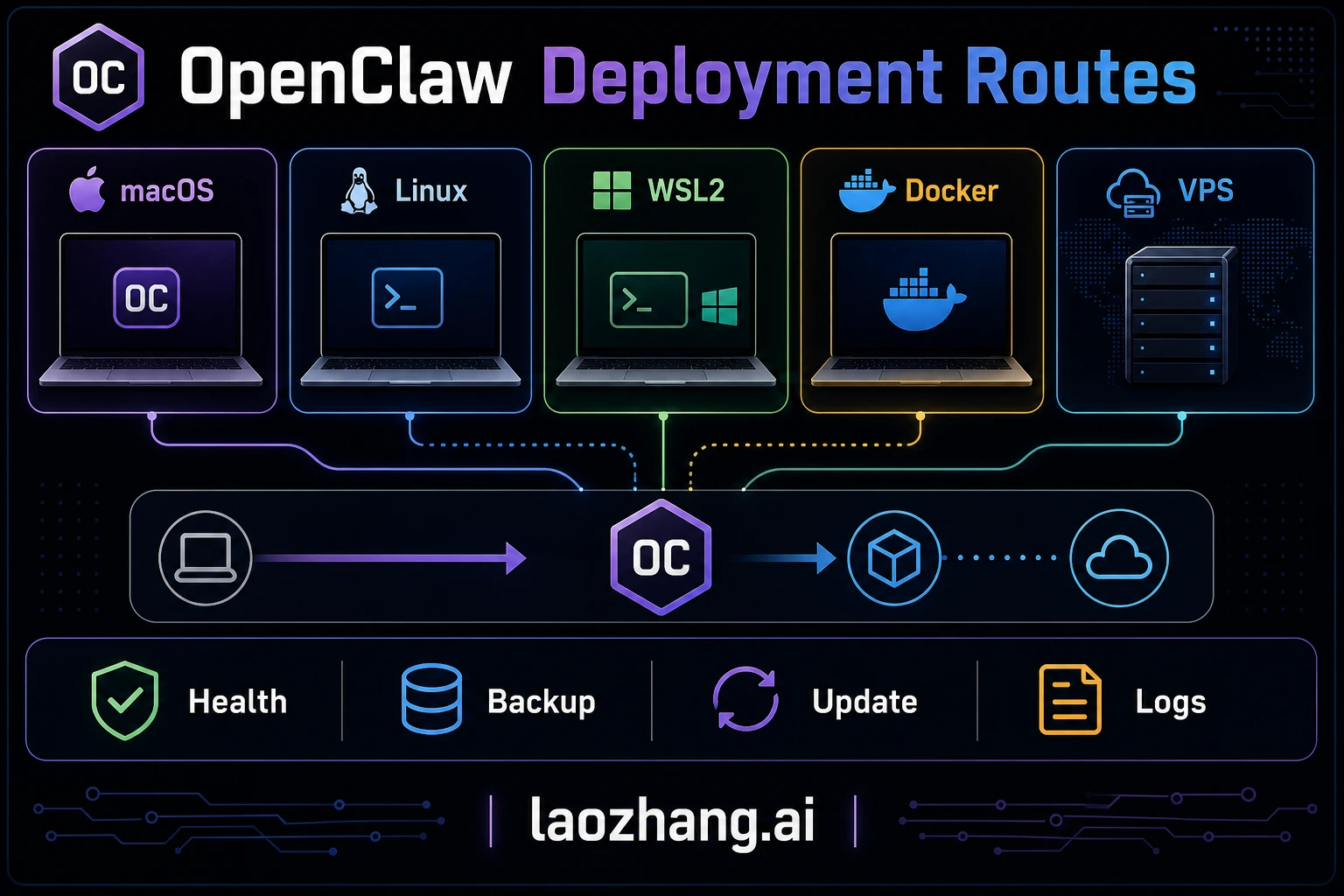
Most installation guides jump straight into commands without addressing the most important question first: which method should you actually use? OpenClaw exposes several install paths, including installer scripts, package managers, source builds, containers, Nix, Ansible, and experimental runtimes, but most users only need to choose between a local installer, a container deployment, or a developer-managed package install. The right choice depends on your hardware situation, your comfort level with the terminal, and whether you plan to leave the assistant running around the clock.
The Installer Script is the recommended starting point for anyone installing OpenClaw for the first time. It works on macOS, Linux, and WSL2; native Windows uses the official PowerShell installer. The current installer flow can install Node when needed, install OpenClaw, and launch onboarding. For a managed local service, openclaw onboard --install-daemon writes the expected local Gateway configuration and installs the appropriate user-level startup path, such as LaunchAgent, systemd user service, or Windows Scheduled Task. Choose this method if you want a normal personal setup with the fewest moving parts.
Docker Compose keeps the Gateway runtime and dependencies in a container. It is useful when you already manage containers or need an always-on remote host. You still own the persistent state, secrets, host firewall, and upgrade process. Containerizing the Gateway does not automatically enable tool sandboxing; those are separate choices in the Docker documentation.
A global package installation suits developers who already maintain a supported Node runtime. Complete onboarding after installing the package. Package-manager lifecycle-script policies differ: current npm and pnpm may require explicit permission for OpenClaw's build scripts. Follow the commands for your package-manager version in the installation overview, rather than granting blanket script execution to unrelated packages. Bun can install the package, but does not replace the supported Node runtime needed to execute OpenClaw.
The following comparison captures the key trade-offs. If you are optimizing for detailed strategies for managing OpenClaw API costs, compare model usage separately from hosting. Model choice, context, tool calls, retries, and message volume affect the API bill; a VPS or container does not create a fixed token discount.
| Criteria | Installer Script | Docker Compose | npm/pnpm Global |
|---|---|---|---|
| Skill level | Beginner | Intermediate | Developer |
| Setup time | Shortest path when supported | Longer because you own volumes, ports, and images | Short if your Node toolchain is already healthy |
| Node.js isolation | Shared | Containerized | Shared |
| Always-on support | Use the managed daemon path from onboarding | Container restart policy plus host supervisor | Use the managed daemon path or your own supervisor |
| Update method | openclaw update | Update the selected image, then recreate the service | Use the documented updater or matching package manager |
| Best for | Local testing and personal daily use | VPS, isolated hosts, or team-owned deployments | Developers with existing Node.js workflow |
| Cost owner | Existing machine and power/network | VPS provider invoice | Existing host or package-managed server |
Practical recommendation: Start with the installer script on a local machine to confirm your auth, gateway, and model route. If the assistant must stay online for other users or integrations, evaluate Docker Compose on a VPS or managed server you already trust. Validate health checks, backups, restart behavior, and provider credentials before calling the deployment production-ready.
Installing OpenClaw on macOS and Linux
Use the shell installer on macOS or Linux. According to the installer reference, it checks the runtime, installs the package, and can start onboarding. Automatic runtime provisioning can differ by operating system; verify the resulting version instead of assuming that every host receives the same Node major version.
Step 1: Verify your Node.js version. Open a terminal and run:
bashnode --version
Use a current Node 26 release or a compatible Node 24 LTS release as described above. If Node is missing, the official OpenClaw installer can handle supported provisioning paths. When managing Node yourself, use the platform-specific Node instructions; do not run Linux package-manager commands on macOS.
On macOS with Homebrew:
bashbrew install node
node --version
On Debian or Ubuntu, the supported Node 24 LTS line can be installed through NodeSource. Confirm the installed patch version afterward:
bashcurl -fsSL https://deb.nodesource.com/setup_24.x | sudo -E bash -
sudo apt-get install -y nodejs
node --version
Only run these system package commands when you intend to manage that host's Node installation. A version manager or the local-prefix installer is preferable when changing system-wide packages would affect other applications.
Step 2: Run the installer script. This single command downloads and executes the official installer:
bashcurl -fsSL https://openclaw.ai/install.sh | bash
The script performs several actions automatically: it verifies system requirements, installs OpenClaw, and creates the expected OpenClaw state/config area. Use the official install docs or openclaw --version for the live version rather than copying a static version number from a guide.
Step 3: Finish onboarding. If the installer already completed setup, continue to verification. Otherwise run:
bashopenclaw onboard --install-daemon
The wizard prompts for the model/provider route, auth method, Gateway mode, and startup behavior. The --install-daemon path installs a managed service or login startup route for your platform, then writes the config shape that the Gateway expects.
Step 4: Verify the installation. Run the built-in diagnostic tool to confirm everything is connected properly:
bashopenclaw gateway status
openclaw doctor
These checks help identify service and configuration failures. They do not replace sending a message through the selected model. Verify the Gateway first, then open the dashboard and check that a small request receives a reply.
macOS-specific note: macOS or a third-party firewall may ask whether the OpenClaw/Node process can make network connections. Allow outbound HTTPS only to the provider, gateway, and channel endpoints you intentionally use. If a model or channel fails only on macOS, check firewall prompts before rotating provider keys.
Linux daemon setup: Prefer openclaw onboard --install-daemon for the managed startup path because it writes the config shape expected by your installed version. If you intentionally own a custom systemd unit, build it from the current OpenClaw docs and verify the exact ExecStart, user, config path, logs, and restart behavior on that host before calling it production-ready.
Installing OpenClaw on Windows WSL2 and via Docker
For native Windows, use the PowerShell installer above or the Windows Hub companion linked from the official install page. Choose WSL2 when the tools you need expect a Linux environment. Docker is a separate deployment choice; it is not required for either Windows path.
Windows WSL2 Installation
WSL2 is useful when your workflow depends on Unix-style tools or Linux service behavior. If you do not already have WSL2 enabled, the setup usually starts with a PowerShell command with administrator privileges followed by a system restart.
Step 1: Install WSL2. Open PowerShell as Administrator and run:
powershellwsl --install
This command enables the WSL2 feature, downloads and installs the default Ubuntu distribution, and configures the virtual machine. Restart your computer when prompted. After rebooting, Ubuntu will launch automatically to complete its initial setup, asking you to create a Linux username and password.
Step 2: Update packages and install Node.js. Inside the WSL2 Ubuntu terminal:
bashsudo apt update
curl -fsSL https://deb.nodesource.com/setup_24.x | sudo -E bash -
sudo apt-get install -y nodejs
node --version
Step 3: Install OpenClaw. The same installer script used for native Linux works inside WSL2 without modification:
bashcurl -fsSL https://openclaw.ai/install.sh | bash
openclaw onboard --install-daemon
Run onboarding only if it remains incomplete, then perform the same Gateway and first-message checks described above. One WSL2-specific consideration is networking: if the Windows browser cannot reach the dashboard opened by openclaw dashboard, verify the actual port printed by the command and WSL2 localhost forwarding before changing OpenClaw config.
Docker Compose Installation
Use the project's maintained Compose configuration instead of a handwritten template with guessed mounts or placeholder credentials. Install Docker Engine with Compose v2, or Docker Desktop, using the appropriate Docker installation instructions.
For a new deployment, clone the official repository into a new directory, inspect its setup script and Compose files, then use the documented setup flow:
bashgit clone https://github.com/openclaw/openclaw.git openclaw-docker
cd openclaw-docker
export OPENCLAW_IMAGE="ghcr.io/openclaw/openclaw:latest"
./scripts/docker/setup.sh
The official Docker guide explains the generated configuration, onboarding, token, and persistent mounts. For production, select a tested release tag or digest rather than assuming latest is reproducible. Do not overwrite an existing deployment directory or its .env file with this new-install sequence.
Inspect the effective ports and mounts before allowing remote access. Keep the dashboard private behind authentication and an SSH tunnel or appropriately secured proxy. A container's internal bind address is not the same as the host's published interface.
bashdocker compose ps
docker compose logs --tail 50 openclaw-gateway
docker compose run --rm openclaw-cli dashboard --no-open
Treat dashboard URLs containing credentials as secrets. A running container still needs a successful first model reply. Preserve the actual configured state, workspace, and authentication mounts; an arbitrary ./data:/app/data mount is not a substitute.
Hardware Requirements and Performance Optimization
OpenClaw itself is usually not the heavy part of the stack. The harder question is whether the host can stay reachable, restart cleanly, keep configuration safe, and survive the surrounding workload you run beside it. Avoid treating old hardware tables or VPS price snapshots as current requirements; verify the machine you will actually deploy.
Use this capacity checklist instead:
| Deployment route | Verify before production | Main risk |
|---|---|---|
| Existing laptop or desktop | Sleep settings, network reachability, restart behavior, local secret storage | The machine disappears when the user closes it, reboots it, or changes networks. |
| Home lab or small single-board server | Power protection, storage reliability, disk backups, update path | Home power/network instability can break webhook-style workloads. |
| VPS or managed server | Provider region, restart policy, firewall rules, backup snapshot, monthly invoice owner | Hosting bills, exposed ports, and provider maintenance windows need ownership. |
| Team/server deployment | Secret rotation, log retention, service monitoring, rollback plan | More users means configuration drift and credential ownership matter more than raw CPU. |
For performance, measure the OpenClaw process and the connected model route separately. If local CPU and memory stay low while responses are slow, the bottleneck is probably model latency, provider quota, context size, or network round-trip time. If the host itself is overloaded, reduce co-located services, rotate logs, or move the gateway to a cleaner server before blaming the model provider.
Performance tuning tips: Tune the layer that is actually slow. If the Gateway process is memory constrained, inspect host metrics and Node options supported by your deployment. If the provider route is slow, check model latency, context size, streaming support, and quota state. If disk usage grows, configure log rotation through Docker logging, system logrotate, or the current OpenClaw log controls documented for your version.
Environment Variables and API Key Configuration
OpenClaw behavior can be controlled through a mix of config files, auth profiles, environment variables, and container secrets. Understanding which source wins is essential because stale environment values can override the config you think you changed.
LLM Provider Configuration
OpenClaw can route to multiple LLM providers when they are configured, authenticated, and allowed by the selected agent. At minimum, you need one working model route, whether that is a direct provider, local runtime, or gateway.
Choose the provider during onboarding and follow its documented authentication method. An API key, a local model endpoint, and a third-party compatible endpoint are different configurations.
For example, the direct Google Gemini API-key path uses GEMINI_API_KEY; GOOGLE_AI_API_KEY is not the variable documented for that path. Configure only the provider you intend to use and verify it from the Gateway's actual runtime environment. A key available in an interactive shell is not proof that a managed service or container can read it.
Do not put live credentials into copied examples, public logs, or Git commits. Prefer onboarding or the documented secret mechanism rather than keeping a speculative list of environment variables.
For a deep walkthrough of configuring each provider, including model selection and parameter tuning, see the comprehensive guide to configuring LLM providers in OpenClaw. If you want to connect custom or self-hosted models, the configuring custom models in OpenClaw guide covers endpoint configuration and model aliasing.
API Gateway Alternative: If you prefer accessing multiple LLM providers through a single unified endpoint rather than managing separate API keys, configure that route as a custom provider or OpenAI/Anthropic-compatible proxy and verify the current provider docs before publishing price, model, or uptime claims. A gateway can simplify auth, but it also changes which native request features survive the proxy hop.
Messaging Platform Tokens
Enable one channel after the dashboard can produce a model reply. Its account, permissions, and delivery checks are separate from model authentication.
In particular, OpenClaw's documented WhatsApp integration links a WhatsApp Web session with a QR code. It is not the Meta Business API setup implied by a WHATSAPP_TOKEN and WHATSAPP_PHONE_NUMBER_ID template:
bashopenclaw channels login --channel whatsapp
Link the intended account, apply the channel's access policy, and test delivery. For other channels, use their specific documentation instead of assuming that similarly named tokens are interchangeable. A response visible in the dashboard does not establish that the messaging platform delivered it.
Security Best Practices for Credentials
Your .env file contains sensitive credentials that, if exposed, grant access to your LLM accounts and messaging platforms. Treat this file with the same care as SSH private keys or database passwords. On Linux servers, restrict file permissions immediately after creation:
bashchmod 600 ~/.openclaw/.env
Never commit .env files to version control. If you use a configuration management tool like Ansible for multi-server deployments, store secrets in an encrypted vault rather than plaintext playbooks. For Docker deployments, consider using Docker secrets or a secrets manager rather than bind-mounting a plaintext .env file, especially in team environments where multiple people have access to the Docker host.
Rate Limiting and Cost Control
Busy channels and repeated tool calls can generate paid model usage. Set spending controls in the service that actually bills the requests, and distinguish a warning threshold from a hard limit.
Do not assume arbitrary .env entries named RATE_LIMIT_PER_USER or DAILY_COST_LIMIT create enforcement. Unless the installed application or your own middleware explicitly reads them, those values are only text. Test the actual limit behavior with a bounded workload, restrict who can invoke the agent, and monitor provider usage before enabling unattended work.
Advanced configuration tips: OpenClaw supports model routing and fallback patterns, which lets you assign different LLM routes to different agents, conversation types, or recovery paths. Use this for reliability first, then cost control after you have real usage data. Do not promise a fixed savings percentage; actual cost depends on context size, tool use, model pricing, cache behavior, and how often fallbacks trigger.
First Run, Testing, and Troubleshooting
After installation and configuration, the first run is where you confirm that every component — Node.js runtime, LLM provider, messaging bridge, and web dashboard — functions correctly as an integrated system. A methodical verification process saves hours of debugging later.
Step 1: Run the diagnostic suite. The openclaw doctor command performs a comprehensive health check:
bashopenclaw doctor
Read the command's actual findings rather than expecting a fixed block of [OK] lines. Separate three checks: the configuration is accepted, the Gateway is reachable, and the selected model can answer. Each tests something different; a successful service probe alone does not validate every configured provider.
Use the Gateway command reference to interpret service and connectivity results. In particular, gateway status --deep expands service/configuration inspection; it is not an end-to-end test of all provider accounts.
Step 2: Send a test message. Start in the Control UI opened by openclaw dashboard, then test your configured channel. If the dashboard works but the channel does not, debug pairing/channel permissions. If neither works, debug Gateway health and model auth first.
Step 2.5: Test multi-turn conversation. Send two or three follow-up messages to verify that OpenClaw maintains conversation context. Ask it to remember something from your first message, then reference it in a later message. This checks continuity in that conversation; it does not prove that every prior message or the full available context window was sent to the model.
Step 3: Open the web dashboard. The dashboard provides a visual overview of system status, recent conversations, and configuration:
bashopenclaw dashboard
This opens your default browser to the local dashboard interface. From the dashboard, you can monitor active conversations, adjust model parameters, and review usage statistics.
Common errors and their solutions:
Error: "ANTHROPIC_API_KEY is invalid or expired" — Verify the key in the Anthropic Console, confirm the selected model is available to that account, and check whether Docker or shell environment variables override the value OpenClaw is loading. Do not rely on a key prefix as proof of validity. For detailed troubleshooting of Anthropic key issues, see troubleshooting Anthropic API key configuration errors.
Error: "EACCES permission denied" during installation — Inspect the failing path and npm prefix -g. Do not respond by blindly rerunning the whole installer with sudo or recursively changing ownership of system directories. The Node troubleshooting guide describes a user-writable npm prefix; the local-prefix installer is another option. Reopen the terminal after a PATH change and verify which node and openclaw executables it resolves.
Error: "Port 18789 already in use" — Another process occupies the gateway port. Identify and stop it with:
bashlsof -i :18789
# Stop only the process that you have confirmed owns the stale OpenClaw gateway.
kill <PID>
Then restart OpenClaw. If the conflict is persistent because another service legitimately uses that port, configure OpenClaw to use the alternate port mechanism documented for your installed version.
Error: "429 Too Many Requests" — Read the provider's full error and retry guidance. A temporary rate limit and exhausted credits require different responses; repeatedly waiting does not replenish an empty balance. For detailed diagnosis, see OpenClaw rate-limit troubleshooting.
A channel fails while the dashboard works — Identify the channel and its actual error first. Do not prescribe a universal WebSocket or long-polling switch for every messaging service. Check account linking, permissions, delivery logs, and the channel's documented connectivity requirements before changing the network.
Useful diagnostic commands:
bashopenclaw status
openclaw gateway status --deep
openclaw doctor
openclaw logs --follow
The logs reference also supports openclaw logs --limit 100 for a bounded excerpt. Remove credentials and private message contents before sharing output. Review any suggested repair before applying it; inspection and configuration changes are separate actions.
Upgrading, Backup, and Long-Term Maintenance
Installation is a one-time event; maintenance is ongoing. OpenClaw changes quickly, and keeping your installation current ensures you receive provider fixes, Gateway guardrails, security patches, and new onboarding behavior. Equally important is establishing a backup routine before any update so that a failed upgrade never results in lost configuration or conversation history.
Check before changing anything:
bashopenclaw update status
openclaw update --dry-run
The update reference documents availability checks and a dry run. These replace the undocumented openclaw update --check example. Read the release notes and planned actions before changing a working installation.
Create and verify a backup:
bashopenclaw backup create --verify
The backup reference explains the archive's included state, configuration, credentials, and optional workspaces. Keep the resulting archive private and copy a completed, verified backup to a protected location outside the machine. Do not treat a raw copy of live SQLite files and their sidecars as a consistent backup.
For a container installation, preserve the actual configured mounts and deployment configuration as well. Inspect what the archive includes before relying on it; a successful archive check is not a rehearsal of restoring an older application version.
Apply an update using the installation method you chose. For a supported native installation:
bashopenclaw update
openclaw gateway status
For the repository-based Docker deployment above, run Compose in its checkout directory. Set OPENCLAW_IMAGE to the intended tested image in the deployment configuration first, then:
bashdocker compose pull openclaw-gateway openclaw-cli
docker compose up -d openclaw-gateway
docker compose ps
docker compose pull takes service names, not an image reference in place of a service. Keep the CLI and Gateway on the intended compatible image. Confirm that persisted data remains mounted, inspect logs, and send a small message after the update.
Rollback needs a compatible application and data pair. A failed update does not justify overwriting the current state with an unverified old directory. Record the installed version and error, preserve the failed state, and check the target release's migration requirements. The updater warns about downgrade compatibility; older binaries may not understand a newer database.
For a managed native service, the lifecycle commands are openclaw gateway stop and openclaw gateway start, not generic openclaw stop and openclaw start. For an ordinary restart, use openclaw gateway restart. Follow the Gateway service reference and your supervisor's instructions. Stop affected writers before an offline restore, and validate the restored installation before reconnecting unattended channels. Do not remove Docker volumes as a shortcut.
Ongoing monitoring: A healthy maintenance routine includes periodic checks beyond just updating. The following commands form a lightweight monitoring workflow that catches issues before they become outages:
bash# Quick health check (run daily or via cron)
openclaw status

# Inspect configuration and reported diagnostics
openclaw doctor

# Review recent logs for errors or warnings
openclaw logs --limit 100

# Open the dashboard for a visual status overview
openclaw dashboard
For headless servers without a desktop browser, forward the actual dashboard/gateway port printed by openclaw dashboard through SSH and access it from your local machine.
Log management: Check the actual log location reported by your installation before configuring retention. Do not assume OpenClaw writes to /var/log/openclaw. Use the documented logging commands for inspection and configure rotation for the real host or container log destination. Retain enough history to investigate failures without storing credentials or unlimited conversation data.
Security maintenance: Periodically rotate your API keys and messaging tokens, especially if you suspect any may have been exposed. Update the keys in your .env file and restart OpenClaw. Additionally, keep your host operating system and Docker engine updated to receive security patches that protect the platform underlying OpenClaw itself.
Summary and Next Steps
Start with the setup you can operate reliably: a local installer for personal use, native Windows or WSL2 according to your tools, or the maintained Docker configuration for a containerized host. Check a first model reply before adding channels and unattended tasks.
Move to a VPS only when you actually need an always-on machine and can maintain its access controls, backups, and updates. Deployment location alone does not make an installation production-ready.
What to do next:
After your installation is running, the natural next steps involve deepening your LLM configuration and optimizing costs. The comprehensive guide to configuring LLM providers in OpenClaw walks you through switching between Claude, GPT, Gemini, and local models based on task type and budget constraints. For users operating on a tight API budget, the detailed strategies for managing OpenClaw API costs guide covers rate limiting, model routing, and cost monitoring techniques that keep spending predictable.
Recommended exploration path: Once the basics are working, consider these enhancements in order of impact. First, connect a second messaging platform if that is part of your real workflow. Second, experiment with model routing by assigning lower-cost routes to casual conversations and stronger verified routes to complex tasks; measure cost changes in your provider dashboard instead of assuming a fixed savings percentage. Third, explore the plugin ecosystem through the OpenClaw dashboard; community-built plugins can add capabilities, but each plugin should be tested against your version before production use.
Keeping up with the project: Subscribe to the GitHub releases feed (github.com/openclaw/openclaw/releases) to receive notifications when new versions drop. Major version bumps can introduce breaking changes, so reading the release notes before updating is a habit worth building. Use the current project support channels listed by OpenClaw for help instead of relying on an old article's community links.
After the first message works, keep the setup honest: verify the Gateway after updates, keep secrets out of git, back up config before migrations, and test every provider or channel route from the surface that will actually use it.