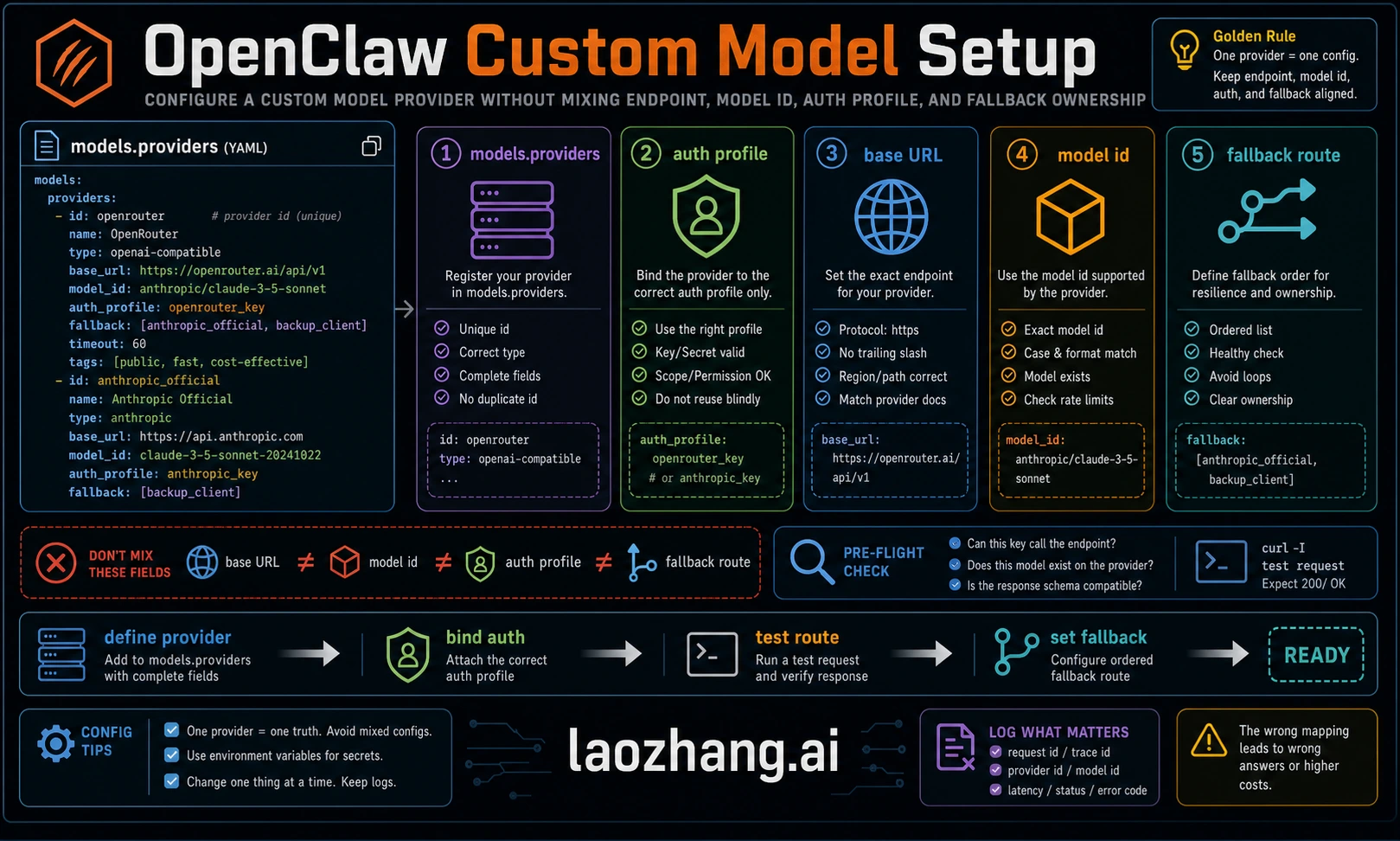
OpenClaw custom model setup is a routing problem, not a copy-paste contest. You need to prove four things: the provider has valid auth, OpenClaw can see the provider/model catalog, the selected provider/model ref resolves to the route you intend, and fallbacks are configured so one provider failure does not stop the whole agent. The current model docs make openclaw onboard, openclaw models status, openclaw models list, openclaw models set <provider/model>, models.providers, and the per-agent models.json merge behavior the reliable path.
What Are Custom Model Providers in OpenClaw?
OpenClaw's model system divides providers into two practical categories. Built-in providers already have provider metadata and common auth flows, so your job is to authenticate and select a model. Custom providers are explicit entries under models.providers or in the generated per-agent models.json, usually for private gateways, OpenAI-compatible endpoints, Anthropic-compatible endpoints, local runtimes, or provider variants that the built-in catalog does not cover yet.
Custom providers are useful when you need a private vLLM server behind a firewall, LiteLLM as a company gateway, an OpenAI-compatible vendor, an Anthropic-compatible proxy, a local runtime such as Ollama or LM Studio, or an internal endpoint with custom headers and audit controls. They are also useful when you want stricter allowlists and fallbacks than the default onboarding path creates.
The decision is straightforward. If the target provider appears in the current built-in list and you do not need to override base URL, headers, or catalog rows, use the built-in path. If your endpoint exposes an OpenAI-compatible chat API, configure it as an OpenAI-compatible custom provider. If it exposes Anthropic messages semantics, configure it as Anthropic-compatible. If it uses neither format, put a gateway such as LiteLLM, OpenRouter, or a private adapter between OpenClaw and the provider. For a deeper look at initial provider setup including Ollama and cloud providers, see our complete OpenClaw LLM setup guide.
The practical impact goes beyond adding a model name. Teams use custom providers to enforce org-wide logging, rate limits, routing policies, and budget rails. Local users use them to keep data on the machine. Gateway users use them to hide several upstream providers behind one OpenAI-compatible endpoint. The rule is simple: if the endpoint is not covered by the built-in provider path or you need to override base URL, headers, or model list, define it explicitly and verify it before making it the primary model.
How OpenClaw's Model System Works
Understanding three core concepts will save hours of debugging. First, model refs use provider/model-id. OpenClaw splits on the first slash. If the model ID itself contains more slashes, keep the provider prefix explicit so OpenClaw knows which provider owns the route.
Second, model selection has an order. Current docs describe the route as primary model, then configured fallbacks, with provider auth failover happening inside a provider before moving to the next model. Image, PDF, image-generation, and video-generation model refs can have their own primary/fallback settings. If a custom model cannot accept images, mark capabilities honestly so attachment paths do not send image inputs to a text-only route.
Third, the configured model catalog and allowlist matter. agents.defaults.models can restrict what OpenClaw may use, while models.providers defines provider metadata. If a model appears in your provider block but openclaw models status does not show it as available, inspect the allowlist, auth profile, generated models.json, and whether the provider entry was merged or replaced.
The CLI provides a comprehensive set of commands for managing models at runtime without editing configuration files manually. The openclaw models list command displays all configured models, with the --all flag showing the full catalog and --provider <name> filtering to a specific provider. The openclaw models set <provider/model> command changes the primary model immediately, while openclaw models set-image <provider/model> configures the image-capable model used when vision input is needed. Alias management through openclaw models aliases list|add|remove lets you create shortcuts like "opus" or "kimi" that map to full provider/model references, reducing typing in daily workflows. Fallback management through openclaw models fallbacks list|add|remove|clear and openclaw models image-fallbacks list|add|remove|clear gives you complete control over the failover chain. Perhaps most useful for custom provider debugging, the openclaw models scan command inspects available models with optional live probes that test tool support and image handling capabilities in real time.
Complete models.providers Configuration Reference
The models.providers section in config is where explicit provider definitions live. Official model docs note that custom providers are written into per-agent models.json under the agent directory by default and merged unless models.mode is set to replace. That merge behavior matters: an existing agent-level baseUrl or non-SecretRef API key can win over the config you just edited.
The top-level structure wraps provider definitions inside models.providers, with an optional mode field that controls how custom providers interact with the built-in catalog. Setting mode: "merge" combines your custom providers with the built-in ones, which is the recommended approach for most users. Without this field, custom providers replace the catalog entirely — rarely the desired behavior.
Each provider definition usually needs a baseUrl, an auth source such as an API key or SecretRef/env reference, an API compatibility mode, and a model list. Use OpenAI-compatible mode for endpoints that expose chat-completions style APIs. Use Anthropic-compatible mode only when the endpoint actually implements Anthropic messages semantics. For non-canonical Anthropic-compatible proxies, current docs warn that OpenClaw suppresses some direct-Anthropic beta/OAuth markers so proxies do not reject unsupported headers.
The models array within each provider defines which models OpenClaw should consider available for that provider. Keep capability fields honest. If a custom or proxy model accepts images, declare the image input capability so WebChat and node-origin attachment paths pass native image input. If it is text-only, leave image out. Costs and context windows are useful only when you have current provider documentation; stale values are worse than omitted values because they mislead routing and budget decisions.
Here is the complete configuration structure with all parameters annotated:
json5{
  models: {
    mode: "merge",
    providers: {
      "provider-name": {
        baseUrl: "https://api.example.com/v1",
        apiKey: "${API_KEY_ENV_VAR}",
        api: "openai-completions",
        models: [
          {
            id: "model-id",
            name: "Display Name",
            reasoning: false,
            input: ["text"],
            cost: { input: 0, output: 0, cacheRead: 0, cacheWrite: 0 },
            contextWindow: 200000,
            maxTokens: 8192
          }
        ]
      }
    }
  }
}
Choosing the correct api type depends on endpoint format, not brand name. Use the OpenAI-compatible path when the provider accepts OpenAI-style chat completions. Use the Anthropic-compatible path when the endpoint expects Anthropic messages. When in doubt, test with the provider's minimal curl example first, then mirror that protocol in OpenClaw.
Use this routing table before writing config:
| Route type | Use when | Common mistake |
|---|---|---|
| Built-in provider | OpenClaw already ships the provider and auth flow | Adding duplicate models.providers entries that fight the built-in catalog |
| OpenAI-compatible custom endpoint | Endpoint supports OpenAI-style chat completions | Wrong baseUrl, missing /v1, or stale env key |
| Anthropic-compatible custom endpoint | Endpoint supports Anthropic messages semantics | Sending direct-Anthropic beta/OAuth assumptions to a proxy |
| Local runtime | Ollama, vLLM, LM Studio, llama.cpp, or an internal server | Using localhost from inside Docker when the server is on the host |
| Multi-provider gateway | One base URL routes to several upstream models | Forgetting to model provider-specific limits and fallback behavior |
Configuring Cloud and API Providers (Step-by-Step)
This section provides safe templates. Replace model IDs, base URLs, and env names with values verified from the provider's current docs and your account.
OpenAI-compatible cloud or gateway endpoint. Use this pattern when your provider or internal gateway exposes an OpenAI-compatible /v1 API:
json5{
  agents: {
    defaults: { model: { primary: "providerid/provider-model-id" } },
  },
  models: {
    mode: "merge",
    providers: {
      providerid: {
        baseUrl: "https://api.example.com/v1",
        apiKey: "${PROVIDER_API_KEY}",
        api: "openai-completions",
        models: [{ id: "provider-model-id", name: "Provider Model Name" }],
      },
    },
  },
}
After saving the configuration, export the env var in the same process environment that starts the gateway, not only in your interactive shell. Verify with openclaw models list --provider providerid and openclaw models status. This catches wrong provider IDs, missing auth, stale generated models.json, and allowlist rejection before a real agent run.
Anthropic-compatible proxy endpoint. Use this only when the endpoint actually expects Anthropic messages format:
json5{
  models: {
    mode: "merge",
    providers: {
      anthropicproxy: {
        baseUrl: "https://api.example.com/anthropic",
        apiKey: "${PROXY_API_KEY}",
        api: "anthropic-messages",
        models: [{ id: "proxy-model-id", name: "Proxy Model Name" }],
      },
    },
  },
}
Regional provider endpoint. Some providers expose different base URLs by region. Treat region, billing account, model availability, and rate limits as current-run facts. Put only verified values into cost and context fields:
json5{
  models: {
    mode: "merge",
    providers: {
      regionalprovider: {
        baseUrl: "https://region.example.com/v1",
        apiKey: "${REGIONAL_PROVIDER_API_KEY}",
        api: "openai-completions",
        models: [{
          id: "current-provider-model-id",
          name: "Current Provider Model",
        }],
      },
    },
  },
}
API proxy services like laozhang.ai fit the same OpenAI-compatible pattern when the reader's job is unified billing, multi-provider fallback, cost routing, or simplified access through one base URL. Label the proxy route as provider-gateway configuration, not as official upstream pricing or upstream availability. Verify the current model ID, pricing, and route before publishing a hard recommendation.
OAuth or plugin-backed provider routes should be copied only from the current OpenClaw provider docs for that provider. Do not assume an old promotional access path or plugin command still exists. The safe rule is: authenticate through openclaw onboard or the provider-specific openclaw models auth ... command shown in current docs, then prove the route with openclaw models status before setting it as default.
Connecting Local Models (Ollama, vLLM, LM Studio, LiteLLM)
Running models locally can reduce provider API spend and keep more data on your machine, but it moves the limit from provider quota to host capacity. Local inference still has constraints: RAM, GPU/CPU speed, context length, model quality, tool-call behavior, and operational maintenance. Treat the runtime examples below as route patterns to verify, not a promise that every model or OpenClaw version supports every capability.
Ollama is often the fastest path to local inference because it handles model download and serving behind a simple local API. Some OpenClaw versions may detect a local Ollama route automatically; otherwise, add it explicitly as an OpenAI-compatible local provider. Install Ollama, pull a model from the current Ollama catalog, then set the verified route as primary:
json5{
  agents: {
    defaults: { model: { primary: "ollama/local-model-id" } },
  },
}
For models that benefit from extended context or specific quantization, choose the model from your local runtime's current catalog and verify that it supports the tool, context, and attachment behavior your OpenClaw workflow needs. Smaller local models can be useful for simple lookups and heartbeat work, while larger local models require more memory and careful latency expectations. Do not publish a universal "best local model" without testing it against the actual runtime and hardware.
vLLM targets server deployments where throughput, batching, and GPU utilization matter. Treat its endpoint, model ID, context window, and memory profile as deployment facts you verify on your own host. A common OpenAI-compatible local endpoint is http://localhost:8000/v1, but the exact address depends on how you started the server:
json5{
  models: {
    mode: "merge",
    providers: {
      vllm: {
        baseUrl: "http://localhost:8000/v1",
        apiKey: "not-needed",
        api: "openai-completions",
        models: [{
          id: "served-model-id",
          name: "Served Model",
        }],
      },
    },
  },
}
One critical detail for Docker deployments: localhost inside a container usually means the container itself. Use the network name, host.docker.internal on Docker Desktop, or the host's reachable IP when vLLM and OpenClaw run in different containers. Tune vLLM flags such as model length, batching, and memory limits from the vLLM docs for your hardware, then prove the route with a direct /v1/models or chat-completions probe before adding it to OpenClaw.
LM Studio provides a desktop GUI for downloading, converting, and serving models. Its visual interface makes it useful for testing a local model before committing to a server-side configuration. Use a generic provider/model ID that matches the model you loaded in LM Studio:
json5{
  agents: {
    defaults: {
      model: { primary: "lmstudio/local-model-id" },
      models: { "lmstudio/local-model-id": { alias: "Local" } },
    },
  },
  models: {
    providers: {
      lmstudio: {
        baseUrl: "http://localhost:1234/v1",
        apiKey: "LMSTUDIO_KEY",
        api: "openai-completions",
        models: [{
          id: "local-model-id",
          name: "Local Model",
          reasoning: false,
          input: ["text"],
          cost: { input: 0, output: 0, cacheRead: 0, cacheWrite: 0 },
          // Add numeric contextWindow and maxTokens only after verifying them for this model.
        }],
      },
    },
  },
}
LiteLLM serves a different purpose than the local runtimes. Rather than running inference itself, it can present a unified OpenAI-compatible interface to multiple upstream providers. This is useful when you want one gateway endpoint for routing, logging, budgets, or policy controls. It does not automatically create more quota or guarantee availability: each upstream key still has its own billing owner, rate limits, model coverage, and tool behavior. Configure it with the same openai-completions API type and define only the models your LiteLLM instance actually serves.
The following table summarizes the key differences between these four local model runtimes to help you choose the right one for your workflow:
| Feature | Ollama | vLLM | LM Studio | LiteLLM |
|---|---|---|---|---|
| Default Endpoint | localhost:11434 | localhost:8000 | localhost:1234 | localhost:4000 |
| Setup Difficulty | Low | Medium to high | Low to medium | Medium |
| Auto-Detection | Version-dependent | No | No | No |
| Best For | Quick start, development | Production, high throughput | Model experimentation | Multi-provider routing |
| GPU Required | Optional (CPU works) | Recommended | Optional | N/A (proxy only) |
| Tool Calling | Model-dependent | Model-dependent | Model-dependent | Passthrough |
Hardware requirements vary by model family, quantization, context length, batch size, and runtime. Treat any exact VRAM or tokens-per-second claim as a local benchmark, not a portable guarantee. For OpenClaw, the real test is whether the model can complete your agent workload with acceptable latency and tool-call reliability.
Advanced Multi-Model Routing and Security
The real power of custom providers emerges when you combine them with OpenClaw's routing and failover capabilities. Instead of relying on a single model, you can design a model stack that balances cost, latency, capability, and incident recovery.
A practical routing configuration assigns models by task risk and provider health. Use your strongest verified route for high-risk architecture, security, and multi-file changes. Use a cheaper or faster route for routine edits and retrieval. Use a local or low-cost route for heartbeat checks and simple summaries. Put current prices in config only after checking the provider dashboard today. The fallback chain configuration ensures continuity when individual providers fail:
json5{
  agents: {
    defaults: {
      model: {
        primary: "primary-provider/primary-model",
        fallbacks: [
          "fallback-provider/fallback-model",
          "gateway-provider/gateway-model",
          "ollama/llama3.3"
        ]
      },
    },
  },
}
This cascade means if the primary route hits auth failure, quota, or provider downtime, OpenClaw can move to the next configured route. It does not guarantee the task will succeed unchanged: the fallback model must support the same tools, context length, attachments, and output style. For teams managing token management and cost optimization strategies, the real value is controlled degradation rather than chasing a fixed savings percentage.
Per-agent or per-task model overrides extend the routing model further when your installed version supports them. The operational pattern is simple: assign stronger verified routes to high-risk work, cheaper or local routes to low-risk summaries, and keep the fallback chain honest about tool, image, and context support.
Security deserves deliberate attention when configuring custom providers. The most important practice is storing API keys in environment variables rather than directly in openclaw.json. Use the ${VAR_NAME} syntax consistently so credentials never appear in configuration files that might be committed to version control. For enterprise deployments, the model allowlist provides access control — set agents.defaults.models to explicitly list permitted models, and any unlisted model will be rejected. The openclaw models status command shows authentication status for all configured providers, helping you verify that credentials are correctly loaded without exposing the actual key values. When using laozhang.ai or a similar proxy service, treat it as its own provider-gateway route: verify the current endpoint, model list, pricing, quota, and tool support before adding it to shared configuration.
For teams sharing an OpenClaw configuration, separate authentication credentials from structural configuration. Store openclaw.json with ${VAR_NAME} placeholders and distribute actual credentials through a secrets manager or team vault. Model allowlists add governance by restricting which routes team members can activate. Cost fields are useful only when kept current; use them for internal routing hints, then reconcile spending against the provider or gateway dashboard.
Troubleshooting Custom Model Issues
Custom model configurations introduce failure modes that differ from built-in providers. The following covers the most common errors, their root causes, and the exact steps to resolve them. Start every debugging session with openclaw models status --probe, which performs live connectivity testing against all configured providers and surfaces authentication, routing, and connection issues in a single output.
"Model 'provider/model' is not allowed" appears when a model allowlist is active and your custom model is not included. This is the most frequently reported issue when adding new providers. The fix requires adding your model to the allowlist in agents.defaults.models:
json5{
  agents: {
    defaults: {
      models: {
        "providerid/provider-model-id": { alias: "Custom" },
        // ... add your custom model here
      },
    },
  },
}
Alternatively, remove the agents.defaults.models key entirely to disable the allowlist. This is appropriate for personal setups but not recommended for team environments where model access should be controlled.
"Connection refused" or "ECONNREFUSED" occurs when OpenClaw cannot reach the configured baseUrl. For local runtimes, verify the server is actually running — curl http://localhost:11434/v1/models for Ollama, curl http://localhost:1234/v1/models for LM Studio, curl http://localhost:8000/v1/models for vLLM. If the curl command also fails, the inference server is not running or is listening on a different port. For Docker deployments, remember that localhost inside a container refers to the container itself, not the host machine — use host.docker.internal or the host's IP address instead.
"Invalid API key" or "401 Unauthorized" means the authentication credential is missing or incorrect. First verify the environment variable is set with echo $YOUR_API_KEY_VAR — an empty response means the variable is not exported in your current shell session. Ensure the export statement is in ~/.zshrc or ~/.bash_profile and that you have sourced the file after editing. If using the ${VAR_NAME} syntax in openclaw.json, confirm the variable name matches exactly — ${MOONSHOT_API_KEY} requires export MOONSHOT_API_KEY='sk-...', not MOONSHOT_KEY or moonshot_api_key. For more detailed API key debugging, see our OpenClaw API key authentication error guide.
"Unknown provider" or "Provider not found" typically means the provider name in your model reference does not match any built-in or custom provider definition. Check that the provider key in models.providers matches exactly what you use in the model reference — if you define providers: { "my-llm": { ... } }, the model reference must be my-llm/model-id, not myllm/model-id or myLLM/model-id.
"Tool calling failed" or "Structured output not supported" indicates the model does not support the function calling format that OpenClaw uses for tool interactions. Not all models support structured tool calls — only models specifically trained for function calling (such as Llama 3.1, Mistral with function calling, GPT variants, and Claude variants) work reliably with OpenClaw's tool system. Set reasoning: false in the model definition for models that lack this capability, and consider using them only for simple completion tasks rather than as primary agent models. The openclaw models status --probe command tests tool support directly.
"Gateway timeout" or slow responses point to network latency, an overloaded inference server, a cold local model, or an upstream provider delay. For local models, verify that the model is loaded and that the host has enough memory and compute for the requested context. Increase timeouts only after confirming the route is correct; otherwise a longer timeout can hide a broken endpoint. Our rate limit troubleshooting guide covers specific strategies for handling 429 errors across different providers.
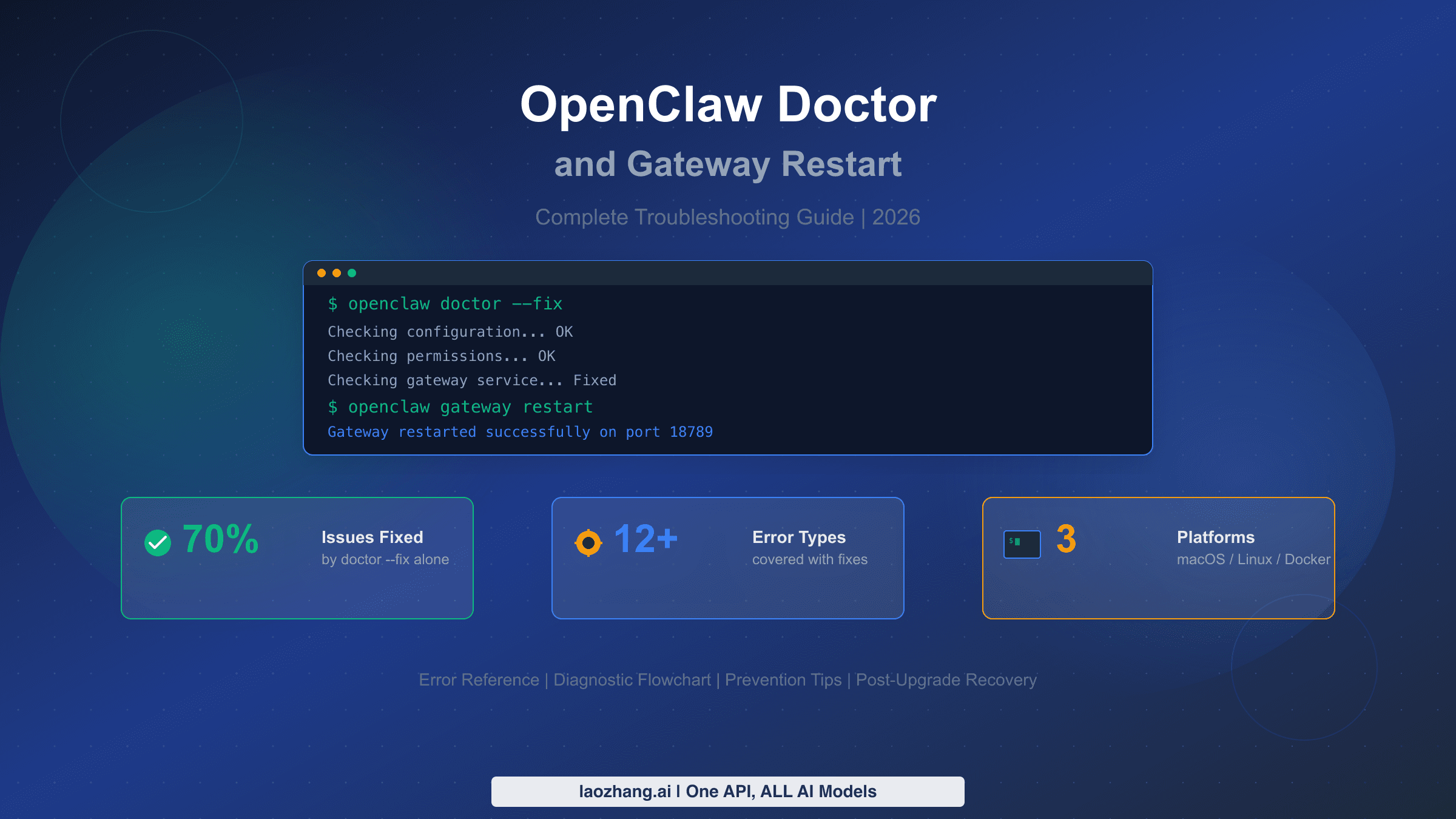
Configuration syntax errors can prevent the gateway from starting or cause a provider definition to be ignored. The current troubleshooting docs recommend openclaw logs --follow, openclaw config file, openclaw config validate, and openclaw doctor when config reload or startup fails. A useful debugging pattern is to start with the minimal configuration, verify it works with openclaw models list --provider yourprovider and openclaw models status, then incrementally add optional fields like cost, context window, headers, and capabilities while testing after each addition.
When nothing else works, use a three-step isolation sequence. First, run openclaw models status and openclaw models list --provider yourprovider. Second, check openclaw logs --follow for the first provider-specific error. Third, test the provider endpoint directly with the provider's own curl example. If curl fails, fix the provider endpoint or key; if curl works but OpenClaw fails, inspect model refs, allowlists, generated models.json, and the gateway process environment.
Frequently Asked Questions
Can I use a fine-tuned model with OpenClaw? Yes, as long as the model is served through an OpenAI-compatible or Anthropic-compatible API endpoint. Fine-tuned models hosted on vLLM, Ollama (via custom Modelfiles), or any inference server that exposes a standard chat completions endpoint work with the models.providers configuration. Set the id field to the exact model identifier your server expects, and configure contextWindow and maxTokens to match the fine-tuned model's actual capabilities.
How do I switch between custom models during a chat session? Use /model with the full provider/model reference, such as /model providerid/provider-model-id or /model ollama/llama3.3. The /model list command shows available models, and /model status displays the current selection. Current docs note that if a run is already active, a live switch may be queued until a clean retry point or next user turn.
What happens if my custom provider goes down during a task? If you have configured and tested fallbacks for the selected route, OpenClaw can move to the next available provider in the chain. Without fallbacks, the current request fails and you can manually switch models with /model. For production reliability, use fallbacks only after verifying credentials, quota, tool support, and context behavior on each route.
Is there a limit to how many custom providers I can add? Treat this as a practical operations question rather than a number to memorize. More providers mean more keys, logs, costs, model IDs, allowlists, and incident branches to maintain. Add only the routes you can actively test and monitor.
Does models.providers apply outside the CLI? It should apply to any OpenClaw surface that resolves models through the same gateway configuration, but the exact dashboard, channel, and reload behavior is version-specific. After changing providers, restart or reload the gateway using the command supported by your install, then verify the route from the actual surface that will use it: CLI, dashboard, channel, or API client.