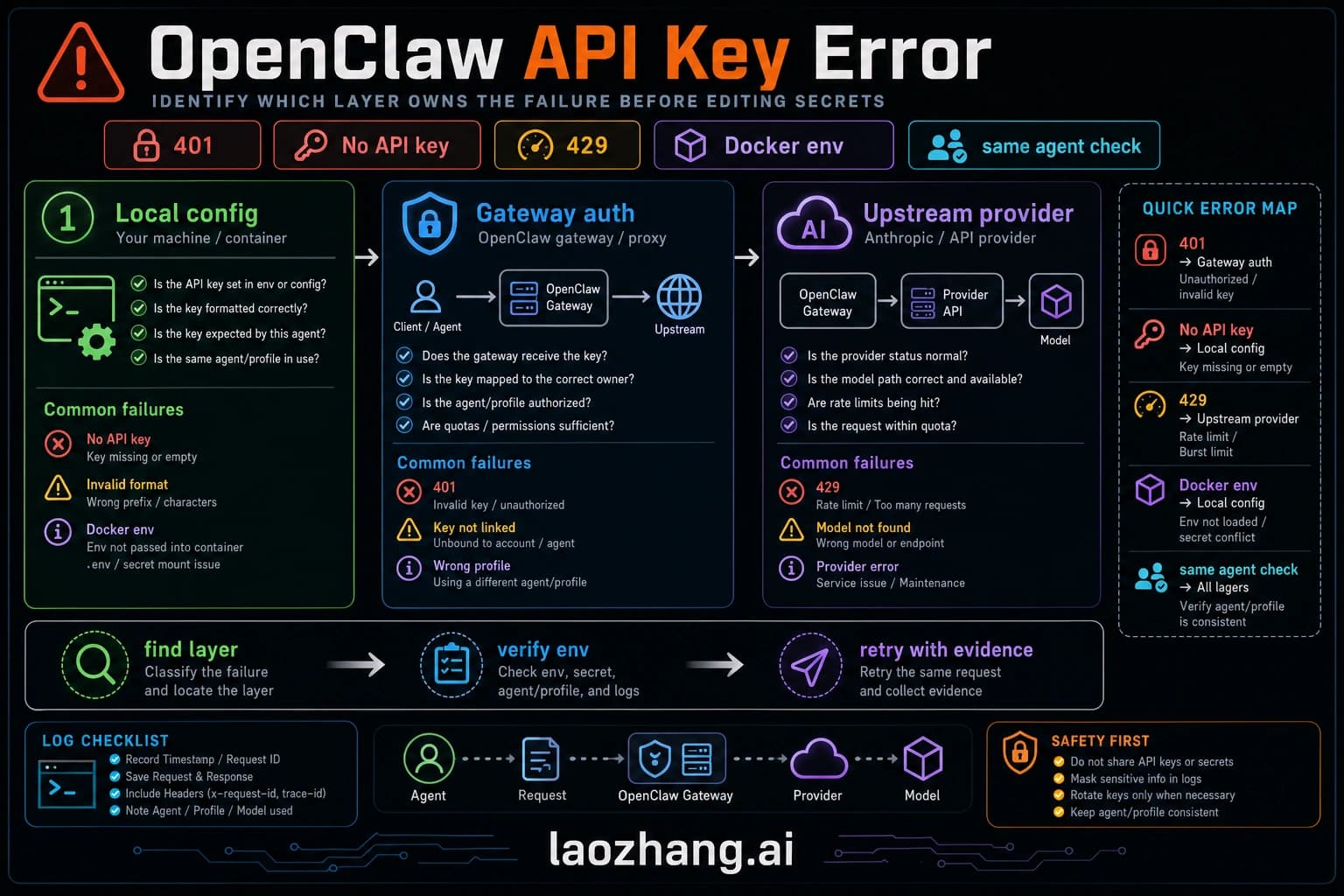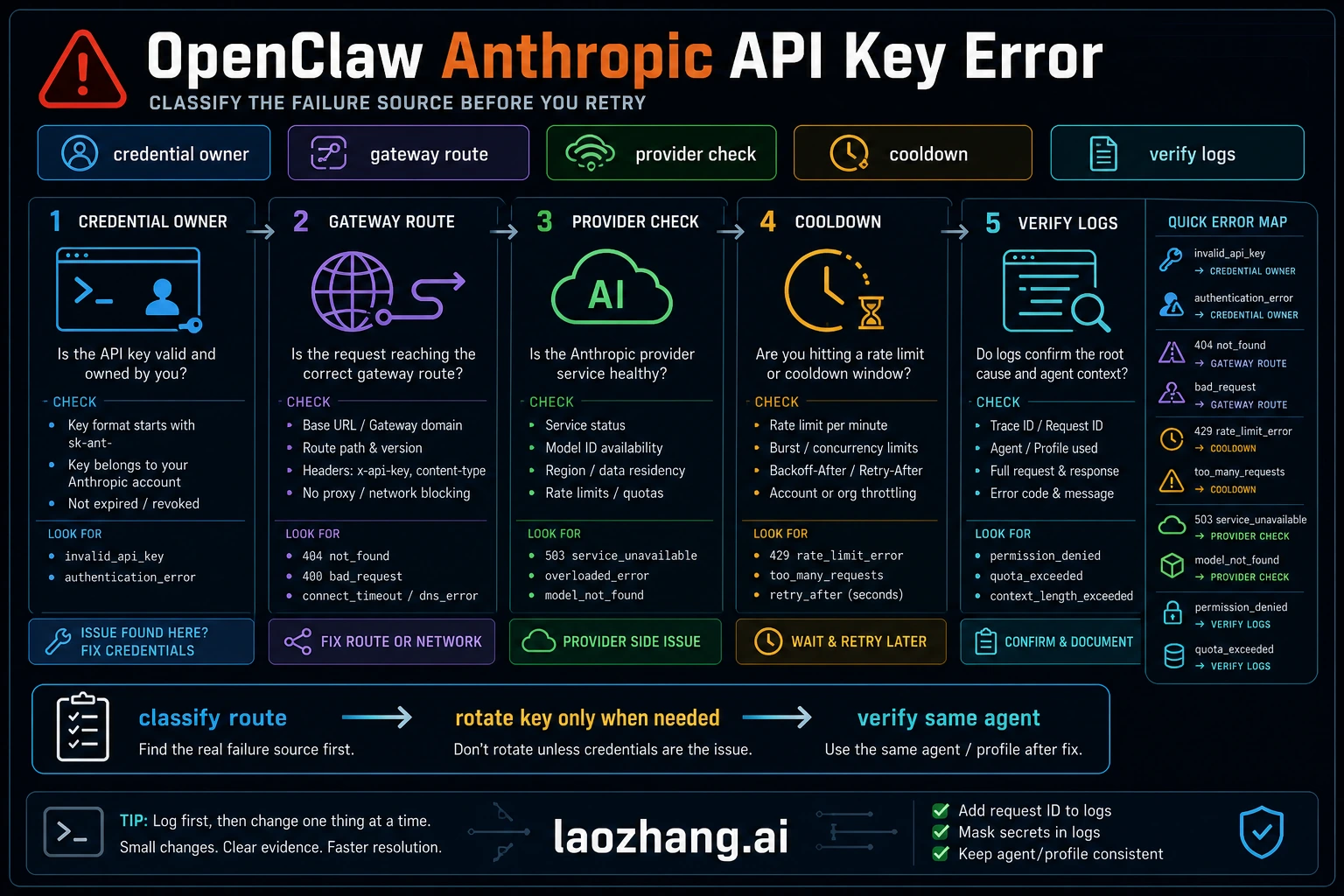
OpenClaw Anthropic API key errors stop the assistant because the selected Anthropic route cannot produce a valid model request. The fix is not always a new Anthropic key. First prove whether the failure is missing Anthropic auth, an invalid or revoked provider key, OAuth refresh failure, a stale environment override, model access, billing/account state, or provider cooldown after earlier failures. If the log names gateway auth detail codes such as AUTH_TOKEN_MISMATCH or PAIRING_REQUIRED, you are on the wrong page: fix gateway/client auth first, then retest Anthropic.
TL;DR
Run:
bashopenclaw status
openclaw gateway status
openclaw logs --follow
openclaw doctor
openclaw models status
If models status shows missing Anthropic auth, run openclaw onboard or add the Anthropic auth profile using the current OpenClaw auth command for your install. If the provider rejects the key, replace or re-scope it in the Anthropic Console and confirm that the selected model is available to that account. If OAuth is the selected auth route, refresh or replace the OAuth profile. If env | grep -i anthropic shows old values, remove the override and restart the process that runs the gateway.
Quick Diagnosis - Identify the Effective Auth Route
When your OpenClaw agent stops responding, diagnose before you change credentials. The same visible message can come from provider auth, gateway/client auth, a stale environment variable, a model route, or cooldown state after an earlier failure.
The first diagnostic is not a repair command. Use openclaw status and openclaw gateway status to prove that the gateway is running. Then use openclaw logs --follow to capture the first Anthropic-related line before cooldown or fallback rewrites the visible symptom.
For a provider-focused check, use openclaw models status if your installed version exposes it. Treat the output as evidence of what OpenClaw actually loaded, not as a replacement for the provider response. A missing-auth line points to OpenClaw config. A provider authentication_error or permission_error points to the Anthropic account, key, model, or policy boundary.
If you want automated repair, run openclaw doctor first and only use any fix mode when the diagnostic explicitly points to a structural repair such as malformed config, service drift, or rejected config. It cannot create an Anthropic key, grant model access, fix billing, or clear provider-side rate limits.
The useful patterns are owner signals. "No API key found for provider 'anthropic'" means the route has no provider credential loaded. "authentication_error: Invalid bearer token" means the provider rejected the credential it received. "all in cooldown" means OpenClaw temporarily stopped using the route after earlier failures.
Identifying Your Error Type
Understanding which error you're facing determines the correct solution path. OpenClaw's Anthropic integration can fail in several distinct ways, each requiring different fixes. The error messages themselves point to the underlying cause.
Authentication errors from Anthropic's API follow a predictable pattern. A 401 error with type "authentication_error" indicates that the credential Anthropic received was rejected: it may be revoked, copied incorrectly, malformed, or not the credential you intended OpenClaw to send. A 403 error with type "permission_error" means the provider recognized the request but refused the resource, often because the selected model, account state, policy, or permission boundary does not match the request.
The "No API key found for provider 'anthropic'" message appears when OpenClaw's credential store contains no Anthropic credentials at all. This happens with new installations that skipped the authentication step, or when creating new agents that don't inherit credentials from the main agent. The fix is simply providing credentials through one of the supported authentication methods.
OAuth token problems manifest as "OAuth token refresh failed" messages. If your OpenClaw version supports a Claude OAuth or CLI-backed route, the stored token has more moving parts than a direct API key: browser authorization, refresh, host policy, account policy, and token storage can all become the owner. The token file may still exist even when it can no longer refresh.
Cooldown-related messages like "No available auth profile for anthropic (all in cooldown)" indicate a different problem entirely. Your credentials might be perfectly valid, but OpenClaw has temporarily blocked the provider due to recent failures. This is a protective mechanism, not a credential problem.
For a related but different error, see our guide on troubleshooting the invalid beta flag error, which occurs when using AWS Bedrock or Vertex AI as your Claude provider.
Fixing Invalid API Key Errors
API key problems are the most common Anthropic authentication errors in OpenClaw. The fix depends on whether your key is missing, malformed, or simply invalid.
First, verify that OpenClaw is actually using the Anthropic key you think it is using. Stale shell variables, Docker compose .env files, per-agent auth profiles, and copied config fragments can override each other. Key prefixes are useful as a quick sanity check, but they are not a durable proof of validity. The durable proof is that Anthropic accepts the key for the model you selected.
To check your current API key configuration, inspect the config path, auth profile, service environment, and deployment wrapper that your installed OpenClaw version actually loads. Do not assume that the file you edited is the effective source.
The safest method is the current OpenClaw onboarding or provider-auth command for your install. Use manual config only when the current docs confirm the path and field names. This shape shows the intent, not a guaranteed schema:
json{
  "env": {
    "ANTHROPIC_API_KEY": "your-current-anthropic-key"
  },
  "agents": {
    "defaults": {
      "model": {
        "primary": "anthropic/claude-sonnet-4"
      }
    }
  }
}
Note the model format: direct Anthropic configuration uses anthropic/<model-name> without any prefix like openrouter/. Using the wrong format causes routing errors that look like authentication failures.
After updating the effective credential source, restart the process that owns the gateway in your deployment and verify the fix with openclaw models status or the equivalent provider-status command for your version. Do not stop at "the key exists in a file"; prove the route can make a minimal Anthropic request.
If you need to obtain a new Anthropic API key, log into the Anthropic Console, generate a new key, and verify account billing, permissions, and model availability there. Those details are account-specific and change over time, so do not rely on an old blog post for a fixed spend threshold or tier rule.
Fixing OAuth Token Problems
OAuth token authentication works differently from API keys. Instead of a static credential, OAuth uses tokens that expire and refresh automatically. When the refresh mechanism fails, your authentication breaks even though nothing changed in your configuration.
For unattended servers, switching to a direct API key is usually easier to operate because it removes the refresh and browser-flow surface. That does not make API keys universally better; it means the failure owner is simpler to prove.
If you stay with OAuth or CLI-backed auth, use the refresh command and credential path documented for your installed OpenClaw version. Older examples such as paste-token or setup-token commands may be version-specific. For headless servers, keep the boundary explicit: browser-based authorization, copied credential files, and bootstrap tokens are provisioning steps, not durable proof that the provider route will keep refreshing.
For automated deployments, use the auth-profile or bootstrap path documented for your current OpenClaw version. The important boundary is secret lifetime: bootstrap credentials should configure the profile and then disappear from CI logs and compose files. They should not become a long-lived replacement for the provider key.
Watch for environment variables that might interfere with OAuth. If you've previously worked with the Anthropic API directly, you might have ANTHROPIC_AUTH_TOKEN or ANTHROPIC_BASE_URL set in your environment. These variables override OpenClaw's stored credentials and can cause confusing failures. Check with env | grep -i anthropic and unset any conflicting variables.
Resolving Environment Variable Conflicts
Environment variables are a common source of authentication confusion, especially for developers who previously used the Anthropic API directly before switching to OpenClaw. Variables set for direct API access can override OpenClaw's configuration, causing authentication to fail even with valid credentials stored.
The problematic variables are ANTHROPIC_API_KEY, ANTHROPIC_AUTH_TOKEN, ANTHROPIC_BASE_URL, and ANTHROPIC_API_URL. When set in your shell environment, these variables take precedence over values in OpenClaw's configuration files. The result is that OpenClaw uses credentials you didn't intend, or routes requests to the wrong endpoint.
To check for conflicting variables, run these commands:
bashenv | grep -i anthropic
env | grep -i claude
If any variables appear, evaluate whether they should exist. For clean OpenClaw operation, you typically want these variables unset unless you're intentionally overriding the configuration.
To temporarily unset variables in your current shell:
bashunset ANTHROPIC_API_KEY
unset ANTHROPIC_AUTH_TOKEN
unset ANTHROPIC_BASE_URL
For permanent removal, edit your shell profile (.bashrc, .zshrc, or equivalent) and remove the export statements that set these variables. Then start a new shell session.
Docker deployments have an additional consideration: environment variables defined in docker-compose.yml or .env files override configuration. Check ~/.clawdbot/.env (the legacy location) and any compose file environment sections. Remove or correct any conflicting values there as well.
A clean environment check should show no unintended Anthropic-related variables in the environment that starts OpenClaw:
bashenv | grep -i anthropic
# Investigate any value you did not intentionally set for this deployment.
After clearing conflicting variables, restart your gateway and verify authentication works with openclaw models status.
Understanding the Cooldown Mechanism
The cooldown mechanism is one of the most confusing aspects of OpenClaw authentication for new users. Your credentials can be perfectly valid, yet OpenClaw refuses to use them because the provider is "in cooldown." Understanding this mechanism helps you diagnose problems and recover quickly.
Cooldown is a protective feature that prevents cascading failures. When requests to a provider fail repeatedly, OpenClaw temporarily stops sending new requests to that provider. This prevents wasting time on requests that will fail, reduces API costs from failed calls, and gives the underlying issue time to resolve (such as temporary rate limits or network problems).
Several conditions can trigger cooldown: authentication errors (401), rate limit errors (429), timeout errors, and billing errors. The duration depends on the installed OpenClaw version, provider route, and original failure. Treat the cooldown message as a pointer back to the first failed request, not as proof that your current key is invalid.
The error message "No available auth profile for anthropic (all in cooldown)" indicates that all configured authentication profiles for Anthropic have entered cooldown state. This can happen with a single profile, or when multiple profiles all fail within a short time window.
To check cooldown status, run openclaw models status. The output shows each provider's current state, including cooldown remaining time if applicable. You'll see exactly how long until the provider becomes available again.
Recovery methods depend on your situation. The simplest approach is waiting for cooldown to expire naturally—the gateway automatically re-enables the provider when the cooldown period ends. For faster recovery, restart your gateway (docker compose restart openclaw-gateway), which clears the cooldown state. Note that restarting doesn't fix the underlying problem; if the credentials are invalid, you'll just trigger cooldown again.
Older OpenClaw builds and provider plugins have had cooldown-handling bugs. If the gateway crashes when every provider is unavailable, update OpenClaw and the relevant provider package, then read the release notes for cooldown or failover fixes. Do not publish a fixed version number unless you verified it in the current run.
For production deployments, configure multiple providers so one provider's cooldown does not stop all AI functionality. OpenClaw failover should move only to routes that are already authenticated, tested, and allowed for the current task. A gateway such as laozhang.ai belongs in that list only when its current model route, quota behavior, pricing, and tool support have been verified.
Choosing the Right Authentication Method
OpenClaw deployments commonly expose several Anthropic authentication shapes. The exact commands and storage paths are version-specific, but the operating tradeoffs are stable enough to guide the choice.
API Key is usually the simplest server-side method. You obtain a key from the Anthropic Console and store it in the auth profile or config path OpenClaw is actually loading. Rotate it if it is exposed, revoked, scoped incorrectly, or attached to an account that no longer has the required model access.
OAuth or CLI-backed auth is convenient only when current OpenClaw provider docs support that route for your deployment and your account policy allows it. It can introduce browser, refresh, host, or account-policy constraints. For unattended servers, direct API keys or a managed provider gateway are easier to reason about.
Setup Token or bootstrap auth is for provisioning, not ongoing inference. Use it to create or refresh the actual auth profile, then remove it from the environment.
Auth Profiles provide per-agent credential isolation. Each agent can have its own set of credentials stored in a separate file. This matters for teams where different agents should use different API accounts, or for enterprise deployments with billing separation. The complexity is that new agents don't inherit credentials—you must explicitly configure or copy credentials for each agent.
For individual developers running OpenClaw on a personal server, API Key is usually the easiest method to audit. Use OAuth or CLI-backed auth only when your current OpenClaw documentation supports it and you are comfortable with refresh and account-policy behavior. For CI/CD, treat setup/bootstrap tokens as temporary provisioning material. For teams, Auth Profiles offer isolation but require explicit ownership documentation.
When choosing between Claude models for your OpenClaw deployment, remember that the authentication method does not automatically grant model access. Model availability still depends on the provider account, route, policy, and current product contract.
Prevention and Maintenance
Preventing authentication errors is easier than troubleshooting them after they occur. A few maintenance practices keep your OpenClaw deployment running reliably.
Regular credential validation catches problems before they affect users. Add openclaw models status to your periodic health checks. The command takes seconds to run and immediately reveals any credential problems. For production deployments, consider automated monitoring that alerts when credentials become invalid.
Before updating OpenClaw, review the release notes for authentication-related changes. New versions occasionally modify default behavior or fix bugs that affect credentials. The upgrade itself won't overwrite your configuration files, but new defaults might interact differently with your existing setup.
Keep your credentials in one authoritative location. Multiple configuration sources (environment variables, config files, per-agent files) make troubleshooting difficult because you can't easily tell which source is active. Pick one method and use it consistently.
Backup your configuration regularly. The key files are ~/.openclaw/openclaw.json for main configuration, ~/.openclaw/credentials/oauth.json for OAuth tokens, and ~/.openclaw/agents/*/auth-profiles.json for per-agent credentials. Include these in your system backups.
For reliability across regions or during API outages, a provider gateway can be a fallback route if it has been tested in the same OpenClaw environment. Keep the claim precise: verify the current endpoint, model ID, quota behavior, pricing, and tool compatibility before you depend on it.
Document your authentication setup. Record which method you're using, why you chose it, and any special configuration. Future troubleshooting becomes much easier when you can reference what the setup should look like.
Frequently Asked Questions
Q: I applied a fix but still see authentication errors. What's wrong?
Multiple configuration sources can override each other. Use openclaw logs --follow, openclaw models status, and environment checks to see the effective auth route, not just the file you edited. Look for shell variables, Docker .env files, per-agent auth profiles, and gateway service environments that differ from your terminal.
Q: Why do I see "all in cooldown" when my credentials are correct?
Cooldown is triggered by past failures, not current credential validity. Look for the first failure in logs before cooldown began. If the original error was a revoked key, fix the key. If it was a rate limit, reduce load or wait. If it was network/provider overload, retry after the provider recovers.
Q: Can I use OAuth and API Key at the same time?
Yes, OpenClaw supports multiple auth profiles. You can configure both methods and use different ones for different agents. However, this adds complexity—for most users, picking one method and using it consistently is simpler.
Q: How do I know which authentication method I'm currently using?
Run openclaw models status and inspect the relevant auth profile/config path for the selected provider. The logs also show whether the failure came from missing provider auth, invalid provider auth, OAuth refresh, or gateway/client auth.
Q: My new agent doesn't have credentials even though my main agent works. Why?
Agents may not inherit credentials from other agents. Check the effective auth profile for the new agent, then run onboarding or configure a provider profile for that agent using the current docs. Copying credential files blindly is risky unless you also verify file permissions, owner, route name, and model access.
The authentication landscape in OpenClaw can seem complex, but the fundamentals are straightforward: use the right credential type for your situation, keep credentials in one consistent location, and use the diagnostic commands when problems occur. Most authentication errors have simple fixes once you identify the specific issue.