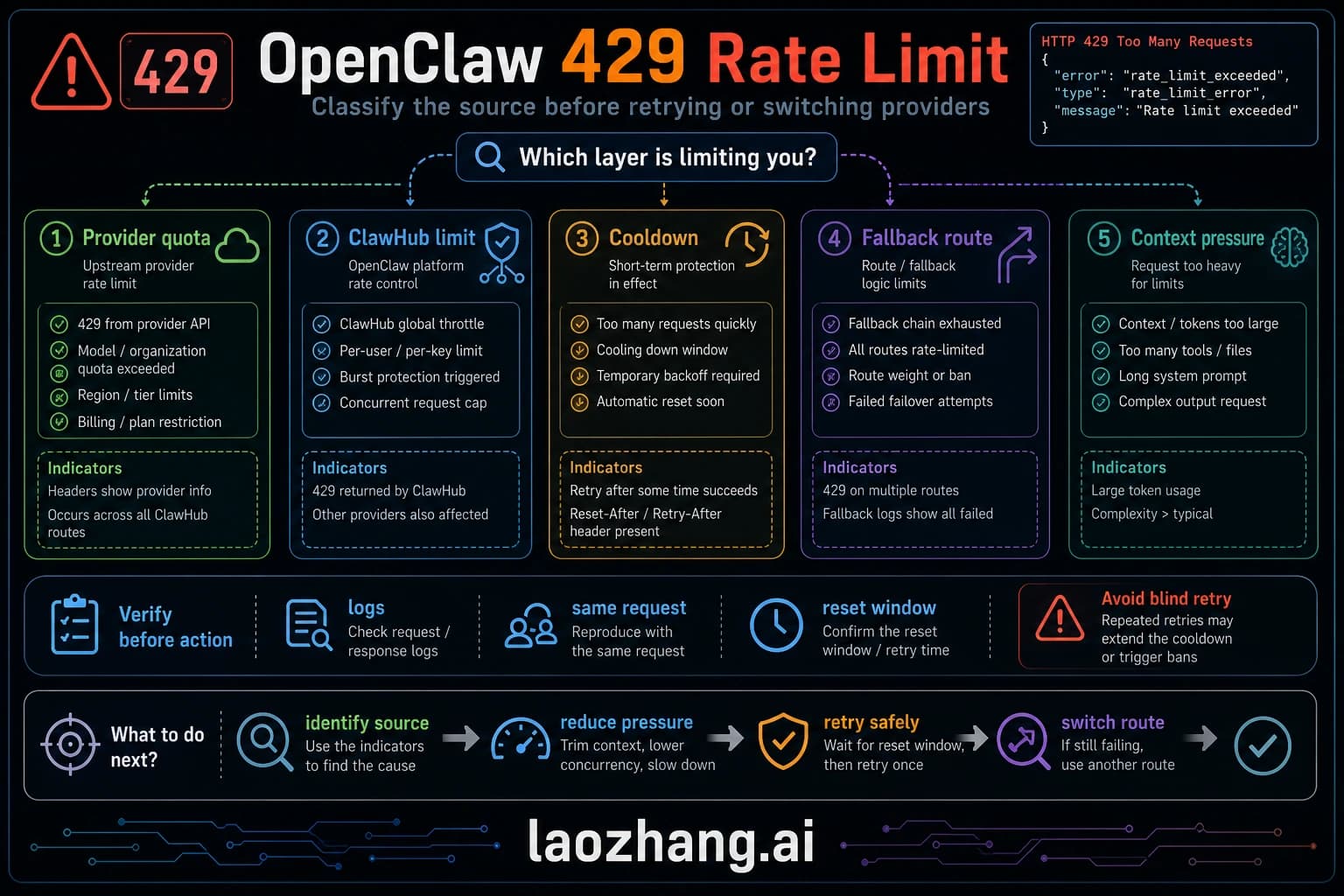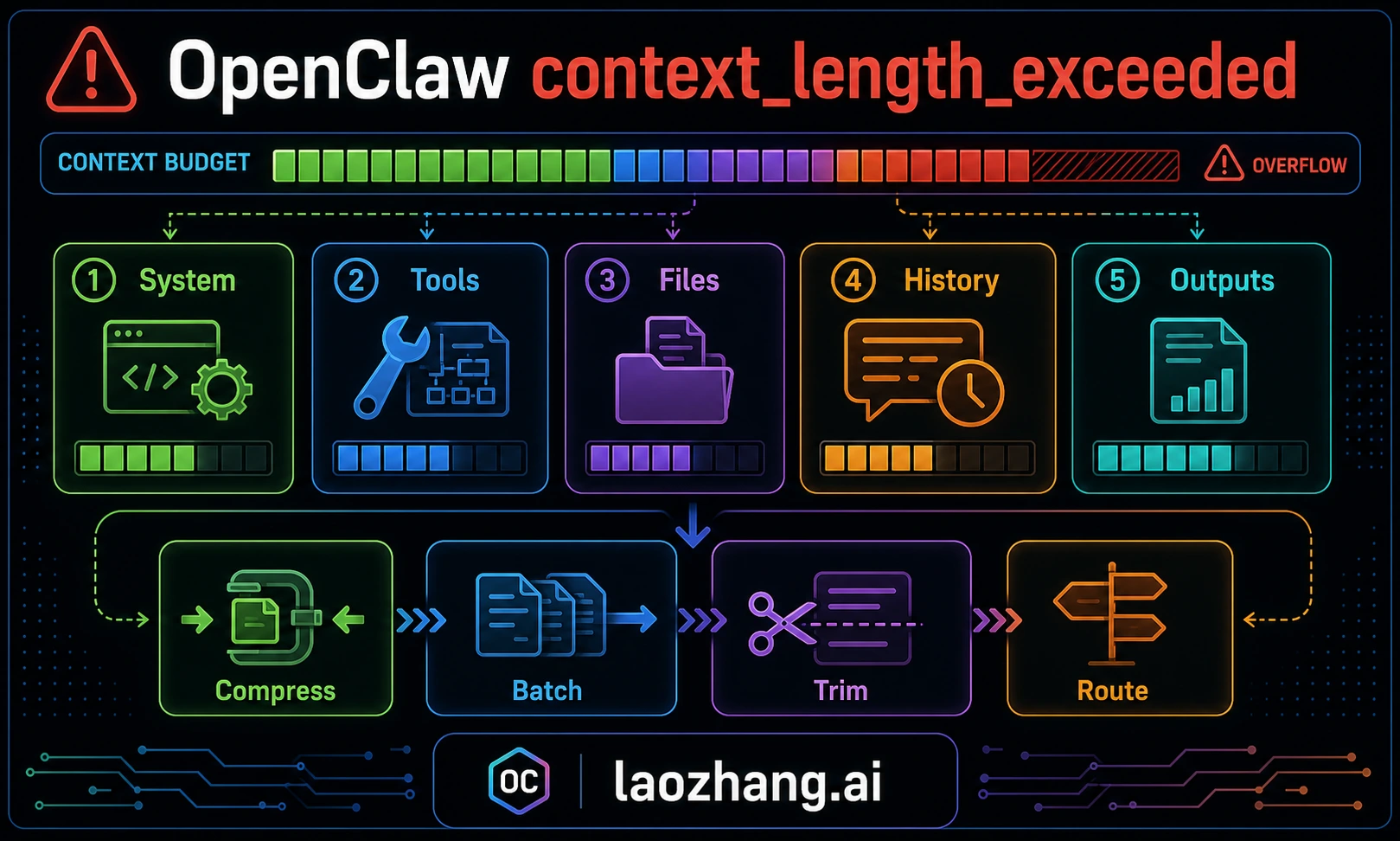
OpenClaw's context_length_exceeded error usually means the assembled model request is larger than the selected route can accept. That request may include conversation history, system and tool instructions, workspace context, memory/search results, channel metadata, and recent tool output. But the visible error is not always the root cause: rate-limit failover, provider cooldown, or a fallback model with a smaller context window can make a quota or routing problem look like context overflow. Diagnose owner first, then compact or re-route.
TL;DR
If your OpenClaw agent just stopped with a context overflow error, do this:
- Prove the symptom: Check
/status, context diagnostics, andopenclaw logs --follow. If the error appeared right after 429s, provider cooldown, or fallback, inspect rate-limit/provider logs before editing context settings. - Fast recovery: Use
/compactto summarize older history, or/newwhen the current session is too polluted by tool output or irrelevant history. - Reduce the request: Split the task, avoid dumping huge logs into chat, summarize test output, and ask the agent to read only relevant file ranges.
- Fix recurring causes: Trim oversized workspace/bootstrap files, tune compaction only after reading current config docs, and make sure fallbacks have enough context for the same workload.
What Causes context_length_exceeded in OpenClaw
Every time you send a message to OpenClaw, the agent assembles a payload for the selected model route. That payload is not just your last message. It can include system instructions, available tool schemas, workspace/bootstrap context, memory or search snippets, channel metadata, tool results, and conversation history. Context overflow is therefore a payload assembly problem, not just a "you typed too much" problem.
System and tool instructions are fixed overhead. You usually should not remove them manually because they define how the agent uses tools and follows workspace rules. Instead, reduce variable overhead: giant logs, repeated file dumps, stale workspace instructions, and long history that can be summarized.
Tool schemas and plugin capabilities add overhead. If you enable many plugins or MCP servers, the model may need more context just to understand available actions. That does not mean tools are bad; it means the selected model route must have enough usable context for the workflow.
Workspace file injection is often the silent killer. Long AGENTS files, project rules, generated docs, and repeated planning notes can consume more context than the user's actual question. Keep durable instructions concise, remove stale rules, and ask the agent to read exact files or line ranges on demand instead of dumping entire directories into the conversation.
Conversation history is the component that grows without bound. Every message you send, every tool result, every code block the agent reads or writes can add to the next request. A short task can stay small for hours; a noisy debugging loop can become huge quickly. The practical rule is to watch payload growth, not the wall-clock time.
Memory and search retrieval can also push a request over the limit. They are valuable when they bring relevant prior decisions, but harmful when they inject broad historical context into a narrow task. If fresh sessions overflow before real work begins, inspect retrieval and bootstrap sources first.
Quick Diagnosis — Identify the Owner Before You Tune
When your OpenClaw session hits a context_length_exceeded error, first determine whether it is a genuine overflow from the assembled request, a configuration issue with workspace injection, a fallback to a smaller route, or a downstream symptom after provider retries. The first commands should separate those owners instead of assuming every visible context error has the same fix.
Step 1: Run /status and read the context percentage. If utilization is high and has grown over the session, you probably have a genuine overflow. If utilization looks low, the error happened on a fresh session, or it appeared immediately after fallback/cooldown, inspect logs before assuming the context counter is the owner.
Step 2: Run /context list to see what is consuming your context. This command breaks down exactly which files and components are injected into your context window. Look for unexpectedly large workspace files—if you see files consuming thousands of tokens each, reducing or removing them from injection will dramatically improve your situation. The output shows the file name alongside its token count, making it easy to identify the biggest offenders.
Step 3: Check the error message variant. A provider message that includes requested tokens versus maximum tokens points to real context overflow for that selected route. A generic agent error after retries, fallback, or cooldown may be a downstream symptom. Use openclaw logs --follow to find the first provider response.
If you are encountering context errors alongside rate limit errors in OpenClaw, the two issues may be related in either direction. Oversized requests can trigger retries that consume quota, while quota failures and fallback can make a smaller route report context overflow. Read the first provider log line before deciding which branch to fix first.
Interpreting the diagnostic output correctly matters because each root cause has a different fix. A long conversation calls for /compact or /new. Oversized workspace injection calls for trimming bootstrap/context sources. A fallback to a smaller model calls for route changes. A rate-limit symptom calls for retry/backoff or provider fallback, not context tuning.
Fix context_length_exceeded — Step-by-Step Solutions
The solutions below are ordered from least disruptive to more structural. Start with Fix 1 only when the evidence points to real context growth. If logs show fallback, quota, or provider cooldown first, fix that owner before tuning context settings.
Fix 1: Manual Compaction with /compact
When the session is genuinely large, /compact is usually the least disruptive first response. It summarizes older conversation history into a smaller working state that preserves key decisions, file locations, and important context while discarding verbose intermediate detail. The exact savings depend on the transcript and compaction implementation, so verify with /status instead of assuming a fixed percentage.
bash# In your OpenClaw session, simply type:
/compact

# To verify the compaction worked:
/status
After compaction, check /status again. Utilization should drop enough to leave room for the next tool call and model response. If it remains high, either compact again, start a fresh session, or trim the injected sources that remain large. Treat persistence behavior as version-specific: confirm whether your installed OpenClaw writes the compacted summary to the session transcript before relying on it across restarts.
Fix 2: Start a Fresh Session with /new
When compaction alone is not enough—typically in extremely long sessions or when your workspace files consume a disproportionate amount of context—starting a fresh session is the most reliable fix. The /new command creates a completely clean session with zero conversation history. The system prompt, tools, and workspace files reload automatically, but you start with a blank conversational slate.
bash# Start a fresh session:
/new

# Alternative: clear and reset
/reset
The distinction between /new and /reset is subtle: both create a fresh session, but /reset also clears any session-specific memory. Use /new when you want to continue the same overall task with a clean conversation, and /reset when you want to start completely from scratch. Neither command deletes your project files or workspace configuration—they only affect the conversation state.
Fix 3: Reduce Workspace File Injection
If your /context list output shows large workspace files consuming most of the request, reduce or exclude those sources. Do this through the current OpenClaw configuration keys for your version, not by pasting old defaults from a guide. The principle is stable even when key names change: keep bootstrap context small, durable, and current.
json{
  "agents": {
    "defaults": {
      "bootstrapMaxChars": 10000
    }
  }
}
Lowering a bootstrap or workspace-injection limit can save tokens on every request. The tradeoff is that your agent has less context available immediately and may need to read files on demand. That is usually acceptable for targeted coding tasks, but verify the exact setting name and default in your installed version before editing config.
Fix 4: Disable Memory Search
If you are hitting context overflow errors on fresh sessions, memory or search retrieval may be loading too much historical context during initialization. Disabling or narrowing retrieval can resolve the issue immediately while you identify the source.
json{
  "agents": {
    "defaults": {
      "memorySearch": {
        "enabled": false
      }
    }
  }
}
Disabling or narrowing memory search means your agent will recall less from previous sessions. That is a significant tradeoff for users who rely on continuity, but it can isolate unexpected context consumption. Re-enable retrieval once you have found the noisy source or moved to a route with enough verified context.
Fix 5: Switch to a Model Route with More Usable Context
If you consistently work with large codebases and long sessions, the most sustainable fix may be switching to a model route with more usable context. "Usable" matters: a model's advertised context window, provider route, API mode, fallback model, and account limits can differ. Verify the exact route with current provider docs and openclaw models status.
To switch models in OpenClaw, update your configuration to specify a different provider and model:
json{
  "agents": {
    "defaults": {
      "model": { "primary": "provider/model-with-larger-context" }
    }
  }
}
When choosing a new model, consider not just the context window size but also tool-calling reliability, image/file support, latency, and cost. A large-window model that cannot perform the required agent steps is not a real fix.
Master OpenClaw Context Configuration
OpenClaw provides several configuration settings that control how context is managed, compacted, and pruned. These settings live in your openclaw.json file (typically at ~/.openclaw/openclaw.json or in your project's .openclaw/settings.json) and give you fine-grained control over context management behavior. Understanding and tuning these settings is the difference between constantly fighting context errors and never seeing them again.
Compaction settings are impactful, but version-specific. The compaction system controls when and how OpenClaw summarizes conversation history. Use current docs or openclaw config output for exact key names and defaults, then tune only the values your installation actually supports.
json{
  "agents": {
    "defaults": {
      "compaction": {
        "reserveTokens": 40000,
        "keepRecentTokens": 20000,
        "reserveTokensFloor": 20000
      }
    }
  }
}
The stable idea is to preserve a buffer after compaction and keep only enough recent context verbatim for the next step. Do not tune blindly. If a route has a smaller context window, a buffer that worked on a larger model can still overflow. If the work depends on recent tool output, keeping too little recent context can cause repeated mistakes.
Context pruning operates differently from compaction. While compaction rewrites the conversation into a summary (a permanent change that persists in the JSONL file), pruning trims tool results and verbose outputs in-memory for each individual request without modifying the stored transcript. Pruning happens automatically and does not require configuration, but understanding it helps explain why your /status output might show different numbers than you expect—the pruned in-memory representation can be significantly smaller than the stored transcript.
Bootstrap file management controls workspace injection. Keep AGENTS.md and similar files concise and current. If your version exposes a bootstrap/context size limit, tune it deliberately. If it does not, reduce the source files themselves and ask the agent to read exact files on demand.
Memory search settings also vary by version. If memory retrieval is crowding the request, lower retrieval volume or disable memory for the session, then re-enable it when the task genuinely needs cross-session context.
Here is a conservative pattern for users experiencing frequent context errors. Treat key names as examples and confirm them against your current OpenClaw config:
json{
  "agents": {
    "defaults": {
      "compaction": {
        "reserveTokens": 40000,
        "keepRecentTokens": 25000,
        "reserveTokensFloor": 25000
      },
      "bootstrapMaxChars": 12000,
      "memorySearch": {
        "softThresholdTokens": 3000
      }
    }
  }
}
This pattern gives the agent a larger buffer, limits bootstrap injection, and reduces memory retrieval pressure. Tune it against your actual model route and workflow. The goal is not a magic number; the goal is to make compaction happen before a hard provider rejection and to stop irrelevant context from being included repeatedly.
Choose the Right Model for Your Context Needs
Your model route determines how much context you can actually use. Do not rank routes by old headline context-window numbers. Compare the exact provider/model route available in your account today, including fallbacks, API compatibility mode, attachment support, and whether your gateway/proxy exposes the same context window as the upstream provider.
Use this decision rule instead:
| Need | Better route choice |
|---|---|
| Long coding sessions with many tool results | A strong coding model with a verified large context route and reliable tool calls |
| Huge document ingestion | A large-context model or a retrieval workflow that chunks documents before the model call |
| Cheap heartbeat or simple lookup work | A cheaper fallback model, but only if it has enough context for the task |
| Local/private work | A local runtime, with context and speed verified on your hardware |
| Provider outage or quota pressure | A fallback route from a different provider or gateway pool |
When selecting a model, consider not just the raw context size but how OpenClaw overhead interacts with your workflow. A model with a large advertised window can still fail if the gateway route, account tier, fallback route, or proxy truncates requests. If you are exploring model options, check our guide on setting up your LLM provider in OpenClaw for step-by-step configuration instructions, or read about configuring custom models in OpenClaw if you want to use a provider not included in the default configuration.
If you need model routing across multiple providers, a gateway such as laozhang.ai can simplify credentials and fallback configuration. Treat model coverage, price, and context windows as provider-gateway facts that must be verified before relying on them in production.
Prevent context_length_exceeded Forever
Prevention is better than firefighting, but there is no universal setting that eliminates context errors for every model route. The strategies below address the root causes identified earlier: growing conversation history, bloated workspace injection, retrieval noise, fallback to smaller routes, and oversized tool output.
Monitor proactively with /status and /context. Check context utilization before large reads, test runs, refactors, or audit passes that will produce heavy tool output. Running /status shows overall pressure, and /context list can reveal which components consume the most space when your version supports it. Compact before the next heavy phase when the remaining headroom looks too small for the planned work.
Tune compaction thresholds from current config, not stale defaults. The single most impactful prevention measure is triggering compaction early enough for your selected model route. Use openclaw config or current docs to confirm exact key names and defaults, then keep enough reserve for the next tool call and enough recent context for continuity.
Practice session hygiene for long tasks. Break large work into logical segments. When you finish one phase, run /compact or start a /new session with a clear summary of the decisions, files changed, tests run, and remaining risks. This keeps the next request focused without losing the operational state a future agent needs.
Keep workspace files lean and focused. Review AGENTS files, project rules, and generated docs periodically. Remove outdated instructions, consolidate redundant sections, and make durable rules easy to scan. A concise, current instruction file is more useful than a long one that mixes active policy with stale history. For tips on managing token costs across multiple providers, see our guide on optimizing your OpenClaw token usage.
Configure your environment for your workflow. If you primarily work on small, focused tasks, defaults may be fine. If you regularly run extended debugging, large refactors, or multi-file analysis, tune compaction, bootstrap size, and memory retrieval against your workflow. Verify with /status and logs after the change.
Understand the token economics of your workflow. Different types of work consume context at very different rates. Reading a large file, pasting verbose logs, or running a noisy test suite can add more useful and useless context than the actual instruction. Iterative debugging is especially context-hungry because each cycle adds instructions plus tool outputs. Compact before a known heavy phase and summarize noisy outputs before asking for another attempt.
Managing token costs is closely related to managing context limits. The tokens consumed in your context window are the same tokens you pay for with API-based models, so aggressive context management also reduces your API costs. For strategies on managing token costs across multiple providers, see our guide on optimizing your OpenClaw token usage, which covers budgeting, monitoring, and cost-reduction techniques that complement the context management strategies described here.
Use usage and status views when available. While /status shows overall utilization, usage views can reveal which operations are adding the most context. If a single file read or test output dominates the session, change how you ask for evidence: exact file ranges, summarized logs, and targeted repro output beat full dumps.
Advanced Troubleshooting — Known Bugs and Edge Cases
Even with good configuration, some context-looking failures are not genuine overflow. The current troubleshooting approach is more reliable than memorizing old issue numbers:
| Symptom | What to check | Likely fix |
|---|---|---|
/status shows low usage but provider returns context overflow | Selected route and fallback model | Verify the actual model route and context window |
| Fresh session overflows before real work | Bootstrap files, memory retrieval, channel metadata | Trim bootstrap and lower retrieval volume |
| Error appears after 429 or cooldown | Provider logs and rate-limit headers | Respect retry/backoff or change provider route |
| Gateway hangs during large reads | Tool output size and logs | Split reads, summarize output, update OpenClaw if a current bug matches |
| Auto-compaction does not trigger | Current compaction config and logs | Compact manually, then tune current config keys |
General troubleshooting approach for unresolved context errors. If none of the known issues above match your situation, follow this systematic approach: First, check your OpenClaw version with openclaw --version and update if you are not on the latest release. Second, examine your logs at ~/.openclaw/logs/ for detailed error messages that might reveal the specific failure point. Third, try reproducing the issue with a minimal configuration—create a fresh project with no workspace files and see if the error persists. If it does, the problem is likely model-side rather than configuration-side. If it goes away with the minimal configuration, gradually add back your workspace files and settings until you identify the specific element triggering the overflow. This binary search approach is the fastest way to isolate configuration-related context problems.
Frequently Asked Questions
What causes context_length_exceeded in OpenClaw?
The error occurs when the assembled request for the selected model route exceeds that route's usable context window. The request can include system instructions, tool schemas, workspace/bootstrap files, conversation history, memory/search results, channel metadata, and tool output. The most common trigger is long history or noisy tool output, but fresh-session failures often point to bootstrap or retrieval bloat.
How do I increase the OpenClaw context window?
You cannot increase a model's inherent context window, but you can get more usable context by switching to a route with a larger verified window, reducing workspace/bootstrap injection, lowering retrieval volume, compacting earlier, splitting tasks, and avoiding huge tool-output dumps.
What is OpenClaw compaction and does it lose data?
Compaction is OpenClaw's built-in mechanism for summarizing conversation history. When triggered (automatically or via /compact), the system creates a condensed summary of the older parts of your conversation while preserving the most recent messages verbatim. The summary captures key decisions, file locations, and important context but discards verbose intermediate steps. The compacted result is saved to the JSONL session file, so it persists across restarts. You do lose the word-for-word details of earlier exchanges, but the essential information is retained in the summary.
How do I clear OpenClaw memory entirely?
To clear all memory and start completely fresh, use /reset which clears both the conversation history and session-specific memory. For clearing just the conversation while keeping memory intact, use /new. If you want to clear the stored memory database itself, you can delete the memory files in ~/.openclaw/memory/. Note that clearing memory is irreversible—there is no undo for deleted memory entries.
Why does context_length_exceeded happen on a fresh OpenClaw session?
This is usually caused by bootstrap context, memory/search retrieval, channel metadata, or a fallback route with a smaller context window. Inspect /status, /context list when available, and openclaw logs --follow. Then trim the source that is being injected before the first real message.