Nano Banana Pro: Complete Guide to Using Google's Best AI Image Generator (2026)

A
25 min readAI Image Generation

Nano Banana Pro (Gemini 3 Pro Image) is Google DeepMind's most advanced AI image generator. This guide covers every access method, API key setup, native 4K generation, prompting strategies, and how to save up to 79% on image generation costs.

Nano Banana Pro: Complete Guide to Using Google's Best AI Image Generator (2026)

Nano Banana Pro, officially known as Gemini 3 Pro Image, is Google DeepMind's most advanced AI image generation model, capable of producing native 4K resolution output with exceptional text rendering across multiple languages. You can access it for free through the Gemini app, experiment interactively via Google AI Studio, or integrate it programmatically through the Gemini API at $0.134 per image for 1K-2K resolution or $0.24 per 4K image (Google AI, February 2026). Third-party API providers like laozhang.ai offer the same model at $0.05 per image. This guide walks you through every access path, API key setup, 4K generation techniques, and cost optimization strategies.

What Is Nano Banana Pro and How Does It Compare to Nano Banana?

If you have been following Google's AI image generation models, you have probably encountered both "Nano Banana" and "Nano Banana Pro" and wondered what exactly separates them. The naming can be confusing, but the distinction matters significantly for both quality and capability. Nano Banana Pro is the marketing name for Google's Gemini 3 Pro Image model, released on November 20, 2025, as part of the Gemini 3 family announcement (blog.google, November 2025). It represents a major leap from the original Nano Banana model, which was built on the earlier Gemini 2.5 Flash architecture.

Under the hood, Nano Banana Pro uses a multimodal transformer architecture that processes both text and image tokens within a unified model. Unlike diffusion-based models such as Stable Diffusion or Flux, which generate images through an iterative denoising process, Nano Banana Pro generates images autoregressively — similar to how language models generate text, but with visual tokens instead of word tokens. This architectural choice gives the model several distinctive advantages: it understands context more deeply because the same model that processes your text prompt also generates the image, it handles text rendering far more accurately because text is native to its architecture, and it can perform both image generation and image editing within a single conversation thread.

The most significant difference between the two models lies in output quality and resolution capability. While the original Nano Banana generates decent images at standard resolutions, Nano Banana Pro delivers native 4K output at 4096x4096 pixels, producing approximately 16.78 megapixels per image. This is not upscaling or post-processing — the model generates high-resolution images natively, which means every pixel is intentionally placed by the neural network rather than interpolated from a lower resolution. For anyone working with print materials, large-format displays, or professional photography applications, this difference is immediately noticeable in the level of fine detail and texture quality.

Beyond resolution, Nano Banana Pro excels at text rendering, which has historically been one of the weakest aspects of AI image generation. The model can accurately render text in multiple languages, making it suitable for creating marketing materials, product mockups with labels, or social media graphics that include readable typography. The model also supports up to 14 reference images as input and can maintain consistency across up to 5 people in generated images (WaveSpeed AI, December 2025), which opens up possibilities for character-consistent storytelling and brand asset creation. For a complete comparison of all Gemini 3 models including Flash, Pro, and Ultra variants, our detailed breakdown covers performance benchmarks and pricing across the entire family. If you are curious about how Nano Banana Pro compares to Flux 2, another popular AI image model, that comparison explores quality differences, generation speed, and pricing in depth.

How to Access Nano Banana Pro (4 Methods Explained)

Four access methods for Nano Banana Pro compared side by side showing features, pricing and difficulty

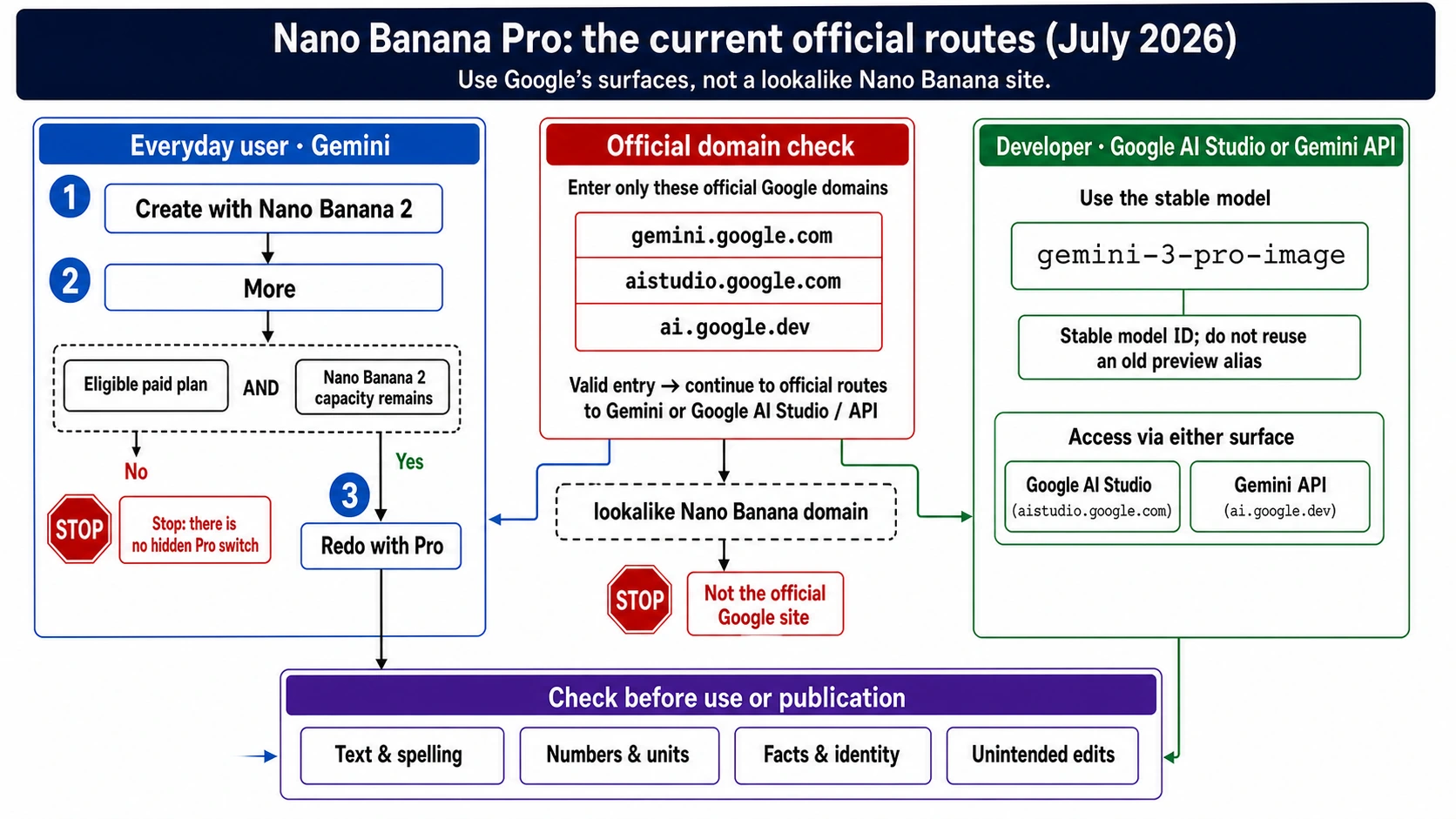
Choosing the right way to access Nano Banana Pro depends on your technical background, how many images you need, and what you plan to do with them. Unlike many AI tools that offer a single access point, Nano Banana Pro is available through four distinct paths, each designed for different user profiles. Understanding which method fits your workflow before you start will save you significant time and potentially money.

Method 1: The Gemini App (Simplest Path)

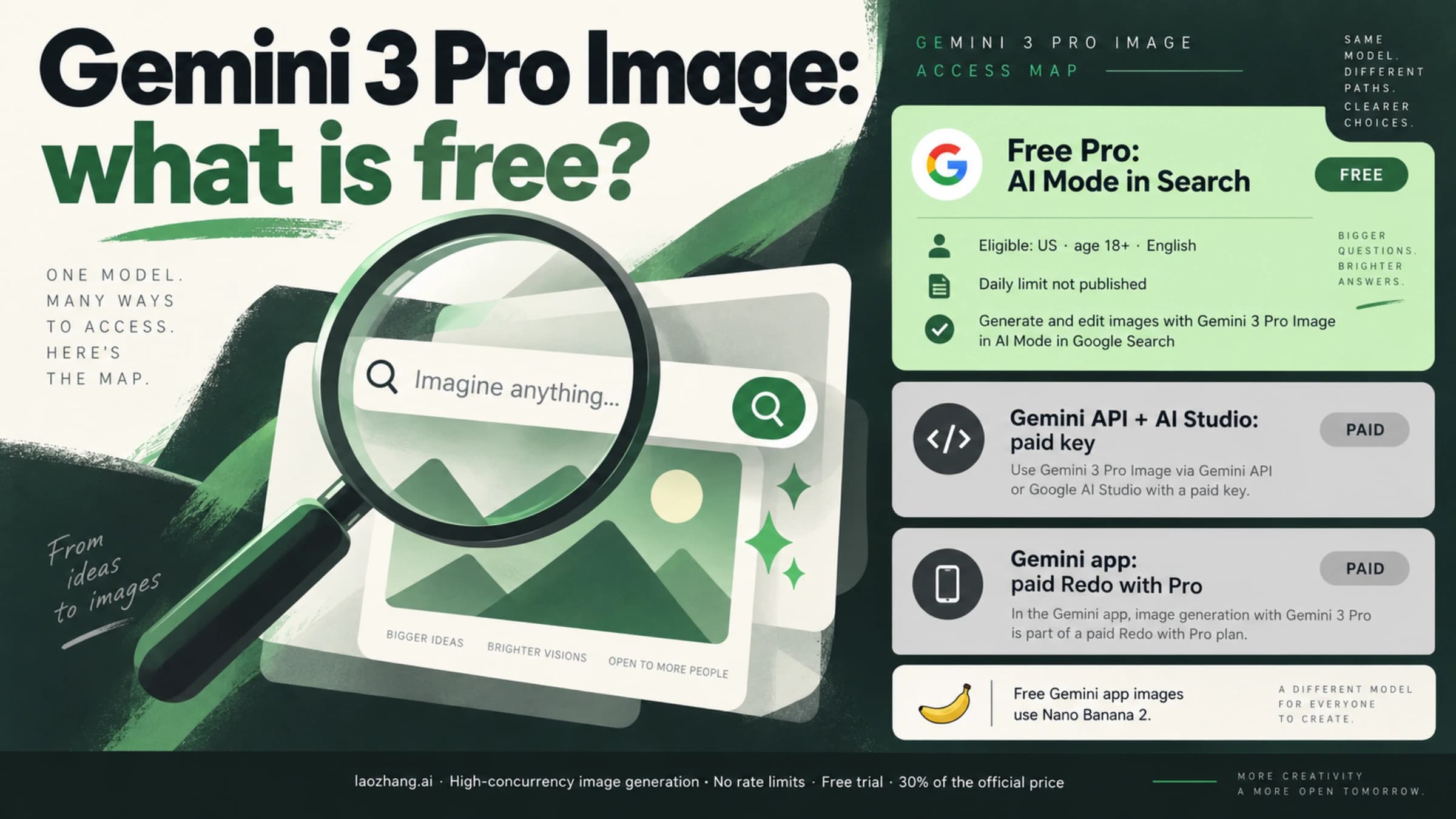
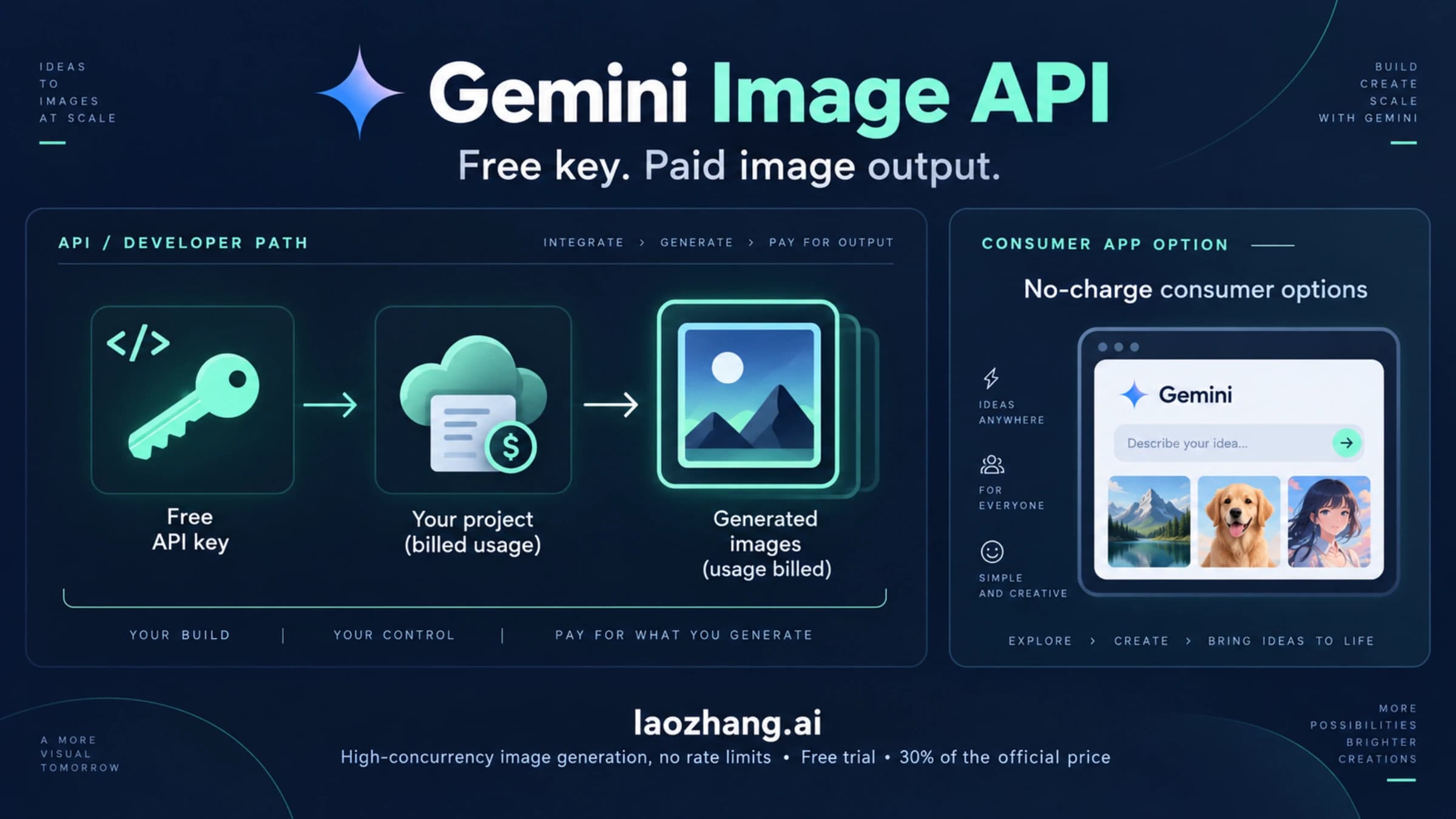
The fastest way to start generating images with Nano Banana Pro is through the Gemini web app at gemini.google.com or the mobile app. Simply open a conversation and describe the image you want, and Gemini will generate it using the Nano Banana Pro model. Free users get approximately 2 images per day at 1K resolution, while Google AI Plus subscribers ($7.99/month, Google AI, February 2026) get significantly higher limits. The Gemini app excels at conversational editing — you can ask it to modify specific elements of a generated image through natural language, like "make the sky more dramatic" or "add a person walking on the left." This iterative workflow is something you cannot replicate through the API, and it makes the Gemini app ideal for creative exploration where you are refining a concept rather than generating at scale.

Method 2: Google AI Studio (Interactive Playground)

Google AI Studio at aistudio.google.com provides a middle ground between the simplicity of the Gemini app and the full power of the API. It offers an interactive interface where you can adjust generation parameters, test different resolutions, experiment with aspect ratios, and see the exact API request being generated. This is particularly valuable when you are learning the API because you can prototype your requests visually and then copy the generated code directly into your application. AI Studio requires a Google Cloud billing account, but new accounts receive $300 in free credits valid for 90 days (Google Cloud, February 2026), which translates to roughly 2,240 images at 1K-2K resolution — more than enough for extensive testing and prototyping.

Method 3: Gemini API (Full Programmatic Control)

For developers building applications, the Gemini API provides complete programmatic access to Nano Banana Pro through Python and JavaScript SDKs. The API model identifier is gemini-3-pro-image-preview (Google AI documentation, February 2026). This method gives you full control over every parameter: resolution (1K, 2K, or 4K), aspect ratio (1:1, 16:9, 9:16, 21:9, 4:5, or 3:4), number of output images, and safety settings. The API also supports batch processing, which reduces costs by approximately 50% for high-volume workloads. The tradeoff is that you need coding knowledge and must set up Google Cloud billing before you can make your first API call.

Method 4: Third-Party API Providers

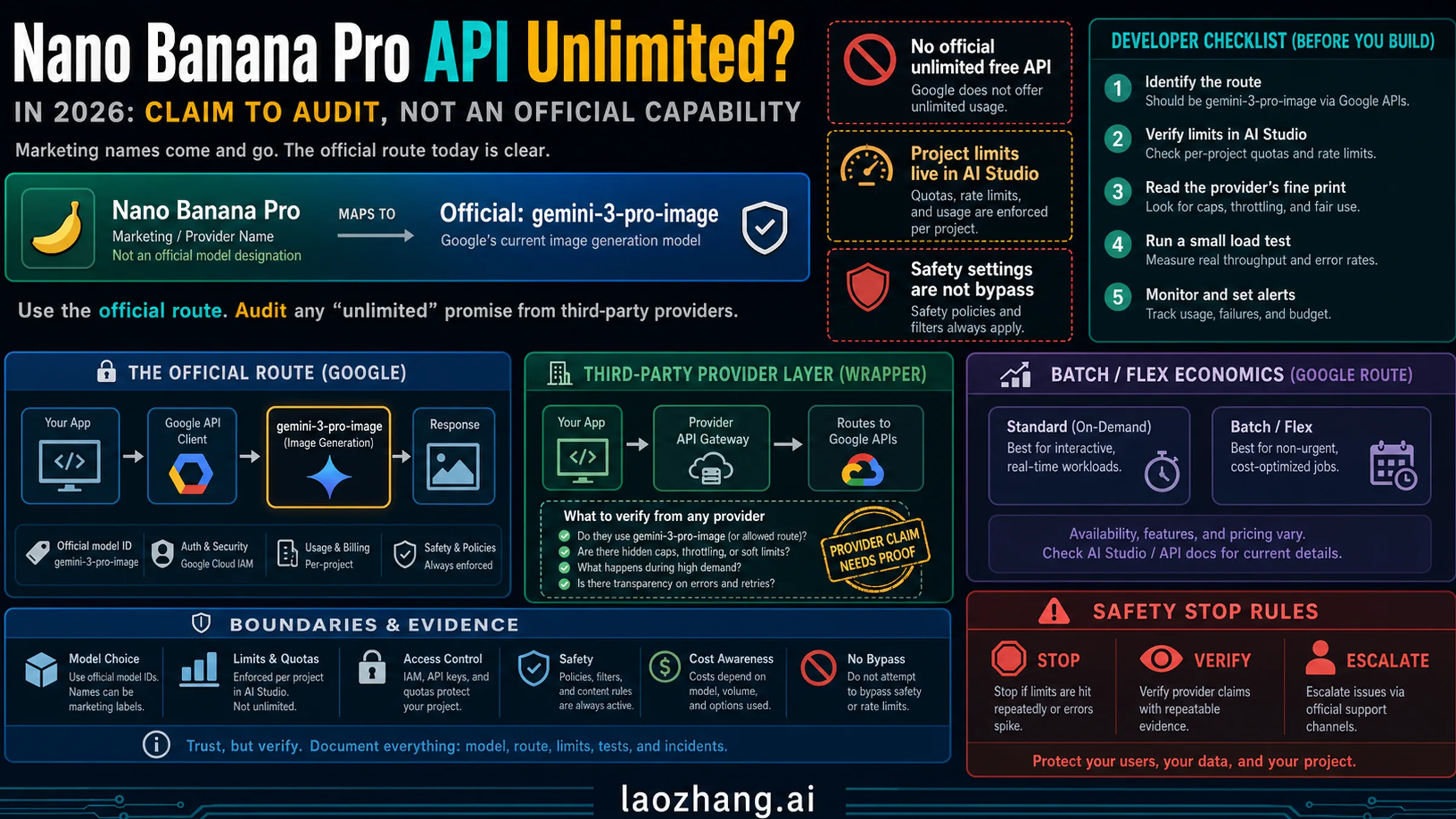
Third-party providers offer access to the same Nano Banana Pro model through OpenAI-compatible API endpoints, often at significantly lower prices. Providers like laozhang.ai charge $0.05 per image regardless of resolution — a 63% saving on 1K-2K images and 79% on 4K images compared to Google's official pricing (laozhang.ai, February 2026). These services handle Google Cloud billing, authentication, and infrastructure for you, which means you can start generating images with a single API key and no Google Cloud setup. The primary consideration is that you are introducing a third-party dependency, and some providers may have their own rate limits or availability constraints.

How to Get Your Nano Banana Pro API Key (Complete Setup)

Setting up API access to Nano Banana Pro requires a Google Cloud account with billing enabled. While this might sound intimidating if you have never used Google Cloud before, the process is straightforward and takes about 10 minutes. The key thing to understand upfront is that there is no permanent free tier for the Gemini image generation API — you must enable billing to make API calls. However, Google provides $300 in free credits for new accounts, which gives you approximately 2,240 images at standard resolution to experiment with before you spend a single dollar.

Step 1: Create a Google Cloud Project. Navigate to console.cloud.google.com and sign in with your Google account. If this is your first time, you will be prompted to agree to the terms of service and create your first project. Click "New Project," give it a descriptive name like "nano-banana-pro-images," and click "Create." The project serves as an organizational container for your API usage, billing, and quotas. For a comprehensive overview of what the free tier includes and how to maximize it, check out our Gemini API free tier guide which covers rate limits, token allowances, and strategies for staying within free usage.

Step 2: Get Your API Key from Google AI Studio. Go to aistudio.google.com/apikey and click "Create API Key." Select the project you just created from the dropdown menu and click "Create API Key in Existing Project." Your API key will be generated immediately — it is a long string starting with "AIza." Copy this key and store it securely. You should never hardcode API keys directly in your source code or commit them to version control, as this creates a serious security vulnerability.

Step 3: Enable Billing and Claim Your $300 Credits. Navigate to console.cloud.google.com/billing and click "Link a Billing Account." Follow the prompts to add a payment method. New accounts automatically receive $300 in credits valid for 90 days. Google will not charge your payment method until these credits are exhausted, and you can set up budget alerts to monitor spending. The billing setup is the step that most beginners find confusing, but it is a hard requirement — without it, your API calls will return authentication errors.

Step 4: Make Your First API Call. Install the Google GenAI SDK and test your setup with a simple image generation request. Here is a complete Python example that generates your first image:

python
pip install google-genai
python
from google import genai client = genai.Client(api_key="YOUR_API_KEY") response = client.models.generate_images( model="gemini-3-pro-image-preview", prompt="A golden retriever sitting in a sunlit meadow, photorealistic style", config=genai.types.GenerateImagesConfig( number_of_images=1, output_mime_type="image/png", ), ) for i, image in enumerate(response.generated_images): image.image.save(f"output_{i}.png") print(f"Image saved as output_{i}.png")

Step 5: Monitor Your Usage and Set Budget Alerts. After your first successful API call, set up budget alerts to avoid unexpected charges. Navigate to console.cloud.google.com/billing and click "Budgets & alerts." Create a budget with your desired monthly spending limit — for experimentation, $10-$20 is a reasonable starting point that covers 75-150 images at standard resolution. Google will send email notifications at 50%, 90%, and 100% of your budget. You can also set up programmatic budget alerts that automatically disable your API key when spending reaches a threshold, which is particularly important for production applications where a bug could trigger thousands of API calls. The billing dashboard shows real-time usage broken down by API and date, so you can track exactly how your credits and budget are being consumed.

Environment Variable Security. Instead of hardcoding your API key, store it as an environment variable. On macOS/Linux, add export GOOGLE_API_KEY="your-key-here" to your ~/.bashrc or ~/.zshrc file, then modify your code to read api_key=os.environ["GOOGLE_API_KEY"]. This practice prevents accidental key exposure in code repositories and makes it easy to rotate keys without modifying your application code. For production deployments, consider using a secrets manager like Google Secret Manager or HashiCorp Vault for even stronger security.

Prompting Strategies That Actually Work

The difference between a mediocre AI-generated image and a stunning one often comes down to how you write your prompt. Nano Banana Pro responds well to structured prompts that clearly specify the subject, action, scene, style, and technical details. Rather than writing vague descriptions like "a beautiful landscape," you get dramatically better results by being specific about every visual element you want the model to include.

A reliable prompt formula follows this structure: Subject + Action + Scene + Style + Technical Specs. For example, instead of "a cat," try "a fluffy orange tabby cat sitting on a weathered wooden windowsill, morning sunlight streaming through lace curtains, soft bokeh background of a garden, shot on 35mm film, warm color palette." The more visual information you provide, the more control you have over the output. Nano Banana Pro handles this level of detail exceptionally well — the model was trained on a diverse dataset that understands photographic terminology, art styles, and compositional concepts.

One of Nano Banana Pro's standout capabilities is text rendering, which most AI image generators struggle with. To get clean, readable text in your images, place the text content in quotation marks within your prompt and specify the font style you want. For example: "A modern coffee shop menu board with the text 'ARTISAN COFFEE' in bold sans-serif lettering, chalk art style, dark background with warm ambient lighting." The model handles English text most reliably, but also produces acceptable results in Chinese, Japanese, Korean, and major European languages. For best results with non-English text, keep text elements short (3-5 words maximum) and specify that you want clear, legible typography.

When using the Gemini app for conversational editing, take advantage of the iterative workflow. Start with a broad prompt to establish the overall composition, then refine specific elements through follow-up messages. You can say things like "keep everything the same but change the sky to sunset colors" or "zoom in on the face and add more detail." This multi-turn approach produces results that would be extremely difficult to achieve through a single prompt, because each refinement builds on the context of the previous generation. The Gemini app maintains visual consistency across iterations, which is something the raw API does not support without implementing your own reference image pipeline.

For product photography and marketing materials, include specific camera and lighting terminology in your prompts. Terms like "studio lighting," "soft diffused light," "three-point lighting setup," "shallow depth of field," and "product photography on white seamless background" trigger the model to produce commercially viable images. Adding "8K detail" or "hyperrealistic" to prompts tends to increase fine detail and reduce the dreamy, artificial quality that can plague AI-generated images. If you want a specific photographic style, reference the camera and lens: "shot on Hasselblad H6D-100c with 80mm lens" produces noticeably different results than "shot on iPhone 15 Pro."

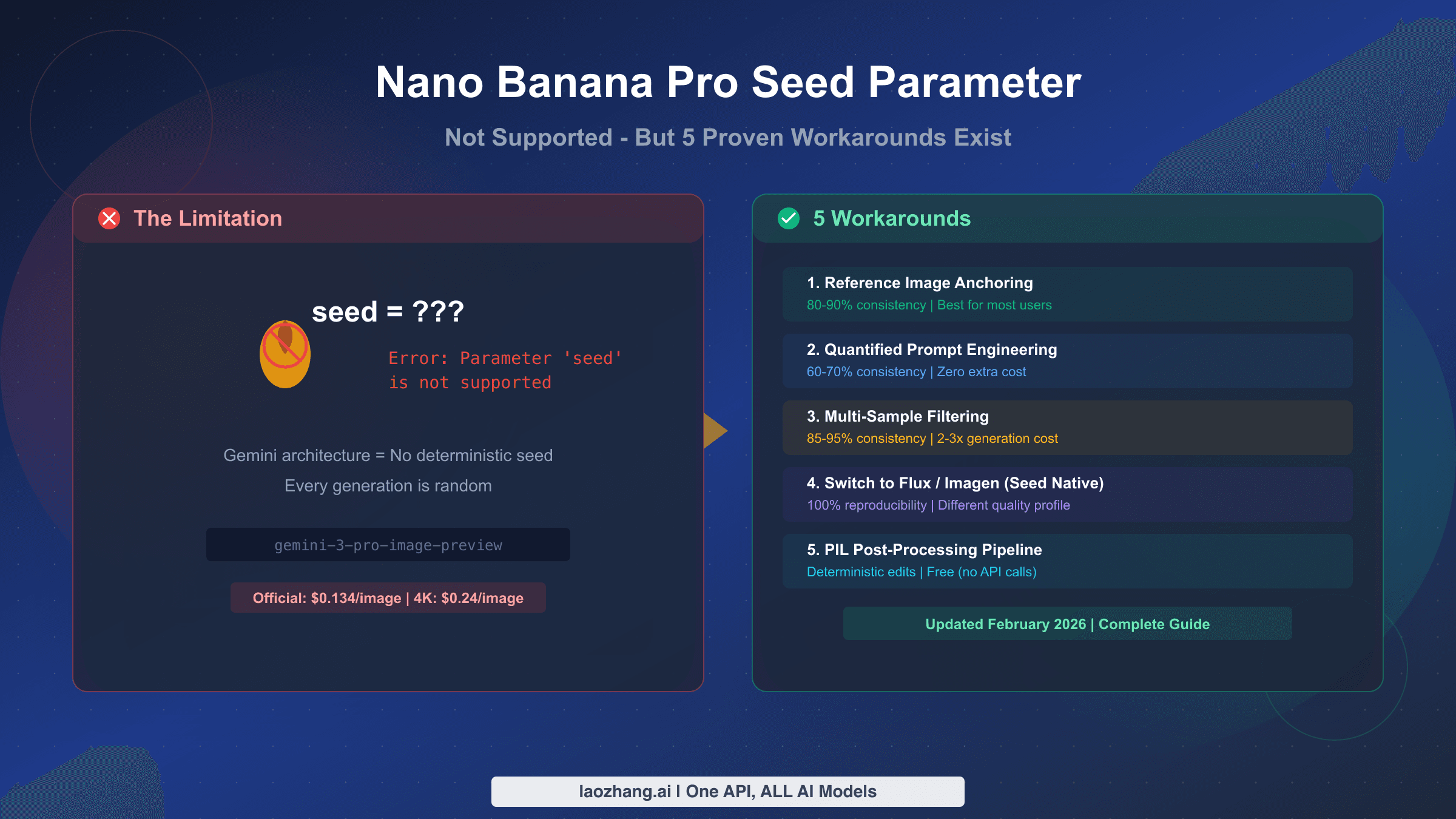
Negative prompting is another technique worth understanding, although Nano Banana Pro does not support explicit negative prompt parameters the way Stable Diffusion does. Instead, you can guide the model away from unwanted elements by being very specific about what you do want, which implicitly excludes alternatives. If you are consistently getting images with a particular unwanted characteristic — say, overly saturated colors — add "natural color palette, muted tones, realistic color grading" to your prompt rather than trying to specify what you don't want. You can also influence the overall mood by specifying time of day, weather conditions, and emotional tone: "overcast morning, contemplative atmosphere, desaturated color palette" produces strikingly different results from the same subject described with "golden hour, vibrant, energetic composition." The key insight is that Nano Banana Pro responds more reliably to positive direction than to negative constraints, so frame your instructions as aspirations rather than restrictions.

Here are five practical prompt examples for common use cases that you can adapt for your own projects:

  • E-commerce product shot: "A premium wireless headphone in matte black finish, floating against a gradient background transitioning from dark gray to white, soft studio lighting with subtle reflections, minimalist product photography, clean and modern, 8K detail"
  • Social media graphic: "An inspiring workspace flat lay with a MacBook, a cup of pour-over coffee, succulents, and a leather notebook, overhead shot, natural window light, warm and cozy aesthetic, Instagram-ready composition"
  • Blog illustration: "An abstract visualization of data flowing through a neural network, glowing blue and green nodes connected by luminous pathways, dark background, futuristic technology concept art, clean vector style"
  • Marketing banner: "A diverse group of three professionals collaborating around a modern conference table with holographic displays, contemporary office with floor-to-ceiling windows showing a city skyline, warm professional lighting"
  • Game asset: "A weathered medieval castle perched on a cliff overlooking a misty valley, dramatic storm clouds gathering overhead, fantasy art style inspired by concept art, highly detailed stone textures, cinematic composition"

How to Generate Native 4K Images (Resolution Mastery)

Nano Banana Pro resolution tiers comparison showing 1K, 2K, and 4K output specs, pricing and best use cases

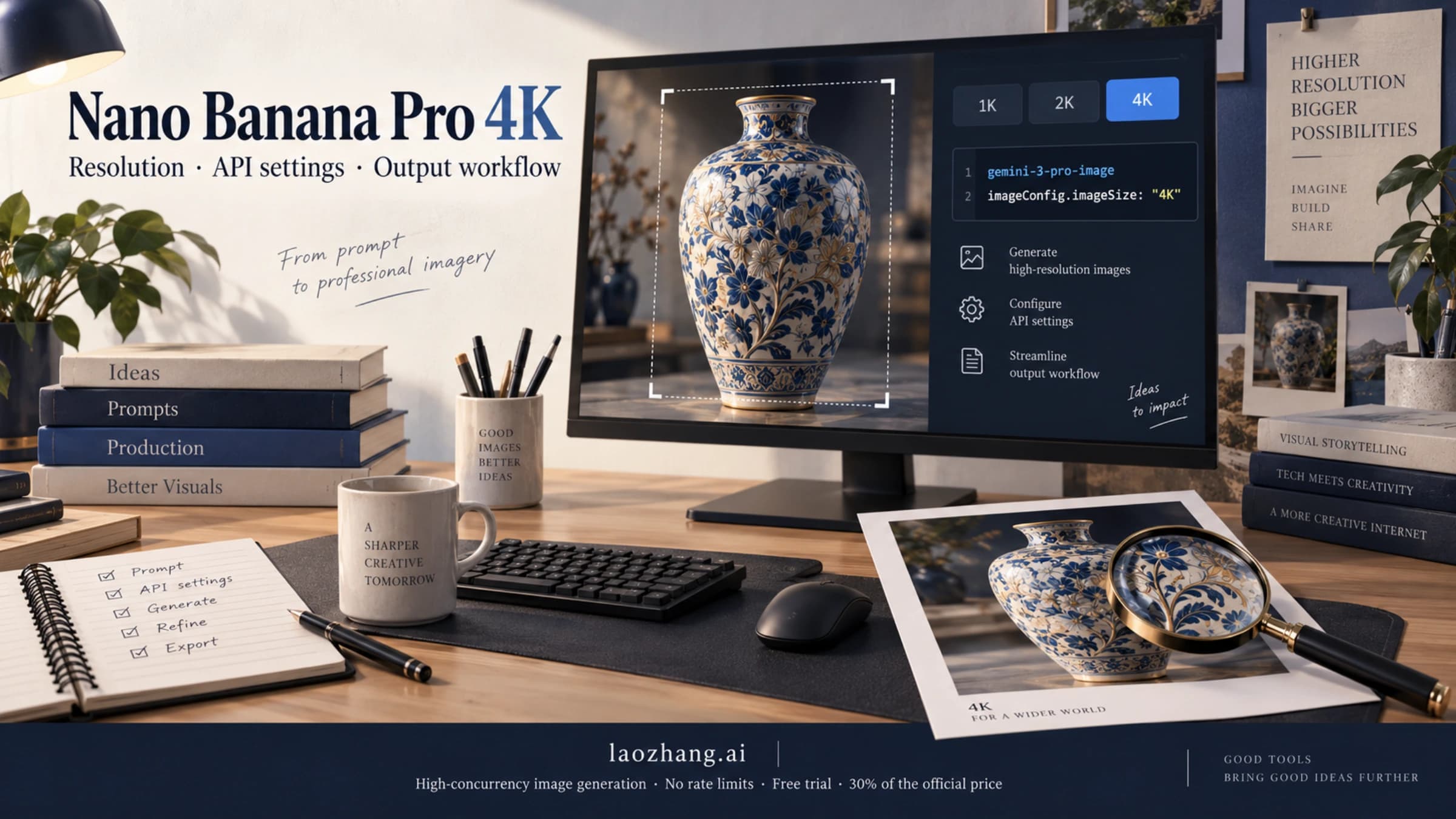
Native 4K image generation is the flagship capability that sets Nano Banana Pro apart from every other AI image model available today. While competitors like Flux 2 and DALL-E 3 max out at approximately 1-2 megapixels, Nano Banana Pro can generate images at 4096x4096 pixels — roughly 16.78 megapixels — natively, without any upscaling or post-processing. This means every pixel in a 4K image is generated intentionally by the neural network, resulting in significantly more coherent fine detail compared to images that are generated at lower resolution and then upscaled.

The API provides three resolution tiers, each with its own pricing and generation time characteristics. The 1K tier (maximum 1024x1024 pixels, approximately 1.05 megapixels) costs $0.134 per image and generates in about 13 seconds (aifreeapi.com speed test, January 2026). The 2K tier (maximum 2048x2048 pixels, approximately 4.19 megapixels) costs the same $0.134 per image but takes slightly longer at roughly 16 seconds. The 4K tier (maximum 4096x4096 pixels, approximately 16.78 megapixels) costs $0.24 per image — an 80% premium over the lower tiers — and takes about 22 seconds to generate. For detailed benchmarks on generation speed across different resolutions and providers, see our Gemini 3 Pro Image API pricing and speed tests.

Here is a complete Python code example for generating a 4K image with a specific aspect ratio:

python
from google import genai import os client = genai.Client(api_key=os.environ["GOOGLE_API_KEY"]) response = client.models.generate_images( model="gemini-3-pro-image-preview", prompt="A majestic snow-capped mountain range at golden hour, with a crystal clear alpine lake reflecting the peaks, ultra-detailed landscape photography, shot on Phase One IQ4 150MP", config=genai.types.GenerateImagesConfig( number_of_images=1, aspect_ratio="16:9", output_mime_type="image/png", person_generation="ALLOW_ADULT", ), ) for i, image in enumerate(response.generated_images): image.image.save(f"4k_landscape_{i}.png") print(f"4K image saved: {image.image.size}")

The aspect ratio parameter is critical for 4K generation because it determines the exact pixel dimensions of your output. When you set aspect_ratio="16:9" at 4K, you get a 4096x2304 image — perfect for desktop wallpapers, YouTube thumbnails, and presentation backgrounds. The aspect_ratio="9:16" option produces 2304x4096 images ideal for mobile wallpapers and Instagram Stories. The supported aspect ratios include 1:1 (4096x4096), 16:9 (4096x2304), 9:16 (2304x4096), 21:9 (4096x1757), 4:5 (3277x4096), and 3:4 (3072x4096) (Google AI documentation, February 2026).

Choosing the right resolution for your use case is a decision that balances quality against cost. For social media posts that will be viewed primarily on mobile screens, 1K resolution is more than sufficient — Instagram images display at approximately 1080x1080 pixels, so generating at 4K would waste money without any visible quality improvement. For website hero images and blog post illustrations, 2K provides excellent quality at the same price as 1K, making it the optimal default choice. Reserve 4K for use cases where the full resolution will actually be seen: print-quality materials, large-format displays, stock photography, and detailed textures for game development or 3D rendering. When generating at scale, the cost difference adds up quickly: 100 images at 2K costs $13.40, while 100 images at 4K costs $24.00 — a $10.60 difference that compounds with volume.

Nano Banana Pro Pricing and How to Save Up to 79%

Pricing comparison chart showing Google official API costs versus third-party providers with savings up to 79%

Understanding Nano Banana Pro's pricing structure is essential before committing to any integration. Google uses a per-image pricing model with two tiers based on resolution: $0.134 per image for 1K and 2K resolution, and $0.24 per image for 4K resolution (Google AI Featured Snippet, February 2026). There is no monthly subscription required for API access, but you must have a Google Cloud billing account with an active payment method. For users who prefer the Gemini app experience, Google offers three subscription tiers: the free tier with approximately 2 images per day at 1K resolution, Google AI Plus at $7.99 per month with higher generation limits, and Google AI Pro at $19.99 per month with the highest limits and priority access to new features (IntuitionLabs, February 2026). For a detailed breakdown of free vs pro limits, including exact daily quotas and feature differences, our comparison guide covers every plan in detail.

The most effective way to reduce your per-image cost through official channels is the Batch API, which processes requests asynchronously and can reduce costs by approximately 50%, bringing the effective price down to roughly $0.067 per 1K-2K image (aifreeapi.com, January 2026). Batch processing is ideal for workflows where you do not need images immediately — you submit a batch of generation requests and retrieve the results later. This is perfect for content calendars, product catalog generation, or training data creation where latency is not a concern.

Third-party API providers offer the most dramatic savings for high-volume users. Services like laozhang.ai provide access to the same Nano Banana Pro model through OpenAI-compatible endpoints at a flat rate of $0.05 per image regardless of resolution (laozhang.ai, February 2026). This represents a 63% saving on 1K-2K images and a 79% saving on 4K images compared to Google's official pricing. For a team generating 500 images per month at 4K resolution, the cost difference is substantial: $120 per month through the official API versus $25 per month through a third-party provider — a savings of $95 per month or $1,140 per year. You can test image generation capabilities at images.laozhang.ai and review the API documentation at docs.laozhang.ai.

To put these numbers into practical monthly scenarios, consider four typical user profiles. A hobbyist generating 50 images per month at 1K resolution would spend $6.70 through the official API or $2.50 through a third-party provider. A content creator producing 200 images per month at 2K resolution faces a $26.80 official bill versus $10.00 through a third-party. A development team generating 500 mixed-resolution images per month might spend $80-$120 officially versus $25 at a flat rate. An agency processing 2,000 images per month at various resolutions could see official costs reaching $400+ versus $100 through a third-party API. The savings scale linearly, making the third-party option increasingly attractive as volume grows.

Troubleshooting Common Nano Banana Pro Issues

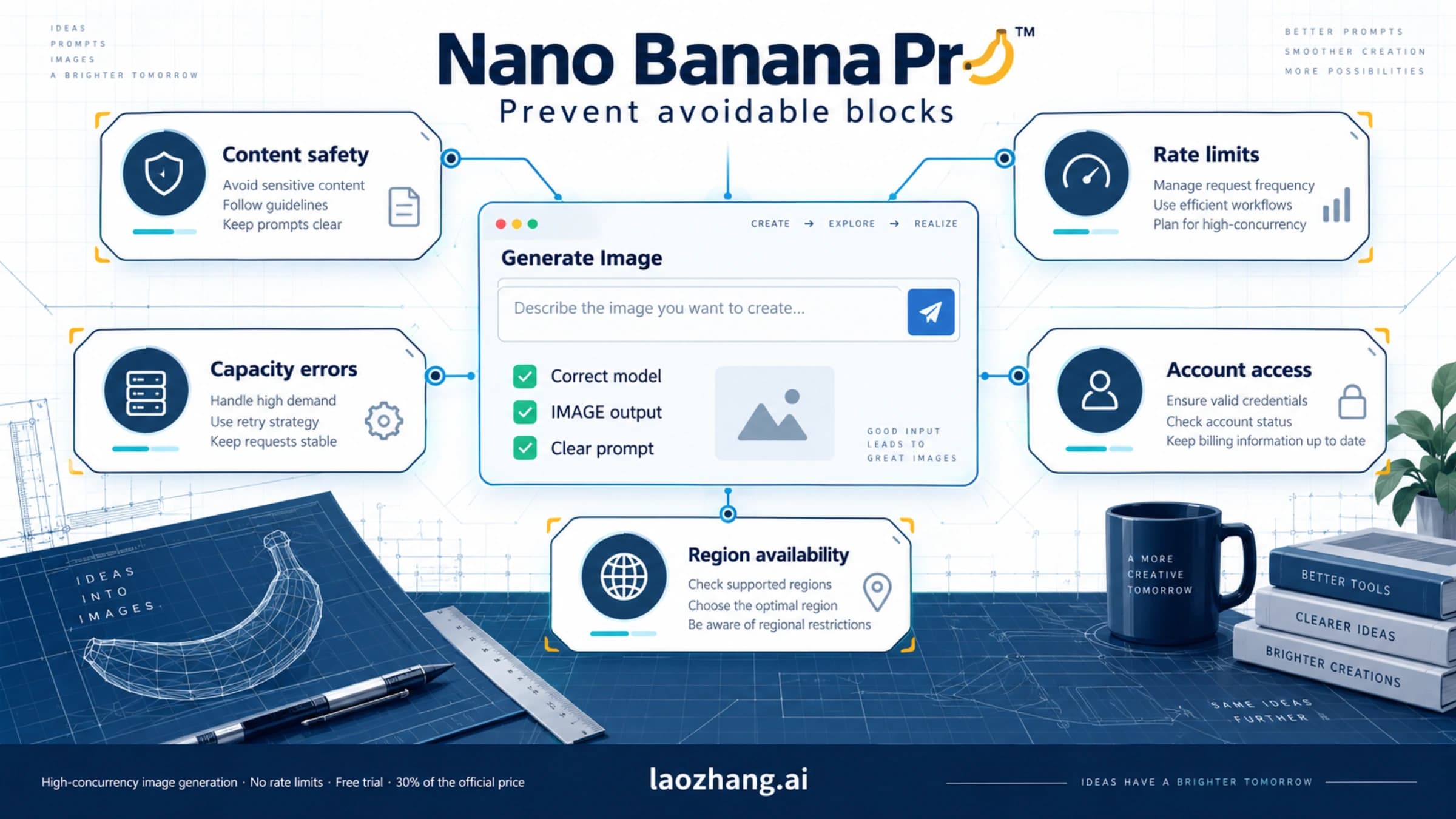
Even with a correctly configured setup, you will occasionally encounter errors when working with Nano Banana Pro. Understanding the most common issues and their solutions will save you hours of debugging. For a complete list of Nano Banana Pro error codes with detailed explanations and fixes, our error reference guide covers every documented error response.

RESOURCE_EXHAUSTED errors are the most frequently reported issue, especially for users on the free tier or those who have just set up their accounts. This error means you have exceeded your rate limit or quota for the current billing period. The solution depends on your access method: for Gemini app users, waiting a few hours usually resolves the issue as quotas reset. For API users, check your quota dashboard at console.cloud.google.com/apis/api/generativelanguage.googleapis.com/quotas to see your current usage against your limits. If you consistently hit quota limits, consider upgrading your billing tier or switching to a third-party API provider that offers higher rate limits.

Content policy rejections occur when your prompt triggers Nano Banana Pro's safety filters. The model applies strict content policies and will refuse to generate images that contain certain types of content, even if the request seems innocuous. Common triggers include prompts mentioning public figures by name, requests for photorealistic images of real people, and certain combinations of words that the safety system flags as potentially harmful. The fix is usually to rephrase your prompt: instead of naming a specific person, describe their visual characteristics, and instead of requesting explicit content categories, use abstract or artistic framing. All generated images include an invisible SynthID watermark (DataCamp, January 2026) that identifies them as AI-generated, which is part of Google's responsible AI practices.

API authentication errors (HTTP 401 or 403) typically indicate one of three problems: your API key is invalid or has been revoked, your billing account is not properly linked to the project, or the Gemini API is not enabled for your project. To diagnose this, first verify your API key is correct and active at aistudio.google.com/apikey. Then confirm that billing is enabled at console.cloud.google.com/billing, and that your billing account is linked to the correct project. Finally, ensure the Generative Language API is enabled at console.cloud.google.com/apis/library. If all three check out and you are still getting errors, try generating a new API key — sometimes keys become invalidated due to security events or project configuration changes.

Timeout and network errors can occur during 4K image generation because the process takes 20+ seconds. If you are making API calls from a client application with default timeout settings, you may receive timeout errors before the image finishes generating. The solution is to increase your HTTP client timeout to at least 60 seconds for 4K requests. In Python with the requests library, use timeout=60 in your API call. For the official Google SDK, the timeout is handled internally, but if you are using a custom HTTP implementation, ensure your connection and read timeouts are both set sufficiently high. Network interruptions during generation do consume your quota, so implementing retry logic with exponential backoff is recommended for production applications.

Quality inconsistency across generations is normal behavior for any AI image model, but Nano Banana Pro tends to produce more consistent results than competitors when you provide detailed prompts. If you are getting wildly varying quality, the most common cause is an underspecified prompt. Adding specific style references, lighting descriptions, and composition details dramatically reduces output variance. Another technique is to generate multiple images (up to 4 per API call) and select the best result — at $0.134 per image for 1K-2K resolution, generating 4 variations costs only $0.54, which is a reasonable investment for quality-sensitive applications.

Frequently Asked Questions

Is Nano Banana Pro free to use?

Nano Banana Pro is partially free through the Gemini app, where free-tier users can generate approximately 2 images per day at 1K resolution. However, API access requires a Google Cloud billing account — there is no permanent free tier for programmatic use. New Google Cloud accounts receive $300 in free credits valid for 90 days, which translates to roughly 2,240 images at standard resolution, providing substantial room for experimentation and development before any charges apply.

What is the difference between Nano Banana and Nano Banana Pro?

Nano Banana is based on Gemini 2.5 Flash and generates standard-quality images at lower resolutions with a per-image cost of approximately $0.038. Nano Banana Pro is based on Gemini 3 Pro and delivers significantly higher quality output with native 4K resolution support, superior text rendering, and enhanced composition capabilities at $0.134 per image for 1K-2K or $0.24 per image for 4K. The Pro model produces noticeably more detailed, coherent, and photorealistic images, especially at higher resolutions.

Can I use Nano Banana Pro images commercially?

Yes, images generated through the Gemini API are available for commercial use under Google's terms of service. All generated images include an invisible SynthID watermark that identifies them as AI-generated content, but this watermark does not affect the visual quality or commercial usability of the images. Always review the latest terms at ai.google.dev for any updates to commercial usage policies.

How fast does Nano Banana Pro generate images?

Generation times vary by resolution: approximately 13 seconds for 1K images, 16 seconds for 2K images, and 22 seconds for 4K images (aifreeapi.com speed test, January 2026). These times may vary based on server load and the complexity of your prompt. The Gemini app typically responds within 10-20 seconds, with occasional longer waits during peak usage periods.

What aspect ratios does Nano Banana Pro support?

Nano Banana Pro supports six aspect ratios: 1:1 (square), 16:9 (landscape), 9:16 (portrait), 21:9 (ultrawide), 4:5 (social media portrait), and 3:4 (traditional portrait). All aspect ratios are available at all three resolution tiers. The default aspect ratio is 1:1 if not specified in the API request.

How do I reduce my Nano Banana Pro costs?

Three strategies can significantly reduce costs: (1) Use 2K resolution instead of 4K when the extra detail is not needed — both cost $0.134 per image. (2) Use the Google Batch API for non-urgent requests to save approximately 50%. (3) Consider third-party API providers like laozhang.ai that offer the same model at $0.05 per image, saving 63-79% compared to official pricing.

Does Nano Banana Pro support image editing and inpainting?

Yes, Nano Banana Pro supports image editing through both the Gemini app and the API. In the Gemini app, you can upload an existing image and ask the model to modify specific elements — for example, "change the background to a beach scene" or "remove the person on the left." Through the API, you can pass reference images along with your text prompt to guide the generation process. The model supports up to 14 reference images as input, enabling workflows like style transfer, subject consistency across multiple images, and compositing elements from different sources. However, pixel-level inpainting (painting over a specific masked region) is not currently exposed through the API — that capability requires using the Gemini app's conversational interface.

What safety restrictions does Nano Banana Pro have?

Nano Banana Pro applies content safety filters that prevent generation of certain categories of images, including photorealistic depictions of identifiable real people, explicit or violent content, and content that could be used for deception or misinformation. The model also blocks generation of images depicting children in certain contexts and refuses to create content that impersonates real brands or organizations. All generated images include an invisible SynthID watermark that identifies them as AI-generated. These restrictions cannot be bypassed through prompt engineering, and attempting to circumvent them may result in account suspension. The safety settings in the API allow some flexibility through the person_generation parameter, which can be set to ALLOW_ADULT for portraits of generic (non-identifiable) adult figures.

Share:

laozhang.ai

One API, All AI Models

AI Image

Gemini 3 Pro Image

$0.05/img
80% OFF
AI Video

Sora 2 · Veo 3.1

$0.15/video
Async API
AI Chat

GPT · Claude · Gemini

200+ models
Official Price
Served 100K+ developers
|@laozhang_cn|Get $0.1