ComfyUI Nano Banana 2.1: Partner Node Setup, Old Workflow Fixes
Use ComfyUI's official Nano Banana 2.1 Partner Node (0.39.1+), paid in Comfy credits. Old workflows sending preview model IDs have failed since June 25, 2026.
On this page
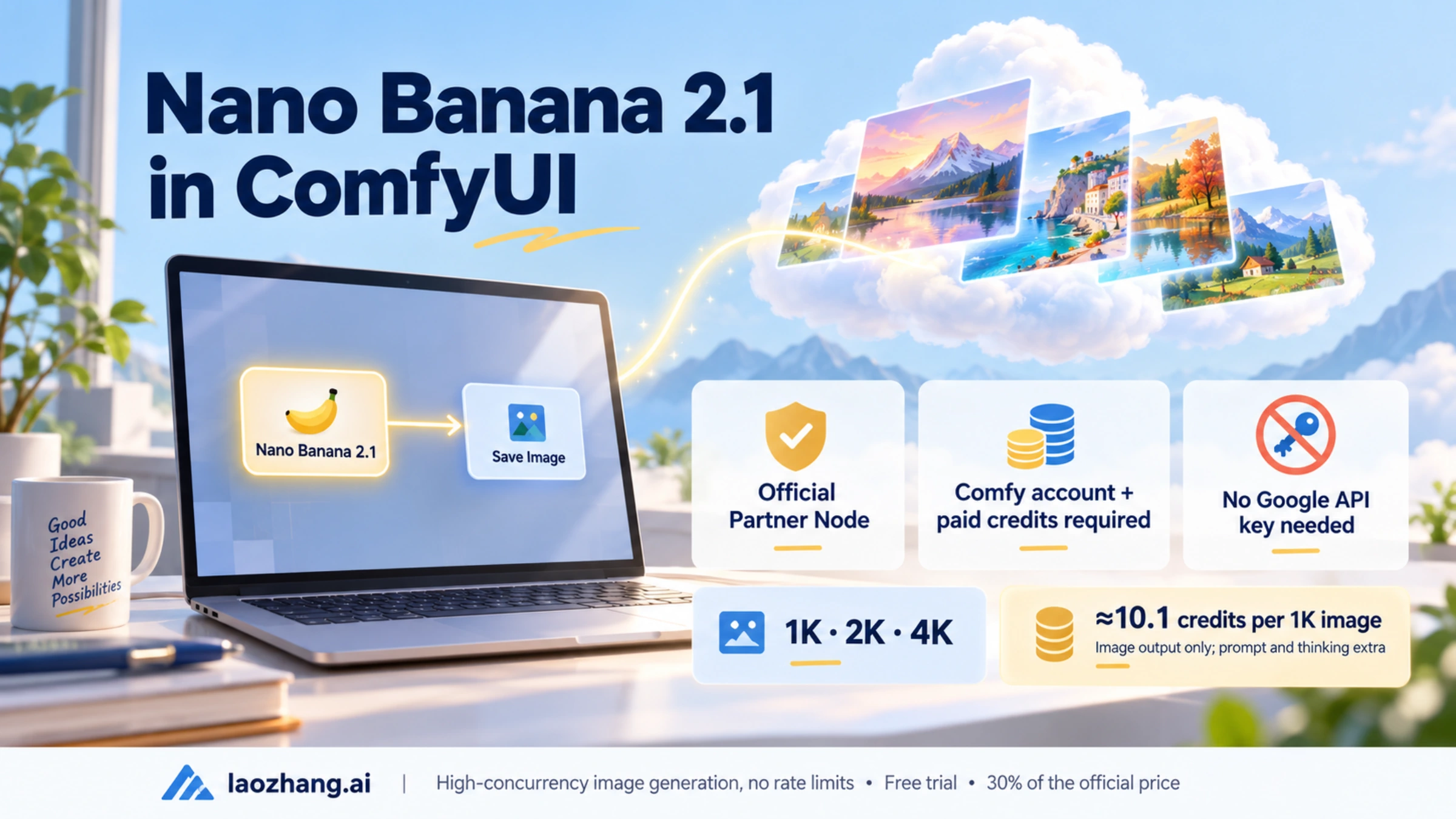
To run Nano Banana in ComfyUI now, use the official Nano Banana 2.1 Partner Node. Update ComfyUI to 0.39.1 or newer, log in with a Comfy account, add credits, then double-click the canvas and search for "Nano Banana 2.1". You don't need a Google API key, and the same node's model dropdown also runs Nano Banana 2 and Nano Banana 2 Lite (ComfyUI's Nano Banana 2.1 guide).
Updated October 8, 2026. Google shut down gemini-3.1-flash-image-preview and gemini-3-pro-image-preview on the Gemini API on June 25, 2026 (Gemini API deprecations page). Any ComfyUI workflow whose node still sends one of those IDs now fails, including ComfyUI_Nano_Banana and the other community Gemini nodes released before that date. Google made Nano Banana 2.1 (gemini-nano-banana-2.1) generally available on October 6, 2026 and marked Nano Banana 2 as deprecated, with no shutdown date yet. The sections below cover the official node, what it costs in credits, the own-Google-key alternative, and how to move an old workflow over.
Which ComfyUI node runs Nano Banana now: the official Partner Nodes
Partner Nodes are ComfyUI's built-in nodes for closed models. They send the request through Comfy's own API service and charge your prepaid Comfy credits, so there is no Google key to manage (Partner Nodes overview). Google's Nano Banana models come in two Partner Nodes: Nano Banana 2.1, whose dropdown also covers Nano Banana 2 and Nano Banana 2 Lite, and Nano Banana Pro.
| Model | Model ID | ComfyUI node | Output sizes | Thinking levels | Comfy's "best for" |
|---|---|---|---|---|---|
| Nano Banana 2.1 | gemini-nano-banana-2.1 | Nano Banana 2.1 | 1K, 2K, 4K | MINIMAL, MEDIUM (default), HIGH | Editing and generation where layout and detail matter |
| Nano Banana 2 | gemini-3.1-flash-image | Nano Banana 2.1 (dropdown) or Nano Banana 2 | 1K, 2K, 4K | MINIMAL, HIGH | Balanced quality and speed at larger sizes |
| Nano Banana 2 Lite | gemini-3.1-flash-lite-image | Nano Banana 2.1 (dropdown) | 1K | MINIMAL, HIGH | Fastest and cheapest drafts and high-volume runs |
| Nano Banana Pro | gemini-3-pro-image | Nano Banana Pro | Up to 4K | Configurable | Maximum precision, text, complex layouts |
Sizes, thinking levels and "best for" notes come from ComfyUI's Nano Banana 2.1 and Nano Banana Pro pages, as of October 8, 2026.
Start with Nano Banana 2.1. Google now calls Nano Banana 2 the previous generation and recommends 2.1 for new projects, and in ComfyUI 2.1 also uses fewer credits per image than Nano Banana 2 (see the cost section). Switch to Pro when the exact wording inside an image matters. In a 9-prompt test of Nano Banana 2.1, Pro and GPT Image 2.5 run once per prompt at 1K, Pro kept the requested wording while 2.1 changed it in 3 text tasks. For the model choice outside ComfyUI, see Nano Banana 2 Lite vs 2 vs 2.1 vs Pro: Which Model to Use Now.
These models run in Google's cloud, not on your GPU. A laptop that can open ComfyUI can use them, and you can mix them with local nodes in the same graph. ComfyUI's own docs suggest pairing a Partner Node image with local upscaling or style nodes. A common hybrid setup is to draft with a local Stable Diffusion or Flux checkpoint for free, then send the final prompt or the draft image to Nano Banana 2.1 for text, layout fixes or edits. The trade-off is a per-image charge instead of VRAM and load time.
If you would rather not run ComfyUI locally, each Nano Banana 2.1 template on ComfyUI's docs has a "Run on Comfy Cloud" button. Comfy Router also exposes the model over HTTP as vertexai/gemini-nano-banana-2.1, billed in the same credits, for calls from your own scripts.
Set up the Nano Banana 2.1 node: ComfyUI 0.39.1, Comfy account, credits
The whole setup happens inside ComfyUI's settings. There are no custom nodes to clone and no pip installs.
- Update ComfyUI to 0.39.1 or newer. The Nano Banana 2.1 node and its templates first appear in that version. If the node is still missing after an update, ComfyUI recommends the nightly build, because tagged releases can lag behind new Partner Nodes. On Comfy Cloud, new nodes arrive after the next stable release.
- Log in. Open
Settings→Userand sign in with your Comfy account. - Buy credits. Open
Settings→Credits, set an amount, clickBuy, and pay through Stripe. Partner Nodes run only when your balance is above zero (Comfy credits guide). - Add the node. Double-click the canvas and search for "Nano Banana 2.1", or open the Template Library and pick Text to Image (
api_nano_banana_2_1_t2i) or Image Edit (api_nano_banana_2_1_image_edit). If the templates are missing, your ComfyUI is probably older than 0.39.1. - Run it. Type a prompt, choose the resolution and thinking level, and queue the workflow. The node shows a price badge with an estimated cost before you run.
Partner Node login: local address, Comfy API key, and region limits
The browser login only works when you open ComfyUI at the machine's local address. If you reach ComfyUI from another device on your network (for example, a server started with --listen) or from a site that isn't on Comfy's whitelist, log in with a Comfy account API key instead (logging in with an API key). That key is a ComfyUI account key, not a Google key, and not the registry key that node developers use to publish. For remote access, ComfyUI asks for an HTTPS connection so your account credentials aren't sent in the clear.
ComfyUI's overview also says your network must be able to reach Comfy's API service, and that this isn't possible directly from every region. If the service is unreachable where you are, Partner Nodes won't work no matter which model you pick.
A few credit rules are worth knowing before a large batch. Credits are prepaid and non-refundable. Top-up credits expire one year after purchase. Because some Partner Nodes report their cost only after they finish, one run can push your balance below zero. While it's negative, Partner Nodes stay blocked until you top up. Usage per run is listed under Settings → Credits → Credit History.
Nano Banana 2.1 node settings: resolution, thinking level, aspect ratio, seed
The defaults work for a first run. These are the settings that change cost, speed or output shape (ComfyUI's Nano Banana 2.1 settings table).
| Setting | Options | What it changes |
|---|---|---|
resolution | 1K, 2K, 4K | Output size. Higher sizes cost more per image. There is no 0.5K/512 option on 2.1. |
thinking_level | MINIMAL, MEDIUM, HIGH | How much the model reasons before drawing. MINIMAL is fastest and adds no reasoning cost; MEDIUM and HIGH take longer and use more credits. 2.1 starts at MEDIUM. |
aspect_ratio | auto, 1:1, 2:3, 3:2, 3:4, 4:3, 4:5, 5:4, 9:16, 16:9, 21:9, 1:4, 4:1, 8:1, 1:8 | auto copies the first reference image's ratio. With no reference image it usually returns 16:9. |
| Reference images | Up to 14 | Guide subject, style or layout. Google's model page splits this into up to 4 characters and up to 10 objects. |
response_modalities | IMAGE, IMAGE+TEXT | IMAGE+TEXT also returns the model's text on the text and thought_image outputs. |
temperature, top_p | Shown on the node | Not sent for 2.1. They apply only when the dropdown is set to Nano Banana 2 or 2 Lite. |
seed | Any number | See the note below. |
Two settings behave differently from older Gemini image nodes. First, seed isn't a reproducibility guarantee on 2.1. ComfyUI describes it as making repeated runs "as close to identical as the model allows". Google's Vertex AI page for Nano Banana 2.1 lists seed among the parameters that return an API error on this model. Expect variations between runs even with a fixed seed. Second, auto with no reference image gives a wide 16:9 frame. Set an explicit ratio such as 1:1 for square social posts.
For drafts, set thinking_level to MINIMAL and resolution to 1K. Move to MEDIUM or HIGH when a layout has many elements or text that must land in the right place.
Three Nano Banana workflows in ComfyUI: text to image, edit, style references
The three workflows below cover the jobs most people bring Nano Banana into ComfyUI for. Each is a small starting graph that you can extend with local nodes.
Text-to-image workflow with the Nano Banana 2.1 template
Load the Text to Image template, or add a Nano Banana 2.1 node and connect its image output to a Save Image node. The prompt is the only input. Type it into the node, set the ratio and size, and queue the workflow. The result is saved as a PNG.
[Nano Banana 2.1] → [Save Image]
  ├─ prompt: "poster of a ceramic teapot, title text 'Slow Mornings'"
  ├─ resolution: 1K
  ├─ aspect_ratio: 4:5
  └─ thinking_level: MINIMAL (drafts) or MEDIUM (final)
Put any text you want rendered in quotes inside the prompt, and check the result letter by letter. If the wording must be exact and 2.1 keeps changing it, switch to the Nano Banana Pro node for that image.
Image editing workflow: Load Image to the reference input
Load the Image Edit template. It wires a Load Image node into the model's reference input and adds an Image Compare node, so you can see the original and the result side by side on the canvas. Load your image, then describe the change in the prompt.
[Load Image] → [Nano Banana 2.1] → [Image Compare] / [Save Image]
                 ├─ prompt: "your editing instruction"
                 └─ aspect_ratio: auto (keeps the input's shape)
Specific, spatial instructions work better than vague ones. "Make it better" leaves the model guessing. "Replace the wooden table with a glass coffee table of the same size, keep the lighting" tells it what to change and what to keep. ComfyUI's own example is "Change the background to dark, and relight this portrait with dramatic blue light from the front and a warm amber rim light from behind." Leave aspect_ratio on auto so the edit keeps the input's proportions.
Style and character references: several Load Image nodes into one call
To carry a style or a character across images, connect several reference images to the same Nano Banana 2.1 node. The node accepts up to 14 in one call. Then describe the new scene in the prompt and say what each reference is for, for example "use the first image's color palette and the second image's character".
[Load Ref 1] ─┐
[Load Ref 2] ─┤→ [Nano Banana 2.1] → [Save Image]
[Load Ref 3] ─┘    ├─ prompt: "new scene + which reference supplies what"
                    └─ aspect_ratio: 3:2
Start with a few references that share one style rather than a mixed set; it is easier to see which image drives the result. With aspect_ratio on auto, the output copies the first reference's ratio, so put the image whose framing you want first or set the ratio by hand.
For many prompts, queue the workflow several times. Comfy caps how many Partner Node requests you can have in flight at once (Partner Nodes concurrency limits), and each queued run is charged separately.
What Nano Banana costs in ComfyUI: about 10 credits for a 1K 2.1 image
ComfyUI bills the Nano Banana Partner Nodes by tokens, in credits. These are the rates from the Partner Node pricing page as of October 8, 2026:
| Model | Input, credits per 1K tokens | Text and thinking output, credits per 1K tokens | Image output, credits per 1K tokens |
|---|---|---|---|
| Nano Banana 2.1 | 0.4526 | 2.263 | 9.05 |
| Nano Banana 2 | 0.1266 | 0.7596 | 15.19 |
| Nano Banana 2 Lite | 0.0633 | 0.3798 | 7.60 |
| Nano Banana Pro | 0.5064 | 3.0384 | 30.38 |
Nano Banana (gemini-2.5-flash-image) | 0.0633 | 0.5275 | 6.33 |
The pricing page lists these rates only in credits, so compare models in credits rather than converting to dollars.
To turn the rates into a per-image figure, multiply the tokens an image uses by the image-output rate. Google's Gemini API pricing page gives the token count per output image: 1,120 tokens at 1K and 1,680 at 2K for 2.1 and Nano Banana 2, 3,780 at 4K for 2.1, 2,520 at 4K for Nano Banana 2, and 1,120 (1K/2K) or 2,000 (4K) for Pro. Assuming ComfyUI counts the same tokens:
| Image output only | 1K | 2K | 4K |
|---|---|---|---|
| Nano Banana 2.1 | 1,120 × 9.05 ÷ 1,000 ≈ 10.1 credits | ≈ 15.2 | ≈ 34.2 |
| Nano Banana 2 | ≈ 17.0 | ≈ 25.5 | ≈ 38.3 |
| Nano Banana 2 Lite | ≈ 8.5 | — | — |
| Nano Banana Pro | ≈ 34.0 | ≈ 34.0 | ≈ 60.8 |
Thinking adds to that. Thinking tokens are billed at the text-output rate, and 2.1 starts at MEDIUM. In calls to Nano Banana 2.1 through LaoZhang's API on October 8, 2026, each call reported between 510 and 1,107 thinking tokens. At 2.263 credits per 1K tokens, that would add about 1.2 to 2.5 credits, so a default 1K image from the 2.1 node lands near 11 to 13 credits plus a small amount for the prompt. Setting thinking_level to MINIMAL removes the reasoning charge, according to ComfyUI's settings table. Reference images add input tokens at the input rate. The price badge on the node gives the estimate for your exact settings, and the final charge follows actual usage.
Two things stand out. First, 2.1 is cheaper than Nano Banana 2 in ComfyUI, but by less than Google's dollar prices suggest. On Google's API, a 1K image from 2.1 costs half of Nano Banana 2's. In credits, 2.1's 1K image output is about 40% below Nano Banana 2's (10.1 against 17.0), and about 11% below at 4K (34.2 against 38.3). Second, Pro costs about 3.4 times as much as 2.1 for a 1K image (34.0 against 10.1), so it's worth reserving for images where text accuracy decides the result.
Using your own Google API key instead of Comfy credits
Some ComfyUI users prefer paying Google directly, because they already have Google Cloud billing or want Google's dollar prices. That route needs a community node or your own script, and as of October 8, 2026, none of the community nodes in the migration section below ships a current model ID out of the box. Expect to edit a node's model list or call the API from a script. For the API side, Nano Banana API Docs and Tutorial: Key, Model IDs, and Code has working request code with current IDs.
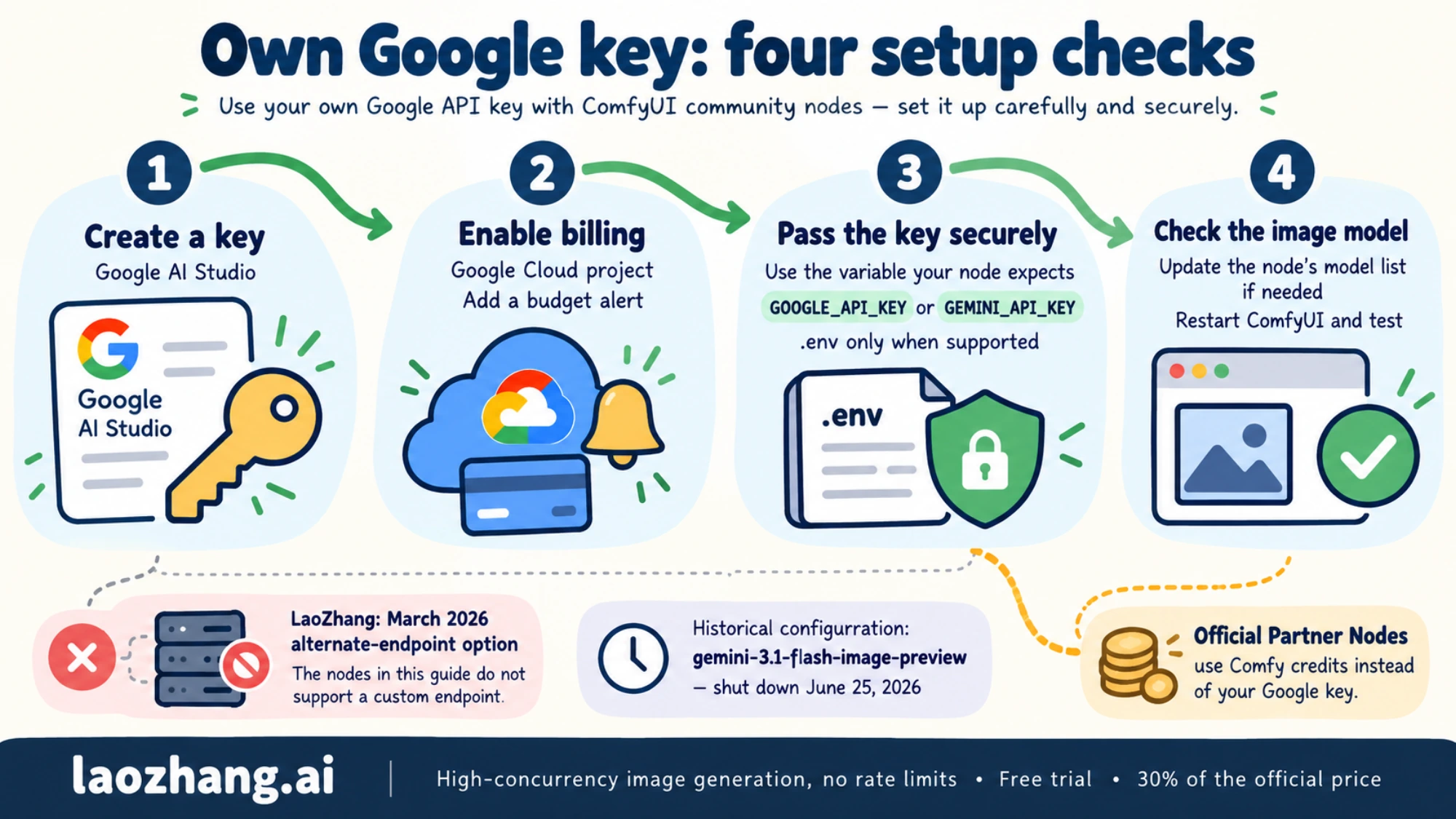
The flow in this chart still holds, with three corrections. The model ID it names, gemini-3.1-flash-image-preview, is the one Google shut down. The .env option works only with nodes that load that file, such as ComfyUI_Nano_Banana. Its LaoZhang box refers to a March 2026 option that no node listed here can use.
Create a Gemini API key and link billing
The Gemini API has no free tier for image models (Gemini Image API Free? No Free Tier, but $5 Buys Up to 148 Images). A key from a project without billing can list models and run text, but image calls fail.
- Open Google AI Studio at aistudio.google.com, sign in, and create an API key in a new or existing project. Copy it right away.
- In the Google Cloud Console, open Billing for that project and link a billing account with a payment method. Linking billing moves the project to Tier 1.
- Set a budget alert in the Cloud Console so a runaway queue can't surprise you.
Tier 1 projects have a $250 billing cap, and spending more than $10 in any rolling 10 minutes returns a 429 (Gemini API rate limits page). If your queue hits that, Gemini Image 429 Rate Limit: How Long It Lasts and How to Fix It explains which limit you hit and how long it lasts.
Pass the key to a custom node
Community nodes read the key from an environment variable, and some also offer a key field on the node. Check which name your node expects: ComfyUI_Nano_Banana reads GOOGLE_API_KEY from the environment or a .env file, while ComfyUI-NanoB-Edit-Gemini reads GEMINI_API_KEY or its gemini_api_key field. Pasting the key into a node field works at once, but the key then sits in plain text inside any workflow JSON you export or share. An environment variable is safer. On macOS and Linux, add export GOOGLE_API_KEY="your-key-here" to ~/.zshrc or ~/.bashrc. On Windows, set it in System Properties, or run $env:GOOGLE_API_KEY="your-key-here" in PowerShell in the same window that launches ComfyUI.
Google's per-image prices for Nano Banana
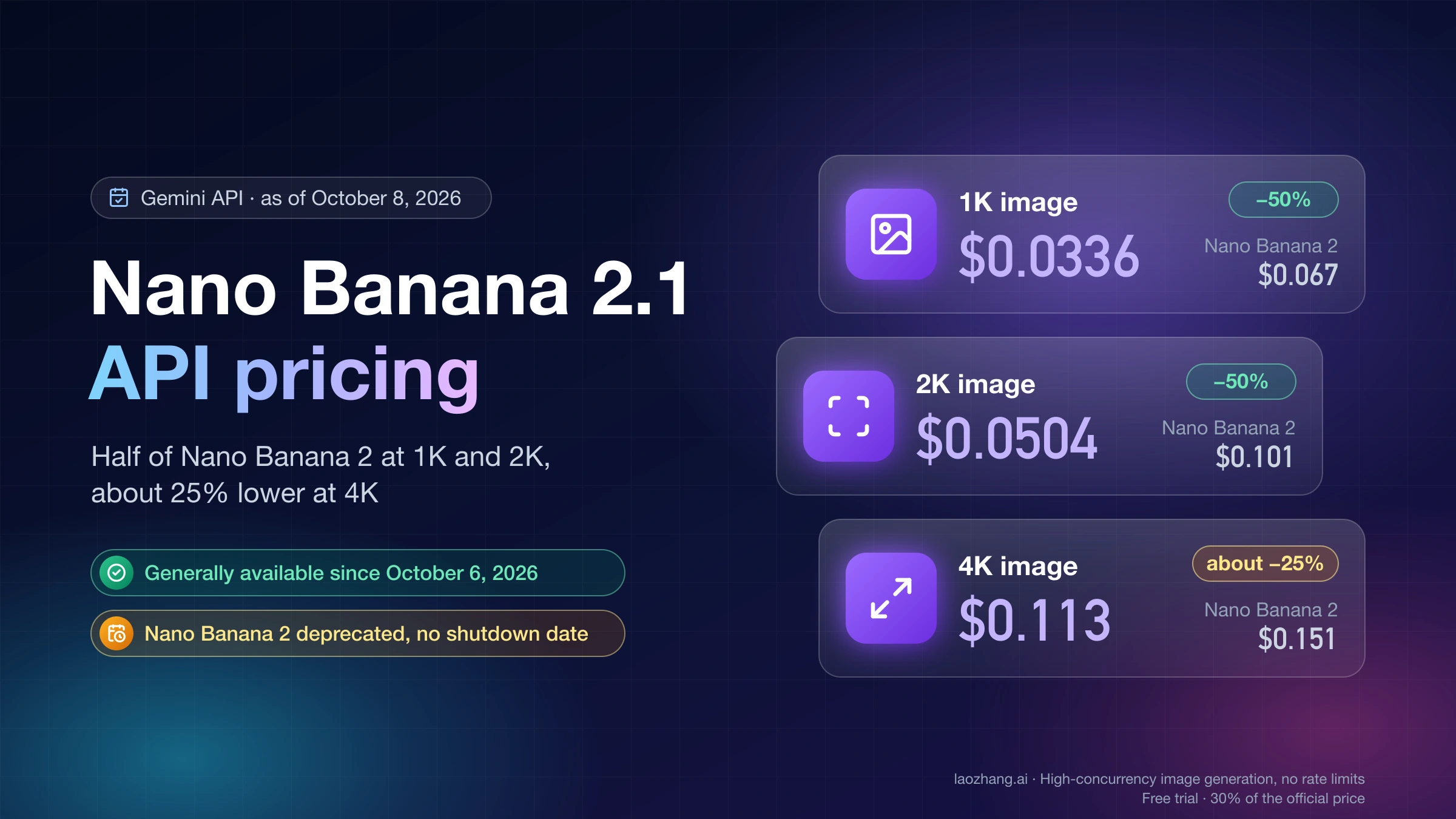
These are Google's Standard prices per output image on the Gemini API, as of October 8, 2026 (Gemini API pricing page). Thinking tokens are billed on top: $7.50 per 1M for 2.1, $3 per 1M for Nano Banana 2.
| Model | 0.5K | 1K | 2K | 4K |
|---|---|---|---|---|
| Nano Banana 2.1 | — | $0.0336 | $0.0504 | $0.113 |
| Nano Banana 2 | $0.045 | $0.067 | $0.101 | $0.151 |
| Nano Banana 2 Lite | — | $0.0336 | — | — |
| Nano Banana Pro | — | $0.134 | $0.134 | $0.24 |
Google's Batch API halves these prices, but it is a separate asynchronous API suited to scripts rather than an interactive ComfyUI queue. As a worked example, 100 images from 2.1 at 1K cost 100 × $0.0336 = $3.36 in image output. If each call also used 1,000 thinking tokens, add 100 × 1,000 × $7.50 ÷ 1,000,000 = $0.75. More detail is in Nano Banana 2.1 API Pricing: Per-Image Price vs Cost per Call and, for Pro, Gemini 3 Pro Image API Pricing: $0.067–$0.432 per Image by Tier. To turn Pro's list price into a cost per image you actually keep, see How Much Is Nano Banana Pro? API, Plan, and Usable-Image Cost.
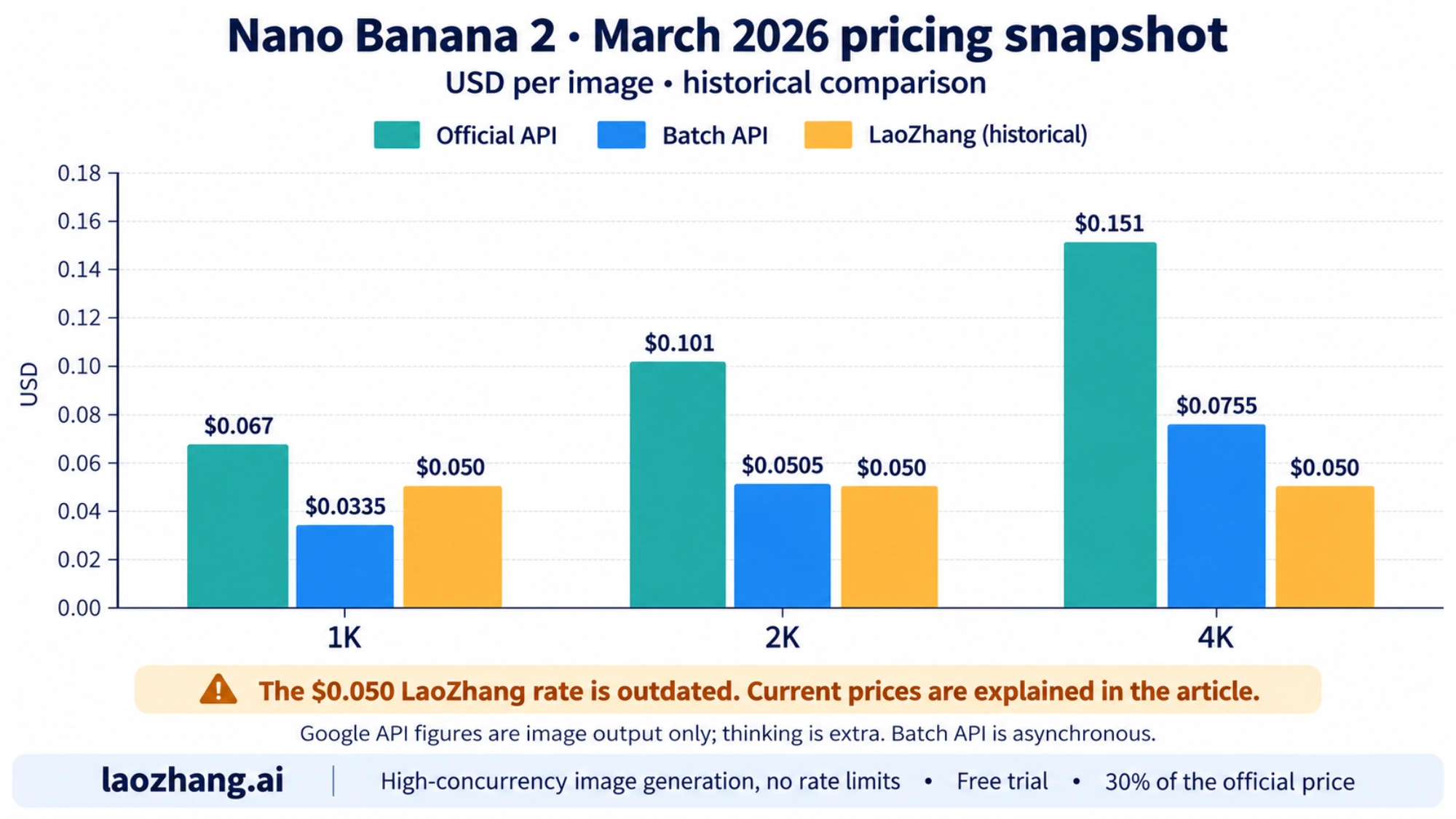
This chart dates from March 2026 and shows Nano Banana 2 only. Its official and Batch bars still match Google's current Nano Banana 2 prices. Nano Banana 2.1, which replaced it as Google's default Flash image model, costs half as much at 1K and 2K. The flat $0.050 LaoZhang bar is out of date: LaoZhang's Nano Banana 2.1 docs now list $0.045 per call for 2.1 and $0.055 for Nano Banana 2. None of the ComfyUI nodes discussed here accepts a custom endpoint, so that price applies to scripts, not to a ComfyUI graph.
Disclosure: laozhang.ai is our own service. Its prices are platform pricing, not an independent comparison.
Old Nano Banana workflow fails: preview IDs shut down, how to migrate
If a workflow built before July 2026 now errors on every run, check which model ID its Gemini node sends. Google retired the preview image IDs on the Gemini API and named a replacement for each (Gemini API deprecations page, as of October 8, 2026):
| Old model ID | Status on the Gemini API | Google's replacement |
|---|---|---|
gemini-3.1-flash-image-preview | Shut down June 25, 2026 | gemini-nano-banana-2.1 |
gemini-3-pro-image-preview | Shut down June 25, 2026 | gemini-3-pro-image |
gemini-2.5-flash-image-preview | Shut down January 15, 2026 | gemini-nano-banana-2.1 |
gemini-2.0-flash-preview-image-generation | Shut down November 14, 2025 | gemini-nano-banana-2.1 |
gemini-2.5-flash-image | Deprecated. The deprecations table lists a March 15, 2027 shutdown; the pricing page still warns of October 2, 2026 | gemini-3.1-flash-lite-image |
gemini-3.1-flash-image (Nano Banana 2) | Deprecated, no shutdown date announced | gemini-nano-banana-2.1 |
Move the workflow to the Nano Banana 2.1 Partner Node
This is the path that needs no code changes:
- Open the old workflow and note the prompt, the reference images, the aspect ratio and the resolution it used.
- Add a Nano Banana 2.1 node next to the old Gemini node.
- Copy the prompt into the new node. Reconnect each Load Image output to the new node's reference input, and its image output to your Save Image, upscaler or compare node.
- Map the settings. A 512 or 0.5K size becomes 1K, because 2.1 has no smaller size. A size of 1024 becomes 1K. Pick MINIMAL thinking for the fastest runs, or keep MEDIUM.
- Expect a different image from the same seed. 2.1 is a different model, and a fixed seed doesn't reproduce results on it.
- Delete the old node, run once, and check the charge in
Credit History.
If the old workflow already used ComfyUI's own Nano Banana Pro Partner Node, you don't have to rebuild it. ComfyUI's Nano Banana 2 guide says newer model versions were added to that node, so you reselect the model in its dropdown. To move to 2.1, swap in the Nano Banana 2.1 node as above.
Keep a community node by editing its model list
If you want to keep paying Google directly, you can point a community node at a current ID yourself. In ComfyUI_Nano_Banana, the model dropdown is a fixed list in the node's Python files: model_list = ["gemini-3.1-flash-image-preview"] in nodes/nano_banana_2_aio.py and nodes/nano_banana_2_multiturn_chat.py, and model_list = ["gemini-3-pro-image-preview"] in nodes/nano_banana_aio.py and nodes/nano_banana_multiturn_chat.py. Replacing those strings with gemini-3.1-flash-image or gemini-3-pro-image and restarting ComfyUI is the smallest change.
Treat this edit as a starting point rather than a known fix. The node sends a temperature value with every request. Nano Banana 2 should accept it, since ComfyUI's own node still sends temperature for that model. For gemini-nano-banana-2.1, ComfyUI's node leaves temperature out, and Vertex AI rejects it on 2.1, so the edit may fail with that ID until the node's code is updated. Your edit is also overwritten if you update the node through ComfyUI Manager.
Community Gemini nodes as of October 8, 2026: which model IDs they send
Five community Gemini nodes and the model IDs they send, taken from each repository's code and README:
| Custom node | Last update on GitHub | Model IDs in its dropdown | Status with current Google models |
|---|---|---|---|
| ComfyUI_Nano_Banana by ru4ls | March 2, 2026 (v6.1.0) | gemini-3.1-flash-image-preview, gemini-3-pro-image-preview | Both IDs shut down June 25, 2026. Needs the edit above or a maintainer update. |
| ComfyUI-NanoBanano by ShmuelRonen | August 27, 2025 | gemini-2.0-flash-exp-image-generation, fixed in code | An experimental Gemini 2.0 ID that is not among Google's current image models, in a node unchanged since August 2025. |
| ComfyUI-NanoB-Edit-Gemini by comrender | March 15, 2026 | gemini-2.5-flash-image, gemini-3-pro-image-preview, gemini-3.1-flash-image-preview | Only the gemini-2.5-flash-image option points at a model Google still lists, and that model is deprecated. |
| ComfyUI-JM-Gemini-API by juemingai | January 9, 2026 | gemini-3-pro-image-preview, gemini-2.5-flash-image | One shut-down ID and one deprecated ID (gemini-2.5-flash-image). |
| ComfyUI-Gemini | — | Several repositories use this name; the ZHO-ZHO-ZHO and Visionatrix versions list text models such as gemini-2.5-flash, not image models | Not a Nano Banana image node. |
ComfyUI_Nano_Banana's latest release, v6.1.0, added Nano Banana 2 support in March 2026, before the preview IDs were shut down. Check its repository for a newer release before editing it yourself.
Nano Banana ComfyUI errors: login, credits, missing node, old IDs
The Partner Node keeps asking you to log in. You are probably opening ComfyUI from another device or a non-whitelisted address. The browser login works only at the machine's local address. Elsewhere, log in with a Comfy account API key, over HTTPS if you are remote.
The node stops running after a large job. Your credit balance is zero or below. One expensive run can leave it negative, and Partner Nodes stay blocked until you top up in Settings → Credits.
You can't find the Nano Banana 2.1 node or its templates. Your ComfyUI is older than 0.39.1, or a node failed to import at startup. Update, or switch to the nightly build if the stable release doesn't have the node yet. If no Partner Nodes appear at all, check whether your launch command includes --disable-partner-nodes, which hides them.
An old custom node errors on every run. It is almost certainly sending a shut-down preview ID. Compare its model dropdown with the migration table above, then move to the Partner Node or edit the model list.
"Module not found" or import errors on startup (custom nodes only). The node's Python dependencies are missing. Run pip install -r requirements.txt inside the node's folder, using the same Python environment that runs ComfyUI. On the Windows portable build, that means the embedded Python, not your system Python.
"API key not valid" (own Google key). Test the key outside ComfyUI:
curl "https://generativelanguage.googleapis.com/v1beta/models" \
  -H "x-goog-api-key: $GOOGLE_API_KEY"
A bad key returns error 400 with "API key not valid. Please pass a valid API key." A working key returns a list of models. If the key works in curl but not in ComfyUI, ComfyUI isn't seeing the variable: restart it from a terminal where the variable is set, and check your shell profile for stray quotes or trailing spaces.
No image comes back. Set response_modalities to IMAGE+TEXT and connect the text output to a preview node, so you can read whatever text the model returned in place of an image. Rephrase prompts that touch on content Google's safety filters block. If you call Pro from your own script outside ComfyUI, the Nano Banana Pro Errors & Troubleshooting Hub explains 503 server errors and the IMAGE_SAFETY and blockReason safety responses.
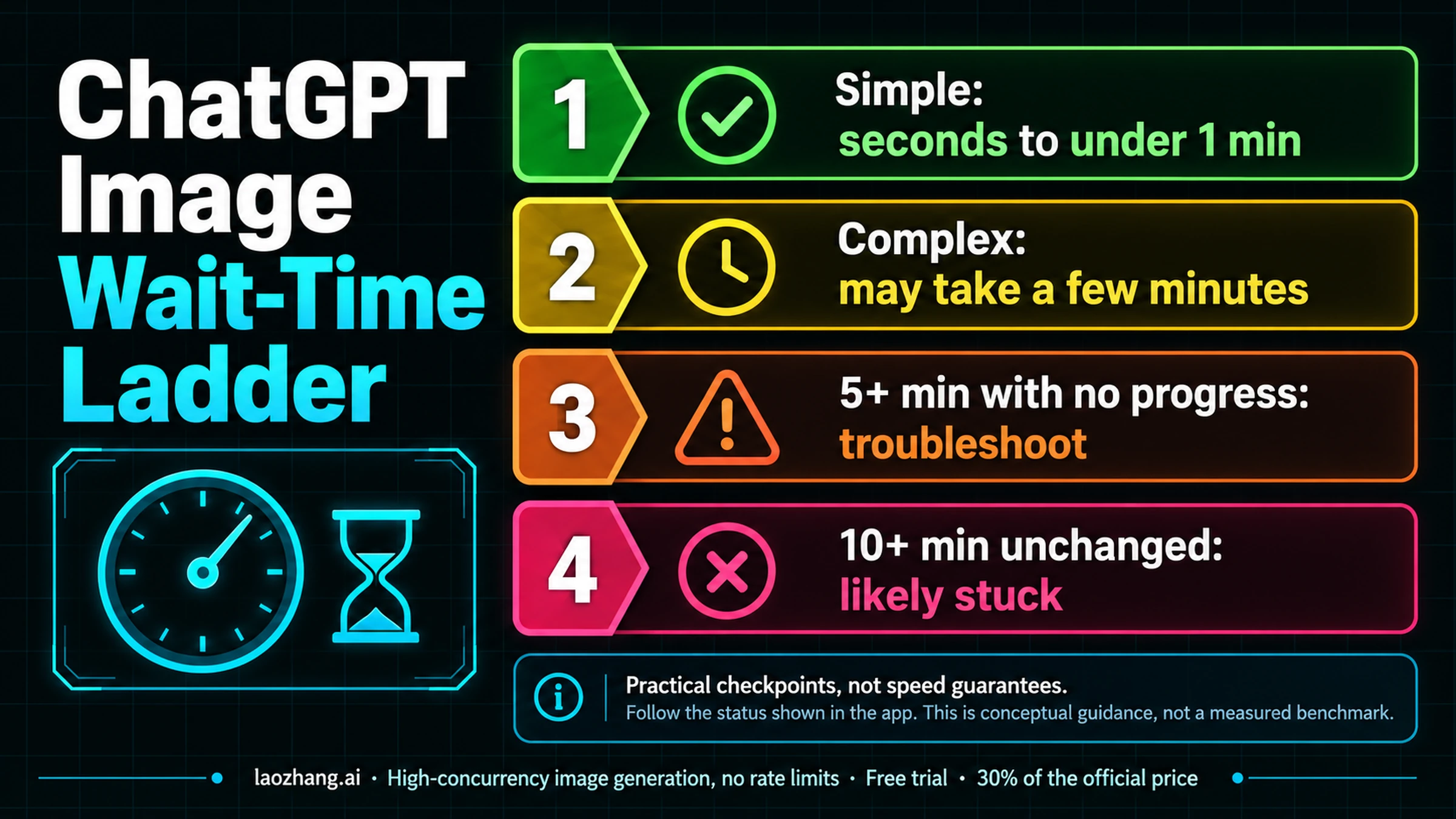
Runs are slow. MEDIUM and HIGH thinking add reasoning time before the model draws, and 4K takes longer than 1K. Use MINIMAL at 1K while you iterate. If many runs sit in the queue, you may be at ComfyUI's concurrency limit for Partner Nodes.
Nano Banana in ComfyUI: free use, API keys, and Nano Banana 2
Is Nano Banana free in ComfyUI?
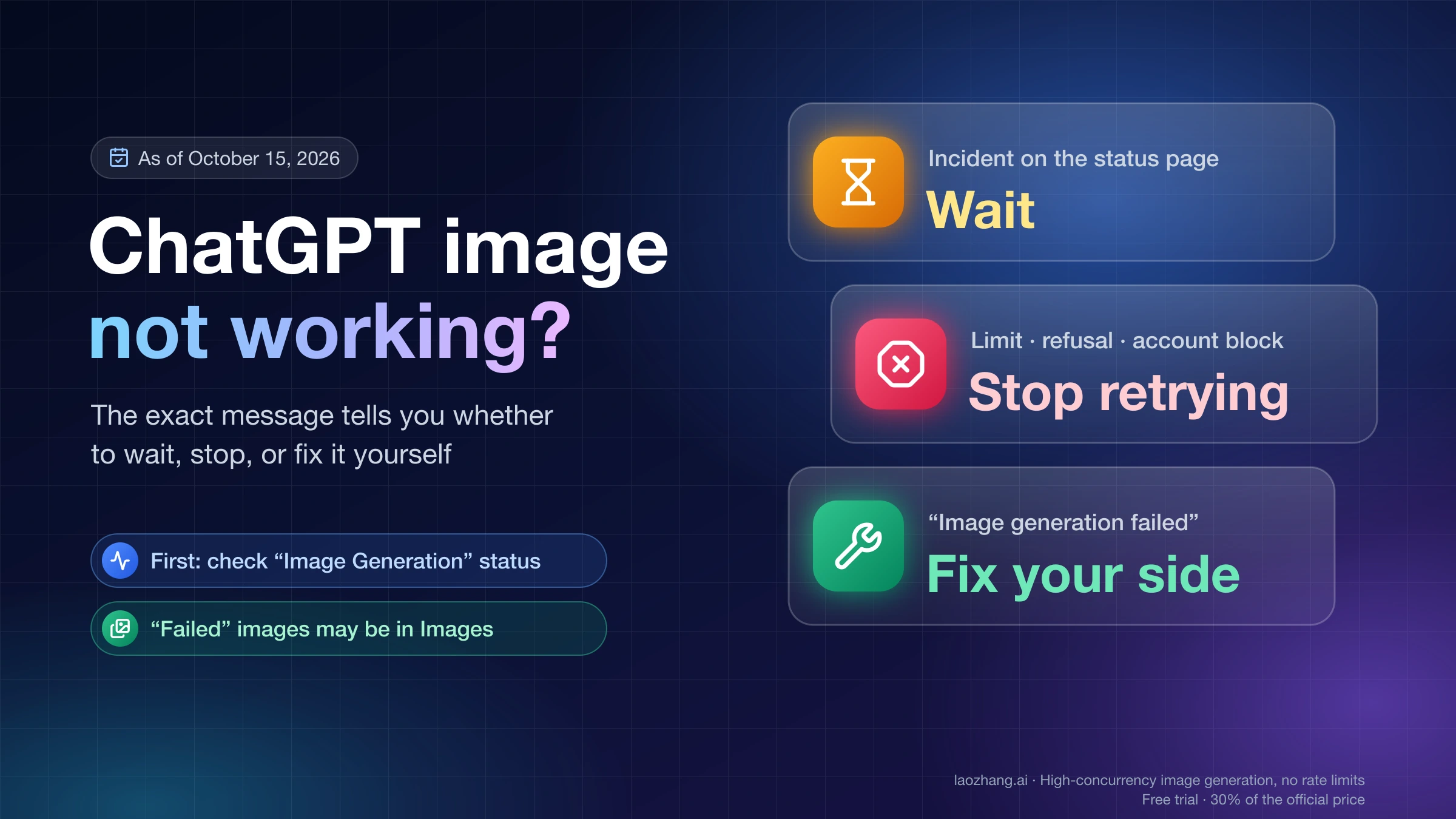
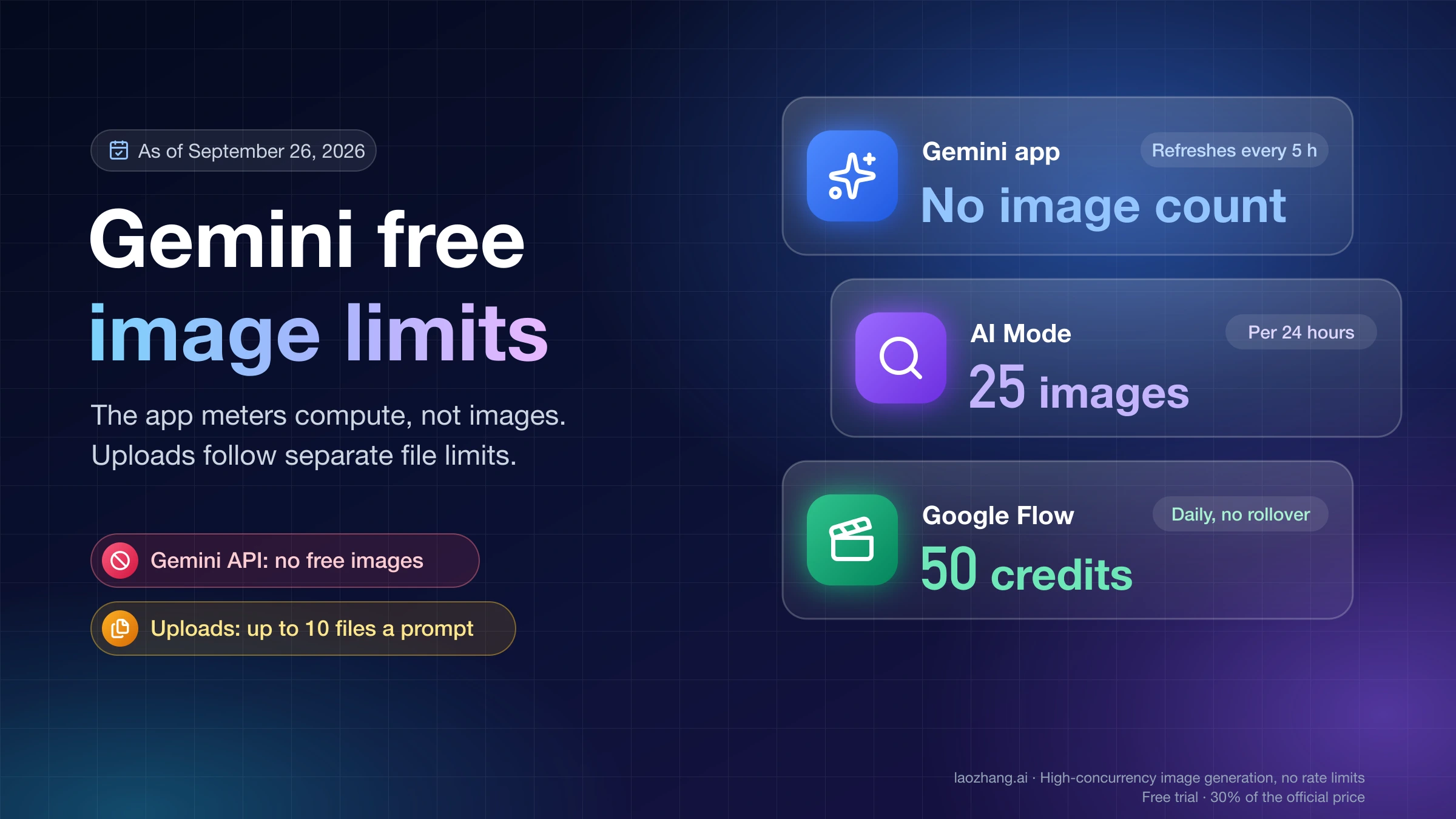
No. Partner Nodes need a positive credit balance, and ComfyUI states they don't support free use. The Gemini API has no free tier for image models either. ComfyUI itself and local models stay free. For free Nano Banana images outside ComfyUI, the Gemini app is the place; Gemini Free Image Limit: How Many Images You Can Make and Upload covers how its limits work.
Does the Nano Banana 2.1 node in ComfyUI need a Google API key?
No. The Partner Node bills your Comfy account in credits. The only key you might need is a Comfy account API key, used to log in when you open ComfyUI from another device on your network.
Can I still use Nano Banana 2 in ComfyUI?
Yes. Pick it in the Nano Banana 2.1 node's dropdown or use the Nano Banana 2 node. Google has deprecated Nano Banana 2 on the Gemini API without a shutdown date, and in ComfyUI it costs about 17 credits per 1K image against about 10 for 2.1. Use it only if an existing workflow depends on how it looks.
Nano Banana 2.1 or Nano Banana Pro for text inside images in ComfyUI?
Pro, when the exact wording matters. In the 9-prompt comparison linked above, Pro kept the requested wording, while 2.1 changed it in 3 of the text tasks. 2.1 is the better default for everything else, at about a third of Pro's credits per 1K image.
Start with the Nano Banana 2.1 Text to Image template
Update ComfyUI to 0.39.1 or newer, log in under Settings → User, and add a small amount of credits. Then open the Text to Image template and run one 1K image at MINIMAL thinking to see the real charge in Credit History. Once that works, rebuild your old Gemini workflows on the Nano Banana 2.1 node using the migration steps above. Reserve the Nano Banana Pro node for images whose text must be exact.
Sources14
External pages this guide links to, in the order they appear. Last updated Oct 8, 2026.
Sources14
External pages this guide links to, in the order they appear. Last updated Oct 8, 2026.
- 1.ComfyUI's Nano Banana 2.1 guidedocs.comfy.org/tutorials/partner-nodes/google/nano-banana-2-1
- 2.Gemini API deprecations pageai.google.dev/gemini-api/docs/deprecations
- 3.Partner Nodes overviewdocs.comfy.org/tutorials/partner-nodes/overview
- 4.Nano Banana Prodocs.comfy.org/tutorials/partner-nodes/google/nano-banana-pro
- 5.Comfy credits guidedocs.comfy.org/interface/credits
- 6.logging in with an API keydocs.comfy.org/interface/user
- 7.Partner Nodes concurrency limitsdocs.comfy.org/tutorials/partner-nodes/concurrency-limits
- 8.Partner Node pricing pagedocs.comfy.org/tutorials/partner-nodes/pricing
- 9.Gemini API pricing pageai.google.dev/gemini-api/docs/pricing
- 10.Gemini API rate limits pageai.google.dev/gemini-api/docs/rate-limits
- 11.ComfyUI_Nano_Bananagithub.com/ru4ls/ComfyUI_Nano_Banana
- 12.ComfyUI-NanoBananogithub.com/ShmuelRonen/ComfyUI-NanoBanano
- 13.ComfyUI-NanoB-Edit-Geminigithub.com/comrender/ComfyUI-NanoB-Edit-Gemini
- 14.ComfyUI-JM-Gemini-APIgithub.com/juemingai/ComfyUI-JM-Gemini-API