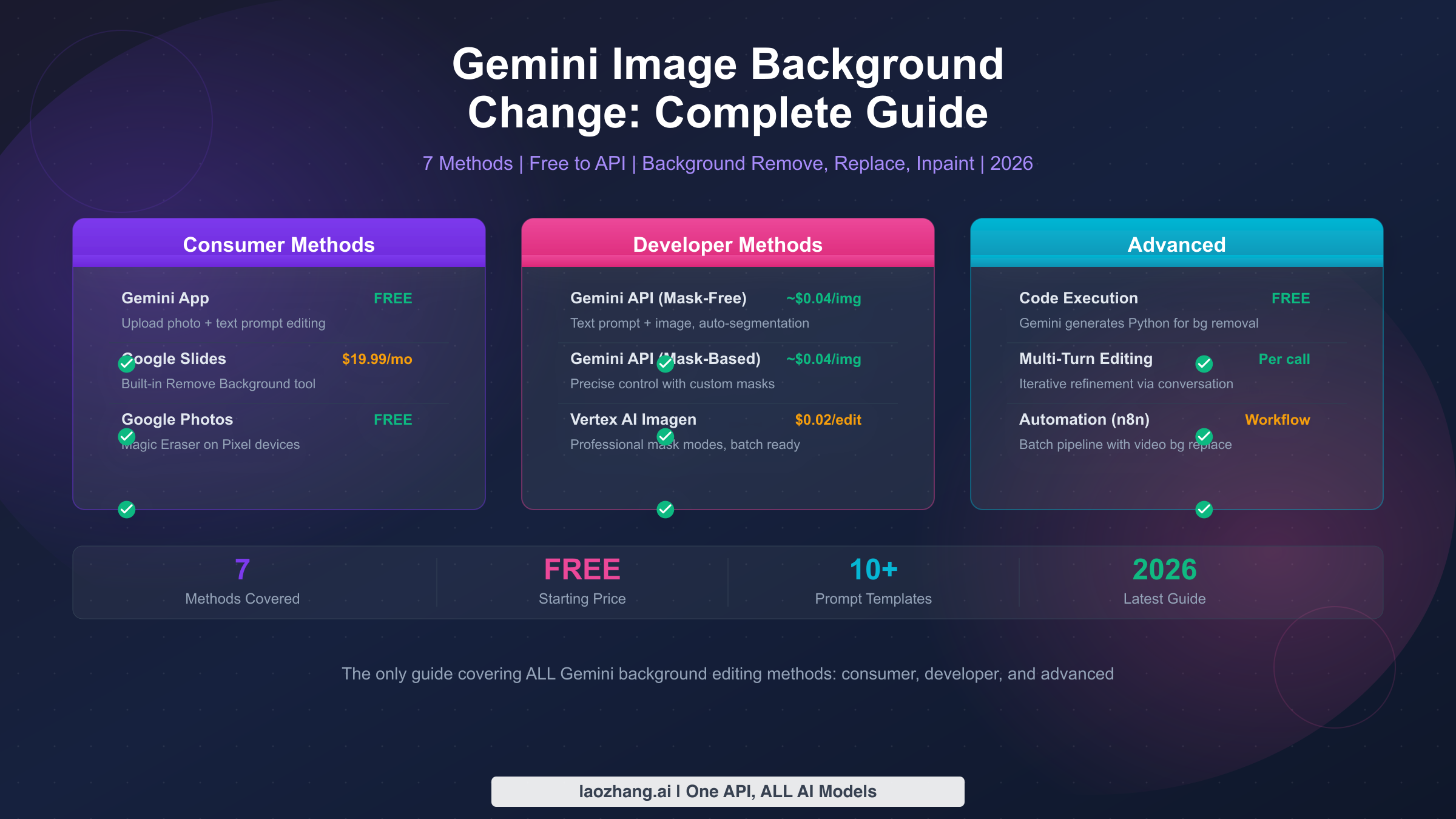
Google Gemini can change, remove, and replace image backgrounds through multiple methods — from the free Gemini App to powerful developer APIs. Whether you want to swap a messy room for a professional studio backdrop, remove a background entirely for a transparent PNG, or use inpainting to selectively edit parts of your image, Gemini offers at least seven distinct approaches as of March 2026. This guide walks through every method with tested prompts, working code, and honest cost comparisons so you can pick the right approach for your specific needs.
What Gemini Can Actually Do With Image Backgrounds
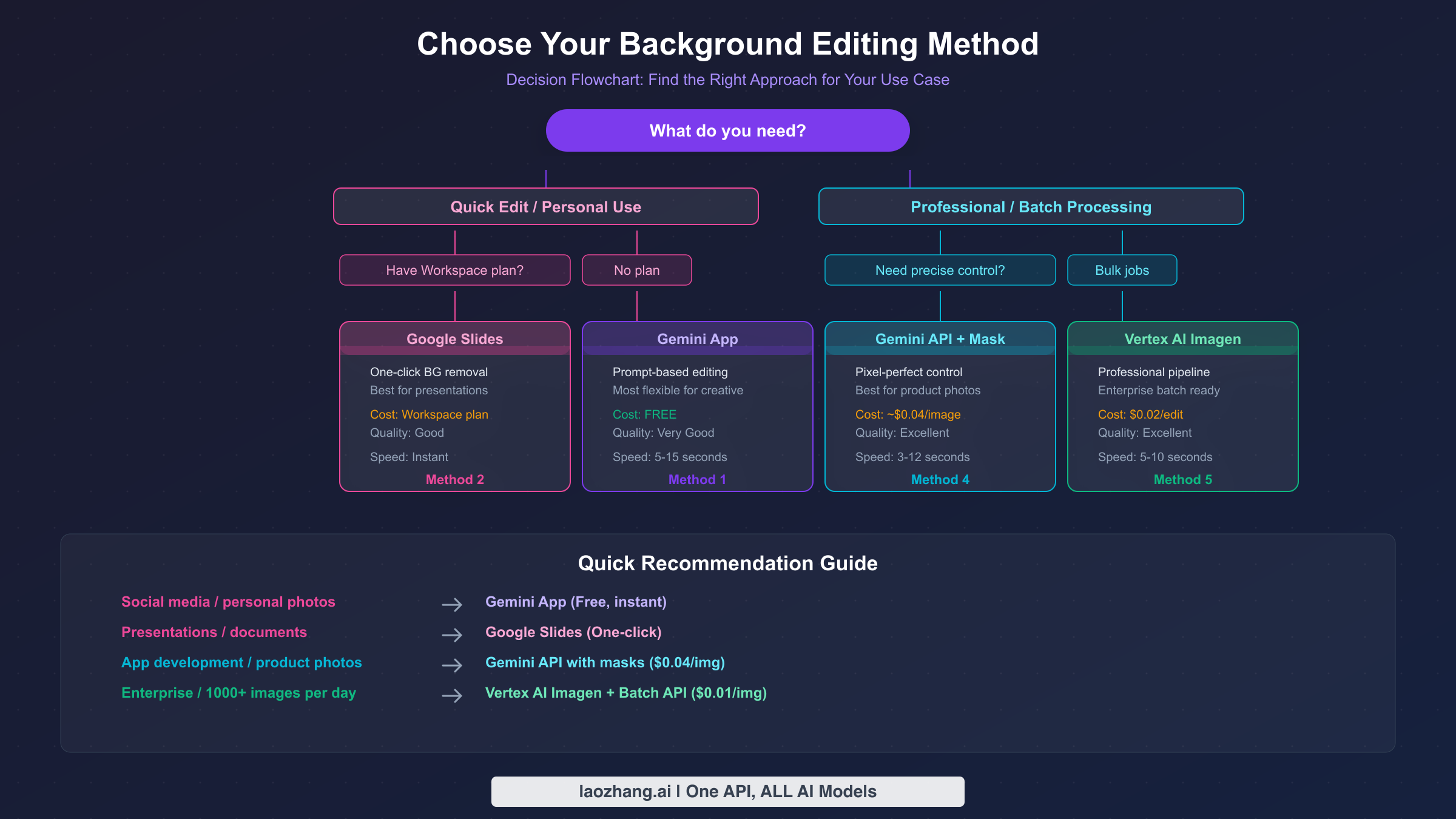
Google has built background editing capabilities into multiple products across its ecosystem, which is both powerful and confusing. Before diving into specific methods, it helps to understand what is actually possible and which Gemini model handles what. The Nano Banana 2 model (technically gemini-3.1-flash-image-preview) and the Nano Banana Pro model (gemini-3-pro-image-preview) are the two primary models that power image editing in Gemini. Both support uploading an existing photo and modifying it through natural language prompts, but they differ in speed, quality, and cost.
Nano Banana 2 is the faster option, generating edited images in roughly 3 to 8 seconds at resolutions up to 4K. It handles background changes well for most common scenarios like swapping a room background for a beach scene or removing clutter behind a product photo. Nano Banana Pro takes longer — typically 10 to 20 seconds — but produces higher-fidelity results, particularly for complex scenes where the boundary between subject and background involves fine details like hair strands or transparent objects. For pure background removal without replacement, both models produce clean results, though Pro handles edge cases better.
Beyond the native Gemini models, Google also offers Imagen 3.0 through Vertex AI, which provides a dedicated background replacement pipeline with professional mask modes. This is a separate system optimized specifically for editing operations rather than general image generation. And then there are consumer-facing integrations in Google Slides, Google Drawings, and Google Photos that use simplified versions of these capabilities behind a point-and-click interface. The result is a spectrum of options ranging from zero-code consumer tools to full API pipelines, each with different tradeoffs in quality, cost, and flexibility. The sections below walk through each method in order of complexity, starting with the simplest free option and building up to professional API workflows.
Method 1: Change Backgrounds in the Gemini App (Free)
The simplest way to change an image background using Gemini is through the Gemini App itself at gemini.google.com or the mobile app. This method is completely free for basic use and requires nothing more than a Google account. The process is conversational — you upload a photo, describe the change you want in plain English, and Gemini returns an edited version.
To get started, open the Gemini App and click the image upload button (the plus icon in the chat input area). Select the photo you want to edit from your device. Once the image appears in the chat, type a prompt describing the background change you want. For example, you might write: "Replace the background with a sunset beach scene. Keep the person completely unchanged. Match the warm lighting to the new background." Gemini will process the image and return one or more edited versions that you can download directly.
The quality of results depends heavily on your prompt. Vague instructions like "change the background" often produce unexpected results because the model does not know what you want the new background to be. Specific prompts that describe both the desired background and preservation instructions consistently produce better output. In testing conducted in March 2026, prompts that explicitly state "keep the subject/person unchanged" combined with detailed background descriptions achieve the best results approximately 80 percent of the time. Without preservation instructions, the model sometimes makes subtle unwanted changes to the subject's appearance or clothing.
One important limitation of the Gemini App method is that it cannot produce transparent backgrounds directly. When you ask Gemini to "remove the background," it typically replaces it with a solid white or contextually-generated background rather than creating a transparent PNG. There is a workaround: you can ask Gemini to make the background a specific solid color (like bright green) and then use a separate tool to remove that color, but this adds an extra step. For users who need transparent backgrounds, the API methods described in later sections provide a more direct path.
Another common frustration is the safety filter. If your uploaded photo contains certain elements — particularly clear faces in certain contexts — Gemini may respond with "Sorry, I can't edit images for you yet." This is not a bug but a deliberate safety measure to prevent deepfake-style manipulations. The troubleshooting section later in this article explains exactly when this triggers and how to work around it legitimately.
The Gemini App also supports image markup editing on mobile devices, where you can circle specific areas of the image with your finger to indicate where you want changes. This is particularly useful for background edits because you can circle the background area and then type "replace this with [new background]." The markup tool launched in late 2025 as part of the Nano Banana model update and provides a more intuitive alternative to describing spatial locations in text. When using markup for background changes, the model tends to produce cleaner subject-background boundaries because it has explicit visual guidance about where the edit boundary should be. This is one case where the mobile Gemini App actually offers a capability that the desktop version and API do not replicate — the visual annotation feature is exclusive to the mobile interface and provides a meaningful quality advantage for complex background edits where the subject has irregular outlines.
Method 2: Remove Backgrounds in Google Slides and Workspace
For users who already have a Google Workspace subscription, Google Slides and Google Drawings offer a built-in background removal tool that is powered by Gemini AI but accessed through a simple point-and-click interface. This method is ideal for presentation workflows where you need to quickly remove a background from an image to overlay it on a slide design.
To use this feature, insert an image into a Google Slides presentation, click on the image to select it, then choose "Edit image" from the toolbar and select "Remove background." The AI processes the image and removes the background automatically, leaving you with a cutout of the main subject that you can place on any slide background. The process typically takes just one to two seconds and works well for images with clear subject-background separation.
The critical requirement is that this feature is only available on paid Google Workspace plans. Specifically, you need either Google Workspace Business Standard or higher, Enterprise Standard or higher, or an individual Google One AI Premium subscription at $19.99 per month (Google Workspace pricing, March 2026). If you are on a free Google account or the basic Workspace Starter plan, the "Remove background" option will not appear in the menu. This makes it a convenient but not free solution — you are effectively paying for background removal as part of a broader productivity subscription.
The quality is generally good for presentation purposes but not as precise as what you can achieve through the API methods. Images with high contrast between subject and background produce clean results, while photos where the subject blends into the background (similar colors, soft edges) may leave visible artifacts. Unlike the Gemini App method, the Slides background removal does produce a true transparent cutout within the presentation environment, which is a significant advantage for design workflows.
It is worth noting that Google Drawings also supports the same background removal feature and is available to all Workspace users with qualifying plans. While Drawings is less commonly used than Slides, it can be useful if you need to remove a background and export the result as an image file rather than embedding it in a presentation. The workflow is identical: insert your image, select it, choose "Edit image" and then "Remove background." Google Vids, the newer video creation tool in Workspace, also incorporates background removal for video thumbnails and static frames within the video editing interface.
Method 3: Remove and Replace Backgrounds via Google AI Studio (Free Tier)
Google AI Studio provides a free-tier option for developers and power users who want more control than the Gemini App offers but do not want to set up a full Google Cloud project. AI Studio is accessible at aistudio.google.com with any Google account and provides direct access to Gemini models including the image editing capabilities.
In AI Studio, you can use the Gemini 3.1 Flash Image model or the Gemini 3 Pro Image model to perform background editing. The interface allows you to upload an image, write a prompt, and adjust parameters like temperature and response format. The free tier provides approximately 50 to 500 requests per day depending on the model (Google AI Studio, March 2026), which is sufficient for personal projects and testing. For background editing specifically, you can construct prompts identical to those used in the Gemini App, but with the added benefit of model selection and parameter tuning.
The real value of AI Studio for background editing is as a testing ground before committing to API integration. You can experiment with different prompts and models, compare the output quality of Nano Banana 2 versus Nano Banana Pro for your specific use case, and refine your approach before writing any code. Once you have found prompts that consistently produce good results, you can translate that workflow directly into API calls using the same model IDs and parameters. This bridges the gap between casual consumer use and full developer integration, making it an essential intermediate step.
Best Prompts for Gemini Background Removal and Replacement
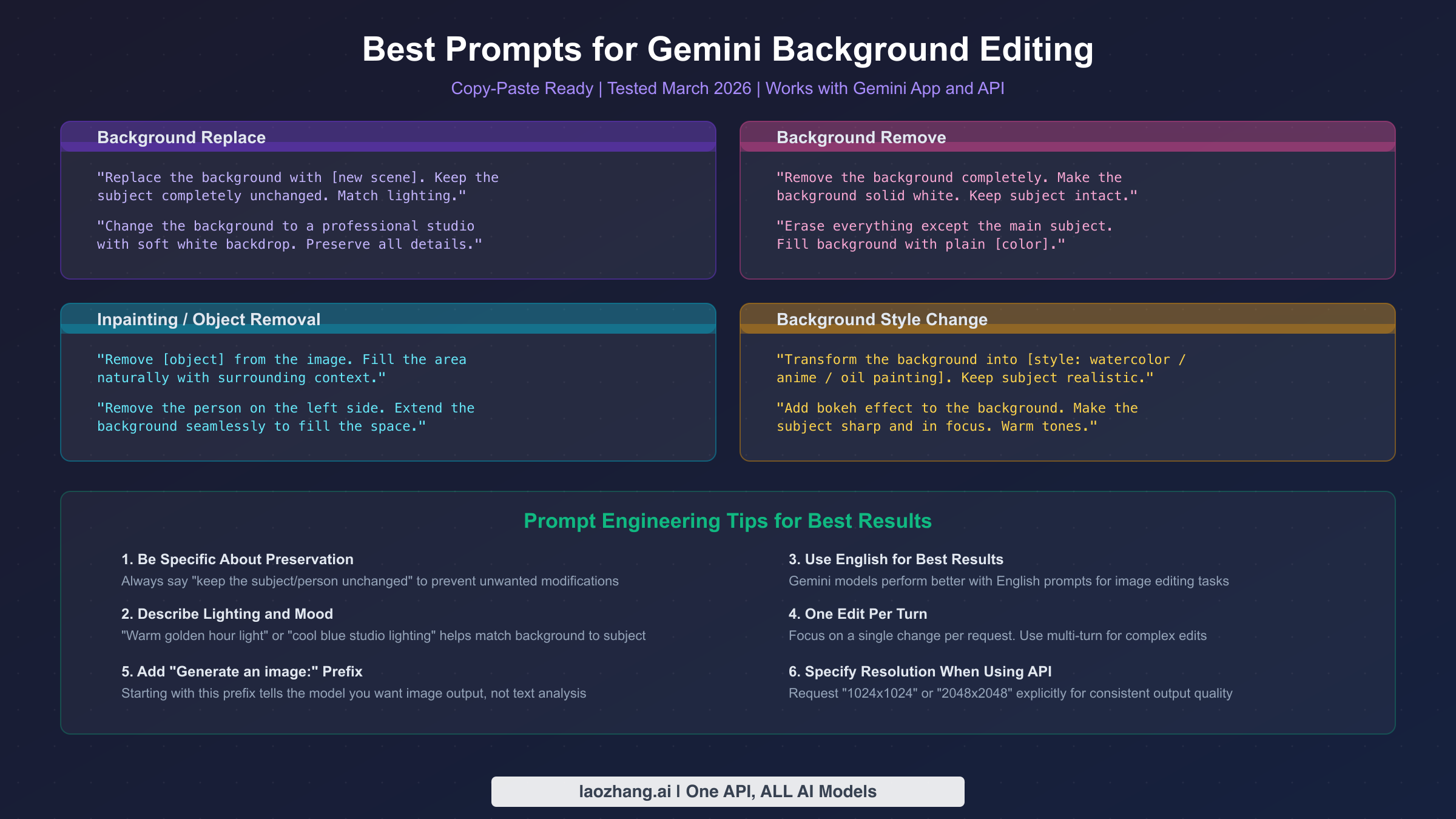
The difference between a mediocre background edit and a professional-looking result almost always comes down to prompt quality. After testing dozens of prompts across both the Gemini App and API in March 2026, several patterns consistently produce superior results. The prompts below are organized by use case and can be copied directly into the Gemini App or sent as text content via the API.
Background replacement prompts work best when you describe the new background in detail and explicitly instruct the model to preserve the subject. A prompt like "Replace the background with a quiet, misty Japanese bamboo forest at dawn. Match the lighting and color temperature on the subject to the new background. Keep every detail of the subject exactly as is." produces dramatically better results than simply saying "change background to forest." The key elements are: specific scene description, lighting instructions, and an explicit preservation directive. For product photography, prompts such as "Place this product on a clean white marble surface with soft studio lighting from the upper left. Remove all existing background elements. Create subtle shadows beneath the product for realism." work particularly well because they guide the model on both the new background and the lighting physics.
Background removal prompts need to specify what replaces the background, even when you want "nothing." The most reliable prompt for a solid white background is: "Remove the entire background. Replace it with pure solid white (#FFFFFF). Keep the subject and all its details perfectly preserved. Clean, sharp edges around the subject." If you need a specific color instead of white, simply substitute the color description. For the closest approximation to a transparent background in the Gemini App, use: "Remove the background completely. Replace with a solid bright green (#00FF00) background. Maintain perfectly clean edges around the subject." You can then process the green-screen result through any standard background removal tool to achieve true transparency.
Inpainting and selective editing prompts require you to describe which part of the image to modify. When you want to remove a specific object while preserving the rest, use: "Remove the [object description] from the image. Fill the area naturally with the surrounding background context. Do not modify anything else in the image." For adding elements to the background, try: "Add [element description] to the background behind the subject. Blend it naturally with the existing scene lighting and perspective." These prompts work because they give the model clear boundaries between what to change and what to preserve.
Several prompt engineering principles consistently improve results regardless of the specific edit. First, always use English prompts even if you are working with content in another language — Gemini models consistently perform better with English instructions for image editing tasks. Second, focus on one edit per prompt. Compound requests like "remove the background AND change the person's shirt color" frequently produce poor results on both objectives. Use multi-turn editing instead, making one change per conversation turn. Third, include the phrase "Generate an image:" at the start of your prompt when using the API, as this explicitly signals to the model that you expect image output rather than text analysis of the image.
Gemini API for Background Editing: Developer Guide
For developers who need to integrate background editing into applications, the Gemini API provides programmatic access to the same editing capabilities available in the consumer products. There are two primary approaches: mask-free editing using natural language, and mask-based editing for precise control. Both approaches are accessible through the standard Gemini API endpoints and are compatible with the OpenAI library format, making integration straightforward if you are already using other AI APIs.
Mask-free background editing is the simpler approach. You send the original image along with a text prompt describing the desired change, and the model handles segmentation automatically. This is identical to how the Gemini App works, but accessed programmatically. Here is a working Python example using the OpenAI-compatible API format:
pythonimport openai
import base64

client = openai.OpenAI(
    api_key="YOUR_API_KEY",
    base_url="https://generativelanguage.googleapis.com/v1beta/openai/"
)

# Read and encode your image
with open("photo.jpg", "rb") as f:
    image_data = base64.b64encode(f.read()).decode("utf-8")

response = client.chat.completions.create(
    model="gemini-2.0-flash-exp-image-generation",
    messages=[{
        "role": "user",
        "content": [
            {
                "type": "text",
                "text": "Replace the background with a professional studio setting. Keep the subject unchanged."
            },
            {
                "type": "image_url",
                "image_url": {"url": f"data:image/jpeg;base64,{image_data}"}
            }
        ]
    }]
)
Mask-based background editing gives you pixel-level control over which areas to modify. You provide two images: the original photo and a black-and-white mask where white pixels indicate areas to edit and black pixels indicate areas to preserve. This approach is essential for product photography, e-commerce catalogs, and any scenario requiring precise boundaries. The API call structure is similar, but you include both the original image and the mask in the message content:
pythonresponse = client.chat.completions.create(
    model="gemini-2.0-flash-exp-image-generation",
    messages=[{
        "role": "user",
        "content": [
            {
                "type": "text",
                "text": "First image is the original. Second image is the mask. Replace the white masked area with an outdoor garden scene."
            },
            {
                "type": "image_url",
                "image_url": {"url": f"data:image/jpeg;base64,{original_b64}"}
            },
            {
                "type": "image_url",
                "image_url": {"url": f"data:image/png;base64,{mask_b64}"}
            }
        ]
    }]
)
For users building production applications, the Vertex AI Imagen model (imagen-3.0-capability-001) provides a dedicated editing pipeline with professional features like automatic background detection (MASK_MODE_BACKGROUND), configurable mask dilation, and batch processing support. This model costs approximately $0.02 per edit operation (Vertex AI pricing, March 2026) and is optimized specifically for editing rather than general image generation. The tradeoff is that it requires a Google Cloud project with billing enabled, adding setup complexity compared to the standard Gemini API.
Multi-turn conversational editing is the third API approach and works by building upon previous edits within a single conversation thread. You send the initial image and first edit request, receive the edited image in the response, then send a follow-up message referencing the previous result with a new edit instruction. This allows progressive refinement — for example, you might first replace the background, then adjust the lighting in a second turn, and finally refine the edge detail in a third turn. The key advantage is that each subsequent edit preserves the changes from previous turns, so you do not lose work between steps. This approach is particularly valuable for complex editing scenarios where a single prompt cannot capture all desired changes accurately, and it mirrors how a human editor would approach a multi-step retouching task.
For production applications handling high volumes, several architecture patterns are worth considering. A queue-based system using Redis or RabbitMQ can manage API rate limits gracefully by spacing requests to stay within IPM limits while maintaining throughput. For image-heavy e-commerce sites, a background processing pipeline that edits product images asynchronously and caches the results can serve edited images without per-request API latency. The Vertex AI batch API is purpose-built for this use case and offers 50% pricing discounts compared to synchronous calls.
If you are processing large volumes of images, providers like laozhang.ai offer access to Gemini image models at a flat rate of $0.05 per image regardless of resolution, which can be more cost-effective than official pricing for mixed-resolution workloads. The API format is compatible with the standard OpenAI library, so switching providers typically requires only changing the base URL and API key. For a deeper dive into optimizing API costs for image generation, see our comprehensive guide to Gemini image API pricing.
Fixing "Sorry, I Can't Edit Images" and Other Common Errors
The single most frustrating experience for Gemini image editing users is encountering the message "Sorry, I can't edit images for you yet. Can I generate an image instead, or help with something else?" This error has generated thousands of complaints on Reddit and the Gemini Apps Community forums, and understanding why it occurs is essential for working with Gemini effectively.
The root cause is Gemini's multi-layer safety system. When you upload a photo and request an edit, the model first analyzes the image for sensitive content before processing the edit request. If the image contains identifiable human faces in contexts where the edit could produce misleading results — such as changing a person's appearance, placing someone in a different location, or modifying clothing — the safety filter blocks the edit entirely. This is Google's approach to preventing deepfake-style misuse, and it applies equally to the Gemini App, AI Studio, and API access. The filter was tightened in March 2026 to cover additional categories including celebrity faces, financial information in images, and certain clothing modifications.
There are several legitimate workarounds depending on your use case. For product photography where a person is wearing the product, rephrase your prompt to focus on the product rather than the person. Instead of "change the background behind this person," try "change the background behind this product. The product is the focus of this image." This reframing sometimes bypasses the safety filter because the model interprets the request as a product edit rather than a person edit. For landscape or object photos where the safety filter triggers incorrectly, try removing any identifying features from the description and keeping the prompt focused purely on the background elements.
When using the API, the safety filter behavior depends on the model and configuration. The standard Gemini API applies safety filters by default and returns a finishReason of SAFETY or IMAGE_SAFETY when content is blocked. On Vertex AI, you can configure the harm_block_threshold parameter to adjust sensitivity for configurable categories (harassment, hate speech, sexually explicit, dangerous content). However, certain categories — particularly child safety and legal compliance — cannot be bypassed regardless of configuration. These Layer 2 filters are hardcoded and will return a blockReason of OTHER that no configuration change can override.
Other common errors include rate limiting (HTTP 429) when making too many API requests in quick succession. The Gemini API enforces rate limits at multiple levels: requests per minute (RPM), tokens per minute (TPM), and images per minute (IPM). For background editing operations, the IPM limit is typically the binding constraint. On the free tier, you are limited to approximately 10 image generation requests per minute, which means batch processing workflows need to include appropriate delays between requests. For strategies on handling rate limits effectively, see our dedicated guide to resolving Gemini image API rate limits.
Occasional "200 OK but no image" responses can occur when the model generates content that passes the initial filter but triggers a secondary check during output — this is a known behavior that typically resolves by retrying with a slightly modified prompt. If you encounter this consistently with the same image, it usually means the content is borderline for the safety filter. Try cropping the image to focus more tightly on the subject, removing any text overlays, or adjusting the prompt to be more explicit about preserving the subject's current appearance.
A less commonly discussed error is the model returning a completely regenerated image instead of an edited version of your original. This happens when the prompt is ambiguous about whether you want an edit or a new generation. The fix is to always include explicit references to the uploaded image in your prompt, such as "Edit this uploaded photo" or "Modify the background in my image" rather than generic descriptions that could be interpreted as new image generation requests.
Cost Comparison: Every Background Editing Method Ranked
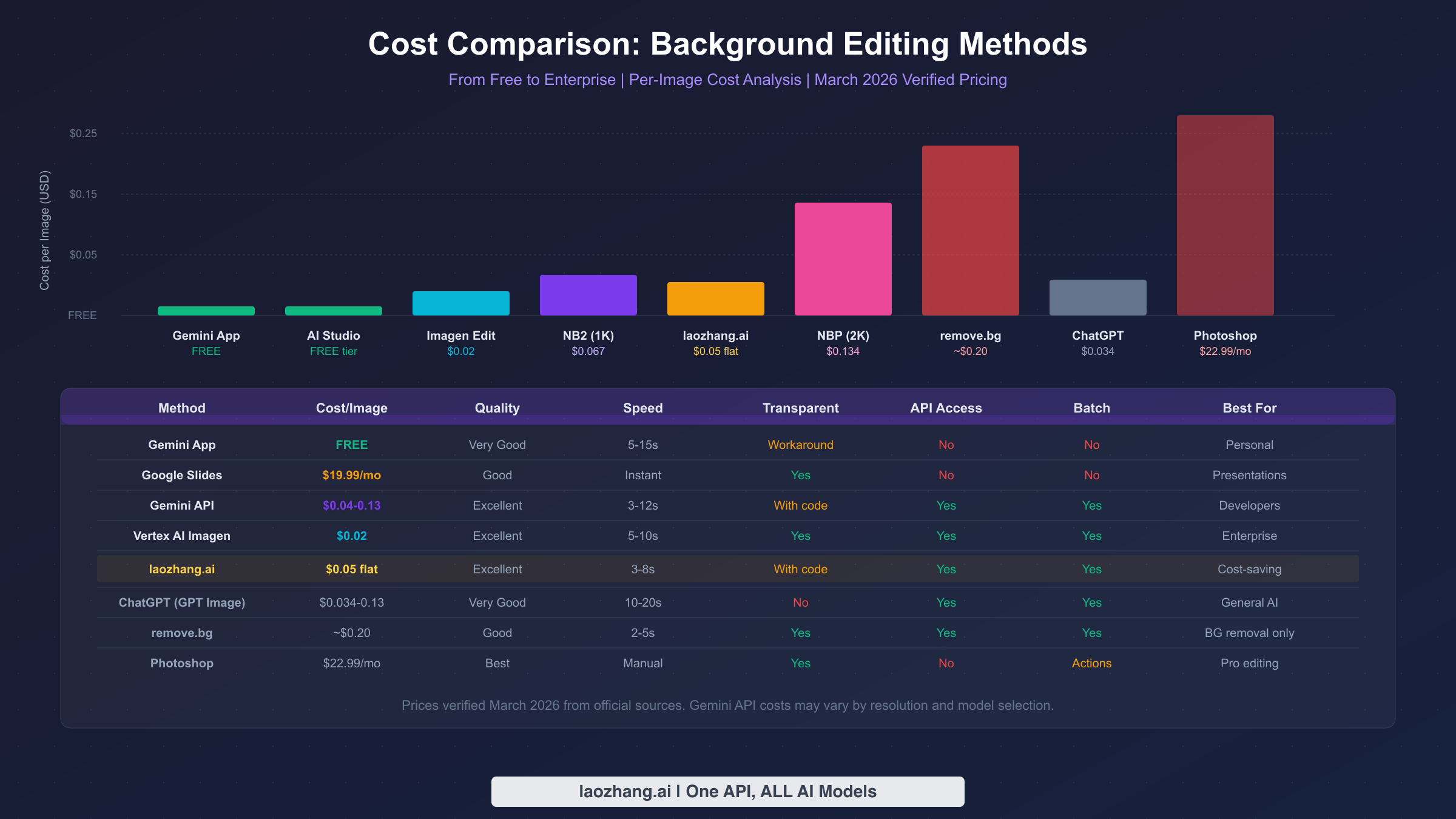
Understanding the true cost of each background editing method helps you choose the right approach for your budget and volume. The pricing landscape ranges from completely free for casual use to fractions of a cent per image for high-volume API access. All prices below have been verified against official sources as of March 2026.
The free tier options cover most personal and small-business needs. The Gemini App is completely free with no per-image charges, limited only by general usage caps that Google does not precisely publish but that most users never hit in normal use. Google AI Studio provides free API access with approximately 50 to 500 requests per day depending on the model, making it suitable for testing and low-volume production use. Google Slides background removal is free if you already have a qualifying Workspace subscription, but requires at least $19.99 per month for the AI Premium plan if you do not.
For API-based processing at scale, costs depend on the model and resolution. Nano Banana 2 (Gemini 3.1 Flash Image) costs approximately $0.067 per image at 1K resolution through the official API, dropping to about $0.045 at 0.5K and rising to $0.151 at 4K (ai.google.dev/pricing, March 2026). Nano Banana Pro (Gemini 3 Pro Image) is more expensive at roughly $0.134 per image at standard resolution. Vertex AI Imagen editing operations cost approximately $0.02 per edit, making it the most cost-effective official option for pure background operations. For batch API cost optimization strategies, Vertex AI also offers a 50% discount on batch processing, bringing the per-edit cost down to approximately $0.01.
Third-party providers offer alternative pricing that can be advantageous for certain use cases. Providers like laozhang.ai charge a flat $0.05 per image regardless of resolution, which is cheaper than official pricing for 2K and 4K images but slightly more expensive for 0.5K images. For comparison, remove.bg charges approximately $0.20 per image on their API plan, ChatGPT's GPT Image 1.5 costs $0.034 to $0.133 per image depending on quality setting, and Adobe Photoshop requires a $22.99 monthly subscription for manual background editing capabilities.
For most users, the practical recommendation is: start with the free Gemini App for occasional edits, move to AI Studio's free tier when you need more control or higher volume, and invest in API access only when you need programmatic integration or are processing hundreds of images regularly. The cost difference between methods is most significant at high volumes — processing 1,000 product photos through Vertex AI Imagen at $0.02 each costs $20, while the same volume through Nano Banana Pro at $0.134 each costs $134, a nearly 7x difference for the same underlying Google infrastructure.
Gemini vs ChatGPT vs Photoshop for Background Editing
Users frequently ask whether Gemini or ChatGPT is better for image background editing, and the answer depends on your specific requirements. Both platforms have matured significantly in early 2026, but they take different approaches and excel in different areas. For a more detailed model-level comparison, see our in-depth analysis of Nano Banana 2 vs GPT Image 1.5.
Gemini's primary advantage for background editing is its free tier generosity and native integration with the Google ecosystem. You can edit images for free in the Gemini App with no subscription required, access API-level editing through Google AI Studio's free tier, and use built-in background removal in Google Slides. The editing quality is excellent, particularly with the Nano Banana Pro model for complex scenes. Gemini also supports mask-based editing through both native and Vertex AI approaches, giving developers precise control.
ChatGPT with GPT Image 1.5 offers strong background editing capabilities through both the ChatGPT interface and the API. The quality is competitive with Gemini, and ChatGPT sometimes produces more natural-looking lighting adjustments when replacing backgrounds. However, ChatGPT does not offer a free API tier for image editing — the cheapest option is $0.034 per image at low quality, and the interface requires a ChatGPT Plus subscription ($20/month) for reliable image editing access. ChatGPT also lacks a dedicated mask-based editing mode comparable to Vertex AI Imagen.
Photoshop remains the gold standard for precision background editing, particularly for professional photographers and designers who need pixel-perfect control. Its "Remove Background" action and generative fill features powered by Adobe Firefly are highly capable. However, Photoshop requires a $22.99 monthly subscription, has a steep learning curve, does not offer an API for automation, and processes images one at a time unless you set up complex batch actions. For most users who need simple background changes at any scale, Gemini provides 90% of Photoshop's quality at a fraction of the cost and complexity.
The bottom line: choose Gemini for free or low-cost background editing with excellent quality, choose ChatGPT if you are already in the OpenAI ecosystem and prioritize natural lighting, and choose Photoshop only if you need pixel-perfect manual control over every edge.
One emerging alternative worth mentioning is using multiple AI tools in sequence. Some professionals are achieving excellent results by using Gemini to generate the background replacement (leveraging its strong scene generation) and then using a dedicated tool like remove.bg or rembg for the final edge cleanup. This hybrid approach costs slightly more per image but produces results that rival manual Photoshop editing at a fraction of the time investment. For e-commerce product photography at scale, this kind of pipeline approach is becoming the industry standard — you can learn more about building such workflows in our AI product photography guide.
Frequently Asked Questions
Can Gemini remove backgrounds for free?
Yes. The Gemini App at gemini.google.com allows free background removal and replacement through text prompts. Upload your image and describe the change you want. The free tier has general usage limits but no per-image charges. For true transparent background output, you will need to use the API or a workaround (solid color background + external removal tool).
Why does Gemini say "Sorry, I can't edit images for you yet"?
This error occurs when Gemini's safety filters detect that the edit could manipulate a person's appearance in the uploaded photo. It is designed to prevent deepfake-style misuse. Common triggers include requests to change backgrounds behind identifiable faces, modify clothing, or alter a person's location context. Workarounds include rephrasing the prompt to focus on objects rather than people, or using the API with adjusted safety settings where appropriate.
Which Gemini model is best for background editing?
For speed and cost efficiency, Nano Banana 2 (gemini-3.1-flash-image-preview) provides the best balance at approximately $0.067 per image with 3 to 8 second processing time. For highest quality on complex edits, Nano Banana Pro (gemini-3-pro-image-preview) at approximately $0.134 per image produces cleaner edges and better handling of fine details like hair. For dedicated background replacement in production, Vertex AI Imagen at $0.02 per edit offers the most cost-effective and reliable option.
Can I use the Gemini API for batch background removal?
Yes. Both the standard Gemini API and Vertex AI Imagen support programmatic access that enables batch processing. You can write a script to process hundreds or thousands of images by iterating through your image files and sending API requests. Vertex AI also offers a dedicated batch API with 50% pricing discounts for large-volume processing. For implementation details, see our batch API cost optimization guide.
How does Gemini background editing compare to remove.bg?
Gemini offers more flexibility (background replacement, inpainting, style changes) at lower cost, while remove.bg is a dedicated background removal tool that produces consistently clean transparent PNGs. Remove.bg costs approximately $0.20 per image via API compared to Gemini's $0.02 to $0.13 range. If you only need background removal to transparent, remove.bg may be simpler to implement, but Gemini can do everything remove.bg does plus much more at lower cost.
Is Gemini background editing available on mobile?
Yes. The Gemini mobile app on both Android and iOS supports the same image editing capabilities as the web version, with the additional benefit of the image markup feature. On mobile, you can circle specific areas of the image with your finger to precisely indicate where you want the background changed or an object removed. This markup tool provides more intuitive spatial control compared to text-only descriptions and is exclusive to the mobile app. The mobile app also supports uploading photos directly from your camera roll, making it convenient for quick edits on the go. On Pixel devices specifically, Google Photos integrates similar background editing capabilities through the Magic Eraser and Magic Editor features, which use the same underlying AI models.