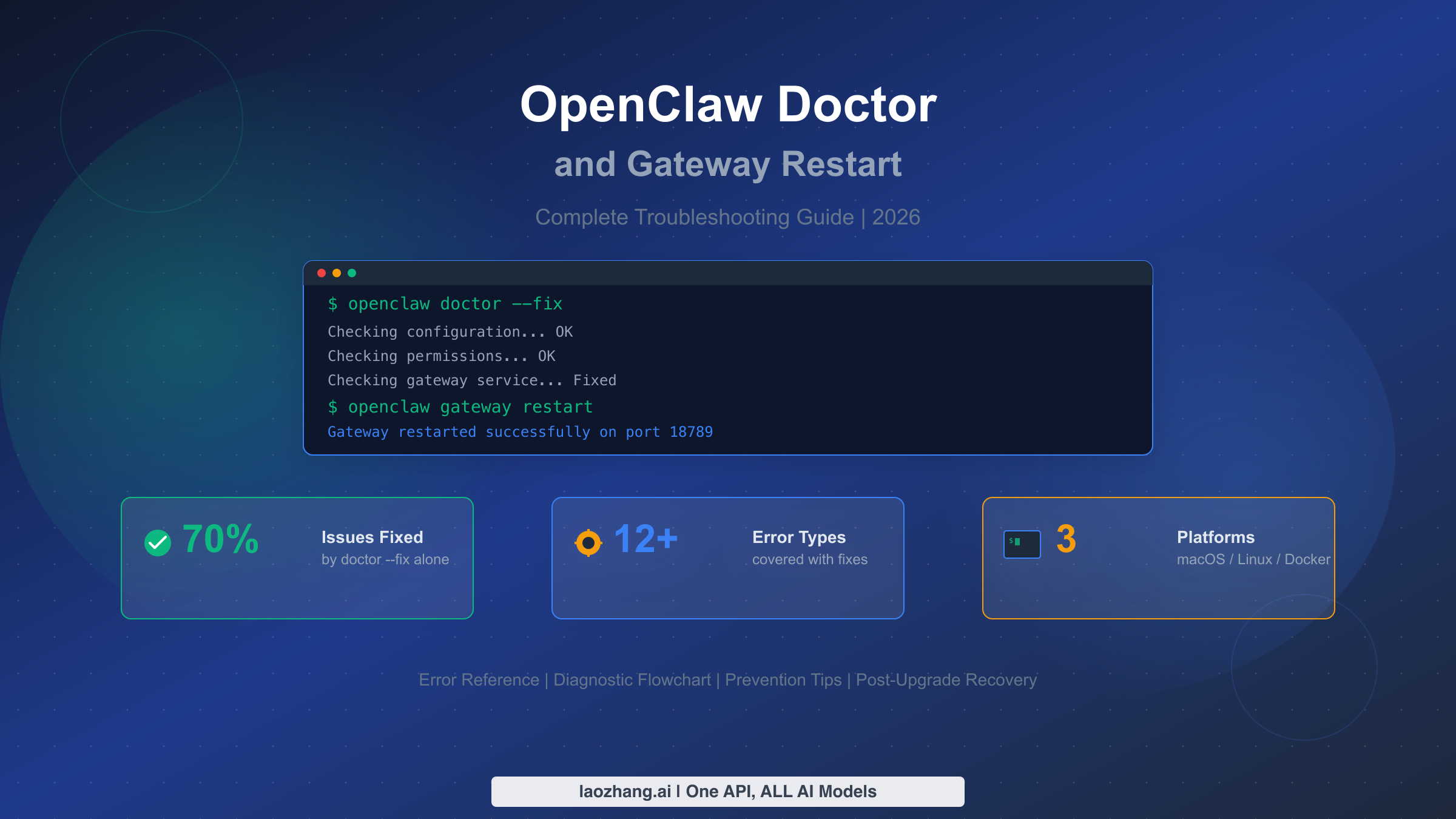
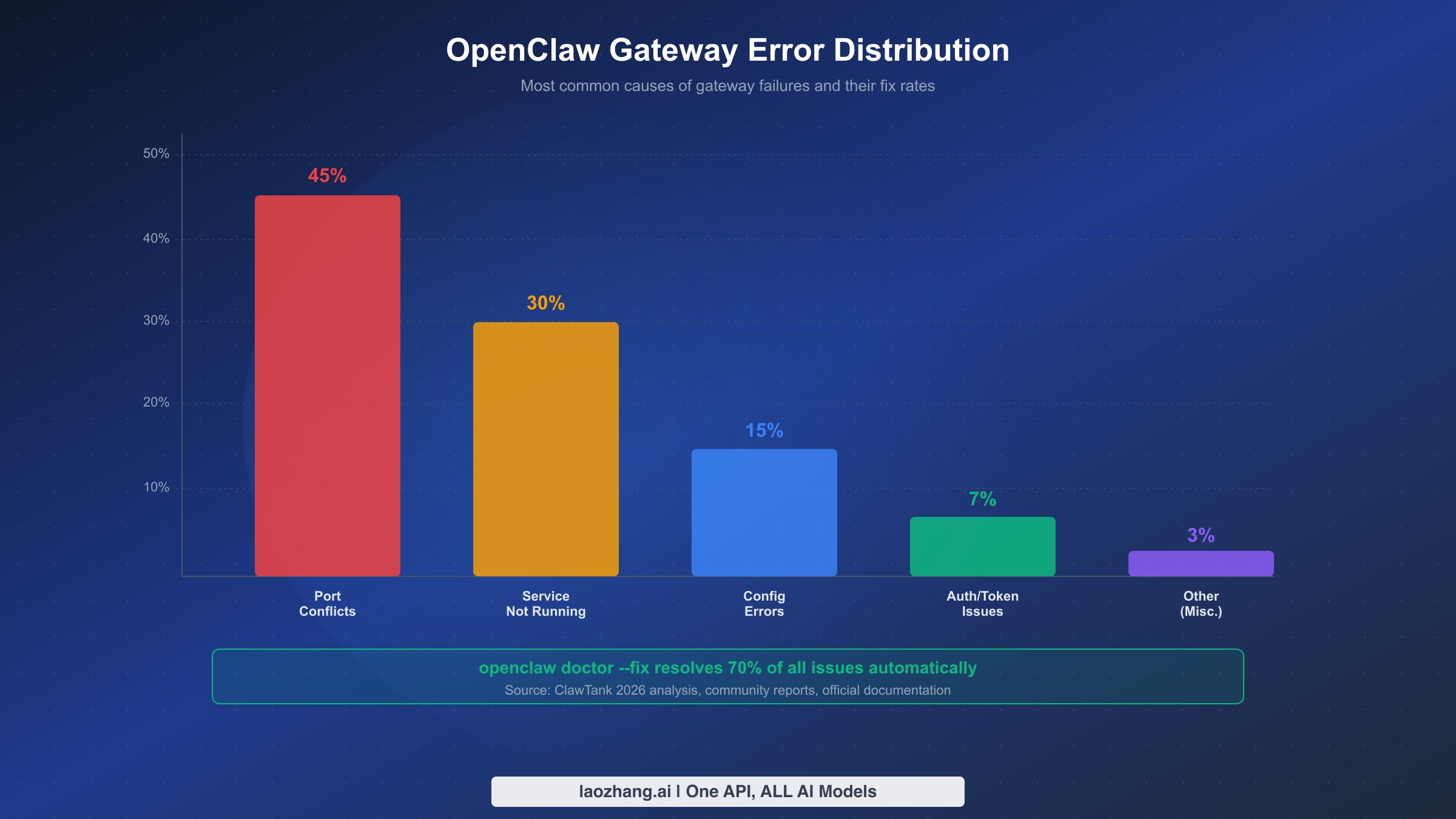
OpenClaw's openclaw doctor --fix command audits and auto-repairs configuration drift, resolving roughly 70% of gateway issues according to community analysis (ClawTank, March 2026). Combined with openclaw gateway restart, these two commands form the foundation of OpenClaw troubleshooting. This guide covers every error message you might encounter, platform-specific fixes for macOS, Linux, and Docker, post-upgrade recovery procedures, and preventive maintenance strategies — all verified against the official OpenClaw documentation as of March 2026.
TL;DR
Run these two commands to fix most OpenClaw gateway problems:
bashopenclaw doctor --fix
openclaw gateway restart
This combination resolves approximately 70% of gateway issues automatically. If the gateway still does not start, run openclaw gateway status to identify whether the problem is a stopped service, a failed RPC probe, or a configuration error, then follow the diagnostic flowchart below. The most common root causes are port conflicts (45%), service not running (30%), and configuration errors (15%).
The 30-Second Fix That Resolves 70% of Gateway Issues
When your OpenClaw gateway stops responding, the instinct is to dive into log files and configuration settings. Resist that urge for thirty seconds. The fastest path to recovery is almost always the same two-command sequence, and understanding why it works so well will save you hours of debugging in the future.
The openclaw doctor --fix command performs a comprehensive audit of your OpenClaw installation. It checks directory structures, verifies file permissions, validates the configuration file at ~/.openclaw/openclaw.json, confirms that required services are properly registered, and ensures that port bindings match your declared settings. When it finds a problem — and in a typical failing gateway, there are usually one or two misconfigurations — it automatically corrects them. The --fix flag is what makes this command powerful rather than merely informational; without it, doctor only reports issues without resolving them.
Following the doctor command with openclaw gateway restart ensures that the gateway process picks up all the corrections that were just applied. The restart sequence is clean: it gracefully stops the existing gateway process (sending SIGTERM, then waiting for in-flight WebSocket connections to drain), and then launches a fresh instance with the corrected configuration. Your channel connections — WhatsApp, Slack, Discord, Telegram, and others — will briefly disconnect and automatically reconnect within a few seconds.
The reason this two-command approach works so often is that most gateway failures stem from configuration drift rather than fundamental system problems. When you update OpenClaw, install a new plugin, change a model configuration, or modify channel settings, small inconsistencies can accumulate. A permission might get tightened, a directory might not exist yet, or a configuration key might reference a deprecated schema. The doctor command specifically targets these drift scenarios, which is why the community reports a roughly 70% success rate with this approach alone.
If the gateway starts successfully after running these commands, you are done. If it does not, continue to the diagnostic section below to identify the specific failure mode.
What openclaw doctor and gateway restart Actually Do
Understanding the mechanics behind these commands removes the mystery from troubleshooting and helps you decide when to use each one independently. These are not interchangeable tools — they serve fundamentally different purposes, and knowing the difference prevents you from running unnecessary commands or, worse, skipping the one you actually need.
The openclaw doctor command operates as a configuration auditor. When you run it, the process reads your installation directory (typically ~/.openclaw/), your system service configuration, and your runtime environment. It checks each component against a set of expected conditions: Does the configuration file parse correctly? Are all referenced directories present and writable? Is the gateway service registered with the correct binary path? Does the declared port match what the service file specifies? Each check produces either a pass, a warning, or a failure. With the --fix flag, failures trigger automatic corrective actions — creating missing directories, rewriting malformed service files, or resetting file permissions. Without --fix, you get a diagnostic report that you can act on manually, which is sometimes preferable when you want to understand a problem before changing anything.
The openclaw gateway restart command, by contrast, is purely a service lifecycle operation. It does not inspect or repair configuration. It sends a stop signal to the running gateway process, waits for it to exit (with a default timeout of 60 seconds), and then starts a new process. The gateway executable reads ~/.openclaw/openclaw.json at startup, binds to the configured port (default 18789), and begins accepting WebSocket connections. If the configuration file contains errors at the time of restart, the new process will fail to start — which is precisely why running doctor --fix before restarting is so effective.
There is a third command worth mentioning in this context: openclaw gateway install --force. This command re-registers the gateway as a system service (LaunchAgent on macOS, systemd user service on Linux), overwriting any existing service definition. It is more aggressive than a simple restart and is particularly useful when the service registration itself has become corrupted — a scenario that occasionally occurs after operating system updates or when switching between OpenClaw versions. If you find yourself working with an OpenClaw API key configuration that has changed, running install --force followed by restart ensures the service picks up the new settings completely.
One important distinction: openclaw doctor runs as a one-shot diagnostic process and exits. The gateway, on the other hand, is a long-running daemon. Running doctor does not affect the currently running gateway unless the --fix flag rewrites the service file that the gateway depends on, in which case a restart is needed to apply the changes.
Diagnose Your Problem in 60 Seconds
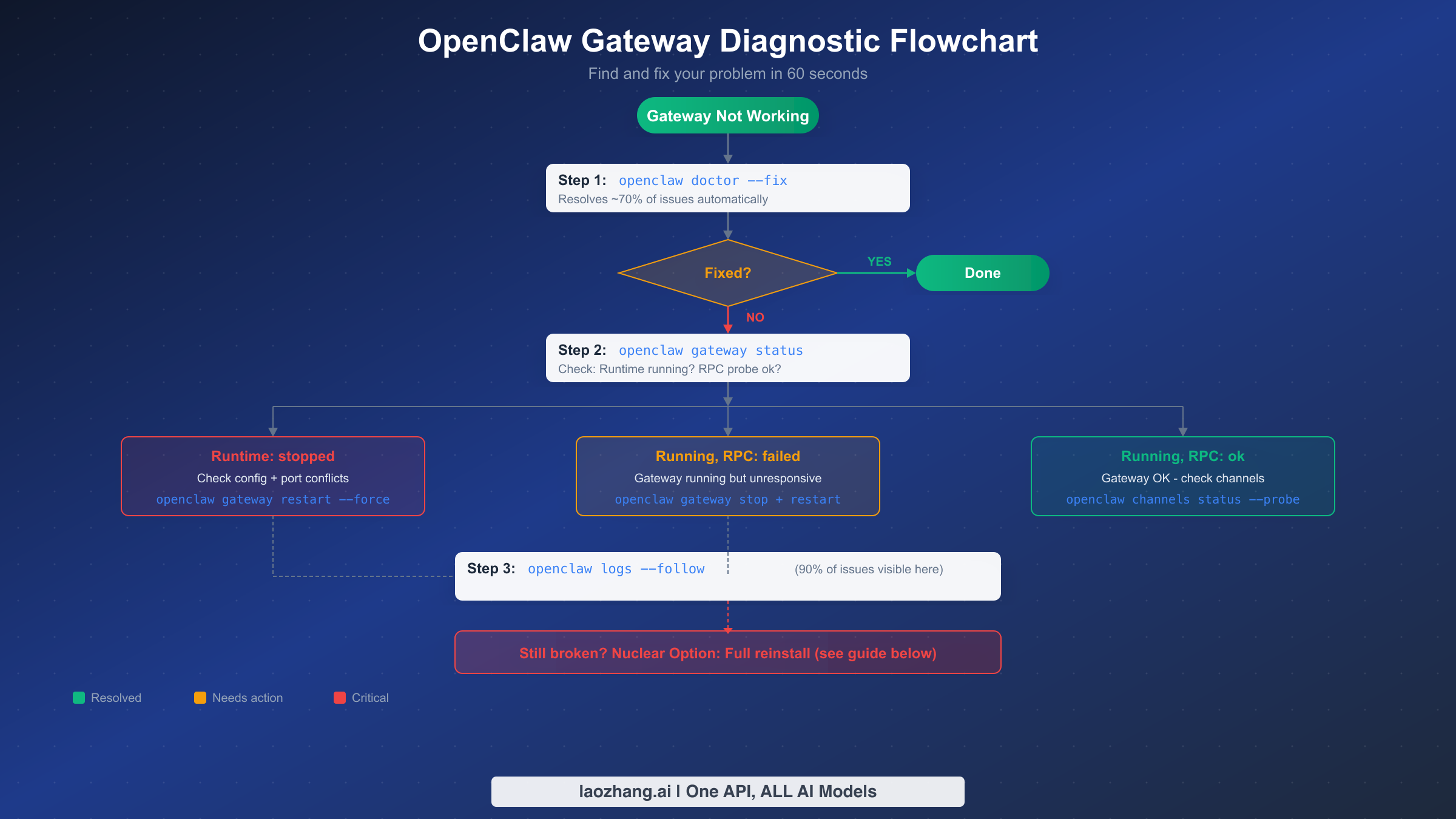
When the universal fix does not resolve your issue, the next step is to systematically identify what is actually broken. The diagnostic commands built into OpenClaw provide structured output that points directly to the failure mode, so you do not need to guess. This section walks through the exact sequence of commands and what their output tells you.
Start with openclaw gateway status. This is the single most informative command in the troubleshooting toolkit. Its output tells you two critical things: whether the gateway process is running, and whether it is accepting connections. A healthy gateway shows Runtime: running and RPC probe: ok. Any deviation from this pattern indicates a specific problem category.
If you see Runtime: stopped, the gateway process is not running at all. This typically means either the service failed to start (check for configuration errors), the process crashed (check logs for crash output), or the service was never installed. The most common cause is a configuration issue that prevents startup, such as the gateway.mode not being set to local for local-only deployments. Run openclaw config get gateway.mode to verify this setting, and if it returns nothing or a non-local value, set it with openclaw config set gateway.mode local.
If you see Runtime: running but RPC probe: failed, the gateway process is alive but not responding to health checks. This is a more subtle problem and usually indicates one of three things: the gateway is still initializing (give it 60 seconds, especially on Docker where initialization takes approximately 40 seconds), the gateway is bound to a different port than expected (check openclaw config get gateway.port), or the process is stuck in a deadlocked state. For the last scenario, the remedy is openclaw gateway stop --force followed by openclaw gateway start.
After checking the gateway status, the next diagnostic command is openclaw logs --follow. This command tails the gateway log file in real time and, according to community reports, reveals the root cause of approximately 90% of remaining issues. Log entries are timestamped and categorized, so look for entries marked ERROR or FATAL in the output. Common patterns include permission denied errors (the process cannot read a file or bind a port), connection refused errors (an upstream service or API endpoint is unreachable), and configuration validation failures (a required field is missing or malformed).
For channel-specific problems where the gateway is running but messages are not being delivered, use openclaw channels status --probe. This command tests each configured channel's connection independently and reports which ones are healthy and which are failing. If all channels show as connected but messages still are not flowing, the issue is likely a pairing or mention configuration problem rather than a gateway failure — check your DM policy settings and group mention patterns.
Every Gateway Error and How to Fix It
This section serves as a lookup table. Find the error message you are seeing, understand why it occurs, and apply the targeted fix. Each entry includes the exact command to resolve the issue and the expected output after successful resolution. All fixes have been verified against the official OpenClaw documentation and community reports as of March 2026.
"Gateway start blocked: set gateway.mode=local"
This is the most common error for first-time installations. OpenClaw's gateway refuses to start unless you explicitly declare the operating mode. The default is to block startup rather than assume a potentially insecure configuration. To resolve it, run openclaw config set gateway.mode local and then openclaw gateway restart. The local mode restricts the gateway to loopback connections only, which is appropriate for single-machine deployments. If you need remote access, configure gateway.mode to remote and set up proper authentication with openclaw config set gateway.auth.token YOUR_TOKEN.
"Timed out after 60s waiting for gateway port 18789 to become healthy"
The gateway process started but did not begin accepting connections within the default 60-second window. On resource-constrained systems — particularly Docker containers on small VPS instances — initialization genuinely takes longer than 60 seconds. The first thing to check is whether the process is still starting or whether it crashed during initialization. Run openclaw gateway status immediately after seeing this error. If the runtime shows as running, wait an additional 30-60 seconds and check again. If it shows as stopped, examine the logs with openclaw logs --follow for the specific startup failure. On Docker deployments, container initialization alone takes approximately 40 seconds, leaving only 20 seconds for the gateway to start — tight on a 1-vCPU machine. Adding 1GB of swap space to your VPS often resolves these timeout issues permanently.
"Another gateway instance is already listening on port 18789"
A port conflict occurs when two processes attempt to bind the same port. This happens most frequently after upgrading from the older Clawdbot naming to OpenClaw, where the legacy clawdbot-gateway service may still be running alongside the new openclaw-gateway service. To identify the conflicting process, run lsof -i :18789 (macOS/Linux) or ss -tlnp | grep 18789 (Linux). Kill the old process, then restart: openclaw gateway restart. To prevent recurrence, ensure the old service is fully uninstalled: on Linux, systemctl --user disable clawdbot-gateway.service && systemctl --user stop clawdbot-gateway.service; on macOS, remove the old LaunchAgent plist from ~/Library/LaunchAgents/.
"Refusing to bind gateway on 0.0.0.0 without auth"
OpenClaw correctly blocks non-loopback bindings without authentication to prevent unauthorized access. If you intentionally want the gateway accessible from other machines (for remote access via a dashboard or mobile client), you must configure authentication first: openclaw config set gateway.auth.mode token followed by openclaw config set gateway.auth.token YOUR_SECURE_TOKEN. If you are running locally and do not need remote access, set the bind to loopback only: openclaw config set gateway.bind loopback.
"AUTH_DEVICE_TOKEN_MISMATCH" or "PAIRING_REQUIRED"
After a gateway restart, existing client connections may lose their device pairing. This is a known issue documented in GitHub Issue #22062. The fix is straightforward: on each client that shows this error, re-pair by running the pairing flow again. For CLI clients, use openclaw pair. For the web dashboard, navigate to the pairing page and scan the QR code. To minimize pairing disruptions during planned restarts, consider using the gateway.auth.mode password option, which avoids per-device token rotation.
"HTTP 429: rate_limit_error: Extra usage is required for long context requests"
This error comes from the upstream Anthropic API, not from OpenClaw itself. It appears when the model you are using has params.context1m: true enabled but your API key does not have long-context access. Resolve it by either disabling the extended context window (openclaw config set agents.defaults.models.context1m false) or by ensuring your Anthropic API key has active billing with long-context eligibility. If you need reliable API access without managing individual provider keys, consider using an aggregated API service like laozhang.ai that handles provider rotation and reduces the surface area for rate limiting — you can find the full setup process in our OpenClaw with laozhang.ai integration guide. For more details on fixing OpenClaw 429 rate limit errors, see our dedicated troubleshooting article.
"NODE_BACKGROUND_UNAVAILABLE" or "SYSTEM_RUN_DENIED"
These errors indicate that the gateway is running but OpenClaw's node tools (browser automation, system commands) cannot execute. Check node status with openclaw nodes status. If the node is offline, restart it. If it is online but permissions are denied, review the node's tool allowlist and OS-level permissions (camera, microphone, screen access on macOS require explicit grants in System Preferences).
Platform-Specific Fixes (macOS, Linux, Docker)
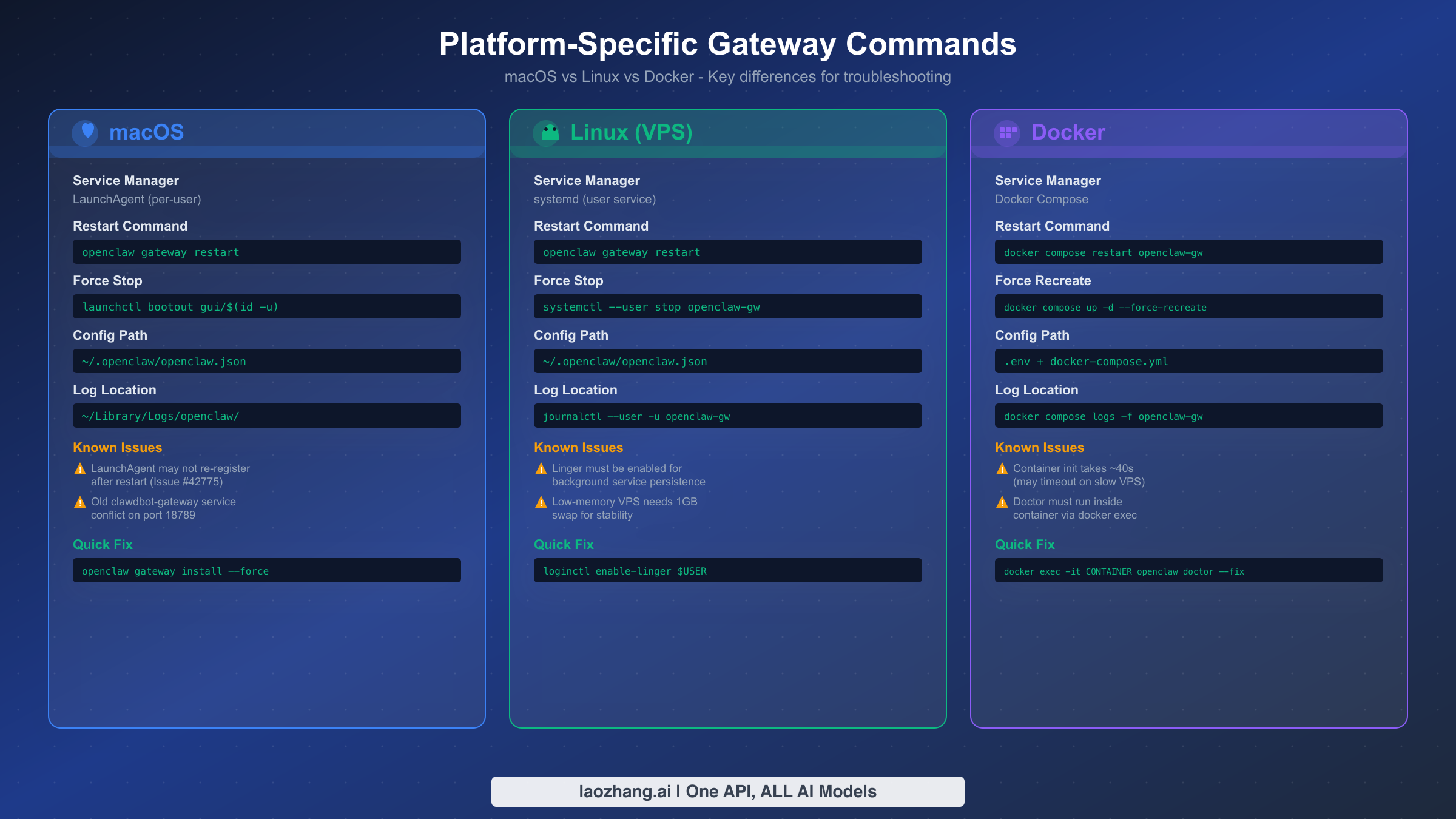
While the core troubleshooting commands remain the same across platforms, the service management layer differs significantly between macOS, Linux, and Docker. A command that works perfectly on Linux may silently fail on macOS, and Docker deployments have their own set of constraints around container lifecycle management. This section covers the platform-specific nuances that the generic troubleshooting guides often overlook.
macOS (LaunchAgent)
On macOS, the OpenClaw gateway runs as a LaunchAgent — a per-user background service managed by launchd. The service definition lives at ~/Library/LaunchAgents/com.openclaw.gateway.plist. When openclaw gateway restart fails on macOS, the most common cause is that the LaunchAgent did not properly re-register after the stop phase. This is a known issue documented in GitHub Issue #42775, where the restart command successfully stops the gateway but fails to start it again because launchctl does not re-bootstrap the service.
The reliable workaround is to use openclaw gateway install --force after a failed restart. This command regenerates the plist file and explicitly loads it into launchd, bypassing the re-registration issue. If even this fails, manually unload and reload the agent: launchctl bootout gui/$(id -u)/com.openclaw.gateway followed by launchctl bootstrap gui/$(id -u) ~/Library/LaunchAgents/com.openclaw.gateway.plist.
Gateway logs on macOS are written to ~/Library/Logs/openclaw/ and can also be viewed through Console.app by filtering for the "openclaw" process. For real-time log monitoring, openclaw logs --follow is the most convenient option.
Linux (systemd)
Linux deployments use systemd user services. The service file is typically at ~/.config/systemd/user/openclaw-gateway.service. The most critical Linux-specific consideration is enabling lingering, which allows the user service to persist after the user logs out. Without lingering, the gateway stops every time your SSH session ends. Enable it with loginctl enable-linger $USER.
For VPS deployments with limited memory (1GB or less), the gateway may be killed by the OOM (Out of Memory) killer during peak load. Adding swap space prevents this: sudo fallocate -l 1G /swapfile && sudo chmod 600 /swapfile && sudo mkswap /swapfile && sudo swapon /swapfile. Make the swap permanent by adding /swapfile none swap sw 0 0 to /etc/fstab.
To view gateway logs on Linux, use journalctl --user -u openclaw-gateway -f for real-time monitoring, or openclaw logs --follow which wraps the same underlying mechanism.
Docker
Docker deployments introduce container lifecycle considerations that do not exist in native installations. The most important distinction is that openclaw doctor must be run inside the container, not on the host. Use docker exec -it CONTAINER_NAME openclaw doctor --fix where CONTAINER_NAME is your gateway container's name (find it with docker ps).
Restarting is handled through Docker Compose rather than the openclaw gateway restart command: docker compose restart openclaw-gateway. For more thorough restarts that also reset container state, use docker compose up -d --force-recreate openclaw-gateway. Be aware that container initialization adds approximately 40 seconds of overhead on top of the gateway's own startup time, so timeouts are more common in Docker deployments.
Configuration in Docker environments typically lives in the .env file and docker-compose.yml rather than ~/.openclaw/openclaw.json. When troubleshooting, check both the host-level Docker configuration and the in-container OpenClaw configuration to ensure they are consistent.
Post-Upgrade Gateway Failures
Upgrading OpenClaw is the single most common trigger for gateway failures that the standard doctor --fix sequence cannot fully resolve. This is because upgrades can change service registration paths, configuration schema, and authentication mechanisms — changes that the doctor command may not be able to auto-correct because they involve deliberate design changes rather than configuration drift.
The most frequently reported post-upgrade issue is the dual-service conflict. When OpenClaw transitioned from the "Clawdbot" branding to "OpenClaw," the installer created a new service alongside the old one. Both services attempt to bind port 18789, causing a restart loop where each one repeatedly fails because the port is already occupied. The solution is to completely remove the old service before starting the new one. On Linux: systemctl --user stop clawdbot-gateway.service && systemctl --user disable clawdbot-gateway.service. On macOS: stop the old LaunchAgent and delete its plist file from ~/Library/LaunchAgents/.
Another common post-upgrade issue involves configuration schema changes. Newer versions of OpenClaw may deprecate configuration keys or change their expected formats. The gateway validates its configuration at startup and refuses to launch if it encounters unknown or malformed keys. Run openclaw config validate to identify deprecated settings. The output will list each problematic key along with the recommended replacement. After making the necessary changes, restart the gateway.
Authentication changes after upgrades can also break existing client connections. If the upgrade modified the authentication mechanism (for example, migrating from a simple gateway.token to the newer gateway.auth.token structure), all connected clients will need to re-authenticate. This manifests as AUTH_TOKEN_MISMATCH errors on the client side. Update your remote clients to use the new token format, then restart the gateway.
The safest upgrade procedure, which avoids most of these issues, is to follow a pre-upgrade checklist: stop the gateway before upgrading (openclaw gateway stop), run the upgrade, then run openclaw doctor --fix to apply any necessary migrations, and finally start the gateway (openclaw gateway start). This sequence gives the doctor command the opportunity to fix schema migrations before the gateway attempts to parse the configuration.
Preventing Gateway Issues Before They Happen
The most efficient troubleshooting is the troubleshooting you never need to do. Preventive maintenance for the OpenClaw gateway is straightforward and takes less than five minutes per week, yet most operators only interact with their gateway configuration when something breaks. Implementing a simple monitoring routine eliminates the vast majority of unexpected failures.
The foundation of preventive maintenance is the health check command: openclaw gateway status. Run this command daily — or better, script it to run automatically and alert you when the output deviates from the expected Runtime: running, RPC probe: ok pattern. A simple cron job that runs openclaw gateway status | grep -q "RPC probe: ok" || echo "Gateway unhealthy" | mail -s "OpenClaw Alert" you@example.com provides basic monitoring without any external tools.
Configuration validation should be run after every change you make to the OpenClaw configuration. The command openclaw config validate catches issues before they cause a runtime failure, which is vastly preferable to discovering a typo at 2 AM when your bot stops responding. Make it a habit: change a setting, validate, then restart.
Disk space is an often-overlooked cause of gateway failures. The gateway writes logs continuously, and on small VPS instances, log files can consume all available disk space within weeks. Configure log rotation by setting gateway.logs.maxFiles and gateway.logs.maxSize in your configuration, or use the system's built-in log rotation (logrotate on Linux, newsyslog on macOS).
Keep your OpenClaw installation updated, but do so deliberately. Pin to a specific version in production rather than tracking the latest release. When upgrading, follow the pre-upgrade checklist from the previous section: stop, upgrade, doctor, start. Subscribing to the OpenClaw release notes ensures you know about breaking changes before they affect your deployment. For cost-effective operations with your OpenClaw setup, our guide on optimizing your OpenClaw costs covers practical strategies.
When Nothing Works — The Nuclear Option
If you have worked through every diagnostic step, applied all relevant fixes, and the gateway still refuses to cooperate, a clean reinstall is the final option. This is a last resort because it resets your configuration, but it guarantees a known-good state. Before proceeding, back up your configuration: cp -r ~/.openclaw ~/.openclaw.backup.
The nuclear procedure is:
bashopenclaw gateway stop --force # 2. Uninstall the service openclaw gateway uninstall # 3. Remove the configuration directory rm -rf ~/.openclaw # 4. Reinstall OpenClaw (use your package manager or the official installer) # For npm: npm install -g openclaw # For brew: brew install openclaw # 5. Run initial setup openclaw init # 6. Restore your configuration (selectively, not the whole directory) # Copy specific settings from ~/.openclaw.backup/openclaw.json # 7. Install and start the gateway openclaw gateway install openclaw gateway start
After a clean reinstall, reconfigure your channels, API keys, and model settings from scratch using the backed-up configuration as reference. Do not simply copy the old configuration file over the new one — the old file may contain the exact issue that caused the failure. Instead, refer to the complete OpenClaw installation guide to set up each component cleanly.
FAQ
Does openclaw gateway restart cause message loss?
During the restart window (typically 3-5 seconds), incoming messages are buffered by the channel provider (WhatsApp, Slack, etc.) and delivered once the gateway reconnects. Messages are not permanently lost, but there may be a brief delay. For planned restarts, consider scheduling them during low-traffic periods.
What is the difference between openclaw restart and openclaw gateway restart?
The openclaw restart command restarts the entire OpenClaw stack including all nodes and services. The openclaw gateway restart command restarts only the gateway process. For troubleshooting gateway-specific issues, use openclaw gateway restart to minimize disruption to other components.
Can I run openclaw doctor while the gateway is running?
Yes. The doctor command is a diagnostic tool that reads configuration files and checks system state without modifying the running gateway process. However, if you use --fix and the doctor rewrites the service definition, you should follow up with a gateway restart to apply the changes.
How often should I restart the gateway?
Under normal operation, the gateway does not need regular restarts. It is designed to run continuously. Only restart after configuration changes, updates, or when troubleshooting issues. If you find yourself restarting frequently, investigate the root cause rather than treating restarts as a workaround.
Why does openclaw gateway restart silently fail on macOS?
This is a known issue (GitHub #42775) where the macOS LaunchAgent does not properly re-register after the stop phase. Use openclaw gateway install --force followed by openclaw gateway start as a reliable alternative.