How OpenClaw Controls Your Browser: Modes, CDP, and Automation (2026)
OpenClaw controls browsers through the Chrome DevTools Protocol (CDP), offering three modes: Extension Relay for logged-in sessions, Managed for isolated automation, and Remote CDP for cloud deployments. This guide covers how it all works, from snapshot refs to security best practices.
On this page
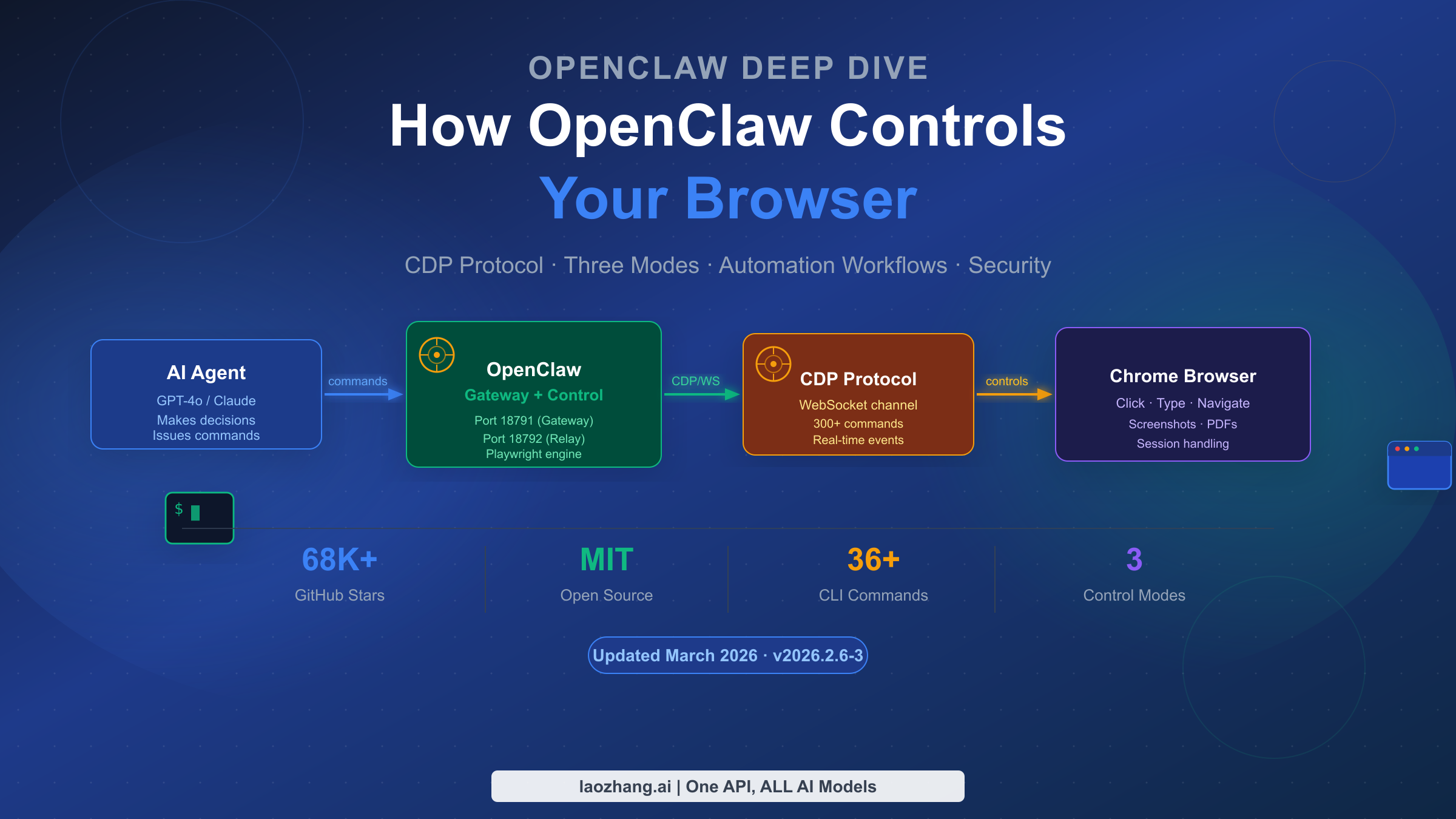
OpenClaw controls browsers using the Chrome DevTools Protocol (CDP) — the same low-level communication channel that powers Chrome's built-in DevTools. As of March 2026, version 2026.2.6-3 of this MIT-licensed platform (with over 68,000 GitHub stars) provides three distinct browser control modes, each suited to a different automation scenario. Whether you need to preserve login sessions, run fully isolated automation, or integrate browser control into a cloud pipeline, understanding how these modes work at a protocol level changes how effectively you can use the tool.
TL;DR
OpenClaw browser control is built on Chrome DevTools Protocol (CDP), using a persistent WebSocket connection rather than HTTP polling. Three modes exist: Extension Relay (port 18792) for controlling your existing Chrome tabs and preserving login state; OpenClaw Managed (ports 18800–18899) for isolated Chromium instances ideal for safe automation; and Remote CDP for connecting to cloud-hosted browser infrastructure. The snapshot system assigns numeric or role-based references (refs) to every interactive element — these refs expire on navigation, so you must re-snapshot after any page change. As of 2026, Playwright serves as the underlying engine for advanced features like PDF generation and AI-mode snapshots.
How OpenClaw Browser Control Works: The CDP Foundation
OpenClaw's browser control capability is not built on screenshots or visual inference — it operates at the protocol level. The Chrome DevTools Protocol (CDP) provides a bidirectional WebSocket connection that allows direct commands to be sent to a running Chrome (or any Chromium-based) browser. This is the same channel Chrome's own developer tools use when you inspect elements or profile network requests.
The architectural advantage here is significant. Unlike tools that take a screenshot, analyze it visually, and then simulate mouse clicks, OpenClaw communicates with the browser's rendering engine in real time. When you issue a command like browser click 12, OpenClaw translates that into the appropriate CDP operation — which means the browser receives the instruction at the same level as if a human user interacted with the DOM directly. This deterministic approach eliminates the flakiness that plagues visual automation tools, where a slightly shifted button or a font rendering difference can cause a failure.
CDP exposes approximately 300 commands across multiple domains: Page, Network, DOM, Runtime, Input, and more. The persistent WebSocket connection enables real-time event streaming, so OpenClaw can listen for network requests, console logs, and navigation events asynchronously as they happen, rather than polling for changes after each command.
Under the hood, OpenClaw uses Playwright as its CDP control engine for advanced features. Playwright handles element resolution through its aria-ref system and manages browser lifecycle events. For basic ARIA-based snapshots without Playwright, OpenClaw falls back to an accessibility tree approach, which is lighter but less capable for complex interactions. If you need AI-mode snapshots, PDF generation, or element-level screenshots, Playwright must be installed separately.
To understand the full integration, it helps to see the component chain. The OpenClaw gateway (port 18791 by default) acts as the orchestration layer, receiving agent commands through its HTTP or CLI interface. The control service (offset from gateway port) manages the connection to whichever browser mode you have configured. For Extension Relay, a Chrome extension creates the CDP relay on port 18792. For Managed mode, OpenClaw launches and manages its own Chromium instance. The agent — whether powered by GPT-4o, Claude, or a local model — sends instructions to the gateway, which translates them into CDP operations against the browser.
For developers building on top of this, laozhang.ai provides a unified API gateway that gives stable access to Claude, GPT-4o, and other models, which can be used as the AI backbone for OpenClaw's browser automation workflows. The documentation is at docs.laozhang.ai.
Disclosure: laozhang.ai is our own service. Its prices are platform pricing, not an independent comparison.
To get started, make sure OpenClaw is installed according to the complete OpenClaw installation guide before attempting browser configuration.
Three Browser Control Modes: Choosing the Right One for Your Use Case
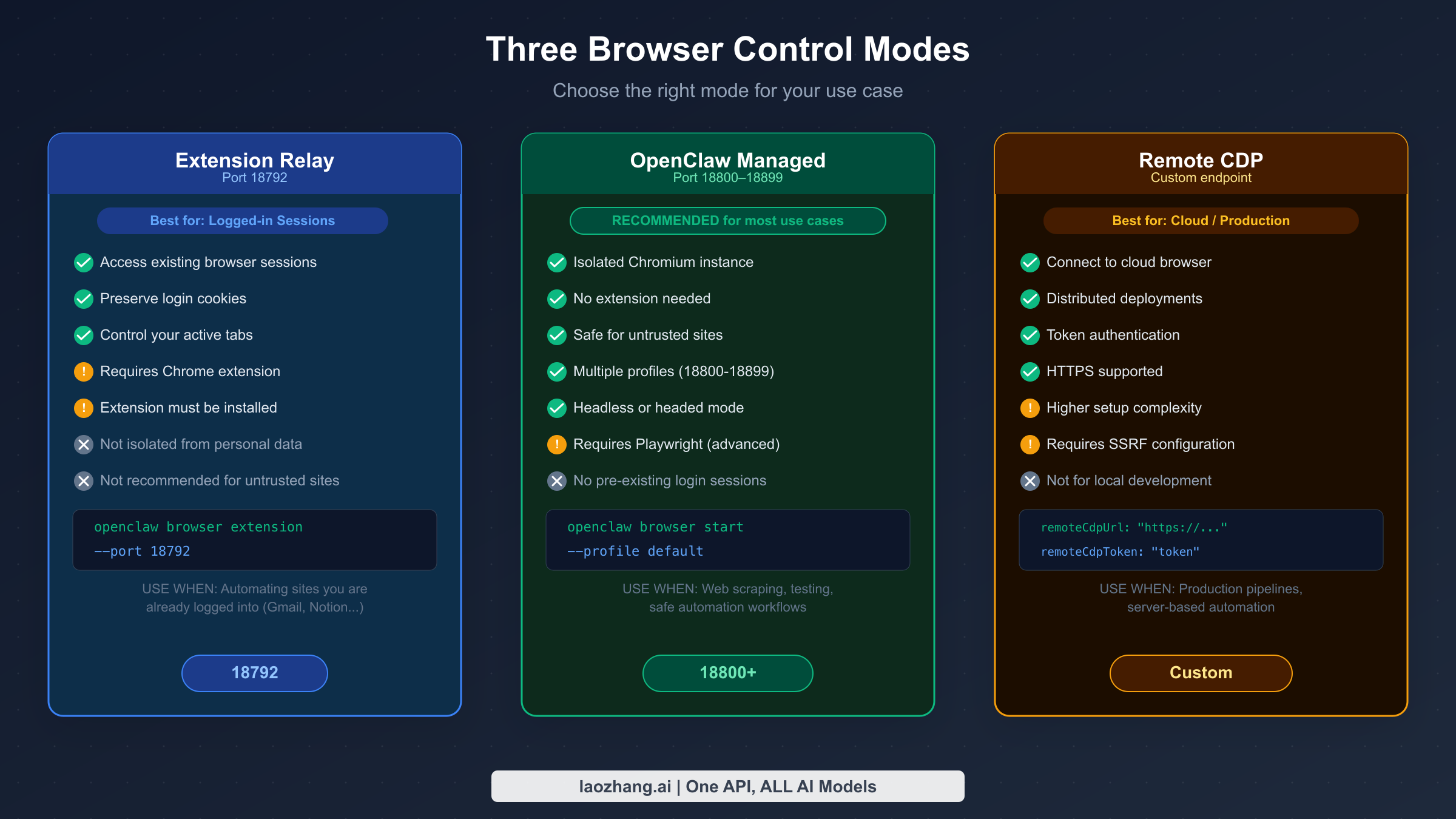
OpenClaw's three browser control modes are not interchangeable — each exists to solve a specific set of problems. Choosing the wrong mode leads to unnecessary setup friction, security concerns, or automation failures. The decision comes down to five questions: Do you need to access an existing logged-in session? Do you need isolation from personal browser data? Is the browser running locally or in the cloud? What level of setup complexity can you tolerate? And how important is security isolation?
Extension Relay mode (port 18792) connects OpenClaw to your existing Chrome browser through a small Chrome extension. This approach gives the agent full access to any open tab, including tabs where you are already authenticated. If you need to automate tasks inside Gmail, Notion, a company intranet, or any site where login is complex or uses SSO, Extension Relay is the right choice. The extension creates a local CDP relay that OpenClaw's control service connects to, forwarding commands to Chrome's actual running instance.
The practical implication is that Extension Relay requires the Chrome extension to be installed and associated with an active tab. The agent can list tabs, select a specific one, and take control of it including its cookies and authenticated state. The important security caveat is that you should use a dedicated Chrome profile rather than your personal browsing profile for any automated tasks — the extension, by design, has access to everything in that profile.
OpenClaw Managed mode (ports 18800–18899) launches and manages a dedicated, isolated Chromium instance separate from your personal browser. There are no shared cookies, no shared history, and no risk of cross-contamination between your browsing and the automation. OpenClaw can run multiple managed browser profiles simultaneously, with each profile occupying a different port in the 18800–18899 range. This is the recommended mode for most automation workflows, including web scraping, testing, and batch form processing.
The managed browser can run in headless mode (invisible, no UI) for server environments or headed mode (visible window) for debugging. Advanced features like geolocation spoofing, device emulation, custom HTTP headers, and offline mode simulation are all available in managed mode through configuration options. Playwright must be installed for AI-mode snapshots in this configuration.
Remote CDP mode connects OpenClaw to an external Chromium-based browser, typically running in a cloud environment. You configure the endpoint URL and authentication token in OpenClaw's settings. This mode is intended for production pipelines where browser infrastructure is managed separately — for example, a fleet of cloud browsers running behind a load balancer. The Remote CDP configuration supports HTTPS for secure connections, with timeout settings (remoteCdpTimeoutMs and remoteCdpHandshakeTimeoutMs) that you tune based on network latency.
The following comparison captures the key decision criteria:
| Criterion | Extension Relay | OpenClaw Managed | Remote CDP |
|---|---|---|---|
| Access existing sessions | Yes | No | Depends on setup |
| Requires Chrome extension | Yes | No | No |
| Isolated from personal data | No | Yes | Yes |
| Works locally | Yes | Yes | No |
| Cloud / production use | No | Possible | Yes |
| Setup complexity | Medium | Low | High |
| Default port | 18792 | 18800+ | Custom |
One note on choosing between modes when both Relay and Managed could work: if the site requires a fresh session (no cookies), prefer Managed. If the site has an existing authenticated session that is difficult to recreate programmatically, use Extension Relay with a dedicated profile.
How the Snapshot and Reference System Works
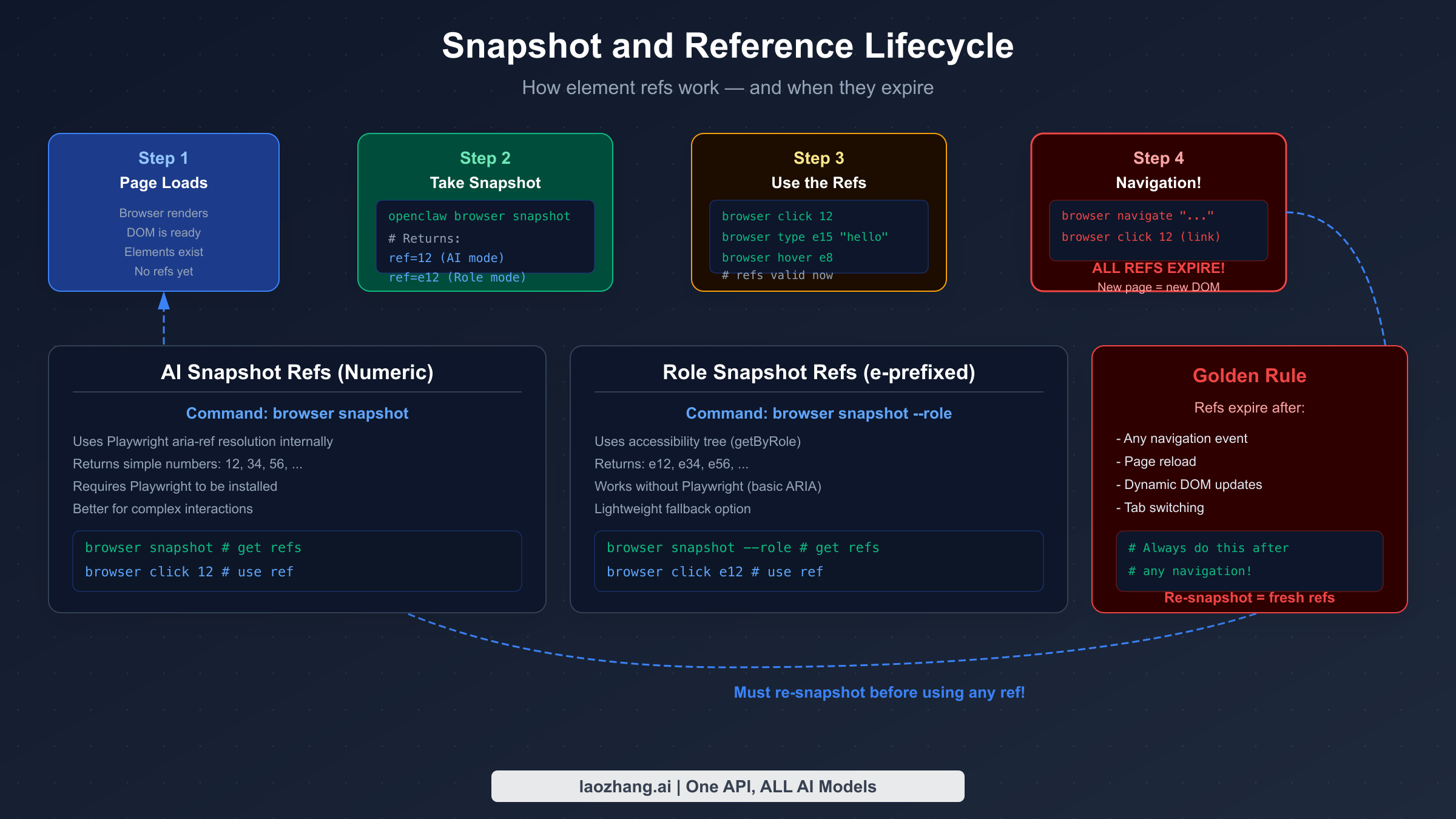
The snapshot and reference system is how OpenClaw enables AI agents to interact with browser elements without fragile CSS selectors or visual pattern matching. When you run openclaw browser snapshot, OpenClaw scans the entire page and assigns a unique numeric reference (ref) to every interactive element — buttons, inputs, links, dropdowns, and more. The agent then uses these refs to specify which element to interact with: browser click 12 clicks element 12, browser type e15 "hello" types into element 15.
There are two distinct snapshot modes, and the difference matters depending on your Playwright setup. AI-mode snapshots produce numeric refs (like 12, 34). These use Playwright's aria-ref resolution internally, which maps semantic accessibility information to stable numeric identifiers. AI-mode snapshots are the default when Playwright is installed and are better suited for complex interactions because Playwright handles the element resolution reliably.
Role-mode snapshots produce refs with an "e" prefix (like e12, e34). These use the browser's accessibility tree directly through a getByRole() matching approach. Role snapshots work without Playwright installed, making them the fallback option for minimal setups. The tradeoff is that role-based matching is less sophisticated and can behave unexpectedly with elements that have unusual accessibility attributes.
The most important rule governing the snapshot system is ref persistence: refs are only valid for the current page state. Any navigation event — whether triggered by clicking a link, calling browser navigate, or a JavaScript redirect — invalidates all existing refs. After navigation, the DOM structure of the new page is entirely different, and the old ref numbers are meaningless. Similarly, dynamic pages that substantially update their DOM through AJAX calls or JavaScript re-renders can invalidate specific refs without a full navigation.
This behavior is intentional, not a bug. The ref system prioritizes correctness — stale refs pointing to vanished elements would silently fail or interact with the wrong element. The operational consequence is a workflow discipline: before any interaction sequence on a new page, always take a fresh snapshot.
The practical pattern for reliable automation looks like this: navigate to a URL, take a snapshot, identify the target element ref from the snapshot output, perform the interaction, check whether the interaction caused a navigation or major DOM change, and if so, take another snapshot before continuing. For multi-step workflows across several pages, this snapshot-before-interact cycle repeats at every page transition.
A subtle point worth noting: the snapshot output includes metadata about each element, including its role (button, link, textbox), its accessible name or label, and its ref. The AI agent uses this information to reason about which element corresponds to, say, the "Submit" button or the search input field. This semantic information is why OpenClaw's automation is more robust than CSS selector–based approaches — button labels rarely change when a site redesigns, whereas CSS class names often do.
Practical Browser Automation Workflows
OpenClaw's browser control becomes genuinely useful when you combine snapshot, navigate, and interaction commands into coherent workflows. Three workflows illustrate the range of what's achievable with the tool in its current state.
Workflow 1: Authenticated session automation with Extension Relay
This is the most common use case for Extension Relay mode. The scenario is automating tasks inside a web application where you are already logged in — for example, exporting reports from a business intelligence dashboard, filling recurring forms, or monitoring a status page that requires authentication.
First, configure your AI provider through the LLM setup process. Then, with the Extension Relay active and your Chrome extension connected, open the target site in your browser. The sequence begins:
openclaw browser tabs         # list available tabs
openclaw browser tab select 3 # switch to the target tab
openclaw browser snapshot     # scan interactive elements
The snapshot returns a list of elements with their refs. The agent parses this output and identifies the elements it needs to interact with. From here, the workflow might look like: click the export button (ref 8), wait for the modal to appear, snapshot again to get the modal's element refs, fill the date range inputs, click confirm. The key advantage is that all of this happens within your authenticated browser session — no login process needed.
Workflow 2: Isolated web scraping with Managed mode
For data extraction from public sites, Managed mode is the right choice. The isolation means you are not risking your personal cookies or browsing state, and you can run multiple profiles in parallel for higher throughput.
openclaw browser start --profile scraper-1   # launch managed browser
openclaw browser navigate "https://target-site.com/data"
openclaw browser wait                        # wait for page load
openclaw browser snapshot
From the snapshot, the agent identifies the data elements — table rows, text blocks, links to follow. It extracts text content from specific refs, follows pagination links by clicking the "Next" button ref, and repeats the process until all pages are processed. For sites with AJAX-loaded content, the browser wait command (which can wait for specific text to appear) ensures the agent does not try to interact with elements before they exist.
OpenClaw handles the practical complexity of web scraping: it can extract cookies for session management, intercept network requests to understand API calls the site makes, and simulate scroll events to trigger lazy-loaded content. The snapshot system means the agent does not need to know CSS selectors in advance — it reasons from the accessibility structure.
Workflow 3: Monitoring and alert workflow
A particularly useful pattern is periodic monitoring — checking a page for changes and triggering an action when something specific appears. Configure the AI agent to check a dashboard every few minutes:
openclaw browser navigate "https://status-page.com"
openclaw browser snapshot
# agent checks for specific text or element state
# if condition met: send notification via configured channel
Since OpenClaw connects to messaging channels (Telegram, Slack, Discord, etc.), the monitoring workflow can send alerts directly through the agent's communication channels without additional integrations.
For production monitoring workflows, be mindful of token consumption — each snapshot consumes tokens as the AI model processes the page structure. Token management best practices become important when running frequent snapshots across complex pages.
Security Best Practices for Browser Relay
Browser automation introduces security considerations that are easy to overlook until something goes wrong. OpenClaw's design includes several security defaults, but there are important practices that users need to implement consciously.
OpenClaw's browser control service binds to the loopback address (127.0.0.1) by default, which means it is only accessible from the same machine. This is a deliberate security default — the CDP relay on port 18792 should never be exposed to external networks. In January 2026, the ZeroPath security research team published findings on a vulnerability in OpenClaw's browser relay server where the loopback binding could be bypassed under specific network configurations, allowing malicious websites to reach the local relay service. OpenClaw released a patch addressing this in subsequent versions, but the incident highlights why network isolation matters.
The practical security configuration for most users involves three layers. First, use a dedicated Chrome profile for any Extension Relay automation — never run automated tasks in the same profile you use for personal browsing. The automation profile should have only the cookies and credentials needed for the specific task. If the profile is compromised or behaves unexpectedly, the blast radius is contained to that profile.
Second, keep the gateway port (18791) and relay port (18792) blocked at the firewall level from external access. If you are running OpenClaw on a server, configure firewall rules to allow only the OpenClaw process to bind these ports. Do not expose them through network address translation or port forwarding unless you have explicit authentication configured.
Third, for Remote CDP mode, always use HTTPS connections and configure authentication tokens. The remoteCdpToken setting ensures that connections to your cloud browser endpoint require authentication. Rotate these tokens periodically, especially if you share the configuration across team members.
For SSRF (Server-Side Request Forgery) protection, OpenClaw includes configurable SSRF policies that restrict which URLs the managed browser can access. In environments where the browser might be instructed to access internal network resources, enabling the private network blocking policy prevents the browser from being used as a proxy to reach internal services.
One often-overlooked risk is credential leakage through snapshots. When the agent processes a snapshot of a page containing sensitive form data, that data may appear in the snapshot output processed by the AI model. Be thoughtful about what pages you snapshot — avoid snapshotting pages that display full account numbers, social security numbers, or similar sensitive data unless you have specific controls in place.
Troubleshooting Browser Control: Error Messages and Fixes
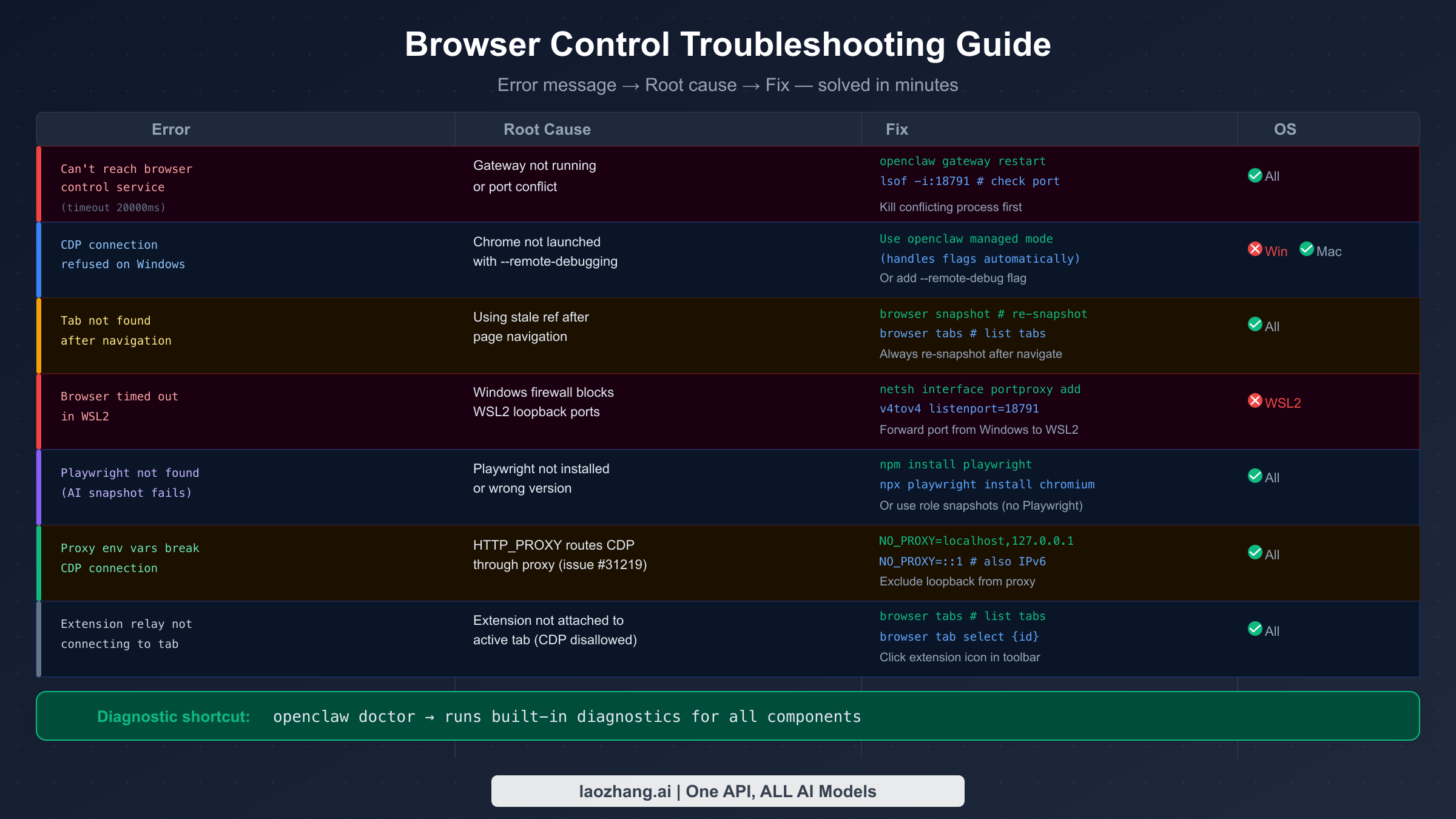
The most common source of frustration with OpenClaw's browser control is connection failures, almost always manifesting as "Can't reach the OpenClaw browser control service (timed out after 20000ms)." This error has several distinct causes that require different fixes, and working through them systematically is faster than trial and error.
The first thing to check is whether the OpenClaw gateway is actually running. Open a terminal and run openclaw gateway status. If the gateway is not running, start it with openclaw gateway start or through the menubar application on macOS. The gateway must be running before any browser control commands will work. If the gateway is running but you still get the timeout error, check whether the control port (18791 by default) is occupied by another process: lsof -i:18791 on macOS/Linux, or netstat -ano | findstr 18791 on Windows. Kill the conflicting process and restart the gateway.
For Windows users, particularly those running OpenClaw inside WSL2, a common issue is that the Windows firewall blocks the WSL2 virtual network interface from reaching the gateway running in WSL2. GitHub issue #30196 documents this precisely. The fix is to create a port proxy rule from the Windows host to the WSL2 IP: netsh interface portproxy add v4tov4 listenport=18791 listenaddress=0.0.0.0 connectport=18791 connectaddress=$(wsl hostname -I). This forwards connections from Windows host ports to the WSL2 instance where OpenClaw is running.
Proxy environment variables create a subtle and confusing failure mode. If HTTP_PROXY, HTTPS_PROXY, or ALL_PROXY environment variables are set in your shell, the CDP connection attempts from OpenClaw to the browser may be routed through the proxy, causing timeouts or connection refused errors. GitHub issue #31219 documents this. The fix is straightforward: add localhost and 127.0.0.1 (and ::1 for IPv6) to the NO_PROXY environment variable. In your shell configuration, add export NO_PROXY="localhost,127.0.0.1,::1".
The "Tab not found" error and its cousin "ref not found" after using a stale ref share the same root cause: navigation happened and refs were not refreshed. After any browser navigate command, any click that results in a page change, or any action that causes a significant DOM mutation, you must take a new snapshot before referencing any element. The workflow discipline of always snapshoting after navigation eliminates this error class entirely.
For Extension Relay failures where the extension does not appear to be connecting to the active tab, the issue is usually that the CDP attachment is not permitted for that tab. This happens when the tab was opened before the extension was activated, or when the tab is a browser-internal page (like the Chrome settings or new tab page). Check the extension popup — it shows connection status. Click the extension icon in the Chrome toolbar to trigger re-attachment. If the extension shows as connected but commands still fail, run browser tabs to list available tabs and browser tab select {id} to explicitly select the target tab.
For Playwright-related failures — specifically when AI-mode snapshots fail with errors about Playwright not being found — install Playwright and its browser binaries:
npm install playwright
npx playwright install chromium
If you prefer to avoid the Playwright dependency, switch to role-mode snapshots with browser snapshot --role. Role-mode works without Playwright but provides less sophisticated element resolution. Consider this a reliable fallback for simpler pages and straightforward interaction patterns.
The built-in openclaw doctor command runs a comprehensive diagnostic that checks all components: gateway connectivity, browser availability, Playwright installation, extension status, and port bindings. Running this command first when troubleshooting gives you a complete picture of what is and is not working, saving significant debugging time.
For API key errors that prevent the AI model from processing snapshots, the API key troubleshooting guide covers the most common configuration issues. Rate limit errors during intensive browser automation sessions are addressed in the rate limit management guide.
Advanced Configuration: Ports, Profiles, and Performance
OpenClaw's default configuration works for single-browser single-user setups, but the tool supports considerably more sophisticated arrangements. Understanding the port architecture and profile system unlocks parallel automation, complex multi-step workflows, and production-grade reliability.
The port scheme follows a fixed offset pattern. The gateway runs on port 18791. The control service runs on gateway port + 9 (18800 for the default profile). Each additional managed browser profile occupies the next port: profile 1 uses 18800, profile 2 uses 18801, up to profile 99 using 18899. The Extension Relay occupies port 18792. When you need to run multiple isolated browser sessions simultaneously — for example, testing a multi-user workflow or running parallel scraping jobs — you start multiple profiles:
openclaw browser start --profile job-1    # uses 18800
openclaw browser start --profile job-2    # uses 18801
openclaw browser start --profile job-3    # uses 18802
Each profile maintains its own cookies, storage, and browsing state. Profile names you assign (like "job-1") are human-readable labels; OpenClaw manages the port mapping internally.
For headless versus headed operation, headless mode is the right choice for server environments and production pipelines where no display is available. Headed mode (visible browser window) is valuable during development because you can watch the automation unfold and catch visual issues. Switching between modes is a configuration flag; neither mode changes the CDP command interface. There is a modest performance difference — headless mode uses slightly less memory and CPU because the browser does not render the visual compositing layer, but the difference is less significant than the network and JavaScript execution costs of the pages being automated.
Custom executable path configuration allows you to specify which Chromium-based browser OpenClaw uses for managed mode. By default, it uses the system Chromium. You can point it at a specific version of Chrome, Brave, or Edge if your automation requires specific browser behavior. This is useful when testing site compatibility across browser versions.
For high-volume automation, the timeout configurations matter significantly. The default remoteCdpTimeoutMs and remoteCdpHandshakeTimeoutMs values are tuned for local connections. If your Remote CDP endpoint has network latency — for example, a cloud browser instance in a different region — increasing these timeouts prevents spurious failures from slow connection establishment. Similarly, the SSRF policy configuration should be reviewed: the strictest setting blocks the managed browser from accessing private network addresses, which prevents the browser from being used as an internal network proxy but may interfere with automation that legitimately needs to access local development servers.
For teams looking at API access costs, each snapshot operation consumes tokens proportional to the page complexity. Simple pages with few interactive elements use far fewer tokens than dense enterprise application pages. Using role-mode snapshots (without Playwright) produces slightly smaller snapshot outputs than AI-mode snapshots, which can reduce token consumption for high-frequency monitoring workflows.
Summary: OpenClaw Browser Control in Practice
OpenClaw's browser control system represents a coherent approach to AI-driven web automation. The CDP foundation gives it deterministic, reliable control at a level that visual automation tools cannot match. The three modes cover the spectrum from personal authenticated workflows to production cloud deployments. The snapshot and reference system, once the ref lifecycle is understood, provides a clean abstraction that lets AI agents reason about web pages without needing to know CSS selectors or XPath expressions.
The practical constraints worth keeping in mind as you build workflows: refs expire on navigation, so snapshot discipline is non-negotiable; Extension Relay requires a dedicated Chrome profile for security; the Playwright dependency is optional but unlocks the most capable snapshot mode; and proxy environment variables are a common silent failure cause that is easy to overlook in production environments.
As the OpenClaw ecosystem continues to evolve — the project was averaging significant GitHub activity as of early 2026 — browser control remains one of its most powerful features for building agents that can actually act on the web, not just process text about it.
This guide reflects OpenClaw version 2026.2.6-3 as of March 2026. For the latest documentation, visit the official OpenClaw docs.
Sources1
External pages this guide links to, in the order they appear. Last updated Mar 5, 2026.
Sources1
External pages this guide links to, in the order they appear. Last updated Mar 5, 2026.