ChatGPT PDF Upload Unknown Error: Two Checks and the Right Fix
Fix ChatGPT’s “Unknown Error Occurred” when uploading a PDF. Two file-and-browser checks help you choose a document, upload-limit, or connection fix.
On this page
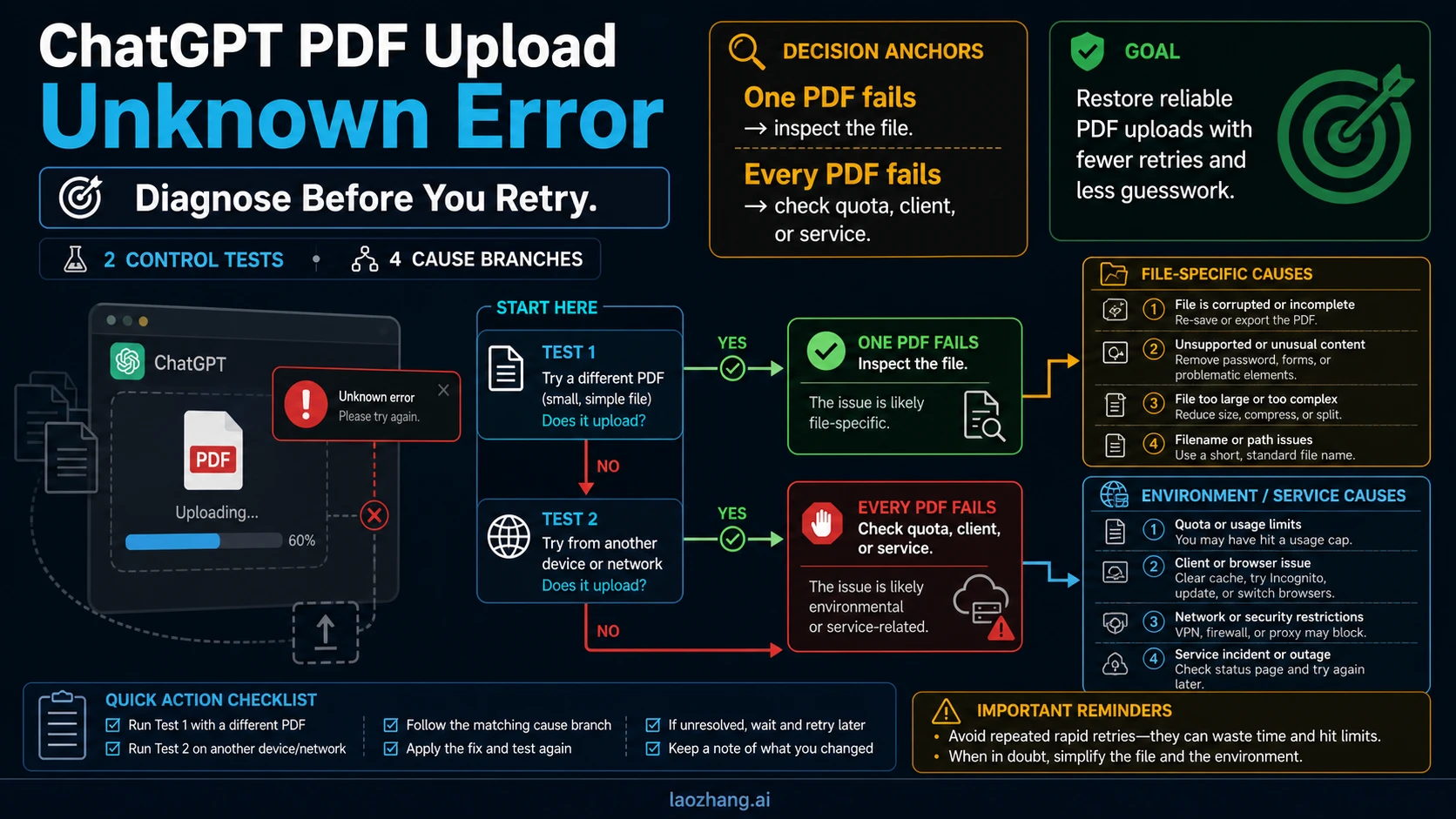
If ChatGPT shows “Unknown Error Occurred” while uploading a PDF, first check whether another simple PDF uploads and whether the original works in a private browser window. These two comparisons help you choose between making a new PDF copy, fixing the browser or connection, and checking your upload allowance.
PDF is a supported ChatGPT file type. The generic error does not, by itself, identify what went wrong. Repeatedly submitting the same file gives you little new information.
Start with two file-and-browser checks
Keep the original unchanged and use the same ChatGPT account for both checks:
- Try a simple PDF in the current session. Use a small, ordinary PDF that previously uploaded successfully, if you have one. Otherwise, create a one-page PDF with a few lines of selectable text, no password and no interactive forms. A newly created sample is only a comparison file; it is not yet known to work.
- Try the original PDF in a private browser window. Open chatgpt.com, sign in to the same account and start a new chat. Keep the device and network unchanged for this comparison. You can also use another official ChatGPT client if private browsing is unavailable.
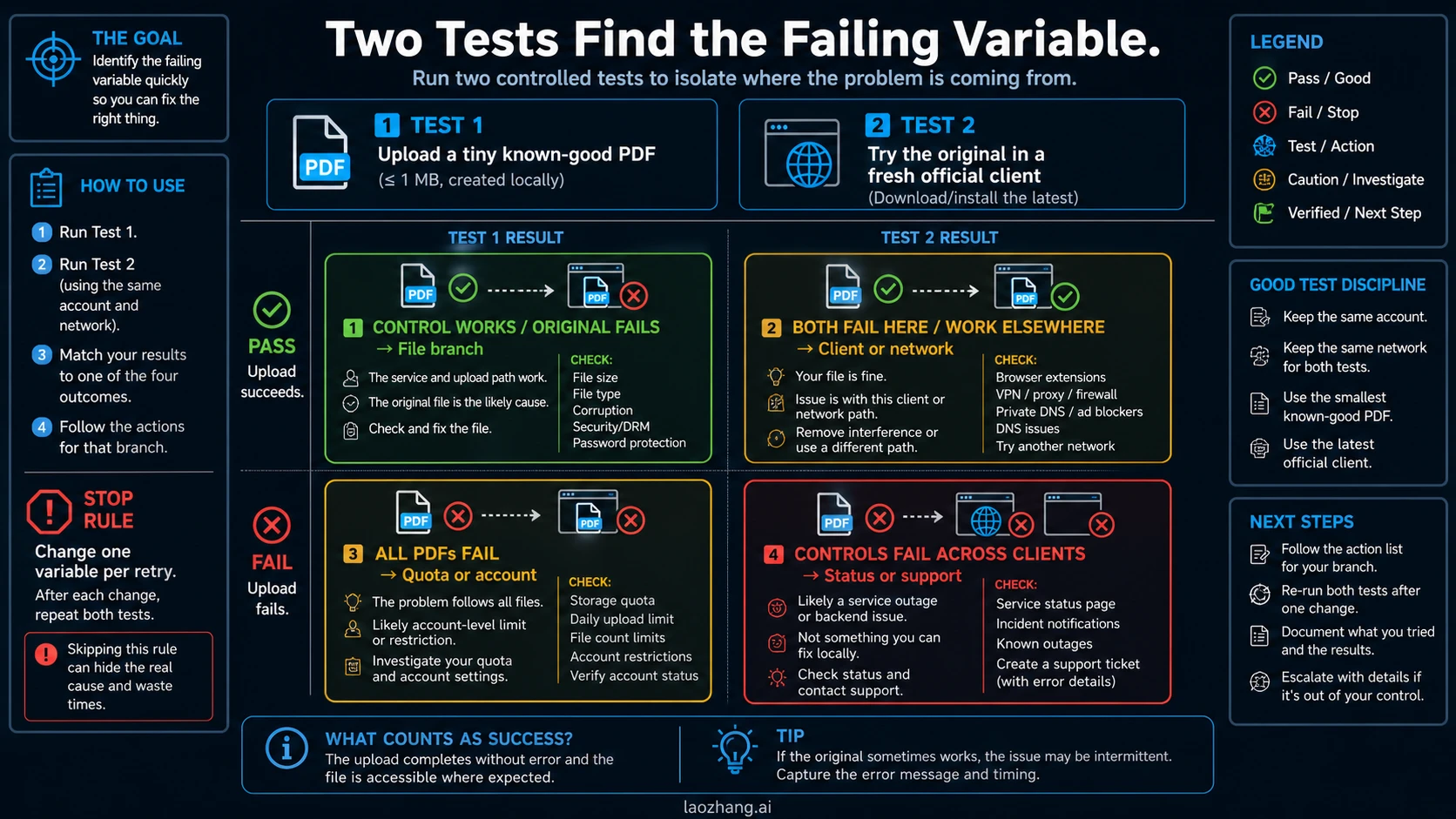
| Simple PDF in current session | Original in private window | What to try next |
|---|---|---|
| Uploads | Fails | Investigate the original PDF: check its limits, then create a fresh copy. |
| Fails | Uploads | Continue in the working window; troubleshoot the original browser session if needed. |
| Fails | Fails | Check upload allowance, storage, connection and service status before rewriting the document. |
| Uploads | Uploads | Use the working session. The original failure may have been temporary or session-specific. |
These results narrow the next step; they do not prove corruption or an outage. If a Project or custom GPT was involved in the original failure, success in a normal new chat also makes that Project or GPT worth checking.
If only the original PDF fails, create a fresh copy
Open the original locally and check that its pages display correctly. If it is incomplete or the viewer reports a problem, download it again from the source. If you still have the source document, export a new PDF from it. Check the file-size and document limits below before spending time making variants.
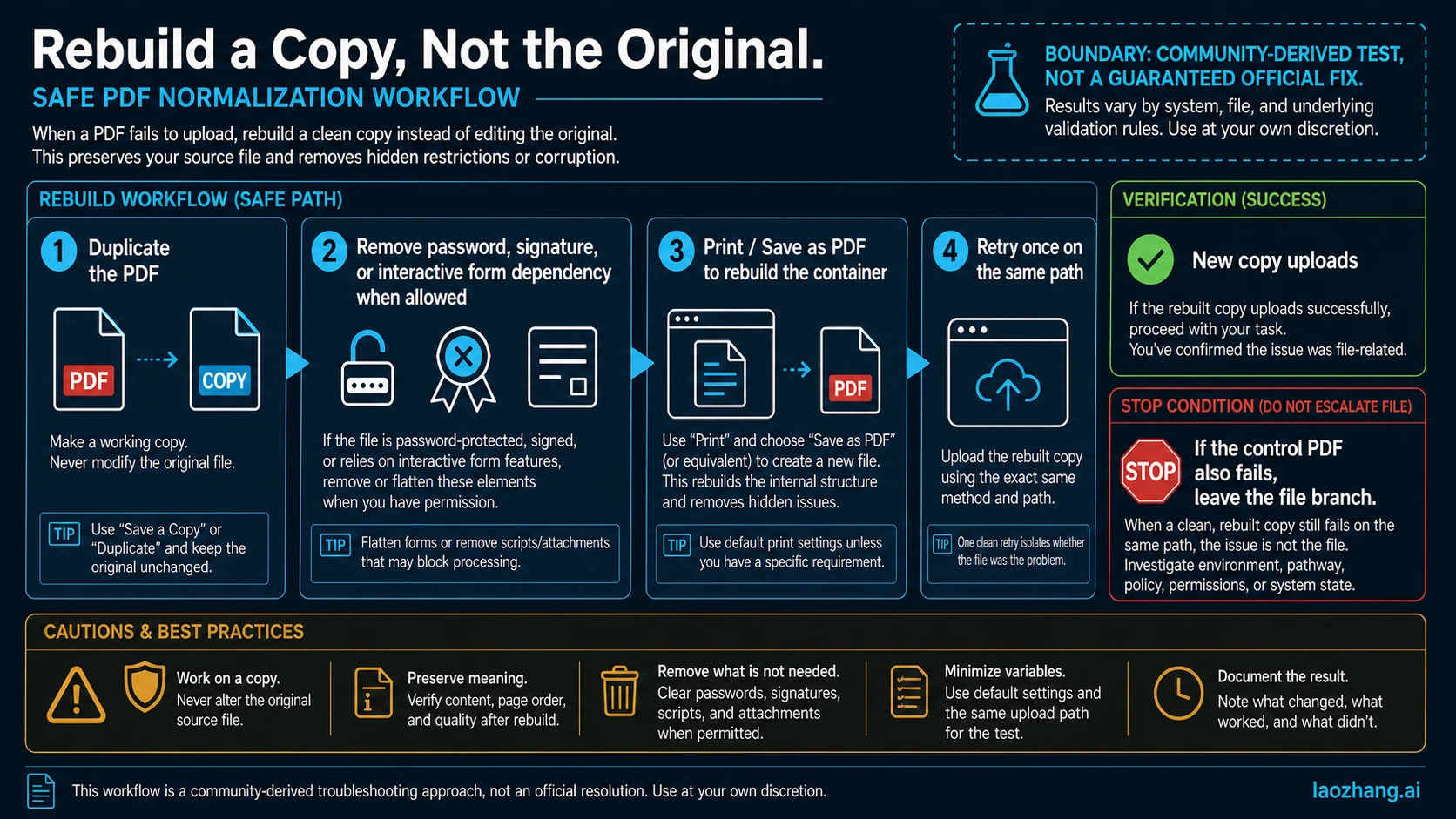
For a PDF that opens normally, try printing a separate copy:
- Windows: Open the PDF in a viewer, press Ctrl+P, select Microsoft Print to PDF, then print and save with a new filename.
- macOS: Open the PDF in Preview, choose File → Print, open the PDF menu and select Save as PDF. Save with a new filename.
If printing is restricted, use an export you are authorized to create or ask the document owner for an accessible copy. Do not overwrite the original.
This is a practical workaround, not an official diagnosis. In an OpenAI Community report about this error, the user found that Microsoft PDF Printer helped with some files and failed with others. A successful new copy therefore does not establish exactly which part of the original caused trouble.
Compare page count, visible text and any content you need before uploading the copy once in the private window. If it works, use that copy for the ChatGPT task and retain the original. If it still fails while the simple PDF works, try only the required pages or extract the needed text, rather than repeatedly reprinting the entire document.
For a literal “File type not supported” or “Try again with a PDF” message, follow the separate unsupported-file error guide.
If multiple PDFs fail, check limits and storage
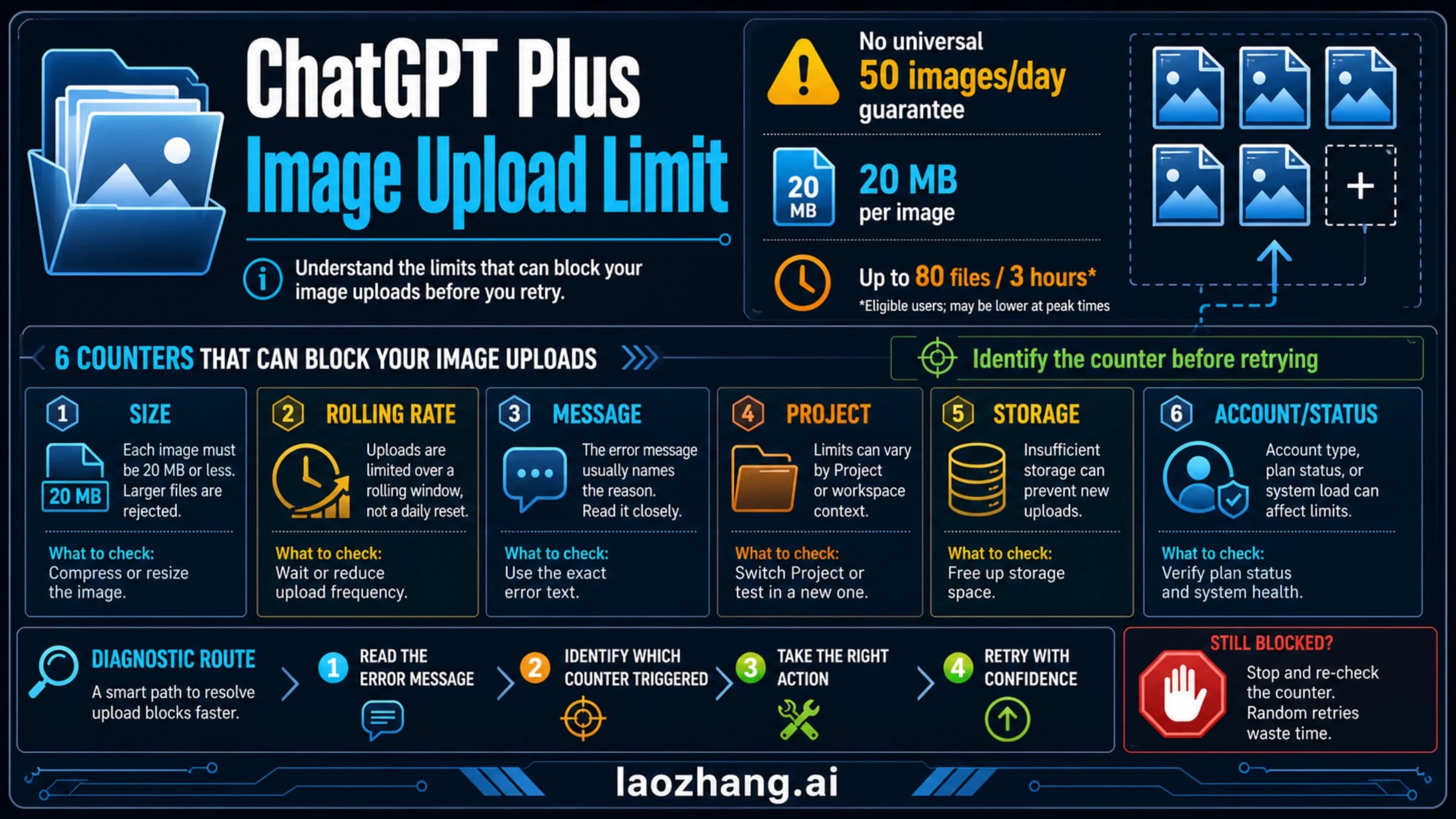
As checked on September 7, 2026, OpenAI’s File Uploads FAQ lists 512 MB per file and 2 million tokens per text or document file. A PDF can exceed the document cap while remaining below the byte limit; there is no universal 10 MB PDF cap in that guidance.
A valid file can still encounter an account limit. Check the message and choose the corresponding action:
- Upload-rate allowance: Failed attempts can sometimes count toward the cap. Stop repeated attempts and wait for the applicable allowance to reset. Splitting a document into many files consumes more upload attempts.
- Storage: Open Settings → Storage to inspect Library storage usage. Storage is separate from the rolling upload rate, whose remaining allowance is not currently displayed. Remove only files you no longer need if storage is the problem.
- Project or custom GPT capacity: Try a normal new chat to distinguish a container-specific problem from a broader upload failure. A new chat does not replenish an account-wide allowance.
For detailed Project and plan limits, use the ChatGPT file upload limits guide.
If the original works in another window, fix the browser or connection
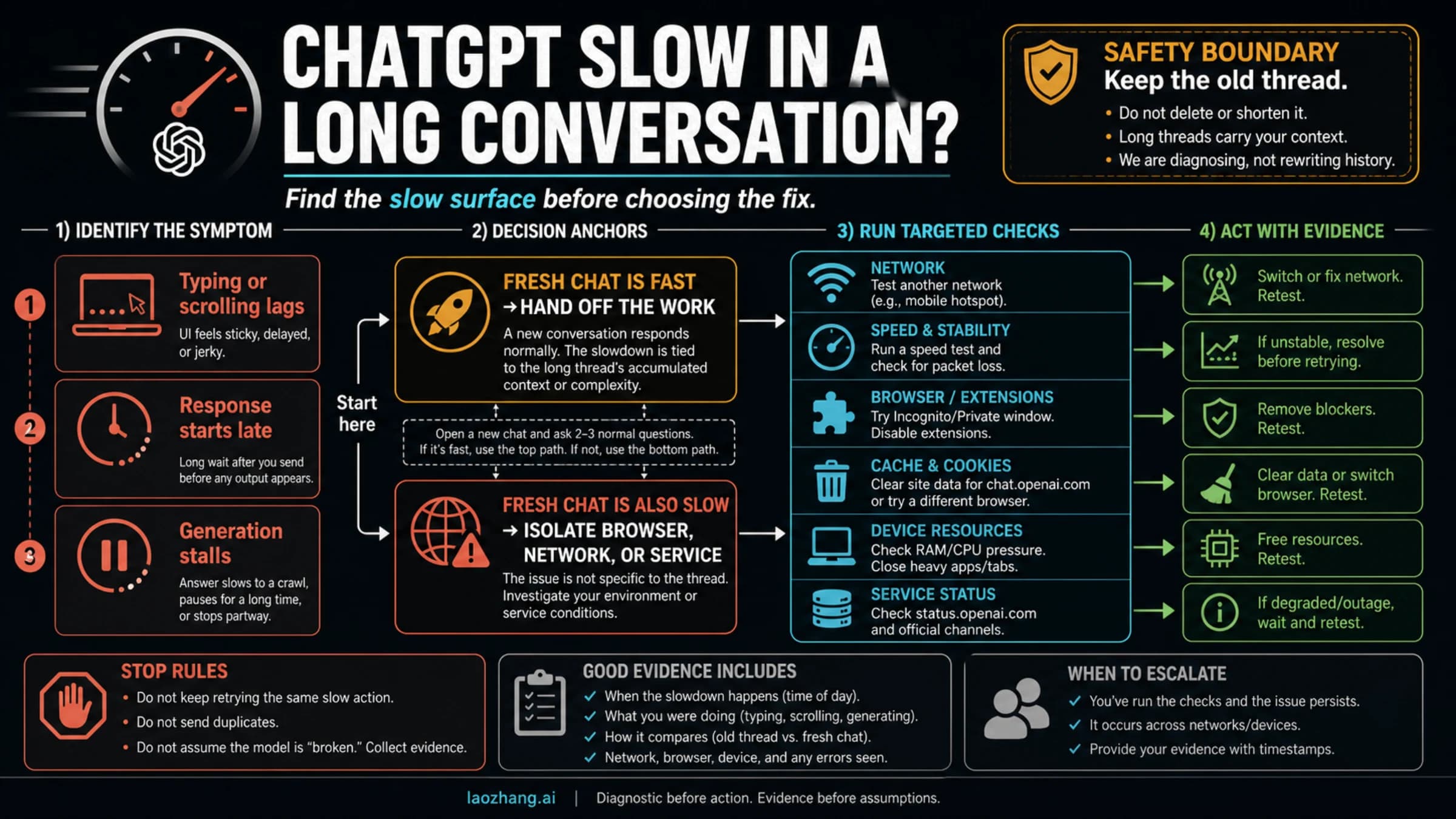
Use the working session to finish the immediate task. To repair the failing browser, try a new chat and reload first. If that does not help, compare browser extensions and ChatGPT site data, then test another browser or network. OpenAI’s general error troubleshooting guidance also identifies VPNs, proxies and secure-DNS filters as possible sources of connection problems.
Change one setting at a time and test once after each change. If a private window works, that points toward a difference in the browser session, cookies or extensions; it does not identify a particular extension automatically. Clear ChatGPT’s site data if needed, rather than starting with all browsing data.
Private browsing still uses the device’s network, VPN and DNS settings. If both windows fail, an allowed alternative network is a useful next comparison. On a managed work device, ask IT to investigate filtering rather than changing organization-required protections.
If uploads still fail, check status and contact support
Open OpenAI’s status page and look for an incident affecting ChatGPT uploads at the time of your failure. A past “operational” snapshot cannot explain today’s error. If an incident matches, wait for recovery before spending more upload attempts.
When the problem persists across browsers or networks, contact support through the OpenAI Help Center. Include the error screenshot, failure time and timezone, browser or app version, operating system, request ID if shown, and the results of the two comparisons. A short description such as “the one-page sample uploads; the original fails in both windows” is more useful than “PDFs are broken.”
If support needs a sample, provide a small file without confidential content that reproduces the issue. Keep the original document, passwords and API keys out of public forum posts.
Questions about scans and reprinted copies
Does a scanned PDF cause “Unknown Error Occurred”?
The error alone cannot establish that. First separate failure to upload from failure to read the document after upload. For a scan with no selectable text, an OCR-enabled export can give text extraction a better input, but it is not a guaranteed upload fix. Check the extracted text against the scan, particularly names and numbers, before relying on ChatGPT’s answer.
What can change when I print a PDF to a new PDF?
The new file may lose interactive forms, links, layers, accessibility information or the original signature information. Printing a copy is useful for a reading task only if it preserves the content you need. Keep the original for any task that depends on those features, and inspect the copy before using it.
Sources7
External pages this guide links to, in the order they appear. Last updated Sep 7, 2026.
Sources7
External pages this guide links to, in the order they appear. Last updated Sep 7, 2026.
- 1.PDF is a supported ChatGPT file typehelp.openai.com/en/articles/8983675-what-types-of-files-are-supported
- 2.chatgpt.comchatgpt.com
- 3.OpenAI Community report about this errorcommunity.openai.com/t/chatgpt-saying-unknown-error-occurred-for-file-uploads/1079366
- 4.File Uploads FAQhelp.openai.com/en/articles/8555545-file-uploads-faq
- 5.general error troubleshooting guidancehelp.openai.com/en/articles/7996703-troubleshooting-chatgpt-error-messages
- 6.OpenAI’s status pagestatus.openai.com
- 7.OpenAI Help Centerhelp.openai.com