How to Use Nano Banana Pro for Presentations: 6 Methods for Google Slides, PowerPoint & More (2026)
Nano Banana Pro has transformed presentation creation with its 94-96% text accuracy and professional infographic generation. This guide covers all 6 methods to use it — from Google Slides native features to API integration — with cost comparisons, prompt templates, and honest assessments of what works and what doesn't.
On this page
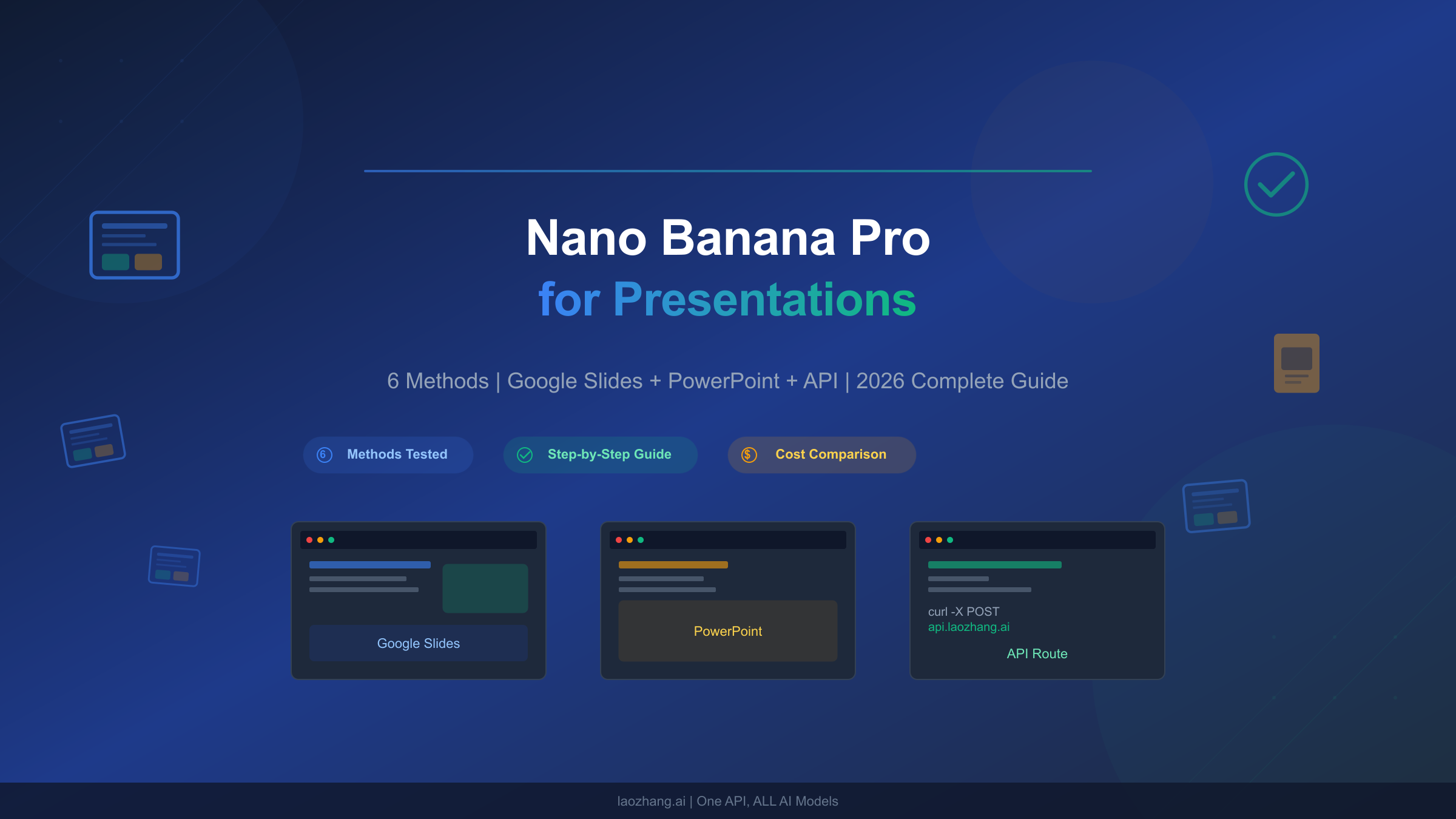
Nano Banana Pro (Gemini 3 Pro Image) has become the first AI image generator that reliably renders text in generated images, making it genuinely useful for creating presentation visuals like infographics, data visualizations, and cover slides. Whether you use Google Slides, PowerPoint, or web-based tools, there are now at least six distinct ways to integrate Nano Banana Pro into your presentation workflow — each with different costs, quality levels, and ease of use. This guide covers every method available as of March 2026, with honest assessments of what works well and where you will hit limitations.
TL;DR
Nano Banana Pro creates presentation-quality visuals with accurate text rendering that DALL-E and Midjourney still cannot match. Google Slides users with a paid Workspace plan can use "Beautify this slide" for one-click design and "Help me visualize" for custom infographics. Everyone else can use third-party tools like NoteGPT (free) or Plus AI (7-day trial), generate images via the Gemini chatbot and copy-paste them, or use the API at $0.134/image for 2K resolution. The cheapest API option is laozhang.ai at $0.05/image across all resolutions.
Disclosure: laozhang.ai is our own service. Its prices are platform pricing, not an independent comparison.
Why Nano Banana Pro Changes Everything for Presentations
Before Nano Banana Pro launched in November 2025, using AI image generators for presentations was an exercise in frustration. You could generate beautiful landscapes and creative artwork, but the moment you needed text on an infographic — labels, headings, data annotations — the results were unusable. DALL-E would garble text into nonsensical characters, and Midjourney produced artistic but illegible typography. This meant that the one category of images that professionals actually need for presentations was the one category where AI fell short.
Nano Banana Pro changed this fundamental limitation. Built on Google's Gemini 3 Pro model, it achieves 94-96% text accuracy in generated images (spectrumailab benchmark, March 2026), which means labels, headings, and annotations appear as intended rather than breaking into unreadable fragments. For presentation creators, this was a watershed moment because it meant AI could finally produce infographics, data visualizations, and text-heavy layouts that were actually usable in professional settings.
The practical impact extends beyond text rendering. Nano Banana Pro supports resolutions up to 4096x4096 (4K), which ensures generated slides look crisp even on large projection screens and high-resolution displays. Its advanced reasoning capabilities, inherited from Gemini 3 Pro, enable it to understand complex data relationships and produce infographics that accurately represent the underlying information rather than simply creating decorative layouts. When you prompt it to create a timeline showing product launch milestones, for example, it maintains correct chronological order and proportional spacing — something earlier models struggled with significantly.
However, it is important to understand one critical limitation upfront: Nano Banana Pro generates images, not editable slide elements. When you use it to "beautify" a slide or create an infographic, the output is a high-resolution image placed on your slide, not individual text boxes, shapes, and charts that you can edit independently. This means you cannot select a specific data label and change it, or adjust a color in the generated chart without regenerating the entire image. This distinction matters enormously for professional workflows, and understanding it early saves considerable frustration later. For a deeper look at what Nano Banana Pro can do beyond presentations, see our complete guide to using Nano Banana Pro.
6 Ways to Create Presentations with Nano Banana Pro
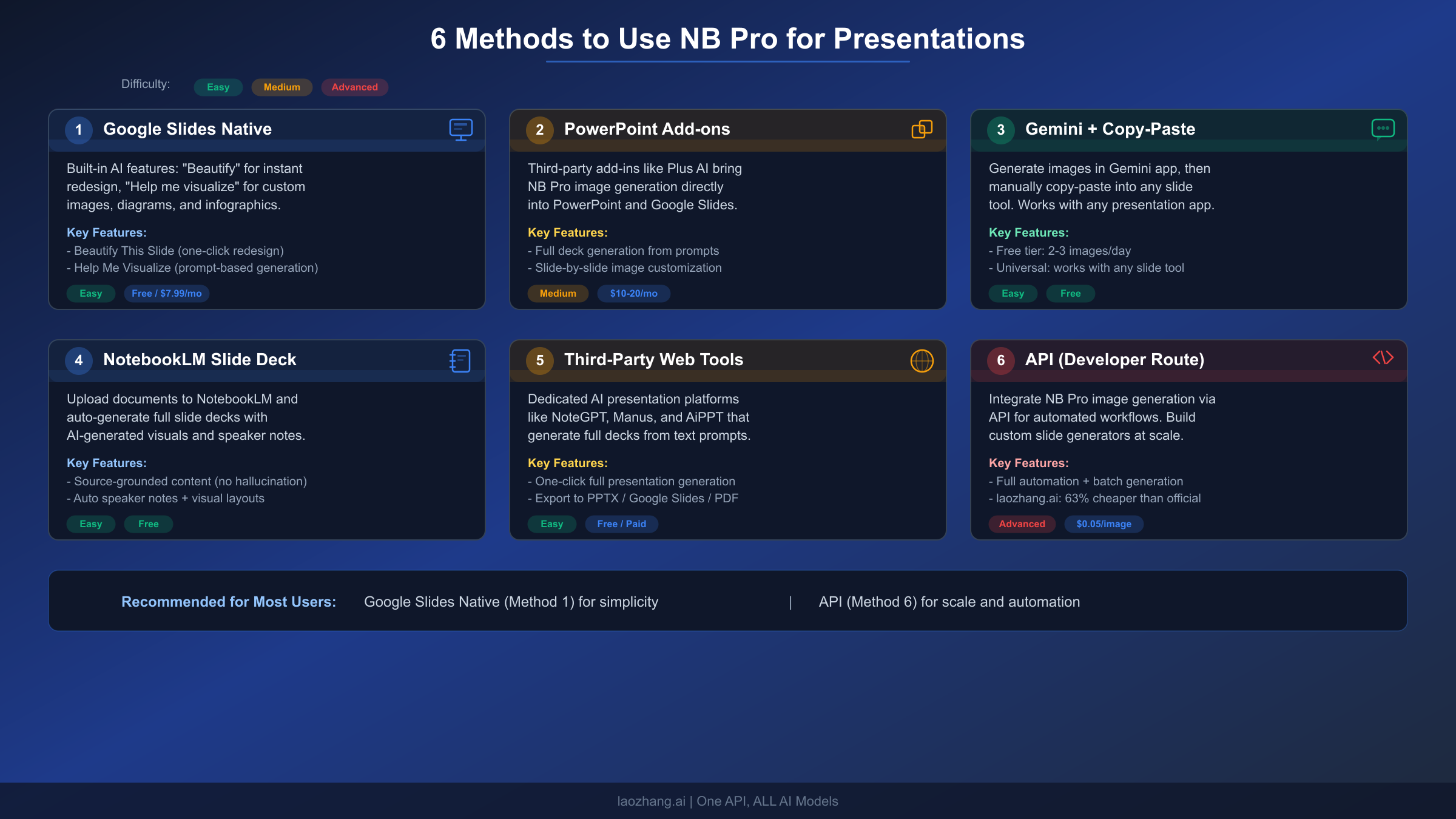
Not all methods are created equal, and choosing the right one depends on your specific situation — whether you have a Google Workspace subscription, need editable output, want free access, or require automated generation at scale. Here is a comprehensive overview of every available approach as of March 2026.
The first method is Google Slides native integration, which provides the most seamless experience through "Help me visualize" and "Beautify this slide" features built directly into Google Slides. This requires a paid Google Workspace plan (Business Standard or higher) but offers the smoothest workflow without switching between applications. It is the recommended approach for enterprise users who already have Workspace subscriptions.
The second method involves PowerPoint add-ons, specifically the Plus AI extension available from the Microsoft Marketplace. After installing the add-on, you can select Nano Banana Pro as the image generation model, write a prompt, and insert the generated image directly onto your PowerPoint slide. This is ideal for organizations standardized on Microsoft Office rather than Google Workspace, though it requires a separate Plus AI subscription after the initial 7-day trial.
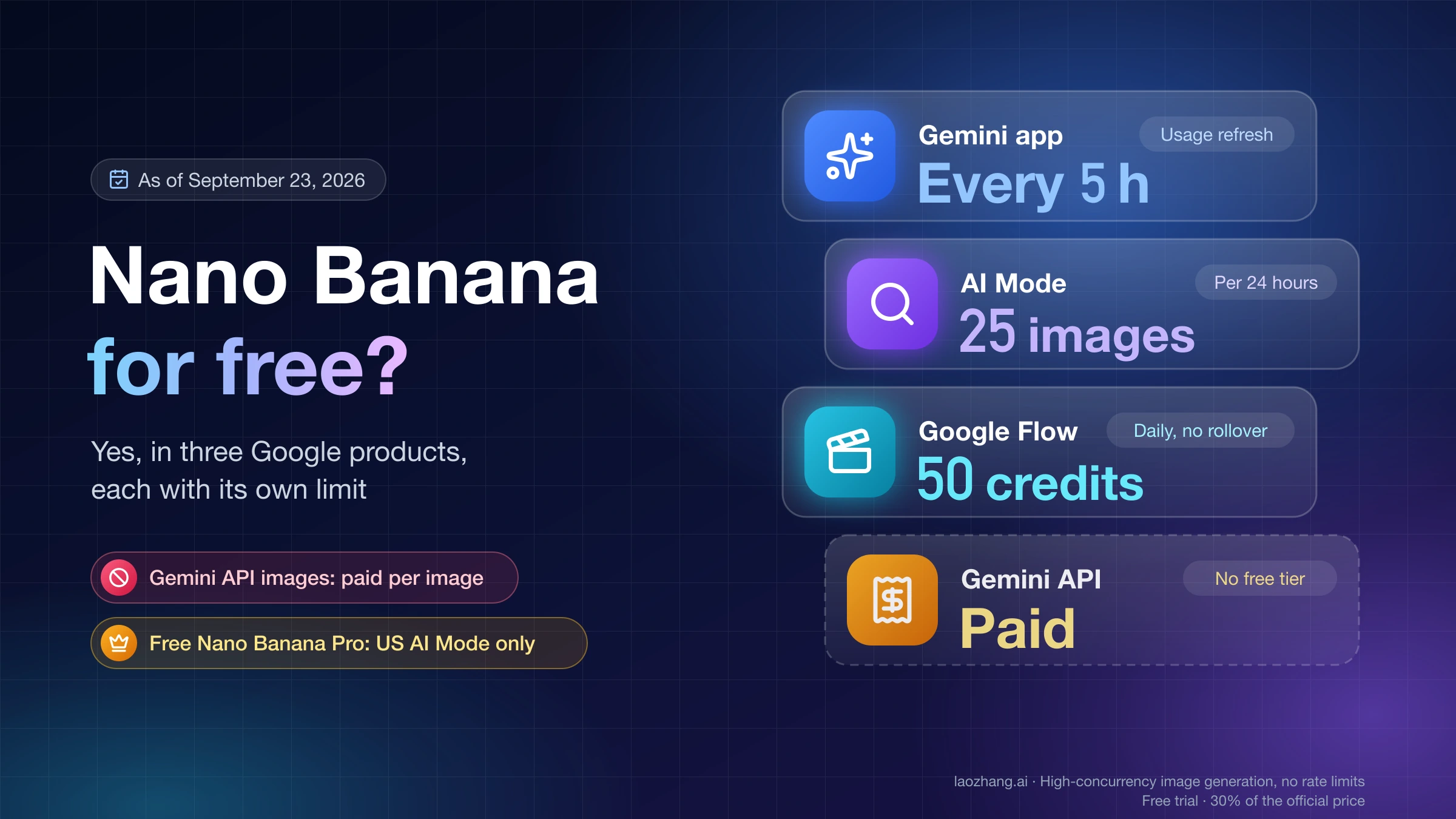
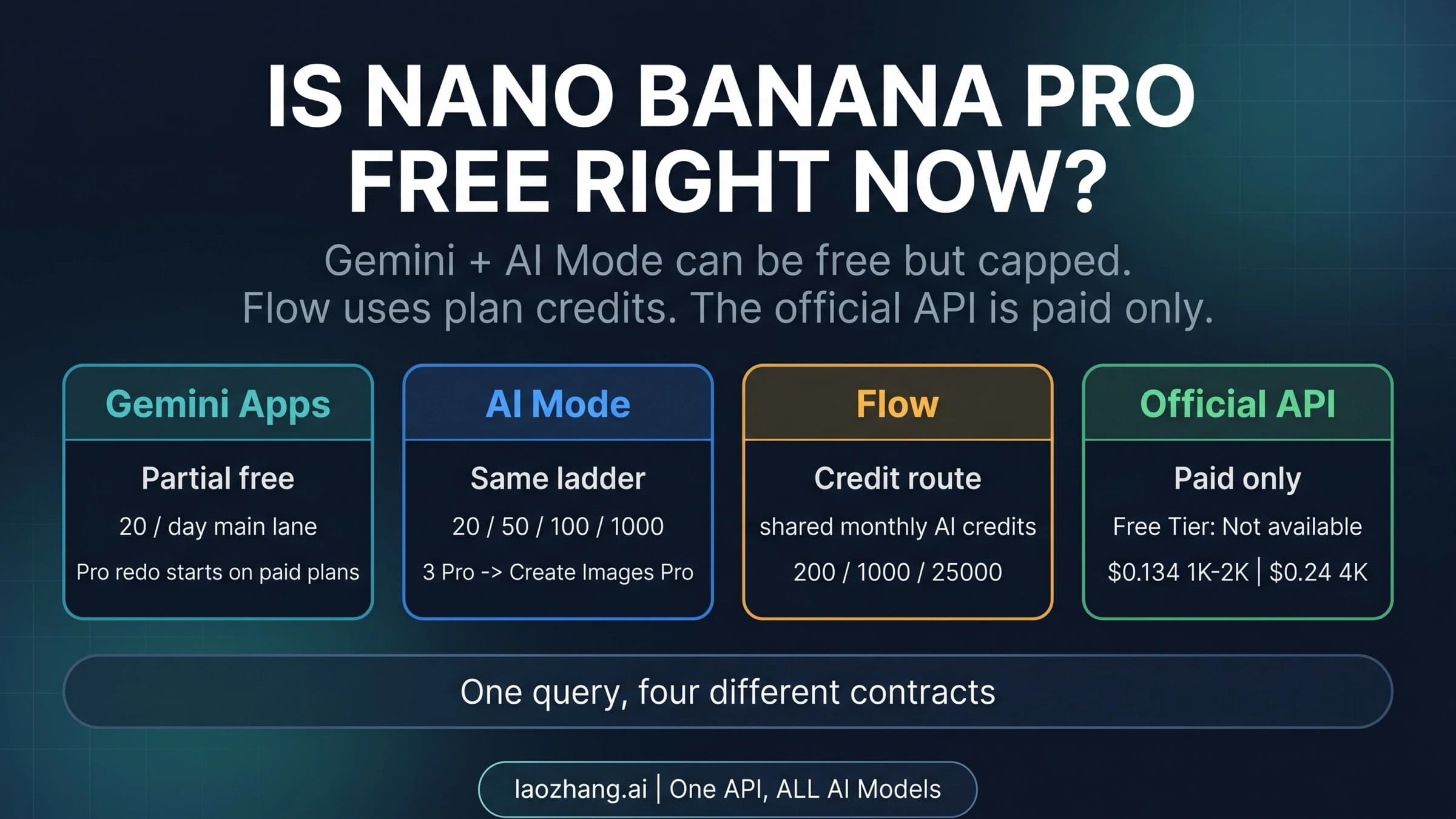
The third and most accessible method is Gemini chatbot plus manual copy-paste. Anyone with a Google account can open the Gemini chatbot (gemini.google.com), ask it to generate a presentation-style image, and then copy and paste the result into any slide application. This method is completely free for basic usage (2-3 images per day on the free tier) and works with any presentation software, though the manual transfer process is slower than integrated solutions.
The fourth method leverages NotebookLM, Google's AI-powered research assistant, which can now generate entire slide decks from uploaded documents. You add your source materials (PDFs, text files, web links), select the "Slide Deck" option, and NotebookLM creates a complete presentation with Nano Banana Pro visuals. This is particularly valuable for converting research documents or reports into presentation format, though the output quality depends heavily on the clarity of your source materials.
The fifth category encompasses third-party web tools including NoteGPT, Manus AI, AiPPT, and Banana Slides. These platforms have integrated Nano Banana Pro as an image generation option within their AI presentation builders. You typically enter a topic or upload content, and the platform generates a complete slide deck with Nano Banana Pro visuals. Many offer free tiers, and the output can usually be downloaded as PPTX, PDF, or imported directly into Google Slides.
The sixth method is the API approach, suited for developers and organizations needing automated or bulk presentation generation. Using the Gemini API directly (model: gemini-3-pro-image-preview), you can programmatically generate presentation visuals, integrate them into templates, and build custom presentation workflows. The official API costs $0.134/image at 2K resolution and $0.24/image at 4K, though third-party providers like laozhang.ai offer the same model at $0.05/image across all resolutions — making bulk generation significantly more affordable. For a complete breakdown of API pricing, see our Nano Banana Pro pricing guide.
Disclosure: laozhang.ai is our own service. Its prices are platform pricing, not an independent comparison.
| Method | Best For | Cost | Ease | Editable Output |
|---|---|---|---|---|
| Google Slides Native | Enterprise Workspace users | Workspace plan ($7.99+/mo) | Easy | Images on slides |
| PowerPoint Add-ons | Microsoft Office users | Plus AI trial/paid | Easy | Images on slides |
| Gemini Copy-Paste | Anyone, free access | Free (2-3/day) | Medium | Images only |
| NotebookLM | Research-to-slides conversion | Free with Google account | Easy | Slide deck |
| Third-Party Web Tools | Quick full-deck creation | Free/freemium | Easy | PPTX download |
| API | Developers, automation | $0.05-$0.24/image | Advanced | Programmatic |
Google Slides Native Guide — Help Me Visualize and Beautify This Slide
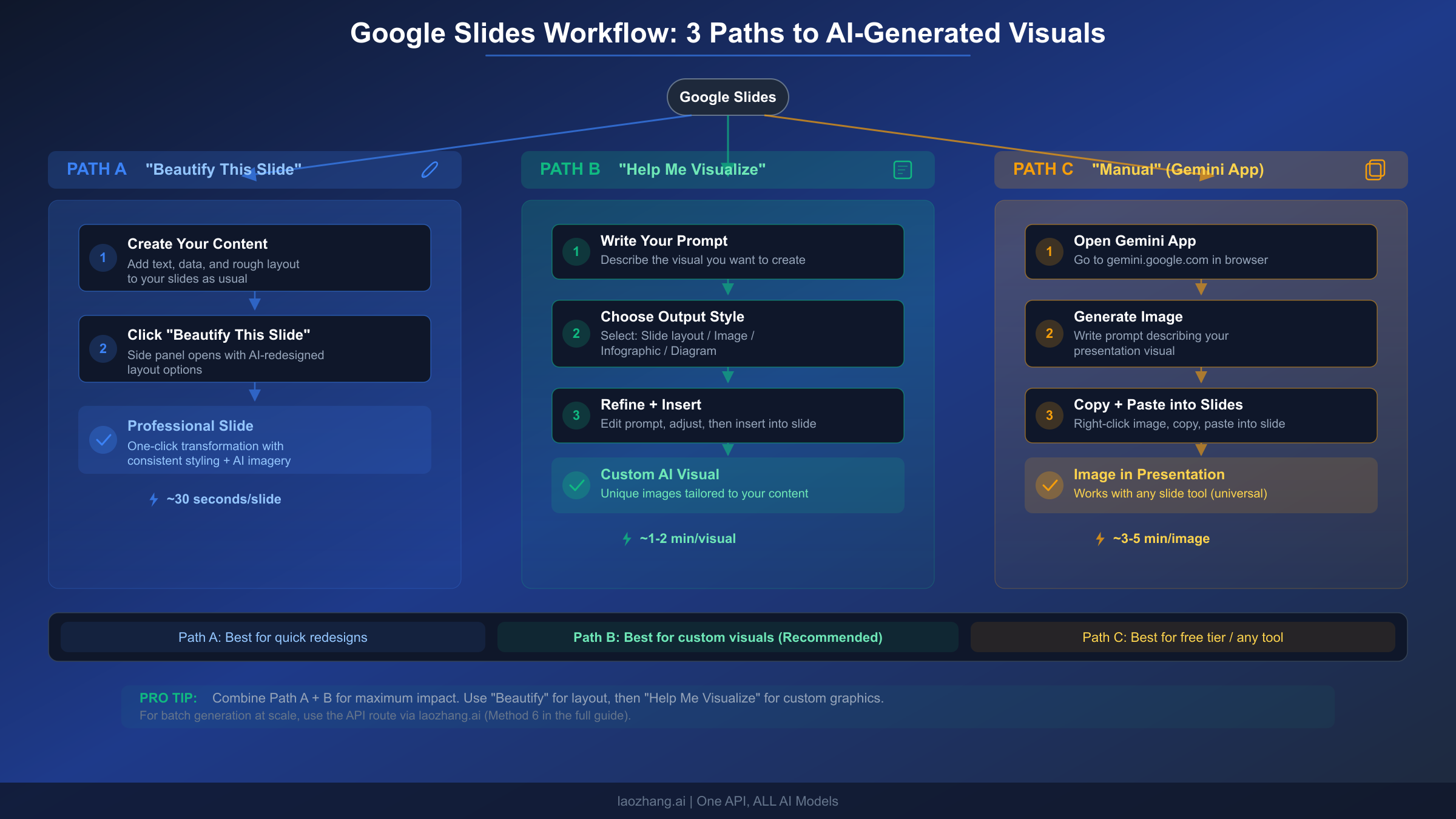
Google Slides received native Nano Banana Pro integration in the November 2025 Workspace Drop (Google Workspace Blog, November 27, 2025), providing two primary features: "Help me visualize" for custom generation and "Beautify this slide" for one-click redesign. Both features are available to Google Workspace customers on Business Standard, Business Plus, Enterprise Standard, Enterprise Plus, Google AI Pro, and Google AI Ultra plans. Note that starting March 1, 2026, higher usage limits require the AI Expanded Access add-on (Google Workspace Updates, February 2026).
Beautify This Slide is the simpler of the two features. You create a slide with your content — text, bullet points, data — in a plain layout, then click the "Beautify this slide" button. Nano Banana Pro analyzes your content and the overall deck's visual theme, then generates a professionally designed version that maintains the fidelity of your text while creating a cohesive visual that matches the look and feel of your presentation. This is particularly effective for converting text-heavy informational slides into visually engaging layouts. The entire process takes a single click and typically completes within 10-15 seconds.
Help Me Visualize provides more granular control through a sidebar interface. You enter a detailed prompt describing what you want to create, then select from three output styles: "slide" for a complete slide layout, "image" for a standalone visual, or "infographic" for data-rich visualizations. After generation, you can refine results using built-in advanced image editing capabilities — adjusting composition, style, or specific elements through follow-up prompts. The infographic option is particularly powerful because it merges Nano Banana Pro's state-of-the-art text rendering with Gemini 3 Pro's advanced reasoning, producing visualizations that accurately represent complex data relationships.
To get the best results from Google Slides native features, provide as much context as possible. Instead of prompting "create a chart about sales," specify "create an infographic showing quarterly revenue growth from $2M to $5M across Q1-Q4 2025, using blue bars with percentage labels above each bar." The more specific your prompt, the more accurate the output. Include your company's color palette or brand guidelines in the prompt to maintain visual consistency across multiple generated slides.
Google Workspace Plan Requirements
| Plan | Monthly Cost | Nano Banana Pro in Slides | Notes |
|---|---|---|---|
| Business Starter | $8.40/user ($7 annual) | Limited (Vids only through May 31, 2026) | No Slides integration |
| Business Standard | $16.80/user ($14 annual) | Full access | Recommended minimum |
| Business Plus | $26.40/user ($22 annual) | Full access | Additional security features |
| Enterprise Standard | Custom | Full access | For large organizations |
| Enterprise Plus | Custom | Full access | Premium support |
| Google AI Pro | $19.99/mo (personal) | Full access | Best for individuals |
| Google AI Ultra | $249.99/mo (personal) | Full access | Maximum usage limits |
If you are a personal user without a Workspace subscription, your best option for Google Slides integration is the Google AI Pro plan at $19.99/month (gemini.google/subscriptions, verified March 2026). This gives you full access to Nano Banana Pro in Slides along with other Gemini premium features.
One important detail that many users miss: after the initial promotional period, Google Workspace imposes per-user usage limits on Nano Banana Pro features. If you find yourself hitting these limits during a critical presentation preparation session, you have two immediate options. First, you can switch to the Gemini chatbot directly and copy-paste generated images into your slides — this uses a separate quota from the Slides integration. Second, if you need high volume, the API route through a provider like laozhang.ai at $0.05/image gives you unlimited generations without any daily caps.
Disclosure: laozhang.ai is our own service. Its prices are platform pricing, not an independent comparison.
The "Beautify this slide" feature works best when you start with a content-rich but visually plain slide. Enter all your text, data points, and bullet points in a basic layout, and let Nano Banana Pro handle the visual design. Trying to beautify a slide that is already partially designed often produces inconsistent results because the model attempts to reconcile your existing design choices with its generated aesthetic. Start plain, and let the AI do the heavy lifting for the most consistent outcomes.
Best Third-Party Tools for AI Presentations with Nano Banana Pro
For users without Google Workspace subscriptions or those who want more comprehensive AI presentation builders, several third-party platforms have integrated Nano Banana Pro as their image generation engine. Each offers different strengths, pricing models, and output formats, so choosing the right one depends on your specific needs and budget.
Plus AI is currently the most polished integration, available as both a Google Slides add-on and a PowerPoint add-in. It embeds directly into your existing slide application, allowing you to generate Nano Banana Pro images without leaving your presentation editor. The workflow is straightforward: click "Add Image" (in Google Slides) or "Insert Image" (in PowerPoint), select the Nano Banana Pro model, write your prompt, and the generated image inserts directly onto your current slide. Plus AI offers a 7-day free trial, after which pricing starts at approximately $10/month for the basic plan. The key advantage is seamless integration with existing tools, though the subscription cost adds up for occasional users.
NoteGPT offers a free web-based AI slides maker that uses Google Slides AI combined with Nano Banana Pro image generation. You enter a topic or paste content, and NoteGPT generates a complete slide deck that you can export to Google Slides format. With a 4.9 rating from over 86,000 users (Google Search, March 2026), it is one of the most popular options. The free tier is surprisingly generous, handling both short and long presentations without cost. The main limitation is that the generated decks follow NoteGPT's template designs rather than allowing full customization.
Manus AI takes a different approach by building entire presentations from scratch using AI agents. You describe what you need, and Manus creates slide-ready visuals with text, graphics, and layouts powered by Nano Banana Pro. The output can be downloaded as PPTX, PDF, or directly exported to Google Slides. With 21 million monthly visitors (aitdk.com, March 2026), it has become one of the most visited AI presentation platforms. The free tier allows basic creation, with premium features available for more complex projects.
AiPPT specializes in PPT creation with native Nano Banana Pro integration. It offers two workflows: generating from scratch by describing your content, or using templates as a starting point and enhancing them with AI-generated visuals. The platform provides free credits for Nano Banana Pro image generation and offers special pricing for university students through the Google AI Pro package. Its template library is particularly strong for business presentations, with industry-specific designs for sales pitches, quarterly reports, and training materials.
Banana Slides is an open-source project on GitHub (github.com/Anionex/banana-slides) that provides a native Nano Banana Pro-powered PPT generator. You can create presentations from a single sentence, an outline, or page-by-page descriptions, then verbally modify specific regions. Because it is open-source, developers can customize the generation pipeline, integrate it with existing workflows, and avoid ongoing subscription costs. This option requires more technical setup but offers the most flexibility and control.
When choosing between these tools, consider how frequently you create presentations. If you build a deck once a month, NoteGPT's free tier is more than sufficient. If you create presentations weekly as part of your job, the Plus AI add-on provides the most efficient workflow by keeping everything within your existing presentation editor. For teams that need standardized, on-brand presentations at scale, Manus AI or the API route through Banana Slides offers the automation capabilities that manual tools cannot match. Each tool generates output as downloadable PPTX files or Google Slides-compatible formats, so you are never locked into a single platform regardless of which generation tool you choose.
Prompt Engineering Tips for Stunning Presentation Visuals
The quality of Nano Banana Pro output for presentations depends heavily on how you construct your prompts. Generic prompts produce generic results, while specific, well-structured prompts can generate visuals that look like they were created by a professional designer. Here are practical templates and guidelines based on extensive testing with the model.
For cover slides, structure your prompt to include the topic, visual style, and mood. A weak prompt like "make a cover slide about AI" will produce something bland and generic. Instead, try: "Create a professional presentation cover slide with the title 'AI Strategy 2026' in large white text on a deep blue gradient background. Include subtle geometric patterns and a minimalist circuit board illustration in the lower right corner. Modern, corporate style with high contrast." The specificity in color, layout, and style gives Nano Banana Pro enough context to generate something genuinely usable.
For infographics and data visualizations, always provide the actual data you want represented. Nano Banana Pro's reasoning capabilities allow it to accurately position and label data points when given specific numbers. For example: "Create an infographic comparing three cloud providers. AWS: 32% market share, Azure: 23%, Google Cloud: 11%. Use a horizontal bar chart with blue for AWS, orange for Azure, and green for Google Cloud. Include percentage labels at the end of each bar. Title: Cloud Market Share 2025. Clean, minimalist design with white background." Including actual numbers, colors, and layout preferences dramatically improves output quality.
For process diagrams and flowcharts, describe the flow sequentially and specify connection types. A good template is: "Create a horizontal flowchart showing 4 steps: 1) Upload Data (blue box) → 2) AI Processing (green box) → 3) Quality Check (yellow box with decision diamond) → 4) Export Results (blue box). Use arrows between steps. Include small icons inside each box representing each action. Professional flat design style." When prompting for flowcharts, explicitly mentioning "arrows between steps" is important because Nano Banana Pro may otherwise create disconnected boxes.
For comparison tables and matrices, provide the exact structure. Nano Banana Pro excels at creating visually appealing comparison layouts: "Create a 3-column comparison card layout. Column 1: 'Free Plan' with a gray header, features: 2-3 images/day, 1MP resolution, basic editing. Column 2: 'Pro Plan' with a blue header, features: unlimited images, 4K resolution, advanced editing, $19.99/month. Column 3: 'Enterprise' with a gold header, features: team management, API access, priority support, custom pricing. Highlight the Pro Plan as 'Most Popular' with a badge."
For team or brand presentations, consistency across slides matters more than individual quality. When generating visuals for a corporate deck, start by creating a "style prompt prefix" that you prepend to every generation request. For example: "Corporate style. Navy blue (#1E3A8A) background, white text, Roboto font, minimal design, no decorative borders, 16:9 aspect ratio." By keeping this prefix consistent across all your prompts, you significantly increase the visual coherence of your generated slides. Some users save these prefixes in a team document so that anyone creating presentations maintains the same visual identity.
Here are key principles that consistently improve results across all presentation visual types. First, always specify the color palette — either by naming colors directly ("#3B82F6 blue") or by referencing a well-known style ("Material Design colors"). Second, mention the intended display context ("for a 16:9 presentation slide projected on a large screen") so the model optimizes for readability at that scale. Third, include negative instructions when necessary ("no decorative borders, no watermark, no shadows") to prevent unwanted elements. Fourth, request "clean, professional, minimalist" style explicitly — without this, Nano Banana Pro sometimes defaults to more decorative, consumer-oriented aesthetics that may not suit business presentations.
Cost Comparison — Free to Enterprise Options
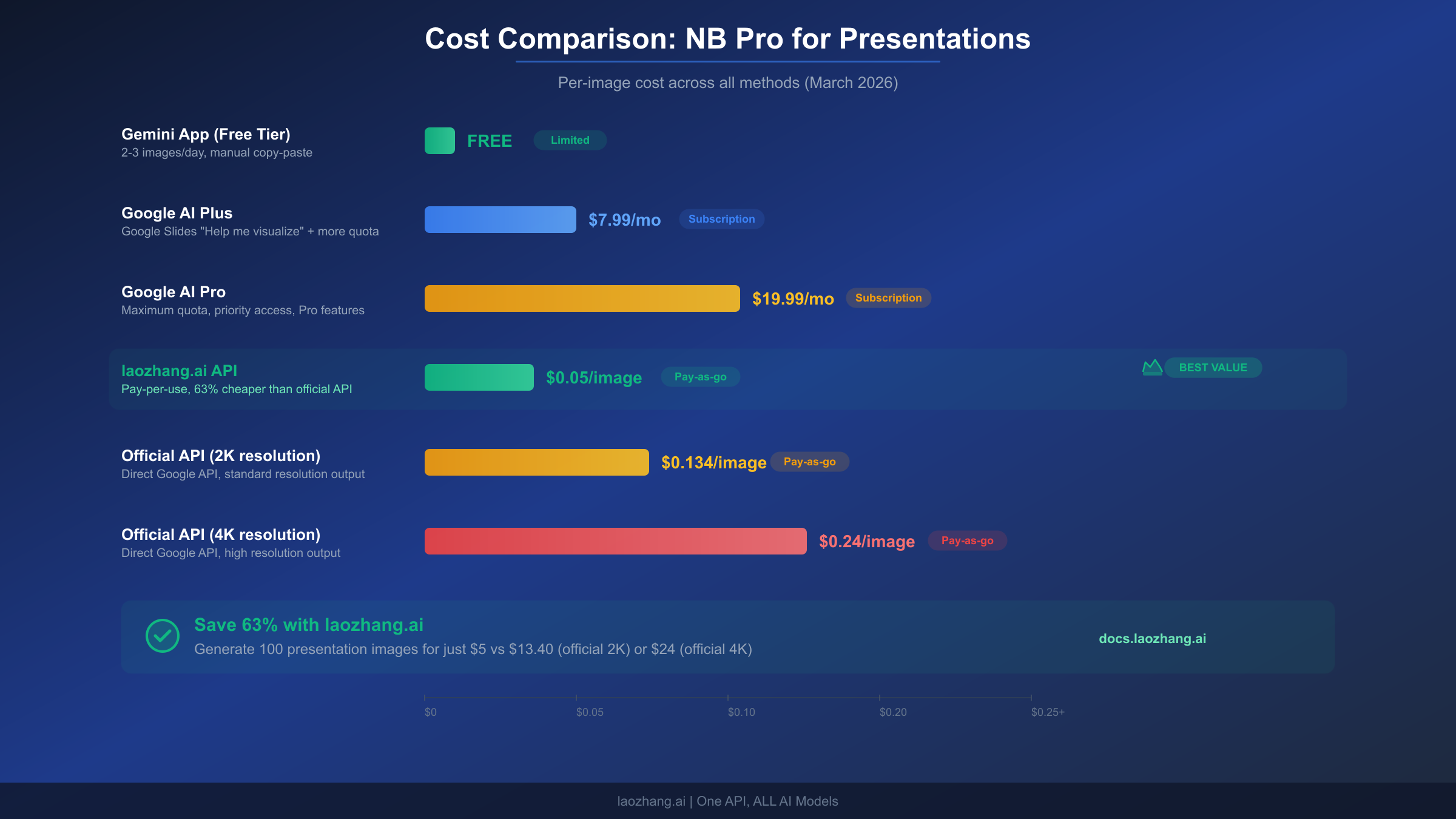
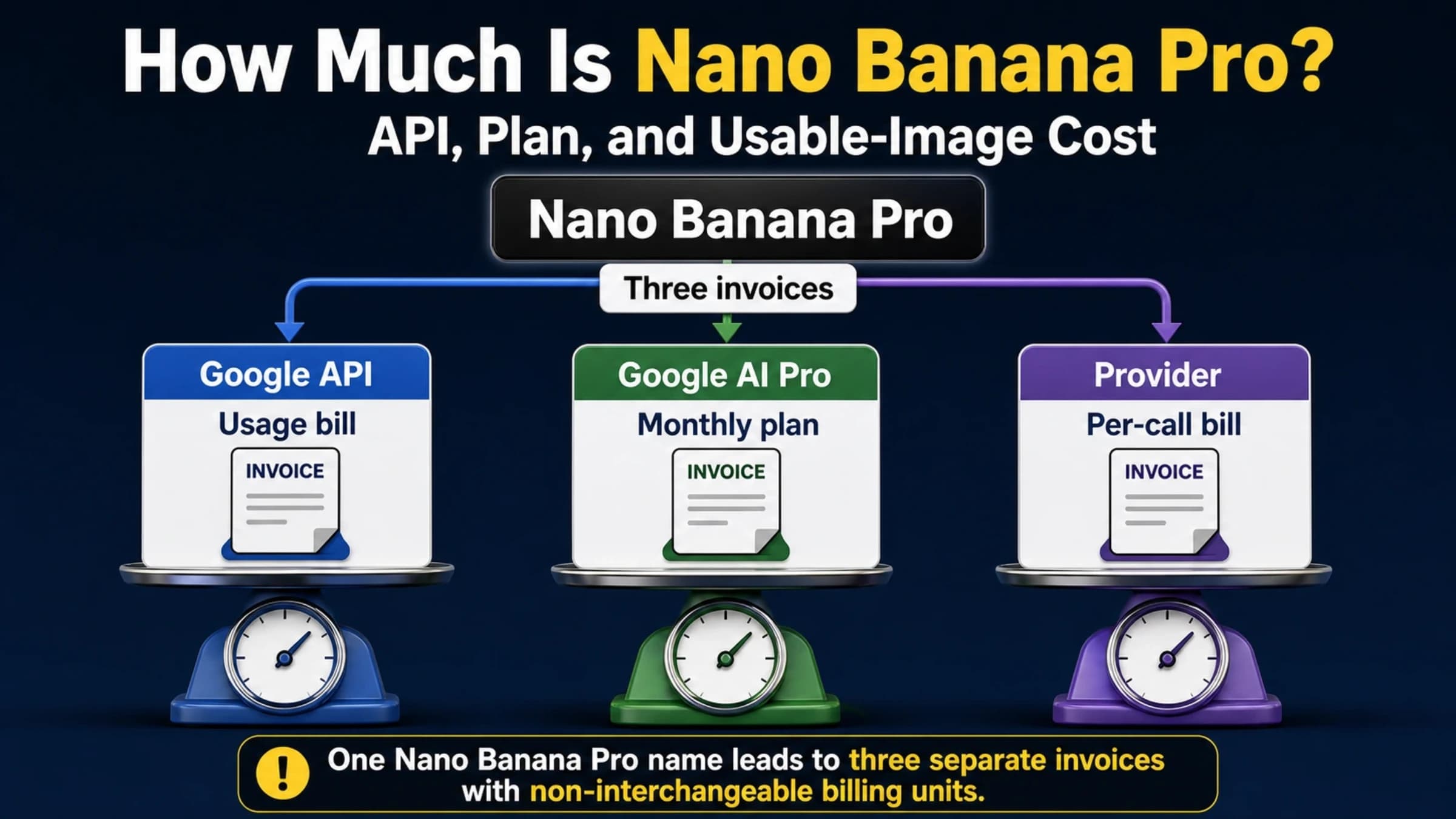
Understanding the true cost of using Nano Banana Pro for presentations requires looking beyond the per-image price to consider the total workflow cost including subscriptions, tools, and time investment. Here is a comprehensive breakdown of every pricing tier available as of March 2026, verified through Google Search and official documentation.
The completely free option is using the Gemini chatbot at gemini.google.com with a free Google account. This gives you 2-3 Nano Banana Pro image generations per day at 1 megapixel resolution (approximately 1024x1024). For someone creating a single presentation with 4-5 AI-generated visuals, this could be sufficient if spread across multiple days. The limitation is the daily cap and lower resolution, which may not look sharp on high-resolution projectors.
For individuals wanting more capacity, Google AI Plus at $7.99/month provides higher daily limits and access through the Gemini app, though this does not include Google Slides native integration. Google AI Pro at $19.99/month adds full Nano Banana Pro access in Google Slides (Beautify and Help me visualize features), making it the minimum viable option for individuals who want the integrated Google Slides experience. Google AI Ultra at $249.99/month provides the highest usage limits but is typically only justified for power users generating dozens of presentation visuals daily.
For organizations, Google Workspace Business Standard at $14.40/user/month is the most cost-effective plan that includes Nano Banana Pro in Slides. This bundles presentation AI features with email, storage, and other Workspace tools, making it the natural choice for businesses that would use Workspace anyway.
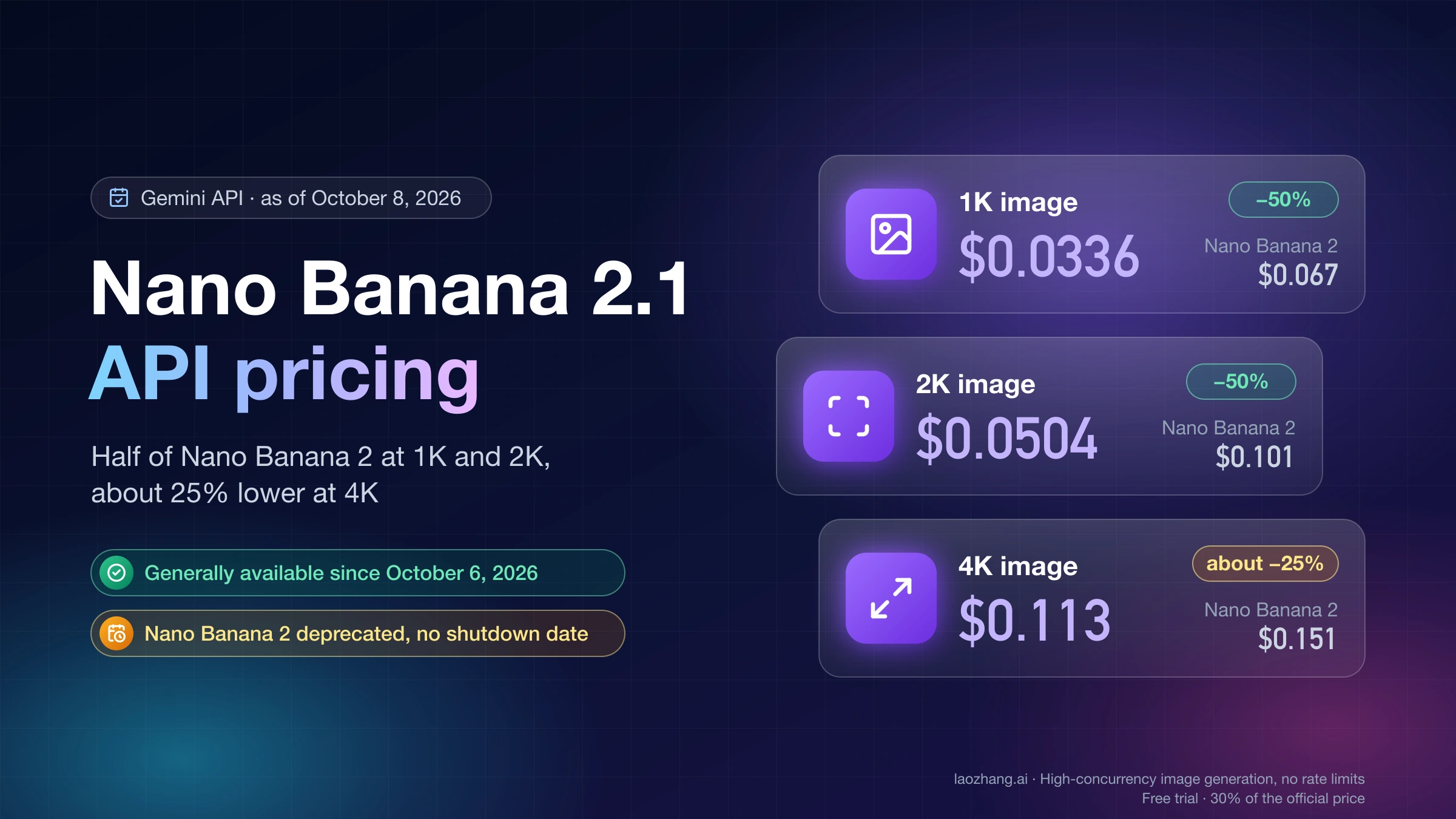
For developers and automation-focused workflows, the API route offers pay-per-use pricing. The official Gemini API charges $0.134/image at 2K resolution and $0.24/image at 4K resolution (Google AI Developer Forum, January 2026). However, third-party API providers offer significantly lower rates. laozhang.ai provides Nano Banana Pro at $0.05/image across all resolutions — approximately 63% cheaper than official 2K pricing and 79% cheaper than 4K pricing. For someone generating 100 presentation visuals per month, this difference adds up: $13.40/month via official API versus $5.00/month via laozhang.ai. You can explore the full API documentation at docs.laozhang.ai.
Disclosure: laozhang.ai is our own service. Its prices are platform pricing, not an independent comparison.
| Method | Monthly Cost | Images/Month | Cost/Image | Best For |
|---|---|---|---|---|
| Gemini Free | $0 | ~60-90 | $0 | Occasional users |
| Google AI Plus | $7.99 | Higher limit | ~$0.08-0.13* | Personal light use |
| Google AI Pro | $19.99 | High limit + Slides | ~$0.04-0.10* | Individuals wanting Slides integration |
| Workspace Business Standard | $14.40/user | Included | Bundled | Organizations |
| Official API (2K) | Pay-per-use | Unlimited | $0.134 | Developers |
| Official API (4K) | Pay-per-use | Unlimited | $0.24 | High-res needs |
| laozhang.ai API | Pay-per-use | Unlimited | $0.05 | Cost-optimized API |
| NoteGPT Free | $0 | Limited | $0 | Quick slide decks |
*Estimated based on typical usage patterns. Actual cost per image varies with total generation volume.
For anyone looking to get the most value, the decision tree is straightforward. If you already have Google Workspace Business Standard or higher, you already have access — just start using it. If you are an individual who wants Google Slides integration, Google AI Pro at $19.99/month is the path. If you want to build custom workflows or need bulk generation, the API through laozhang.ai at $0.05/image gives you the best economics. And if you just need a few slides quickly for free, NoteGPT or the Gemini chatbot with copy-paste will get the job done. For a comprehensive look at free AI image generation options, our Google AI Studio access guide covers additional free-tier strategies.
Known Limitations and Smart Workarounds
While Nano Banana Pro represents a significant leap forward for AI-generated presentation visuals, it has real limitations that you should understand before committing to a workflow. Being aware of these constraints upfront will save you time and prevent frustration during critical presentation preparation.
The most significant limitation is non-editable output. When Nano Banana Pro generates a slide visual, an infographic, or a data chart, the result is a raster image — a flat picture that gets placed on your slide. You cannot click into it and edit individual text elements, adjust specific colors, move chart labels, or update data points. If you need to change a number in a generated infographic, you must regenerate the entire image with an updated prompt. This is fundamentally different from tools like Canva or Beautiful.ai, which generate editable vector graphics with individually selectable elements. The workaround is to use Nano Banana Pro for visuals that are unlikely to change (cover slides, decorative backgrounds, illustrative diagrams) and use traditional tools for data-heavy slides that require frequent updates.
Style consistency across multiple generated slides can be challenging. Even when you use the same prompt structure and color specifications, Nano Banana Pro may produce visuals with slightly different styles, lighting, or typography. The "Beautify this slide" feature in Google Slides partially addresses this by analyzing your deck's existing visual theme, but the results are not always perfectly consistent. The best workaround is to generate all your key visuals in a single session, then manually adjust any that deviate from the desired style, or provide an extremely detailed style guide in every prompt.
Generation limits vary by plan and change over time. Google introduced a promotional period with higher limits when Nano Banana Pro launched, but as of March 2026, usage caps are being enforced more strictly. The AI Expanded Access add-on is now required for higher usage (Google Workspace Updates, February 2026). If you hit limits during a critical presentation preparation session, your options are to switch to the API (which has no daily caps), use a third-party tool like NoteGPT, or wait for the limit to reset.
Language support is broad but not perfect. Nano Banana Pro handles English text with the highest accuracy, and while it supports Japanese, Korean, Arabic, and many other languages, text accuracy drops somewhat for complex scripts. If your presentation requires text in multiple languages, test the accuracy with a sample prompt before committing to generating an entire deck. For 4K resolution capabilities and their impact on presentation quality, see our 4K image generation guide.
Resolution considerations matter for presentations specifically. While 4K (4096x4096) output looks stunning, it is square — not the 16:9 aspect ratio standard for presentations. You will need to crop or request specific aspect ratios in your prompt. The "Help me visualize" feature in Google Slides handles this automatically by generating visuals sized to fit your slide dimensions, but when using the Gemini chatbot or API directly, you should specify "16:9 aspect ratio" or "1920x1080 resolution" in your prompt.
Content accuracy in generated infographics is good but not perfect. When Nano Banana Pro creates a chart from your data, it generally represents the relative proportions correctly, but you should always verify specific numbers in the generated output against your source data. A bar chart showing market share percentages might render 32% as visually accurate but display "31%" in the text label. For data-critical presentations (financial reports, board decks), consider using Nano Banana Pro for decorative and illustrative elements while keeping actual data in native, editable chart objects that you can verify precisely.
Batch consistency is another practical consideration. When generating multiple related slides for a single presentation, each generation operates independently — Nano Banana Pro does not maintain a "session" that remembers previous outputs. This means that character illustrations, color palettes, and design motifs may vary between slides even with similar prompts. The most reliable workaround is to include very specific style instructions in every prompt (exact hex colors, font style, layout structure) and to generate related visuals close together in time. Some users have found success by including a brief style reference in every prompt, such as "style: minimalist corporate, colors: #1E3A8A primary and #10B981 accent, white background, Inter font."
FAQ
Can I use Nano Banana Pro in Google Slides for free?
Not with the native integration. The "Beautify this slide" and "Help me visualize" features in Google Slides require a paid Google Workspace plan (Business Standard or higher) or a personal Google AI Pro subscription ($19.99/month). However, you can generate images for free using the Gemini chatbot (2-3 per day) and manually copy-paste them into Google Slides, or use free third-party tools like NoteGPT to generate entire slide decks that can be imported into Slides.
Why did Nano Banana Pro stop working in my Google Slides?
This is a common issue reported by users (Google Help Community, December 2025). The most frequent causes are: your promotional access period expired and you need the AI Expanded Access add-on (required from March 1, 2026), your organization's admin has not enabled Gemini features, or you have hit your daily usage limit. Try clearing your browser cache, checking with your Workspace admin, or waiting 24 hours for limits to reset.
Is Nano Banana Pro better than Gamma or Canva AI for presentations?
They serve different purposes. Nano Banana Pro excels at generating individual high-quality visuals with accurate text — infographics, data charts, cover slides. Gamma and Canva AI are full presentation builders that generate editable slide decks with individually manipulable elements. If you need a complete presentation with editing flexibility, Gamma or Canva may be better choices. If you need stunning, text-accurate visuals to enhance existing presentations, Nano Banana Pro is superior. Many professional users combine both: Gamma for the slide structure and Nano Banana Pro for key visuals.
What is the best free way to create a full presentation with Nano Banana Pro?
Use NoteGPT's free AI Slides Maker at notegpt.io/nano-banana-pro-slides. Enter your topic or paste your content, and it generates a complete slide deck using Nano Banana Pro for visuals. You can download the result as a Google Slides-compatible file. For individual images, use the Gemini chatbot (gemini.google.com) for free with a Google account (2-3 generations per day).
Can I use Nano Banana Pro through the API for automated presentation generation?
Yes. The Gemini API (model: gemini-3-pro-image-preview) allows programmatic image generation. You can build scripts that generate presentation visuals, apply them to templates, and produce slide decks automatically. The official API costs $0.134/image (2K resolution), while providers like laozhang.ai offer it at $0.05/image. The open-source Banana Slides project on GitHub (github.com/Anionex/banana-slides) provides a ready-made framework for API-driven presentation generation.