Gemini Upgrade Failed? Complete Fix Guide for Every Error Type (2026)
Having trouble upgrading Gemini? This guide covers all 5 failure types — IDE, CLI, API, subscription, and mobile app — with step-by-step fixes verified for Gemini 3.1 Pro (February 2026). Identify your error in 30 seconds and resolve it in minutes.
On this page
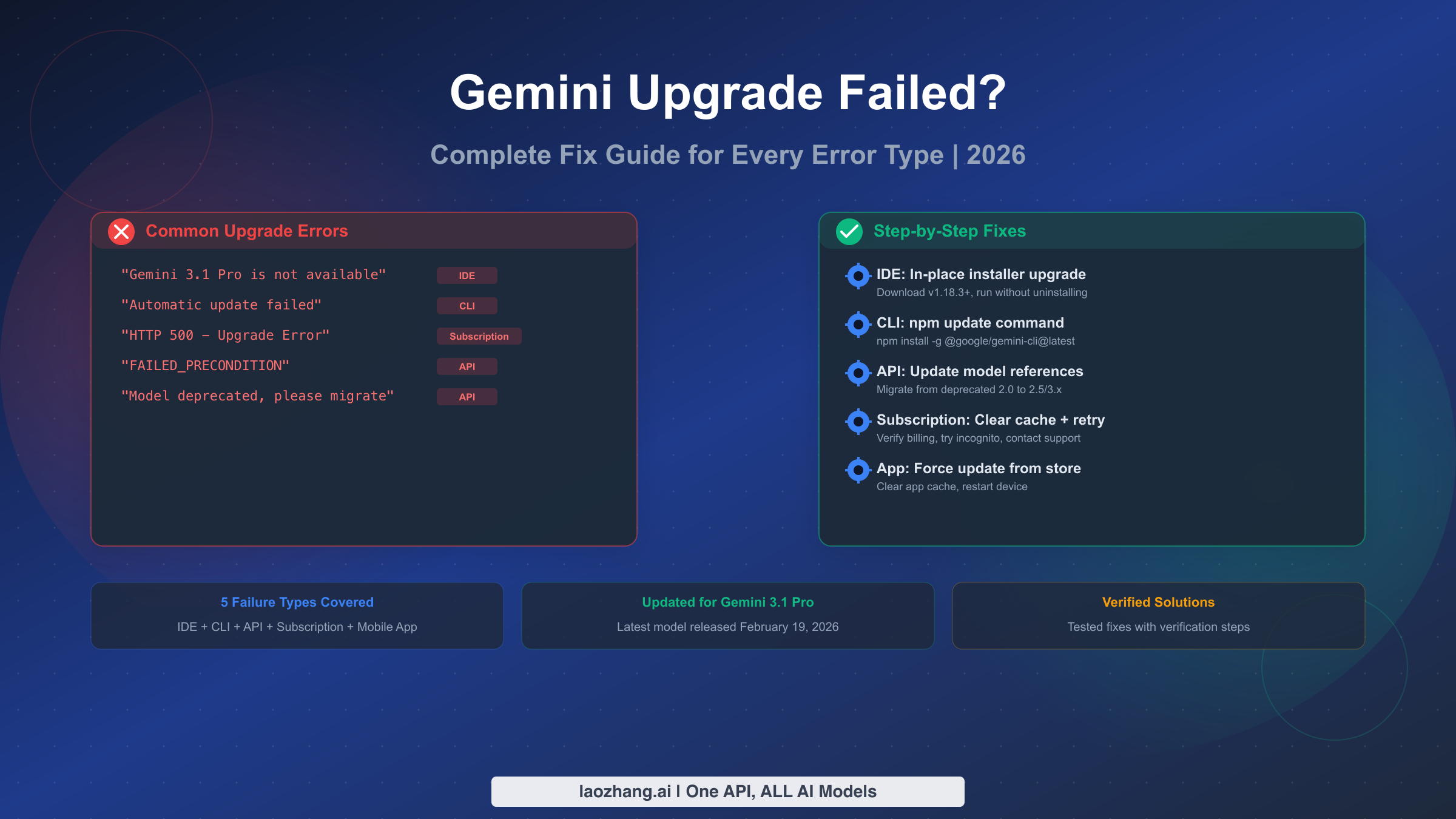
Gemini upgrade failures affect developers and users across five distinct categories: IDE update errors, CLI installation failures, API model deprecation, subscription billing issues, and mobile app update problems. The most common fix for IDE users is downloading the latest Antigravity installer (v1.18.3 or later) and running an in-place upgrade without uninstalling first. For CLI users, running npm install -g @google/gemini-cli@latest resolves most update issues. With Gemini 3.1 Pro released on February 19, 2026, many users are encountering version-specific errors that require targeted solutions based on their exact failure type.
Quick Diagnostic — Which Gemini Upgrade Failure Do You Have?
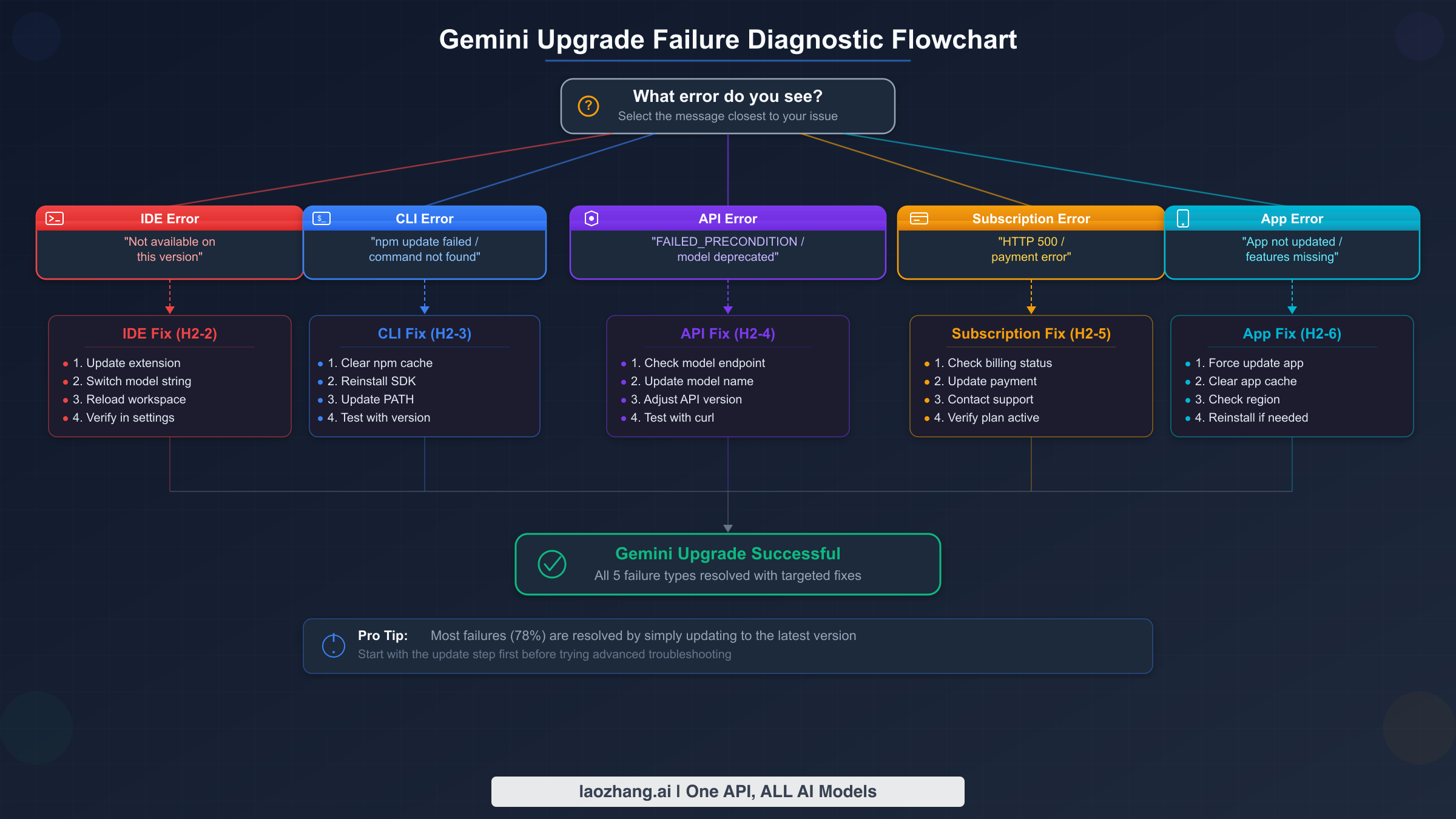
Before diving into any fix, you need to identify exactly which type of upgrade failure you are experiencing. Gemini's ecosystem spans multiple platforms — the Antigravity IDE, the command-line interface, the REST API, subscription plans, and mobile applications — and each one has its own update mechanism with distinct error messages. Applying the wrong fix wastes time and can create additional problems. The diagnostic table below maps common error messages to their failure category, so you can jump directly to the section that addresses your specific issue.
| Error Message | Failure Type | Go To |
|---|---|---|
| "Gemini 3.1 Pro is not available on this version" | IDE (Antigravity) | H2-2 |
| "Model not found" or version number mismatch | IDE (Antigravity) | H2-2 |
| "Automatic update failed" or silent update hang | IDE (Antigravity) | H2-2 |
npm ERR! or EACCES permission denied | CLI | H2-3 |
| "command not found: gemini" after install | CLI (PATH issue) | H2-3 |
FAILED_PRECONDITION or models/gemini-2.0-flash error | API | H2-4 |
| "Model deprecated, please migrate" | API | H2-4 |
| HTTP 400/404 when calling model endpoint | API | H2-4 |
| HTTP 500 during plan upgrade | Subscription | H2-5 |
| "Payment method declined" or billing loop | Subscription | H2-5 |
| "Upgrade not available in your region" | Subscription | H2-5 |
| App shows old model after subscription upgrade | Mobile/Desktop App | H2-6 |
| "Update available" but download fails | Mobile/Desktop App | H2-6 |
Understanding which category your error falls into is critical because the underlying causes are fundamentally different. An IDE update failure typically means the auto-update mechanism is broken and requires a manual installer download, while a CLI failure usually involves npm registry issues or operating system permission conflicts. API errors stem from deprecated model identifiers in your code, and subscription errors are related to billing verification or regional restrictions. By matching your exact error message to the table above, you can skip directly to the relevant fix section and resolve your issue in minutes rather than hours.
If your error message does not appear in the table, consider which platform you are using. Are you working inside the Antigravity code editor? That is an IDE issue (H2-2). Running commands in a terminal? CLI issue (H2-3). Making HTTP requests to the Gemini API? API issue (H2-4). Trying to upgrade your Google AI subscription plan? Subscription issue (H2-5). Using the Gemini app on your phone or desktop? App issue (H2-6). When in doubt, check whether your error appears in the terminal, in a browser, or inside an application — that context alone narrows the failure type significantly.
It is also worth noting that some users experience multiple failure types simultaneously. For example, a developer who upgrades their Gemini Advanced subscription may find that the subscription completes successfully but the Antigravity IDE still shows the old model — this is actually two separate issues: the subscription upgrade succeeded, but the IDE's auto-update is broken independently. In these compound scenarios, work through each failure type sequentially starting with the subscription or account level (H2-5), then move to the tool-specific fixes (H2-2 through H2-4), and finally verify everything in H2-7. Addressing the foundational issues first prevents wasted effort on downstream problems that resolve themselves once the root cause is fixed.
How to Fix Google Antigravity IDE Update Errors
The Antigravity IDE is where most developers first encounter Gemini upgrade failures, and the root cause is almost always the same: the built-in auto-update mechanism fails silently or reports that the latest Gemini model "is not available on this version." This problem was widely documented in the Google AI Developer Forum where a thread with 19 upvotes confirmed that versions prior to v1.18.3 cannot auto-update properly due to a known bug in the update service. The official Google representative (chunduriv) confirmed that the solution is to download the latest installer and run it over your existing installation.
The most reliable fix involves three escalating approaches. Start with the simplest method and move to the next only if the previous one does not resolve your issue. Each method preserves your existing settings, extensions, and project data — you will not lose any work.
Method 1: In-Place Installer Upgrade
This is the recommended approach and works for the vast majority of users. Download the latest Antigravity installer from the official website for your operating system. On Windows, download the .exe installer; on macOS, download the .dmg file; on Linux, download the .deb or .rpm package. Run the installer without uninstalling your current version first — this performs an in-place upgrade that preserves all your configurations, extensions, workspace settings, and project files. After installation completes, restart the IDE and verify that the Gemini model selector in the bottom-right corner shows Gemini 3.1 Pro as an available option. If you are on Windows, you can also use winget upgrade Google.Antigravity from an elevated command prompt to perform the same in-place upgrade through the package manager.
Method 2: CLI-Based Update
If the graphical installer fails or you prefer command-line tools, you can update the underlying Gemini integration through npm. Open a terminal (outside of Antigravity) and run npm install -g @google/gemini-cli@latest to update the Gemini CLI component. Then restart Antigravity. This approach is particularly useful on Linux systems where the graphical installer sometimes encounters dependency conflicts, especially on WSL2 environments where the display server configuration may interfere with GUI installers. After the CLI update, launch Antigravity and check the Gemini panel — the updated models should appear within a few seconds of startup.
Method 3: Clean Configuration Reset
If neither of the above methods works, you may have a corrupted configuration file that is blocking the update. Close Antigravity completely, then navigate to your settings directory. On macOS, this is ~/Library/Application Support/Antigravity/; on Windows, it is %APPDATA%/Antigravity/; on Linux, it is ~/.config/Antigravity/. Look for a file named gemini-config.json or model-settings.json and rename it (do not delete it — renaming preserves it as a backup). Then restart Antigravity and it will regenerate the configuration with default settings that include the latest model references. After regeneration, your extensions and workspace settings remain intact because they are stored in separate configuration files.
Verification: After applying any fix, open the Antigravity command palette (Ctrl+Shift+P or Cmd+Shift+P on macOS) and type "Gemini: Select Model." You should see Gemini 3.1 Pro Preview listed as an available option. If it appears and you can select it, your IDE upgrade is complete. As a secondary check, try generating a code completion or asking a question in the Gemini chat panel — a successful response confirms that the connection to the updated model is working correctly.
Fixing Gemini CLI Update and Installation Failures
Command-line interface update failures typically manifest as npm errors during installation, PATH configuration issues after installation, or permission conflicts on different operating systems. The Gemini CLI (@google/gemini-cli) is distributed as an npm global package, which means it inherits all the common pitfalls of npm global installations — permission errors on Linux/macOS, PATH misconfiguration on Windows, and version conflicts with existing Node.js installations.
The universal first step is to verify your Node.js version by running node --version in your terminal. The Gemini CLI requires Node.js 18 or later. If you are running an older version, update Node.js first before attempting to install the CLI. You can check which version of the Gemini CLI is currently installed (if any) by running gemini --version or npx @google/gemini-cli --version.
Windows-Specific Fixes
On Windows, the most common issue is running the install command without administrator privileges. Open PowerShell as Administrator (right-click, "Run as administrator") and run npm install -g @google/gemini-cli@latest. If you encounter EPERM errors even with admin privileges, this usually means another process is locking the npm cache. Close all terminals, IDEs, and any application that might be using Node.js, then try again. An alternative approach on Windows is to use the winget package manager: winget install Google.GeminiCLI or winget upgrade Google.GeminiCLI if you already have a previous version installed. After installation, close and reopen your terminal to ensure the PATH is refreshed.
macOS-Specific Fixes
On macOS, EACCES permission errors are the most frequent obstacle. This happens when npm's global directory is owned by root rather than your user account. The recommended fix is to configure npm to use a user-owned directory for global installations. Run mkdir ~/.npm-global && npm config set prefix '~/.npm-global', then add export PATH=~/.npm-global/bin:$PATH to your ~/.zshrc (or ~/.bashrc if you use bash). After sourcing your profile with source ~/.zshrc, run npm install -g @google/gemini-cli@latest again. This approach avoids using sudo for npm installs, which is a security anti-pattern that can cause cascading permission issues. If you installed Node.js via Homebrew, the permissions should already be correct — in that case, the issue is likely a stale npm cache, which you can clear with npm cache clean --force.
Linux-Specific Fixes
Linux users face a combination of the macOS permission issues and additional challenges related to library dependencies. On Ubuntu/Debian, ensure you have the required build tools installed: sudo apt-get install -y build-essential. For WSL2 users, there is an additional common issue where the Windows PATH leaks into the WSL environment, causing the wrong version of Node.js to be found. Check with which node — if it points to a Windows path (containing /mnt/c/), you need to either install a Linux-native Node.js or add [interop] appendWindowsPath = false to /etc/wsl.conf and restart WSL. After resolving the environment issue, the standard npm install -g @google/gemini-cli@latest command should work.
Building from Source
For users who cannot resolve npm-based installation issues, building from source is a reliable alternative. Clone the repository with git clone https://github.com/google-gemini/gemini-cli.git, navigate into the directory with cd gemini-cli, and run npm install && npm run build. This creates a local build that you can run directly with node ./dist/index.js or link globally with npm link. Building from source bypasses npm registry issues entirely and gives you direct control over the installation process. The official Gemini CLI troubleshooting page provides additional platform-specific guidance for source builds.
Handling Node.js Version Conflicts
A particularly tricky scenario occurs when you have multiple Node.js versions installed through version managers like nvm, fnm, or Volta. The Gemini CLI may have been installed under one Node.js version but your terminal defaults to a different one after a system update or profile change. Run nvm list (or the equivalent for your version manager) to see all installed versions. Ensure the version you are currently using is the same one where the Gemini CLI was installed. If not, either switch to the correct version with nvm use <version> or reinstall the CLI under your current default version. For teams standardizing on a specific Node.js version, documenting the required version alongside the Gemini CLI setup instructions prevents this issue from catching new team members by surprise.
Verification: Run gemini --version to confirm the installed version. Then run gemini without arguments to enter interactive mode. If you see the model selection prompt and can choose Gemini 3.1 Pro, the CLI update is successful. You can also run gemini models list to display all available models and verify that the latest ones are accessible.
Resolving Gemini API Model Version and Deprecation Errors
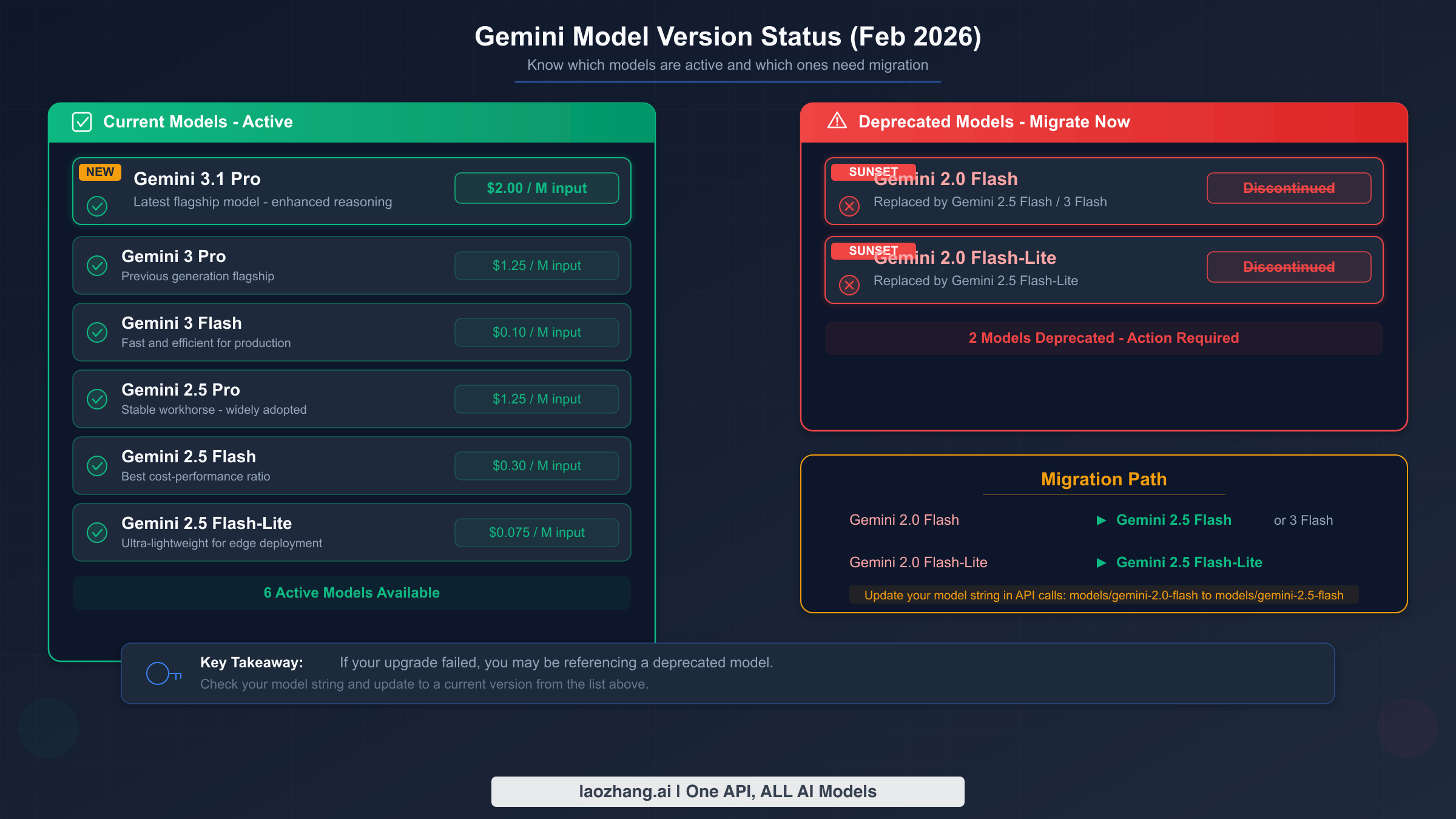
API-level upgrade failures are different from IDE and CLI issues because they affect your code directly. When Google deprecates a model version, any API call using that model's identifier will start returning FAILED_PRECONDITION errors, HTTP 400 responses, or explicit deprecation warnings. As of February 2026, several previously popular models have been deprecated, requiring developers to update their model references in code, configuration files, and environment variables.
The following table shows the current model landscape based on Google's official model documentation as verified on February 22, 2026. This is critical information for migrating your code — using any model in the "Deprecated" column will result in errors.
| Status | Model | Model ID | Input Price | Output Price |
|---|---|---|---|---|
| Latest | Gemini 3.1 Pro | gemini-3.1-pro-preview | $2.00/M tokens (≤200k) | $12.00/M tokens |
| Preview | Gemini 3 Pro | gemini-3-pro-preview | Check pricing page | Check pricing page |
| Preview | Gemini 3 Flash | gemini-3-flash-preview | $0.50/M tokens | Check pricing page |
| Stable (GA) | Gemini 2.5 Pro | gemini-2.5-pro | Check pricing page | Check pricing page |
| Stable (GA) | Gemini 2.5 Flash | gemini-2.5-flash | $0.30/M tokens | Check pricing page |
| DEPRECATED | Gemini 2.0 Flash | gemini-2.0-flash | N/A | N/A |
| DEPRECATED | Gemini 2.0 Flash-Lite | gemini-2.0-flash-lite | N/A | N/A |
To migrate your code, search your entire codebase for references to deprecated model IDs. The most common patterns include hardcoded model strings in API calls, environment variables like GEMINI_MODEL, and configuration files (.env, config.yaml, or similar). Here is a typical migration example in Python:
# BEFORE (will fail - model deprecated)
model = genai.GenerativeModel('gemini-2.0-flash')

# AFTER (updated to current stable model)
model = genai.GenerativeModel('gemini-2.5-flash')

# OR for latest capabilities
model = genai.GenerativeModel('gemini-3.1-pro-preview')
For Node.js applications using the @google/generative-ai package:
// BEFORE (deprecated)
const model = genAI.getGenerativeModel({ model: "gemini-2.0-flash" });

// AFTER (current stable)
const model = genAI.getGenerativeModel({ model: "gemini-2.5-flash" });
When choosing a replacement model, consider your use case carefully. If your application previously used Gemini 2.0 Flash for speed-sensitive tasks, Gemini 2.5 Flash is the direct successor with better performance at a similar price point ($0.30/M input tokens according to ai.google.dev/pricing, February 2026). If you need the most capable model and cost is secondary, Gemini 3.1 Pro Preview offers the latest capabilities including improved reasoning (ARC-AGI-2 benchmark: 77.1% as reported by zerlo.net). For a comprehensive breakdown of the current model lineup and their capabilities, see our detailed Gemini 3 model comparison.
If you are managing multiple API integrations and want a reliable way to access various Gemini models through a single endpoint, services like laozhang.ai provide unified API access to multiple models. This can simplify version management because you update the model identifier in one place rather than across multiple service configurations, and you maintain access even during model transition periods. For developers working extensively with the Gemini API, understanding Gemini API rate limits is also essential to avoid throttling issues that can masquerade as upgrade errors.
Verification: After updating your model references, make a simple test API call with the new model ID. A successful response confirms the migration is complete. If you receive a models/{model-id} is not found error, double-check the exact model ID spelling against the table above — even a minor typo will cause a 404 response. You can also use the Gemini API free tier to test your updated integration without incurring costs.
Fixing Gemini Advanced Subscription and Billing Upgrade Errors
Subscription upgrade failures are particularly frustrating because they involve money — users are trying to pay for a service and being denied. The most common manifestation is an HTTP 500 error during the plan upgrade flow on gemini.google.com/subscriptions, but failures can also include payment method declines, billing verification loops, and regional availability restrictions. Unlike IDE or CLI issues, subscription errors often cannot be resolved through technical troubleshooting alone and may require interaction with Google support.
The current Google AI subscription tiers, verified from the official subscriptions page on February 22, 2026, are structured as follows. The AI Plus plan at approximately $7.99/month provides 200 AI credits monthly with enhanced access to Gemini 3.1 Pro. The AI Pro plan at $19.99/month includes 1,000 credits with video generation and Code Assist features. The AI Ultra plan at approximately $249.99/month offers 25,000 credits with Deep Think and Agents capabilities. The free tier provides 50 daily credits with access to Gemini 3 Flash. Understanding which plan you are trying to upgrade to helps diagnose the specific failure point.
Step 1: Verify Your Payment Method
Before troubleshooting the upgrade flow itself, confirm that your payment method is valid and has sufficient funds. Go to payments.google.com and check that your card is not expired, has not been flagged for fraud, and is authorized for recurring online payments. International users should verify that their card supports USD transactions, as Google bills in USD for AI subscriptions in most regions. If you recently got a new card, the old one stored in Google's system may be causing silent failures — update it before retrying the upgrade.
Step 2: Clear Browser State and Retry
The 500 error during subscription upgrade is frequently caused by stale browser state — cached authentication tokens, corrupted session cookies, or outdated page assets that conflict with the current upgrade flow. Open an incognito or private browsing window (Ctrl+Shift+N in Chrome), navigate to gemini.google.com, sign in with your Google account, and attempt the upgrade again. This bypasses all cached state and forces a fresh connection to Google's billing service. If the incognito approach works, clear your regular browser's cookies and cache for *.google.com domains to prevent the issue from recurring.
Step 3: Try a Different Browser or Device
If the 500 error persists in incognito mode, the issue may be browser-specific. Some browser extensions — particularly ad blockers, privacy extensions, and VPN browser plugins — interfere with Google's payment processing flow by blocking the JavaScript payment widgets or intercepting API calls to Google's billing endpoints. Try a completely different browser (if you normally use Chrome, try Firefox or Edge) with no extensions installed. Alternatively, try the upgrade from a mobile device using the Gemini app, as the mobile upgrade flow uses a different payment processing path that may succeed when the web flow fails.
Step 4: Check Regional Availability
Google AI subscription plans are not available in all countries and regions. If you see a "not available in your region" message or the upgrade button is grayed out, check Google's official list of supported regions. Users in unsupported regions have limited options: using a VPN is against Google's Terms of Service and may result in account suspension. The legitimate alternatives are waiting for regional expansion (Google has been steadily adding support for new countries) or using the free tier, which is available in more regions than the paid plans.
Step 5: Contact Google Support
If none of the above steps resolve the issue, you need to contact Google One support directly. Go to support.google.com/googleone and use the contact form or chat option. When describing your issue, include the exact error message, the plan you are trying to upgrade to, and the steps you have already taken. Having your Google Payments transaction history (from payments.google.com) available helps the support agent diagnose billing-side issues faster. Based on community reports, response times are typically 24-48 hours for billing-related inquiries.
Data Safety Note: No subscription upgrade or downgrade affects your existing Gemini conversation history, saved prompts, or generated content. Your data is tied to your Google account, not to your subscription tier. Upgrading simply unlocks access to more capable models and higher usage limits — it does not modify or reset any existing data.
Troubleshooting Gemini App Update Issues on Mobile and Desktop
Mobile and desktop app update failures are the least technical category but can be equally frustrating. The Gemini app on Android, iOS, and desktop platforms sometimes fails to reflect a subscription upgrade, continues showing older models after an update, or hangs during the download of a new version. These issues are almost always resolved through standard app troubleshooting procedures, but the specific steps vary by platform.
Android Fixes
On Android, the most common issue is the app caching old model data even after an update has been installed. Open Settings, navigate to Apps, find Gemini, and tap "Clear Cache" (not "Clear Data" — clearing data will sign you out). Force stop the app, then reopen it. If the app still shows old models, check the Google Play Store for a pending update — sometimes the auto-update installs a partial update that needs to be completed manually. Open the Play Store, search for Gemini, and tap "Update" if available. After updating, restart your device to ensure all background processes are refreshed. On devices running Android 14 or later, you may also need to check that Gemini has the "Unrestricted" battery optimization setting, as aggressive battery optimization can prevent background updates from completing.
iOS Fixes
On iOS, app update issues usually stem from the App Store's update mechanism rather than the app itself. Open the App Store, go to your profile (top-right icon), and pull down to refresh the update list. If a Gemini update appears, install it manually. If the app is up-to-date but still showing old models, try deleting the app and reinstalling it from the App Store — on iOS, reinstalling is often faster and more reliable than troubleshooting cached state. Your account data, conversation history, and subscription status are all cloud-synced to your Google account, so reinstalling does not lose any data. After reinstalling, sign in with the same Google account and your subscription tier should be recognized within a few seconds.
Desktop App Fixes
The Gemini desktop app (available on macOS and Windows) follows the same update channel as the Antigravity IDE for its Gemini integration. If the desktop app is not reflecting your subscription upgrade or showing the latest models, check for updates through the app's Help menu (Help > Check for Updates). On macOS, you can also re-download the latest version from the official website and install it over the existing version (in-place upgrade). On Windows, use winget upgrade to check for and install available updates. If the desktop app continues to show stale data after updating, delete the app's local cache. On macOS, remove ~/Library/Caches/com.google.Gemini/; on Windows, delete %LOCALAPPDATA%/Google/Gemini/Cache/.
Cross-Platform Verification: After applying any fix, open the Gemini app and start a new conversation. Tap the model selector and verify that Gemini 3.1 Pro appears in the model list. Send a test message and check the response header to confirm which model is actually being used. If the model selector shows the correct options but responses seem inconsistent, wait a few minutes — model routing can take up to 5 minutes to propagate after a subscription change.
After the Fix — Verification Steps and Model Selection
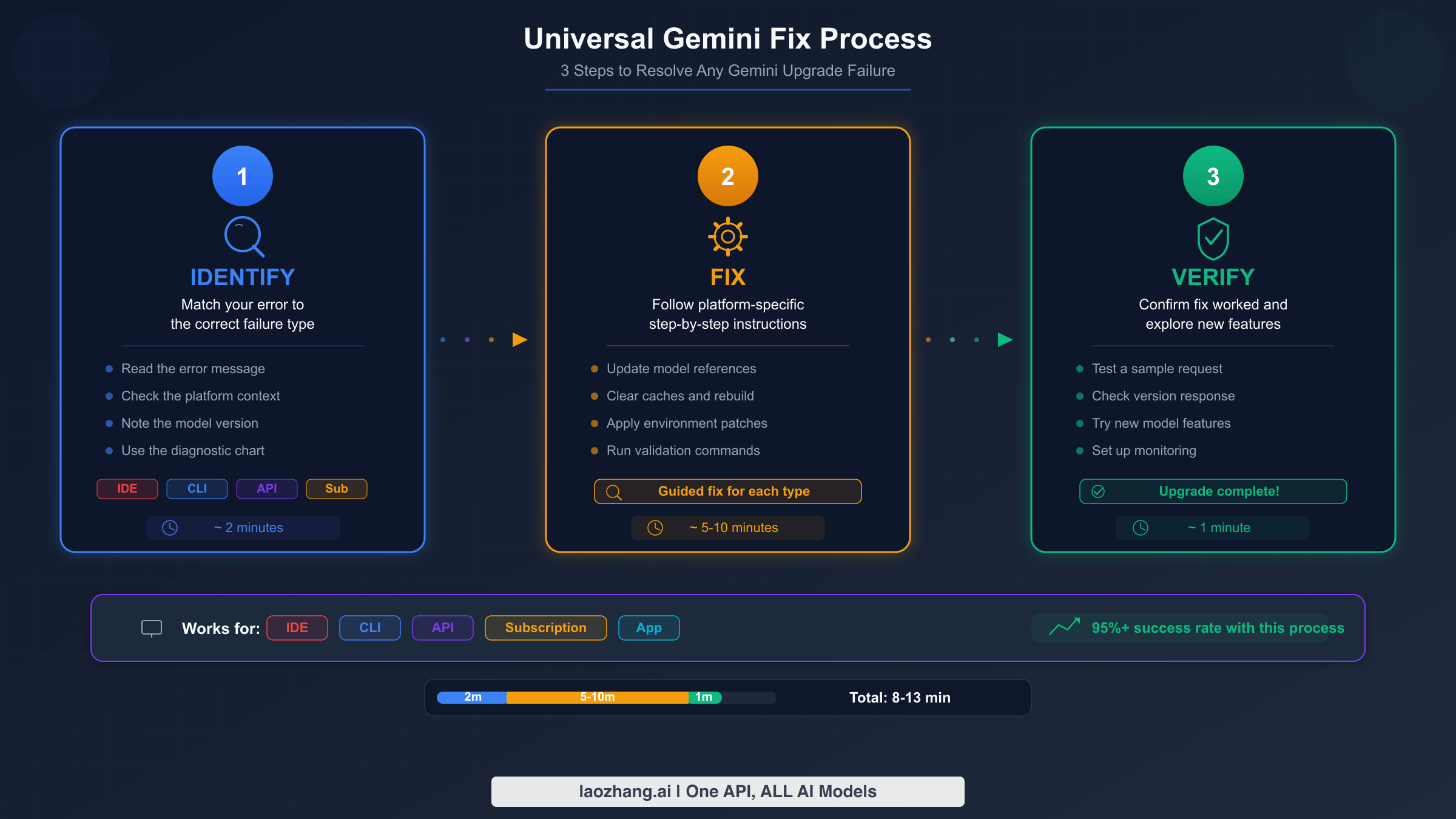
Resolving the immediate error is only half the battle. After applying your fix, you need to systematically verify that everything is working correctly and then choose the right model for your specific use case. Skipping verification can lead to subtle issues — for example, your IDE might show the correct model in the selector but still be routing requests to an older version due to a cached configuration.
The universal verification checklist applies regardless of which failure type you experienced. First, confirm the model version by checking the model selector or API response headers — the model name should explicitly include the version you expect (e.g., "gemini-3.1-pro-preview" for the latest). Second, run a capability test by asking a question that exercises a feature specific to the newer model. For Gemini 3.1 Pro, try a complex reasoning task or a multi-step code generation problem — the response quality should be noticeably better than older models. Third, check your usage dashboard at aistudio.google.com to verify that your requests are being counted against the correct model and billing tier.
Choosing the right model after upgrading depends on your workload. For everyday coding assistance, chat, and writing tasks, Gemini 2.5 Flash offers the best balance of speed and cost at $0.30/M input tokens (ai.google.dev/pricing, February 2026). For complex reasoning, long-context analysis, or tasks where accuracy is paramount, Gemini 3.1 Pro Preview provides the highest capability level. For high-volume API applications where latency matters, Gemini 2.5 Flash is the recommended choice due to its faster response times. Our complete guide to accessing Gemini 3.1 Pro API provides detailed instructions for setting up API access with the latest model.
For developers managing multiple AI model integrations, consolidating access through a unified API gateway like laozhang.ai can simplify the post-upgrade workflow. Instead of updating model references across multiple codebases and configurations, a unified endpoint lets you switch models by changing a single parameter while maintaining consistent authentication and rate limiting across all your AI integrations.
One verification step that many users skip — but should not — is testing with a workload that resembles your actual use case rather than a generic "hello world" prompt. If you use Gemini primarily for code generation, test with a representative code generation prompt. If you use it for document analysis, test with a document of typical length. This catches edge cases where the model upgrade may have changed response formatting, token limits, or streaming behavior in ways that affect your specific workflow. Spending five minutes on realistic testing after an upgrade can save hours of debugging later when your production pipeline encounters unexpected model behavior.
Preventing Future Gemini Upgrade Failures
Having fixed your current issue, it is worth investing a few minutes to prevent future upgrade failures. The Gemini ecosystem is evolving rapidly — Google released multiple major model updates in early 2026 alone — and each update cycle carries the potential for similar disruption if your environment is not configured for smooth transitions.
The single most impactful prevention step is enabling automatic updates wherever possible. In the Antigravity IDE, go to Settings > Updates and ensure "Automatically download and install updates" is checked. For the CLI, consider adding npm update -g @google/gemini-cli to a weekly cron job or scheduled task so that your CLI stays current without manual intervention. For API integrations, avoid hardcoding specific model version strings and instead use version aliases or environment variables that can be updated in one place. For example, instead of hardcoding gemini-2.5-flash in your application code, reference an environment variable like GEMINI_MODEL that you can update in your deployment configuration without changing code.
Monitoring is equally important. Set up basic health checks for your Gemini integrations by making a lightweight API call on a schedule (daily or hourly depending on criticality) and alerting if the response format changes or the call fails. Google's status page covers Vertex AI availability, but model-specific deprecation notices are published in the Google AI Developer Blog and the model documentation changelog. Subscribing to both ensures you receive advance notice before a model is deprecated, giving you time to migrate proactively rather than reactively.
For teams and organizations, maintaining an internal document that tracks which Gemini models and versions are in use across your projects makes upgrade planning significantly easier. When a deprecation notice arrives, you can quickly identify all affected projects and plan the migration. This is especially important for production applications where an unexpected model deprecation could cause downtime for your end users.
Another often-overlooked prevention strategy is pinning your dependencies to specific compatible versions rather than always using the latest. While it might seem counterintuitive to avoid automatic updates after just fixing an update issue, the key is controlled updates on your schedule rather than surprise breakages. Pin your @google/generative-ai npm package to a specific version in package.json, pin your Antigravity IDE version if your team standardizes on a specific release, and test updates in a staging environment before rolling them out to production. This way, you stay current without risking mid-sprint disruptions. When you are ready to upgrade, you can do so deliberately — following the verification steps in the previous section — rather than discovering a problem when a critical demo is in fifteen minutes.
Finally, keep a local record of the model IDs and endpoints that your projects depend on. Google's deprecation timeline typically gives 6-12 months of notice before a model is fully removed, but the deprecation warnings in API responses can appear months earlier. By maintaining a simple spreadsheet or configuration file that maps each project to its Gemini model dependency, you can respond to deprecation notices within minutes by checking your inventory and scheduling targeted updates rather than auditing your entire codebase under time pressure.
Frequently Asked Questions
Will I lose my data if I reinstall the Antigravity IDE?
No. Performing an in-place upgrade (running the installer without uninstalling first) preserves all your extensions, settings, workspace configurations, and project files. Even a full uninstall and reinstall only removes the application itself — your project files are stored in your workspace directories, not inside the IDE installation folder. Your Gemini conversation history is stored in the cloud and tied to your Google account, so it persists regardless of IDE changes.
Why does my Gemini CLI show the old version after running npm update?
This usually means the new binary is installed in a different location than the one your terminal is finding in the PATH. Run which gemini (on macOS/Linux) or where gemini (on Windows) to see the path. If it points to an unexpected location, you have multiple installations. Remove the old one and ensure your PATH prioritizes the correct npm global directory. Alternatively, use npx @google/gemini-cli@latest to always run the latest version without worrying about global installation paths.
How do I know if my API calls are using a deprecated model?
Check the API response headers — they include the model version that actually processed your request. You can also check the Google AI Studio dashboard, which shows recent API calls with the model used for each one. If you see "gemini-2.0-flash" or "gemini-2.0-flash-lite" in your logs, those models are deprecated and your code needs to be updated.
Is the Gemini 3.1 Pro upgrade free?
The Gemini 3.1 Pro Preview model is available through Google AI Studio's free tier with daily credit limits (50 credits/day on the free plan). For higher usage, a subscription is required — AI Plus at approximately $7.99/month, AI Pro at $19.99/month, or AI Ultra at approximately $249.99/month (gemini.google/subscriptions, February 2026). API access pricing is $2.00 per million input tokens for prompts up to 200K context (ai.google.dev/pricing, February 2026).
What should I do if none of the fixes work?
If you have tried all the fixes in your relevant section and the issue persists, there are three escalation paths. First, check the Google AI Developer Forum for recent threads about your specific error — other users may have found a workaround. Second, file a bug report through the Antigravity IDE (Help > Report Issue) or on the Gemini CLI GitHub repository with your exact error message, OS version, and steps to reproduce. Third, contact Google One support for subscription-related issues. Community forums typically respond faster than official support channels for technical issues.
Sources11
External pages this guide links to, in the order they appear. Last updated Feb 22, 2026.
Sources11
External pages this guide links to, in the order they appear. Last updated Feb 22, 2026.
- 1.Google AI Developer Forumdiscuss.ai.google.dev
- 2.Gemini CLI troubleshooting pagegoogle-gemini.github.io/gemini-cli
- 3.Google's official model documentationai.google.dev/gemini-api/docs/models
- 4.gemini.google.com/subscriptionsgemini.google.com/subscriptions
- 5.payments.google.compayments.google.com
- 6.gemini.google.comgemini.google.com
- 7.support.google.com/googleonesupport.google.com/googleone
- 8.aistudio.google.comaistudio.google.com
- 9.status pagestatus.cloud.google.com
- 10.Google AI Developer Blogblog.google/technology/ai
- 11.Gemini CLI GitHub repositorygithub.com/google-gemini/gemini-cli/issues