Codex App Slow on Windows? CLI vs Desktop Route Check
Use the same-prompt test to separate local app overhead from model speed, choose the right Codex surface, and collect report-ready evidence.
On this page
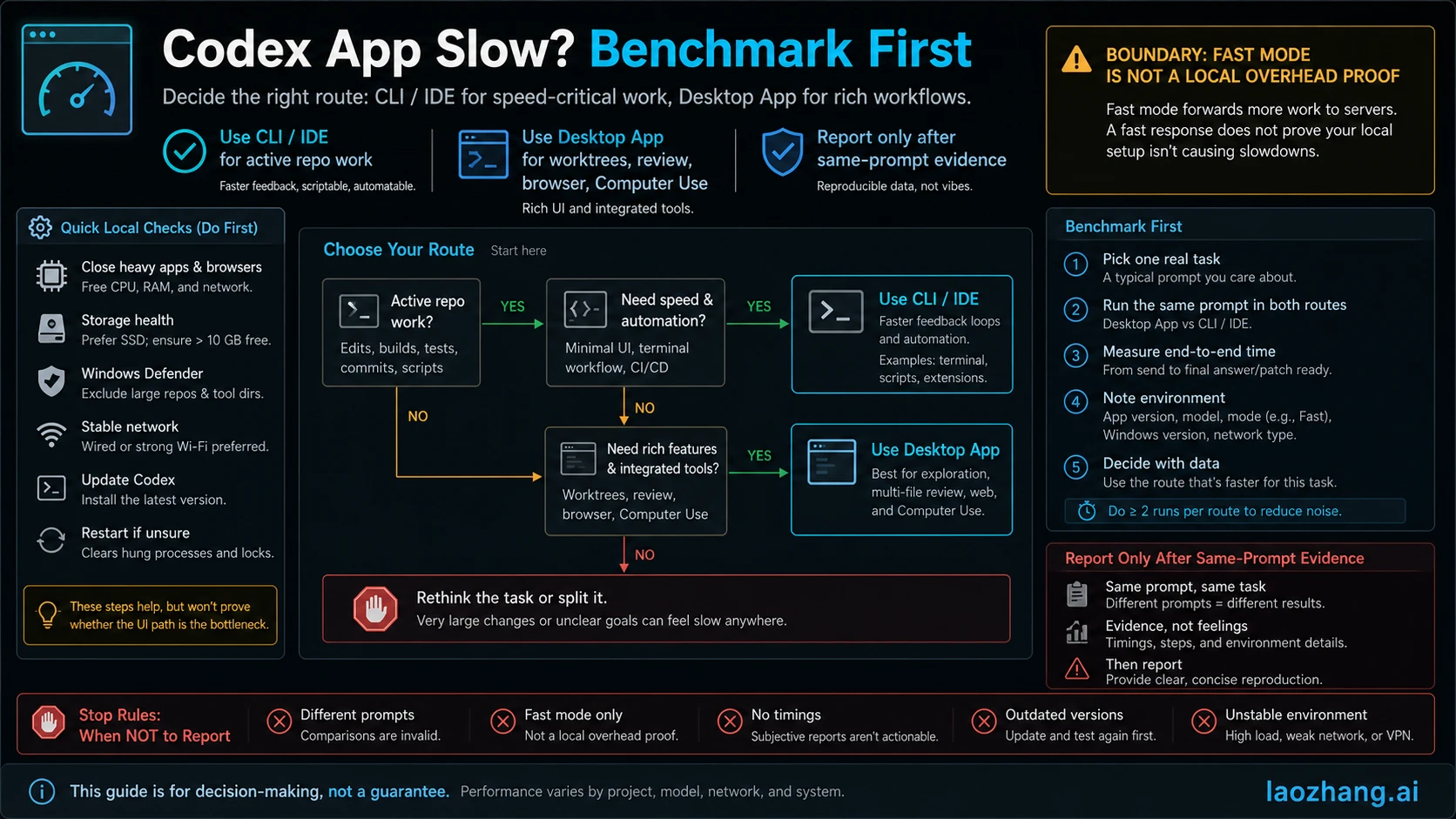
If Codex Desktop is slow on Windows or WSL but the same small task runs quickly in Codex CLI or an IDE extension, keep active repo work in the faster surface and diagnose the app path separately.
| If you see this | Use now | Why |
|---|---|---|
| CLI or IDE is fast, desktop app is slow | CLI or IDE | Your repo work should not wait while you isolate the app path. |
| You need worktrees, long-running threads, Git review, browser tasks, artifacts, or Computer Use | Desktop app | Those are app-owned workflows, even if terminal-native coding moves elsewhere. |
| Same prompt is slow everywhere | Check model/account/service/repo complexity before blaming the app | The app path is not isolated yet. |
| The desktop app remains slower under comparable conditions | Report path | Collect versions, Windows/WSL mode, project path, timings, Fast mode state, and logs. |
Fast mode can make supported model responses faster at higher credit use, but it does not prove local app or WSL overhead has disappeared. Before you file an issue or change settings, record the desktop app version, bundled agent version, codex --version, Windows/WSL mode, project path, same-prompt timings, Fast mode state, and logs.
Run The Five-Minute Surface Test First
The useful test is boring on purpose: same repo, same small prompt, comparable model and approval settings, then compare surfaces. Do not reinstall, clear caches, change WSL mode, or enable Fast mode before the first comparison. You need a baseline before a change means anything.
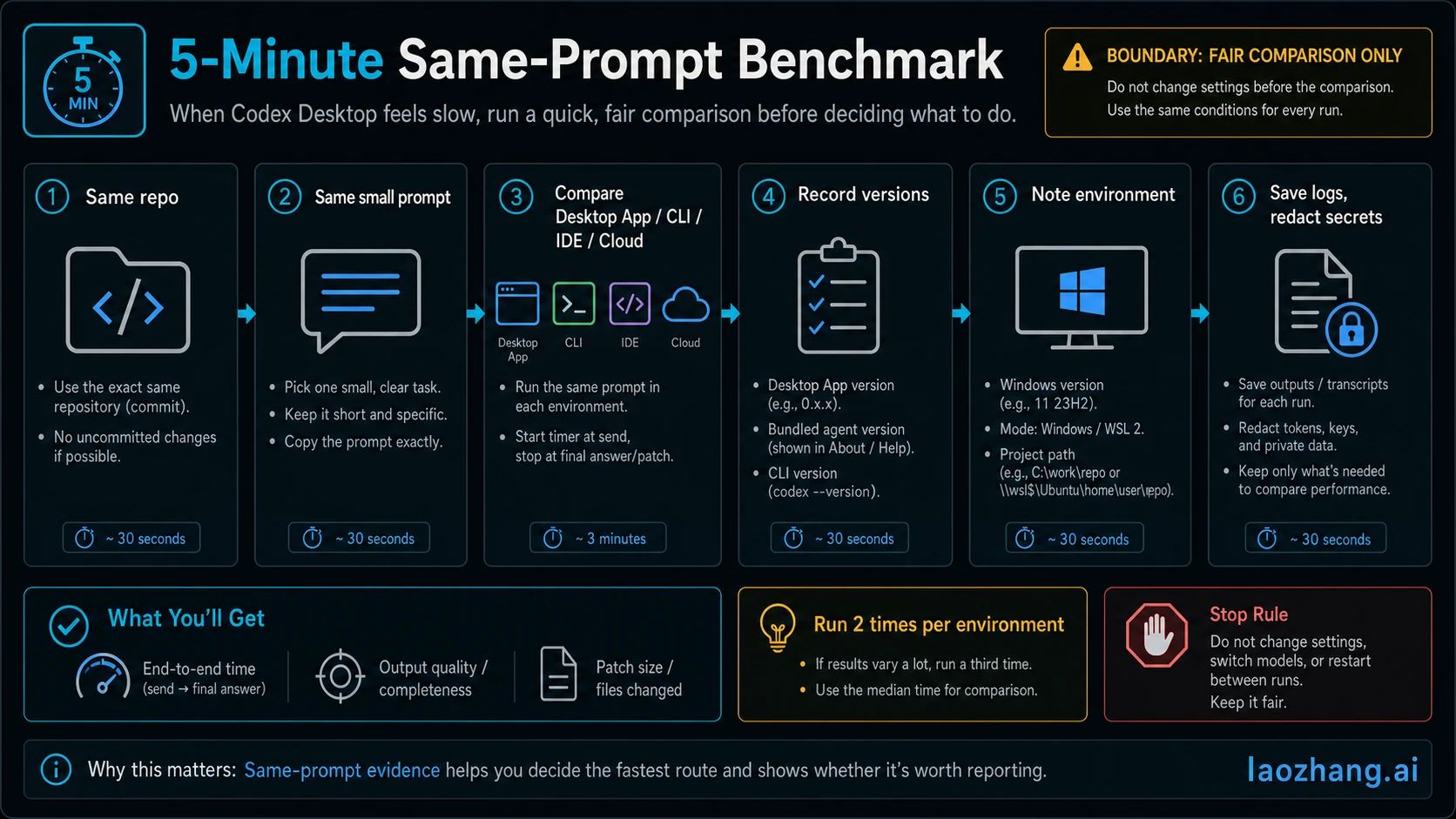
Use a task that is small enough to time but real enough to touch your setup:
- Open the same repository in the desktop app and in CLI or the IDE extension.
- Use one short prompt, such as "inspect this file and suggest the smallest safe fix."
- Record time to first useful response and time to final usable answer.
- Record whether Fast mode was on or off.
- Record the desktop app version, bundled agent version if visible, and
codex --version. - Record Windows version, WSL distro and mode, project path, and whether the repo is under Windows filesystem,
/mnt/<drive>/..., or\\wsl$. - Save relevant logs or session references, but redact tokens, private paths, customer data, and secrets.
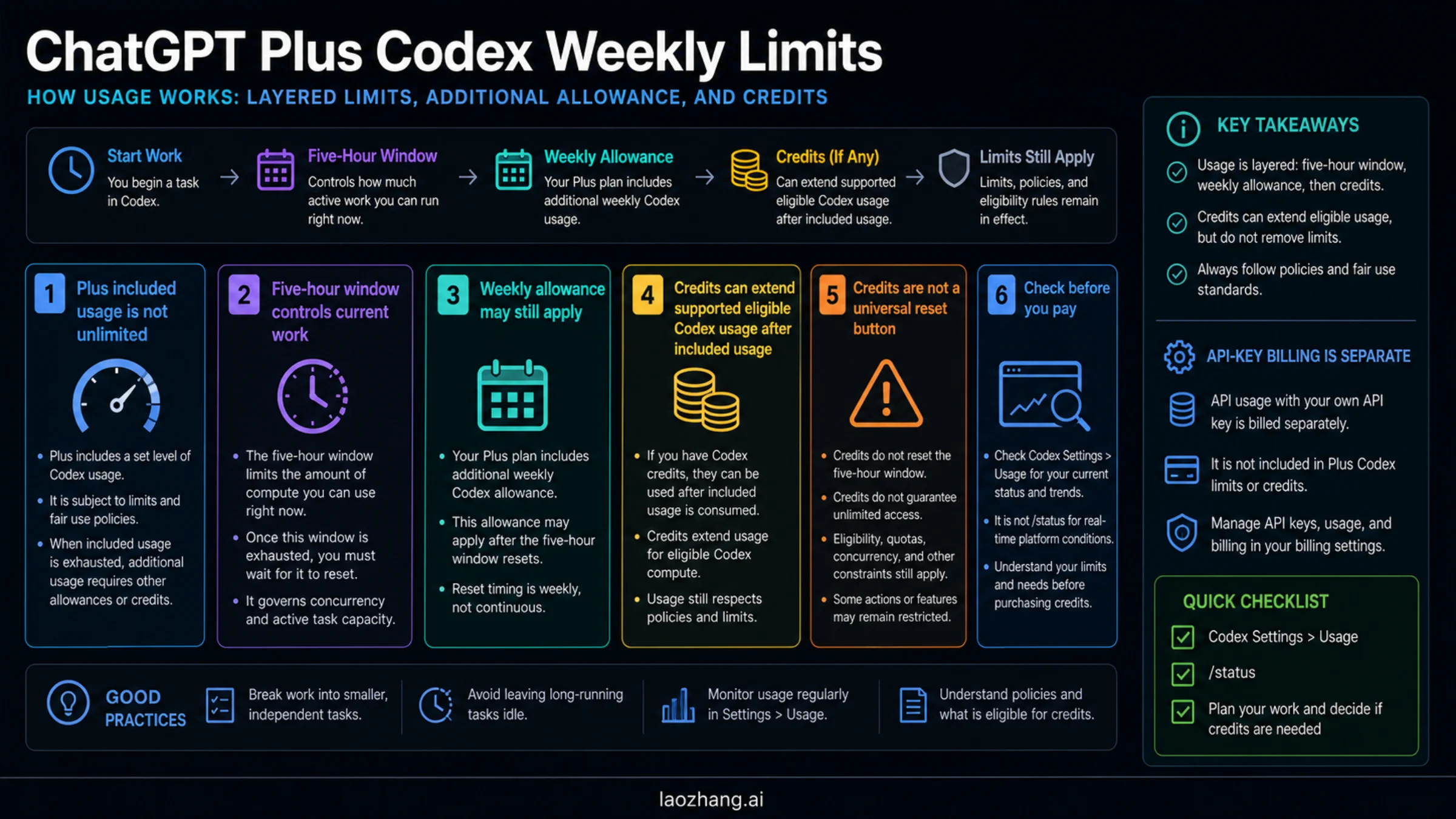
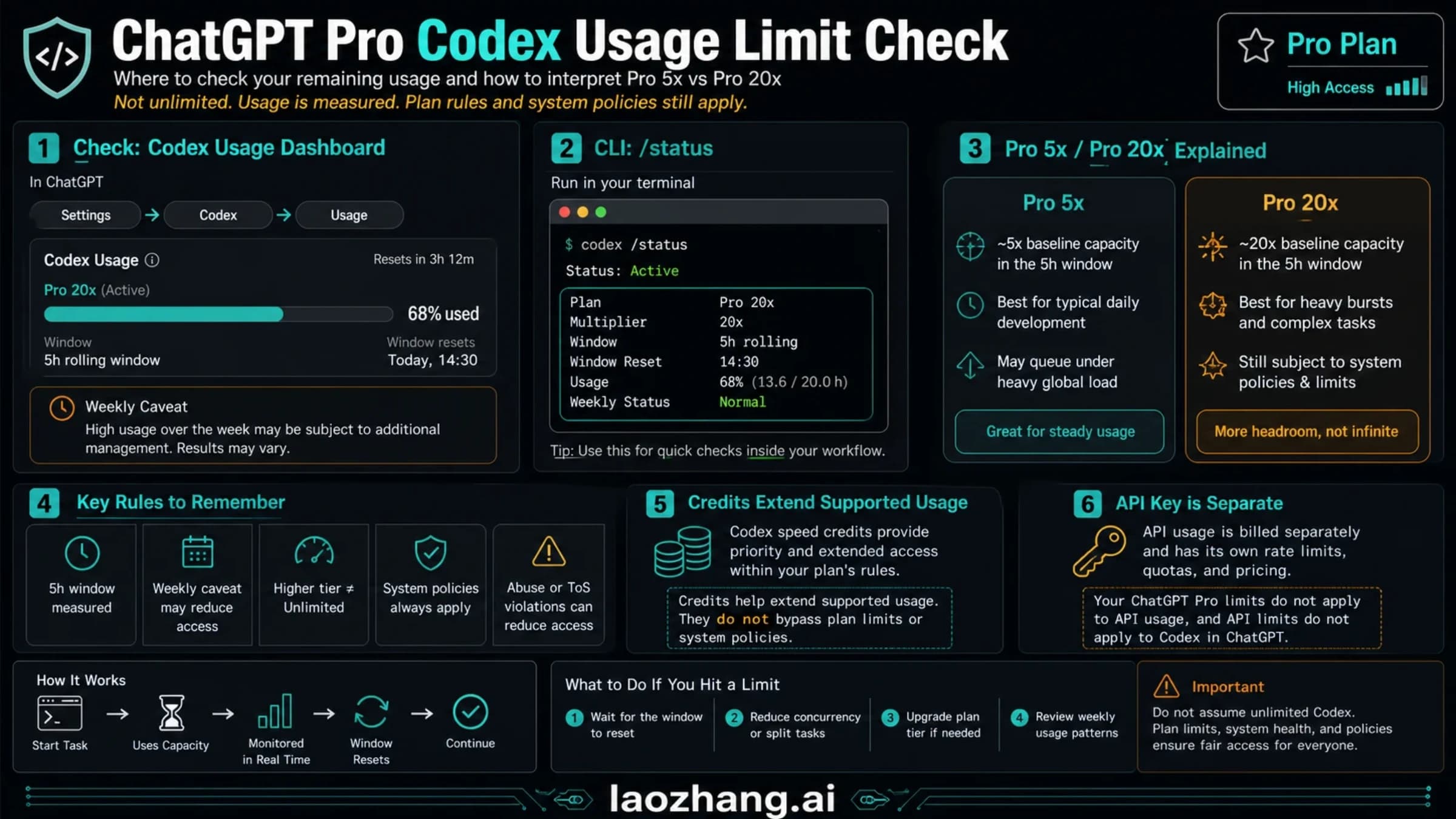
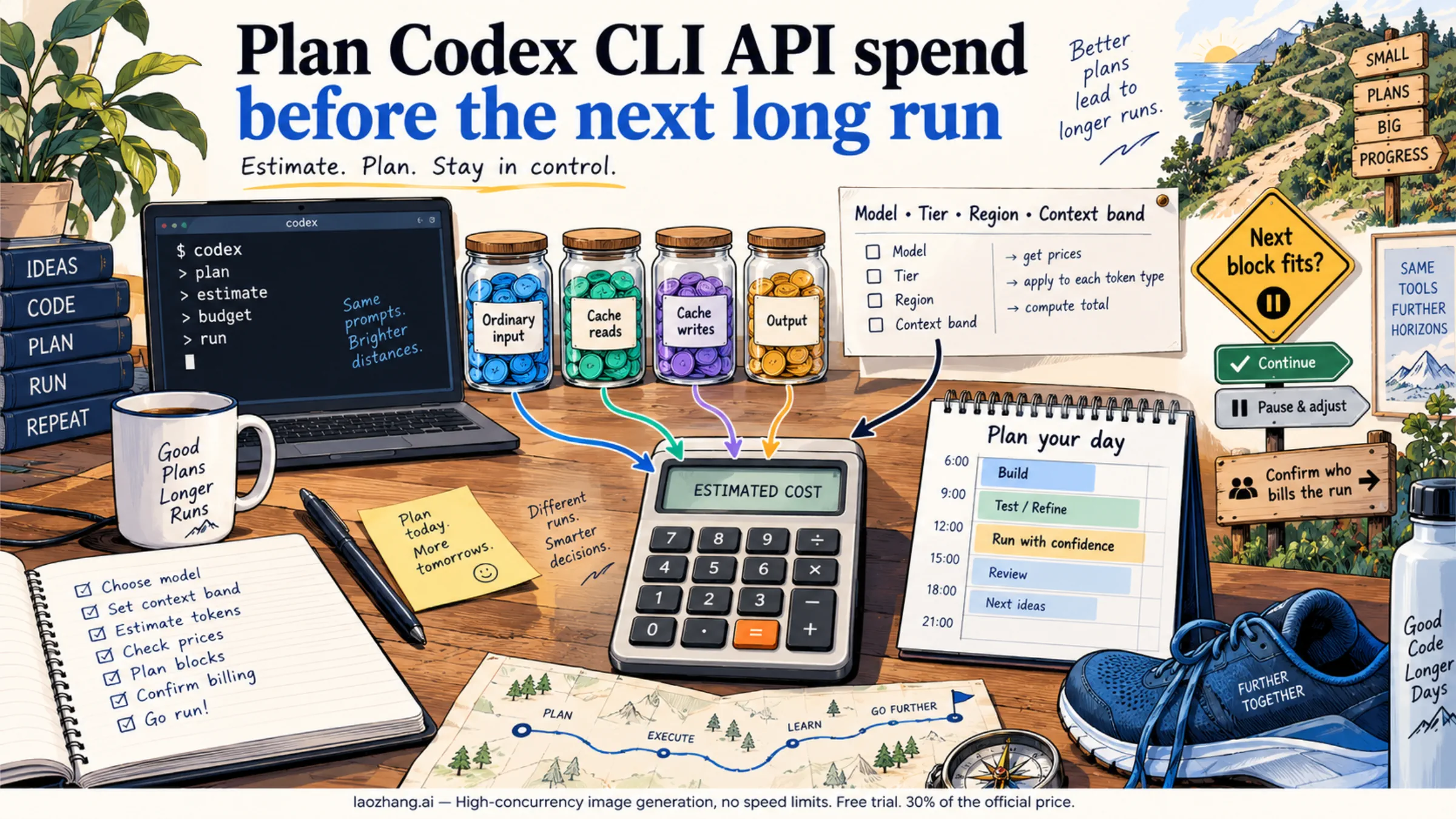
If CLI and IDE are also slow, the desktop app is not isolated. Look for account limits, model/service behavior, a huge repo context, slow tests, network trouble, or a prompt that asks Codex to inspect too much. The companion OpenAI Codex usage limits guide is the better place to reason about credits, included usage, and Fast mode credit behavior. If API-key CLI cost is the concern, use the Codex CLI token cost estimator instead of guessing from app speed.
Check The Windows And WSL Boundary
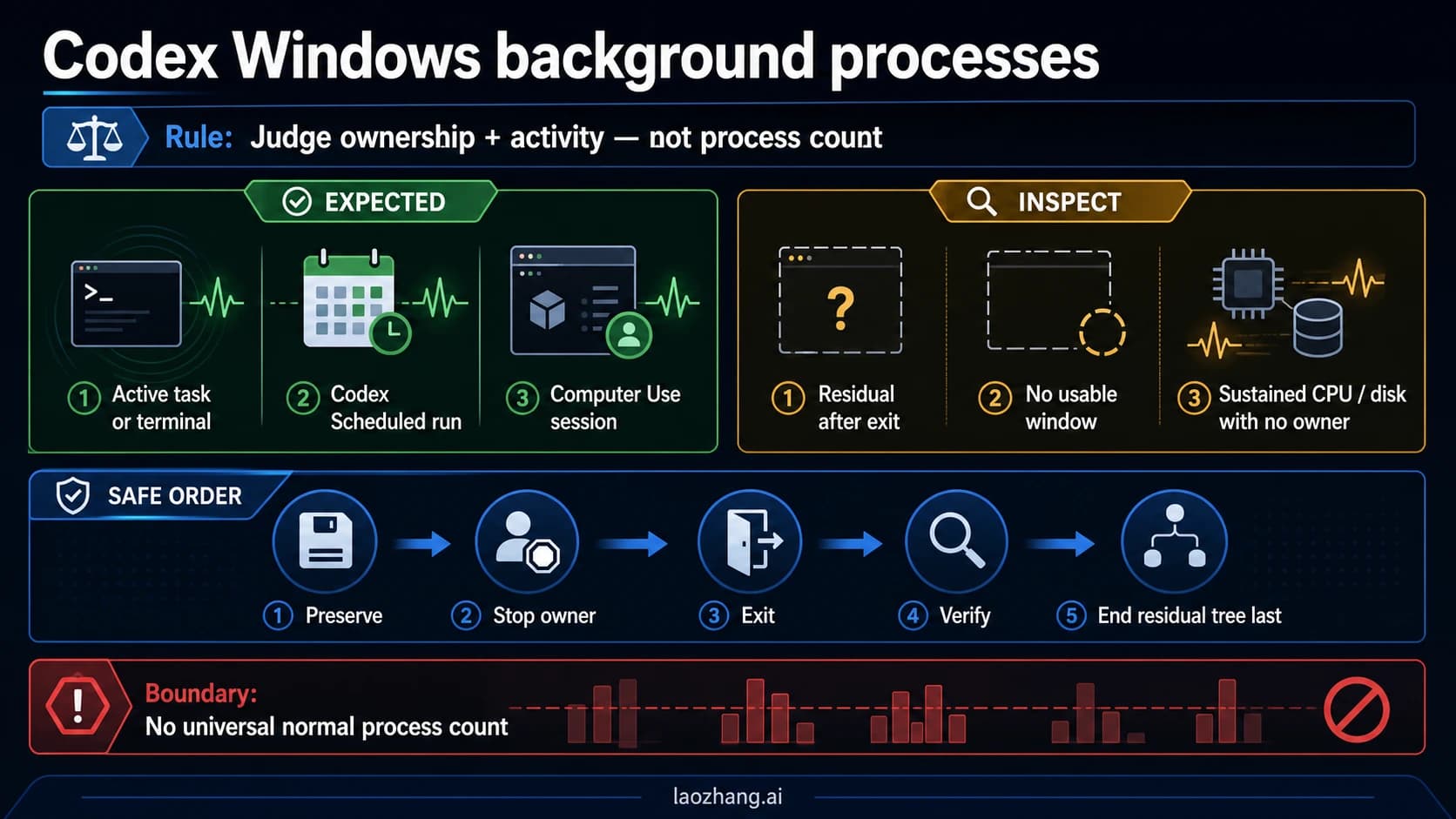
OpenAI's Codex Windows app documentation is the factual owner for the Windows setup split checked on July 8, 2026. The Windows app can run with a native Windows agent or through WSL2. Those are different execution paths, and treating them as the same surface can hide the real bottleneck.
| Setup fact | Why it matters when the app feels slow | Safer next check |
|---|---|---|
| Native Windows agent | The app operates from the Windows side, including Windows sandbox behavior | Prefer a project path the Windows agent can see cleanly. |
| WSL2 agent mode | The app can be switched to WSL, but the agent environment changes | Switch intentionally in Settings and restart before comparing. |
| WSL1 unsupported in current docs | Old WSL assumptions can create false setup expectations | Confirm WSL2 before treating WSL behavior as supported. |
Windows filesystem versus \\wsl$ | Windows-side Git and filesystem detection can differ across paths | Avoid testing through a path that hides Git or adds path translation overhead. |
CODEX_HOME split | Windows app and WSL CLI can read different config homes by default | Sync deliberately or set CODEX_HOME only when you understand the effect. |
The key rule is not "WSL is bad" or "Windows native is better." The key rule is that Windows app, WSL agent, CLI inside WSL, and IDE extension can be different enough that the same prompt may isolate a surface problem. Keep the comparison fair and change one setup variable at a time.
Choose The Surface By Work Owner
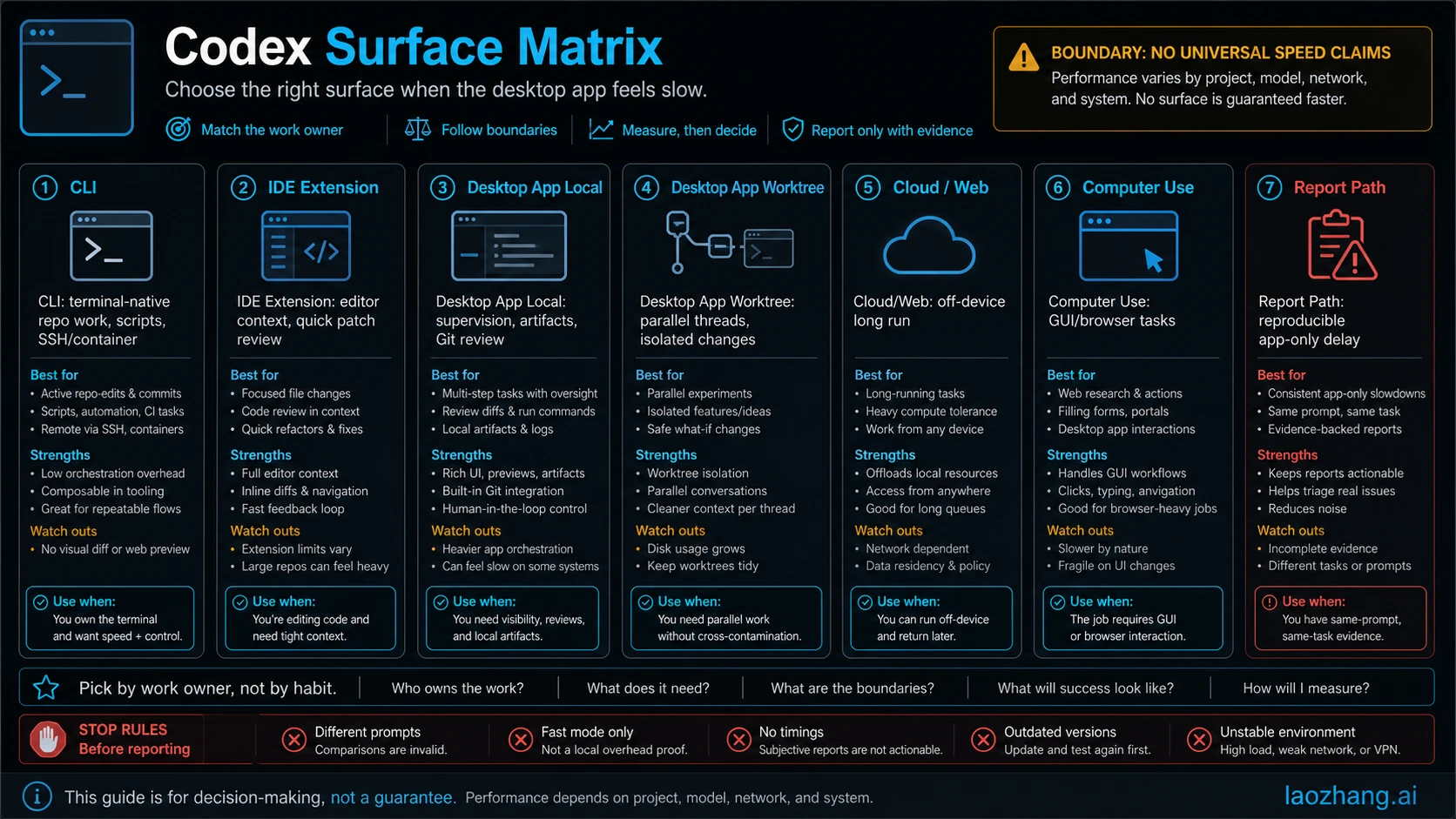
Codex CLI and the desktop app are not simple replacements. OpenAI's CLI features documentation describes terminal-first workflows such as the interactive TUI, resume, codex exec, review, scripting, shell completions, web search, and prompt editing. OpenAI's app features documentation describes app-owned workflows such as worktrees, automations, Git review, integrated terminal, in-app browser, Computer Use, artifacts, IDE sync, and project/thread supervision.
| Surface | Best first use when the desktop app feels slow | Do not use it as |
|---|---|---|
| Codex CLI | Terminal-native repo edits, scripting, SSH or container work, fast local comparison | Proof that the desktop app is obsolete |
| IDE extension | Editor-adjacent coding, quick patch review, active local development | A replacement for long-running app supervision |
| Desktop App Local | Thread management, artifacts, Git review, browser, Computer Use, app UI workflows | The only route for every repo edit |
| Desktop App Worktree | Parallel isolated changes and reviewable branches | A fix for a slow local app path by itself |
| Cloud/Web | Off-device or long-running Codex work when local host state is not required | A way to debug Windows filesystem overhead |
| Computer Use | GUI and browser tasks that need visual app control | A general speed workaround for terminal work |
| Report path | Reproducible app-only slowdown after same-prompt comparison | A place to paste private logs or guess at root cause |
If the job is visual, browser-based, or app-supervised, the desktop app still earns its place. If the job is "edit these files in this WSL repo now," CLI or the IDE extension may be the better working surface while the app path is diagnosed. For GUI-specific tasks, the Codex Computer Use guide covers the extra permission and safety boundaries. For remote supervision, the Codex mobile app guide separates phone control from host execution.
Treat Fast Mode As A Speed Lever, Not A Diagnosis
OpenAI's Codex Speed documentation describes Fast mode as a way to increase supported model speed at higher credit use. That can help when the bottleneck is model response speed. It does not prove that local app overhead, WSL path translation, watcher behavior, extension bridge behavior, or local logs are no longer part of the delay.
Use Fast mode only after the baseline:
| Test result | What Fast mode can tell you | What it cannot tell you |
|---|---|---|
| Desktop, CLI, and IDE all speed up | Model response time may be part of the bottleneck | Whether the desktop app path is healthy |
| CLI speeds up but desktop app still lags | Model speed improved, app path still needs attention | That spending more credits will fix app overhead |
| Desktop app is slow before first useful output, CLI is quick | Local surface overhead is plausible | The exact root cause |
| The slow task has huge context or long tests | Task complexity may dominate | Whether Windows or WSL is the issue |
Avoid the expensive mistake of using Fast mode as a diagnostic shortcut. It is a performance option and a credit decision. It is not a substitute for a same-prompt comparison.
Build A Report Packet Before Escalating
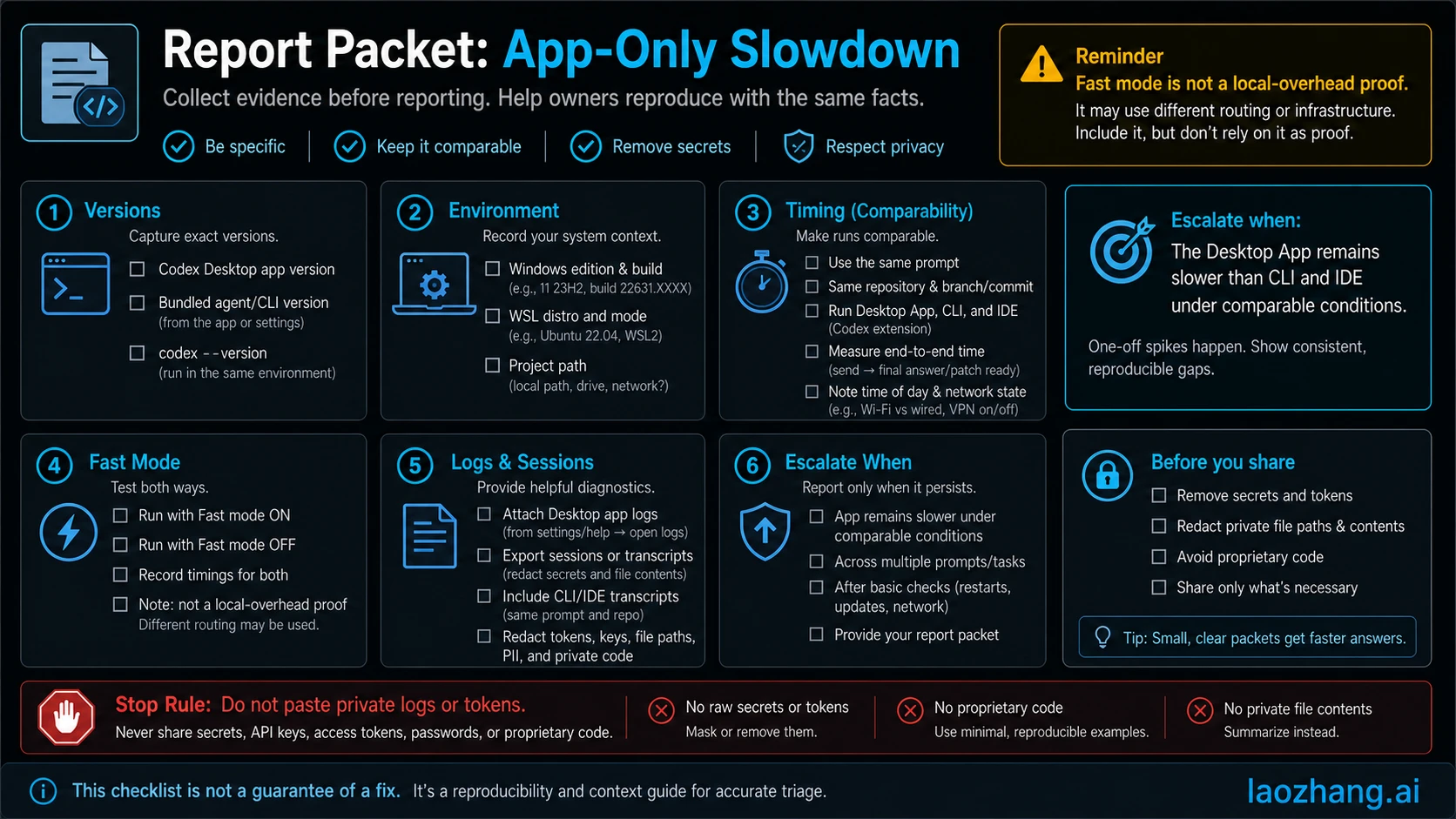
OpenAI's Codex troubleshooting documentation notes that app and CLI use the same underlying agent and configuration, but they can still rely on different versions, and some experimental behavior may land in CLI first. That is why a useful report needs version and surface detail, not only "the app is slow."
Collect the smallest packet that proves the comparison:
| Field | Include | Redact |
|---|---|---|
| Versions | Desktop app version, bundled agent version if visible, codex --version, IDE extension version if used | Account identifiers, private workspace names |
| Environment | Windows build, WSL distro and mode, project path type, repo size signal | Customer names, private paths when unnecessary |
| Prompt | The smallest prompt that reproduces the delay | Secrets, proprietary code, private URLs |
| Timings | Desktop app, CLI, IDE, and optional cloud timings on the same prompt | Anything unrelated to the comparison |
| Fast mode | On/off state and whether it changed the result | Credit balance screenshots unless support asks |
| Logs and sessions | App logs, sessions, terminal output references | Tokens, API keys, passwords, customer data |
Good reports are boring and reproducible. They show "Desktop app on Windows/WSL took 70 seconds for the same prompt that CLI answered in 8 seconds" plus versions and path details. Weak reports jump from one slow session to "Codex is broken" without isolating the surface.
Reversible Checks That Are Worth Trying
After the first benchmark, change one thing at a time and keep a note of the before and after timing.
| Check | Why it may matter | Safe framing |
|---|---|---|
| Restart the desktop app | Clears a transient UI or agent state without deleting data | Record before/after timing. |
| Confirm Windows native versus WSL agent mode | The agent path changes what filesystem and tools Codex sees | Switch intentionally and restart. |
| Move a copy of the repo to a cleaner path | Path translation or Git visibility can affect the app path | Use a copy or disposable branch first. |
| Compare a tiny repo and the real repo | Separates surface overhead from repo complexity | Do not conclude from a toy repo alone. |
| Check CLI version and app version separately | Version drift can explain different behavior | Record both before filing. |
| Rename rather than delete state | Preserves rollback when testing cache or session hypotheses | Avoid destructive cleanup as a first move. |
Do not run broad cleanup commands copied from a forum unless you understand what they remove and how to restore them. A reversible test that gives you a timing delta is more valuable than a dramatic reset that erases evidence.
FAQ
Is Codex CLI faster than the desktop app on Windows?
Sometimes it can be faster for terminal-native repo work, especially when the slow path is the desktop app, WSL bridge, filesystem path, or app UI overhead. That does not make CLI universally better. Run the same prompt in the same repo before making the call.
Should I stop using the desktop app if CLI is faster?
No. Move active coding to CLI or the IDE extension when that is the faster proven surface, but keep the desktop app for worktrees, long-running threads, Git review, browser tasks, Computer Use, artifacts, and supervision.
Does Fast mode fix Codex app slowness?
Fast mode can speed supported model responses at higher credit use. It does not prove local desktop app, Windows, WSL, filesystem, or UI overhead is fixed. Use it after a baseline, not instead of one.
What WSL detail matters most?
Know whether the app is using the Windows-native agent or WSL2 agent mode, where the project lives, and which config home the app and CLI are reading. Windows app state and WSL CLI state can differ unless you deliberately sync or configure CODEX_HOME.
Should I clear Codex caches?
Not as the first move. Restart, benchmark, record versions, and try reversible changes first. If you test state cleanup, rename or back up the target so you can restore it and still explain what changed.
What belongs in a useful app-slow report?
Include app version, bundled agent version if visible, codex --version, Windows build, WSL distro and mode, project path, same-prompt timings across desktop app and CLI or IDE, Fast mode state, and redacted logs or session references. Leave out tokens, private logs, customer data, and speculation about a root cause you have not isolated.
Sources5
External pages this guide links to, in the order they appear. Last updated Jul 8, 2026.
Sources5
External pages this guide links to, in the order they appear. Last updated Jul 8, 2026.
- 1.Codex Windows app documentationdevelopers.openai.com/codex/app/windows
- 2.CLI features documentationdevelopers.openai.com/codex/cli/features
- 3.app features documentationdevelopers.openai.com/codex/app/features
- 4.Codex Speed documentationdevelopers.openai.com/codex/speed
- 5.Codex troubleshooting documentationdevelopers.openai.com/codex/app/troubleshooting