Codex Mobile App: Control a Mac or Windows PC From Your Phone
There is no separate Codex app. Open Codex in the ChatGPT app on iPhone or Android, then pair it by QR code with a Mac or Windows PC running ChatGPT.
On this page
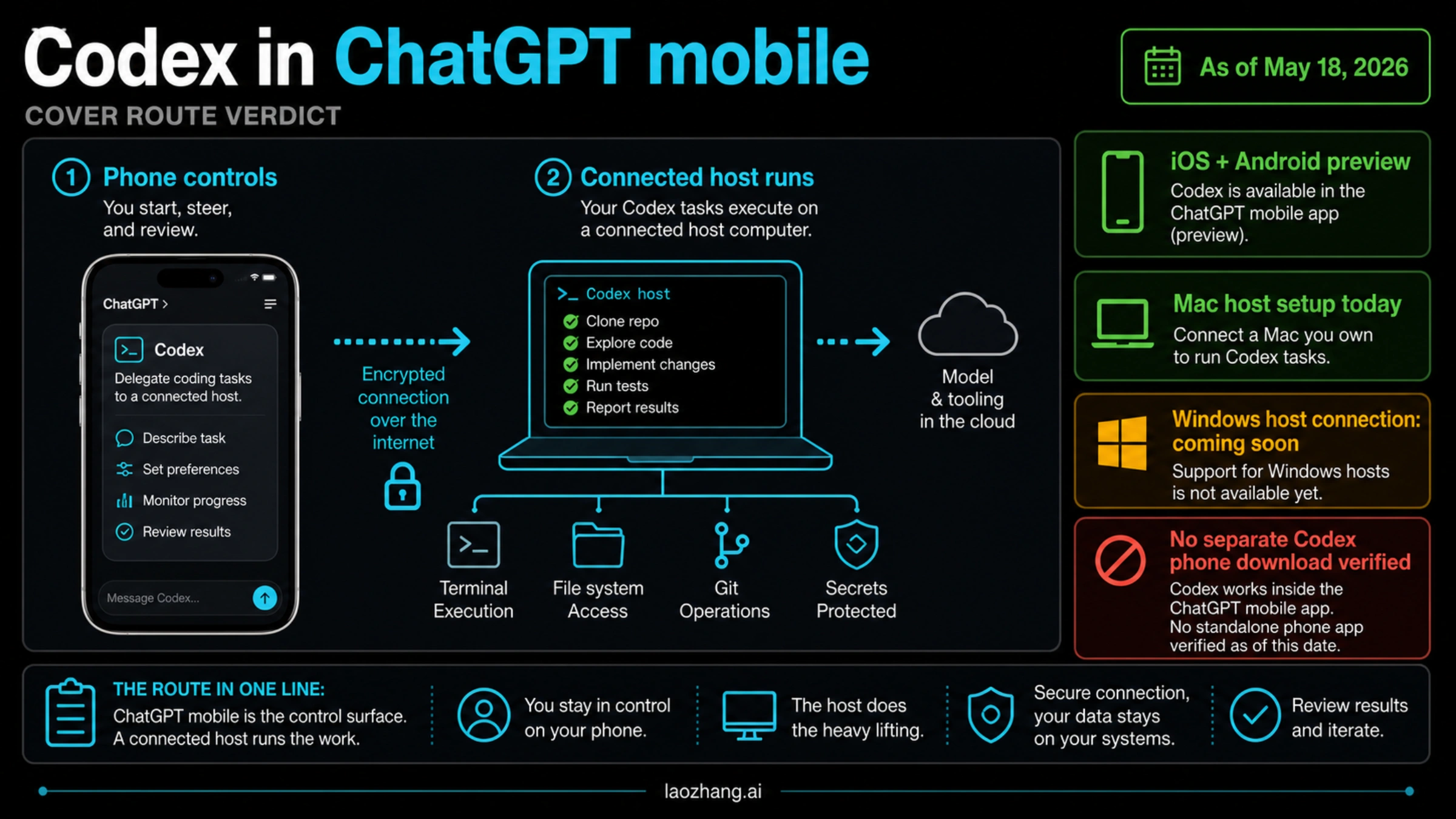
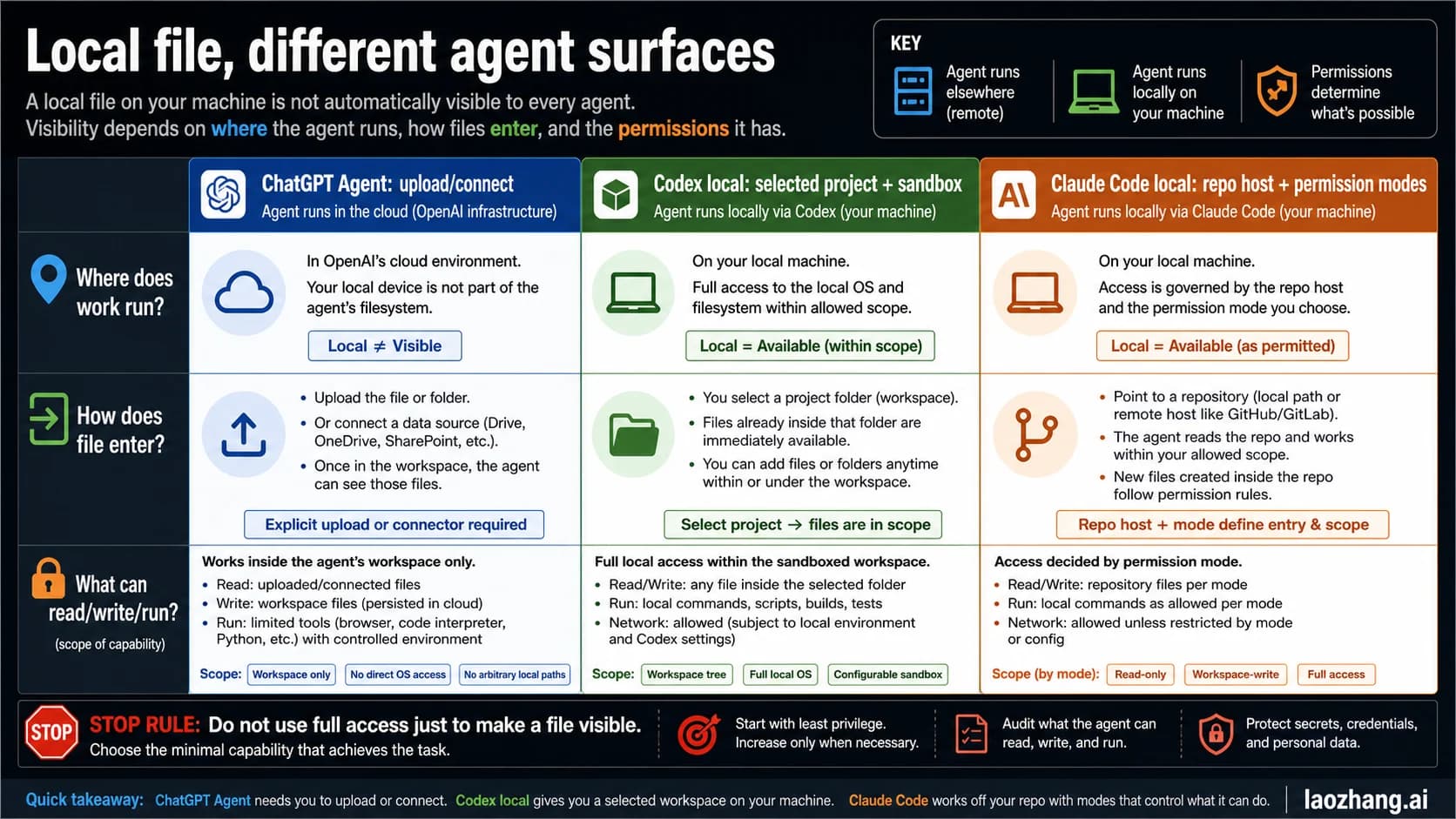
There is no standalone Codex app to download for your phone. You use Codex inside the regular ChatGPT app for iOS or Android, where the feature is called Codex Remote (OpenAI's landing page at chatgpt.com/remote calls it ChatGPT Remote), and you pair the phone with a Mac or Windows PC that runs the ChatGPT desktop app. The phone starts, steers, approves and reviews the work. The computer does it, with its own files, tools and logins.
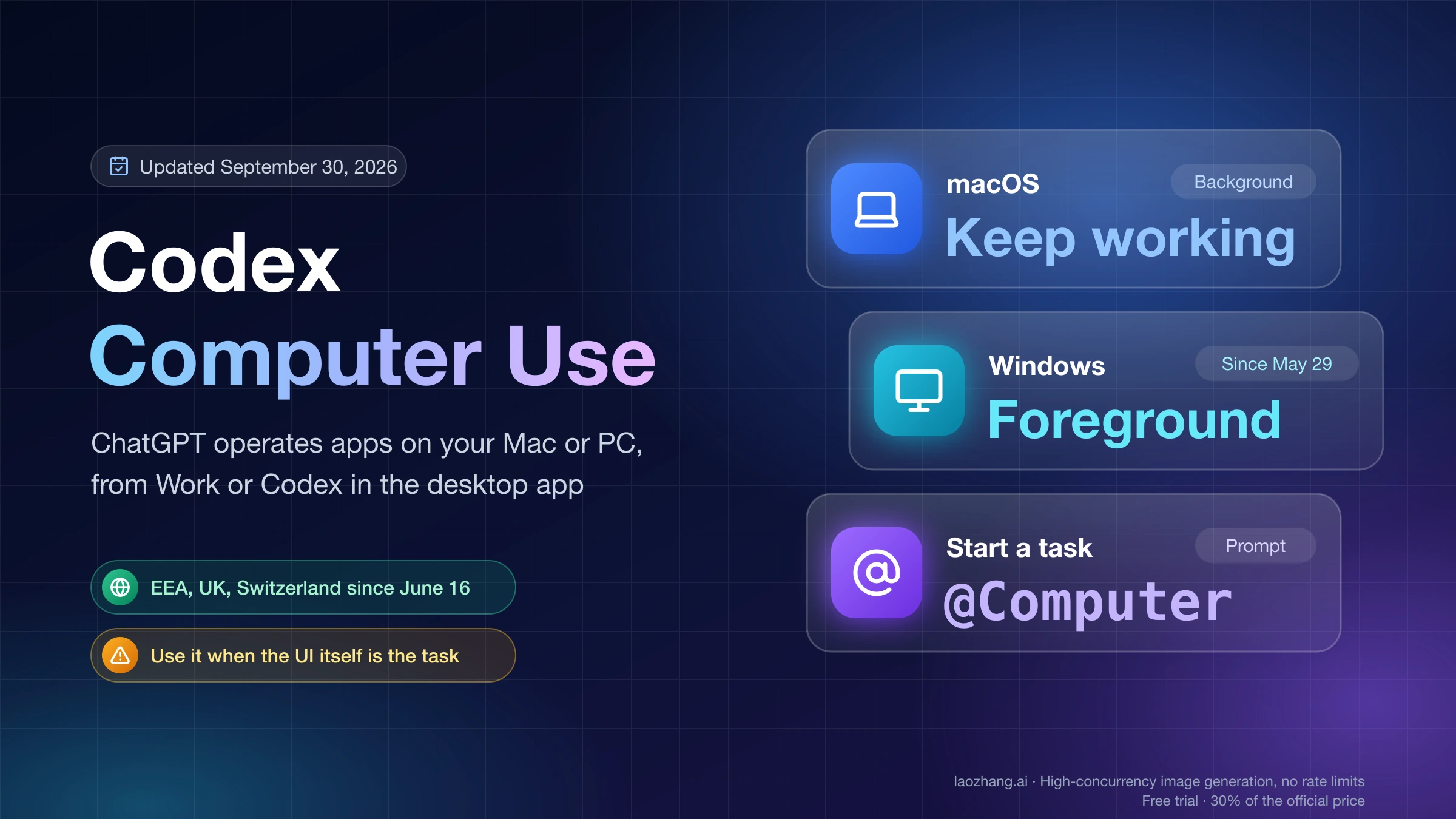
As of September 30, 2026, Codex Remote is generally available. OpenAI announced it as a preview on May 14, 2026, added Windows hosts on May 29 and declared general availability on June 25, according to the ChatGPT and Codex changelog. If a guide tells you the host has to be a Mac, or that you need something called the "Codex App" on the computer, it predates those changes. The host software is now the ChatGPT desktop app.
Store listings with "Codex" in the name are not OpenAI's. On Google Play, a "Codex" app teaches programming and has nothing to do with OpenAI. On the App Store, a "Mobile IDE for Codex" comes from a third-party developer. The official download is the ChatGPT app.
What you need before you pair
Setup only works when both ends are ready at the same time. OpenAI's Remote connections guide lists these requirements:
| Requirement | What it means in practice |
|---|---|
| Phone | The latest ChatGPT app on iOS or Android. If you don't see Codex on iOS (or Remote in builds that still use that label), update the app first. |
| Host computer | The latest ChatGPT desktop app on macOS or Windows, awake, online and signed in. |
| Same account and workspace | The phone and the computer must use the same ChatGPT account and the same workspace. A personal workspace on the phone and a company workspace on the computer count as a mismatch. |
| Codex access | Codex has to be available in that account and workspace. |
| Sign-in checks | Any MFA, SSO or passkey your account or workspace requires. |
| Admin setting | In a ChatGPT workspace, an admin may need to enable Remote Control access before you can connect. |
Two limits catch people out. First, setup starts in the ChatGPT desktop app. You can't set it up from the Codex CLI or the IDE extension, even if that's where you usually run Codex. Second, the phone can only reach a computer that is actually running the desktop app. A PC with the app closed, asleep or offline disappears from the list.
Linux is a partial case. The Remote documentation names only macOS and Windows as desktop hosts, even though a September 1, 2026 changelog entry says attachments now work across connected hosts "including Windows and Linux." The ChatGPT desktop app for Linux is still a preview without Computer Use, and pairing a phone directly with a Linux desktop isn't documented. What is documented is reaching a Linux server over SSH through a Mac or Windows host, covered further down.
Which plans include it
The answer depends on which OpenAI page you read. The May 14 announcement said the preview was rolling out to all plans, including Free and Go. The current pricing page has a feature matrix that lists "Mobile remote control" as available on Plus, Pro, Business and Enterprise, and unavailable through the API. That matrix has no Free or Go columns, so it neither confirms nor rules those plans out.
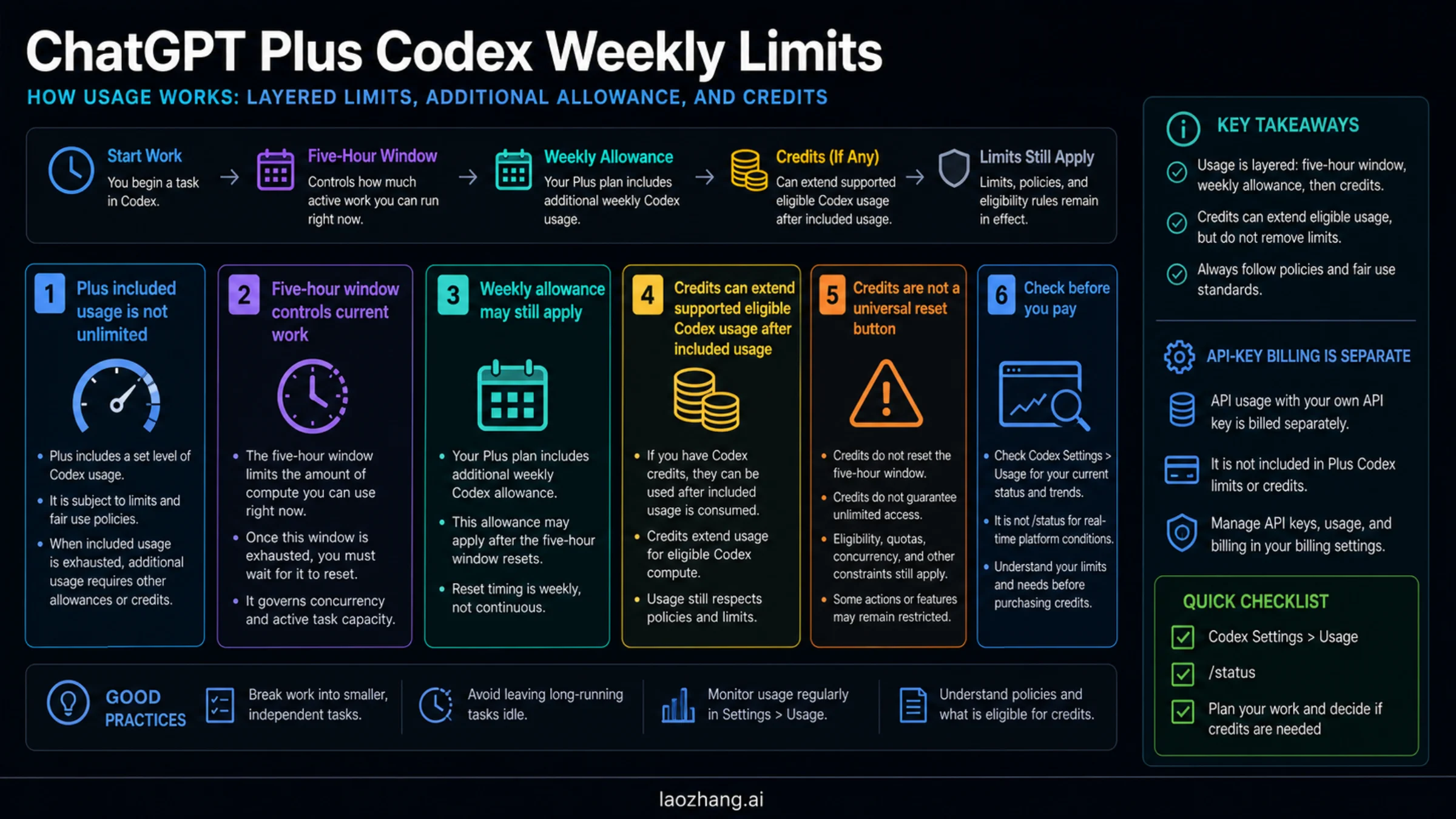
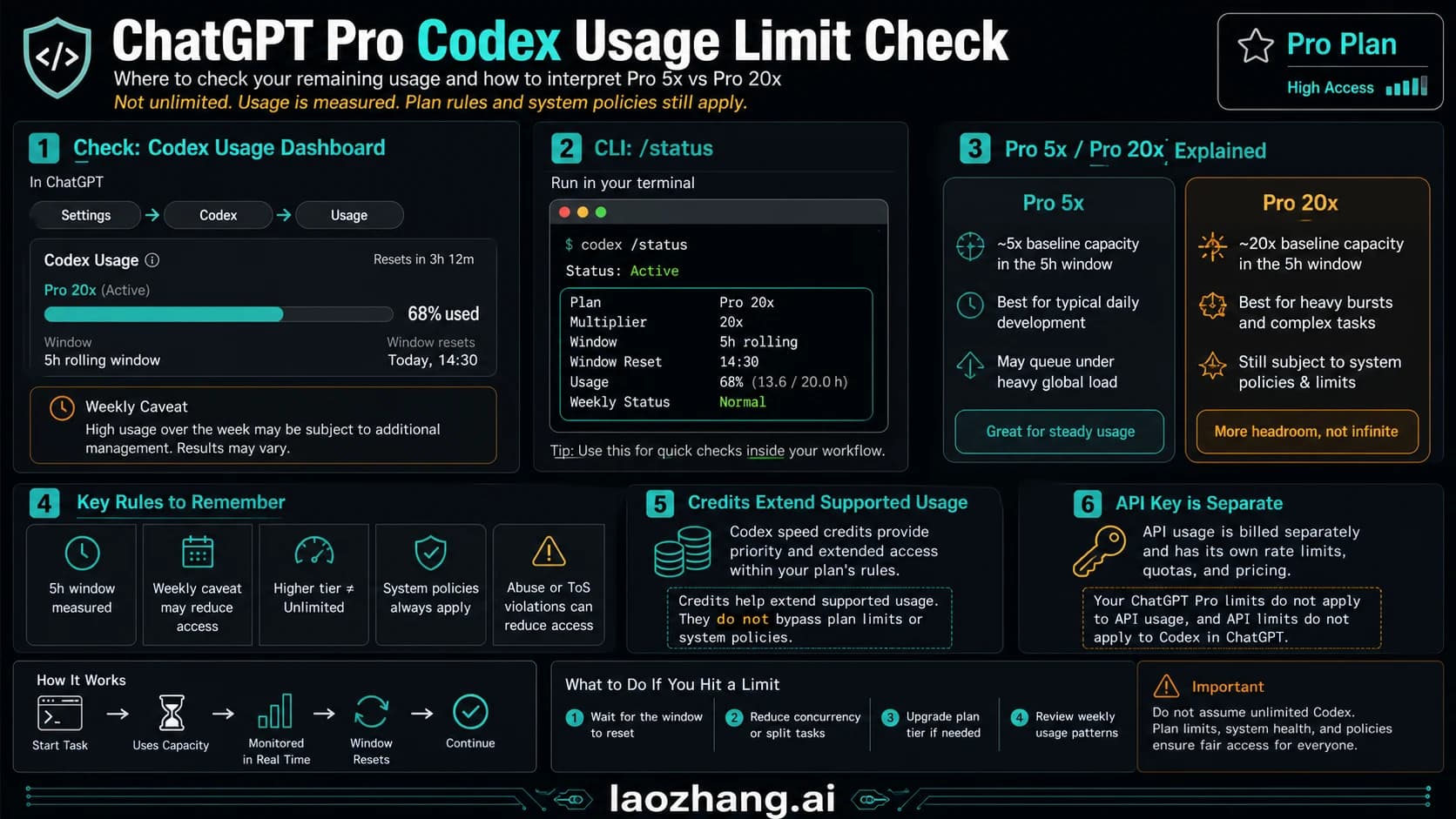
If you're on Free or Go, the practical test is the app itself. Update ChatGPT on both devices and look for Codex in the mobile app and Control this Mac or PC in the desktop settings. If neither appears after an update, your plan or workspace is the likely reason. Remote tasks don't have a separate allowance. ChatGPT Work and Codex share one set of usage limits, and the Codex weekly limit reset guide explains how to find when yours resets.
How to pair your phone with the computer
Pairing uses a QR code that the desktop app shows. The steps from OpenAI's Codex Remote page:
- On the computer, open the ChatGPT desktop app and go to Settings > Connections > Control this Mac or PC.
- Select Set up (or Add if you've paired before). Approve remote access and finish any verification the app asks for.
- Scan the QR code with your phone. It opens the ChatGPT app.
- Confirm the same account and workspace on the phone, then complete MFA, SSO or passkey steps if prompted.
- Once setup succeeds, the computer shows up under Codex in the iOS app, or under Remote if your app still uses the older label. Choose it, pick a project and start or continue a task.
Back on the computer, Settings > Connections is also where you manage paired devices, choose whether to keep the computer awake, turn on Computer Use and install the Chrome extension.
Each QR code links one phone to one computer. If you want to reach a MacBook and a Windows desktop from the same phone, pair twice. If a second phone should reach the same computer, pair that phone separately. Since June 25, 2026, every pairing between a phone and a host is authenticated one-to-one.
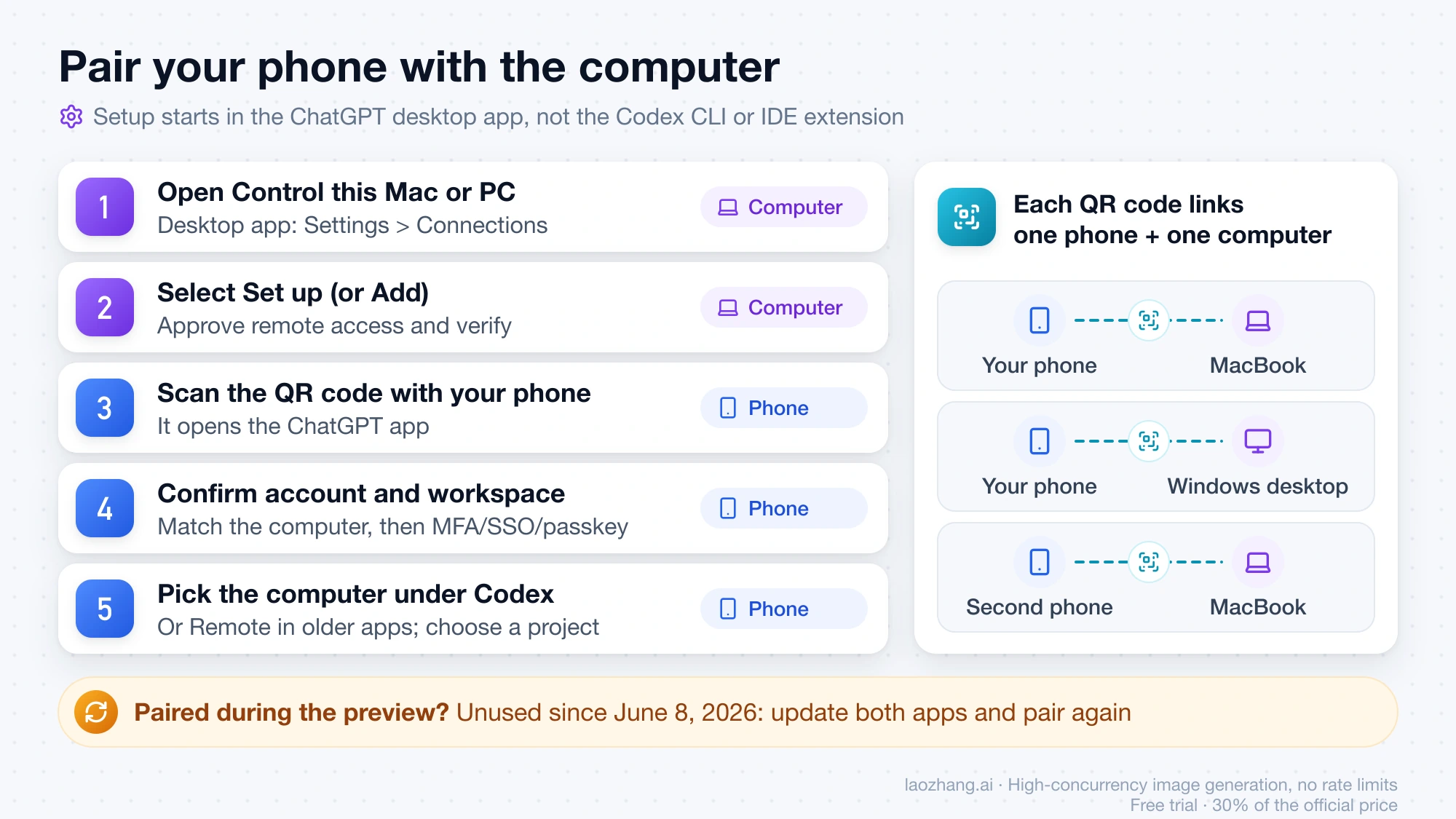
There's one date to know if you set this up during the preview. Connections you've used since June 8, 2026 stay paired. If you haven't used a connection since then, update both apps and pair again from step 1.
For the first run, give Codex something harmless: summarize a file, explain a failing test or propose a small change on a throwaway branch. That confirms the full loop (start, steer, approve, review) before anything real depends on it. Two recent additions make the phone side faster once it works. An August 18, 2026 setting opens ChatGPT directly in Codex Remote, and since August 26 you can add a Home Screen shortcut for it.
What your phone controls, and what stays on the computer
The phone is a remote control, not a second place where code runs. From the phone you can:
- start a new chat in one of the host's projects, or continue an existing one
- send follow-up instructions, answer Codex's questions and redirect work in progress
- approve commands and other actions Codex asks to run
- review responses, changed files, diffs, test results, terminal output and screenshots
- get a notification when a task finishes or needs you
- switch between paired computers and between chats
Everything Codex actually uses comes from the computer. Repository files and local documents are read from the host. Shell commands run on the host or on the remote environment it's connected to. MCP servers, skills, browser access and Computer Use follow the host's configuration, and signed-in websites or desktop apps are only available if the host can reach them. The host's sandbox settings, security controls and approval rules still apply to a session you drive from the phone.
The connection itself goes through a relay that keeps paired machines reachable from your authorized devices without exposing them directly to the public internet.
The flip side is that a tap on your phone has the same effect as a click at the desk. An approved rm, a push to a shared branch or a form submitted in a signed-in browser all happen on the real machine. A small screen makes it easy to approve without reading the whole command, so hold phone approvals to the same standard you'd use at the keyboard. Leave anything that touches billing, production systems, account permissions or security prompts for when you're back at the computer.
If a task needs Codex to operate desktop apps rather than files and a terminal, that's Computer Use, which has its own setup and permissions. Codex Computer Use: Setup on Mac and Windows, and When to Use It covers when it's worth turning on.
Keep the computer reachable while you're away
Remote access stops when the host sleeps, loses its network or closes the ChatGPT app, and resumes when it's back. If the phone loses a computer it could reach earlier, check those three first. OpenAI's guidance differs by platform.
| Host | What keeps it available | What breaks it |
|---|---|---|
| Mac laptop | Lid open and power connected. With the lid closed, an external display must also be connected. Turn on the keep-awake option in Settings > Connections. | Choosing Sleep, closing the lid with no display attached, quitting the ChatGPT app |
| Windows PC | Keep the session unlocked. Computer Use on Windows runs in the foreground, so let the desktop belong to the task while it runs. | Locking the screen before a Computer Use task, sleep, closing the app |
| Dedicated always-on Mac or PC | Install the projects, credentials, MCP servers, skills and tools Codex needs directly on that machine | The machine missing tools or logins that your everyday laptop had |
The Windows point matters more than it looks. Because Computer Use on Windows takes over the visible desktop, OpenAI describes remote control on a Windows host as best for starting or checking work while the PC isn't needed for anything else.
If a laptop that travels with you is the only host, expect gaps. A spare desktop that stays plugged in and awake is the simplest way to make the phone useful all day.
When Codex won't show up or connect
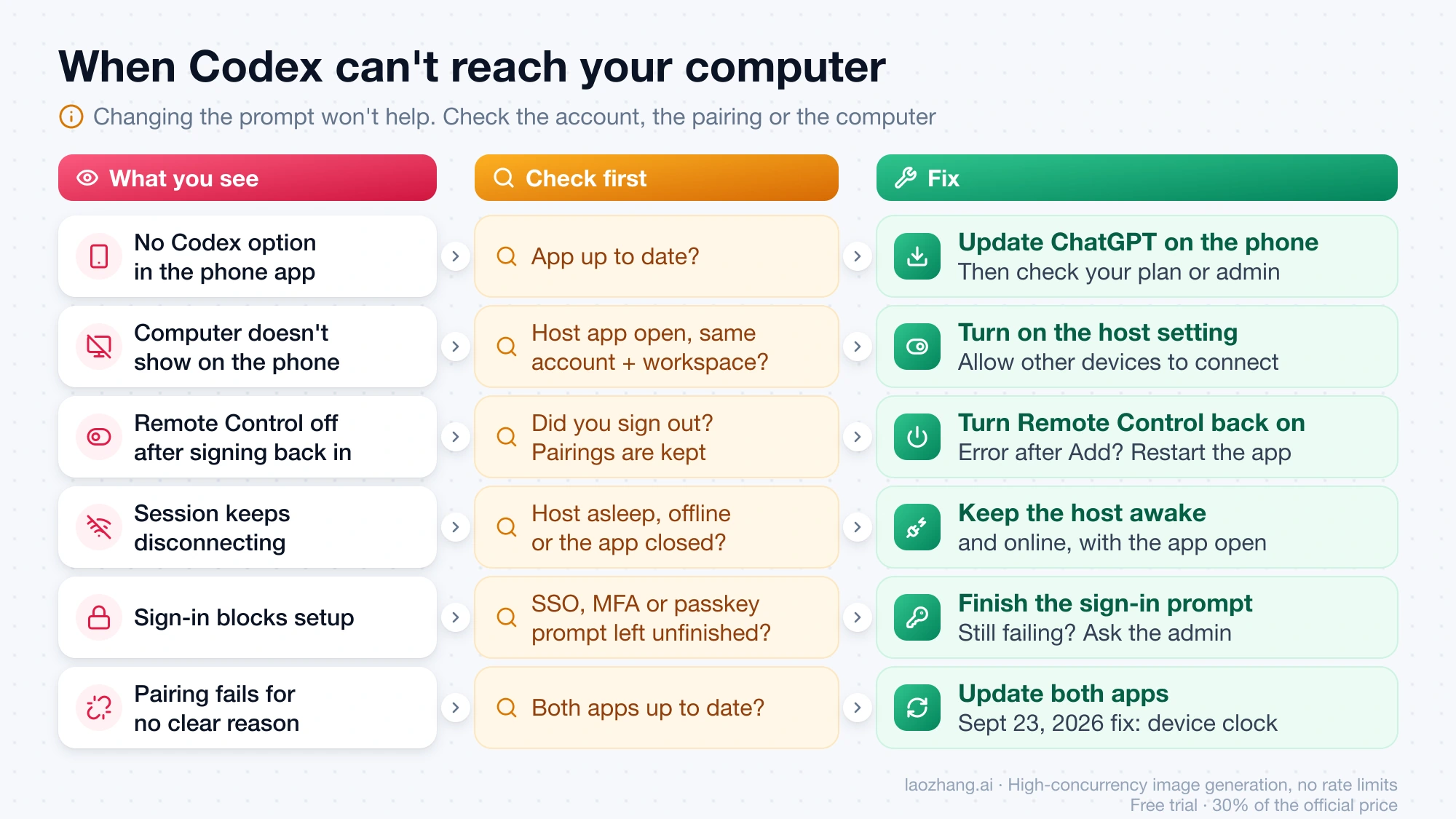
These are OpenAI's documented fixes, grouped by what you see on the screen:
| What you see | Check first | Fix |
|---|---|---|
| No Codex (or Remote) option in the phone app | App version | Update ChatGPT on the phone. If it still doesn't appear, check your plan, and in a workspace ask the admin about Codex and Remote Control access. |
| The computer doesn't appear on the phone | Desktop app running, Allow other devices to connect turned on, same account and workspace on both devices | Open the app on the host and turn the setting on. If the pairing hasn't been used since June 8, 2026, update both apps and pair again. |
| Remote Control is off after you sign back in | Signing out of ChatGPT turns Remote Control off but keeps your pairings | Turn Remote Control back on. If you get an error after selecting Add, restart the desktop app and try again. |
| The approval request never reaches the phone | You're looking in the right section, and both devices use the same account and workspace | Open Codex on iOS (or Remote), then rescan the QR code or restart setup from the computer. In a workspace, confirm with the admin that Remote Control access is enabled. |
| The session keeps disconnecting | Host sleep, network drop or the app closing | Keep the host awake and online, as in the table above. |
| Sign-in blocks setup | SSO, MFA or passkey prompt left unfinished | Complete the prompt during setup. If it still fails, ask the workspace admin to confirm Remote Control access. |
| Pairing fails for no clear reason | App versions | Update both apps. The September 23, 2026 release fixed pairing failures caused by an incorrect device clock. |
Changing the prompt won't help with any of these. When Codex can't see the host, the fault is in the account, the pairing or the computer's state, not in what you asked it to do.
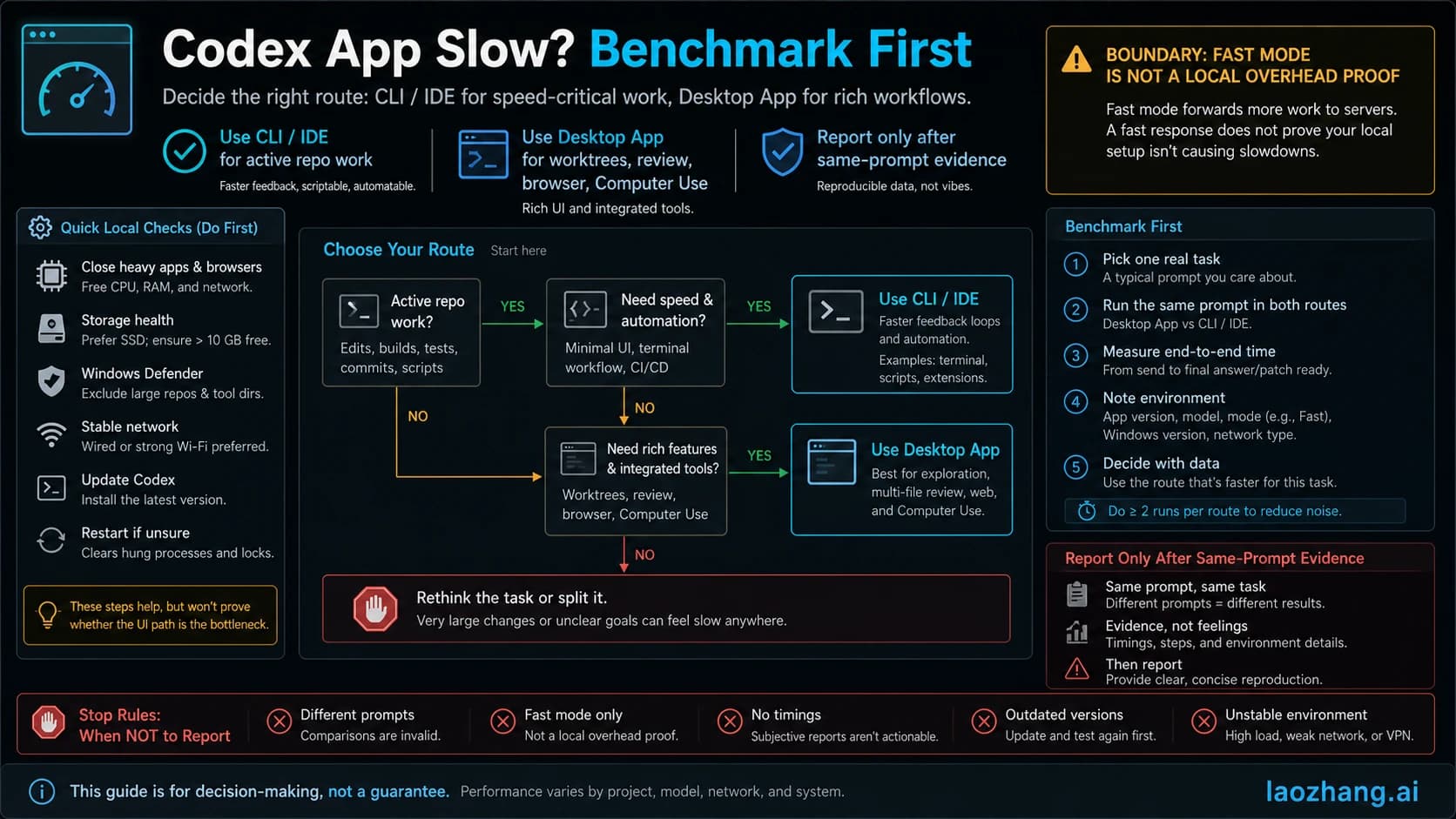
Codex Remote, Codex Cloud or SSH
Codex Remote is one of several ways to keep Codex working when you're not at your desk. The deciding question is where the code and tools should live.
| Route | Where the work runs | Pick it when | Trade-off |
|---|---|---|---|
| Codex Remote | Your own Mac or Windows PC | The task needs local files, local tools, signed-in apps or Computer Use | The computer must stay awake, online and running ChatGPT |
| Codex Cloud | A cloud environment built from your GitHub repositories | You want tasks to keep running while your computer sleeps, and the repo plus its setup is enough | No access to files or tools on your own computer |
| SSH host through the desktop app | A remote server, including Linux or Windows machines | The project already lives on a dev server | The codex command must be installed and on the remote PATH, and your phone still connects through the desktop host |
Codex Cloud tasks can also be reviewed from the ChatGPT mobile app, so "I want to check on work from my phone" doesn't automatically mean Remote. If the job is a repository change that doesn't depend on anything installed only on your machine, Cloud avoids the keep-awake problem entirely.
Two more features in the same settings screen are for heavier setups. Control other devices lets one Mac or Windows computer drive another, and a device can host and control at the same time. Handoff moves an existing chat and its Git state between your computer and a connected remote host, provided both sides have a saved project for the same repository. Handoff to Codex Cloud isn't supported. For SSH hosts, OpenAI's advice is to keep the app server off shared or public networks and to use a VPN or mesh network to reach machines outside your network.
FAQ
Is there a Codex app for iPhone?
Not a separate one. Codex is part of the ChatGPT app for iPhone, where it appears as Codex (or Remote in older versions). Install or update ChatGPT from the App Store and pair it with a Mac or Windows PC running the ChatGPT desktop app.
Does Codex work on Android phones?
Yes. Codex Remote supports ChatGPT on Android as well as iOS, and pairing works the same way: scan the QR code shown by the desktop app. OpenAI's documentation names the iOS menu, but not the exact Android label. Scanning the code opens the ChatGPT app and takes you through setup.
Can I control a Windows PC from my phone?
Yes, since May 29, 2026. Install the latest ChatGPT desktop app on the PC, go to Settings > Connections > Control this Mac or PC, and scan the code. Keep the Windows session unlocked for tasks that use Computer Use, because it runs in the foreground.
Can my phone connect to a Linux computer?
Not directly, as of September 30, 2026. Remote's documented hosts are Macs and Windows PCs running the ChatGPT desktop app. You can still work on a Linux server by adding it as an SSH host in the desktop app on a Mac or PC, then reaching that host from your phone.
Is Codex on mobile free?
The May 2026 preview announcement included Free and Go, but OpenAI's current feature matrix lists mobile remote control only for Plus, Pro, Business and Enterprise. Update both apps and see whether Codex and Control this Mac or PC appear. Usage comes out of the same limits as the rest of your Codex and ChatGPT Work usage.
Why did my phone stop seeing a computer I paired in May?
Pairing changed with general availability. Connections you've used since June 8, 2026 carry over, but older idle ones need to be paired again after you update both apps.