ChatGPT Scheduled Tasks: What Context, Memory, and Tools Can They Actually Use?
Scheduled Tasks work best as scheduled prompts with verified ChatGPT tools/apps: put critical facts in the task prompt, treat Memory as conditional, and use another route for files, webhooks, or deterministic jobs.
On this page
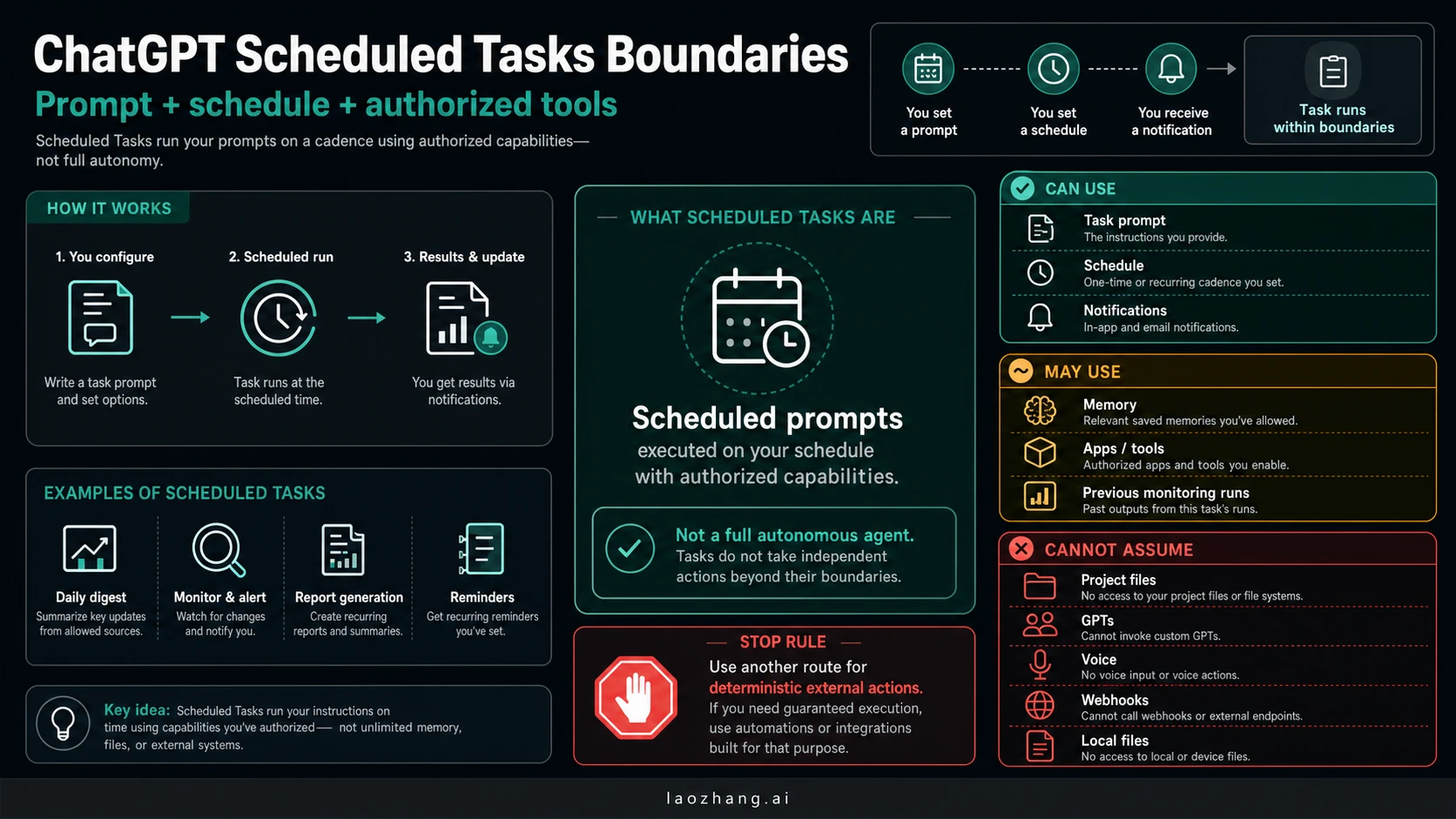
ChatGPT Scheduled Tasks are scheduled prompts that run with supported ChatGPT capabilities, not full autonomous agents with unlimited memory, project files, custom GPT behavior, webhooks, or local file access. Use them when the job can be written as a task prompt plus a one-time, recurring, or monitoring schedule, and the needed tools or apps are available to your account or workspace.
Fast boundary:
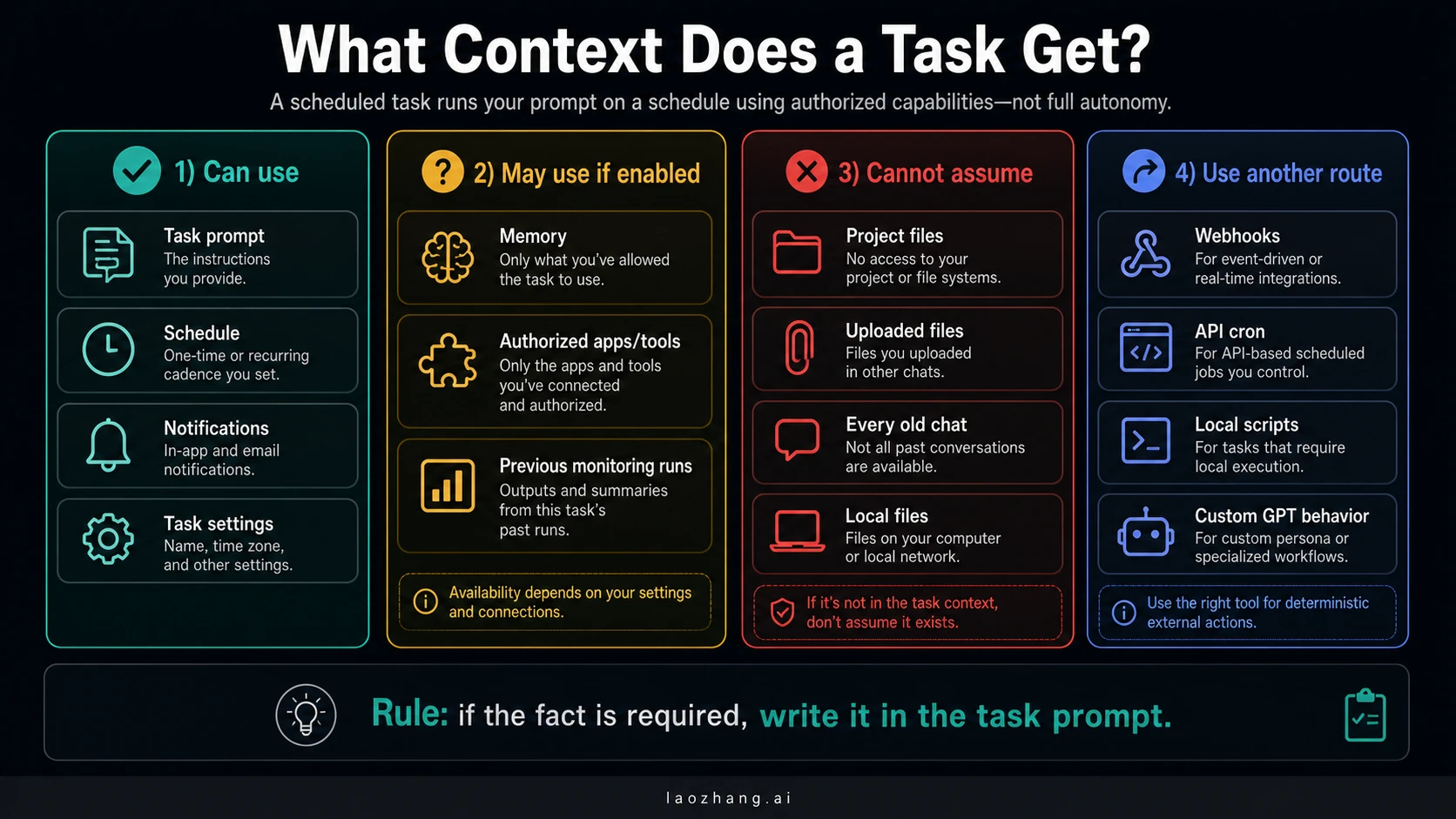
- Can use: the task prompt, schedule, notifications, task settings, and the associated chat or task surface.
- May use if enabled: Memory, authorized ChatGPT tools/apps, and previous monitoring-task runs.
- Cannot assume: every old chat, project files, uploaded files from other chats, GPTs, voice chats, local files, or arbitrary connected-account actions.
- Use another route: webhook triggers, API cron jobs, local scripts, file-system jobs, or deterministic external actions.
If a fact must be present when the task runs, put it directly in the task prompt. Memory can personalize ChatGPT, but it is not a reliable hidden database for exact instructions, file contents, or compliance-critical facts.
Evidence note: OpenAI Help Center pages for Scheduled Tasks, ChatGPT capabilities/apps, Memory, Projects, and Data Controls were checked on June 30, 2026. Plan availability, active task limits, hourly cadence, model/tool/app access, admin policy, and UI paths remain account- and rollout-sensitive.
Fast Answer: Design the Task Around Its Explicit Context
The safest design rule is simple: a Scheduled Task should be self-contained enough to run later without you being present. The task prompt should carry the subject, scope, source preference, output format, stop condition, and any facts that would change the answer if ChatGPT forgot them.
OpenAI's Tasks in ChatGPT help page describes tasks as one-time, recurring, or monitoring jobs that can be created from supported ChatGPT surfaces. That is a strong scheduling feature, but it is still a ChatGPT product feature. It does not turn every chat, file, project, app, and local folder into a background runtime.
Use this matrix before you write the prompt:
| Boundary | Safe planning rule | What to verify |
|---|---|---|
| Task prompt | Put required facts, dates, output format, and stop conditions here | Whether the prompt alone would make sense tomorrow |
| Schedule | Choose one-time, recurring, or monitoring cadence | The official page says tasks cannot run more often than hourly |
| Memory | Treat as optional personalization | Whether Memory is enabled and whether this account uses saved memories or chat-history referencing |
| Project files | Do not rely on them | OpenAI says tasks created in a project with files cannot access those files |
| Tools/apps | Use only if available and authorized | Plan, workspace, region, app connection, admin policy, and review steps |
| External automation | Use another owner | API cron, workflow automation, local scripts, webhooks, or repo agents |
If you cannot fill the last column, the task is not ready for unattended use. It may still be useful as a manual ChatGPT prompt, but it is not stable as a scheduled workflow.
How a Scheduled Task Gets Context
Start with the task prompt, not with hidden context. The prompt is the only place where you can deliberately pin the facts the future run must use. A good task prompt says what to check, what sources or tools are allowed, what to ignore, what output format to send, and when to stop.
The associated chat can matter because deleting the chat pauses the task. That does not mean every line of every older conversation becomes dependable task input. Treat the chat as the task's product container, not as a guaranteed archive of every fact the run will need.
Monitoring tasks add one important nuance. OpenAI describes monitoring tasks as jobs that can check something repeatedly and remember previous runs so they can stop after a condition is met. Use that as task history: "last time this task saw X, now compare against Y." Do not use it as a substitute for required reference material. If a weekly monitor needs a baseline, put the baseline in the task prompt or point to an authorized tool that can fetch it.
The cadence also has a boundary. As of the June 30, 2026 check, OpenAI's task page says tasks can run no more often than hourly. If your workflow needs minute-level polling, event triggers, webhooks, queue consumers, or guaranteed retry semantics, Scheduled Tasks are the wrong owner.
Memory Is Personalization, Not a Task Brief
ChatGPT Memory is useful, but it is easy to overread what it promises. OpenAI's Memory FAQ separates saved memories and chat-history referencing, and those controls can affect future chats. That is personalization. It is not a contract that every scheduled run will recall the exact fact, file, instruction, or prior decision you wanted.
Use Memory for preferences that can safely be fuzzy:
- preferred tone, units, naming conventions, or recurring formatting
- stable personal preferences that are not security-sensitive
- context that improves phrasing but does not decide correctness
Do not use Memory for facts that must be exact:
- a customer account number, legal requirement, production incident boundary, or financial threshold
- a source document summary that would change the result if stale
- a secret, token, private file, or local environment detail
- a task-specific instruction that must always run
The practical pattern is to make the task prompt the brief and Memory the optional seasoning. For example, "Every Monday at 9:00, summarize AI policy updates in a concise executive style" can benefit from a remembered style preference. But "watch this client's renewal risk and alert me when usage crosses 80%" needs the client name, threshold, data source, and authorized tool route stated explicitly.
There is also a privacy boundary. OpenAI's Data Controls FAQ is about training and data controls, not a guarantee about scheduled-task context inheritance. Do not conflate "will this be used for training?" with "will this task remember the right facts next week?"
Projects and Uploaded Files Are Not Safe Inputs
A project can make ChatGPT feel like a persistent workspace, but Scheduled Tasks have a narrower file rule. OpenAI's Projects help page explains project workspaces, while the Scheduled Tasks help page says tasks created in a project with files cannot access those project files.
That sentence is the correction many readers need. If your plan is "put documents in a ChatGPT Project, then ask a task to review them every morning," do not assume it will work. Summarize the stable facts into the task prompt, use an authorized app/tool route that the task can actually access, or move the workflow to another automation owner.
Uploaded files from other chats deserve the same caution. A file you uploaded somewhere in ChatGPT is not automatically a durable background input for every scheduled run. If the file content matters, reduce it into the prompt, connect the data through an explicitly supported app, or use a tool built for file-system work.
For local files and repos, use a different route entirely. The ChatGPT Agent local files workaround guide explains how upload, Library, GitHub, Codex local, and Claude Code local differ as file routes. Scheduled Tasks should not be used as a workaround for arbitrary local folders, .env files, unpushed code, or local network state.
Tools and Apps Need a Permission Chain
Tools and apps are not a blank check. OpenAI's ChatGPT capabilities overview describes Scheduled Tasks as part of ChatGPT's capability surface, and the Scheduled Tasks help page gives examples involving apps or tools. The safe interpretation is permissioned capability, not general automation.
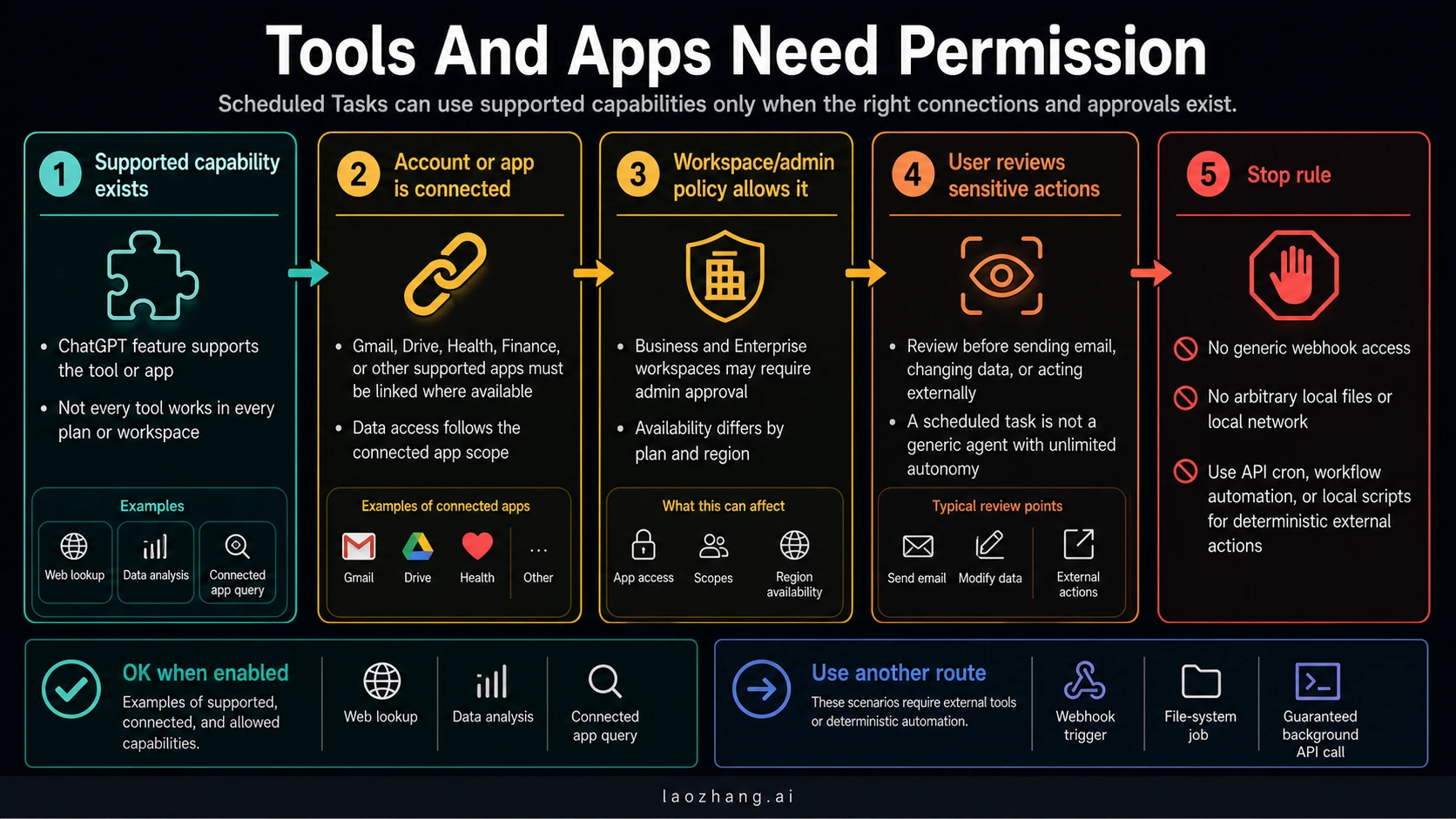
Before a recurring task depends on a tool or app, verify five layers:
| Layer | Question | Failure mode |
|---|---|---|
| Feature support | Does this ChatGPT account/workspace expose the relevant tool or app to tasks? | The task runs but cannot perform the intended lookup or action |
| Connection | Is the app connected with the needed scope? | The task can answer generically but cannot inspect the account data |
| Workspace policy | Does admin policy allow the connector or action? | Business or Enterprise controls block the flow |
| User review | Does the action require a review step? | A task may prepare an action but not silently complete it |
| Output proof | Can you inspect what happened after the run? | You cannot tell whether the task used the right source |
This is especially important for Gmail, Health, Finance, Drive-like data, or any app that can expose private information or perform an external action. If the workflow would be dangerous when run against the wrong account, do not rely on a casual prompt. Build a test task with harmless output first, then verify the task history, notification, and app-side result.
Web lookup and analysis tools need similar discipline. If the task says "check the latest policy changes," specify the source class, recency, and output format. If the answer needs a fixed database, dashboard, repo, CRM, or local file, Scheduled Tasks may be the wrong integration path.
Stop Rules: When Scheduled Tasks Are the Wrong Owner
Scheduled Tasks are useful when the job is a recurring ChatGPT prompt. They are a poor fit when the job is really infrastructure.
Use another route when the workflow needs:
- a webhook trigger from another system
- minute-level polling, queue processing, retries, or delivery guarantees
- direct local file-system or local network access
- repo edits, tests, command execution, or unpushed working-tree state
- custom GPT behavior, GPT-specific instructions, or voice-chat workflows
- auditable external actions that must run without human review
For developer automation, a repo-native or workflow-native route is usually clearer. The Claude Code routines guide is a better comparison point when the job is "run this repeatable coding workflow inside a repository." API cron, CI jobs, workflow platforms, local scripts, and queue workers are better owners when the output must be deterministic, logged, and retried.
The decision is not "Scheduled Tasks are weak." It is "Scheduled Tasks own a different job." They are strong for reminders, briefings, status checks, light monitoring, and recurring ChatGPT outputs. They are not a replacement for a backend scheduler or a local agent with a defined filesystem boundary.
A Prompt Recipe That Survives Later Runs
The prompt should make the future run boring. If you cannot tell what the task will do from the prompt alone, it is too dependent on unstated context.
Use this structure:
Task goal:
Every [cadence], do [specific job] for [audience].

Required context:
- [Fact 1 that must not be inferred]
- [Fact 2 that must not be inferred]
- [Source, account, project, or app name if a supported tool/app is required]

Allowed tools/apps:
- Use [tool/app] only if it is available and authorized in this ChatGPT account.
- If the tool/app is unavailable, say what could not be verified instead of guessing.

Output format:
- Start with the answer or status.
- Then list evidence, changes, or exceptions.
- End with the next action or "no action needed."

Stop rule:
- Do not assume project files, uploaded files, local files, webhooks, GPTs, voice chats, or unsupported connected-account actions.
- If a required fact is missing, ask for the fact or report the missing input.
For a weekly market monitor, the required context might be the product name, sources to check, competitors, and alert threshold. For a daily inbox-style briefing, it might be the account/app connection, labels or filters, and what actions are allowed. For a compliance reminder, it might be the policy date, owner, threshold, and escalation rule.
Do not hide the important part in "as discussed earlier." That phrasing is fine in a live chat, but it is weak in a scheduled run. Replace it with the actual fact.
Troubleshooting: Which Boundary Broke?
When a task disappoints you, debug the boundary before rewriting the whole workflow.
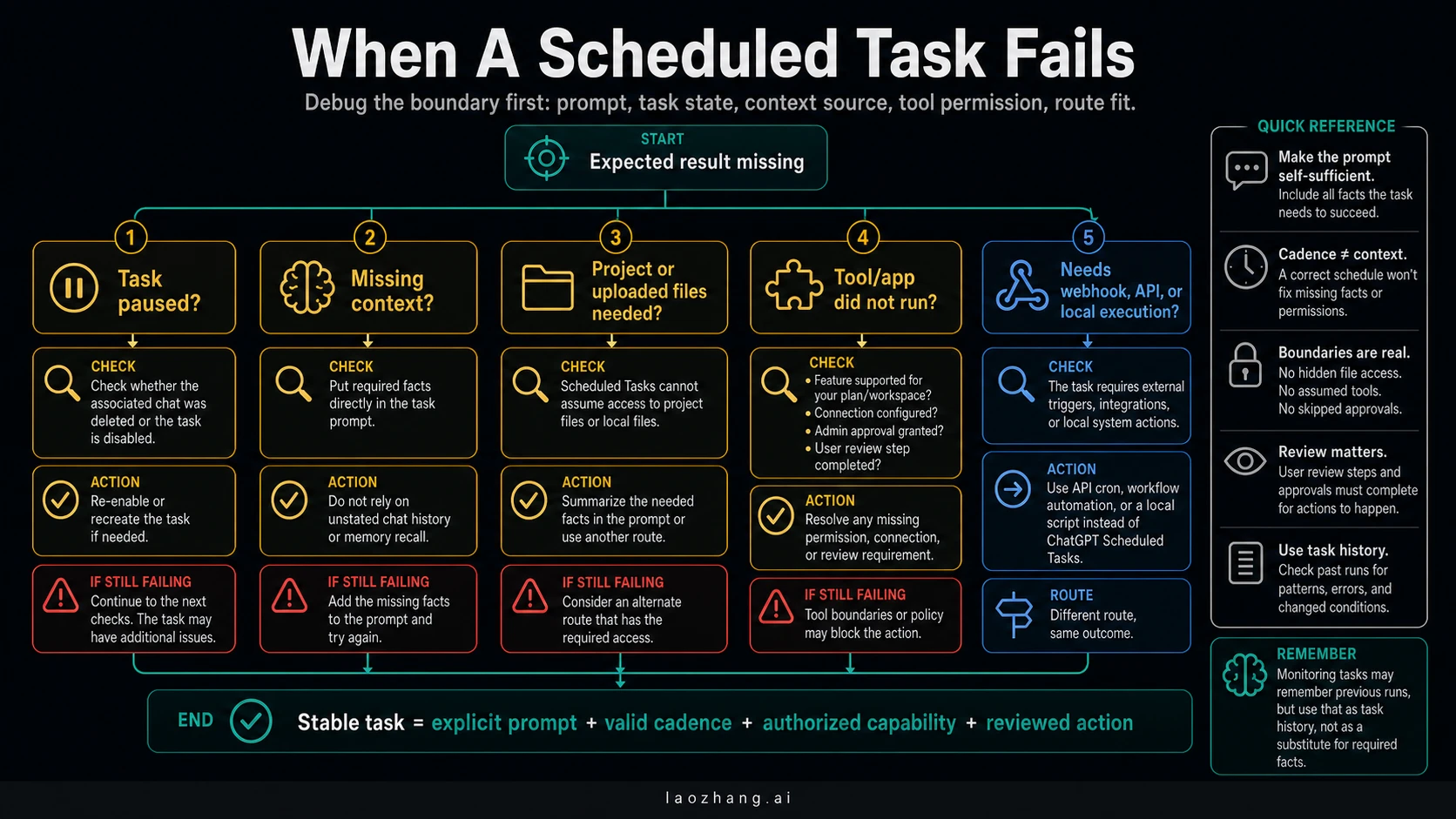
| Symptom | Likely boundary | First fix |
|---|---|---|
| The task stopped running | Task state or associated chat | Check whether the task is disabled or the associated chat was deleted |
| The answer ignored an important fact | Missing explicit prompt context | Put the fact directly in the task prompt |
| The task could not use a file | Project/upload/local-file assumption | Summarize the file into the prompt or use another file route |
| The tool did not run | Feature, connection, admin policy, or review step | Verify support, connection, permissions, and task history |
| The result was too generic | Source route not defined | Name the allowed source, recency, and output proof |
| The workflow needs external execution | Wrong owner | Move to API cron, workflow automation, CI, local script, or repo agent |
The most useful post-run check is concrete: what did the task actually use? Look at the notification, task history, app-side result, or associated chat. If you cannot verify the source path, treat the run as unproven.
FAQ
Can ChatGPT Scheduled Tasks use Memory?
They may benefit from Memory when Memory is enabled and relevant, but do not design a task around exact hidden recall. Put required facts directly in the task prompt. Treat Memory as personalization, not as a deterministic task database.
Can Scheduled Tasks access project files?
Do not assume they can. OpenAI's Scheduled Tasks help page says tasks created in a project with files cannot access those project files. If file content matters, summarize the needed facts into the prompt or move the workflow to a file-aware route.
Can a Scheduled Task use Gmail, tools, web search, Health, or Finance?
Only where the relevant ChatGPT capability is supported, enabled, connected, authorized, and allowed by the account or workspace. For any sensitive action, verify whether review is required. Do not treat an app example as proof that every account can run that action unattended.
Can Scheduled Tasks run webhooks?
No. As of the June 30, 2026 check, OpenAI's Scheduled Tasks help page says webhooks are not supported. Use a backend scheduler, workflow platform, queue consumer, or API cron job for webhook-style automation.
Do Scheduled Tasks support GPTs or voice chats?
No for this boundary. The official Scheduled Tasks page says GPTs and voice chats are not supported for tasks. Use a regular Scheduled Task prompt, or choose another product route if the workflow depends on custom GPT behavior or voice.
Why did my task pause?
One common cause is deleting the associated chat. OpenAI says deleting the chat associated with a task pauses it. Also check whether the task was disabled, reached its condition, hit an availability/permission issue, or depended on a tool that was not available at run time.
Are Scheduled Tasks good for API cron jobs?
Not when you need deterministic external execution, retries, logs, or local files. Scheduled Tasks are good for recurring ChatGPT outputs. API cron jobs, CI workflows, local scripts, and backend schedulers are better when the workflow must execute code or call external systems reliably.
What is the safest first task to test?
Use a harmless self-contained prompt: one source, one schedule, no private app action, and an output you can inspect. For example, ask for a weekly digest from public sources with a short evidence list. After the task succeeds, add one permissioned tool at a time.