Seedance ‘Input Image May Contain a Real Person’: Legitimate Fixes
Seedance’s ‘input image may contain a real person’ response is an input-asset rejection, not a prompt error. Stop unchanged retries, identify the image’s provenance, and use only a documented trusted, preset, or authorized asset route.
On this page
If Seedance returns HTTP 400 InputImageSensitiveContentDetected.PrivacyInformation with “The request failed because the input image may contain a real person,” the reference was rejected before generation. This is not a prompt, duration, or polling error. Do not keep retrying the same file or rewrite the prompt: neither action changes the image’s trust status.
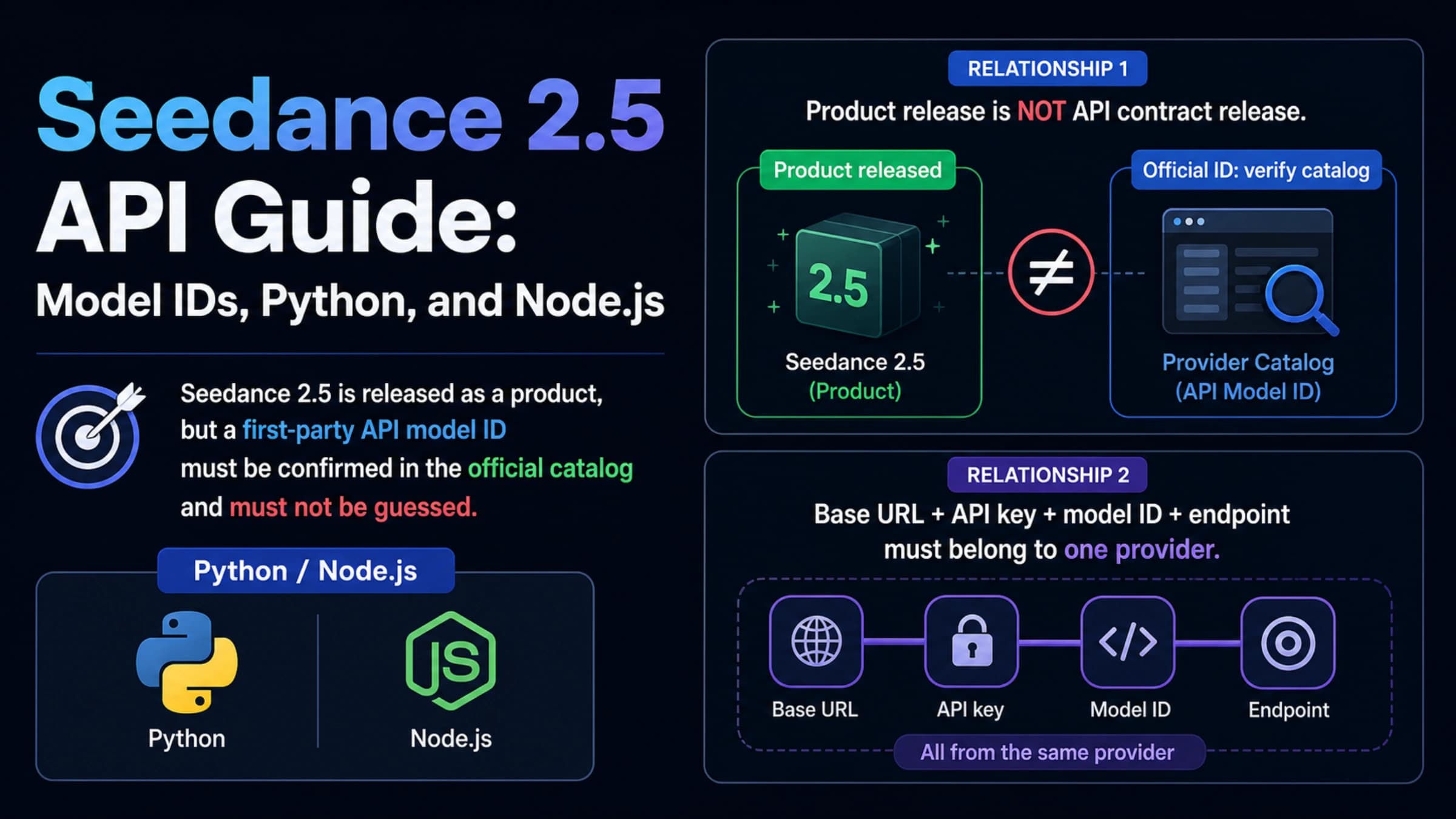
The legitimate next step depends on where the portrait came from. An ordinary URL or Base64 image containing a human face is not interchangeable with a ModelArk trusted output, a preset digital person, or an authorized real-person asset. The official ModelArk error table tells users to replace the rejected input; the current Seedance 2.0 tutorial documents the three portrait-capable routes described below.
The 30-second decision
| Image provenance | What the error means | Legitimate next action | Stop rule |
|---|---|---|---|
| External URL, Base64 file, upload, or third-party AI portrait | The route classified the raw input as potentially containing a real person | Replace it with a clearly fictional, non-identifiable subject, or move to a documented asset route | Do not crop, blur, tile, obscure, or prompt-rewrite to defeat the check |
| Eligible ModelArk output | It may be reusable only if it is the original, unmodified same-account output and still inside the documented 30-day trust window | Use the original eligible output through the supported ModelArk route | Stop if it was edited, compressed, forwarded, moved across accounts, or has expired |
| Preset digital person | A specific real identity is not required | Select an eligible preset and submit its Asset ID as asset://<ASSET_ID> | Check the exact asset’s usage terms; do not present it as a real individual |
| Specific authorized real person | Consent alone does not convert a raw upload into a trusted asset | If your account is eligible, complete the official verification/private-asset flow, then use the resulting Asset ID | Stop if authorization, identity verification, entitlement, or the intended-use rights are missing |
This table separates input provenance from visual appearance. A highly realistic fictional portrait can still trigger the classifier, while an authorized real-person workflow can be technically possible only after verification and asset registration. “May contain” is a moderation result, not proof that the image depicts a real person and not a legal judgment about your rights.
First, confirm where the failure happened
The exact InputImageSensitiveContentDetected.PrivacyInformation response is an input-image privacy precheck. It differs from these neighboring failures:
- No task ID was created and the response is HTTP 400: treat it as an input rejection. Do not put it into an automatic render retry queue.
- Your wrapper rejected the request before it reached ModelArk: inspect the wrapper’s own error object and route documentation. A UI label such as “real human” does not prove that verification or Asset ID support is configured.
- A task was created and later failed: preserve the task status and output-moderation reason. That is not the same stage as this input error.
- The request timed out or returned a server/transport error: follow bounded transient-retry handling in the Seedance API implementation guide. Do not apply transport retry rules to a content-policy 400.
Record the raw error code before a gateway turns it into a generic “not eligible” message. That single distinction prevents teams from spending hours changing prompts for a file-level decision.
Route 1: raw portrait URL or Base64 input
The current Seedance 2.0 API reference says direct reference-image or reference-video uploads containing a real human face are not supported. This applies to the input method: it does not mean the model is incapable of rendering people.
For an external photograph or an AI portrait downloaded from another tool, the safe assumption is that ModelArk has no trusted provenance record for the face. The portrait precheck can therefore reject a fully synthetic but photorealistic character. Public incident reports, including a Comfy-Org integration issue, show the exact error appearing in real workflows; those reports demonstrate the failure mode, not a universal detector rule or a supported workaround.
Use one of two outcomes:
- If no real identity is needed, replace the input with an unmistakably fictional or non-identifiable character, or choose a preset digital person.
- If the job must depict a specific real person, stop the raw-upload flow and use the authorized asset process—if your account and region have access.
Changing the prompt cannot establish image provenance. Cropping the face, adding a grid, blurring features, stripping metadata, or shopping for an “uncensored” route is filter evasion, not troubleshooting.
Route 2: an eligible trusted ModelArk output
ModelArk documents a narrow trust path for certain face-containing outputs generated under the same account. According to the official Seedance tutorial, the file must be an eligible original ModelArk output, remain unmodified, belong to the same account, and be used within the documented 30-day trust period.
Run this provenance check before treating the file as trusted:
- Was it generated by a currently eligible ModelArk model under this exact account?
- Is it the original file, rather than a screenshot, export, forwarded copy, or recompressed version?
- Has it remained unedited?
- Is it still within 30 days of the qualifying output?
- Is the selected Seedance route documented to accept that trusted output type?
If any answer is no or unknown, do not loop retries. Return to the original eligible output or choose another documented route. Technical trust also does not override content policy: a trusted input can still be rejected because of the requested output or subject.
Route 3: a preset digital person
When the scene needs a consistent presenter or actor but not a specific real identity, a preset digital character is the simplest documented route. The ModelArk preset digital-person library supplies assets designed for this workflow.
The generation request refers to the selected Asset ID through the documented URI form:
asset://<ASSET_ID>That identifier is not a public image URL, and third-party gateways are not guaranteed to support the scheme. Confirm that your exact endpoint, account, SDK, or workflow node passes Asset IDs through correctly. Also check the selected asset’s current license and external or commercial-use terms; “preset” does not mean unrestricted use.
Use this branch when identity is incidental to the creative task. Do not select a roughly similar preset to imitate a named person or evade a public-figure restriction.
Route 4: an authorized real-person asset
For a specific real person, ModelArk’s supported path is an authorization and identity-verification workflow, not direct upload. The current private real-human asset guide is explicitly marked for invited users only, so availability depends on account, region, and entitlement.
At a high level, the documented process is:
- Create the verification or authorization session for the subject.
- Have the person complete the required identity/liveness checks and grant the stated use authorization.
- Retrieve the resulting Asset Group ID after authentication succeeds.
- Add or select accepted media under that authorized group.
- Confirm the asset detail status—not merely that it appears in a list.
- Submit the accepted Asset ID as
asset://<ASSET_ID>with the documented reference role.
The official documentation separates creating a verification session from retrieving the verified asset group. A ComfyUI or hosted workflow may wrap these steps, but its UI does not prove that your raw API key has the same entitlement.
Consent is necessary, but it is not the whole route. You still need successful verification, an accepted asset, compatible endpoint support, and rights that cover the intended output and distribution. The ModelArk Data Authorization Agreement places responsibility for required notices and consent on the customer; this page is a technical workflow guide, not legal advice.
Two gates must pass before generation
A real-person job is ready only when both checks pass independently:
- Technical asset acceptance: the selected route recognizes the asset type, the account is entitled, the trust or verification record is current, and the Asset ID is accepted.
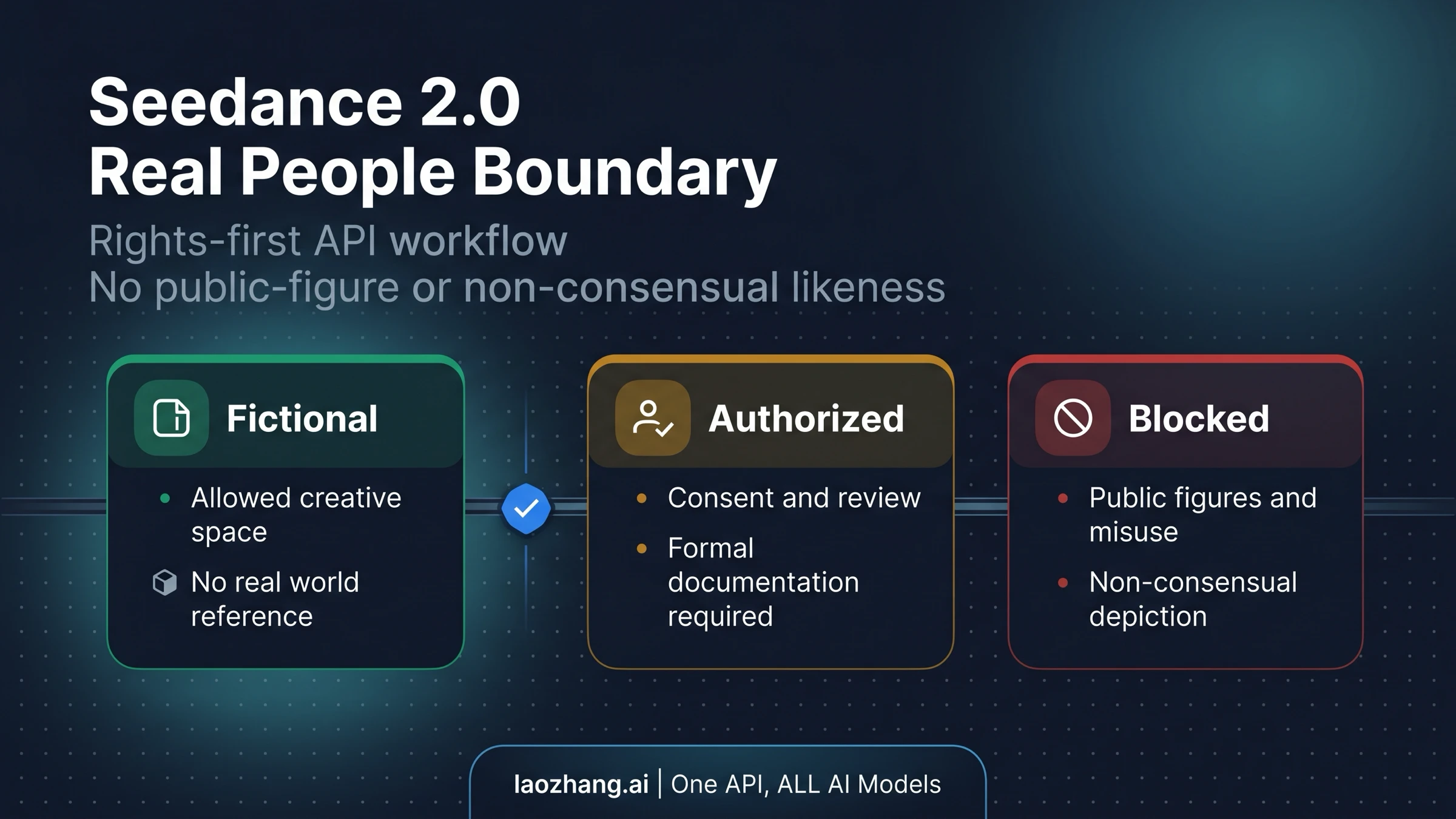
- Rights and safety approval: the subject authorized the intended use, the request does not create prohibited impersonation or harm, and your own product safeguards approve the context.
Passing the technical gate is not permission. Passing an internal consent check does not make a raw URL a trusted asset. Keep these results separate in product logs and user-facing error messages.
The BytePlus GenAI Acceptable Use Policy restricts unauthorized likeness or voice use, deceptive impersonation, privacy violations, and safety-filter circumvention. ModelArk’s content pre-filter FAQ also says generated face or voice similarity to public figures may be filtered, and that its public-figure reference set is not comprehensive. A missed filter is therefore not permission.
Stop rather than reroute when the request involves a public figure, impersonation, missing or unverifiable consent, intimate or sexual content involving an identifiable person, or an attempt to defeat moderation. For minors or ambiguous age, do not proceed through this general workflow; apply a stricter, specialized safety and rights review.
When a fictional portrait looks like a false positive
If you created the character synthetically and the classifier still says it may contain a real person, treat “false positive” as a hypothesis—not as a reason to bypass the check. Official documentation does not promise that an external AI-generated portrait will be recognized as virtual.
Use this sequence:
- Verify that the error is the exact input-image code, not a wrapper’s generic message.
- Confirm that the file is external rather than an eligible original same-account output.
- If no specific identity is required, use a clearly fictional subject or a documented preset digital person.
- If the image is clearly fictional and the rejection appears erroneous, escalate with metadata to the exact provider or integration owner.
- Stop after the provider confirms the route does not support the asset type. Do not keep sending altered versions of the same face.
This preserves a legitimate false-positive appeal path without teaching detector manipulation.
Build a support packet without spreading the portrait
Support usually needs request context before it needs the sensitive image. Preserve:
- exact error code and message;
- request ID and task ID, if one exists;
- UTC timestamp and region/endpoint;
- model ID or endpoint ID;
- provider, gateway, SDK, and integration version;
- asset provenance class: raw upload, trusted output, preset asset, or authorized asset;
- Asset ID and Asset Group ID where applicable, with authorization secrets removed;
- whether the file was modified, compressed, forwarded, cross-account, or older than 30 days;
- the stage that failed: wrapper validation, request creation, or task processing.
Do not paste identity documents, authorization tokens, face images, or public asset URLs into ordinary tickets and chat channels. Provide the portrait only if the provider’s restricted escalation procedure explicitly requires it, and use that procedure’s retention and access controls.
Retry and launch checklist
Retry only after something material has changed: you selected a valid preset asset, restored the eligible original trusted output, completed the authorized asset flow, or the provider fixed a confirmed integration error. Do not automatically retry the unchanged HTTP 400.
Before shipping a portrait workflow, verify all of the following on the exact route you will use:
- raw URL/Base64 and
asset://inputs are treated as different contracts; - trusted-output model eligibility, same-account status, originality, and 30-day age are checked;
- preset or authorized Asset IDs pass through the wrapper unchanged;
- invited-only entitlement is confirmed for authorized real-person assets;
- authorization scope covers the output type and distribution;
- public-figure, impersonation, intimate-content, minor, and missing-consent stop rules run before submission;
- content-policy 400s cannot enter the transient retry queue;
- support can retrieve IDs and metadata without routinely retrieving the face file.
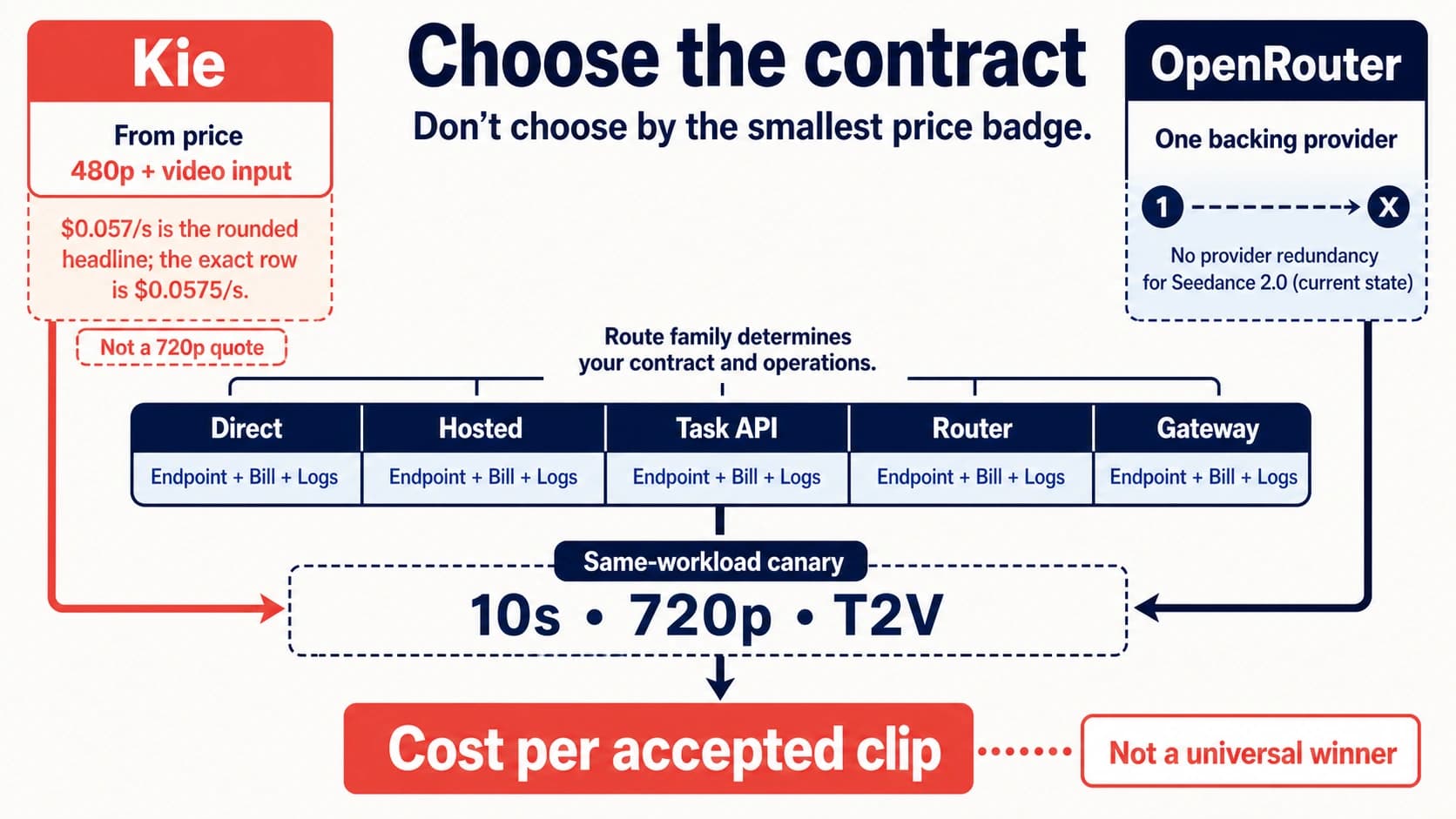
For submit, poll, download, and transport-error handling, continue with the Seedance 2.0 API implementation guide. If the failure is not face-related, use the broader Seedance 2.0 troubleshooting guide. Compare providers only after you know which trusted-asset contract your application needs; a provider accepting a file does not by itself prove authorization, safety, or equivalent ModelArk asset support.
Sources11
External pages this guide links to, in the order they appear. Last updated Jul 18, 2026.
Sources11
External pages this guide links to, in the order they appear. Last updated Jul 18, 2026.
- 1.official ModelArk error tabledocs.byteplus.com/en/docs/ModelArk/1299023
- 2.Seedance 2.0 tutorialdocs.byteplus.com/en/docs/ModelArk/2291680
- 3.current Seedance 2.0 API referencedocs.byteplus.com/en/docs/modelark/1520757
- 4.Comfy-Org integration issuegithub.com/Comfy-Org/workflow_templates/issues/822
- 5.ModelArk preset digital-person librarydocs.byteplus.com/en/docs/modelark/2223965
- 6.private real-human asset guidedocs.byteplus.com/en/docs/modelark/2333589
- 7.creating a verification sessiondocs.byteplus.com/en/docs/ModelArk/2333587
- 8.retrieving the verified asset groupdocs.byteplus.com/en/docs/ModelArk/2333588
- 9.ModelArk Data Authorization Agreementdocs.byteplus.com/en/docs/legal/data_authorization_agreement_modelark
- 10.BytePlus GenAI Acceptable Use Policydocs.byteplus.com/en/docs/legal/acceptable_use_policy_byteplus_genai
- 11.content pre-filter FAQdocs.byteplus.com/en/docs/modelark/content_pre_filter_faq