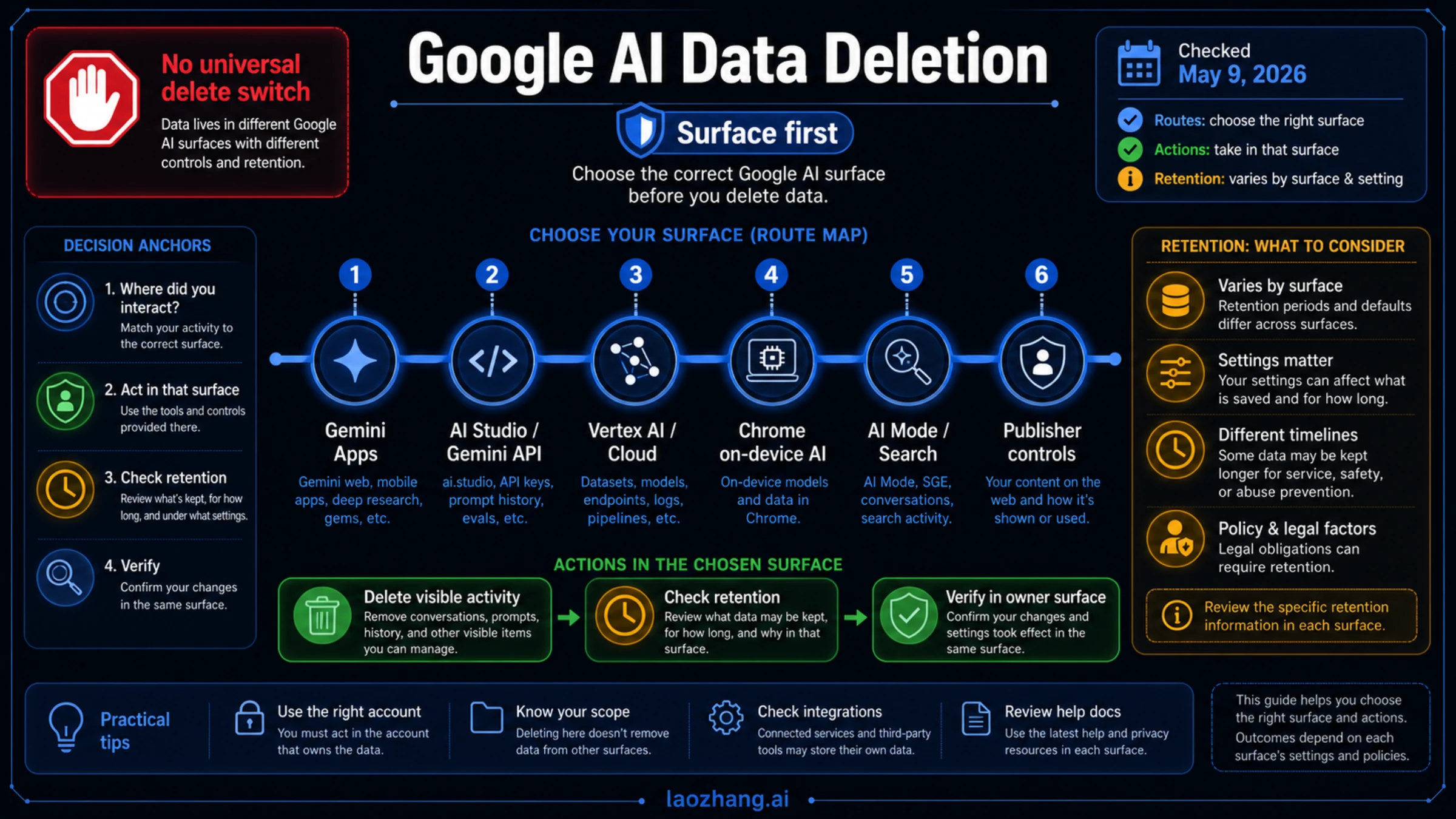
There is no single button that deletes every kind of Google AI data. Start by identifying the surface you used: Gemini Apps, Google AI Studio or Gemini API, Vertex AI / Cloud, Chrome on-device AI, Search AI Mode, or publisher controls.
Checked on May 9, 2026, the deletion paths and retention rules still differ by product. Deleting Gemini activity is not the same as purging a Cloud data store, removing a Chrome local model, changing AI Mode history, or limiting whether site content can be used for Gemini training and grounding.
| If the data is in... | Use this first | What may still matter |
|---|---|---|
| Gemini Apps | Delete Gemini activity or My Activity items | 72-hour service saving, human-review retention, Web & App Activity, connected apps |
| Google AI Studio or unpaid Gemini API | Delete uploads where available and document a deletion request | Submitted content may be used to improve Google products; sensitive uploads need an evidence record |
| Paid Gemini API, Vertex AI, or Cloud data stores | Use Cloud controls, data-store purge/delete, and feature configuration | Paid data-use terms differ, but feature exceptions such as Grounding with Search can still retain data |
| Chrome on-device AI | Delete local model files in Chrome settings | This frees local storage; it does not delete account activity |
| AI Mode, Search, or publisher controls | Delete AI Mode/Search activity or adjust robots, snippets, noindex, and Google-Extended | AI Overviews, Search inclusion, and Gemini training/grounding controls are separate levers |
Stop rule: if sensitive personal or confidential data went into AI Studio or unpaid Gemini API, stop sending more data, capture the date, account, project, prompt, and file details, then choose a paid Gemini API or Vertex AI route for future sensitive workloads before resuming.
Verification is route-specific. Check the same owner surface that stored the data: Gemini Activity or My Activity, the AI Studio project, the Cloud console, Chrome Settings > System, Web & App Activity or Search history, or Search Central crawler controls.
What Google AI data deletion really means
Google uses the word deletion in several different product contexts. In a consumer account setting, deletion usually means removing visible activity from a product view and starting Google's backend deletion process. In Cloud, deletion can mean purging data-store documents, deleting a tuned model, changing feature configuration, or removing logs according to a product's retention rules. In Chrome, deletion can mean removing a local model file from the device. For publishers, controls such as robots.txt, noindex, nosnippet, max-snippet, and Google-Extended govern crawling, display, training, or grounding scope rather than personal account history.
The practical workflow is therefore not "delete Google AI data" as one action. It is:
- Identify the product surface that processed the data.
- Delete the visible activity, file, data store, local model, or history item available in that surface.
- Turn off or narrow future saving where the product offers that control.
- Read the retention boundary for review, safety, security, legal, or feature-specific storage.
- Verify inside the owner surface and keep a record for sensitive submissions.
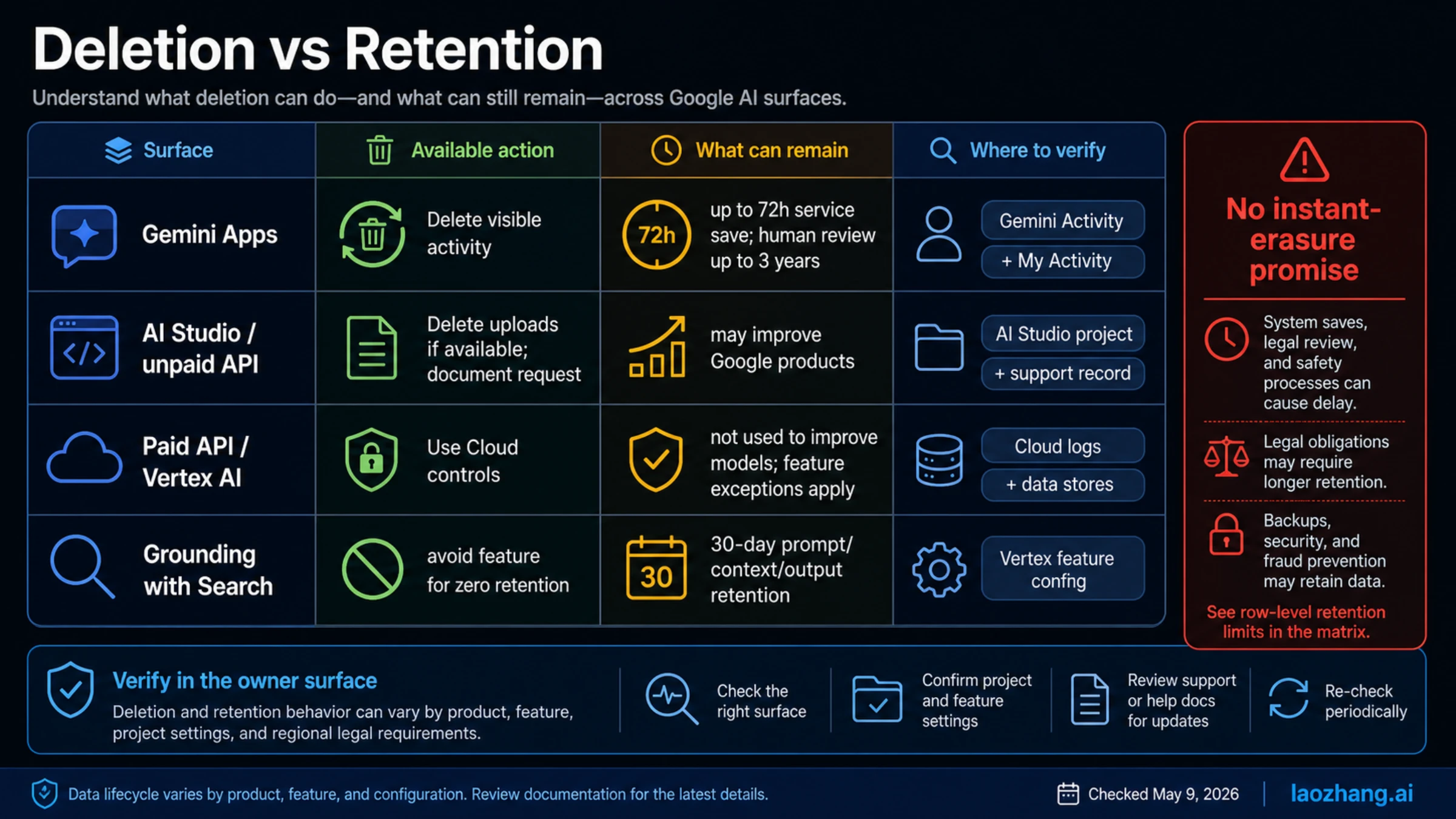
The Google Account deletion explanation says deleted activity is first removed from view, then Google begins removal from active and backup systems. The Google retention policy also makes clear that some information can remain longer for security, fraud prevention, legal compliance, or other product-specific purposes. That is why every deletion step below includes both the action and the boundary.
Gemini Apps: delete activity, then check related settings
Gemini Apps activity is the consumer branch: chats and related activity visible in Gemini activity or Google My Activity. Google's Gemini Apps activity help describes deletion by all time, last hour, last day, custom range, day, or individual item. It also says auto-delete defaults to 18 months unless changed to 3 months, 36 months, or no auto-delete.
Use this order:
- Open Gemini activity from Gemini or My Activity.
- Delete the activity range or item that matters.
- Review the Keep activity setting if you want to reduce future saving.
- Check Google Web & App Activity if the interaction also affected broader account history.
- Check connected apps if Gemini passed data to another Google product.
The boundary matters. Google's Gemini Apps help says that when Keep activity is off, conversations may still be saved with the account for up to 72 hours to provide the service and process feedback. The Gemini Apps Privacy Hub adds a larger boundary: human-reviewed chats and related data can be retained for up to three years and are not deleted when Gemini Apps activity is deleted.
That does not make the delete button useless. It means the delete button is not a full forensic erasure promise. For normal consumer history cleanup, deleting Gemini activity and tightening Keep activity is the right branch. For confidential material already reviewed or shared with connected apps, keep a record of what was submitted and where it may have gone.
AI Studio and Gemini API: split unpaid submissions from paid routes
Google AI Studio and Gemini API are the developer branch. They deserve separate handling because the Gemini API Additional Terms separate unpaid and paid services.
For unpaid services, including Google AI Studio and unpaid Gemini API quota, Google says submitted content and generated responses may be used to provide, improve, and develop Google products and machine-learning technologies. The terms also say human reviewers may process inputs and outputs after they are disconnected from the account, API key, and project. Google explicitly tells users not to submit sensitive, confidential, or personal information to unpaid services.
For paid services, Google says prompts and responses are not used to improve products, though prompts and responses can still be logged for a limited period for safety, security, and legal or regulatory reasons. Google AI Studio is treated as paid for this data-use boundary when used with an active Cloud Billing project or eligible Workspace enterprise account.
That split is the most important developer decision in Google AI data deletion. If the workload contains sensitive or regulated data, the better answer is not only "delete old uploads." The better answer is also "stop using the unpaid route for future sensitive prompts."
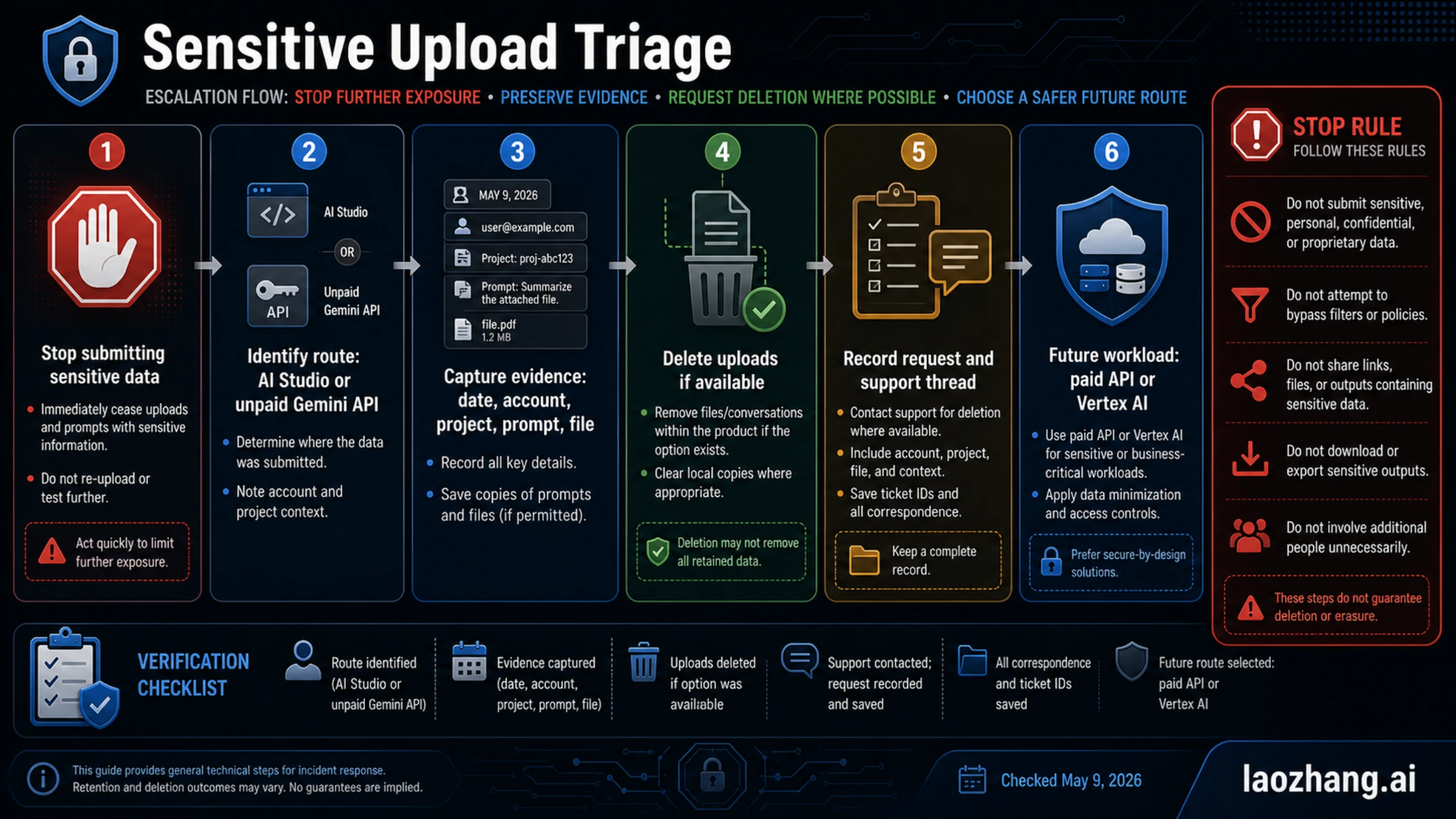
Use this workflow after an accidental sensitive upload:
| Step | Action | Evidence to keep |
|---|---|---|
| Stop | Stop sending more sensitive data through AI Studio or unpaid Gemini API. | Timestamp when you stopped and the product surface used. |
| Identify | Record whether the data went through AI Studio UI, Gemini API, a project, or a third-party tool using a Gemini route. | Account email, project ID, API key owner if known, model, and endpoint or UI location. |
| Remove visible items | Delete uploaded files, chats, prompts, or project artifacts where the UI exposes deletion. | Before/after screenshots or exported logs if policy allows. |
| Request clarification | If sensitive data was submitted, document a deletion or data-use clarification request through the appropriate support channel. | Request text, support thread URL or case number, and dates. |
| Change future route | Move sensitive production work to a paid Gemini API or Vertex AI route, or avoid sending that data to the model. | Billing/project setup and policy approval record. |
| Verify | Recheck the AI Studio project, file list, key usage, and Cloud controls. | Final state and any unresolved retention caveat. |
Do not create a new API key and assume the old submission is gone. API keys are credentials, not deletion tools. If the question is whether unpaid Gemini API is acceptable for a future workload, review the Gemini API free tier and the Gemini API versus Vertex AI route choice before submitting more data.
Vertex AI, Cloud data stores, and feature exceptions
Vertex AI and Google Cloud are not the same privacy contract as unpaid AI Studio. Google Cloud's Vertex AI zero data retention documentation says customer data for managed Vertex AI models is not used to train or fine-tune AI or ML models without the customer's permission or instruction.
That stronger Cloud boundary still has exceptions. The same documentation lists limited retention cases such as abuse-monitoring prompt logging, Grounding with Google Search retention, Grounding with Google Maps retention, Gemini Live API session resumption, and in-memory caching behavior. The Grounding with Google Search branch is especially important: prompts, context, and output can be stored for 30 days for that feature, and zero retention requires avoiding that feature or using the enterprise alternative Google recommends.
For Cloud apps built on AI Applications / Agent Search / Vertex AI Search, deletion can also mean cleaning the data store. Google's delete data stores documentation distinguishes purging a data store from deleting the app. Purging removes the contents while leaving the app, schema, and configuration intact. REST purge supports force=false as a preview of what would be deleted and force=true to actually purge. Website data stores have separate removal behavior, and advanced indexing removals can take 6 to 24 hours.
Use this Cloud checklist:
- Identify whether the data is prompt input/output, uploaded source documents, tuned-model content, logs, cached context, grounding context, or an AI Applications data-store document.
- Check whether the feature has a retention exception, especially Grounding with Google Search.
- Use the Cloud console or documented API to delete, purge, or reconfigure the owner resource.
- For data-store purge, use a preview mode before destructive purge if the API supports it.
- Record project, region, app, data store, model, feature, request ID, and deletion time.
Cloud gives stronger operational controls, but it also makes ownership more specific. "Cloud data" is too broad. The owner might be a data store, a tuned model, a grounding feature, a log, a session-resumption setting, or a cached context path.
Chrome on-device AI: delete local models, not account history
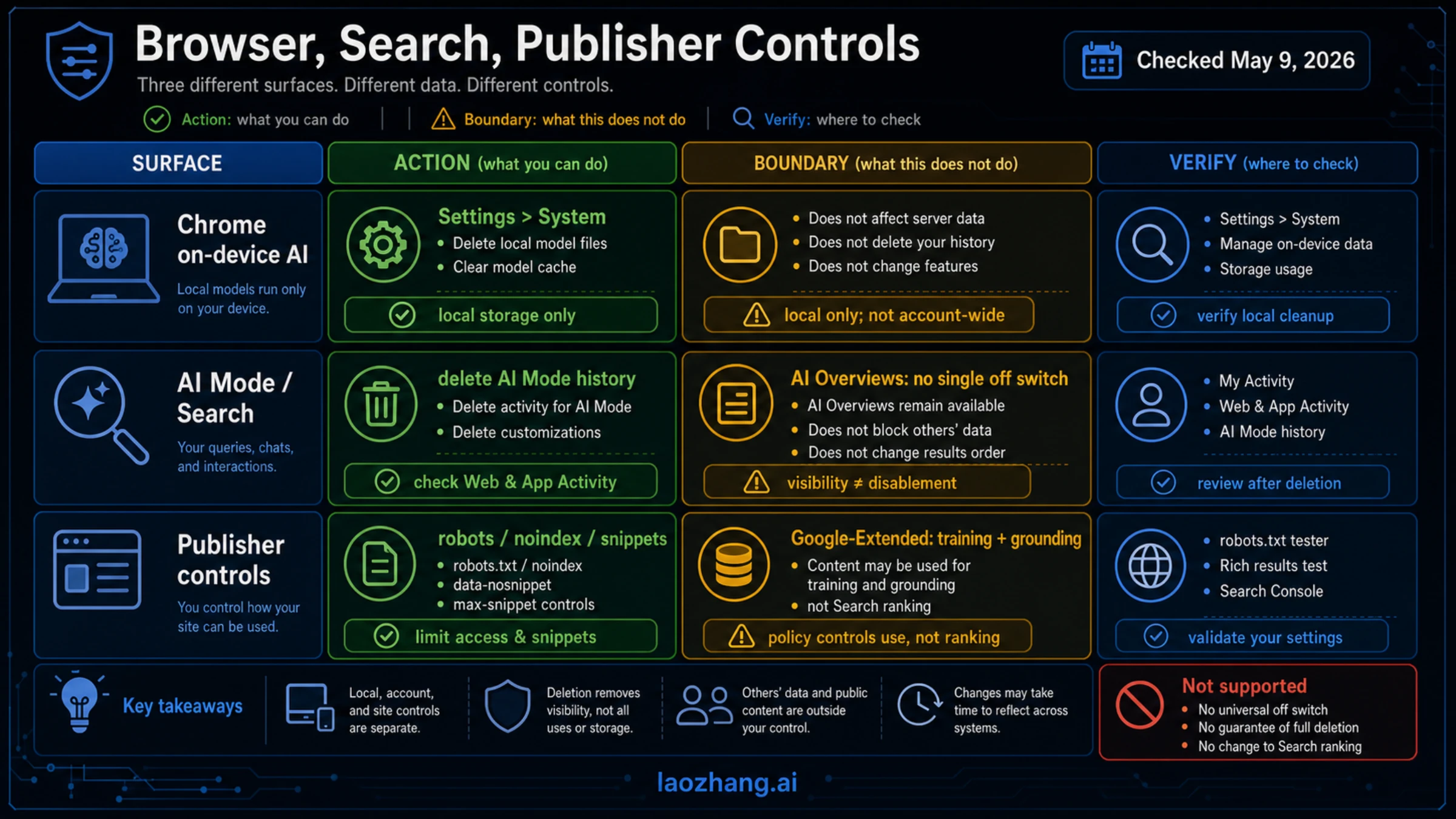
Chrome on-device AI is a local storage branch. Google's Chrome Help page for on-device Generative AI models says Chrome can download on-device models in the background so AI features are ready. Users can turn On-device AI on or off in Chrome Settings > System. Deleting those models frees storage and stops features that rely on them, but turning the setting back on can download models again.
The Chrome developer explanation of built-in model management says Gemini Nano downloads are managed automatically and can be triggered by built-in AI API calls or relevant Chrome features. That is why a local model can appear even when the user did not manually install one.
Treat Chrome model deletion as device cleanup:
- It can remove local model files.
- It can reduce storage usage.
- It can disable dependent local AI features.
- It does not delete Gemini activity, API submissions, Search history, Cloud data, or publisher content.
If the concern is "why is Chrome using disk space," use Chrome Settings > System. If the concern is "what did my Google account save," use My Activity, Gemini Activity, Search history, or Cloud logs instead.
AI Mode, AI Overviews, and Search history
AI Mode and Search AI experiences are not Gemini Apps activity. Google's AI Mode in Chrome help says AI Mode history can be deleted, but deleted AI Mode items may remain visible in My Activity briefly and are automatically deleted within 24 hours. Search history may still need separate cleanup.
Google's AI Mode in Search help says AI Mode can use Web & App Activity and Search history for continuity. It also says interactions with Search and AI experiences can be used to develop and improve generative AI in Search, with reviewer precautions and automated recognition or removal of identifying or sensitive information.
That gives two practical rules:
- Delete AI Mode history for the AI Mode surface.
- Check Web & App Activity and Search history if the same activity affected personalization or continuity.
AI Overviews are a Search feature, not a user-owned Gemini chat archive. There is no single personal "delete all AI Overviews data" switch that works like deleting a Gemini chat. You can manage Search history and personalization, and site owners can manage how their own pages appear or are used in certain contexts, but those are different levers.
Publisher controls: Search appearance is not Google-Extended
For site owners, Google AI data deletion often means "stop Google from using my site content in AI systems." That is not the same as deleting personal account activity.
Google Search Central's AI features and your website says Search controls such as robots.txt, noindex, nosnippet, and max-snippet apply to Search inclusion and snippet display. Those controls can affect Search AI features because they govern how content is crawled, indexed, or displayed in Search.
Google's Google-Extended crawler documentation describes Google-Extended as a robots.txt product token, not a separate HTTP user agent. It controls whether crawled site content may be used for future Gemini model training and grounding in Gemini Apps and Vertex AI API for Gemini. Google also says Google-Extended does not affect Google Search inclusion and is not a Search ranking signal.
Use the right control for the job:
| Site-owner goal | Better control | Boundary |
|---|---|---|
| Keep a page out of Search | noindex or crawling/indexing controls | This affects Search visibility, not necessarily every historical copy. |
| Limit snippets in Search | nosnippet or max-snippet | This controls display, not model training by itself. |
| Limit future Gemini training and grounding use | Google-Extended in robots.txt | This does not remove the page from Search and is not a ranking signal. |
| Remove stale Search content | Search removal or recrawl workflows | Timing depends on recrawl, indexing, and removal systems. |
Do not use Google-Extended as an AI Overviews off switch. Do not use noindex if the goal is only to limit future Gemini training while staying visible in Search. Those choices have different business consequences.
Verification checklist by route
Verification is where most deletion work becomes trustworthy. A deletion action without a verification record is hard to audit later, especially after a sensitive upload or Cloud purge.
Use the owner-surface checklist:
| Route | Verify here | Evidence to save |
|---|---|---|
| Gemini Apps | Gemini Activity and My Activity | deleted item/range, date, Keep activity state, Web & App Activity state |
| AI Studio | Project files, prompts, history, support thread | project ID, file names, prompt excerpts, account, request/case number |
| Gemini API | Project, API key owner, logs, terms route | project ID, model, endpoint, timestamp, paid/unpaid status |
| Vertex AI / Cloud | Cloud console, logs, data-store status, feature config | resource ID, region, purge/delete request, feature exception review |
| Chrome on-device AI | Chrome Settings > System and local storage state | device, Chrome version, setting state, model removed or re-downloaded |
| AI Mode/Search | AI Mode history, Search history, Web & App Activity | deletion time, history state, personalization setting |
| Publisher controls | robots.txt, noindex/snippet directives, Search Central tools | deployed directive, fetch test, recrawl or removal request |
For sensitive data, write down the decision after verification. The record should say what was deleted, what might still be retained, what future route was chosen, and which official source controls the boundary. That record is more useful than repeatedly searching for another universal delete link that does not exist.
Best next move
If your issue is consumer history, delete Gemini activity and then check Web & App Activity. If your issue is sensitive developer input, stop using the unpaid route, document the submission, and move future sensitive work to paid Gemini API or Vertex AI. If your issue is Cloud data, identify the exact resource and feature exception before purging. If your issue is local Chrome disk usage, delete local model files in Chrome settings. If your issue is site content, choose between Search visibility controls and Google-Extended based on whether you want to affect Search appearance or future Gemini training and grounding.
Developer teams deciding between Google AI Studio, Gemini API, and Vertex AI should also read the Gemini API vs Vertex AI route guide. Capacity errors after the privacy cleanup belong in the Gemini API rate-limits guide, not in the data-deletion workflow.
FAQ
Can I delete all Google AI data with one button?
No. Google AI data lives across different product surfaces. Gemini Apps activity, AI Studio submissions, Gemini API usage, Vertex AI data, Chrome local models, Search history, and publisher controls have different owners and retention boundaries.
Does deleting Gemini activity remove human-reviewed chats?
Not necessarily. Google's Gemini Apps Privacy Hub says human-reviewed chats and related data can be retained for up to three years and are not deleted when Gemini Apps activity is deleted. Deleting visible activity is still useful, but it should not be described as total erasure.
What if I pasted private data into Google AI Studio?
Stop submitting more data, record the account, project, date, prompt, file, and model, delete uploads where the interface allows it, and document a support or deletion request. For future sensitive work, use a paid Gemini API or Vertex AI route if Google AI remains the right vendor.
Is paid Gemini API safer than unpaid Gemini API for data use?
The terms are different. Google's Gemini API Additional Terms say unpaid services may use submitted content and responses for product and model improvement. For paid services, Google says prompts and responses are not used to improve products, though limited logging can still occur for safety, security, and legal reasons.
Does Vertex AI have zero data retention?
Vertex AI has stronger Cloud customer-data rules, but "zero retention" depends on feature choice and configuration. Grounding with Google Search, for example, can retain prompt, context, and output data for 30 days. Review the feature exceptions before assuming zero retention.
Does deleting Chrome's on-device AI model delete my Gemini or Search history?
No. Chrome local model deletion is device storage cleanup. It can remove local model files and stop dependent browser features, but account activity lives in Gemini Activity, My Activity, Web & App Activity, Search history, or Cloud systems.
Can I turn off AI Overviews by deleting AI Mode history?
No single personal deletion action turns off every AI Overview. You can delete AI Mode history and manage Search or Web & App Activity, but AI Overviews are part of Search. Site owners use Search and crawler controls for their own content.
Does Google-Extended remove my site from AI Overviews or Search ranking?
No. Google says Google-Extended is a product token for controlling future Gemini model training and grounding use. It does not affect Google Search inclusion and is not a Search ranking signal. Use Search controls such as noindex, nosnippet, or max-snippet for Search appearance decisions.