Gemini Omni 1.1 Flash: Which Model ID Should You Use in Each Google Product?
Gemini Omni now has an official developer route, but Google exposes different model IDs and lifecycle terms across its products. Choose the Google product first, then copy the matching identifier.
On this page
Gemini Omni 1.1 Flash is no longer just an app label or a model to watch. Google now documents a callable Gemini API model, gemini-omni-1.1-flash, for video generation and conversational editing. The model and access details below reflect documentation checked on August 29, 2026.
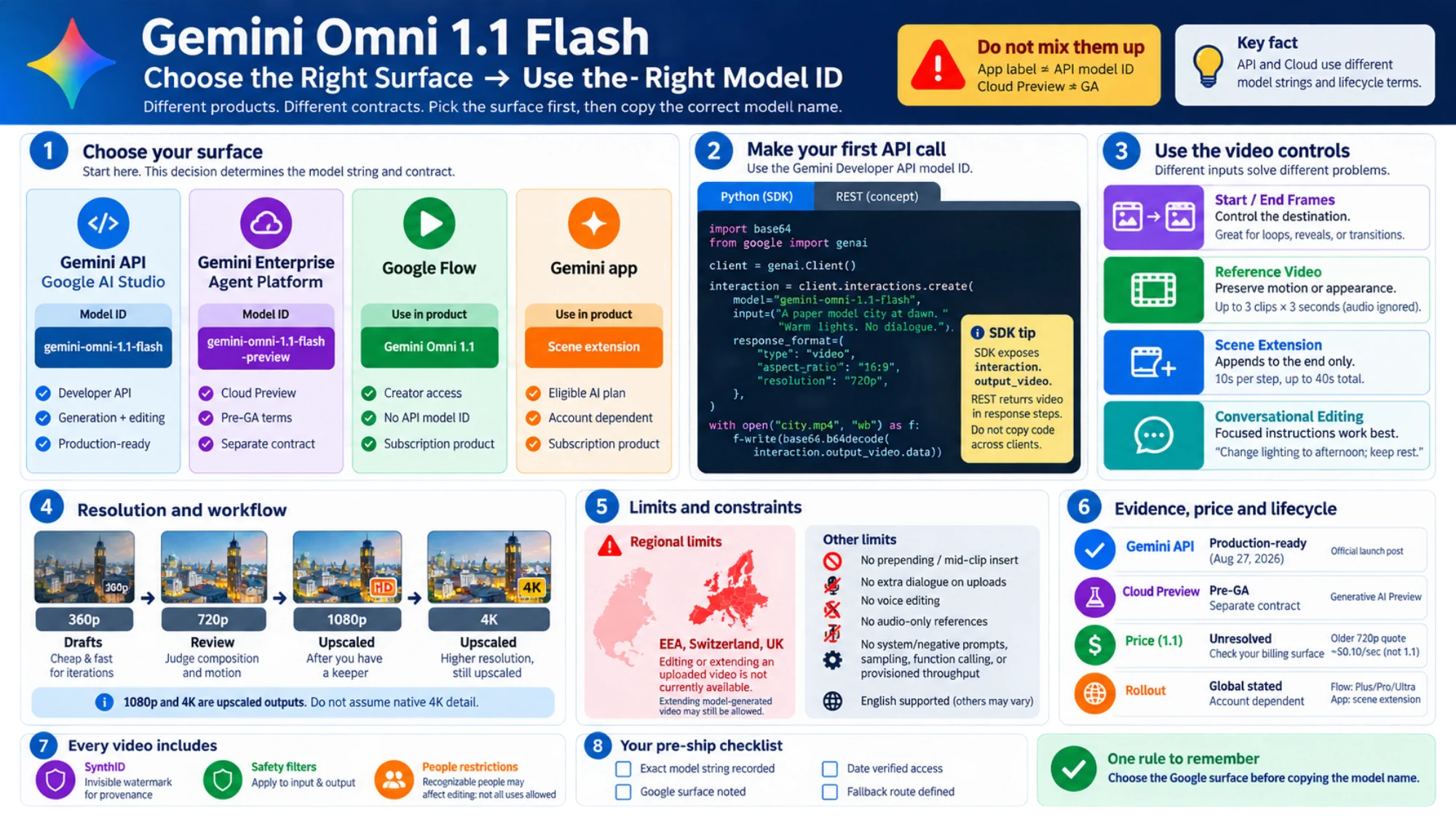
The important qualification is that Google uses different model identifiers and service terms across its products. The Gemini Developer API and Google Cloud use different model strings, while Flow and the Gemini app are subscription products rather than model-ID fields.
| Where you are working | What to use or look for | What it provides |
|---|---|---|
| Gemini API / Google AI Studio | gemini-omni-1.1-flash | Documented Interactions API access for generation and editing |
| Gemini Enterprise Agent Platform | gemini-omni-1.1-flash-preview | A separate Cloud Preview model subject to Pre-GA terms |
| Google Flow | Gemini Omni 1.1 in the signed-in product | Creator access; it does not give you an API model ID |
| Gemini app | Scene extension on an eligible Google AI plan | App access; availability still depends on the account and rollout |
If you copy only one rule, make it this: choose the Google product before copying the model name.
What changed in Gemini Omni 1.1
Google describes Omni 1.1 as an update built for more controllable video work, not merely another text-to-video endpoint. The official launch announcement highlights five changes that affect real workflows:
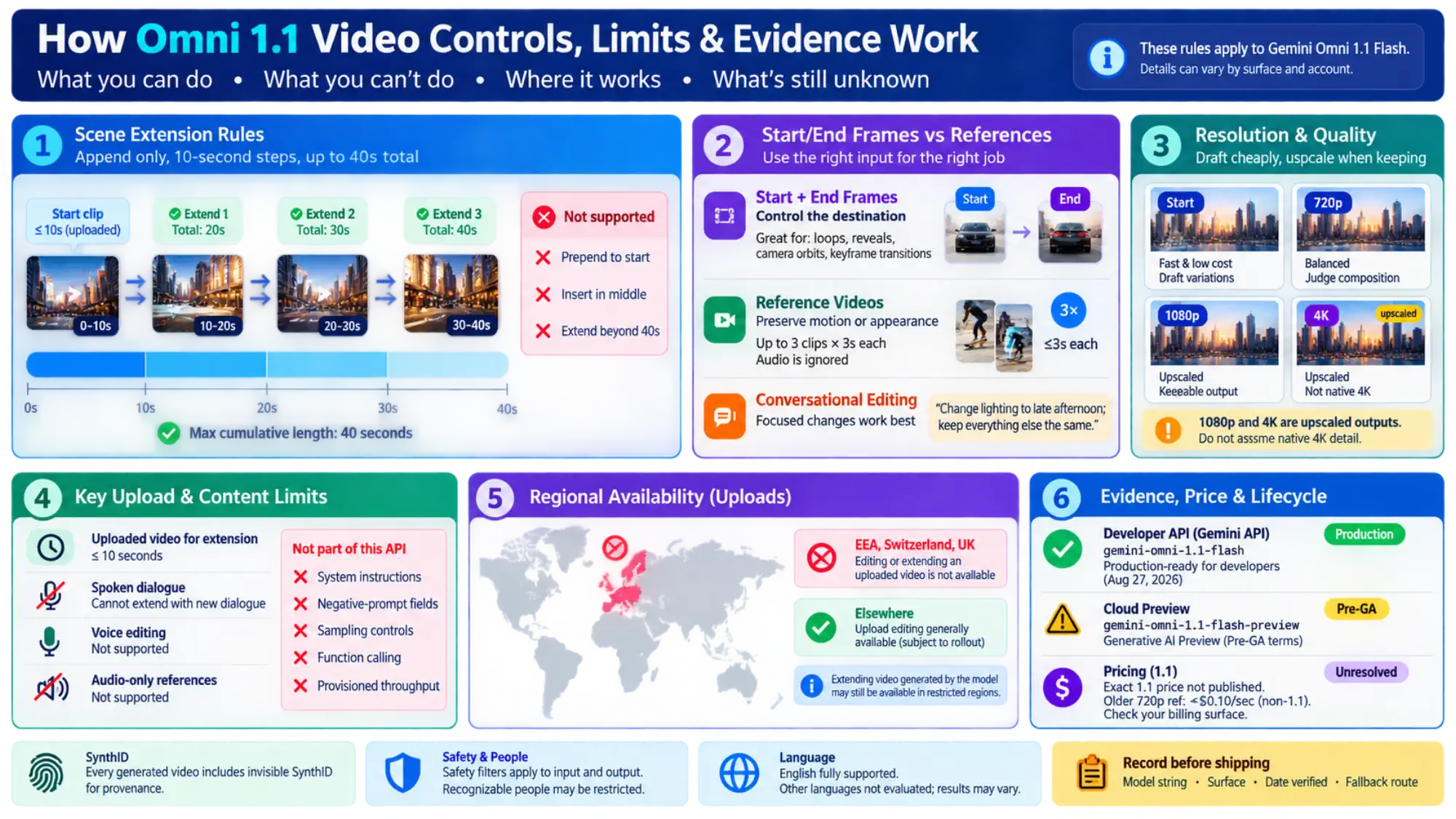
- scene extension can use up to 10 seconds of previous context and continue in 10-second steps, up to 40 seconds cumulatively;
- a start frame and an end frame can define the transition the model should generate;
- 360p drafts reduce the cost and wait of early iterations;
- selected results can be upscaled to 1080p or 4K;
- up to three seconds of reference video can help preserve motion or character context.
The Gemini API guide also documents text, image, audio, and video as useful context for a model that can generate video with audio. Its Interactions API enables a multi-turn editing pattern: keep the previous interaction, describe the change, and let the model revise the video while trying to preserve everything else.
This makes Omni most interesting when generation and revision belong in one conversation. A one-shot clip request is supported, but it does not use the model's most distinctive workflow advantage.
Make a first Gemini API request
For the Gemini Developer API, install Google's current Gen AI SDK, provide your API key through the supported environment configuration, and call the documented model ID. A minimal Python request looks like this:
import base64
from google import genai

client = genai.Client()

interaction = client.interactions.create(
    model="gemini-omni-1.1-flash",
    input=(
        "A continuous, unbroken shot of a paper model city waking at dawn. "
        "Warm window lights switch on one by one. No dialogue."
    ),
    response_format={
        "type": "video",
        "aspect_ratio": "16:9",
        "resolution": "720p",
    },
)

with open("city.mp4", "wb") as output:
    output.write(base64.b64decode(interaction.output_video.data))
The SDK exposes interaction.output_video as a convenience field. Raw REST responses put the video in the response steps, so do not copy the SDK response-reading code into a REST client unchanged.
Start at 720p when you need to judge the actual composition, or use 360p for cheap draft variation. Move to 1080p or 4K only after you have a take worth keeping. Google's wording is explicit that those higher resolutions are upscaled outputs; “4K” should not be interpreted as proof of native 4K detail.
Use the editing controls for the right job
Different inputs solve different problems.
Start and end frames are useful when the destination matters: a loop, a product reveal, a camera orbit that must finish on a chosen composition, or a transition between two designed keyframes.
Video references are useful when motion or appearance should carry into a new scene. The API supports up to three reference clips of up to three seconds each, and ignores their audio. It is not a multi-video reasoning system; feeding unrelated clips may degrade the result.
Scene extension appends content to the end. It cannot prepend a scene or insert material in the middle. Uploaded videos for extension must normally be 10 seconds or shorter. If you are extending a video that Omni generated in a previous interaction, keeping the previous_interaction_id is what preserves the multi-turn workflow.
Conversational editing works best with focused instructions such as “change the lighting to late afternoon; keep everything else the same.” Long replacement prompts can accidentally invite a wider rewrite.
Check the limits before uploading footage
The most consequential limitation depends on where you are and what you upload.
For users in the European Economic Area, Switzerland, and the United Kingdom, the API documentation says editing or extending an uploaded video is not currently available. Extending video generated by the model remains a different case. The same regional boundary applies to some uploaded-image editing involving minors.
Other current limits include:
- an uploaded video containing spoken dialogue cannot be extended with additional dialogue;
- voice editing is not supported;
- audio-only references are not supported;
- extension adds to the end of a clip only;
- system instructions, negative-prompt fields, sampling controls, function calling, and provisioned throughput are not part of this API;
- English is fully supported, while Google says other prompt languages have not been evaluated and may vary.
Every generated video includes invisible SynthID for provenance. Safety filters apply to both input and output, and restrictions around recognizable people can affect editing requests. A model accepting an upload does not imply that every real-person use is permitted.
Check pricing and release status for each product
Google's August 27 launch post calls the Gemini API update production-ready for developers. Google Cloud, however, labels its own gemini-omni-1.1-flash-preview model as a Generative AI Preview offering under Pre-GA terms. Those statements can both be true because they describe different services.
Pricing needs the same care. On August 29, 2026, Google's public Gemini Developer API pricing page still exposed a machine-readable row for the older gemini-omni-flash-preview, with an effective 720p video price of about $0.10 per second. That row did not clearly identify 1.1. Treat it as an older reference, not a confirmed Gemini Omni 1.1 quote. Check the billing page for the exact model and account before estimating production cost.
Google says Omni 1.1 is available in Flow to Google AI Plus, Pro, and Ultra subscribers globally, and that scene extension is available to those tiers in the Gemini app. A global rollout statement still does not guarantee that a particular account, age profile, workspace, or UI has the feature at this moment.
A practical decision rule
Use the Gemini API route when you need programmatic, multi-turn video generation or editing and can accept the documented safety, language, and upload constraints. Use Flow or the Gemini app when your work is interactive and account-based rather than embedded in your own application. Use the Cloud Preview model only when its Enterprise Agent Platform contract, quota model, and Pre-GA terms fit your deployment.
If you are comparing stable video-generation routes and costs rather than conversational editing, the Veo 3 pricing guide is the more relevant next step. If the immediate blocker is billing or whether a Gemini API key is actually free, use the Gemini API free-tier guide.
Before shipping, record four things in your own configuration: the exact model string, the Google product, the date you verified access, and the fallback service or model. That small record prevents an app label, a Cloud Preview ID, and a Developer API model from quietly collapsing into one unsupported assumption.