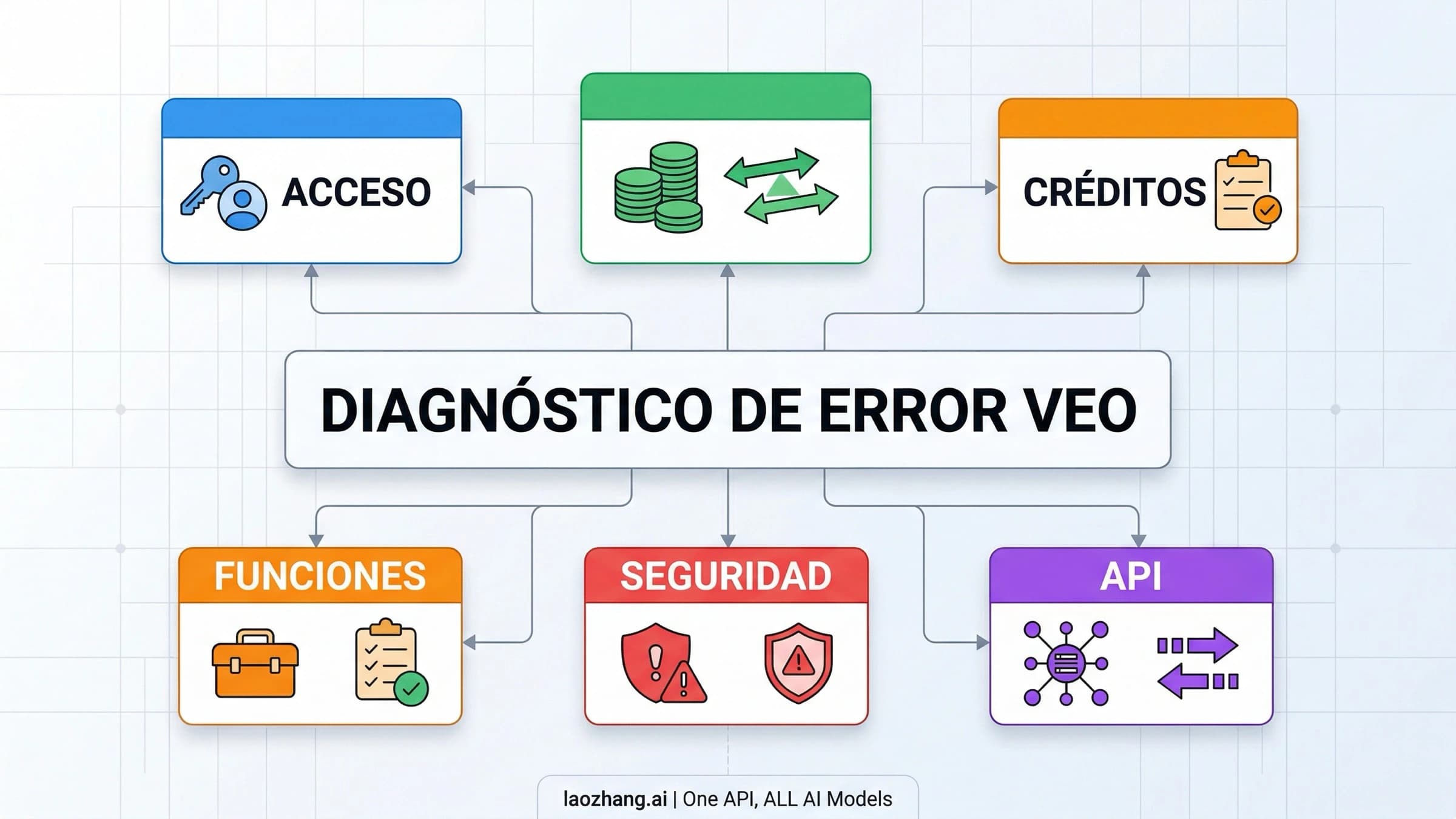
Seedance 2.5: cómo diagnosticar errores, cola y timeout sin duplicar tareas
Si Seedance 2.5 falla, entra en cola o agota el tiempo, busca primero historial o task ID. Sigue la tarea queued/running y usa la evidencia exacta de failed/expired antes de reenviar.
En esta página
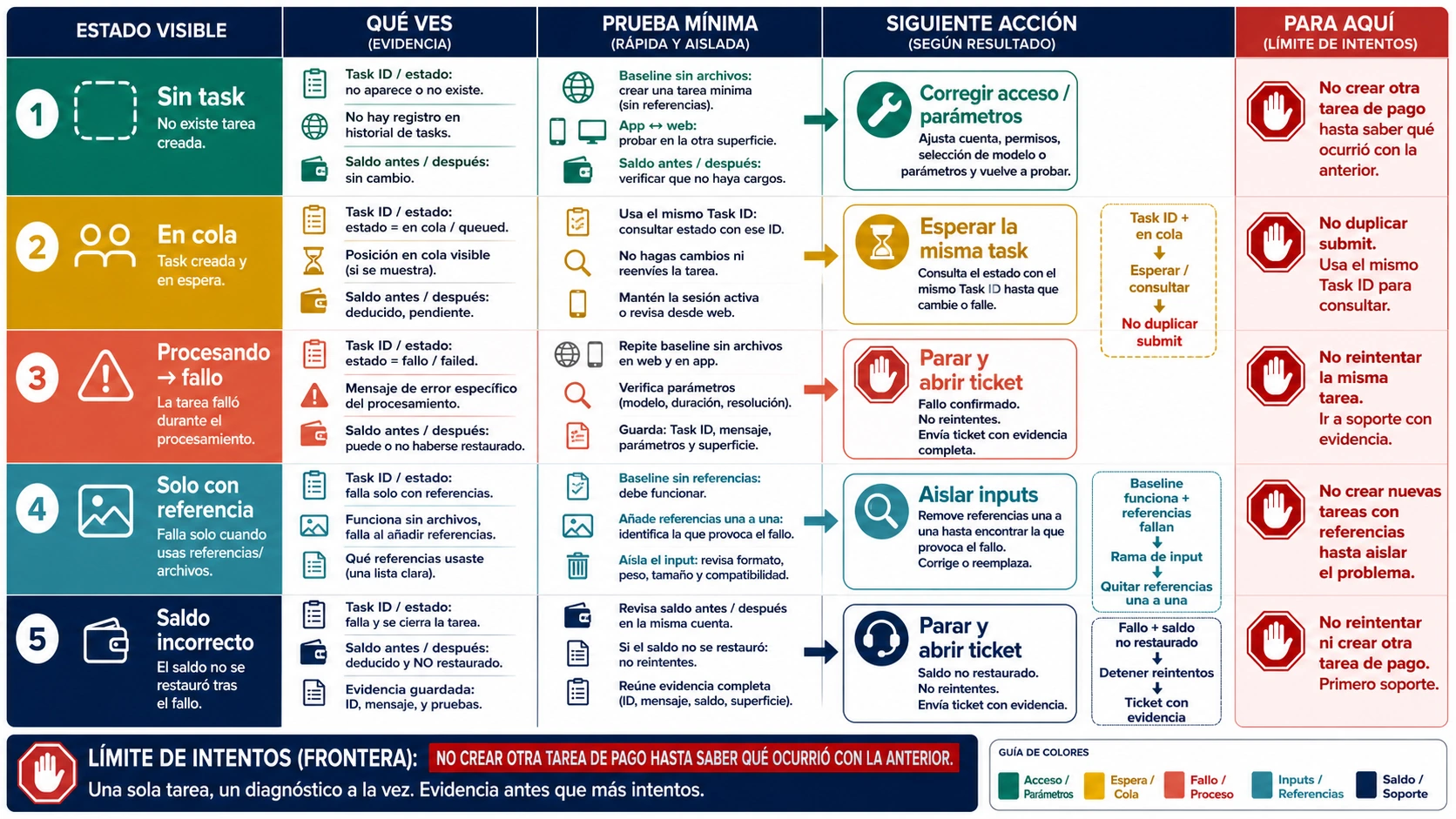
Cuando Seedance 2.5 no funciona, la decisión útil no es «¿qué truco pruebo?», sino ¿reintento, espero o paro? La respuesta depende de la ruta concreta y de si existe evidencia de aceptación. En API suele ser una task ID con status sin procesar; una app de consumo puede ocultarla y mostrar solo historial, registro de tarea o el mensaje exacto de la interfaz.
- Sin task ID ni historial/registro de aceptación: entra en la rama previa a la aceptación; revisa acceso, cuenta, modelo, saldo/cuota y parámetros.
- Con task ID en
queuedorunning: la tarea sigue viva; consulta esa misma tarea y no envíes una copia. - Con task ID en
failed: guarda el código exacto, mensaje y Request ID antes de cambiar nada. - En una app que oculta IDs: usa su historial, estado de tarea y texto exacto; no concluyas que fue rechazada solo porque no ves el ID raw.
- Con
network errorpero sin evidencia de transporte: todavía no sabes si el dueño es tu red, la interfaz, la cuenta o el servicio. - Con saldo incoherente: detén los intentos de pago y prepara pruebas para soporte.
No hay aquí una afirmación de que Seedance esté caído o funcionando globalmente. Una incidencia en una entrada no demuestra el estado de las demás.
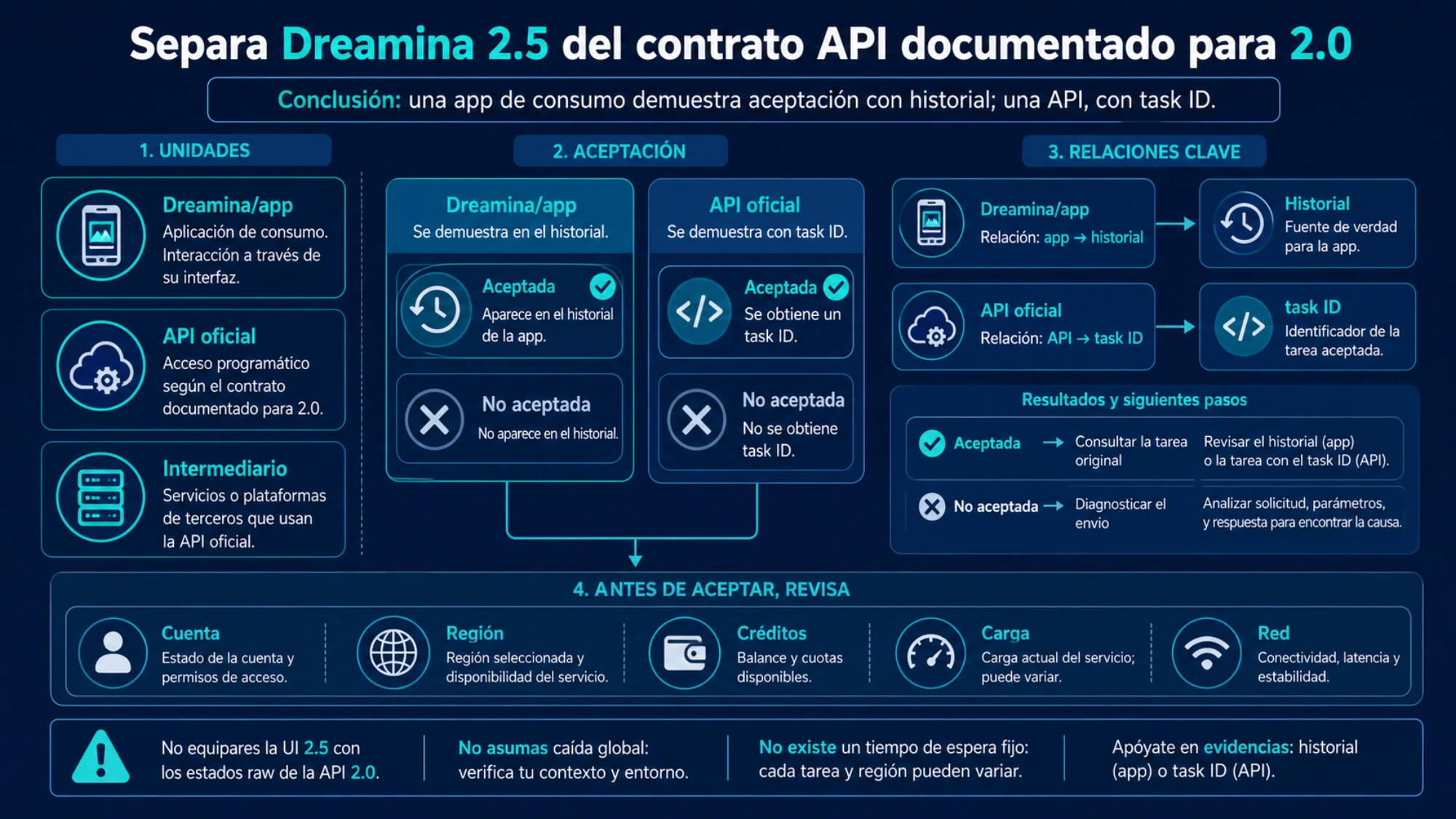
Separa Dreamina 2.5 del contrato API documentado para 2.0
La página oficial de Seedance 2.5 en Dreamina presenta actualmente 2.5 como modelo seleccionable en AI Video. Sin embargo, la referencia actual de creación de tareas de BytePlus describe de forma explícita las capacidades API de la serie Seedance 2.0. Por eso, el historial de Dreamina 2.5 no expone necesariamente los estados raw de esa API, y una etiqueta «API 2.5» de un intermediario no prueba el mismo modelo, la misma cola ni el mismo contrato de errores.
Guarda la etiqueta exacta del modelo, la URL de la ruta, la cuenta y el modo de entrada. En una app de consumo, busca la generación en el historial; en API, conserva la task ID y consulta esa tarea. Así se distingue un timeout de pantalla del estado terminal expired de una API.
Si no existe ningún registro, la ayuda de acceso a funciones de IA de CapCut separa región, créditos, membresía, versión y navegador. Para una pantalla atascada en Thinking, CapCut distingue carga, complejidad del input, conexión, uso y sesión. Es diagnóstico general de la interfaz, no un SLA de cola de Seedance 2.5.
El semáforo empieza por la ruta, no por el mensaje
La página de lanzamiento oficial de Seedance 2.0 identifica Jimeng, Doubao y Volcengine Ark como rutas oficiales de experiencia. Además existen integraciones en otras aplicaciones y wrappers. Cada una puede tener su propio acceso, moderación, cola, registro de tareas y sistema de créditos.
Antes de borrar caché o cambiar de navegador, apunta:
- plataforma o proveedor y URL de entrada;
- cuenta y región que muestra la propia plataforma;
- nombre exacto del modelo y modo, por ejemplo texto a vídeo o vídeo con referencias;
- mensaje literal, hora local y si aparece una task o un historial de generación;
- saldo antes de otro intento.
Si no tienes claro si estás en una ruta oficial o en un tercero, resuelve primero esa decisión con la guía española de acceso a Seedance 2.0. Cambiar de proveedor en mitad de la prueba puede hacer desaparecer el síntoma, pero no explica la causa original.
Sin task ID ni registro de aceptación: no hay cola demostrada
Si pulsas generar y no aparece task ID, historial, tarea nueva ni mensaje de aceptación, no hay evidencia de que el render empezara. Según la ruta, el propietario puede ser:
- sesión caducada o modelo no habilitado para la cuenta;
- saldo, cuota, rate limit o concurrencia;
- modelo, endpoint o campos obligatorios incorrectos;
- combinación de inputs no admitida;
- solicitud que el navegador no llegó a enviar;
- autenticación o validación de API.
La acción correcta es buscar el rechazo de creación, no repetir el botón. En una interfaz de consumidor, revisa el historial, los avisos de cuenta y el soporte de esa plataforma. En API, conserva HTTP status, cuerpo completo de error y Request ID. Un 400 aislado no te dice si falta un parámetro o intervino una política; un 429 aislado tampoco demuestra una caída general.
Con task ID o registro de aceptación: sigue el trabajo que ya existe
La documentación oficial para crear tareas de vídeo en Ark y la referencia para consultar una tarea describen un flujo asíncrono. En esa ruta oficial aparecen task ID y estados raw como queued, running, succeeded, failed y expired. Una app de consumo puede traducirlos, agruparlos o mostrar solo historial; en ese caso manda el registro y el texto exacto que sí expone.
Son estados de Ark, no un diccionario universal para todas las aplicaciones, pero la frontera terminal/no terminal es fundamental:
queuedsignifica que la tarea fue aceptada y espera ejecución.runningsignifica que está procesándose.succeededpermite recuperar el resultado.failedtermina la tarea con un objeto de error.expiredexige revisar el plazo configurado en esa ruta antes de crear otra.
No envíes una segunda tarea porque la primera tarde más de lo esperado. Consulta por ID con la cadencia que documente tu proveedor y usa sus reglas de cancelación. Las prioridades y plazos de Ark no se deben convertir en un tiempo de espera fijo para CapCut, Jimeng, Adobe u otro wrapper.
Una prueba canario, en la misma entrada
La prueba canario sirve para quitar variables, no para crear un vídeo útil. Mantén la misma cuenta, ruta y modelo. Quita todos los archivos y usa una escena inocua de una sola frase, por ejemplo:
Una taza de cerámica azul gira despacio sobre una mesa blanca, cámara fija, sin personas, marcas, texto ni voz.
Elige la duración básica más corta y una resolución baja que ofrezca esa misma plataforma. No cambies a otro proveedor durante la prueba y no encadenes intentos. Guarda la task ID o ID de historial, el estado visible y el resultado del único canario controlado.
La lectura es sencilla:
- El canario funciona: el acceso básico está disponible; vuelve al proyecto y añade un solo input cada vez.
- No aparece task ID ni registro de aceptación: sigue en la rama de cuenta, acceso, validación o cliente.
- Queda
queued/running: el ciclo asíncrono funciona; sigue ese ID. - Termina
failed: el código exacto manda; no reescribas el prompt todavía.
Si pruebas desde otra plataforma, habrás hecho una comparación de rutas, que puede ser útil después, pero ya no es el canario de la ruta original.
failed no es un diagnóstico: abre el objeto de error
El catálogo oficial de errores de Ark separa validación, autenticación y acceso, privacidad o contenido sensible, distintas ramas de cuota/rate/queued-task limit, ServerOverloaded y errores internos. Muchos incluyen Request ID.
Eso cambia la respuesta práctica:
- privacidad o policy: no automatices una reformulación para saltar el bloqueo; cambia el material o detén el caso;
- parámetro ausente o inválido: compara el body con la versión actual de la documentación;
- auth o access: revisa credencial, endpoint y permiso del modelo;
- quota, rate o concurrencia: reduce la creación de tareas y verifica el contrato de esa cuenta;
- overload o 5xx: antes de aplicar retry, comprueba si ya existe una task para no duplicarla.
Para soporte, HTTP 429 es demasiado poco. Conserva el código completo, mensaje, Request ID, model ID, endpoint, hora y task ID. En una app que oculta esos campos, captura el mensaje literal y el ID de historial que sí exponga.
El texto network error no demuestra un fallo de tu Wi-Fi
Empieza por router, DNS o navegador solo cuando haya evidencia de que la solicitud no salió: fallo de conexión, DNS, TLS, petición cancelada o ausencia completa de task/historial. Si el servidor creó una tarea y luego devuelve failed, existe una respuesta del backend y el mensaje de red puede ser solo una etiqueta genérica de la interfaz.
Haz la comparación en este orden:
- busca task ID o registro en la misma entrada;
- ejecuta el canario en esa entrada;
- compara web y app con la misma cuenta, si ambas son rutas oficiales disponibles;
- comprueba si otros modelos funcionan en la misma aplicación;
- solo entonces decide si el problema apunta a cliente, integración, cuenta o servicio.
Que la app funcione y la web falle reduce la probabilidad de un problema de cuenta completa. Que otros modelos funcionen y Seedance falle reduce la probabilidad de una caída de tu conexión. Ninguna prueba, por sí sola, demuestra una incidencia global.
Si solo falla al añadir una referencia
Un text-to-video correcto seguido de un fallo con imagen, vídeo o audio no se resuelve cambiando cinco cosas a la vez. Parte del canario que funciona y añade un único archivo. Repite la comparación con una sola variable nueva.
La documentación actual de Ark detalla combinaciones multimodales y señala, entre otros límites, que el audio necesita una referencia visual en determinados flujos y que las referencias con personas reales tienen restricciones específicas. Es un contrato de Ark; otra aplicación puede aplicar una interfaz o moderación distinta.
- Si falla una imagen concreta, revisa modo, archivo y posible información personal.
- Si falla al añadir audio, confirma que el flujo admite esa combinación de inputs.
- Si solo falla el proyecto completo, reduce las referencias hasta encontrar el primer cambio que rompe la tarea.
- Si aparece un código de política, no busques una variante para eludirlo.
Cuando el caso incluye una persona identificable, usa la guía de Seedance 2.0 API y personas reales. Si el canario funciona y el problema es cómo describir una escena válida, pasa a la guía de prompts de Seedance 2.0.
Créditos: una notificación no sustituye al saldo
Un aviso de credits returned y el saldo real son dos evidencias diferentes. Tampoco existe una regla de reembolso universal entre todas las rutas de Seedance 2.0. Si el saldo no cuadra, no lances otra tarea de pago para «ver si esta vez funciona».
Prepara un paquete de escalado con:
- plataforma, URL y versión de app o navegador;
- cuenta identificada de forma no sensible y región mostrada;
- modelo, modo y task ID o ID de historial;
- fecha, hora local y zona horaria;
- estado, código, mensaje y Request ID exactos;
- capturas del saldo y movimiento antes/después;
- prompt canario y su resultado;
- pasos mínimos para reproducir el fallo;
- para referencias, tipo, tamaño y modo sin publicar el archivo sensible.
No publiques API keys, datos completos de pago, documentos de identidad ni imágenes privadas en foros. Pide primero que soporte investigue por task ID o registro de generación y usa solo el canal seguro que la propia plataforma indique.
Reglas de parada: cuándo no volver a generar
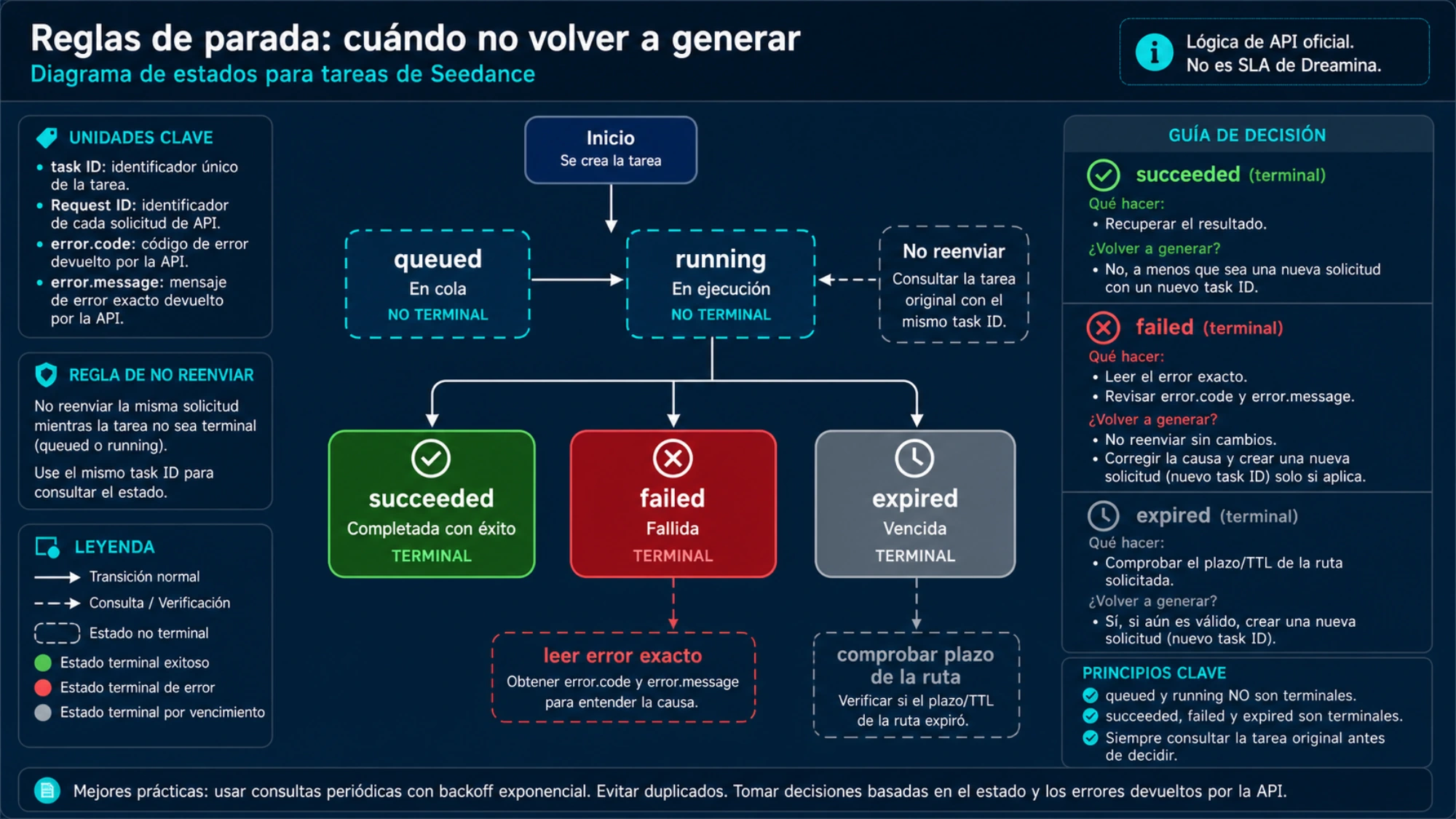
Para y espera o escala si ocurre cualquiera de estos casos:
- hay una task o registro de consumidor en un estado no terminal equivalente a
queuedorunning; - todavía no has guardado el error de una task
failed; - el código indica política, privacidad o persona real;
- el saldo no refleja la devolución anterior;
- el canario de la misma ruta falla mientras otras funciones de la cuenta sí responden;
- el modelo no está habilitado para tu cuenta o región en esa plataforma.
No uses una noticia antigua ni un hilo de comunidad para declarar que Seedance 2.0 está caído hoy en España. Comprueba la ruta concreta y formula el resultado como incidencia de esta integración/cuenta mientras no exista una comunicación first-party más amplia.
Rama para desarrolladores: observabilidad antes de cambiar de proveedor
Si tu problema está en una integración programática, separa submit, consulta de estado y descarga. La guía española de Seedance 2.0 API desarrolla ese contrato, y la comparación de proveedores solo tiene sentido después de demostrar que el owner es la ruta API actual.
LaoZhang API puede considerarse solo si ya has confirmado que trabajas en una ruta API/wrapper y necesitas task IDs y estados asíncronos visibles. Su documentación actual de Seedance 2.0 describe POST /v1/videos y GET /v1/videos/{task_id}, pero el acceso no está habilitado para todas las cuentas. No soluciona un bloqueo de cuenta, prompt, referencia o interfaz en Jimeng, Doubao o una app de consumo.
Aviso: laozhang.ai es un servicio propio. Sus precios son nuestra tarifa, no una comparación independiente.
La regla final es la que evita más pérdidas: sin task ID ni registro de aceptación, diagnostica el envío; con cualquiera de esas evidencias, diagnostica ese trabajo existente. El ID/status raw es habitual en Ark/API; en consumo usa historial y texto exacto. Un canario en la misma ruta y un paquete de evidencias valen más que una cadena de reintentos sin dueño.
Fuentes8
Páginas externas que cita esta guía, en el orden en que aparecen. Última actualización: 4 ago 2026.
Fuentes8
Páginas externas que cita esta guía, en el orden en que aparecen. Última actualización: 4 ago 2026.
- 1.página oficial de Seedance 2.5 en Dreaminadreamina.capcut.com/seedance/seedance-2-5
- 2.referencia actual de creación de tareas de BytePlusdocs.byteplus.com/en/docs/modelark/1520757
- 3.ayuda de acceso a funciones de IA de CapCutcapcut.com/help/ai-function-not-working-after-login
- 4.CapCut distinguecapcut.com/help/stuck-at-the-thinking-phase
- 5.lanzamiento oficial de Seedance 2.0seed.bytedance.com/en/blog/seedance-2-0-official-launch
- 6.documentación oficial para crear tareas de vídeo en Arkdocs.volcengine.com/docs/82379/1520757
- 7.referencia para consultar una tareadocs.volcengine.com/docs/82379/1521309
- 8.catálogo oficial de errores de Arkdocs.volcengine.com/docs/82379/1299023